
You have the sweetest dog photo on your iPad, but the journal page around it still feels empty. A few dog digital stickers can turn that blank corner into a puppy-themed memory without squeezing out the story you wanted to write.

I picked three Creative Fabrica packs with different visual jobs: expressive character scenes, dachshund flairs, and round dog portraits. These are decorative image packs for digital pages, not a pet-care planner or a collection of ready-made walk reminders. One set also includes cats, so the differences matter more than the word “dog” in the title.
The 3 Best Dog Digital Stickers for Different Journal Styles
Start with the kind of page you want to finish. The kawaii pack supplies little scenes; the two flair sets supply compact circular accents. Both flair sets come from Wetfish Designs, but their artwork is different: long-bodied dachshunds in Set One, faces with varied markings in Set Two.
TL;DR: Three PNG packs for an iPad journal: expressive puppy scenes with some cats, 10 dachshund flairs, and 12 round dog portraits. None promises a native GoodNotes sticker book. Choose by artwork and page purpose, not by an assumed breed list.
Quick Picks
- Best for expressive puppy scenes: Kawaii Cute Dog Stickers
- Best for dachshund photo pages: Little Dog Flairs Set One
- Best for varied dog portraits: Little Dog Flairs Set Two
- Kawaii Cute Dog Stickers – Best for expressive puppy scenes
- Little Dog Flairs Set One – Best for dachshund photo pages
- Little Dog Flairs Set Two – Best for varied dog portraits
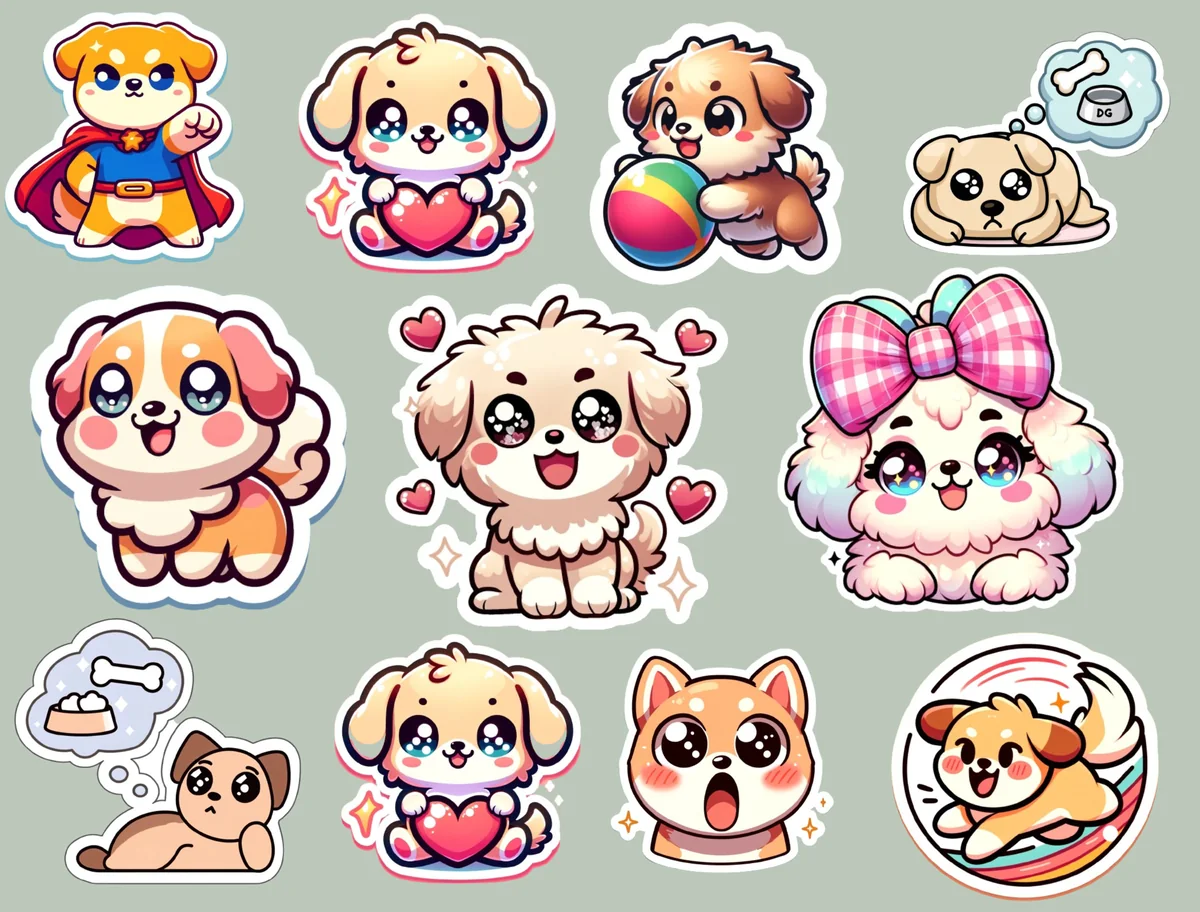
Best for expressive puppy scenes
1. Kawaii Cute Dog Stickers
Layouts: Mixed dog and cat character scenesFormat: Pre-cropped PNG
Best for: playful journal corners and mixed dog-and-cat pages. Designed by ThePlannersDelight.
- Pre-cropped PNG images
- For digital journals in GoodNotes and Notability
- Colorful characters with large eyes, hearts, a ball and a superhero outfit
- Mixed animal selection: the main preview includes cats as well as dogs
The little scenes give this pack a different job from the round flairs below. A puppy with a ball can sit beside a weekend memory, while a heart-holding character makes a warm photo caption accent. I like the white outlines for a colorful journal, but this is not an exclusively dog collection. Choose it for these expressive characters; the exact file count is not stated.
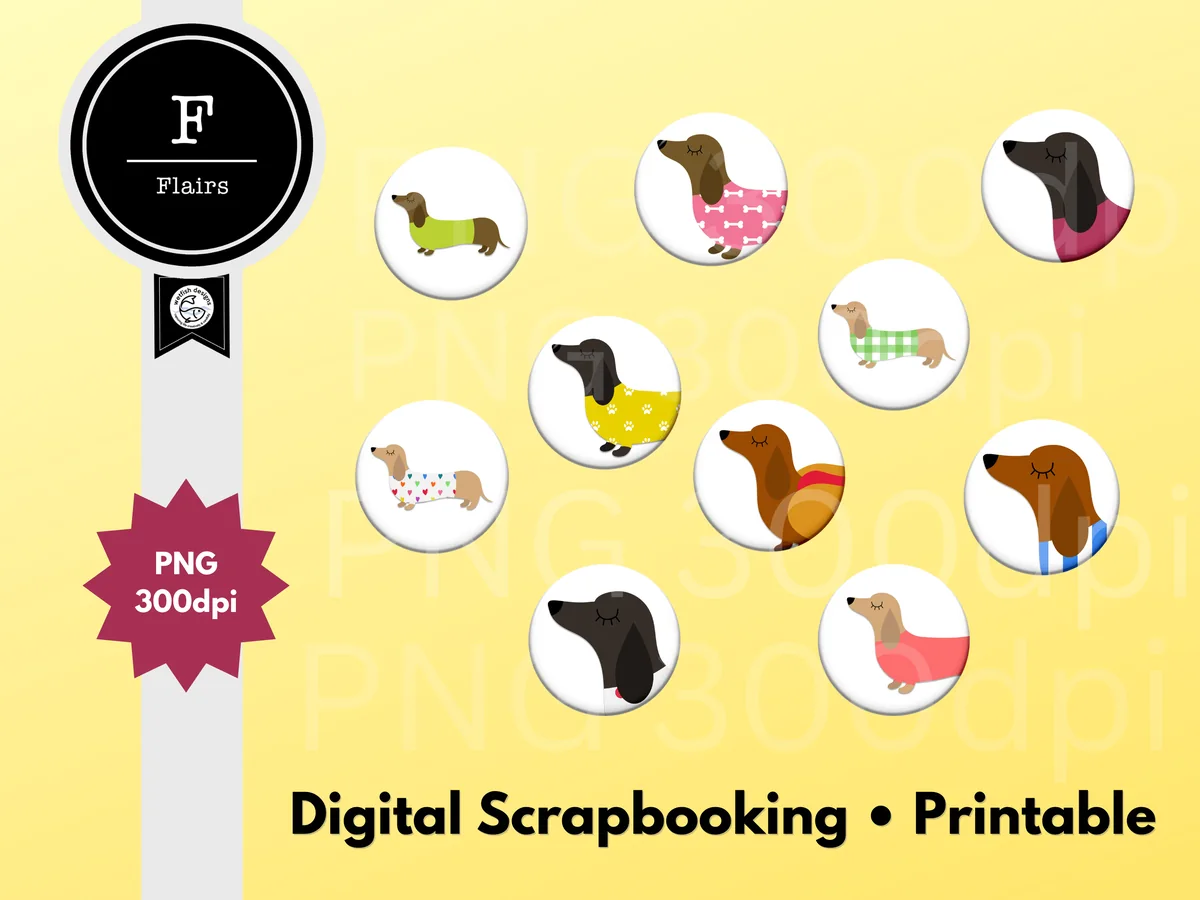
Best for dachshund photo pages
2. Little Dog Flairs Set One
Layouts: Round dachshund illustrationsFormat: 10 individual PNG, 300 DPI
Best for: sausage-dog memories and small photo accents. Designed by Wetfish Designs.
- 10 flairs, each saved individually as a PNG
- 300 DPI PNG artwork
- Dachshund-style bodies and long-eared head portraits in circular badges
- For digital scrapbooking and GoodNotes planners
This is the most focused choice if your journal revolves around a dachshund. The sweaters and long bodies are more distinctive than a generic paw icon, and the white circles give the set a tidy repeated shape. The photo mockup suggests a simple use: one badge beside a picture, rather than a border of ten. These are decorative PNGs, not walk, feeding or appointment labels, and the preview photographs are examples of a layout rather than promised bonus files.

Best for varied dog portraits
3. Little Dog Flairs Set Two
Layouts: Round dog faces with varied markingsFormat: 12 individual PNG, 300 DPI
Best for: a repeating round accent with different dog faces. Designed by Wetfish Designs.
- 12 flairs, each saved individually as a PNG
- 300 DPI PNG artwork
- Round dog faces with varied ears, markings and coat colors
- For GoodNotes pages and digital scrapbooking
Set Two swaps full-body dachshunds for faces, so the repeated circle feels more like a small portrait badge. The preview includes spotted, gray, brown and black-and-tan designs, plus a pink face. That variety suits a journal about several dogs. The faces are fixed illustrations, so look for a design you like rather than expecting an exact breed match.
Quick Comparison
| Sticker pack | Artwork | Files | Best page |
|---|---|---|---|
| 1. Kawaii Cute Dog Stickers | Character scenes | Pre-cropped PNG; count unstated | Colorful journal |
| 2. Little Dog Flairs Set One | Dachshund flairs | 10 individual PNG; 300 DPI | Pet photo spread |
| 3. Little Dog Flairs Set Two | Round face portraits | 12 individual PNG; 300 DPI | Memory headings |
Which Pack Fits the Page You Already Have?
A sticker can look lovely in a shop preview and still be wrong for your layout. Before choosing a pack, look at the space beside your writing or photo. A tall character scene and a small round badge ask for different amounts of room.
- A colorful daily journal: choose the kawaii characters when you want an expressive accent. Keep the character beside the entry instead of behind the handwriting. The mixed dog-and-cat artwork suits an animal theme more than a strictly dog-only collection.
- A dachshund photo page: Set One has the clearest visual identity. The long bodies and sweaters suit a page about a particular little dog, especially when the photo remains the main feature.
- A compact heading accent: Set Two repeats the same circular shape with different faces. Use that consistency to tie together separate entries while leaving the photographs and captions different.
If two packs appeal equally, choose the one that works at the size you will use. A round portrait needs less space beside a heading; a character with props deserves enough room for those details to remain visible.
PNG Stickers, Flairs and GoodNotes Files Are Different
“Flair” describes the badge-like artwork here. It does not mean a physical button will arrive, and it does not identify a special GoodNotes file type. The two Wetfish packs contain individual PNG images; the kawaii format preview says pre-cropped PNG files.
- Individual PNG: a separate image for each flair. Both Wetfish listings state a file count and 300 DPI. Neither gives pixel dimensions, so the DPI label alone is not a reason to expect unlimited enlargement.
- Pre-cropped PNG: the kawaii preview identifies this format. That is useful if you want separate artwork rather than cutting shapes from a preview sheet; it does not establish an exact sticker count.
- Native sticker book or collection: none of these three listings promises a .goodnotes book or ready-made .collection file. Choose them expecting image files, with your own collection setup if needed.
The white circle behind a flair and the white outline around a character are visible design choices. They are different from an unwanted rectangular background. On a dark page, decide whether that bright edge is part of the look you want; do not assume every white area will disappear.
A Small Setup in GoodNotes on iPad
Goodnotes supports adding images to notes and saving reusable images in Elements collections. Its official guides explain both image insertion and creating an Elements collection. These steps follow the app guides; the packs have not been purchase-tested.
Build one small dog collection
- 1File Start with one PNG from the pack rather than the shop preview. This keeps the trial page simple and lets you judge whether the actual artwork suits your journal.
- 2Place In Goodnotes, use Images and select a photo or choose Insert from… to locate an image file. Place it beside your text. Keep the writing area clear while you decide how large the accent should be.
- 3Reuse Elements collections can hold reusable images. Create a small collection through Elements, the plus icon, a name, and Add Photos or Import from…, then Create. Give it a practical name such as Dog Journal so it is easy to recognize later.
Those steps describe the app workflow, not a claim that a ready-made collection is included with a purchase. If another note app is your main planner, check its current image-insertion instructions first. The kawaii listing names Notability as well as GoodNotes; the flair descriptions specifically mention GoodNotes.
Give the Stickers a Job Without Filling Every Corner
Decoration becomes easier to choose when it has one purpose. Below are page concepts you can build around ordinary photos and your own writing. They are layout suggestions, not extra templates included in the packs.
A memory worth keeping
- One photo, one sentence. Place a favorite photo near the top and write the detail the picture cannot explain: the muddy shortcut, the stolen seat, or the first quiet afternoon together. A single Set One badge can sit beside the caption.
- A tiny victory. Use a heart-themed kawaii character beside a short happy moment. Write what happened in plain language rather than trying to make the picture carry the whole story.
- A monthly favorite. Pick one moment to preserve at the end of the month. Repeating a Set Two circle beside each monthly heading gives those entries a shared shape without requiring identical photographs.
A page you can still read
- A weekly margin accent. Keep your appointments and tasks in the main columns. Put one small dog in an unused margin so decoration does not compete with the practical part of the planner.
- A photo pair. Compare two pictures from the same outing and leave space for a caption underneath each. A round flair can join the pair visually; it does not need to cover either picture.
- A quiet journal header. Use a single portrait beside the title and let the rest of the entry stay mostly text. That is a useful alternative when the bright kawaii scenes feel too busy for the page.
Before adding a second sticker, zoom out to the whole page. If the caption is harder to find than the decoration, remove an accent or move it into the margin.
A Quick Check Before Choosing a Pack
The most useful comparison is between what you need and what the listing actually includes. A bigger number is not automatically better: ten dachshund illustrations may fit your journal more closely than twelve portraits of varied dogs.
- Count: Set One states 10 flairs and Set Two states 12. The kawaii listing does not state an exact count; the cover is not a reliable inventory of separate files.
- Subject: choose the mixed kawaii pack only if cats in the collection are acceptable. Choose the dachshund set for that distinctive shape, and the face set for variety without expecting a complete breed catalog.
- File format: expect PNG images. Do not assume editable vectors, a native sticker book, personalized portraits, or a planner template.
- What the mockup means: photographs and a computer in the flair previews demonstrate possible uses. They do not establish that photo templates, hardware, or a whole planner are included.
- Offer details: check the current Creative Fabrica listing and license before purchasing. Prices and promotions can change, so I have not ranked these packs by a fixed price.
FAQ: Dog Stickers for GoodNotes and Digital Journals
Do these packs include a GoodNotes sticker book?
None of the three listings promises a native GoodNotes sticker book. The kawaii preview says pre-cropped PNG files, while the two flair descriptions specify individual PNGs. Goodnotes can use images, but that is different from receiving a ready-made book or collection.
Is Kawaii Cute Dog Stickers only dogs?
No. The main preview includes cats alongside the puppies. It still works for a mixed animal journal, but a flair set is a closer fit for an exclusively dog-themed collection.
What is the difference between Little Dog Flairs Set One and Set Two?
Set One contains 10 dachshund-style flairs, including long bodies in sweaters and head portraits. Set Two contains 12 round dog-face flairs with different markings and colors. Both use individual PNG files at 300 DPI; the artwork and count are the main differences.
Can I use these as walk or feeding reminders?
You can place a dog image beside a reminder you write yourself. The packs do not promise walk, feeding, grooming, or veterinary appointment labels. Treat the artwork as decoration and keep the actual task and timing in text.
Are the preview photos part of the sticker pack?
The Wetfish photo layouts are labeled as sample graphics for ideas. Their descriptions promise flairs, not the example photographs or a photo-journal template. Plan to use your own pictures.
Are these free dog stickers?
These three packs were listed as paid products when selected. Check the current offer before choosing; subscription access and a public freebie are different offers.
Choose the Dog You Want Beside Your Story
The best dog digital stickers for your journal are the ones that fit the memory and leave room to tell it. Start with kawaii scenes for expression, Set One for dachshund detail, or Set Two for neat round portraits. One well-placed puppy beside a real story is a good page already.
For a place to write care notes alongside the decorations, these digital pet care planner templates cover logs and sitter pages.
You May Also Like
This article contains affiliate links. If you purchase through them, I may earn a commission at no extra cost to you. Read the affiliate disclosure.