The meeting is over, but the sticky note still says “sort materials.” By Thursday, you remember the conversation and cannot remember which version of the activity you promised to prepare. A special education teacher planner on your iPad can give that loose reminder a next step, a work slot and a place to return to it.
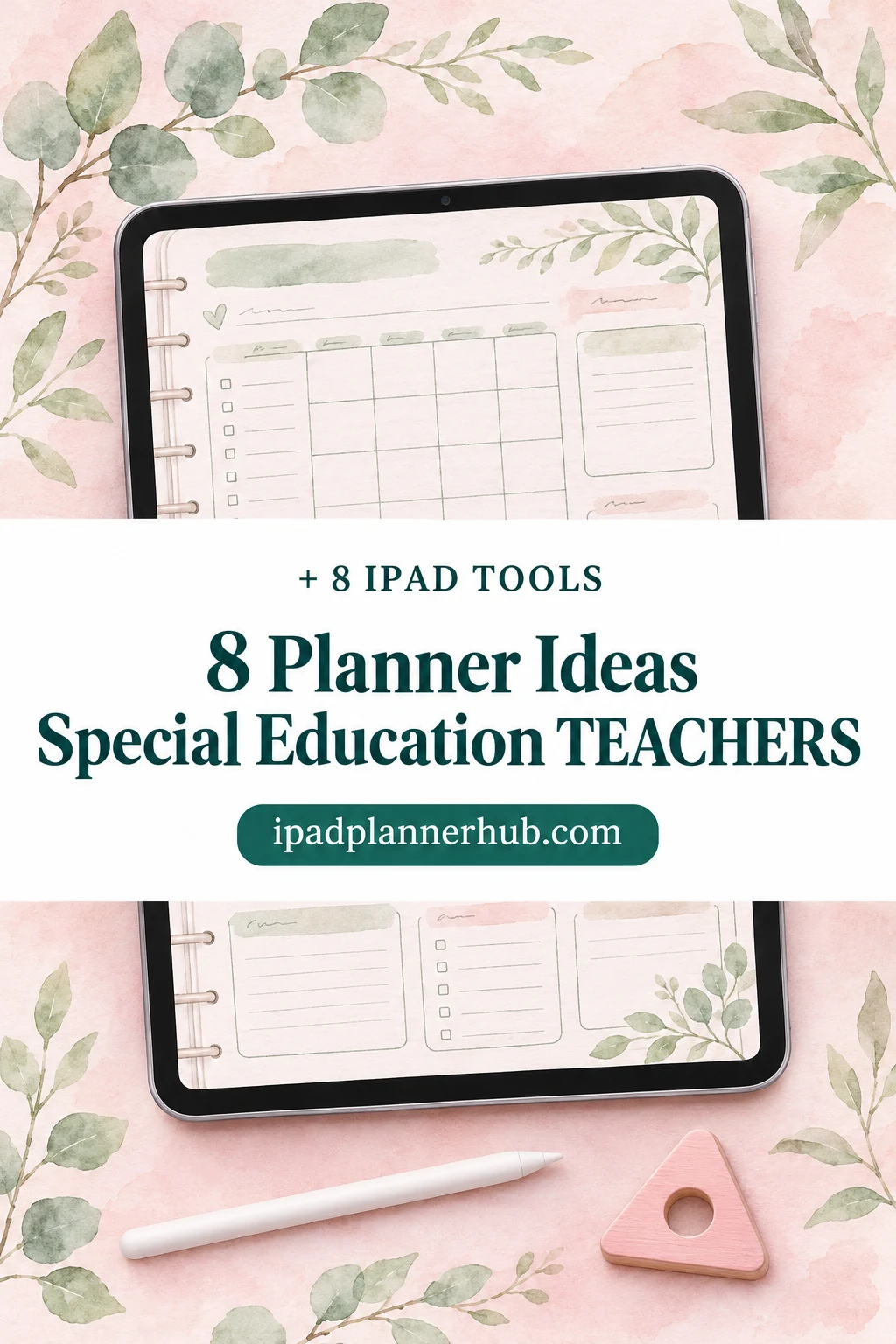
Build this around preparation and follow-up, with a few pages you can review consistently. Below are eight iPad tools with different starting points, followed by eight page ideas you can create yourself. A general notebook becomes useful through your headings; buying it does not supply a specialized IEP workflow.
TL;DR: Start with one weekly view and a short next-action list. These eight iPad tools include meeting pages, lesson layouts, linked notebooks and a paper pack. Use the eight ideas below to create your own preparation and follow-up pages; choose a tool for the task you actually need.
Quick Picks
- Best for meeting actions: Meeting Minutes Digital Planner Goodnote
- Best for one weekly overview: Weekly Lesson Plan – Cozy Pastel
- Best for lesson drafts: STUDENT DIGITAL PLANNER for Goodnotes
- Best for roomy narrative notes: Watercolor Hyperlinked Digital Notebook
- Best for choosing note layouts: Digital Notebook
- Best for a compact five-part setup: Digital Notebook 5 Hyperlinked Tabs
- Meeting Minutes Digital Planner Goodnote – Best for meeting actions
- Weekly Lesson Plan – Cozy Pastel – Best for one weekly overview
- STUDENT DIGITAL PLANNER for Goodnotes – Best for lesson drafts
- Watercolor Hyperlinked Digital Notebook – Best for roomy narrative notes
- Digital Notebook – Best for choosing note layouts
- Digital Notebook 5 Hyperlinked Tabs – Best for a compact five-part setup
- Digital Notebook Hyperlinked Tab for Goodnotes – Best for notes and planning together
- Digital Notebook Papers – GoodNotes – Best for an existing notebook
Ready-made meeting and lesson pages
Best for meeting actions
1. Meeting Minutes Digital Planner Goodnote
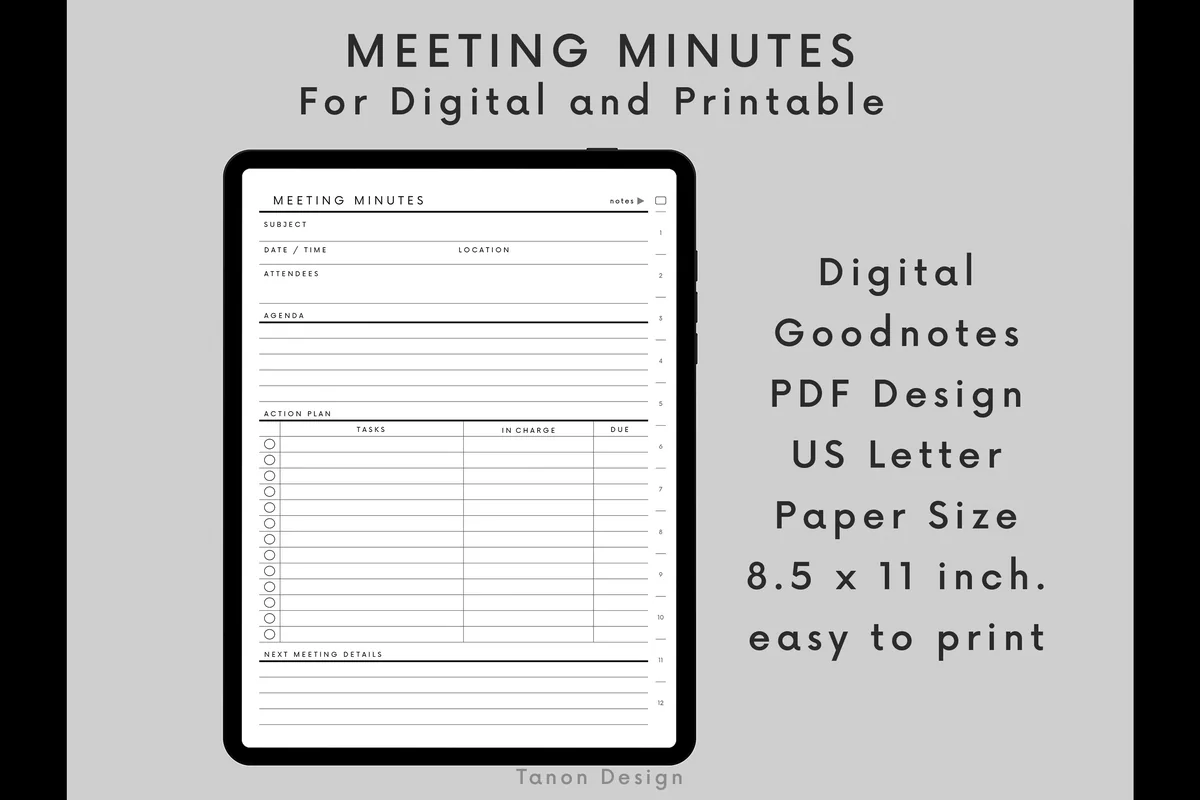
Orientation: Portrait, as shownLayouts: Meeting agenda and action planFormat: PDF for Goodnotes on iPad
Best for: organizing preparation and follow-up around recurring meetings. Designed by tanondesign.
- Hyperlinked index with 12 sections and 30 meeting pages per section
- Agenda, attendees, action plan, task, in charge and due fields
- US Letter; digital PDF for Goodnotes on iPad plus a printable PDF
This is my closest fit for the moment a meeting ends and the real work begins. The action plan gives a task an owner and a due date. Use it for your permitted organizational notes; its meeting fields do not make it an official IEP record system.
Best for one weekly overview
2. Weekly Lesson Plan – Cozy Pastel
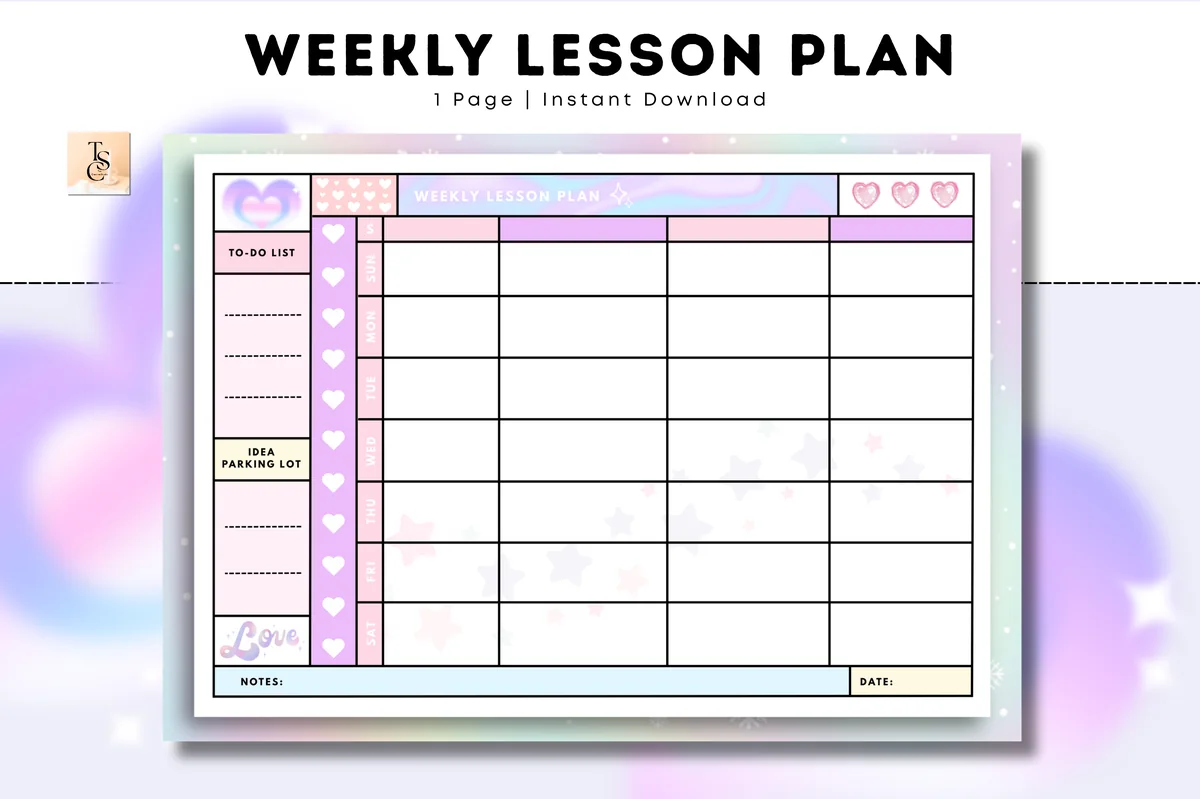
Orientation: LandscapeLayouts: Weekly lessons, to-do, notesFormat: Digital PDFDates: Undated
Best for: placing resource preparation beside a weekly teaching grid. Designed by Tas Creative Studio.
- Undated A4 landscape weekly lesson plan
- To-do list, idea parking lot and notes area
- Digital and printable PDF versions; GoodNotes, Notability and Noteshelf listed
The side list is the useful distinction here: put 'prepare visual directions' beside the lesson rather than on a separate loose note. I like this as a weekly landing page, with detailed drafts elsewhere. The small boxes suit short cues better than full meeting narratives.
Best for lesson drafts
3. STUDENT DIGITAL PLANNER for Goodnotes
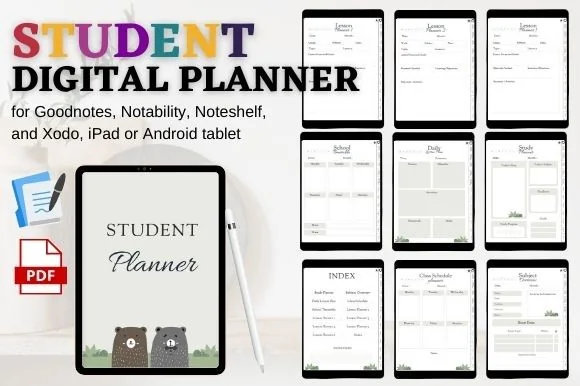
Orientation: Portrait, as shownLayouts: Daily lessons, timetable, notesFormat: PDF shown in preview
Best for: adapting a lesson outline before preparing classroom materials. Designed by mixxdigitaldesign.
- Six lesson planner layouts and a daily lesson plan
- Class schedule, school timetable, subject overview and notes
- Hyperlinked tabs; Goodnotes, Notability, Noteshelf and Xodo listed
The seller presents this as a student planner. Its lesson pages can still hold a teacher's draft sequence, materials list and questions to resolve. Choose it for those reusable lesson outlines, rather than expecting special education case-management fields.
Linked notebooks for your own work cycle
Best for roomy narrative notes
4. Watercolor Hyperlinked Digital Notebook
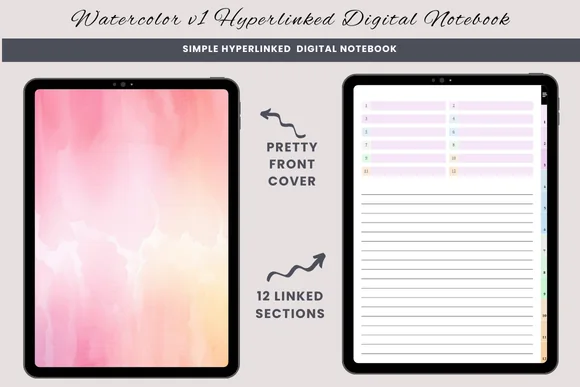
Orientation: Portrait, as shownLayouts: Lined, blank, half-linedFormat: PDF
Best for: keeping a preparation sketch and a written next step together. Designed by daysfilledwithjoy.
- 12 hyperlinked sections
- Lined, blank and half-lined pages in each section
- One PDF inside a ZIP archive; designed for GoodNotes and similar annotation apps
The half-lined page is my pick for an adapted-material sketch above a short work list. Twelve sections leave room for recurring workstreams without cramming them into one weekly grid. You supply the follow-up headings; the seller describes a blank notebook.
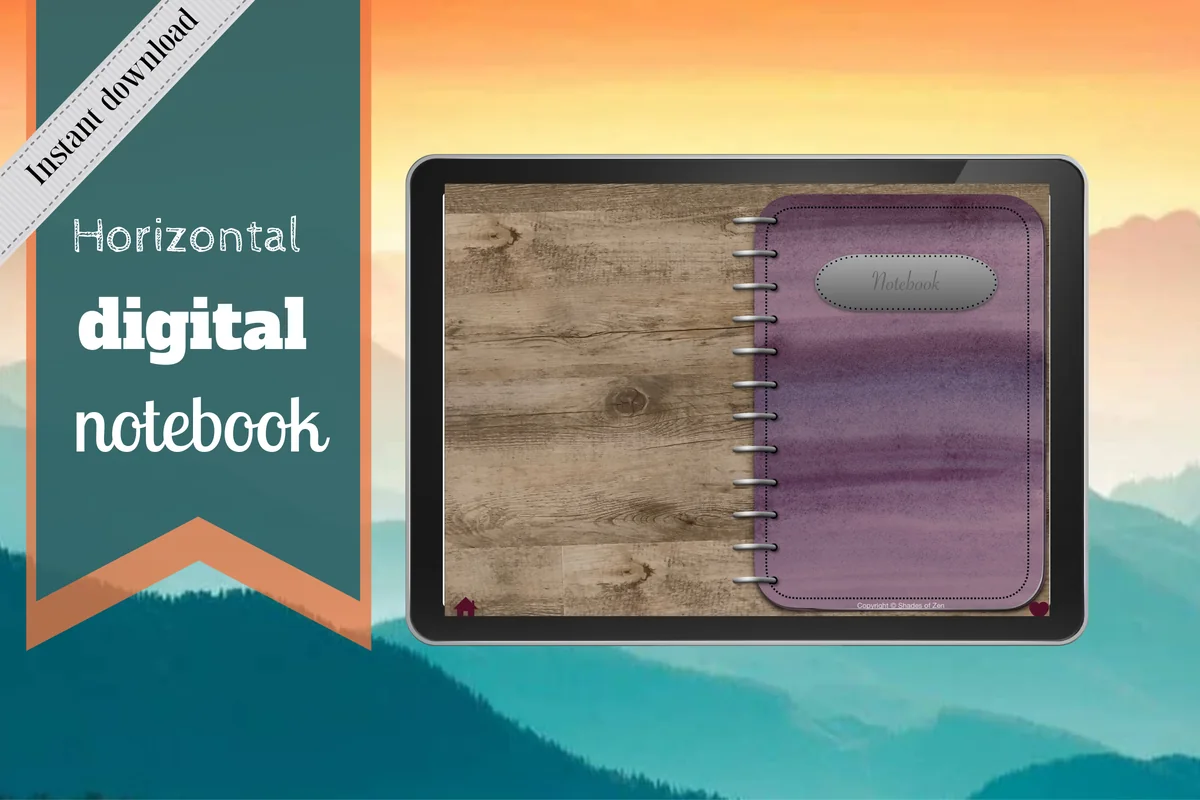
Best for choosing note layouts
5. Digital Notebook
Orientation: Landscape, as shownLayouts: 16 note templatesFormat: PDF annotation notebook
Best for: trying columns, Cornell notes and grids for different preparation jobs. Designed by Shades of Zen.
- 12 expandable sections with hyperlinked tabs
- 16 note templates, including lined, dotted, graph and Cornell notes
- Instructions included; imported into Goodnotes or a PDF annotation app
A two-column page makes a useful 'question / next action' draft; Cornell notes give you a separate summary area. The purple landscape notebook offers more paper choices than Watercolor. That flexibility is worth choosing only if you will actually use different layouts.
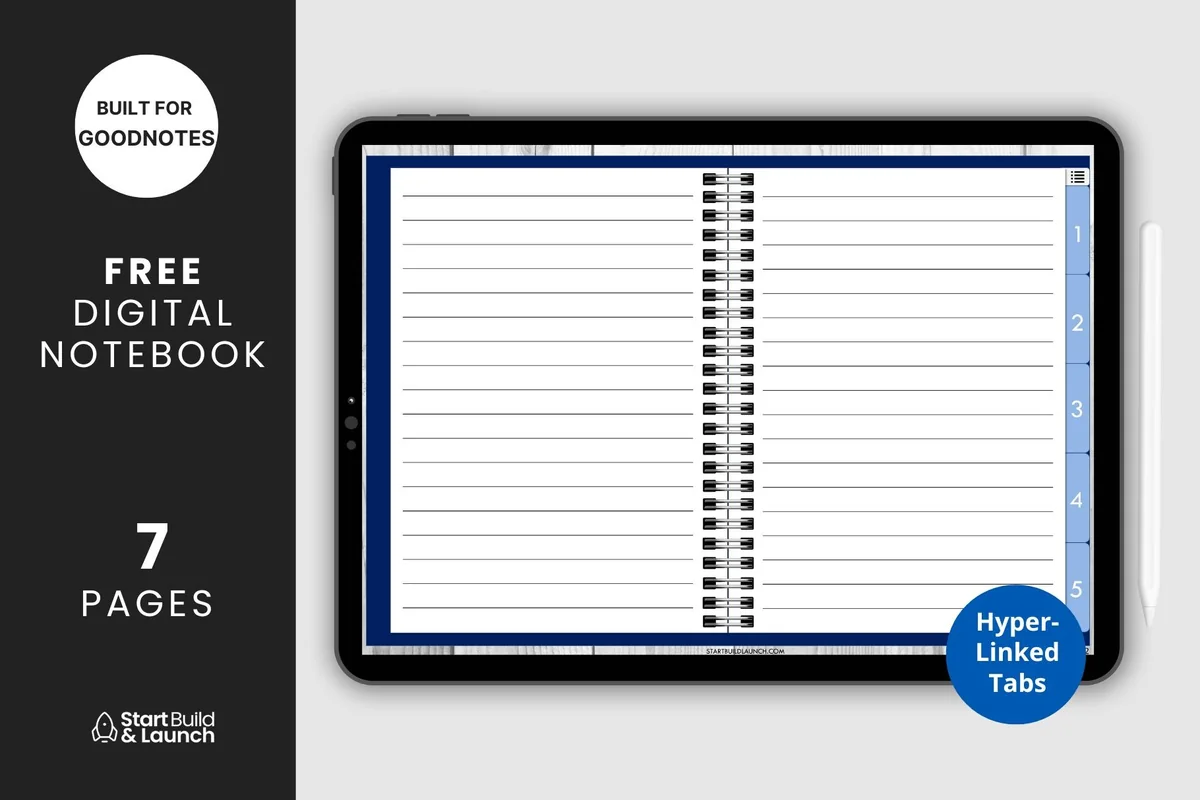
Best for a compact five-part setup
6. Digital Notebook 5 Hyperlinked Tabs
Orientation: Landscape, as shownLayouts: Blank, lined, graph, Cornell, dottedFormat: PDF; tablet and stylus specified
Best for: keeping only the workstreams you review every week. Designed by aviswilliams.
- Index and five hyperlinked sections
- Blank, lined, graph, Cornell and dot-grid paper templates
- PDF for iPad or tablet with a stylus; Goodnotes, Noteshelf and Notability recommended
Five tabs encourage a manageable structure: prepare, materials, questions, follow-up and review. Start with those five workstreams before assigning a tab to every possible responsibility. The navy spread has less decorative detail than the watercolor option, but you still create your own task fields.
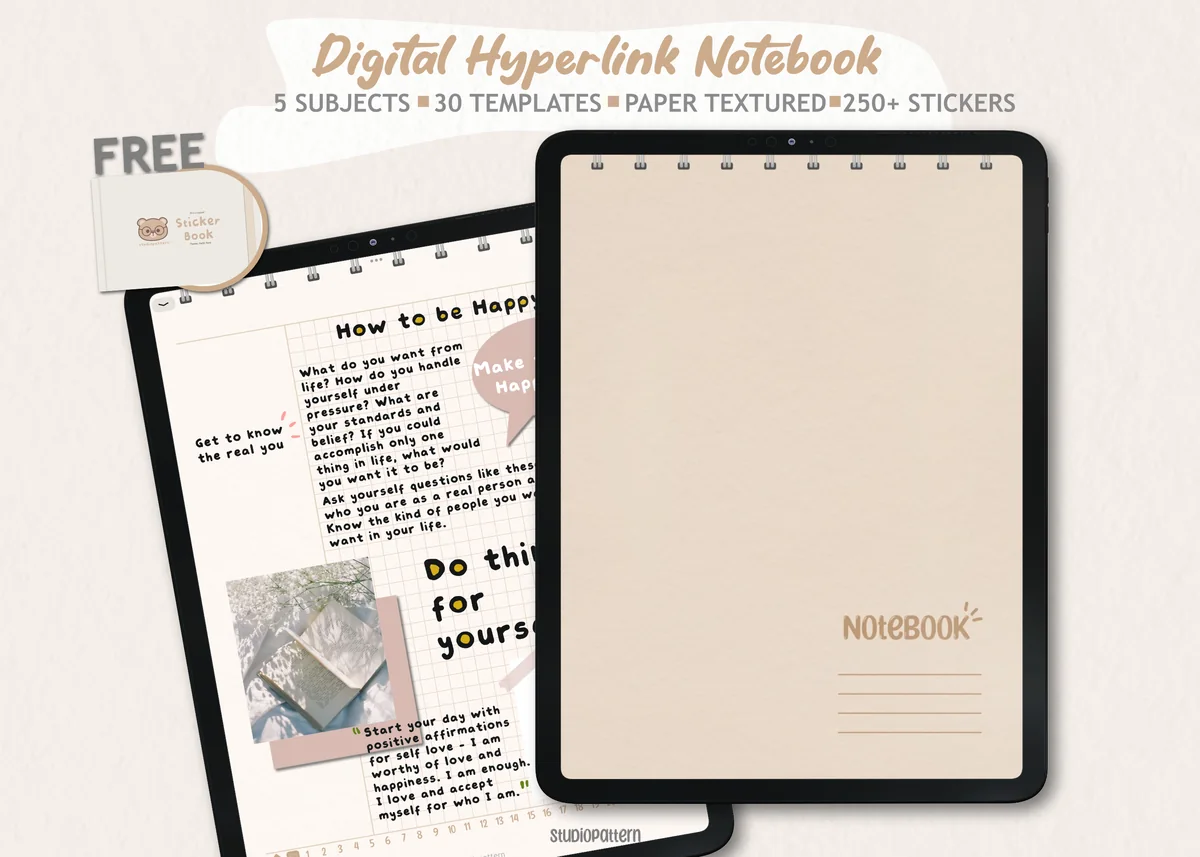
Best for notes and planning together
7. Digital Notebook Hyperlinked Tab for Goodnotes
Orientation: Portrait, as shownLayouts: Notes and general planner pagesFormat: Hyperlinked PDF
Best for: combining a linked notebook with general planning page choices. Designed by studiopattern.
- Five sections and 30 note-taking templates
- Preview shows monthly, weekly and daily planning, habit and checklist pages
- Hyperlinked PDF, manual PDF and sticker files; separate annotation app may be required
This beige notebook bridges writing and scheduling. The planning templates are useful when your materials draft and the week it is needed belong in the same place. The seller recommends an iPad or tablet with Apple Pencil or stylus; an annotation app is separate and may cost extra.
Paper layouts for the notebook you already use
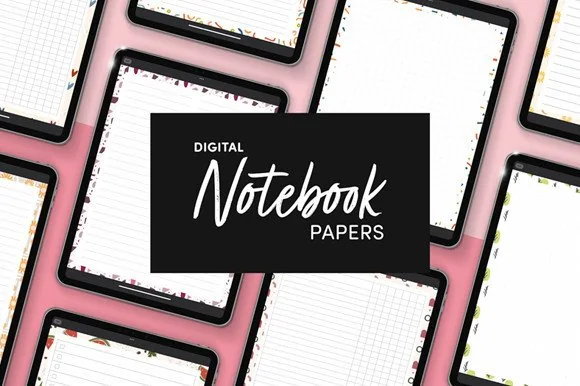
Best for an existing notebook
8. Digital Notebook Papers – GoodNotes
Orientation: PortraitLayouts: Eight layouts per designFormat: PNG and PDF
Best for: adding a fresh page layout without replacing your current organizer. Designed by catsquills.
- Nine portrait paper designs with eight layouts per design
- Columns, habit tracker, to-do, numbered list, dots, square, lines and notes
- PNG and PDF files for GoodNotes and Notability; 2550 × 3300 pixels
Keep your current notebook if it already works. This paper set adds a column page for preparation tasks or a lined sheet for a draft without buying another linked organizer. It is a paper pack, so the section structure in the other picks is a different kind of purchase.
Quick Comparison
| Tool | Best for | Structure | Useful feature |
|---|---|---|---|
| 1. Meeting Minutes Digital Planner Goodnote | Meeting follow-up | 12 linked sections | Agenda and action plan |
| 2. Weekly Lesson Plan – Cozy Pastel | Weekly preparation | One weekly grid | To-do and idea parking lot |
| 3. STUDENT DIGITAL PLANNER for Goodnotes | Lesson drafting | Six lesson layouts | Linked index and timetable |
| 4. Watercolor Hyperlinked Digital Notebook | Sketch plus notes | 12 linked sections | Lined, blank, half-lined |
| 5. Digital Notebook | Several workstreams | 12 linked sections | 16 note templates |
| 6. Digital Notebook 5 Hyperlinked Tabs | Compact work cycle | Five linked sections | Five paper templates |
| 7. Digital Notebook Hyperlinked Tab for Goodnotes | Notes plus scheduling | Five linked sections | 30 templates and stickers |
| 8. Digital Notebook Papers – GoodNotes | Existing notebook | Portrait paper pack | Eight layouts per design |
Set up a special education teacher planner around the next action
For special education teacher planning, give your personal organizer one clear job: help you arrive prepared and remember what you agreed to do next. Keep official dates, student records, IEP goals, service documentation and progress data in the school-approved systems. The examples here use invented work tasks without student names or case details. This is an organizational approach, not guidance on legal timelines or educational decisions.
- Weekly view: the work you intend to prepare and the time you can realistically give it.
- Working pages: material drafts, questions for colleagues and meeting preparation checklists.
- Return path: a short action list you review, rather than a growing pile of meeting narratives.
A teacher planner gives the school week a home. A digital planner is useful when you want the working pages together on a tablet; a lesson planner gives the preparation a teaching context. A special education lesson planner answers “what needs to be ready for teaching?” A meeting notebook answers “what happens after this conversation?” Keeping those questions connected is the point. For broader class organization, the teacher planner ideas guide covers the surrounding school-year setup; this article stays with the resource teacher’s preparation cycle.
8 page ideas for preparation, meetings and weekly carry-over
These are pages to make in your chosen notebook, not a claim that the products contain the headings below. Start with the first two and add a page only when a recurring task needs it. A special education teacher diary is useful only when its working pages get reviewed.
Build the preparation path
- 1Make a workstream index. Name sections by work you do: lesson preparation, materials, questions, meeting preparation and follow-up. Add a short description beneath each heading so “questions” does not become a second inbox. On a twelve-tab notebook, leave spare tabs unused at first. The index should tell you where a note belongs before you start writing. Use neutral work labels rather than identifying student names.
- 2Keep a preparation calendar. Use a weekly grid to work backward from when an activity must be ready. Enter your own preparation target and the next check-in; consult the approved school system for official meeting dates. For an invented Thursday activity, you might reserve Monday for the rough draft, Tuesday for a colleague’s question and Wednesday for revisions. Leave some open space for changes instead of filling every box.
- 3Turn one vague note into one next action. Draw three columns: reminder, next visible action and review point. Change “sort materials” to “choose the two picture cards for the draft activity.” A next action is small enough to begin without another planning session. Add a reference to the permitted working page so you can find the draft again. Keep the entry focused on your work rather than a learner’s personal information.
- 4Give adapted materials a readiness card. Put the intended activity, the material you need to prepare and a simple status on one page. Possible labels are draft, question to resolve, ready for review and prepared. Write a concrete completion cue, such as “two sample cards are ready to show the colleague.” The planner organizes production; instructional choices and accommodations still come from the appropriate professional plan and team.
Close the loop after conversations
- 5Keep a questions-for-colleagues page. Separate questions that block your preparation from ideas that can wait. Beside a question, leave space for the person to ask, your next opportunity to ask and the resulting action. “Which version should I prepare for the shared activity?” is more useful than a paragraph of unsorted reflections. Keep any confidential discussion in the approved channel rather than copying it into a personal notebook.
- 6Prepare a meeting without copying the case file. Make a short checklist for your own preparation: locate the approved agenda, prepare the permitted materials and list the questions you need answered. Add a blank line for your next action after the meeting. Do not reproduce an IEP snapshot, parent contact details or a medical alert here. A personal checklist can point you back to the authorized record without becoming another version of it.
- 7Capture the follow-up before closing the page. For an organizational commitment, write the action, responsible person and agreed review point together. Example: “Prepare sample cards / me / Wednesday planning period.” Use the meeting template’s task, in-charge and due fields for this if permitted. A handwritten tick is only your reminder that you acted; it is not evidence that a formal requirement or service has been completed.
- 8Make a carry-over page that asks why. At your weekly review, give each unfinished preparation task one decision: schedule, clarify, wait or remove. Add the reason when you move it. If the same task moves twice, shrink the next action or ask the blocking question rather than copying the original wording again. Carry over the work you still intend to do, not the entire previous week’s notes.
A worked weekly cycle: from loose reminder to prepared materials
Here is an invented example without a student case. You need to prepare a sample activity for Thursday. The goal of the planner is to make your preparation visible; it does not decide which teaching strategy or accommodation to use.
- Monday: capture “prepare sample activity.” On the working page, change it to “draft two picture cards,” and put that action into an available preparation block.
- Tuesday: notice a question about which version the colleague wants. Put the question on the colleague page, with a planned check-in. Mark the draft as waiting rather than silently moving it.
- Wednesday: after the clarification, revise the sample cards and check the materials list. Record “prepared for discussion” only when that work is actually done.
- Friday: review the remaining organizational questions. Move the next useful action into the following week with a reason, and leave the completed draft in its original place.
The important connection is between pages: the weekly grid points to the working page, and the working page ends in a next action. You should not have to read an entire month of diary entries to find the one question holding up preparation.
Choose a layout by the kind of work you keep losing
- Actions disappear after meetings: start with the Meeting Minutes template. Its agenda and action-plan fields are a closer fit than decorative notebook paper.
- You forget preparation until the teaching day: use the Cozy Pastel weekly grid as a landing page and keep detailed notes separately.
- You need room to think: Watercolor gives a blank area and lined writing; the purple Digital Notebook offers more note layouts.
- Your notebook already works: try a columns or to-do page from the paper pack before replacing the whole system.
For a lesson-first workflow, the lesson plan template ideas article explores teaching sequences. For a conversation-first workflow, the meeting notes templates guide helps separate discussion from actions. Neither choice requires you to abandon a teacher planner you already like.
Digital setup: files, writing space and a quick navigation check
Check the seller’s file format and your annotation app before purchasing. The selected options serve different jobs: a paper pack adds page backgrounds, a linked notebook supplies navigation, and a meeting template supplies fields. A digital PDF is a document to annotate, not a school information system or a calendar automation service.
- Open the file in the intended app. For example, Watercolor is a PDF inside a ZIP archive. The paper pack supplies PNG and PDF files; choose the format your existing notebook supports.
- Check writing room at your usual zoom. A landscape grid gives an overview, while a portrait note page can give a longer writing area. Choose for the device and handwriting you actually use.
- Try the index and return route. In a linked notebook, test a section tab before reorganizing pages. Keep an untouched original so you can compare the navigation if you make changes.
- Budget for the surrounding tools. The beige five-section notebook lists an annotation app as separate and recommends an iPad or tablet with an Apple Pencil or stylus. The navy notebook also specifies a tablet and stylus.
Use a short routine instead of rebuilding the planner every week
As a starting experiment, reserve a brief check at the beginning of the workday and a weekly carry-over review. This suggested routine is not a required reporting schedule. Adjust it to your school day; a system that takes longer to maintain than the preparation it supports needs simplifying.
- Opening check: look at the next preparation task and any question blocking it. Consult official dates in the approved system.
- After a conversation: add the next organizational action while the decision is still clear. Keep the official communication log in its authorized place.
- Weekly reset: clear the inbox, review waiting questions and choose the few actions that belong in the next weekly view.
Avoid making color carry the whole meaning. A small set of colors for work stages can help you scan, but write the status as well: “waiting for answer” is clearer than a yellow dot by itself. Stickers can mark a review point; they should not crowd the space you need for an action.
Keep the classroom work visible without building another case file
For special educators, the useful boundary is between planning the work and storing the record. An IEP meeting might create a materials-preparation action for you, while the official IEP accommodations, goals and parent communication remain in the authorized system. Your personal page can say “prepare the agreed resource” without reproducing sensitive details. Ask your school which devices, accounts and platforms are permitted before putting workplace information into a new app.
- Weekly schedules: keep a clear view of your available preparation blocks, including time for shared work across classrooms.
- Communication logs: keep calls, emails and meeting summaries in the approved location. A personal reminder can prompt you to check there rather than create a competing log.
- Monitoring IEP progress: use the required data-collection and reporting process. A notebook checklist can remind you to prepare materials; it cannot substitute for assessment or service records.
- Professional development: give training questions a separate page so they do not crowd the current lesson draft or group activity checklist.
A special needs teacher planner does not need a different decorative theme for every responsibility. A basic color key for work stages, a readable font and a small set of section headings can be enough. Teacher diary decoration ideas, such as a single sticker for review day, work best when the writing space stays clear. Choose technology for the task it supports, not for the number of extra features on its cover.
FAQ: choosing and using a planner
What is the best planner for a special education teacher?
The best fit depends on where your work breaks down. Choose meeting action fields if follow-up is the problem, a weekly grid if preparation arrives too late, or a linked notebook if you need room for your own pages. Keep a useful current planner and add only the missing layout before buying a larger system.
What should an IEP planner for teachers include?
For a personal preparation organizer, include a weekly work view, meeting preparation checklist, questions to resolve and a follow-up list. Official IEP information, dates and student progress records belong in the approved school system. If you need a dedicated case-management product, check its actual preview and school approval rather than assuming a general notebook includes those functions.
Can I use a special education teacher planner PDF on my iPad?
Choose a file and app combination the seller supports. The Watercolor notebook describes importing its PDF into GoodNotes or a similar annotation app; the meeting template specifies Goodnotes on iPad. Check your own app’s import process and costs separately. This article does not promise that a PDF will send reminders or synchronize meetings with a calendar.
How do I adapt the pages to a new school year?
Begin with your school’s current calendar in its approved system, then enter personal preparation targets in the organizer. The Cozy Pastel weekly lesson page is explicitly undated. For other products, inspect the actual pages before purchase rather than assuming a notebook title guarantees the date structure you need. Local school procedures, including those outside the US, take priority over this organizational example.
Should I keep parent communication logs or student progress data here?
Use the tools and storage arrangements approved by your school for that information. My example pages deliberately avoid names, contact details, assessments and case narratives. Keep a personal reminder about your own next preparation action only where permitted. This general guide cannot determine whether an app or personal account is approved for your workplace.
Is a digital teacher diary worth it if I already use paper?
It may be worthwhile if keeping working notes together and using linked sections solves a real problem for you. If your paper planner is already reviewed consistently, there is no need to replace it just for appearance. Try one weekly page or a small note workflow first, and judge whether you can find your next action faster.
Start with the next unfinished action
A useful special education teacher planner should make tomorrow’s preparation easier to begin. Start with the weekly view, a question page and a next-action list, then add the other ideas as a real need appears. Choose the iPad tool that gives that work enough space, and keep the authoritative school records in their approved home.
You May Also Like
This article contains affiliate links. If you purchase through them, I may earn a commission at no extra cost to you. Read the affiliate disclosure.