The bell is about to ring, and two nearly identical math notebooks are sitting next to each other on your iPad. These teacher planner cover ideas give each document a clear job, class and status, so the cover helps you choose the right notebook instead of simply making the shelf prettier.
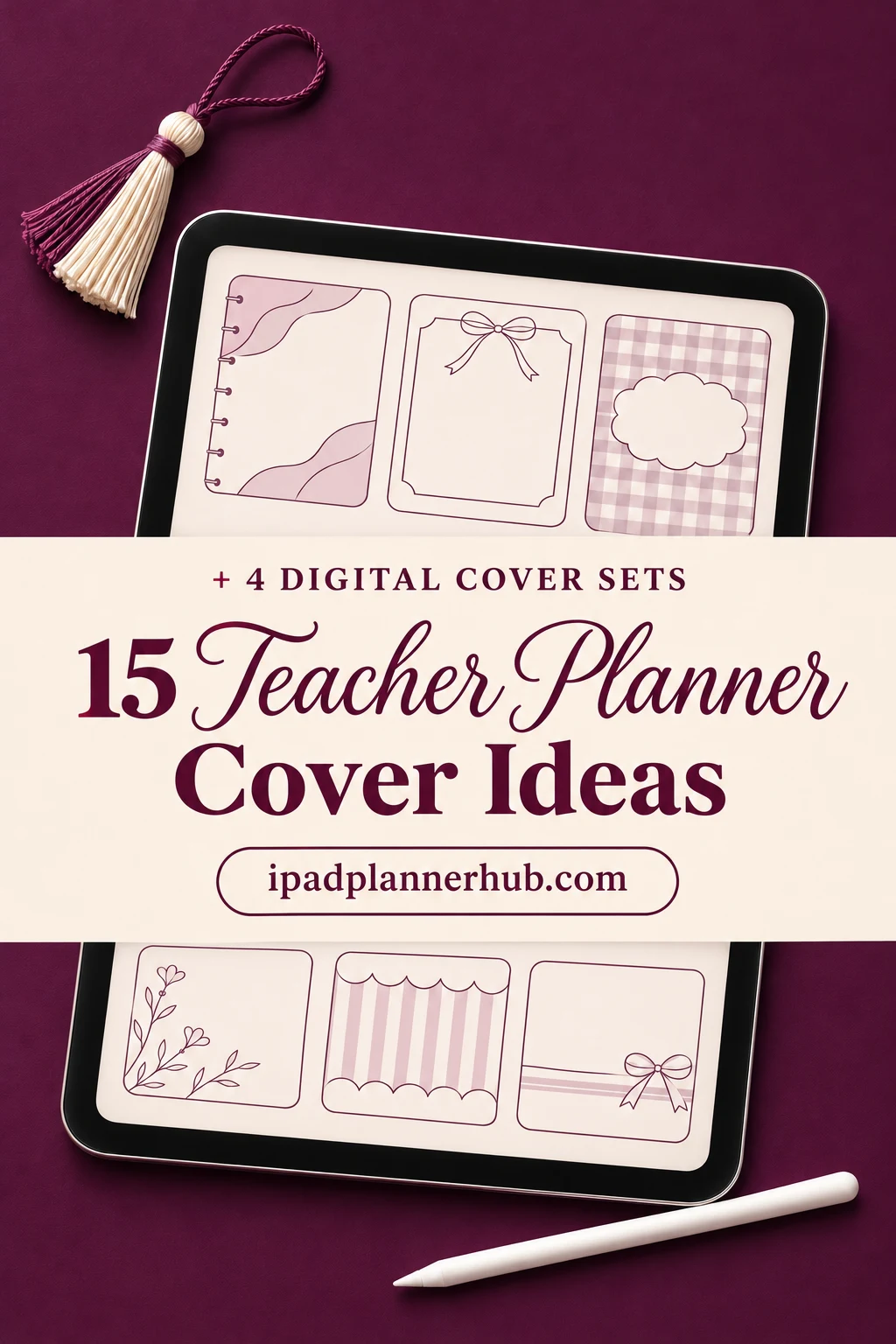
Start with the label and choose the artwork second. Below are four digital cover sets I picked for adding your own teacher labels, followed by 15 layouts for subjects, class periods and handoff copies. You can use the same layouts on a plain cover; buying a set is optional.
Four digital cover sets for your own teacher labels
These GoodNotes-compatible backgrounds give you room to create your own teaching labels. The ideas below show how to add class codes, term labels and substitute fields on top of them. If you need the pages behind the cover, the teacher planner ideas guide covers lesson, class and planning-page choices.
TL;DR: Start with a readable subject and class code, then add a term and purpose. The four sets below are digital cover collections. The class labels in the ideas are ones you add yourself, and the 15 ideas also work with a cover you already have.
Quick Picks
- Best for bold subject families: Goodnotes Covers – Mid Century Modern
- Best for a large class shelf: GoodNotes Covers
- Best for short class codes: Digital Notebook Retro Covers
- Best for illustrated resource notebooks: Digital Journal Covers
- Goodnotes Covers – Mid Century Modern – Best for bold subject families
- GoodNotes Covers – Best for a large class shelf
- Digital Notebook Retro Covers – Best for short class codes
- Digital Journal Covers – Best for illustrated resource notebooks

Best for bold subject families
1. Goodnotes Covers – Mid Century Modern
Orientation: Portrait covers shownLayouts: Geometric cover backgrounds
Best for: giving each subject a distinct geometric background. Designed by Quiet Deluxe Digital.
- 20 mid-century modern cover templates
- A4 PNG files for GoodNotes
- Geometric shapes, contrasting colors and visual installation instructions
The large shapes make a useful starting point for a subject family: circles for math, stripes for science, for example. For short class codes, my pick is a design with an existing label area. Some patterns fill the whole page, so you may need to add your own plain text panel. The description lists 20 A4 PNG cover templates.
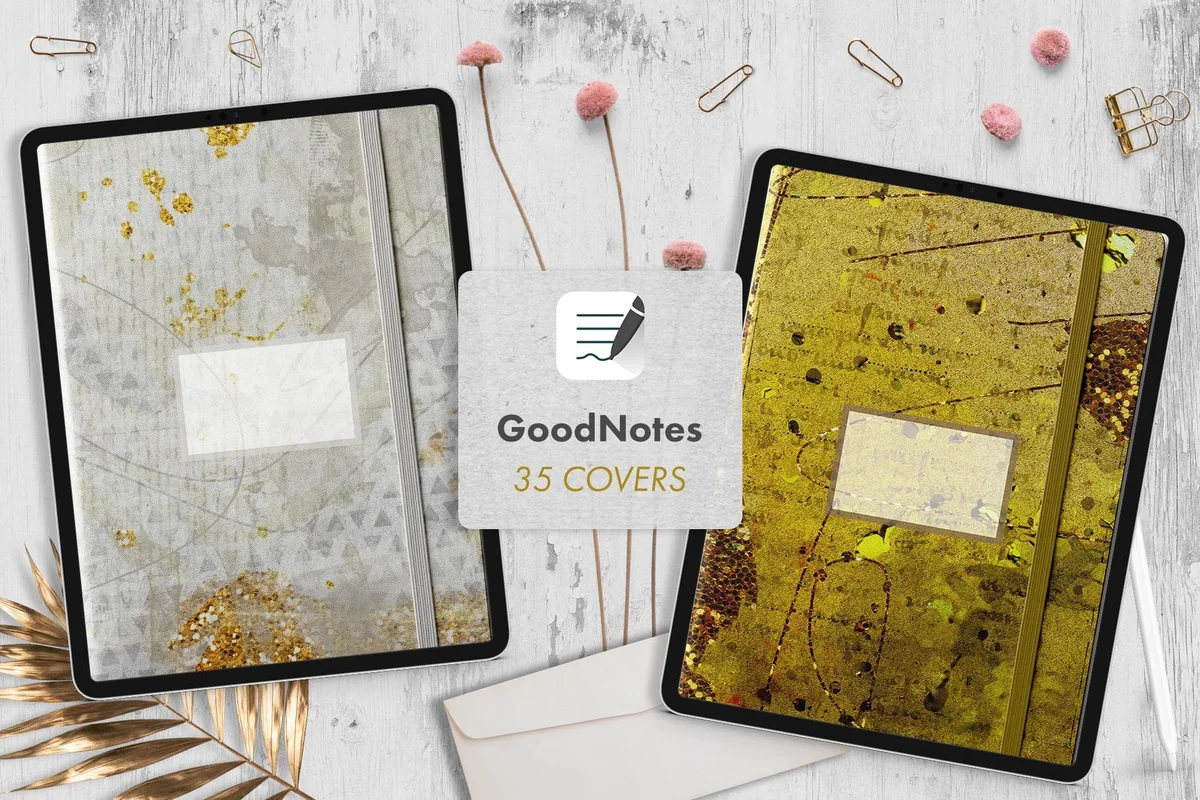
Best for a large class shelf
2. GoodNotes Covers
Orientation: A4 portraitLayouts: Patterns and textures
Best for: labeling several class notebooks in a consistent position. Designed by Lu Otero.
- 35 reusable cover images in A4 portrait format
- JPG files at 150 dpi, optimized for GoodNotes on iPad
- Patterns and textures with blank title panels
- The seller describes adding titles with the GoodNotes Text tool or Apple Pencil
A repeated label position is the strength here. Keep the same order of subject, class and period across the set, rather than choosing a new layout for every notebook. The quieter covers give a two-line title more breathing room than the busier textures. The set includes 35 A4 JPG cover images at 150 dpi, with blank panels for your own titles.
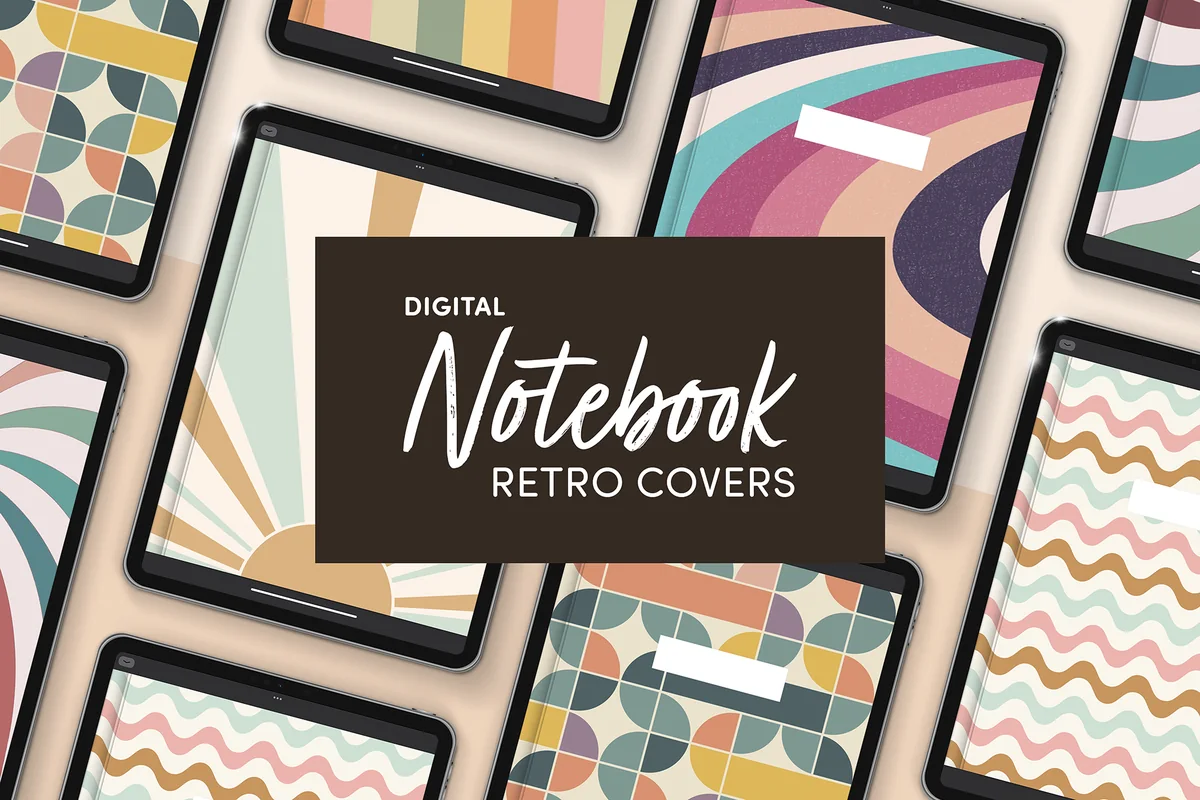
Best for short class codes
3. Digital Notebook Retro Covers
Orientation: Portrait, 8.5 × 11 inLayouts: Retro patterns with title strips
Best for: placing a concise subject and class identifier on a retro background. Designed by catsquills.
- Six portrait retro covers for GoodNotes and Notability
- PNG and PDF files
- 2550 × 3300 pixels, 8.5 × 11 inches, 300 dpi
- Editable label; the cover previews show a narrow white title strip
Six choices can be enough for a small teaching load without creating a different visual language for every class. The white strip is narrow, so MATH 7A is a more realistic cover title than a full course description. Keep longer details in the document name or first information page. The editable label is useful for a short identifier; editable layers for the whole illustration are not specified.
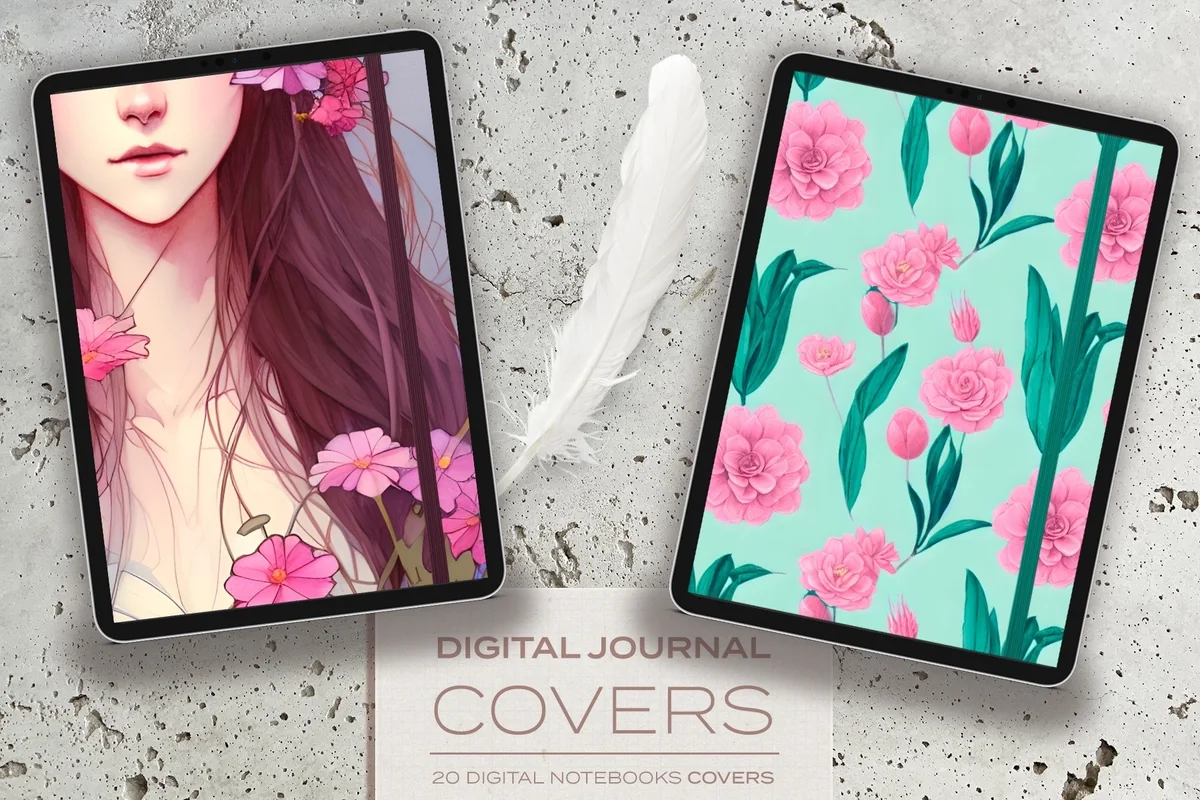
Best for illustrated resource notebooks
4. Digital Journal Covers
Orientation: A4 portraitLayouts: Illustrated cover backgrounds
Best for: distinguishing a resource library from everyday lesson planning. Designed by Lu Otero.
- 20 illustrated A4 portrait cover images
- JPG files at 72 dpi, optimized for GoodNotes on iPad
- Two separate PNG labels: opaque and semi-transparent
- Themes include flowers, forests, mushrooms and illustrated women
An illustrated cover can mark a different kind of document, such as a lesson-resource collection, rather than another class register. Use the opaque label over detailed artwork to keep the document purpose readable. The semi-transparent option lets more of the image show through, but needs a careful thumbnail check. These illustrations are decoration, not ready-made subject icons or teaching resources.
Quick Comparison
| Cover set | Teaching use | Included covers | Main distinction |
|---|---|---|---|
| 1. Goodnotes Covers – Mid Century Modern | Subject families | 20 A4 PNG covers | Bold geometric patterns |
| 2. GoodNotes Covers | Several classes | 35 A4 JPG covers | Consistent title panels |
| 3. Digital Notebook Retro Covers | Small teaching load | 6 portrait covers | PNG and PDF |
| 4. Digital Journal Covers | Resource collections | 20 illustrated JPG covers | 2 separate PNG labels |
Teacher Planner Cover Ideas for Similar Class Notebooks
A good teacher planner cover design answers the question you ask when opening the library: which class, which purpose and which version? Use one subject family across related notebooks, then make the class and period the largest changing details. A lesson planner cover can look coordinated without making every document look identical.
Make the class unmistakable
- 1.Subject-first label. Put MATH on the first line and 7A · P1 on the second. Keep those lines in the same position on every cover. The background can be a circle pattern or a quiet texture; neither should compete with the letters. Start with the class you are most likely to confuse with another, then copy the arrangement to the rest.
- 2.One subject, two class codes. Use the same background for Math 7A and Math 7B, but give the class code a larger line of its own. If the labels still look alike when small, add the period beneath the code. A tiny change from A to B needs more help than a dramatic change between subjects.
- 3.Period as a corner badge. Add P1 or P4 in a solid corner panel, with the subject in the middle. This suits teachers who think in timetable order. Keep the badge inside the cover edge rather than against the border, where a small library preview can make it harder to read.
- 4.Room-and-role pair. For a shared subject across rooms, try SCIENCE · LAB or SCIENCE · CLASS. Add the class code below. The role word distinguishes a lab-planning notebook from ordinary lesson notes without requiring a separate illustration. Do not put sensitive access instructions or student details on the visible front page.
- 5.One shape per subject family. Use circles for math, a broad stripe for language arts and a simple block for science. Keep written subject names as well, because a shape is only a second clue. The aim is a stable visual cue across your own documents, not a code a substitute has to learn before opening a file.
Adapt Teacher Planner Cover Ideas for Elementary Classes
For elementary or primary school, put the homeroom and grade on the main label, such as GRADE 2 · ROOM 4. If you teach several grade levels, keep the same label position and change the grade in large type. Use a small book, leaf or number motif to suggest classroom activities while keeping the class name readable.
For simple planner cover ideas for school, try a solid background with one contrasting title box. Use a separate subject line only when you keep reading, math or other teaching notes in different notebooks. This gives a homeroom diary a different identity from a student planner without filling the cover with your timetable.
Give Your Teacher Diary Cover a Term and a Purpose
A teacher diary cover can carry more than a name. Separate the document role from its current status: LESSONS tells you what is inside, while ACTIVE T1 tells you which version to use. I prefer those short words to a long motivational quote on the files opened between classes.
Separate roles and versions
- 6.Active-term header. Write ACTIVE T1 above the subject and class code. At the term change, duplicate your clean layout and update the term intentionally. Mark the previous file with its actual term code, such as ARCHIVE T0, and move it to its archive location. A term code works without making the decorative artwork depend on a calendar year.
- 7.Lesson-plan cover. Use LESSONS as the main role, then MATH 7A beneath it. Match the class code to the document name. This keeps a lesson planner separate from your assessment notes even when both use the same subject color. The cover names the contents; it does not create the lesson pages.
- 8.Assessment notebook cover. Choose ASSESSMENT as a large heading and keep the rest of the label short. Store any student information inside the appropriate protected school system or document, following your school rules. A front cover can identify the notebook without showing names, grades or an example roster on the library screen.
- 9.Resource-bank illustration. Reserve an illustrated forest or floral cover for RESOURCES, with the subject below. That visual change can distinguish reference material from your working class notebooks. Place a solid label over a quiet area or use an opaque PNG label; the purpose needs to stay readable across detailed artwork.
- 10.Archive band. Add a broad ARCHIVE band to the old term copy and remove ACTIVE from its label. Keep the class identifier so you can find the earlier material again. Moving a file to an archive folder and changing its cover are separate actions; do both intentionally instead of treating a darker background as sufficient.
Match Diary Labels to the Sections You Actually Keep
Build your own teacher diary cover design template around three lines: document purpose, class or subject, and current term. For a lesson planner cover design, use LESSONS as the title and name the unit beneath it if the file holds only one teaching sequence. Keep the curriculum map and upcoming lesson details inside rather than squeezing them onto the front.
If you keep separate notebooks for classroom management, classroom resources or parent communication, give each its own role label. Use MEETINGS for a diary of parent meetings and GRADING for assessment logs, while keeping private details inside according to school rules. These labels describe documents you prepare yourself; they do not describe additional contents supplied with the cover sets.
Create a Clear Handoff Copy Without Sharing the Whole Planner
A cover marked SUBSTITUTE COPY is a useful prompt to prepare a separate document. It is not a privacy setting and does not make the pages inside safe to share. Review the contents and the cover-art license before sending any copy; the four sets above are not a promise of redistribution rights.
Make the next reader and next action clear
- 11.Substitute-copy cover. Put SUBSTITUTE COPY at the top, then the class, period and lesson topic. Build a separate file containing only the approved material needed for that handoff. Use a plain original cover if permission to share purchased artwork is uncertain. Do not send the entire teacher notebook just because its first page has changed.
- 12.Co-planning draft. Mark a planning document TEAM DRAFT, followed by the subject and unit. Use a different role label from the class notebook used during the lesson. Before a colleague receives it, check the pages and the sharing method allowed by your school. The label should describe the real document state, not merely the intention to revise it.
- 13.Approved lesson copy. Once the relevant school review is finished, change the handoff label to the actual agreed state, such as READY FOR CLASS. Keep DRAFT on the earlier working file. If no formal approval process applies, avoid implying one: a simple LESSON COPY is enough. The cover should tell the truth about the document.
- 14.Next-unit preparation. Use PREP · UNIT 2 on the notebook being assembled for later lessons, while the live class file stays ACTIVE T1. A contrasting role label is especially helpful if both contain the same subject and class. When the new material becomes current, review the contents before changing PREP to ACTIVE.
- 15.Clean master template. Keep MASTER · BLANK on a clean source notebook containing your chosen cover arrangement. Duplicate that source for a new class rather than reusing a file with old notes inside. Inspect the duplicate before renaming it. A master label is a reminder to preserve the source, not a lock against accidental editing.
Build One Cover System Before Decorating the Whole Shelf
For teacher diary cover ideas that stay manageable, make one working example first. A short label is easier to repeat across JPG backgrounds, PNG images and PDF cover pages than a decorative title that fills the entire screen. Match the cover page size to the notebook you intend to use.
Five steps from a label to a usable shelf
- 1.Write the document identity. List role, subject, class, period and term on a scrap note. Decide which field changes between the two files you most often confuse. For Math 7A and Math 7B, class comes before decoration; for two 7A files, LESSONS and ASSESSMENT may be the distinguishing words.
- 2.Choose a background with enough space. Look for a plain panel or room to add your own solid label. A narrow retro strip suits a short code; a longer two-line heading needs a larger area. Try the actual words before choosing the rest of the subject backgrounds.
- 3.Add the label in your annotation app. Use an app-supported cover or page workflow for the file type supplied by the seller. Add your own text rather than assuming an image contains editable text layers. Keep a clean source copy, and check the app documentation if its current menus differ from an older seller tutorial.
- 4.Match the document name. Repeat the main identifier in the library filename, such as MATH 7A P1 LESSONS T1. The visible cover and the name should point to the same contents. Renaming alone does not change an imported image, and a new cover does not prove the document name was updated.
- 5.Review the complete group. Look at the finished cover beside the notebooks it could be mistaken for. If the useful words are too small, shorten the wording or enlarge the label before adding flourishes. Apply the successful arrangement to the remaining documents, then inspect them together again.
If you want to draw the background yourself, the digital planner cover ideas tutorial explores that creative route. For a wider range of existing backgrounds, compare the GoodNotes cover sets. This article keeps the emphasis on document identity rather than drawing or installing artwork.
Keep Teacher Diary Cover Decoration Ideas Around the Label
Try a narrow border, a small subject sketch or two digital stickers in opposite corners, leaving the title panel clear. Repeat one accent color from your notebook tabs if you already use them, but keep the written role visible too. For a quieter cover, draw a single line around the heading and leave the remaining space plain.
Before adding another decoration, view the cover beside the file you could open by mistake. Remove an accent if it competes with the class code, and move detailed artwork away from the term label. You can refresh the decoration for school events while preserving the same structured label arrangement.
Try an Eight-Notebook Check Before the Next Lesson
Try this proposed eight-document library as a worked example. Can you select the current Math 7A lesson notebook without opening the 7A assessment file or the archived term? If you hesitate, change the identifying words before changing the artwork.
- MATH 7A · P1 · LESSONS · ACTIVE T1: the current lesson notebook.
- MATH 7B · P3 · LESSONS · ACTIVE T1: same subject family, visibly different class and period.
- MATH 7A · ASSESSMENT · ACTIVE T1: a separate purpose, with no student names on the cover.
- MATH 7A · LESSONS · ARCHIVE T0: an older term, filed separately.
- SCIENCE 7A · LAB · ACTIVE T1: a room-and-role distinction.
- MATH · RESOURCES: reusable reference material.
- MATH 7A · P1 · SUBSTITUTE COPY: a separately reviewed handoff file.
- MASTER · BLANK: the clean source for future copies.
Check the shelf in the view you normally use, without enlarging each cover to read it. Repeat the exercise after changing the document sort order so position is not the only clue. I suggest checking both the cover and filename whenever two documents still look alike.
What to Keep Off a Teacher Planner Front Page
- Student names, grades and private notes: use a class code on the cover and follow school requirements for the information inside.
- Color-only meaning: write the role and class even when backgrounds differ. A pretty palette cannot explain an unfamiliar code to another reader.
- Long quotations competing with the class: move a quote to an inside page if it pushes the identifier into tiny type.
- Unverified sharing promises: a cover set license and the school’s document-sharing rules need their own checks. A substitute label grants neither permission.
- Obsolete labels: remove ACTIVE from an archived copy and check that the cover, filename and contents agree.
FAQ: Teacher Planner Covers
What should go on a teacher planner cover?
Start with the document role and the class or subject that distinguishes it from nearby files. Add a period and term if those change your choice. A name or decorative phrase is optional; it should not force the important identifiers into smaller lettering.
Where should I start with a custom teacher cover?
Choose a plain page or an app-compatible background, add a readable label, and check it beside the other class documents. You can use the same role, class and term system with artwork you make yourself. Use these optional backgrounds and add the class, term and role labels proposed in this guide.
Are all four cover sets PDF files?
No. Mid Century Modern supplies PNG images, GoodNotes Covers supplies JPG images, Retro Covers lists PNG and PDF, and Digital Journal Covers supplies JPG images with PNG labels. Choose a file type your note-taking app accepts and check the intended notebook page size.
Do these sets include teacher planner pages?
The descriptions list cover files; teacher-planning pages are not specified. Check the contents if you also need lesson, attendance or assessment pages. The proposed teacher fields in this guide are labels you create yourself.
Can I send a decorated notebook to a substitute?
Check the artwork license and your school’s sharing requirements first. Prepare a separate, reviewed copy with only the necessary approved material. If permission to redistribute the artwork is unclear, use an original plain cover instead of assuming that a purchased image can be passed on.
What is a simple teacher diary cover design?
Use a quiet background, one large role or subject heading, and a short second line for class and term. Add a written status such as ACTIVE or ARCHIVE. Test those words at the size you actually see in the notebook library before adding decoration.
Start With the Two Files You Confuse Most
The most useful teacher planner cover ideas begin with a real choice: 7A or 7B, lessons or assessment, current term or archive. Make those differences readable on two covers first. Once that pair works, extend the same label order to the rest of your shelf and choose whichever background style you enjoy.
A coordinated shelf can still have clear boundaries. Keep the class code visible, give every copy an honest status, and review the actual contents before a handoff. The cover is the signpost; the document behind it still needs your attention.
You May Also Like
Affiliate note: a purchase made through selected cover links may earn me a commission. Read my affiliate disclosure for the details.