A shift changes shape, but your page still looks as if everything will happen in neat hourly boxes. A nurse shift planner on iPad can give your own organizational reminders somewhere to go, with room to move them when the day changes.
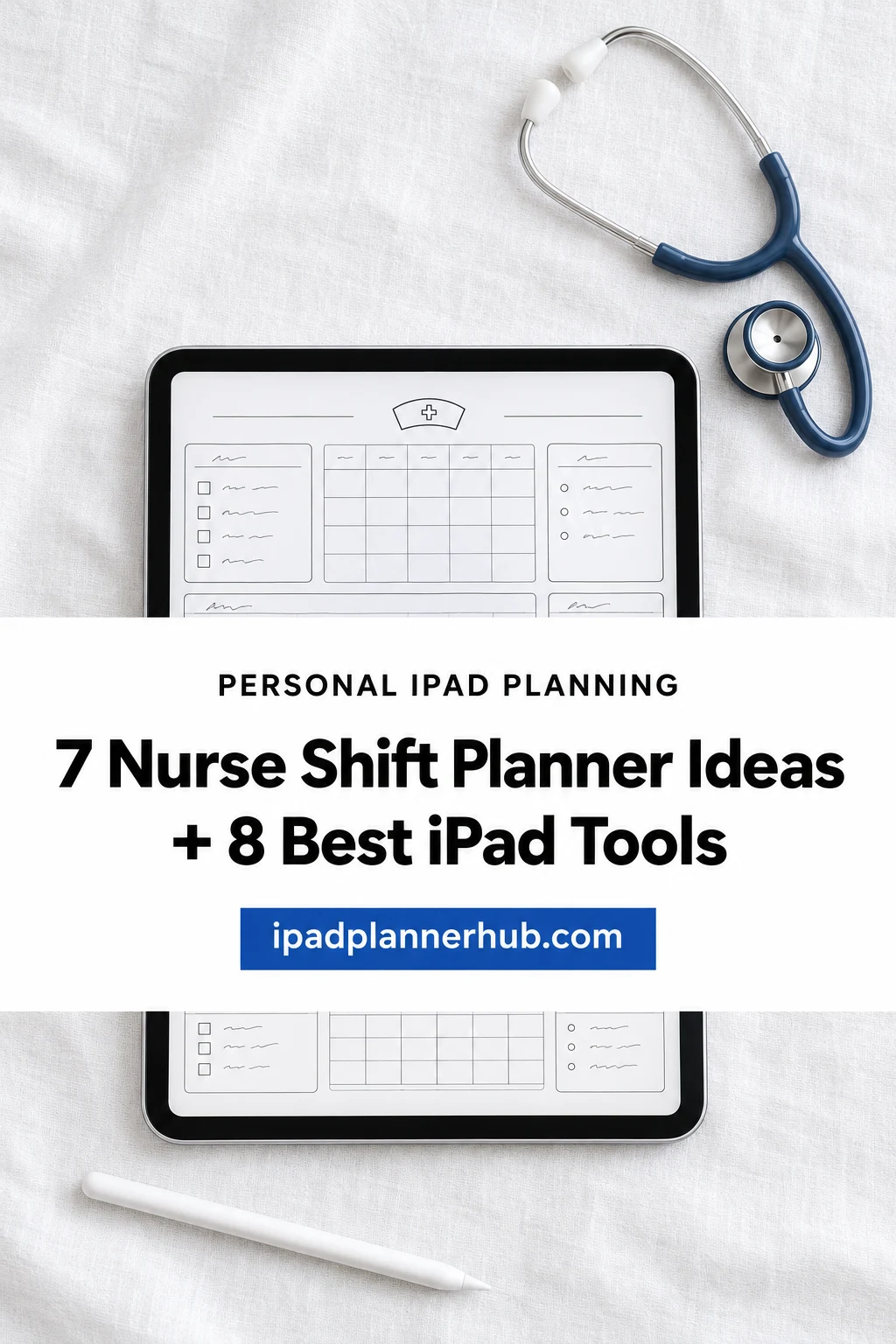
I would start with one readable page, not a dashboard full of tiny fields. The seven ideas below are for personal planning without patient information: time boundaries, preparation, changes and follow-up. Use an iPad at work only where your employer permits it; clinical tasks, priorities, documentation and handoff belong in the approved workplace process.
I picked eight digital tools for creating these pages yourself. The choices include tabbed notebooks, a lined journal and separate papers. Choose a base for the way you write, rather than expecting the product to supply a finished nursing workflow.
TL;DR: Build a personal shift outline with time boundaries, organizational reminders, room for changes and a short follow-up list. These seven ideas are layouts to create yourself. The eight digital tools provide notebooks, a journal and individual papers.
Quick Picks
- Best for a simple shift index: Watercolor Hyperlinked Digital Notebook
- Best for a wide planning grid: Digital Notebook by Shades of Zen
- Best for five clear destinations: Digital Notebook 5 Hyperlinked Tabs
- Best for more page choices: Digital Notebook 5 Hyperlinked Tab by studiopattern
- Best for a compact section menu: Cute Hyperlinked Notebook – 5 Tab
- Best for white or cream pages: Pastel Digital Notebook Hyperlinked
- Watercolor Hyperlinked Digital Notebook – Best for a simple shift index
- Digital Notebook by Shades of Zen – Best for a wide planning grid
- Digital Notebook 5 Hyperlinked Tabs – Best for five clear destinations
- Digital Notebook 5 Hyperlinked Tab by studiopattern – Best for more page choices
- Cute Hyperlinked Notebook – 5 Tab – Best for a compact section menu
- Pastel Digital Notebook Hyperlinked – Best for white or cream pages
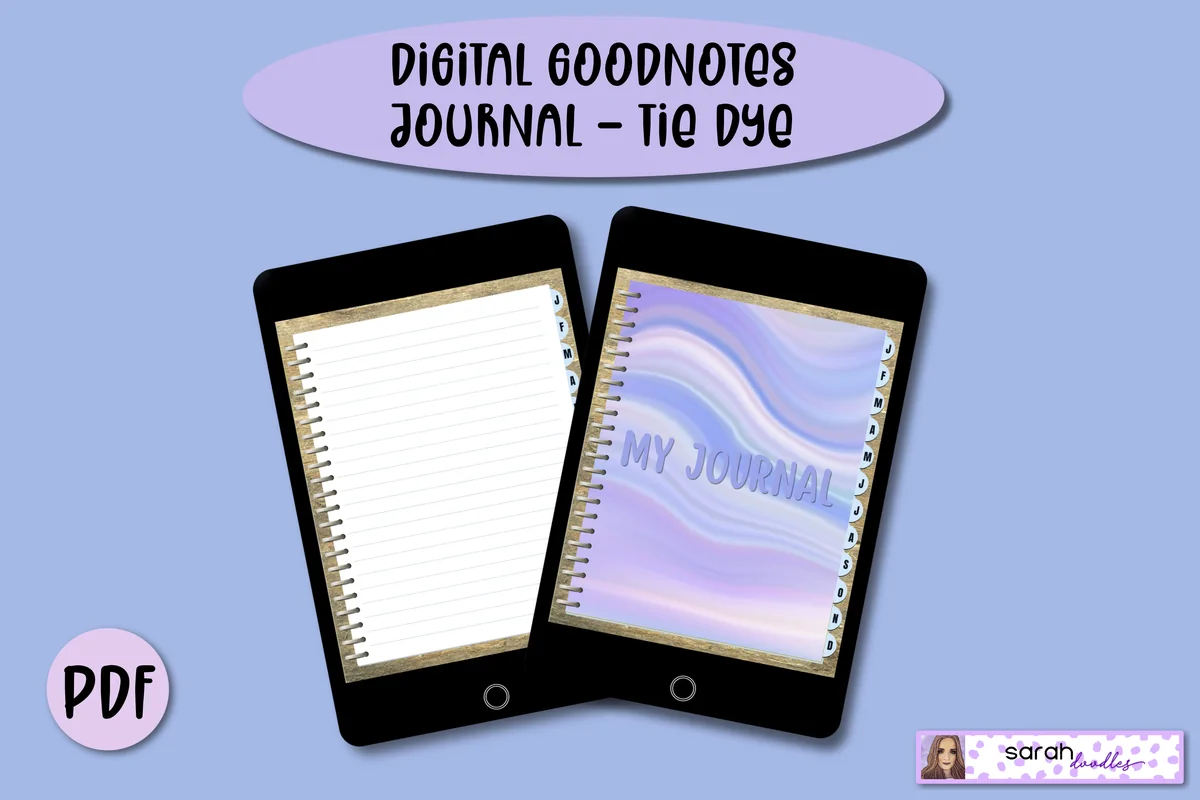
- Digital GoodNotes Journal – Tie Dye – Best for personal follow-up by month
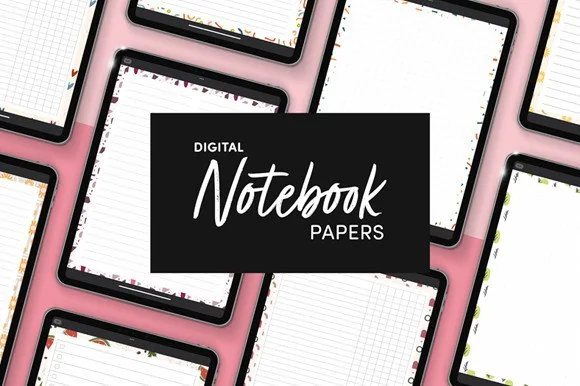
- Digital Notebook Papers – GoodNotes – Best for adding one useful sheet
Twelve-section notebooks for a shift index
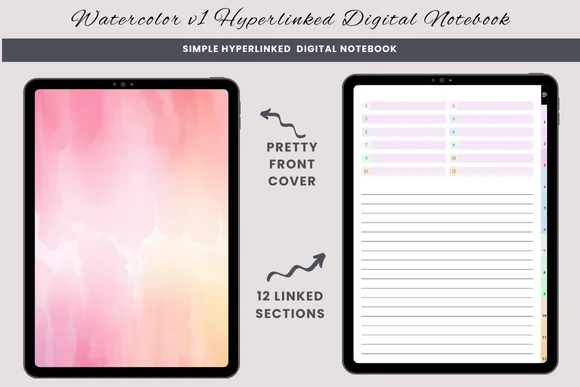
Best for a simple shift index
1. Watercolor Hyperlinked Digital Notebook
Orientation: PortraitLayouts: Lined, blank, half-linedDates: No calendar dates shownWeek start: Not applicable
Best for: free-form writers, sketch and write journalers, topic-by-topic journalers. Designed by daysfilledwithjoy.
- 12 linked sections with lined, blank and half-lined pages
- One PDF for GoodNotes or a similar PDF annotation app
- Duplicate a blank page when another shift needs its own space
Three page styles are enough for the basic setup: a blank time map, lined reminders, and a half-lined page for changes. I like this option when selecting a template should take less time than writing the plan. The shift headings are yours to add.
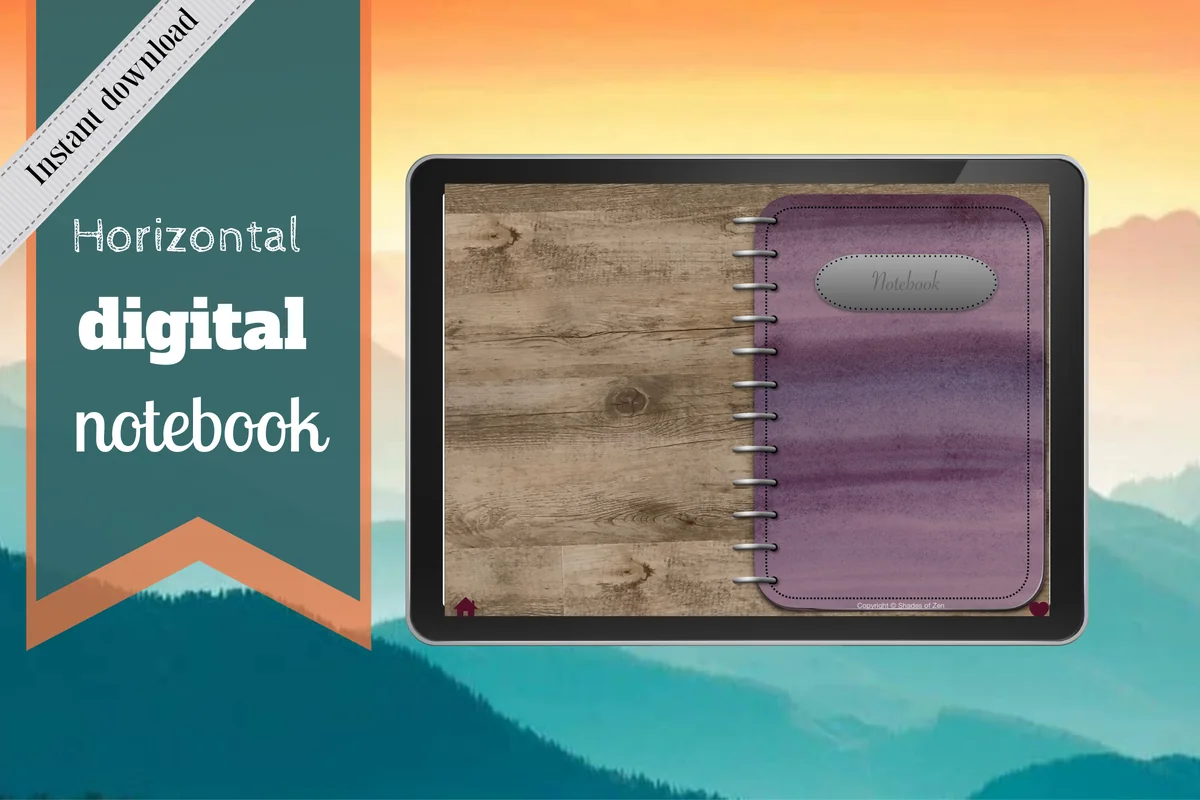
Best for a wide planning grid
2. Digital Notebook by Shades of Zen
Orientation: LandscapeLayouts: 16 note templatesDates: No calendar dates shownWeek start: Not applicable
Best for: landscape note-takers, busy students, meeting notes. Designed by Shades of Zen.
- 12 expandable sections with hyperlinked tabs and individual dividers
- 16 note templates, including lined, dotted, graph and Cornell notes
- Instructions for importing into GoodNotes or another PDF annotation app
The horizontal spread gives a custom grid room to breathe. Put hours on the left and personal organizational reminders on the right; the Cornell layout offers another way to separate prompts from notes. I would keep one shift on a spread rather than treating each section as a patient file.
Five- and six-section notebooks for a smaller system
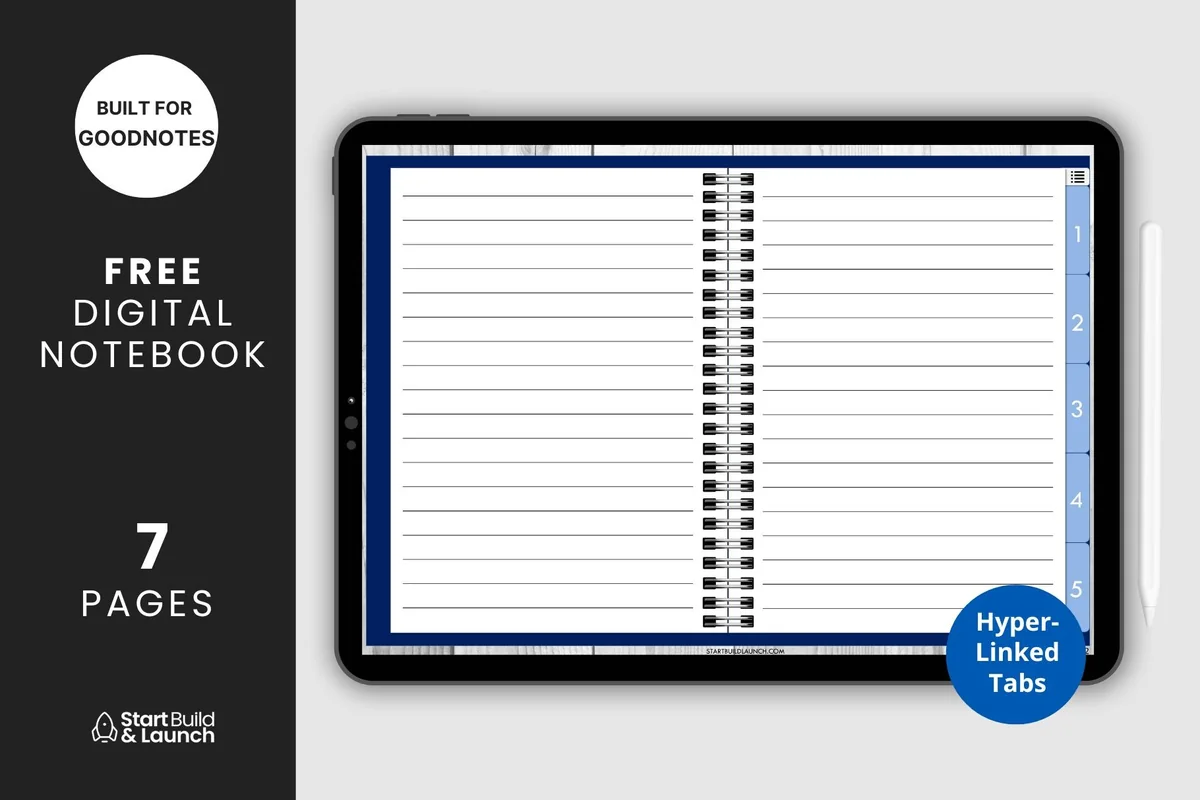
Best for five clear destinations
3. Digital Notebook 5 Hyperlinked Tabs
Orientation: LandscapeLayouts: Blank, lined, dotted, graph, CornellDates: No calendar dates shownWeek start: Not applicable
Best for: beginners, high school students, minimalists. Designed by aviswilliams.
- Index page and five hyperlinked sections
- Blank, lined, dotted, graph and Cornell note papers
- PDF designed for an iPad or tablet with a stylus; GoodNotes, Noteshelf and Notability are suggested
Five sections fit a small working system without a tab for every hour. The graph or dotted page can be the starting point for a hand-drawn time map, while a lined page suits a short carry-forward list. The seller specifies an iPad or tablet with a stylus.
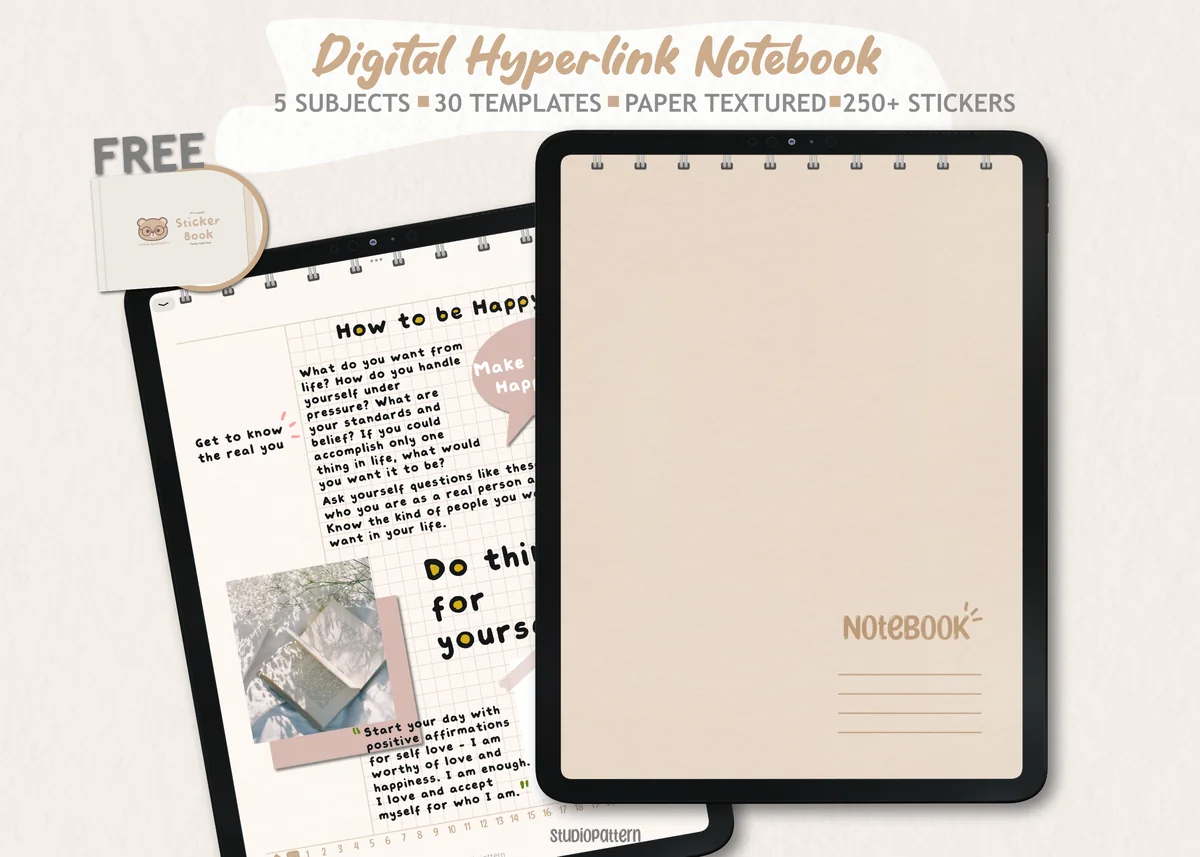
Best for more page choices
4. Digital Notebook 5 Hyperlinked Tab by studiopattern
Orientation: PortraitLayouts: Notes and general planning papersDates: Blank planning templates shownWeek start: General weekly template shown
Best for: 5-subject students, sticker lovers, neutral aesthetic fans. Designed by studiopattern.
- Five sections and a linked contents page
- 30 paper templates; previews show monthly, weekly, daily, habit and checklist pages
- Hyperlinked PDF, PDF manual, 250+ individual PNG stickers and one precropped GoodNotes sticker-book file
- Best used on an iPad or tablet with an Apple Pencil or stylus; annotation app may require a separate purchase
This is the more flexible five-section option: its template menu includes planning pages as well as notes. Start with one page for a shift and leave unused templates alone. An iPad or tablet with an Apple Pencil or stylus is the seller’s recommended setup; the annotation app may be a separate purchase.
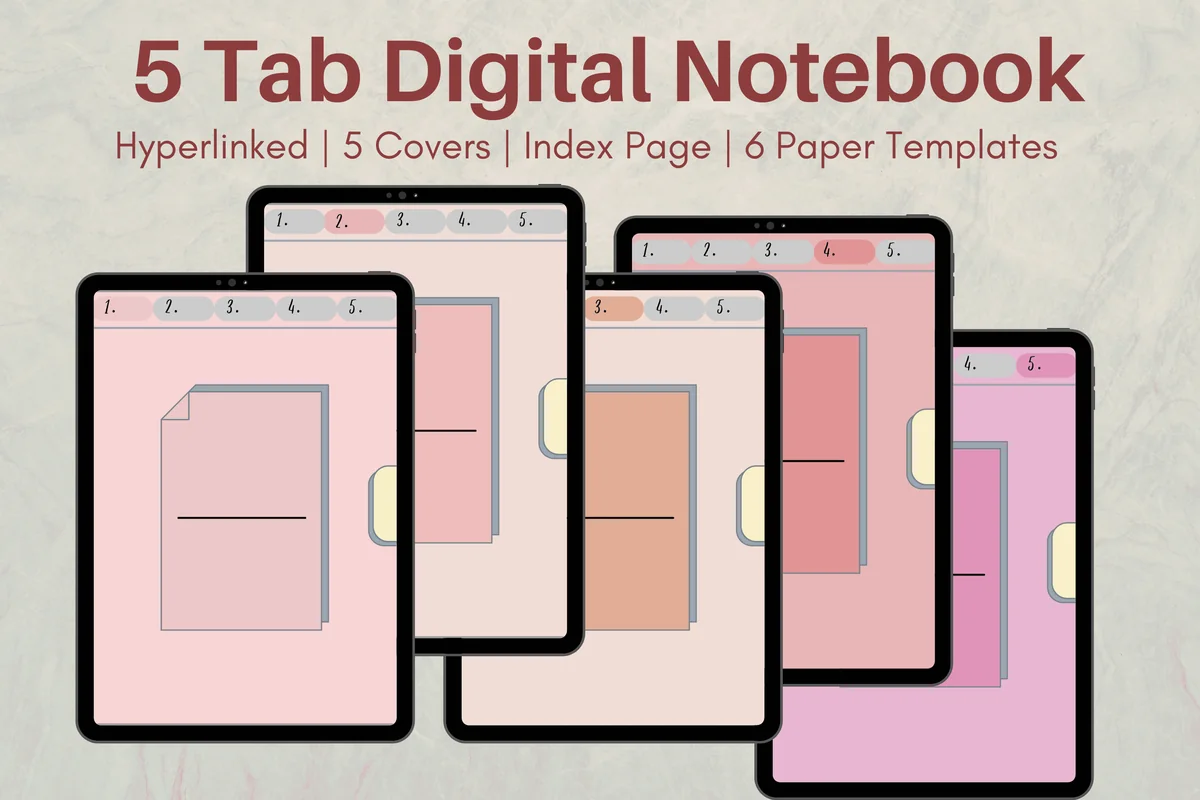
Best for a compact section menu
5. Cute Hyperlinked Notebook – 5 Tab
Orientation: PortraitLayouts: Six papers, including lined and gridDates: Date field is blankWeek start: Not applicable
Best for: students, multi-subject note takers, cute style fans. Designed by Melissam Illustration.
- Five hyperlinked subject dividers and an index page
- Five cover choices and six paper templates
- PDF for iPad or tablet apps including GoodNotes, Notability, Noteshelf and Xodo
The five-tab index is easy to divide by purpose. A two-column page can hold a time cue alongside the next organizational action; the blank page leaves space for a layout of your own. This general notebook provides six paper templates for creating your own layout.
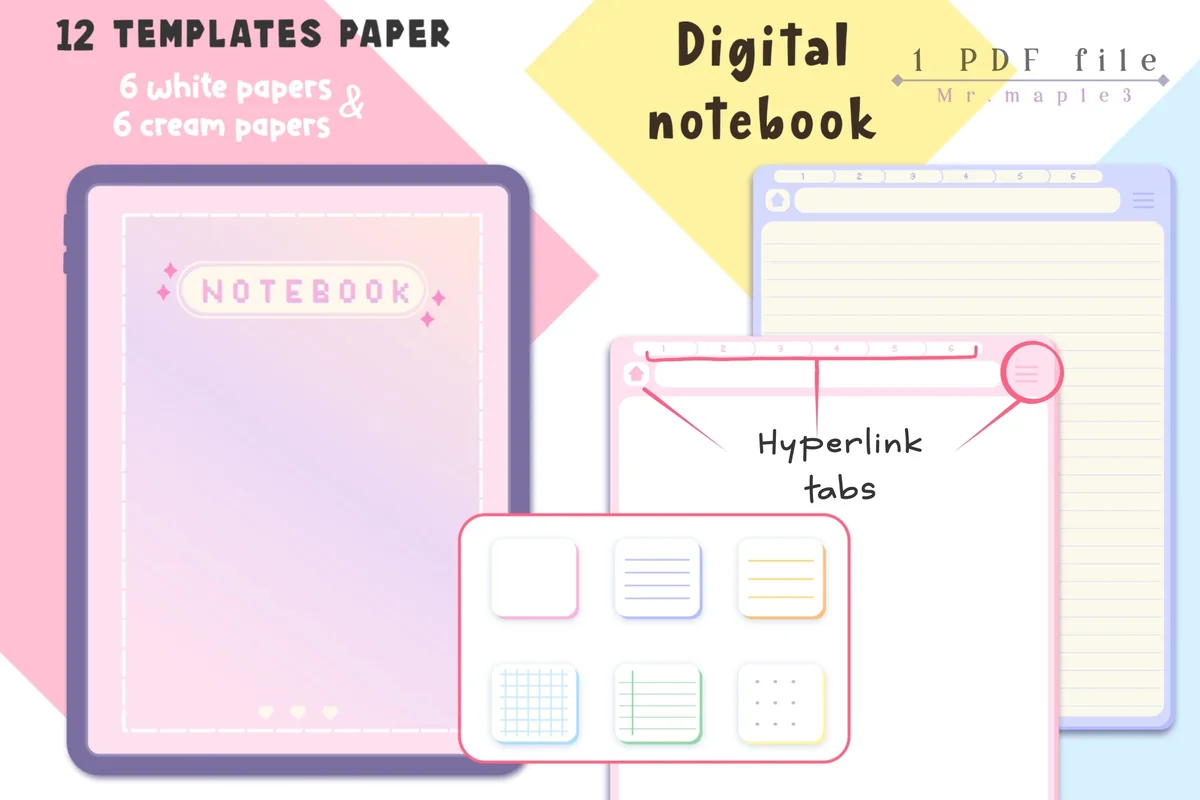
Best for white or cream pages
6. Pastel Digital Notebook Hyperlinked
Orientation: PortraitLayouts: 12 white and cream papersDates: No calendar dates shownWeek start: Not applicable
Best for: choosing a background and then keeping a consistent shift layout. Designed by Maple3Studio.
- Six chapter covers shown in the gallery
- 12 paper templates: six white and six cream
- Hyperlinked PDF for iPad note-taking in GoodNotes or Notability, with a JPG guide for adding templates
The preview shows six chapter covers and white and cream versions of the note papers. I like having a background choice without changing the working layout every shift. Copy the page style you prefer, then add the same time labels and status key each time.
A follow-up journal and individual papers
Best for personal follow-up by month
7. Digital GoodNotes Journal – Tie Dye
Orientation: PortraitLayouts: Lined journal pagesDates: UndatedWeek start: Not applicable
Best for: colorful journalers, monthly writers, casual journalers. Designed by Sarah Doodles.
- Undated journal with hyperlinked monthly dividers
- Five blank lined pages per month; more can be added in GoodNotes
- Hyperlinked PDF for iPads or tablets using GoodNotes, Notability, Xodo or Noteshelf
- Seller recommends an Apple Pencil or stylus; clickable links may need read-only mode
Monthly dividers make this a useful companion for personal follow-up, such as a question about training or a reminder to check a roster request. It is less structured than a grid-based shift sheet. The seller recommends an iPad or tablet with an Apple Pencil or stylus and explains how to add more lined pages.
Best for adding one useful sheet
8. Digital Notebook Papers – GoodNotes
Orientation: PortraitLayouts: Eight layouts per designDates: No calendar dates shownWeek start: Not applicable
Best for: list makers, decorative note-takers, planner add-ons. Designed by catsquills.
- Nine portrait paper designs
- Eight layouts per design: columns, habit tracker, to-do, numbered list, dots, square, lines and notes
- PNG and PDF files for GoodNotes or Notability; 2550 × 3300 pixels, US Letter proportions
You may only need a page, not another notebook. The columns and to-do layouts are useful starting points for a nursing shift to do list that contains no clinical details. These are individual papers in PNG and PDF formats; choose them for page inserts, without assuming a tabbed notebook is included.
Quick Comparison
| Digital tool | Navigation | Page choices | Use for your own layout |
|---|---|---|---|
| 1. Watercolor Hyperlinked Digital Notebook | 12 sections | 3 page styles | Simple shift outline |
| 2. Digital Notebook by Shades of Zen | 12 sections | 16 note templates | Wide custom grid |
| 3. Digital Notebook 5 Hyperlinked Tabs | 5 sections | 5 paper templates | Five-part navigation |
| 4. Digital Notebook 5 Hyperlinked Tab by studiopattern | 5 sections | 30 paper templates | Flexible daily outline |
| 5. Cute Hyperlinked Notebook – 5 Tab | 5 sections | 6 paper templates | Small custom system |
| 6. Pastel Digital Notebook Hyperlinked | 6 chapters | 12 paper templates | Consistent page base |
| 7. Digital GoodNotes Journal – Tie Dye | Monthly dividers | Lined pages | Personal follow-up |
| 8. Digital Notebook Papers – GoodNotes | Individual papers | 8 layouts per design | One-sheet additions |
What belongs on your personal shift page?
Give your nursing shift to do list a narrow job: hold the small organizational details you want to revisit. A reminder to ask about a roster change is different from a clinical instruction. Keeping that boundary visible also makes it easier to decide whether a note belongs here at all.
- Time frame: your scheduled shift start and finish, including the date change if you work overnight.
- Personal preparation: a short list such as checking your bag or opening the permitted workplace resources.
- Organizational reminders: a general staff notice to read or a question about a training session.
- Change space: somewhere to move a nonclinical reminder without making the whole page unreadable.
- Follow-up: one clearly stated next action for an unresolved personal or administrative question.
Leave out names, room or bed references, identifiers, photographs, diagnoses, medication information and patient-linked shorthand. A personal page is not an extra chart, and removing a name does not automatically make a clinical note appropriate for it. If a reminder needs patient context to make sense, use the approved workplace system instead.
7 page ideas for planning one shift
You do not need seven separate pages. These are seven blocks you can combine on a single sheet or spread across a few notebook pages. Start with the first, fourth and sixth ideas if you want the smallest possible setup.
Set the frame before adding detail
- 1A shift boundary strip. Write the date, scheduled start and finish across the top. For an illustrative 19:00–07:00 shift, add “next day” beside 07:00 so the page shows the date boundary. Use your actual roster, not this example. A simple 24-hour scale can be easier to scan than switching between AM and PM labels; keep the notation consistent with your workplace.
- 2A two-column time map. Draw a narrow column for time cues and a wider one for personal organizational reminders. Give a crowded part of your own schedule more writing room instead of forcing every row to be identical. Write “check staff notice” or “ask about training booking,” not treatment instructions. Leave the clinical schedule in its approved system.
- 3A short readiness checklist. Put reusable personal preparations in a small box: bag ready, permitted resources available, personal items accounted for. Limit the list to things you actually forget. If a check is part of an official workplace checklist, complete it there; a decorative copy in your notebook is not evidence that the official step is complete.
- 4A flexible window. Leave a visibly empty area next to the time map for changes. A possible break window can be penciled in as tentative, subject to workplace arrangements, rather than drawn as a guaranteed appointment. If the day changes, move the personal reminder here once and review it when appropriate. An empty box is useful capacity, not a planning failure.
A wide grid suits someone who writes in columns. A portrait lined page may be a better choice if your notes are mostly short sentences. Test the amount of writing space with an invented example before committing to a page full of borders.
Keep changes and loose ends readable
- 5A personal reminder footer. Keep a few nonclinical reminders at the bottom of the page, away from the time grid. Examples include checking the deadline for a training registration or asking where to find a staff form. A footer stops these small items from looking like appointments. Do not fill it with protocols, patient details or copied clinical instructions.
- 6A simple status key. Pick a few plain marks such as an empty square for open, a tick for finished and an arrow for moved. Write the key on your reusable template so you do not have to decode a new color scheme each shift. When a personal reminder moves, add its destination beside the arrow; do not copy everything completed onto the next page.
- 7A personal follow-up strip. End with three fields: question, next action and when to revisit it. “Training date unclear → ask the education coordinator → before registration closes” is a useful nonclinical example. Keep patient handoff and unresolved care matters in the official process. This strip is for your own administrative loose ends, not a substitute for communicating an urgent workplace issue.
The status key and follow-up strip work together. The arrow tells you something moved; the strip tells you where it went and what happens next. That is more useful than a growing list of identical unfinished checkboxes.
Build a nurse shift planner template on iPad
A blank notebook page is enough to try the layout. If you already have a note app and a suitable page, try that first. The tools above are optional starting points for the same process, with different navigation and paper choices.
From a blank page to a reusable outline
- 1Choose one base page. Use graph paper for a grid, lined paper for reminders or a blank page for a larger freehand layout. Check the product’s app requirements before importing its file.
- 2Add the permanent headings. Put the shift boundary at the top, time cues beside a writing area, and a small follow-up strip at the bottom. Keep heading text large enough to read at your normal iPad view.
- 3Save a clean working template. Keep the original page empty and create a working copy using the duplication or page-copy controls in your annotation app. Exact controls depend on the app and file.
- 4Try a fictional shift. Add a staff notice, a training question and a tentative personal reminder. Move one item to the change area and carry one forward. If there is nowhere to put the arrow destination, widen that field.
- 5Use only what the workplace permits. Check device, storage and use rules before taking the setup into a workplace. If personal tablets are not permitted, keep the iPad page for off-duty preparation and personal follow-up.
For the broad view across several workdays, see my weekly digital planner shortlist. Keep the single-shift page focused on one shift; it does not need to become the master calendar for your entire month.
A nurse shift planner example without clinical data
This fictional nursing time management sheet shows the layout, not a suggested nursing schedule. Its entries are deliberately administrative. Replace the times with your actual roster and use approved systems for anything connected to patient care.
| Page area | Example entry | What it tells you |
|---|---|---|
| Boundary | 19:00–07:00 next day | Which shift this personal page covers |
| Organizational reminder | Read staff notice when appropriate | A reminder, not a clinical instruction |
| Change space | Training question moved → follow-up strip | Where the unfinished personal item went |
| Follow-up | Ask coordinator about registration date | A specific next action rather than “sort later” |
Notice what is missing: patient columns, clinical histories and treatment reminders. A professional handoff report has a different purpose from this personal sheet. I would not copy its fields into a general-purpose notebook just because they fit inside a table.
Template or app: choose by the job you need done
A PDF page gives you a surface to annotate. A staff scheduling system manages a different job, such as organizing a team roster. Choose based on the function you actually need, rather than expecting a notebook file to behave like workplace software.
- Choose a notebook page when you want handwritten personal reminders, a custom grid or a reusable outline in your annotation app.
- Use the approved scheduling system for your official roster, shift swaps and workplace scheduling requests.
- Check app features separately if you need alarms or calendar integration. A PDF template by itself does not synchronize with a staff roster or create reminders.
- Keep official records official. A personal PDF, spreadsheet or Canva layout does not gain workplace approval from looking professional.
If your broader problem is organizing personal projects around work, my digital work planner comparison covers more general planning layouts. For a page centered on one day, compare the daily iPad planners. Neither replaces your employer’s systems.
Keep the page useful after the first shift
Review the design rather than judging how many boxes you ticked. If a field was too small or never used, change the clean template before making the next copy. Keep the number of edits small so the page stays familiar.
- If notes spill into the margins: give the writing column more space and remove a low-value field.
- If too many items move: distinguish a timed commitment from a reminder that can wait for an appropriate moment.
- If personal follow-up disappears: keep one clear destination, either the strip or a separate personal follow-up page.
- If navigation slows you down: keep the current working page easy to find using the features available in your app.
- If you cannot keep the content within policy: stop using that personal page for work and ask your employer which process is approved.
FAQ: Nurse shift planning on iPad
How do I organize my shift as a nurse?
Follow your workplace’s clinical priorities, documentation and handoff procedures. For a permitted personal planning aid, begin with your rostered time boundaries, a short nonclinical reminder list and room for changes. This article helps organize that personal page; it does not determine care priorities or task timing.
Can I create a nurse shift planner PDF from a blank notebook?
Yes, you can add your own headings and grid to a suitable page in a PDF annotation app. The selected tools provide different notebook, journal and paper bases. Start with one page and a fictional example, then check that both the device and intended use are permitted at your workplace.
Which nurse shift planner app is best?
For official scheduling or clinical work, use the system your employer approves. For a personal handwritten outline, choose an annotation app compatible with your file and device; the product cards identify the seller’s stated options. Check any alarm, storage and calendar features separately instead of assuming they come with a notebook.
How should a night shift page cross midnight?
Label both dates and keep the time format consistent. On the illustrative 19:00–07:00 outline, mark 07:00 as the next day, then write your real shift boundaries rather than copying the example. Leave enough space around midnight that you can see which date a personal reminder belongs to.
Is a personal iPad notebook safe for patient information?
Do not use this personal setup for patient information or as a clinical record. Ask your employer’s privacy or information security team about permitted devices and systems before using an iPad for work. Clinical questions and care decisions belong with the appropriate clinical lead and approved procedures; a planning article cannot assess those decisions.
Start with one page you can read at a glance
A useful nurse shift planner gives personal reminders a clear home without building a second record system. Start with a time boundary, room for changes and one follow-up strip. Add another section only when it solves a problem you actually encountered with the page.
You May Also Like
This article contains affiliate links. If you purchase through them, I may earn a commission at no extra cost to you. Read the affiliate disclosure.