The permission slip is still in the folder, the reading book is on the sofa, and a school message says something is due tomorrow. An elementary student planner on your iPad can be the parent’s place to turn that scattered information into a short, usable home plan. I would start with what needs to happen tonight, not a full timetable for every minute of a child’s day.
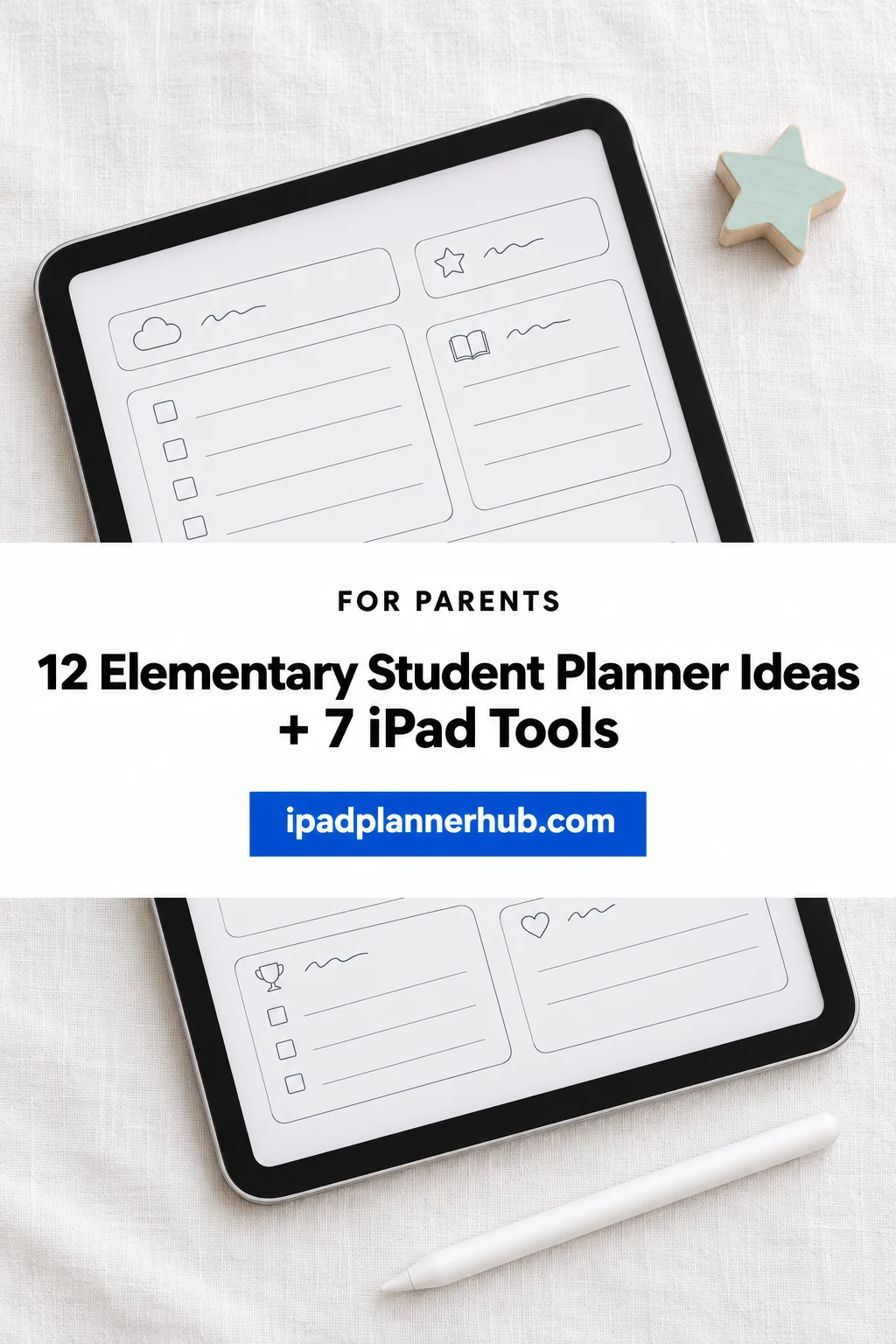
This is a parent-led setup: you capture school instructions, help your child see the next action, and check what needs to go back. The 12 ideas below are your own page headings and routines. The seven digital tools offer surfaces for building them; they are not advertised here as school-approved forms or complete elementary planner templates.
TL;DR: Keep the school’s official instructions as your source, then turn each message into a small home action and a return check. These 12 ideas are pages you create yourself. The seven iPad tools below provide blank notebooks, general planning papers or a paper pack, rather than a ready-made elementary-school system.
Quick Picks
- Best for a simple school inbox: Watercolor Hyperlinked Digital Notebook
- Best for question-and-answer notes: Digital Notebook by Shades of Zen
- Best for five clear school sections: Digital Notebook 5 Hyperlinked Tabs
- Best for a ready weekly base: Digital Notebook 5 Hyperlinked Tab by studiopattern
- Best for an existing notebook: Digital Notebook Papers – GoodNotes
- Best for several children and school years: Digital Notebook 24 Hyperlinked Tab
- Watercolor Hyperlinked Digital Notebook – Best for a simple school inbox
- Digital Notebook by Shades of Zen – Best for question-and-answer notes
- Digital Notebook 5 Hyperlinked Tabs – Best for five clear school sections
- Digital Notebook 5 Hyperlinked Tab by studiopattern – Best for a ready weekly base
- Digital Notebook Papers – GoodNotes – Best for an existing notebook
- Digital Notebook 24 Hyperlinked Tab – Best for several children and school years
- Cute Digital Notebook Hyperlinked by studiopattern – Best for flexible page choices
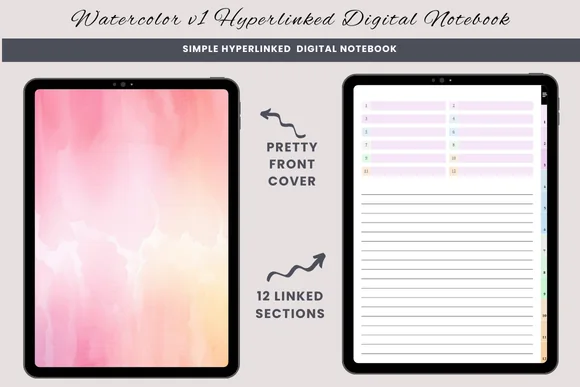
Best for a simple school inbox
1. Watercolor Hyperlinked Digital Notebook
Orientation: PortraitLayouts: Lined, blank, half-linedDates: No calendar dates shownWeek start: Not applicable
Best for: free-form writers, sketch and write journalers, topic-by-topic journalers. Designed by daysfilledwithjoy.
- 12 linked sections with lined, blank and half-lined pages
- One PDF for GoodNotes or a similar PDF annotation app
- Pages can be duplicated when you need more writing space
I like the half-lined page for a message summary above and one clear action below. A separate section can hold completed conversations so they stop crowding tonight’s list. You supply the school headings; this is a blank notebook rather than a ready-made parent agenda.
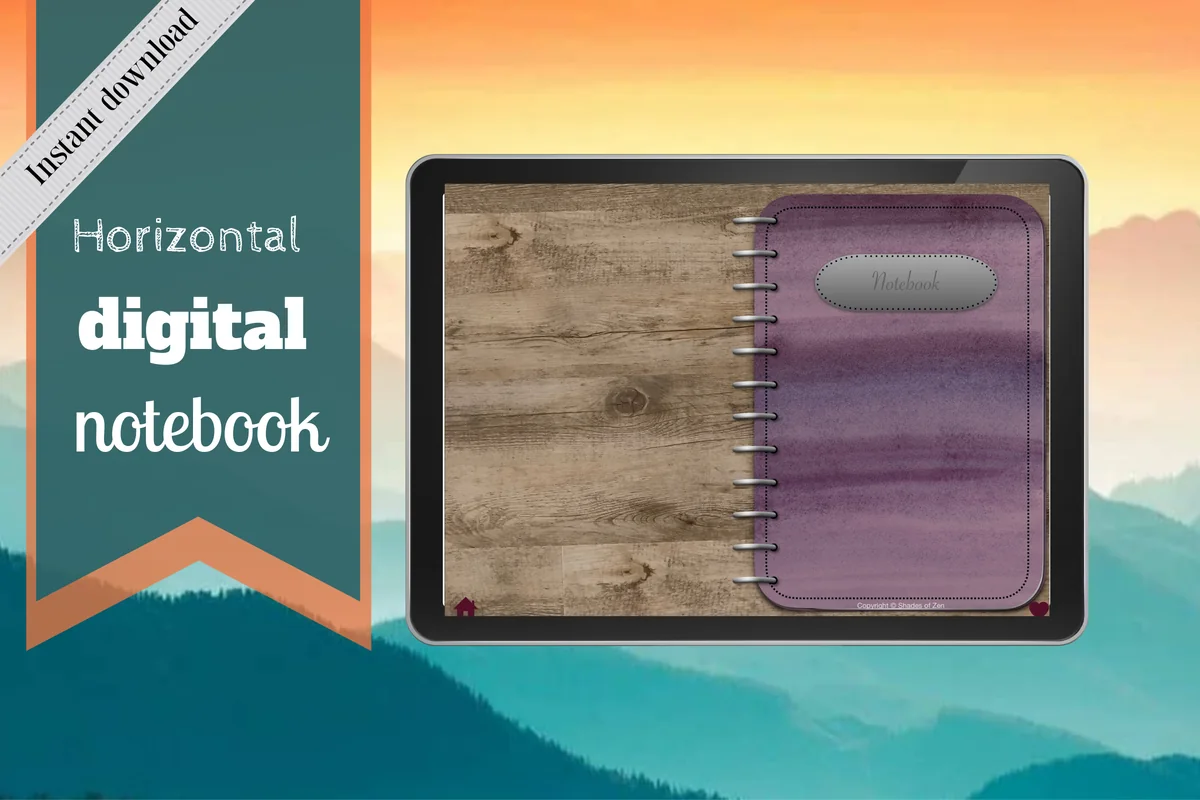
Best for question-and-answer notes
2. Digital Notebook by Shades of Zen
Orientation: LandscapeLayouts: 16 note templatesDates: No calendar dates shownWeek start: Not applicable
Best for: landscape note-takers, busy students, meeting notes. Designed by Shades of Zen.
- 12 expandable sections with hyperlinked tabs and individual dividers
- 16 note templates, including lined, dotted, graph and Cornell notes
- Instructions for GoodNotes or another PDF annotation app
The landscape spread offers room to separate a question from the response without squeezing everything into a narrow checklist. Cornell paper is a useful starting point: question in the cue area, answer in the main space, next action in the summary. Those parent-specific labels are yours to add.
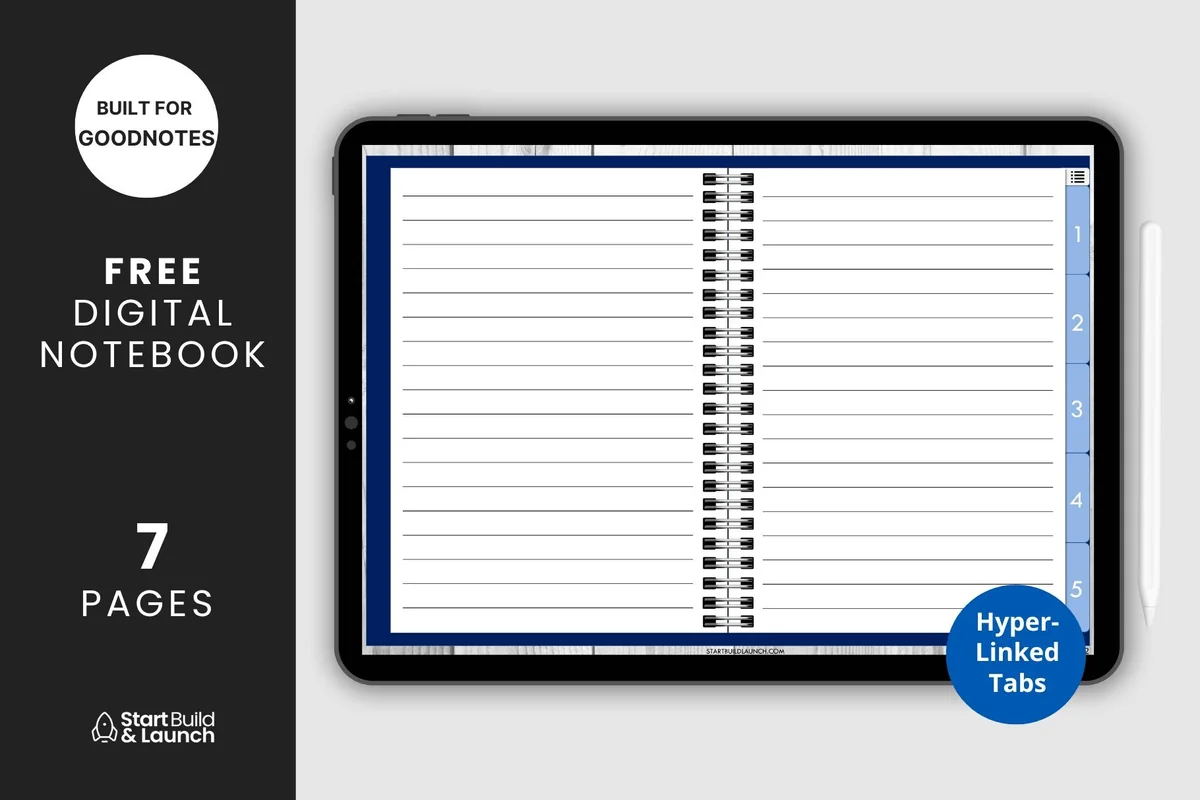
Best for five clear school sections
3. Digital Notebook 5 Hyperlinked Tabs
Orientation: LandscapeLayouts: Blank, lined, dotted, graph, CornellDates: No calendar dates shownWeek start: Not applicable
Best for: beginners, high school students, minimalists. Designed by aviswilliams.
- Index page and five hyperlinked sections
- Blank, lined, dotted, graph and Cornell note papers
- PDF designed for an iPad or tablet with a stylus; GoodNotes, Noteshelf and Notability are suggested
Five tabs make the initial setup easy to name. I would put the weekly overview at the front of Homework instead of adding another section immediately. The seller recommends a tablet and stylus, so include those in your setup plans.
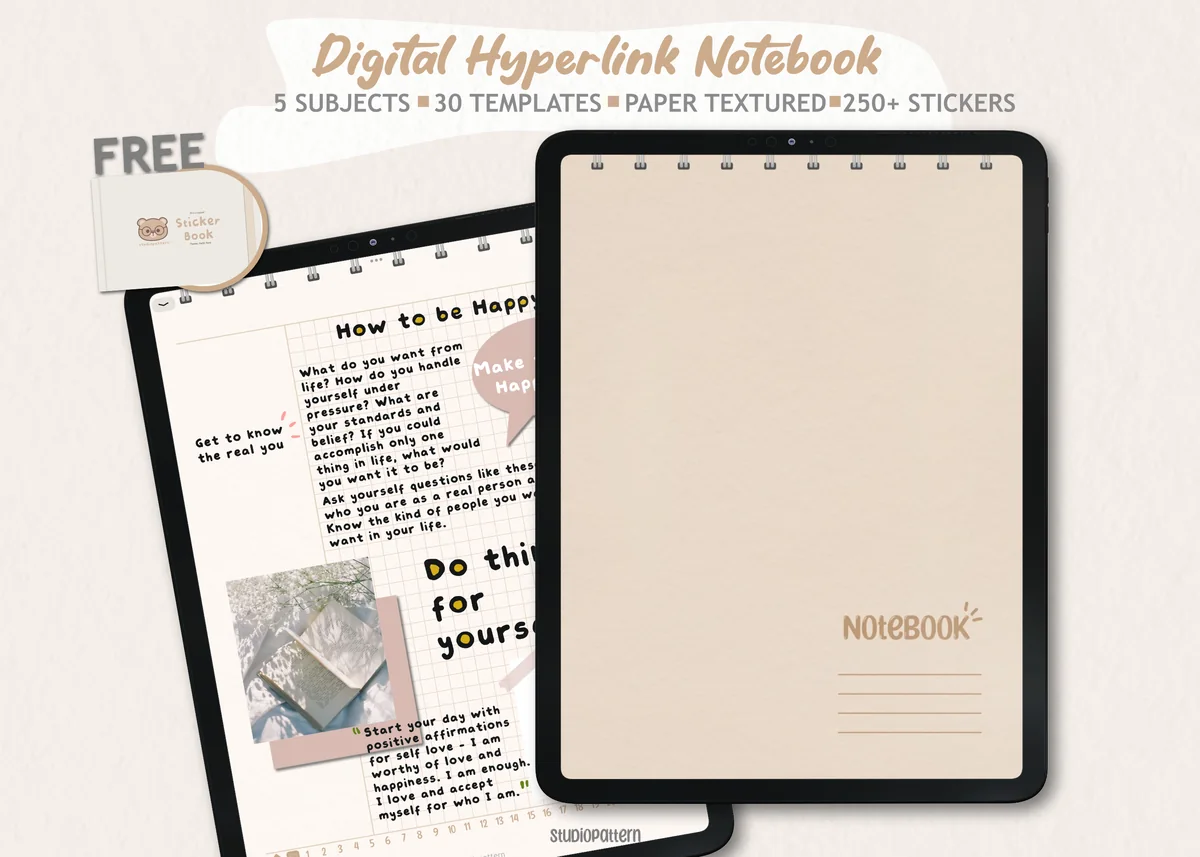
Best for a ready weekly base
4. Digital Notebook 5 Hyperlinked Tab by studiopattern
Orientation: PortraitLayouts: General planning and note papersDates: No calendar dates shownWeek start: Not applicable
Best for: 5-subject students, sticker lovers, neutral aesthetic fans. Designed by studiopattern.
- Five sections, a linked contents page and 30 paper templates
- Monthly, weekly, daily, habit and checklist papers
- Hyperlinked PDF, PDF manual, 250+ individual PNG stickers and one precropped GoodNotes sticker-book file
- Best used with an iPad or tablet and Apple Pencil or stylus; annotation app may cost extra
This option saves drawing a weekly grid from scratch. The general planning papers can hold your own assignment and return headings, while a lined page carries longer teacher questions. The sticker book is a bonus, not a reason to turn the homework check into a decorating session.
Best for an existing notebook
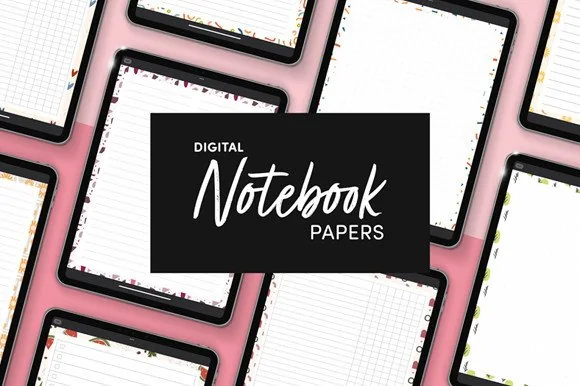
5. Digital Notebook Papers – GoodNotes
Orientation: PortraitLayouts: Columns, lists, grids and notesDates: No calendar dates shownWeek start: Not applicable
Best for: list makers, decorative note-takers, planner add-ons. Designed by catsquills.
- Nine portrait paper designs for GoodNotes and Notability
- Eight layouts per design: columns, habit tracker, to-do, numbered list, dots, square, lines and notes
- PNG and PDF files; 2550 × 3300 px, US Letter proportions
If you already have a digital family notebook, extra paper may be more useful than another set of tabs. Use columns for an incoming message and action, or lined paper for reading notes. This is a paper pack, so choose a separate notebook if you need a linked section structure.
Best for several children and school years
6. Digital Notebook 24 Hyperlinked Tab
Orientation: PortraitLayouts: Note papers and general planning pagesDates: No calendar dates shownWeek start: Not applicable
Best for: separating a larger family archive while keeping an index. Designed by studiopattern.
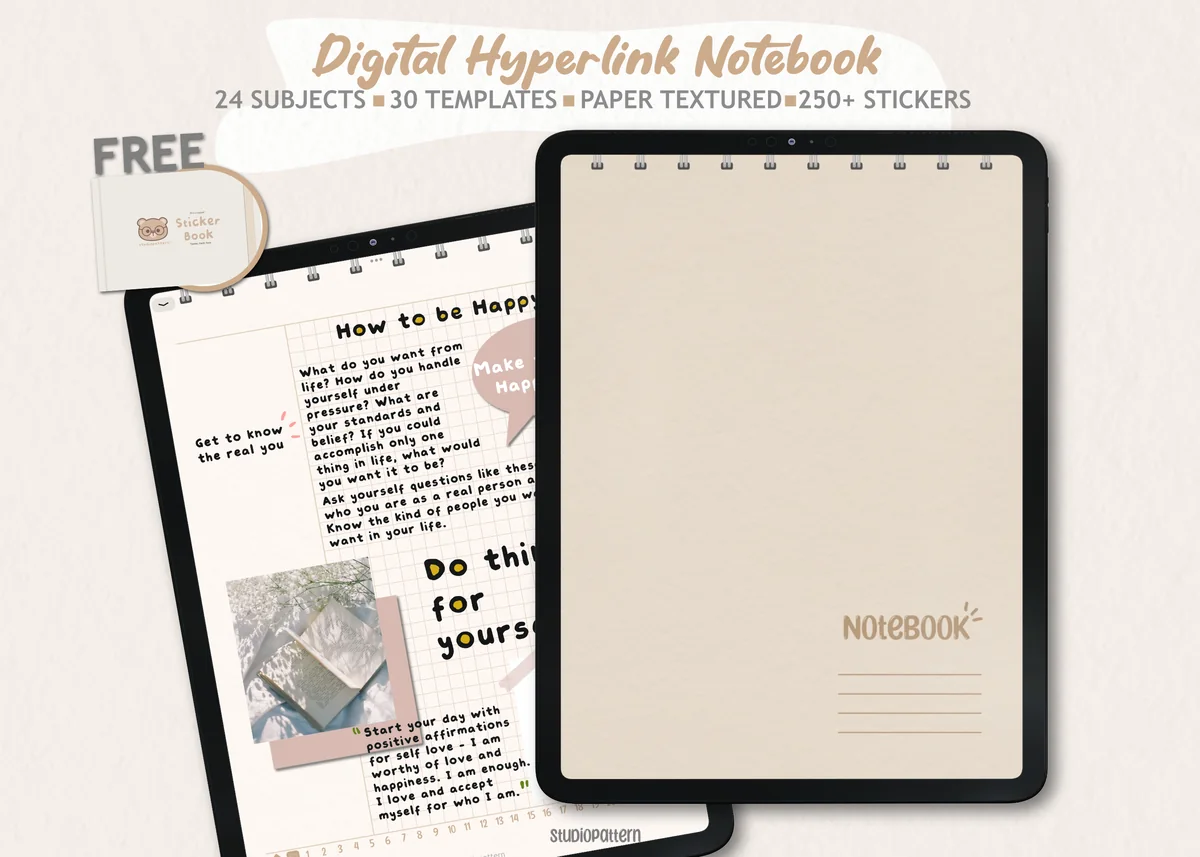
- 24 linked sections and a contents page
- 30 paper templates; previews show note papers and general monthly, weekly and daily planning pages
- Hyperlinked PDF, PDF manual, 250+ PNG stickers and one precropped GoodNotes sticker book
- Best used on an iPad or tablet with an Apple Pencil or stylus; annotation app may require a separate purchase
The extra sections matter when two children’s messages must stay distinct or you keep previous terms for reference. Compared with the five-section notebook from the same designer, the reason to choose this one is the larger index, not a different school curriculum. Start by naming only the sections you need.
Best for flexible page choices
7. Cute Digital Notebook Hyperlinked by studiopattern
Orientation: PortraitLayouts: Note and general planning papersDates: No calendar dates shownWeek start: Not applicable
Best for: trying different note layouts before settling on a school routine. Designed by studiopattern.
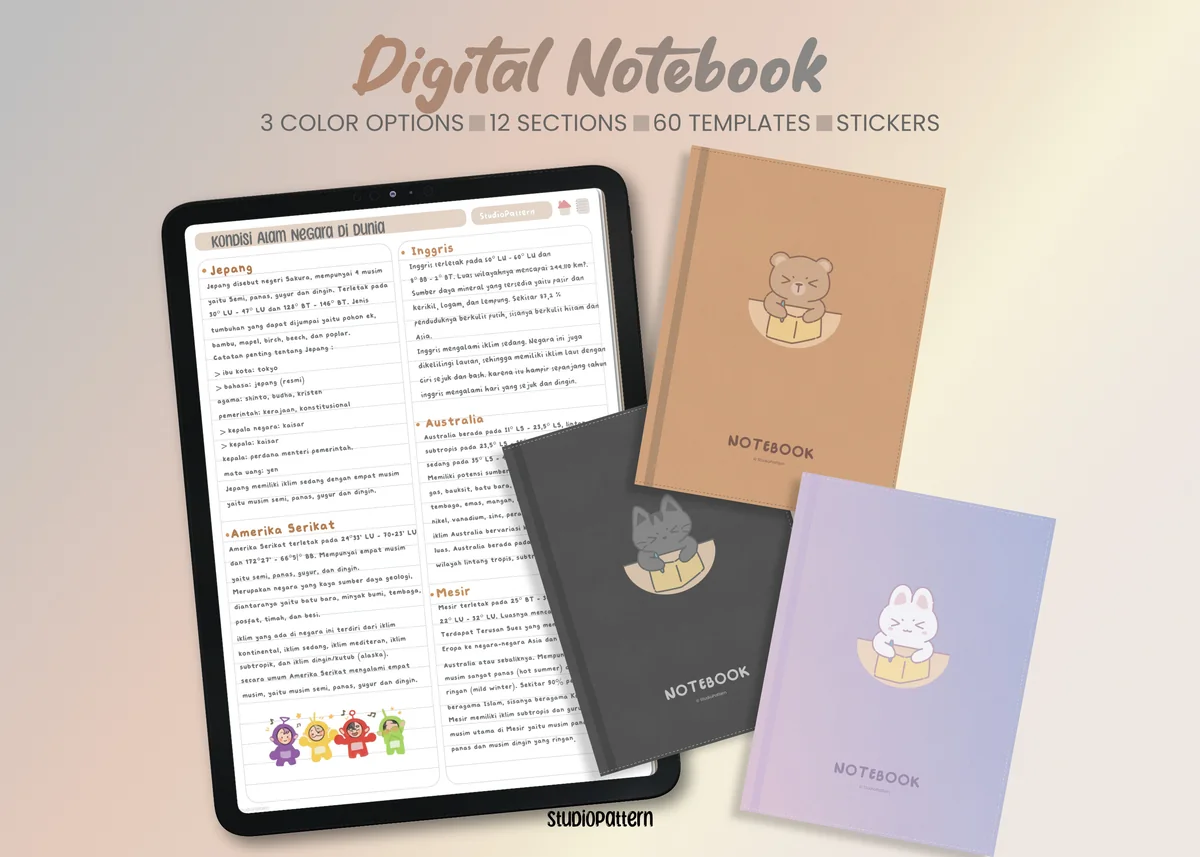
- 12 linked sections and a contents page
- 60 note templates; previews show blank, ruled, grid, dotted and general planning choices
- PDF notebook and PDF manual; individual PNG stickers included
- Best used with an iPad or tablet and Apple Pencil or stylus; annotation app may cost extra
This is the broader paper menu if one layout has to accommodate a weekly list and another a long reading response. Start with two working pages and add another only when it has a clear job. The parent’s school system still comes from the headings and routine you create.
Quick Comparison
| Digital tool | Navigation | Paper choices | Useful starting point |
|---|---|---|---|
| 1. Watercolor Hyperlinked Digital Notebook | 12 linked sections | 3 paper types | Message summaries |
| 2. Digital Notebook by Shades of Zen | 12 linked sections | 16 note templates | Teacher conversations |
| 3. Digital Notebook 5 Hyperlinked Tabs | 5 linked sections | 5 paper types | A compact school hub |
| 4. Digital Notebook 5 Hyperlinked Tab by studiopattern | 5 linked sections | 30 paper templates | Weekly home routine |
| 5. Digital Notebook Papers – GoodNotes | Individual papers | 8 layouts per design | Adding school pages |
| 6. Digital Notebook 24 Hyperlinked Tab | 24 linked sections | 30 paper templates | A larger family archive |
| 7. Cute Digital Notebook Hyperlinked by studiopattern | 12 linked sections | 60 note templates | Trying page layouts |
What belongs in a parent-led elementary student agenda?
A useful school agenda planner separates the message from the work it creates. “Field trip information” is a message; “read the form, sign it and put it in the return folder” is an action. A due date tells you when the school needs something, while a home action date tells you when to prepare it.
- Incoming: date received, source and a short summary in your own words.
- At home: assignment or action, who will handle it and when to begin.
- Back to school: item, due date, packed check and any required follow-up.
- Questions: what is unclear, where to ask and what the reply changes.
Keep the teacher’s message, school calendar or assigned paper agenda as the authority when instructions differ. Your iPad planner is a working copy for managing home actions. I would avoid copying every announcement: record only something you need to do, prepare, ask or remember.
12 elementary student planner ideas, from message to return check
Use these ideas as a menu rather than twelve pages to complete every day. Begin with the inbox, tonight’s task list and the return check; add reading and conversation pages when they earn their place. A primary school student planner can stay simple even when a parent handles the writing. An iPad planner gives you room to adapt the planner pages; a custom planner starts with headings you can actually keep current.
Capture school information without copying everything
- 1Give school messages a small inbox. Write the date, source and one-sentence meaning of a message. For example: “Class email: bring a clean jar on Friday.” Add “find jar” as the action and a home preparation day. Leave a reference such as “class email, Tuesday” so you can reopen the instructions rather than trusting a shortened note for size or safety details.
- 2Separate the due date from the home action date. A project due Friday may need materials on Tuesday. Put the school deadline next to the assignment, then write the first small preparation action on the day you can actually do it. Use words such as “gather supplies” or “read directions together” instead of copying the project title into every daily box.
- 3Keep a weekly school-and-home view. Draw five school-day columns and a small weekend space, or use a general weekly paper. Include fixed commitments such as pickup changes before placing homework actions. Keep the schedule focused: the point is to see a crowded evening early, not to reproduce every lesson your child attends. Check school dates against the official calendar before you carry them forward.
Make homework and reading easier to discuss
- 4Turn homework into a next-action list. Use subject, task and status as three short headings. “Math: complete the assigned page” is clearer than “math.” Keep assignments due separate from optional practice you propose at home. If the instructions are missing, record a question rather than guessing a new task. You can sit together to read the list without requiring your child to manage the whole iPad notebook.
- 5Make a reading record that fits the actual request. Start with date and book title, then add pages or minutes only if they serve the school’s instructions or your own stated purpose. A short “something we noticed” line can hold a child’s response in their words. The parent’s iPad record does not replace a teacher’s required signed reading log unless the school accepts that format.
- 6Give longer projects a small sequence. On a blank or grid page, write the assignment’s actual deadline and the pieces you can identify from the directions. For a poster, a possible sequence is choose the topic, gather the listed materials, prepare the content and pack the finished work. These are example actions, not instructions for your child’s assignment. Ask the teacher when the required steps are unclear.
Close the loop between home and school
- 7Track returns beyond a single done box. Create separate checks for prepared, packed and returned when those distinctions matter. A signed form on the kitchen counter is prepared but not packed. Write the physical location, such as “blue return folder,” so the next adult does not have to search. Mark an item received only when the school acknowledges it; otherwise leave its return status open.
- 8Keep teacher questions specific. Use a two-column page for “question” and “reply or next action.” Include the date and the school’s preferred contact channel. “Does the reading record need a parent signature?” is easier to resolve than “reading problem.” Drafting a question on the iPad does not send it; use the approved school channel when you are ready to ask.
- 9Make handoffs understandable to another caregiver. Write the task, person handling it and relevant pickup or packing detail without unnecessary personal information. “Grandparent: return library book in front pocket” is an actionable handoff. Check that the person has received the message; do not assume they can see your private notebook. Keep formal pickup permissions in the school’s required system, rather than treating a planner note as authorization.
Build a routine you can maintain
- 10Let your child take one visible part. Keep the parent’s writing short and invite the child to choose one task to read back, point to or check with you. A small icon can stand for a book or folder if that is clearer than another line of writing. Adjust the level of help to the child and the task; there is no need to turn a home checklist into an assessment of planning ability.
- 11Review the week for unfinished actions. At a regular weekly check, look for unanswered questions, missing materials and returns you still need to verify. Move an action only after deciding what changes next week. If the same item keeps moving, ask whether the instructions, timing or responsibility are unclear. Keep a brief note about what worked so the review includes progress as well as problems.
- 12Archive the useful record and reset the working page. Move resolved conversations and finished projects out of the active list while keeping information you still need. Give the next weekly page a clear date range and copy only current commitments. If you miss several days, restart with today’s school instructions and the next deadline; filling every previous box is less useful than making the next action clear.
When should you check the planner?
Try one brief daily check and a separate weekly reset, then adjust them around your family. For example, review messages after the school folder comes out, prioritize tonight’s schoolwork, and leave a little space for a break before a study task. Small time blocks are planning choices, not a prescribed homework duration or a test of your child’s time management skills.
- Daily: check new instructions, look at the next due date and confirm what is packed.
- Weekly: on Sunday or Monday, scan the coming week for events, materials and unfinished questions.
- When plans change: update the affected action immediately, rather than waiting for the next reset.
Teaching the routine can begin with the adult writing while the child watches, then a small shared action such as checking a book title. The benefit is a visible model of what planning means. Sometimes a busy evening needs only the essentials; if you forget a check, restart with the current instructions rather than treating the gap as failure. Let the page reflect the child’s age and current needs, without promising a fixed schedule for independence.
A worked example: one school message, five clear actions
Suppose the class message asks for a library book and a signed permission form by Thursday. The parent has two different responsibilities: returning an item and completing the school’s document. I would keep those as separate lines so a packed book does not make the whole message look finished.
- Capture: “Tuesday class message: book and form due Thursday.” Save a reference to the original message.
- Prepare: find the book and read the actual form before signing it in the required way.
- Assign: parent handles the form; child helps place the book in the agreed folder or bag pocket.
- Pack: check each item when it enters the bag, rather than checking the message itself.
- Follow up: retain any unresolved question; record receipt only when you have evidence of it.
This example is why a “return” column deserves its own place. The digital note coordinates the process; a handwritten mark on a PDF is not automatically an accepted school signature. Follow the school’s instructions for consent, submissions and records.
Which weekly planner format works best at home?
Choose the layout around the decision you need to make. A week view answers “when can we do this?” while a conversation page answers “what did we ask, and what changed?” You can combine them without maintaining two competing deadline lists.
- Five-section notebook: use one section each for inbox, homework, reading, returns and questions. Keep the weekly view at the front of Homework.
- Twelve-section notebook: separate children or subjects when that reduces searching, then keep one clearly labeled current-week page.
- Twenty-four-section notebook: useful for a larger archive across children or terms; name the active sections first instead of filling all tabs.
- Individual papers: add a reading log or return checklist to an existing family notebook when new navigation would add work.
For a younger child, the parent can keep the detailed record while showing a short visible list during the check-in. An older elementary child might write the task with you and help check it. I would avoid choosing a layout simply because it is labeled for a particular grade: writing space, readable headings and a manageable routine matter more to this home setup.
Template or app: what does the iPad file actually do?
A PDF notebook is a place to write and navigate within a document. It is different from a school messaging service or a planner app with scheduled alerts. The notebooks above name compatible annotation apps in their listings; the paper pack provides pages to add to your own setup. Check the specific file, app and device requirements before buying.
- For handwriting: several sellers recommend an iPad or tablet and an Apple Pencil or stylus. Device and app purchases are separate from choosing the notebook.
- For reminders: use your chosen calendar or reminder app to remind you about a time-sensitive action. A handwritten due date does not create an automatic reminder.
- For school changes: recheck the official message or calendar and update the working page yourself. Do not assume PDF handwriting synchronizes with school systems.
- For sharing: check the app’s actual sharing settings and the school’s accepted submission method. A family handoff is different from a formal school communication.
Common mistakes when using a planner at home
The first trap is making the list too complete to read. Using a planner every day can become another assignment if you copy announcements that require no action. Keep the active page for decisions you will make, and place reference information elsewhere.
- Two different deadlines: choose the official source, then correct the home copy. Do not average or infer dates from memory.
- A vague checkbox: replace “school stuff” with an object and action, such as “put reading log in folder.”
- Too many status colors: begin with words or simple checks. Color should clarify a meaning you can explain.
- Overhelping: keep the parent’s responsibility clear while letting the child do a suitable part. A checked page is not proof the child understood the assignment.
- Using the planner to set workload rules: record assigned work and questions. Persistent difficulty or an unclear expectation belongs in a conversation with the teacher.
FAQ: elementary school planning for parents
How can parents help kids use a weekly planner?
Model a short check: read the school instruction, name the next action and decide what must go back. Invite the child to help with one part before asking them to manage the whole routine. Keep checking what the school actually assigned; the home planner supports that communication rather than setting its own curriculum.
What is the best elementary school planner for kids?
When choosing an elementary school planner template for this parent-led approach, look for enough writing space for messages and a simple route to homework, reading and returns. The five-section choices suit a compact workflow; a larger index can separate several children or terms. Choose the structure you can keep current; extra templates add value only when you have a use for them.
Can an elementary student planner printable work on an iPad?
A printable file is not automatically a suitable digital notebook. Check the seller’s actual format and annotation-app compatibility instead of assuming a paper layout includes linked navigation. The options here were selected for digital use; the specific file types and page choices are listed in each card.
Should I use the 10 minute rule for homework?
Do not use a planner article to set a fixed homework allowance for your child. Record what was assigned, what was completed and the question or difficulty you want to discuss. Ask the teacher about expected workload and appropriate support rather than treating a general rule as school policy.
Can this replace the school agenda or an official reading log?
Only if the school accepts that arrangement. Keep using required paper agendas, submission portals and signed records. Your private iPad notebook can still organize the parent’s actions without becoming the document a teacher is expected to check.
What personal information should stay out of the planner?
Keep only information needed for the task and limit who can access it. Avoid storing passwords, full student identifiers, sensitive records or another child’s details in shared planning pages. Follow the school’s approved channels for confidential questions and check your device and app sharing settings.
Start with tonight’s next action
An elementary student planner is most useful here when it answers three questions: what came from school, what needs to happen at home, and what needs to go back? I would begin with one current-week page and the return check, then add the reading or question page when a real need appears. Choose a digital notebook or paper pack for that small job and let the system grow only when it saves you searching.
You May Also Like
This post contains affiliate links. If you buy through them, I may earn a commission at no extra cost to you. Read the affiliate disclosure.