The coffee cup you want is somewhere between three floral packs and a folder of unnamed PNGs. These GoodNotes sticker organization ideas give a growing collection a home: one place for new files, clear categories and a small shelf of favorites you can actually find. Start with a handful of stickers, then expand the system when you need more categories.
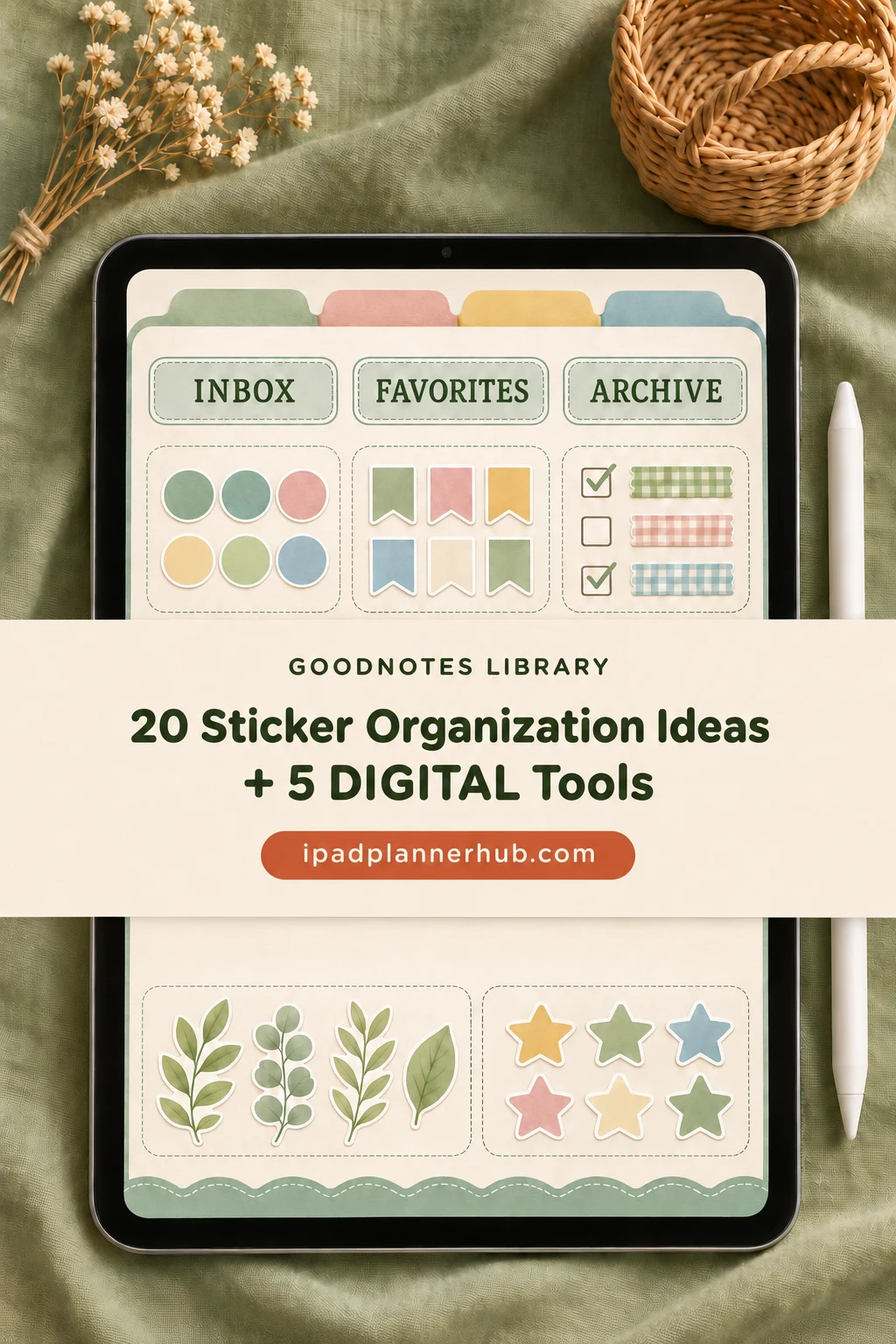
The twenty ideas below are choices to combine, not twenty folders to create at once. Start with the workflow, borrow the category ideas that match your planning, then compare five optional digital tools. Use these ideas to build a setup around your collection, starting with stickers and a notebook you already own.
GoodNotes Sticker Organization Ideas: Give Every Pack a Route
I suggest this starting route: Files inbox → one home category → small working collection → archive when inactive. Here, inbox, favorites and archive are names you choose for your own folders, pages or collections. They are not special Goodnotes commands.
Receive new packs without losing their source
1. Make one unsorted inbox
Keep newly received archives and loose files in a single Files folder called Sticker Inbox. Leave a pack there until you know which file is the book, which is a PNG and where the instructions are. Sorting immediately into five destinations makes it easier to lose the original package.
2. Give each pack a source folder
Use a consistent folder name such as Maker – Neutral Labels. Keep the original archive, instructions and any license information together. This is your source copy; the stickers you insert into a working notebook can live elsewhere. Avoid names like New Pack Final that say nothing about the contents.
3. Make a tiny pack inventory
Create a note with three fields: pack name, source folder and working destination. An entry might read Neutral Labels / Maker folder / Functional book. You do not need a spreadsheet for a small library. The goal is to know where to return when you need another color or the original file.
4. Check one sticker before sorting the whole pack
Insert a single PNG or open the included book and check whether it is the format you expected. Look at its edges and size on a practice page. If the file is a full sheet, do not label it pre-cropped just because the illustrations are spaced apart.
Choose categories that answer a planning question
5. Separate function from decoration
Start with Functional and Decorative as broad page labels. Put appointment labels, checkboxes and reminders in the first; flowers, characters and background pieces in the second. A sticker can be attractive and functional, so choose its home by the job you reach for it to do.
6. Split functional stickers by task
If Functional becomes crowded, divide it into appointments, household jobs, money and study. Stop before a category holds only one lonely sticker. One meal-planning page can be easier to browse than three overlapping categories for food, errands and home.
7. Keep shapes together by purpose
Put boxes, tabs, flags and dividers near one another when you use them to build layouts. A plain rectangle can be more useful beside a checklist than beside every other beige object. Add a small handwritten page label so the category remains understandable without relying on its color.
8. Make a palette sampler
Place a few representative stickers from each color family on a reference page. Use the sampler to choose a look before opening several packs. Keep the full sets in their home categories; this page is an overview, not another complete copy of the library. Pair it with a note naming each source pack.
Build a small collection you can use during planning
9. Create a favorites shelf
Choose a short list of pieces you reach for repeatedly: an appointment box, a checkbox, a meal label and a few small decorations. Keep that selection on one page or in an Elements collection you name Favorites. This is an editorial label you create, not a built-in favorite rating for sticker files.
10. Separate this week from all-time favorites
Make a temporary working page for a current project or weekly spread. It can hold a seasonal accent that does not belong in your permanent favorites. When the week ends, clear the working selection after checking the originals are safe; otherwise every temporary choice slowly becomes permanent clutter.
11. Keep one master home for each sticker
Choose a main destination and record it in your inventory. A favorite copy can be convenient, but avoid scattering the same full pack through every notebook. When you want to replace a poor crop or find another color, the master location should be obvious.
12. Name collections with useful nouns
Try Functional Labels, Study Icons or Neutral Florals instead of a string of decorative symbols. A meaningful name helps you recognize a collection without opening it. Keep the wording consistent between your inventory and the book page; those matching names are a manual finding aid, not automatic tagging.
Make a sticker book easy to browse
13. Write an index before filling every page
Sketch the category names on a plain page before committing them to a linked book. For seven sections, try functional, household, study, money, decorative, seasonal and favorites. Those are suggested labels for you to add; a blank PDF does not automatically sort files into them.
14. Put a sample beside each category name
Add one small example near the label: a checkbox for functional, a leaf for decorative or a book for study. Keep the words readable and the samples sparse. An index packed with tiny decorations becomes another page to search instead of a quick map.
15. Leave room between sticker rows
Use a few clear rows rather than covering every empty space. Leave room around a sticker so you can identify its shape and select it deliberately. There is no universal correct number per page: use the size at which you actually plan, then split a busy category when it becomes awkward.
16. Separate labels from illustration sheets
Keep small writable boxes on different pages from larger decorative pictures. They serve different browsing needs and are often useful at different sizes. If you use a populated book with existing sections, try those divisions first; you may only need a favorites page rather than a complete rebuild.
Keep the collection useful as it grows
17. Move inactive themes out of the daily route
Give holiday and one-project packs an Archive folder or book of your own. Keep the source files and record the location before removing working copies. Archiving is a manual housekeeping choice here, not a claim about a special Goodnotes archive command or a guaranteed performance improvement.
18. Keep color variants together
Store alternate colors beside the main sticker instead of giving each color its own collection. Use a sampler if you want a palette overview. That keeps an appointment label easy to find even when the next spread changes from pink to green.
19. Review duplicates before deleting anything
Compare the actual files, not just names such as sticker01.png. Two packs can reuse a filename for different images, and similar pictures can be different sizes. Keep an untouched source copy while you decide which working copies are unnecessary. A tidier library should not cost you the only original.
20. Run a find-and-use check
Choose a realistic task: locate a meal label, a study icon and a decorative corner without browsing every pack. If you hesitate, rename a category or move an item to the place you expected. The test is whether the system matches your habits, not whether every page looks equally full.
Set Up a Small Elements Collection on iPad
Goodnotes saves reusable objects in Elements collections. Its current Elements guide uses the following route; wording can differ from older tutorials. Start with a few images, rather than migrating an entire library at once.
- Create: Open Elements, move to the end of the collection list and select the plus icon. Give the collection a descriptive Title.
- Add: Choose Add Photos or Import from… for your images, then Create. To save existing page content, select it and choose More (…) → Create Element, then a collection.
- Use and adjust: Select the collection in Elements and insert an item. Edit beside its name lets you change the title, add items or drag them into a different order.
Keep the rest of the pack in its source folder while you try the small collection. For page navigation and other setup tasks, see my GoodNotes planning tips; this guide concentrates on the sticker library itself.
Five Digital Tools for Different Sticker Libraries
A blank book provides structure, a pre-cropped pack provides ready-to-place artwork, and a notebook with stickers serves a broader notes-and-planning job. Choose the gap you need to fill. Compare category space and file formats before choosing a cover color.
TL;DR: Three blank library formats, a populated sticker book and a notebook with a sticker bonus. The twenty organization ideas are your own setup to build; no purchase is needed to start.
Quick Picks
- Best for eight-page starting point: Digital Sticker Book Blank Notebook
- Best for twelve-category library: Customizable Digital Sticker Book, Blank
- Best for seven colorful sections: Blank Digital Sticker Book – Pink Theme
- Best for ready-made sorting example: Digital Stickers Book for Goodnotes
- Best for notes and stickers together: Digital Notebook 5 Hyperlinked Tab
- Digital Sticker Book Blank Notebook – Eight-page starting point
- Customizable Digital Sticker Book, Blank – Twelve-category library
- Blank Digital Sticker Book – Pink Theme – Seven colorful sections
- Digital Stickers Book for Goodnotes – Ready-made sorting example
- Digital Notebook 5 Hyperlinked Tab – Notes and stickers together
Eight-page starting point
1. Digital Sticker Book Blank Notebook
Orientation: PortraitFormat: PDF for Goodnotes
Best for: A small blank library with room for your own categories. Designed by MoiDigitalPlanner.
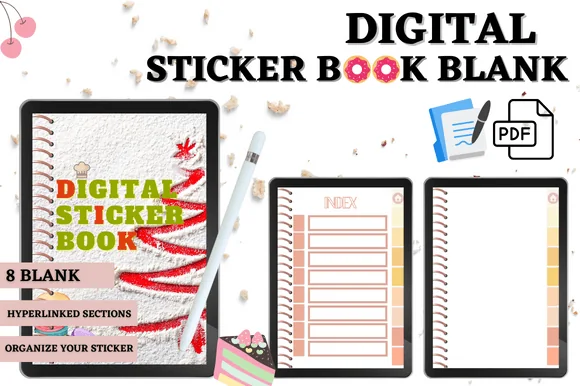
- One PDF sticker book with eight blank pages
- Hyperlinked sections and an index; import into Goodnotes
- You add the stickers and category labels
For a compact library, I suggest starting with functional, decorative and favorites pages, leaving room for overflow. The included file is one PDF book with eight blank pages. Its illustrated cover adds color, while the empty interiors leave the sticker selection and category names to you.

Twelve-category library
2. Customizable Digital Sticker Book, Blank
Orientation: PortraitFormat: PDF for Goodnotes
Best for: More separate destinations for a growing collection. Designed by mixxdigitaldesign.
- One PDF sticker book with twelve blank pages
- Hyperlinked index and twelve labeled destinations
- Blank pages for your own sticker collection
Twelve index entries give a larger collection more breathing room. Reserve a few for specific jobs, such as meals or study, instead of dividing everything by color. The pastel cover and purple tabs distinguish the design; the extra category space is the practical reason to choose it over the eight-page option. Stickers are not included.
Seven colorful sections
3. Blank Digital Sticker Book – Pink Theme
Orientation: LandscapeFormat: PDF and GoodNotes file
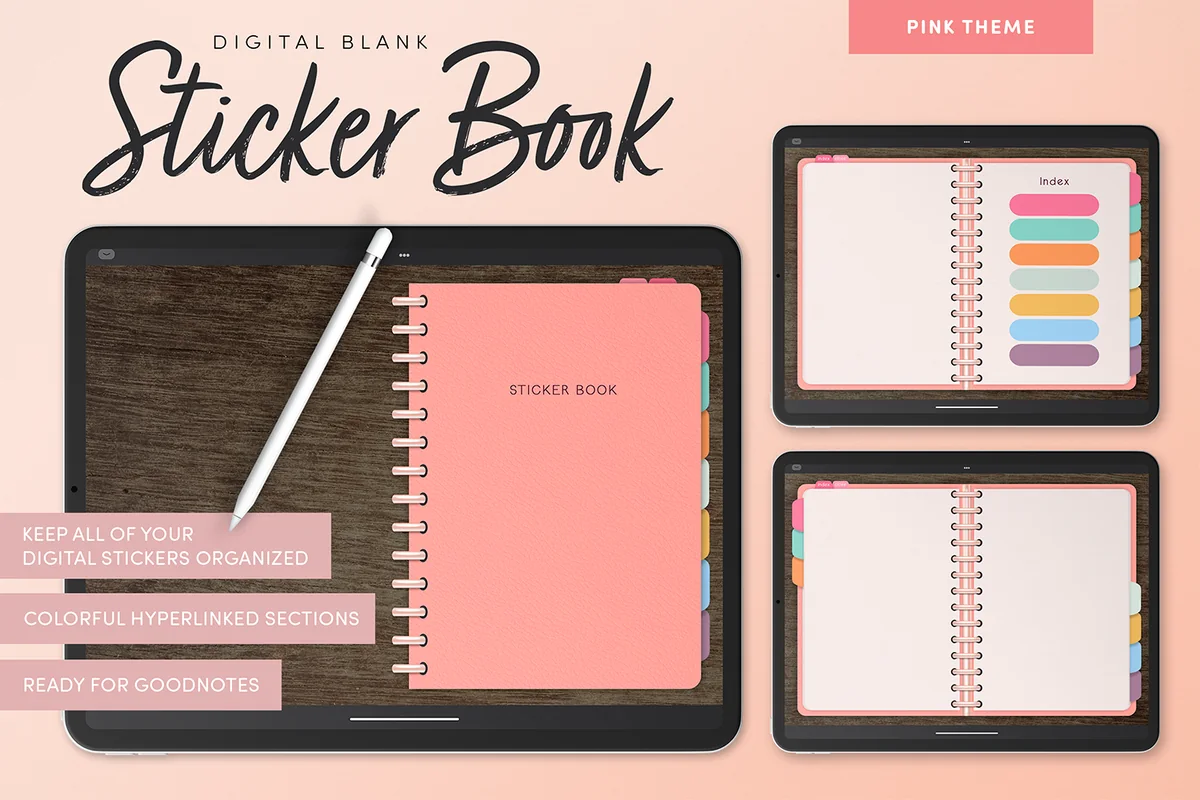
Best for: A landscape sticker library with a visual index. Designed by catsquills.
- Blank sticker book in PDF and GoodNotes formats
- Seven colorful hyperlinked sections and an index
- Pink cover and back cover; stickers are not included
The pink binder opens to a wide spread with a colorful index on the right. I like that layout for a seven-category system with handwritten names beside the color cues. Choose it if you prefer a landscape workspace to the portrait books above; check which of its PDF or .goodnotes formats your app accepts.
Ready-made sorting example
4. Digital Stickers Book for Goodnotes
Format: GoodNotes sticker book; PNG files
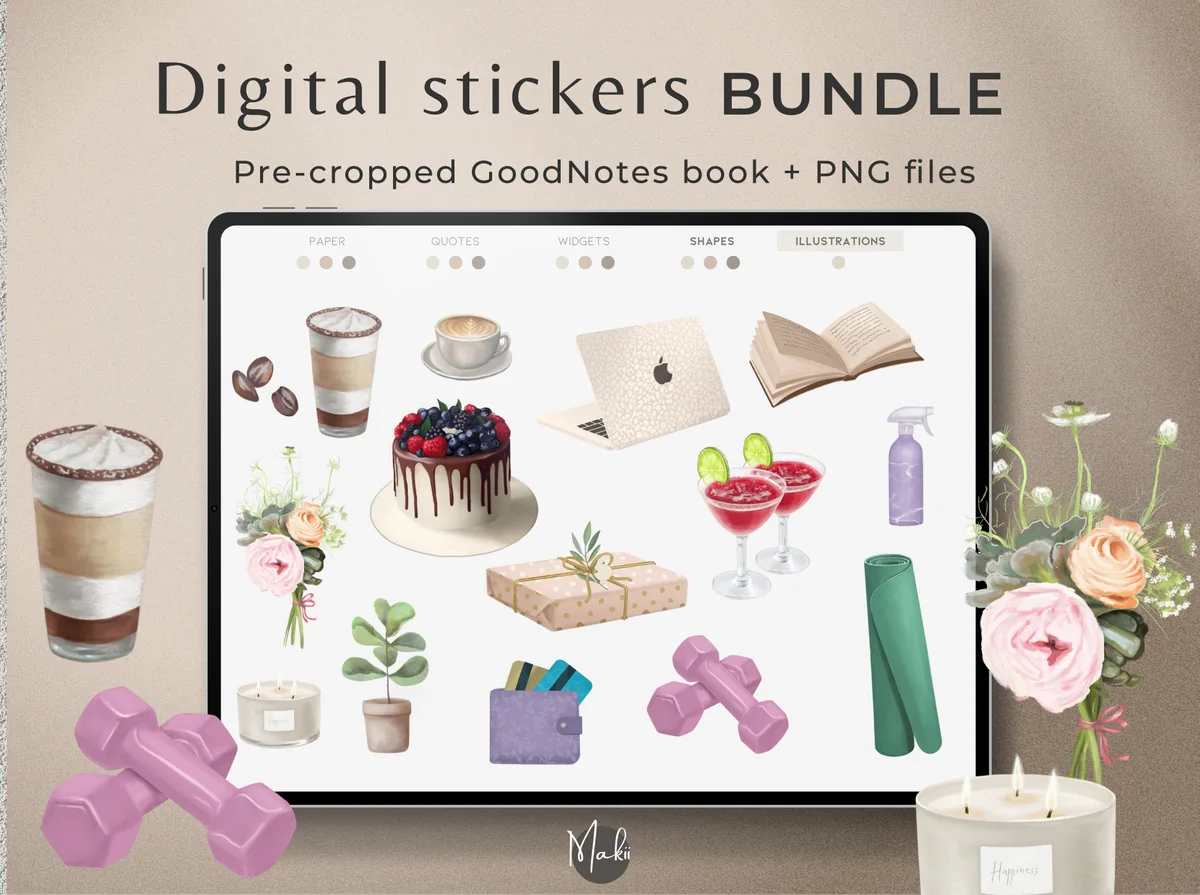
Best for: Starting with pre-cropped everyday stickers. Designed by Makii.
- 250+ pre-cropped digital stickers
- GoodNotes sticker book plus individual PNG files
- PDF guide with links to the sticker files
Use the existing divisions for quotes, shapes, labels, widgets and everyday illustrations as a starting point, then move frequently used pieces into a working collection. This neutral pack adds ready-to-place artwork; it is not an empty organizer for every pack you own. The seller excludes OneNote, Kindles, reMarkable and Chromebooks, and does not recommend printing or primary use on a phone. Other apps need support for the individual PNG images.
Notes and stickers together
5. Digital Notebook 5 Hyperlinked Tab
Orientation: PortraitFormat: PDF notebook; PNG; .goodnotes bonus
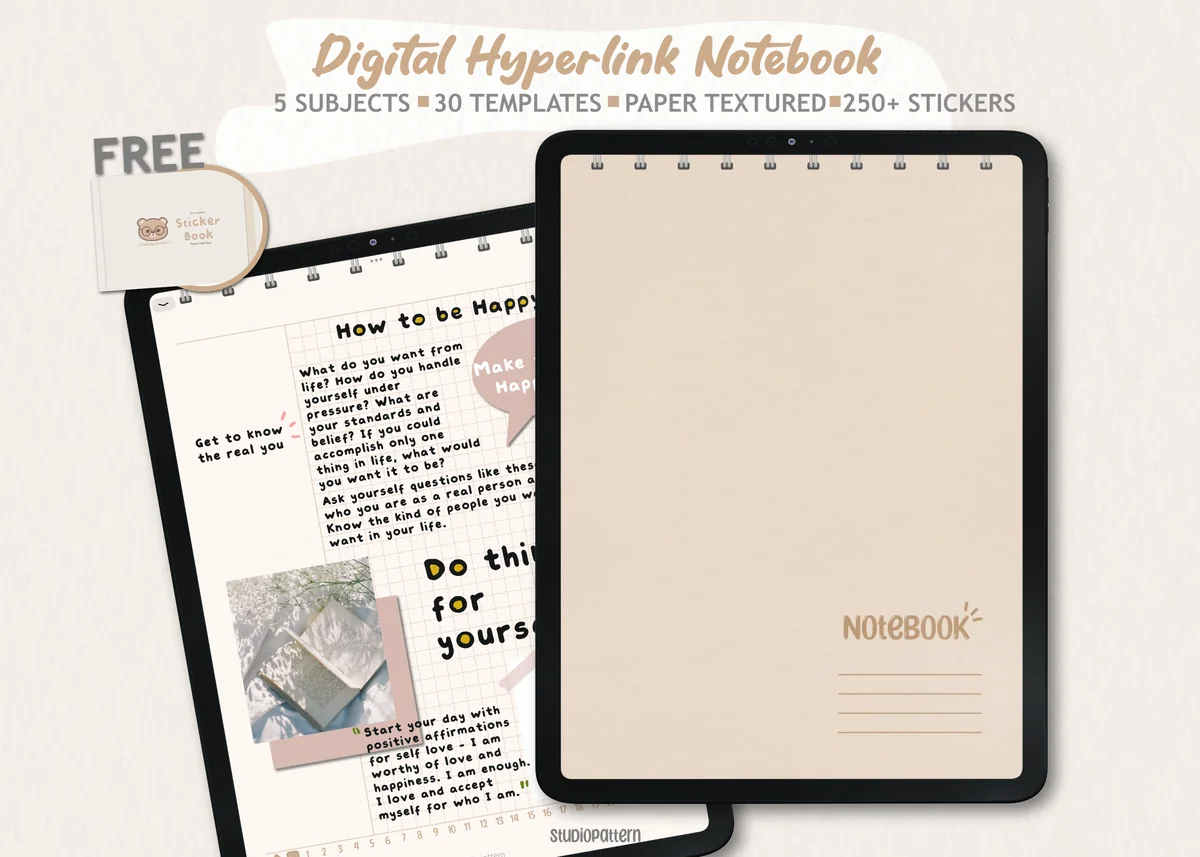
Best for: Keeping a sticker reference alongside project notes. Designed by studiopattern.
- Five notebook sections with a linked contents page
- Thirty paper templates and a manual PDF
- 250+ individual PNG stickers and a pre-cropped .goodnotes sticker book
For a project that needs notes as well as decoration, this portrait notebook is the broader choice. Its paper templates can hold your own pack inventory or layout notes; those are ideas to create, not ready-made sticker-management pages. The included sticker book has color families of labels and shapes. Use its .goodnotes bonus in Goodnotes and keep the PDF notebook compatibility separate from that bonus file.
Quick Comparison
| Tool | Capacity | Files | Organization role |
|---|---|---|---|
| 1. Digital Sticker Book Blank Notebook | Eight blank pages | Build your own categories | |
| 2. Customizable Digital Sticker Book, Blank | Twelve blank pages | More category space | |
| 3. Blank Digital Sticker Book – Pink Theme | Seven linked sections | PDF + GoodNotes | Wide visual index |
| 4. Digital Stickers Book for Goodnotes | 250+ stickers | GoodNotes book + PNG | Pre-sorted visual reference |
| 5. Digital Notebook 5 Hyperlinked Tab | Five note sections | PDF + PNG + .goodnotes | Project notes with sticker bonus |
Blank Book, PNG Folder or Pre-Cropped Pack?
The five tools above solve different parts of the problem. Use this decision list before buying another book or moving every file into Elements.
- You already own loose PNGs: begin with source folders and a small working collection. Add a blank book when you want a visual index across packs.
- You want an empty category system: choose seven, eight or twelve sections by the categories you can name now. You supply the stickers and labels.
- You want ready-to-use artwork: a pre-cropped GoodNotes book can be a practical starting point. Individual PNGs provide another route when your app supports images; they do not automatically become a linked book.
- You plan around a project: keep an inventory note beside its notebook pages, with a small sticker selection for that project. A sticker bonus does not turn a general notebook into dedicated inventory software.
If you are still choosing the artwork itself, the GoodNotes sticker pack comparison covers different styles. For labels and checklists, start with functional planner stickers. Those are selection guides; sorting the collection you already own is a separate task.
DIY Sticker Organization: Build a Page Around What You Use
For a DIY method, draw a simple table in your sticker notebook and label its rows by purpose: reminders, decorative stickers and seasonal accents. Place washi tape strips beside borders, keep text labels together and give large stickers their own spacious row. This layout lets you decorate a planner without covering the space you need for writing.
Let your preference guide the decorative categories: group a quiet aesthetic by color, or gather pictures that match a particular mood. For vision boards or brainstorming sessions, make a temporary page of images and words from your existing collection, then record their source packs. Keep this creative selection separate from daily reminders so personality and flair do not make practical labels harder to find.
Insert One Sticker, Then Copy It to Its Category
On your iPad, insert an individual PNG with the image tool or drag it from Files onto a Goodnotes page. A PNG can have a transparent background, which lets the artwork sit over page color without a solid rectangular backdrop. If you import a full sticker sheet, crop the piece you want before adding it to your working collection; a sheet does not become pre-cropped merely because it uses PNG format.
For a pre-cropped sticker in a GoodNotes book, enable Images in the Lasso Tool options and circle the sticker you want. Copy the selection, open its category page or planner document and paste it there. Try one label first, then repeat with the pieces you use most often rather than copying the whole pack into every document.
Keep a Separate Copy of Your Source Library
Copy your source folders and inventory to a separate backup location before a major cleanup. If you use cloud services for that copy, open a saved pack and confirm that its files are available before deleting any duplicates. Keep the inventory with the backup so you can connect a working sticker page to its original pack later.
A First Sort You Can Finish
Try one pack and one ordinary planning page. Resist making a category for every possible future use; the next step should be clear before you add more structure.
- Create the source folder and one inventory entry.
- Choose two broad home categories and one favorites destination.
- Place a few useful stickers and check them at your normal writing size.
- Record where the full pack lives, then try finding one sticker again.
- Only split a category when you can explain which browsing problem the split fixes.
FAQ: Sticker Organization Questions
Do I need a paid sticker book to organize Goodnotes stickers?
No. The inbox, naming and inventory ideas can start with your existing files and notebook. A linked blank book is optional if a visual index would help; it does not add stickers unless the product explicitly includes them.
Is a blank PDF sticker book the same as a pre-cropped pack?
No. A blank book gives you empty pages and, where listed, linked sections. A pre-cropped pack supplies individual sticker objects in a prepared file. Check the included formats: PDF, PNG and .goodnotes serve different roles, and compatibility with one does not guarantee compatibility with all.
Should I organize by color or by function?
Choose the route you use when planning. If you look for an appointment label first, give function the main category and use a palette sampler for color. If a single project uses one palette, a temporary project page can gather that selection without reorganizing the master library.
Will renaming a folder rename stickers inside Goodnotes?
Treat source-folder names, book labels and Elements collection titles as separate names you manage. This guide does not rely on automatic synchronization between them. Matching the names in your manual inventory gives you a clear reference when you need the original files.
Keep the Working Shelf Small
Test your GoodNotes sticker organization ideas on your next planning page: find one sticker, insert it and locate its source pack through your inventory. If you have to browse several unrelated categories, move that sticker to the place you first expected to find it. Keep the arrangement when you can repeat the route without guessing.
You May Also Like
This article contains affiliate links. If you buy through them, I may earn a commission at no extra cost to you. Read the affiliate disclosure.