A hyperlinked planner can hold a whole year, but on day three it often feels slower than paper: tabs don’t respond, the week you need is 400 pages away and every sticker has to be found again. The fix is rarely a new planner. It’s a handful of GoodNotes tips that turn the app from a PDF reader into a planning tool.
Below are 25 tips I’d give anyone setting up a planner in GoodNotes on iPad, grouped by what they fix: setup, tabs and pages, neat writing, decorating, finding things and keeping them safe, plus the Apple Pencil settings that matter for planning. After the tips there are 5 planners whose features make these tricks easy to try. Menu names follow GoodNotes 6 as of October 2026; small details can move between updates.
GoodNotes Tips at a Glance
| Problem | Tip that fixes it |
|---|---|
| Tabs don’t open anything | Tap links in read-only mode (tip 5) |
| Undated planner runs out of pages | Duplicate the page, not the planner (tip 6) |
| Can’t find this week | Bookmark it (tip 7) or search your handwriting (tip 20) |
| Messy writing in small boxes | Zoom window and shapes (tips 10 and 11) |
| Stickers take forever | Save them to Elements once (tip 16) |
| Afraid of losing a year of plans | Turn on auto backup (tip 21) |
Setup: Start Your Planner Right
1. Import the PDF once and keep the original
Open the planner PDF from the Files app, tap Share and choose GoodNotes, or use the New button in GoodNotes and pick Import. Keep the untouched PDF in Files: if you ever delete a page by mistake, you can start a clean copy without buying the planner again.
2. Pick the scrolling direction for your layout
In the document menu (More → Scrolling Direction) choose horizontal or vertical. Horizontal flips one page at a time and suits landscape two-page spreads. Vertical suits portrait planners and long note pages. I compare this with Notability’s scrolling in GoodNotes vs Notability.
3. Put a bonus cover in front
Many planners come with extra covers as separate PDF or PNG files. Add one as the first page (or paste the PNG over the existing cover) so the planner is easy to spot in your library. If you want more choice, my GoodNotes covers list has notebook covers in several styles.
4. Use folders and favorites for the files you open daily
Keep a folder for the planner and its add-ons (sticker books, note pages) and star the planner as a favorite, so it sits one tap away instead of buried among class notes. This also keeps the free plan’s limit of 3 notebooks easy to track; prices and plans are in How Much Does GoodNotes Cost?
Tabs and Pages: Move Around Fast
5. Tap tabs in read-only mode
This is the GoodNotes tip that solves most “broken planner” worries. Links in a PDF respond when no writing tool is active. Switch to read-only mode (the pen icon in the top bar) or put the pen down, tap the month tab, then pick the pen up again. Some GoodNotes versions also offer a setting to follow links while writing, so check the settings if you switch back and forth a lot.
6. Duplicate a page instead of starting a new file
Undated planners often include a few weekly or daily pages meant to be copied. Open page thumbnails, tap the small arrow on the page and choose Duplicate. Don’t delete the pages that tabs point to: if a month tab lands on page 30 and page 30 is gone, the link has nowhere to go.
7. Bookmark this week
Tap the bookmark icon on the current week or today’s page. Bookmarks show up in the page overview, so you jump back after checking the month or a tracker. Move the bookmark every Sunday and the planner always opens where you left off.
8. Open the month next to the week
GoodNotes opens documents in tabs and can show two side by side. Keep the monthly calendar or a habit tracker in one half and the weekly page in the other while you plan, instead of tapping back and forth. If you want different planner layouts for each, they work well as a pair.
9. Save a favorite page as a template
If one page from a planner is the layout you use every day, import it as a custom template. New pages added with the plus button can then use it in any notebook. For class notes, my GoodNotes note templates are ready-made options.
Neat Writing: GoodNotes Tips for Tidy Pages
10. Write small boxes with the zoom window
Habit grids and hourly slots are tiny on an iPad screen. Turn on the zoom window from the toolbar: you write large in the magnified strip and GoodNotes shrinks it into the box. It’s the easiest answer to “how do I make my writing neat in GoodNotes.”
11. Let shapes straighten your lines
Draw a line, box or circle and hold the pen at the end: GoodNotes turns it into a clean shape. Use it for underlines, checkboxes and quick tables on blank note pages.
12. Move, resize and recolor with the lasso
Wrote a task on the wrong day? Circle it with the lasso and drag it to the right box. The lasso menu also resizes, recolors and copies, so a plan that changed doesn’t mean rewriting it.
13. Save your planner colors as pen favorites
Pick 3 to 5 colors that match the planner (one for work, one for home, one for highlights) and save them in the pen toolbar. Custom colors take hex codes, and my GoodNotes color palettes list them for pastel, neutral and dark paper.
14. Scribble to erase
In GoodNotes 6 you can scribble over a word with the pen to erase it, without switching tools. In the eraser settings you can also choose whether it removes whole strokes or only the part you touch.
15. Convert a handwritten list to text
Lasso a grocery list or a to-do list and choose Convert to text. You can then copy it into a message or a reminder while the handwritten version stays in your planner.
Decorating: Stickers, Tape and Photos
16. Save stickers to Elements once
Import sticker PNGs into the Elements tool as a collection, and they’re ready in every notebook without opening a sticker book. A pre-cropped .goodnotes sticker book is still handy: lasso the stickers you use most and add them to Elements. My favorites are in GoodNotes sticker packs and digital sticky notes.
17. Turn your own headers into Elements
Hand-lettered “This Week”, a box for top 3 priorities, a little weather row: draw it once, lasso it and add it to Elements. You get your own reusable stickers in the planner’s colors.
18. Use the tape tool to hide and reveal
The tape tool draws washi-style strips. Tap the tape to hide or show what’s under it, which works for study answers, private notes or a decorated header. For patterned tape, see my digital washi tape picks.
19. Add photos to memory and vision pages
Use the image tool to place photos from your camera roll, then crop and resize them to fit the box. A small photo of the day on a daily page makes the planner double as a journal.
Find Things and Keep Them Safe
20. Search your handwriting
GoodNotes reads handwriting, so the search finds “dentist” or “rent” across your notebooks, typed text and PDF text included. In a planner with hundreds of pages, this beats scrolling.
21. Turn on auto backup
In Settings, turn on auto backup to iCloud Drive, Google Drive, Dropbox or OneDrive. Sync is not a backup: delete a page on one device and sync deletes it everywhere. A backup keeps a separate copy.
22. Check your plans on iPhone
With iCloud sync on, the same planner opens on your iPhone. Writing there is fiddly, but checking today’s page in a queue is easy.
23. Export a month as PDF
Share a single page or a range as PDF to send a meal plan to family, print a monthly calendar for the fridge or keep an archive of last year before you start a new planner.
When the page you need to share contains pet information, the recipient matters as much as the export format. These pet information logs and sitter pages distinguish a personal reference sheet from a handoff someone else needs to read.
Apple Pencil Tricks for GoodNotes
24. Set the double-tap to your eraser
On an Apple Pencil that supports double-tap, GoodNotes lets you choose what it does in its stylus settings, such as switching to the eraser or to the last tool you used. Apple Pencil Pro adds squeeze, which GoodNotes supports for quick tool access. Set it once and you stop reaching for the toolbar.
25. Write with the pencil only
Turn on the option to draw with Apple Pencil only, so a resting palm or finger doesn’t leave marks while your fingers still scroll and zoom. If your writing slides on the glass, a matte screen protector gives the pen more grip; that’s a matter of taste, not a must.
Pencil-only input addresses stray marks, while the physical writing setup raises other questions. The Apple Pencil guide for planners covers nib care, page spacing and practice exercises if you want to work on those alongside your GoodNotes settings.
5 Planners That Make These GoodNotes Tips Easy
Tips stick when the planner gives you a reason to use them. I picked 5 hyperlinked planners from my published roundups, each good for practising a different group of tips: duplicating pages, bookmarks and search in a big file, tab navigation, Elements and pen colors on dark paper. No printables, no Canva templates and no past years on the covers.
TL;DR: 25 GoodNotes tips for planning on iPad in 6 groups: setup, tabs and pages, neat writing, decorating, finding things and keeping it safe, plus Apple Pencil settings. Then 5 hyperlinked planners whose features show the tips at work.
Quick Picks
- Best for duplicating pages: Deep Blue Undated Digital Planner
- Best for big file for search and bookmarks: All in One Cute Digital Planner
- Best for tab navigation: Budget Planner 2027 Portrait
- Best for small starter for Elements: Daily Digital Planner, Pastel Pink
- Best for dark paper for bright ink: Digital Daily Planner (Dark Mode)
- Deep Blue Undated Digital Planner – Best for duplicating pages
- All in One Cute Digital Planner – Best big file for search and bookmarks
- Budget Planner 2027 Portrait – Best for tab navigation
- Daily Digital Planner, Pastel Pink – Best small starter for Elements
- Digital Daily Planner (Dark Mode) – Best dark paper for bright ink
Best for duplicating pages
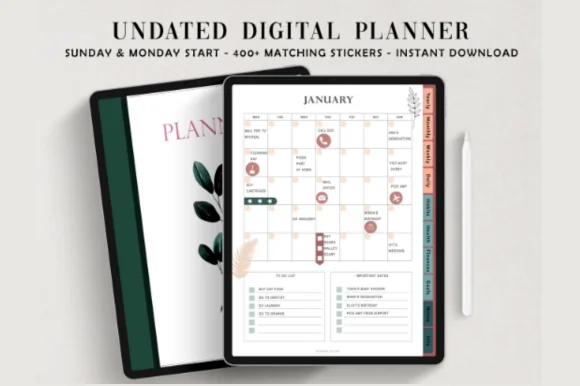
1. Deep Blue Undated Digital Planner
Layouts: Yearly, Monthly, Weekly, DailyDates: UndatedWeek start: Monday or Sunday
Best for: life organizers, budgeters, habit trackers. Designed by ThePlannersDelight.
- 112 hyperlinked pages with 10 divider pages, each section with its own cover
- 12 monthly pages, 5 weekly and 7 daily pages to duplicate as you go
- Habit, health, finance, goals, notes and information sections
- Monday start and Sunday start PDF files
- Instruction manual for GoodNotes plus 400+ PNG stickers
Five weekly pages and seven daily pages sound like too few until you remember tip 6: duplicate the page you need and keep the file light. It also comes with a GoodNotes manual and a big sticker set, so it covers the Elements tips too.
Best big file for search and bookmarks
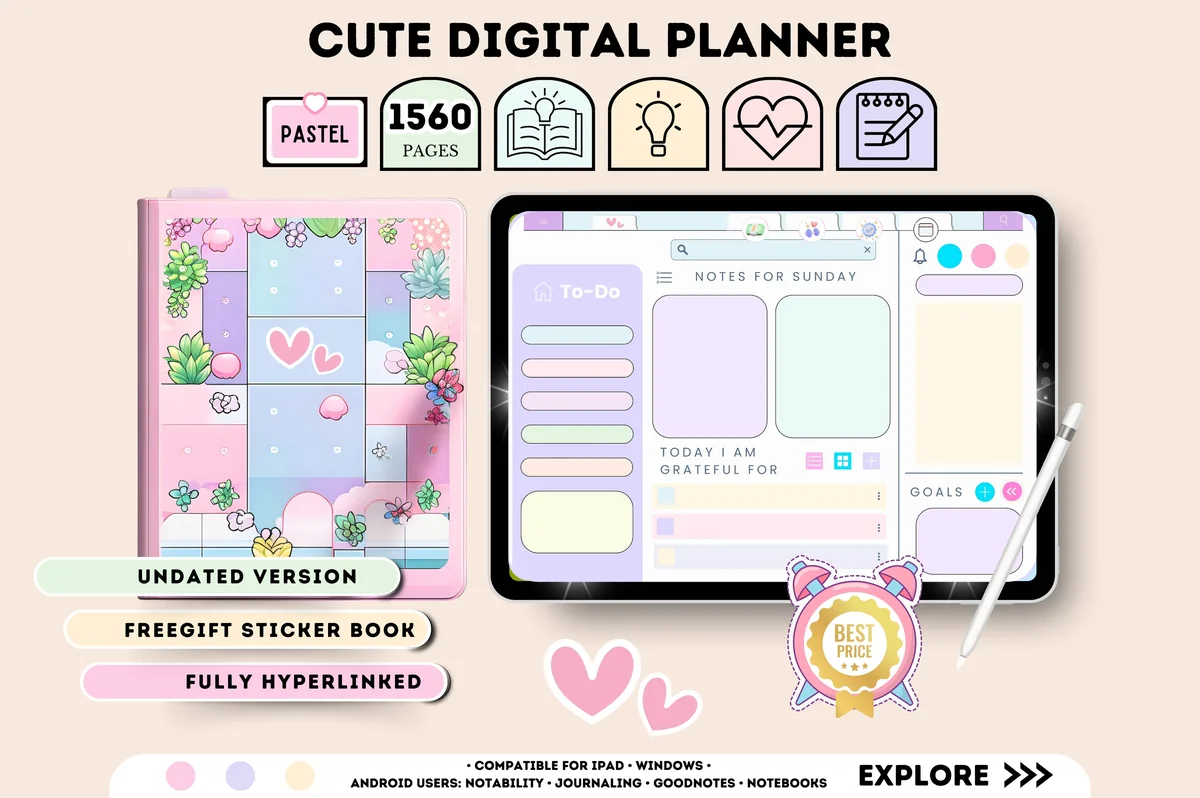
2. All in One Cute Digital Planner
Orientation: LandscapeLayouts: Monthly, Weekly, DailyDates: Undated
Best for: kawaii lovers, pastel planners, people who want everything in one. Designed by Tas Creative Studio.
- 1,560 pages per the cover, undated, landscape (11" x 8.3")
- Hyperlinked daily, weekly and monthly pages with an index page
- Health, fitness, finance and productivity trackers, goal planner and vision board
- Free 5-page sticker book and instructions included
- For GoodNotes, Notability and Noteshelf
With more than a thousand pages, this is the planner where bookmarking your current week and searching your handwriting pay off. The trackers live behind tabs, so the read-only habit matters here more than anywhere.
Best for tab navigation
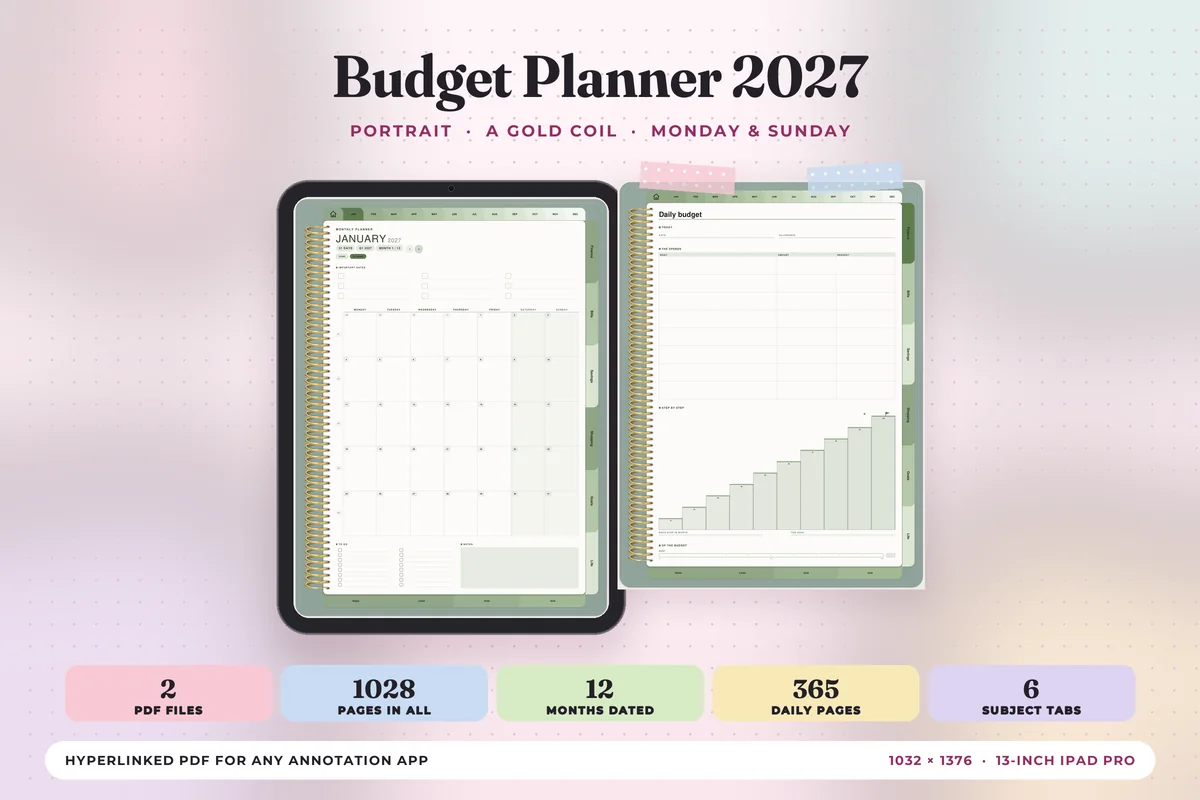
3. Budget Planner 2027 Portrait
Orientation: PortraitLayouts: Monthly, Weekly, Daily + Finance, Bills, Savings tabsDates: 2027Week start: Monday or Sunday
Best for: budgeters who also plan their week, 2027 planners, savers. Designed by Print Magic StudioX.
- Dated 2027, Monday start (513 pages) and Sunday start (515 pages) files
- 12 months across the top of every page, 6 subject tabs down the side
- Finance, Bills, Savings, Shopping, Goals and Life tabs with 24 templates
- 365 daily pages with an hourly schedule from 6 am to 9 pm
- Page size of the 13-inch iPad Pro in portrait; 30 pages of note paper
Months on top, subjects on the side and note papers at the foot make this a good file to practice tabs on: tap, write, tap back. Portrait pages also suit vertical scrolling if you set it in the document menu.
Best small starter for Elements
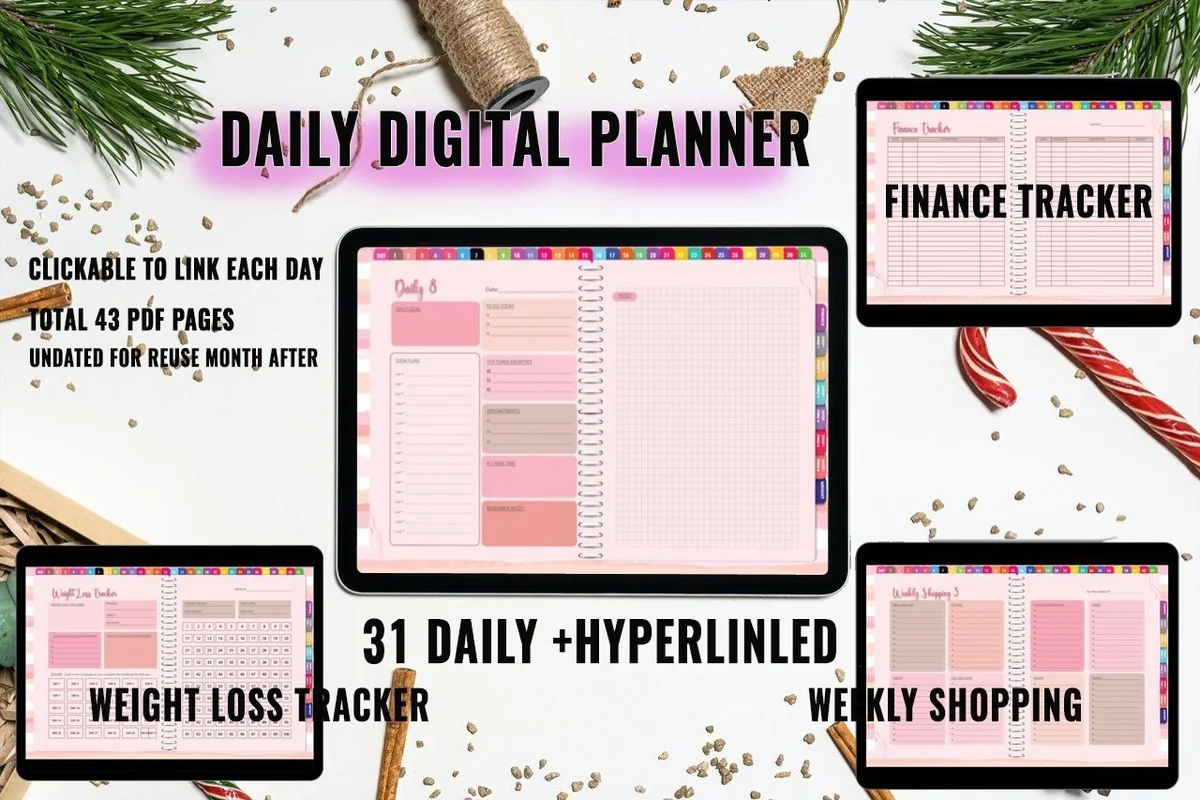
4. Daily Digital Planner, Pastel Pink
Layouts: Weekly, DailyDates: Undated
Best for: beginners, pink lovers, one-month planners. Designed by MOMAT THIRTYONE.
- 31 undated daily pages, each one hyperlinked
- 5 finance pages and 6 weekly shopping pages
- A weight loss tracker
- 100+ sticky note stickers
- PDF for GoodNotes, Notability, Xodo and Noteshelf
A small file is a good place to learn: 43 pages in total, according to the cover, so nothing gets lost while you try lasso and Elements. Save a few of the sticky notes to Elements and you have reusable boxes for every day.
Best dark paper for bright ink
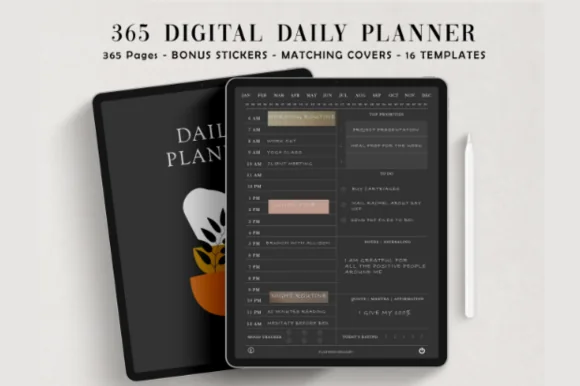
5. Digital Daily Planner (Dark Mode)
Layouts: DailyDates: Undated
Best for: night owls, dark mode fans. Designed by ThePlannersDelight.
- 365 undated daily pages on a coal black background, fully hyperlinked
- Months and days linked on each page
- 5 AM start and 6 AM start versions
- 16 page templates to copy in, from ruled to dotted and blank
- 5 bonus covers and pre-cropped matching stickers
Dark paper changes the color tips: white, pastel and gold inks pop, while dark pens disappear. Save two or three light colors as pen favorites before you start, and the 16 templates are ready for the duplicate trick.
Quick Comparison
| Planner | Format | GoodNotes tips it suits | Stand-out extra |
|---|---|---|---|
| 1. Deep Blue Undated Digital Planner | Undated, Monday or Sunday start | Duplicate pages, Elements | GoodNotes manual, 400+ stickers |
| 2. All in One Cute Digital Planner | Landscape, undated | Bookmarks, search, read-only taps | 1,560 pages, sticker book |
| 3. Budget Planner 2027 Portrait | Portrait, dated 2027 | Tabs, vertical scroll | 6 subject tabs, 24 templates |
| 4. Daily Digital Planner, Pastel Pink | Undated, one month | Elements, lasso | 100+ sticky notes |
| 5. Digital Daily Planner (Dark Mode) | Undated, dark pages | Pen favorites, templates | 365 days, 16 templates |
A 10-Minute GoodNotes Setup for a New Planner
- Import the PDF and keep the original in Files (tip 1).
- Set the scrolling direction for the layout (tip 2).
- Add a cover and star the planner as a favorite (tips 3 and 4).
- Tap through every tab in read-only mode to learn the layout (tip 5).
- Save 3 to 5 pen colors (tip 13).
- Import the stickers into Elements (tip 16).
- Bookmark this week (tip 7).
- Turn on auto backup (tip 21).
FAQ
How do I make my writing neater in GoodNotes?
Use the zoom window for small boxes, hold the pen at the end of a line to straighten it, write on a grid or dotted page and pick a slightly thicker pen. The lasso fixes the rest: move and resize what’s already written.
Why don’t the links in my planner work in GoodNotes?
Usually because a writing tool is selected. Switch to read-only mode or put the pen down and tap the tab again. If one tab still goes nowhere, the page it pointed to may have been deleted; start a fresh copy from the original PDF.
How do I use GoodNotes templates in a planner?
Import a page you like as a custom template, or copy a template page from the planner and duplicate it where you need it. Planner templates that come as separate PDFs can be added as pages in the same notebook.
Can I sync GoodNotes from iPad to iPhone?
Yes, with iCloud sync turned on in GoodNotes on both devices and the same Apple ID. Keep a separate auto backup too, since sync copies deletions as well.
Is GoodNotes only for iPad?
No. GoodNotes also runs on iPhone, Mac, Windows, Android and the web, though the iPad with an Apple Pencil is where planners feel most natural.
Do I need a paid GoodNotes plan for a digital planner?
Not to start: one planner counts as one notebook, and the free plan allows 3. Large planners with hundreds of pages can feel heavy on free storage, and planner makers sometimes recommend a paid plan for them. The current options are in my GoodNotes price guide.
Final Thoughts
You don’t need all 25 GoodNotes tips on day one. Start with read-only taps, duplicated pages, a bookmark on this week and auto backup, then add Elements and pen colors as the planner fills up. If you’re still choosing a planner, browse my undated digital planners, best digital planners for 2027 and dark mode planners, or all how-to guides.
You May Also Like
This post contains affiliate links. If you buy through them, I may earn a small commission at no extra cost to you. Learn more.