Monday looks manageable until you notice that next Tuesday’s deadline needs three evenings of prep. A two week planner on your iPad lets you see that collision while there is still room to adjust. Start with one overview showing fourteen dated days, then keep detailed notes on separate pages.
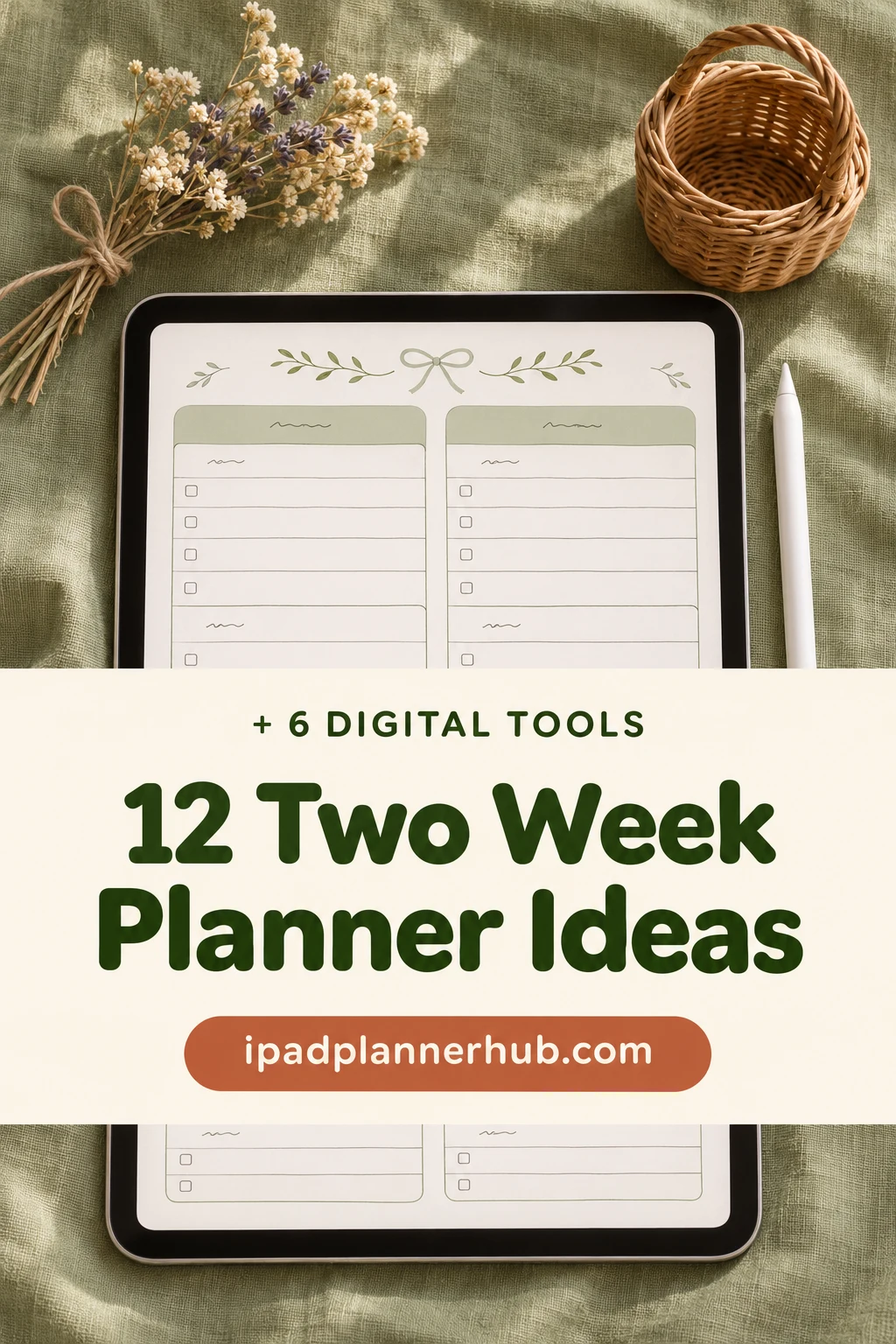
The twelve ideas below help you build that overview, choose what belongs on it, and carry unfinished work across the week boundary. You can try them on a blank page you already own. I also picked six digital notebooks, paper packs and planners with useful surfaces for making your own layout; the fortnight designs described here are reader-created adaptations.
Build a two week calendar you can read at a glance
A fortnight brings two weeks together between a crowded daily schedule and a distant monthly view. Aim for visual clarity: display priorities and dated commitments, then keep smaller tasks elsewhere. Give it enough detail to expose deadlines and dependencies, but keep meeting notes and long checklists elsewhere. These first four layouts solve different space problems: choose one before adding any extra trackers.
Four ways to arrange fourteen days
- 1Two matching seven-day columns. Draw Week 1 on the left and Week 2 on the right, with seven rows in each. Write both the weekday and date, especially when the fortnight crosses a month. Keep corresponding weekdays level so you can compare two Mondays without hunting. This is my first choice for a general overview because an overloaded second week becomes visible before you fill the first.
- 2A fourteen-line running calendar. Use one line for each date on a portrait page, leaving a narrow margin for a symbol and a wider space for the main event. Add a heavier line after Day 7. This suits a quiet fortnight with a few appointments; if several days need five entries, switch to larger boxes rather than shrinking your handwriting.
- 3Two rows of seven day boxes. Divide a landscape page into a top week and a bottom week. Keep Saturday and Sunday separate if work, study or family events happen then. Put only a daily highlight and fixed commitments in each box. Attach supporting notes through a clear page title or reference, rather than filling every corner of the calendar.
- 4A split page with a shared action list. Reserve the top two-thirds for two weekly columns and the bottom third for work that can happen anywhere in the fortnight. Date the appointments; number the flexible tasks. When you assign a task to a day, write its number there and mark its current location in the shared list. That keeps one task from becoming three competing copies.
Make a two-week plan around real commitments
Fill the hard edges first: shifts, appointments, travel, tests and delivery dates. Then work backward from anything due in Week 2. For complex projects, identify the key milestones and break each one into a next action. This visual approach connects daily actions to long-term objectives without crowding the overview with a full project checklist.
Four ways to prevent a crowded second week
- 5A deadline-and-prep bridge. Put a deadline in its actual day box, then write one preparation action in the earlier week. For a Thursday presentation, that might mean gathering figures on the first Friday and drafting slides on the second Monday. Use the same short project code beside both entries. The connection matters more than a decorative arrow across the whole page.
- 6A shift-pattern overlay. Mark fixed work shifts across all fourteen days before scheduling errands or study. Use a letter plus a color, such as N for a night shift, so the plan stays understandable without color. Add recovery or travel time as real commitments. You are mapping available capacity, rather than treating every unmarked evening as equally free.
- 7A two-stage project lane. Add a narrow lane beside the calendar called Prepare / Finish. List the materials, decisions or approvals needed in Week 1, then the output due in Week 2. For example: request feedback before polishing a proposal. For team collaboration, keep an owner and follow-up date next to each dependency. Put meetings in the calendar and keep the discussion notes on a project page, so waiting does not masquerade as available work time.
- 8A breathing-room band. Leave one small block in each week deliberately unassigned. Label it Buffer, then use it for an overrun, rescheduled appointment or genuinely urgent item. If the plan only works when those blocks are already full, remove or postpone a flexible task now. Empty space is useful information about how much change the fortnight can absorb.
Keep the fortnight current without rewriting everything
A longer view needs a clear handoff. Otherwise, an unfinished task sits under last Wednesday while a second version appears under next Monday. These final four ideas give changes a home and help you decide what deserves to stay.
Four small additions for the weekly reset
- 9A carryover box with decisions. Give unfinished work three possible marks: Move, Shrink or Drop. Move means a new date; Shrink means a smaller next action; Drop means you have consciously removed it. Before moving “sort paperwork,” try changing it to “find insurance letter.” Keep the old entry visibly resolved so you do not mistake it for a second outstanding task.
- 10A rolling Week 1 / Week 2 window. At the weekly reset, bring the coming seven days into the first-week position and add a new second week. Retain the dates, not the old position labels. This works well when you need a continuous look ahead. If you prefer fixed fourteen-day cycles, archive the completed overview instead and start a fresh dated page every other week.
- 11A fourteen-day routine strip. Add one small row of fourteen checkboxes for a single routine, such as preparing tomorrow’s bag. Label the dates above it and define what one completed check means. Keep this separate from the appointment boxes so a missed routine does not hide a meeting. Use the strip to review progress, rather than filling the calendar with repeated to-do items. Add another routine only if the strip remains readable at normal viewing size.
- 12A daily highlight and review corner. Put one short highlight beside each date, then reserve a corner for “What helped?” and “What changes next?” A highlight can be a priority, a pleasant plan or something worth remembering. During the reset, compare the intended focus with what was accomplished and change one planning assumption, such as allowing more travel time.
Six digital tools for your own fortnight layout
For a blank-page design, start with the notebooks and paper pack. For a fortnight overview that sits beside daily or project detail, consider the larger planners. I chose these for their writing surfaces and relevant planning sections; the fourteen-day labels and handoff system are additions you make yourself.
TL;DR: Start with two seven-day columns, add fixed events first, and reserve a small box for tasks that cross the week boundary. The six tools below offer blank papers, notebook sections or planning pages for creating your own fortnight overview. Compare the writing surface and navigation before choosing.
Quick Picks
- Best for a simple blank-page fortnight: Watercolor Hyperlinked Digital Notebook
- Best for two-column experiments: Digital Notebook
- Best for separating active and archived plans: Digital Notebook 5 Hyperlinked Tabs
- Best for adding a page to an existing notebook: Digital Notebook Papers – GoodNotes
- Best for connecting the overview to project detail: All in One Undated Digital Planner
- Best for a two-week overview beside daily journaling: Undated Digital Planner Journal Goodnote
- Watercolor Hyperlinked Digital Notebook – Best for a simple blank-page fortnight
- Digital Notebook – Best for two-column experiments
- Digital Notebook 5 Hyperlinked Tabs – Best for separating active and archived plans
- Digital Notebook Papers – GoodNotes – Best for adding a page to an existing notebook
- All in One Undated Digital Planner – Best for connecting the overview to project detail
- Undated Digital Planner Journal Goodnote – Best for a two-week overview beside daily journaling
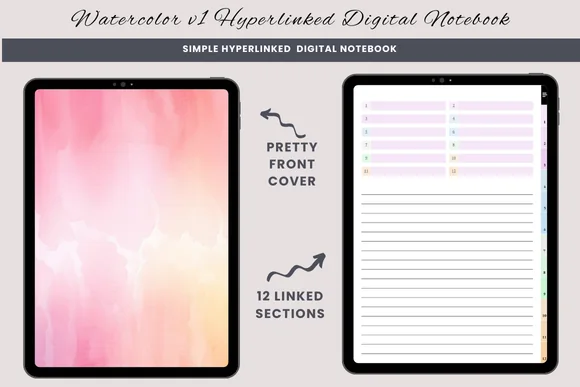
Best for a simple blank-page fortnight
1. Watercolor Hyperlinked Digital Notebook
Orientation: PortraitLayouts: Blank, lined and half-linedFormat: PDF
Best for: free-form writers, sketch and write journalers, topic-by-topic journalers. Designed by daysfilledwithjoy.
- One PDF in a ZIP for GoodNotes or a similar PDF annotation app
- 12 linked sections with lined, blank and half-lined pages
- Portrait notebook with a watercolor cover and numbered section tabs
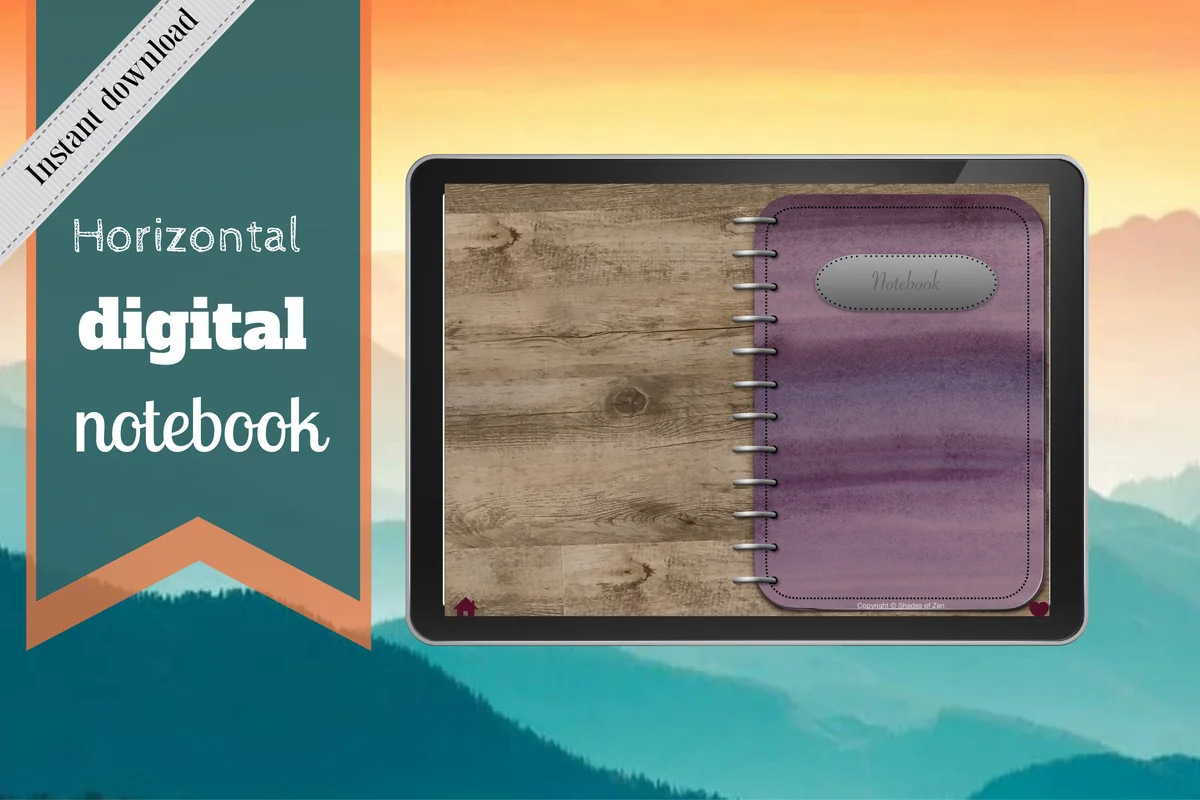
The blank page gives the fourteen-day grid room to breathe; the half-lined page suits a smaller overview above a carryover list. This suits a short setup with a small choice of paper styles. You create the dates, day divisions and fortnight heading yourself.
Best for two-column experiments
2. Digital Notebook
Orientation: LandscapeLayouts: Two columns, blank, dotted, lined, graph, Cornell
Best for: landscape note-takers, busy students, meeting notes. Designed by Shades of Zen.
- 12 expandable sections with hyperlinked tabs and individual dividers
- 16 note templates, including lined, dotted, graph and Cornell notes
- Landscape presentation; two-column paper appears in the template preview
- GoodNotes and PDF annotation note-taking apps; instructions included
The two-column option is the most direct starting point here: label the left side Week 1 and the right side Week 2, then add seven dated rows to each. Graph or dotted paper offers another route if your handwriting needs more guidance. The purple notebook styling is more decorative than the plain writing surfaces.
Best for separating active and archived plans
3. Digital Notebook 5 Hyperlinked Tabs
Orientation: LandscapeLayouts: Blank, lined, graph, dotted, Cornell
Best for: beginners, high school students, minimalists. Designed by aviswilliams.
- PDF notebook for iPad or tablet with a stylus
- Blank cover, index and five linked sections
- Blank, lined, graph, dotted and Cornell note papers
- Seller recommends GoodNotes, Noteshelf and Notability
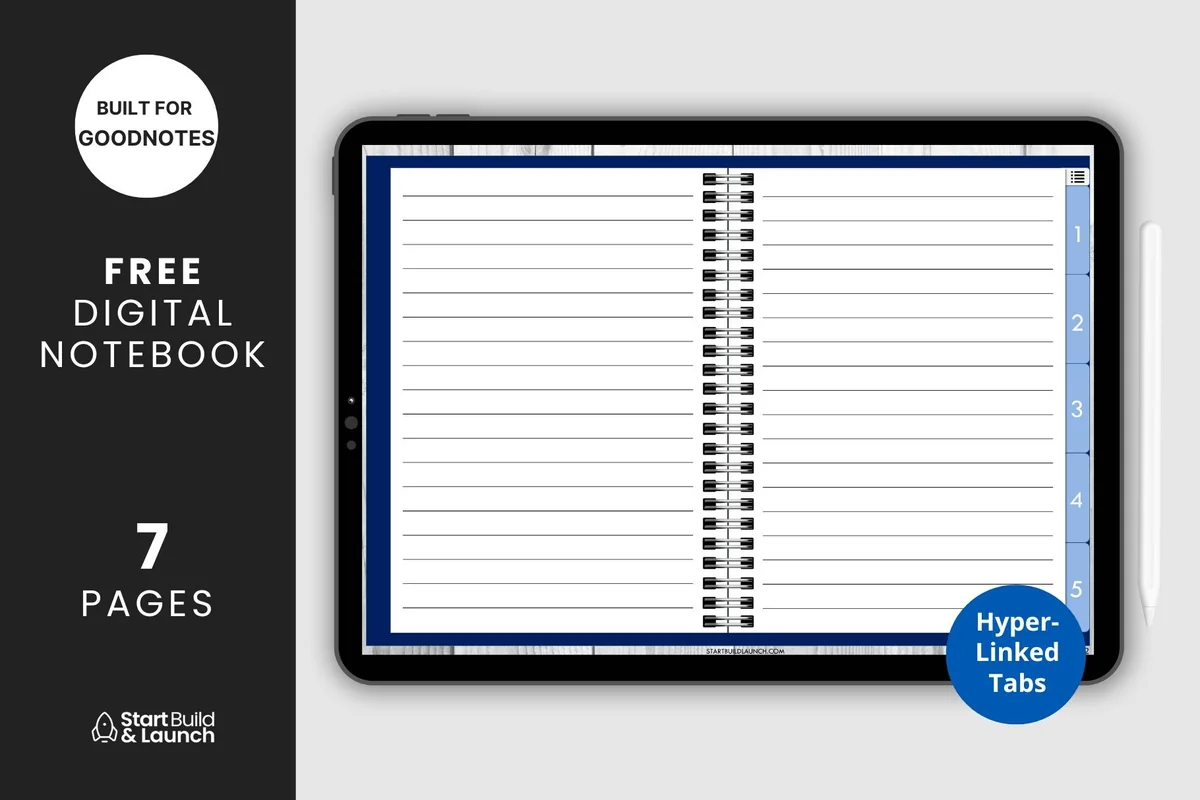
Five sections give this system a useful boundary. Name them Current, Next, Projects, Reference and Archive, then draw the overview on blank or graph paper. Those names are my suggested organization, rather than prefilled planner sections. The listing calls for an iPad or tablet with a stylus.
Best for adding a page to an existing notebook
4. Digital Notebook Papers – GoodNotes
Orientation: PortraitLayouts: Columns, tracker, lists, dots, square, lines, notesFormat: PNG and PDF
Best for: list makers, decorative note-takers, planner add-ons. Designed by catsquills.
- Nine portrait paper designs for GoodNotes and Notability
- Eight layouts per design: Columns, Habit Tracker, To-Do, Numbered List, Dots, Square, Lines and Notes
- PNG and PDF formats
- 2550 × 3300 px, 8.5 × 11 inches, 300 dpi
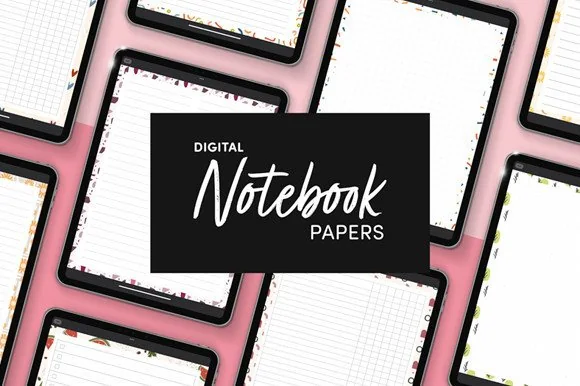
Choose Columns if you want two weekly lanes, or Square if you prefer to draw your own equal day boxes. This is a paper pack, so the appeal is the writing surface rather than a large planning system. On a portrait page, keep entries short and move detailed work notes to a separate page.
Best for connecting the overview to project detail
5. All in One Undated Digital Planner
Orientation: LandscapeLayouts: Daily, weekly, monthly, projects and notesFormat: PDFDates: Undated
Best for: building a fortnight map alongside daily, weekly and project pages. Designed by CraftAddicted.
- Undated Cherry Blossom PDF planner for GoodNotes and other PDF annotation apps on iPad
- Over 1,080 linked pages, with daily, weekly, monthly, goals and project planning
- Notes gallery shows 20 note templates and 10 notebook sections, including blank writing surfaces
- App is not included; copied pages retain links to the existing pages rather than the copies
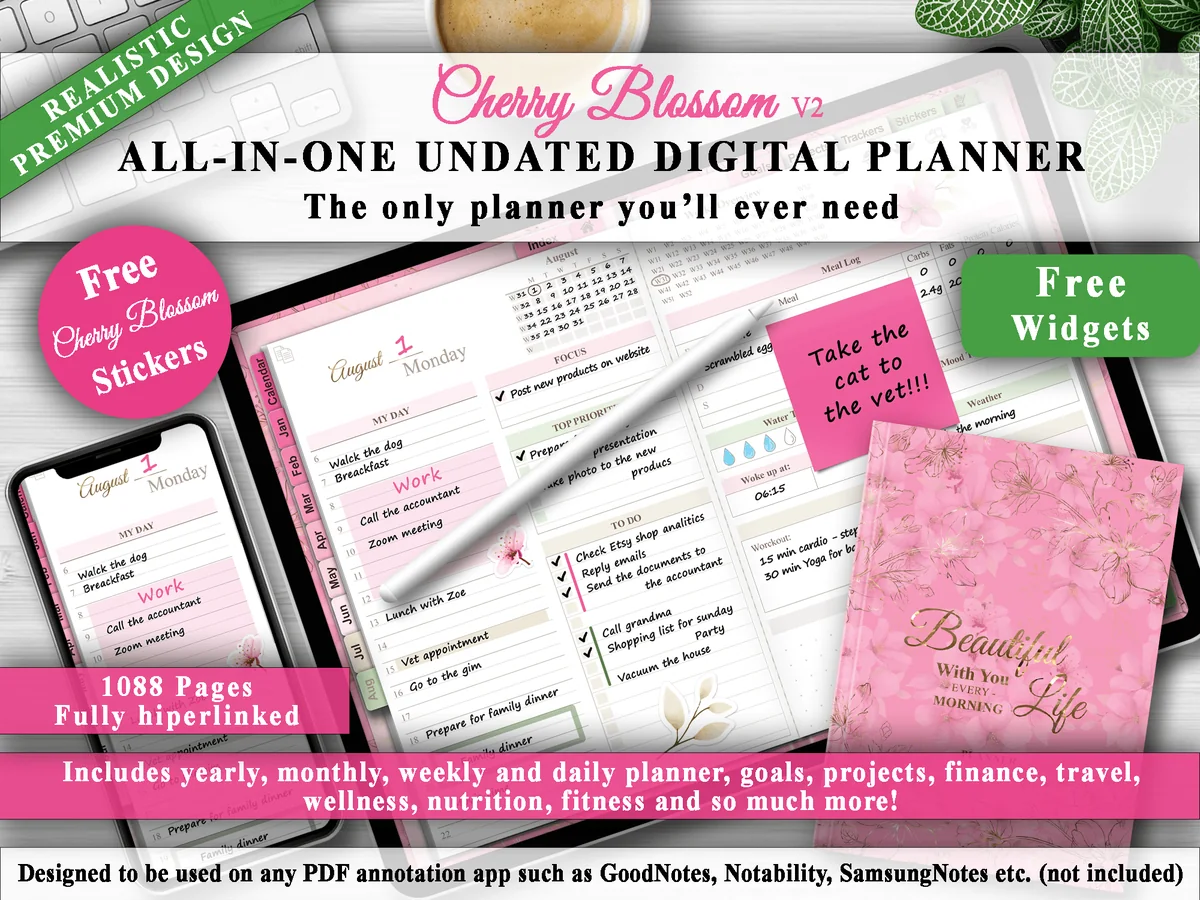
This is the larger system in the selection. A blank notes surface can hold your fourteen-day map, while the project pages carry meeting notes and next actions. Keep the overview as your manual navigation map: the seller specifically warns that copying a page does not redirect its existing links to the copy. Mark duplicate pages clearly and check their destinations.

Best for a two-week overview beside daily journaling
6. Undated Digital Planner Journal Goodnote
Orientation: Landscape two-page viewLayouts: Weekly, daily, journal, mealsFormat: PDFDates: Undated
Best for: one-file people, faith journalers, memory keepers. Designed by ArtistryByAnnabel.
- Single 59-page PDF for GoodNotes on iPad and compatible note-taking apps
- Landscape two-page view with clickable section tabs
- Undated daily planning, weekly overview, journal and meal-planning pages
- Bible study pages included; seller says pages can be duplicated or removed in GoodNotes
The journal surface is a useful place to sketch a compact overview before moving individual tasks into the daily pages. Weekly overview previews show two weekly panels together, with a shared weekend box in each panel, so use dated notes if Saturday and Sunday need separate plans. The floral decoration and included Bible study pages make this a more specific style choice.
Quick Comparison
| Tool | Fortnight role | Structure | Key detail |
|---|---|---|---|
| 1. Watercolor Hyperlinked Digital Notebook | Blank-page overview | 12 linked sections | Blank, lined, half-lined |
| 2. Digital Notebook | Two-column starting point | 12 linked sections | 16 note templates |
| 3. Digital Notebook 5 Hyperlinked Tabs | Five-section filing system | 5 linked sections | Blank and structured paper |
| 4. Digital Notebook Papers – GoodNotes | Fortnight insert | 9 paper designs | 8 layouts per design |
| 5. All in One Undated Digital Planner | Overview plus project detail | Planner and notebook sections | Copy-link limitation |
| 6. Undated Digital Planner Journal Goodnote | Planning and journal pairing | 59-page linked PDF | Shared weekend boxes |
Set up a reusable two week planner template
Use a blank or column page already available in your notebook, or choose a surface from the selection above. Build a clean master before entering real plans. The aim is a page you can reuse without erasing a finished fortnight or accidentally carrying old dates into a new one.
A short setup sequence
- 1Choose the reading size. Open the page as you normally plan, then write one realistic appointment with a time and location. If it only fits when zoomed in, use shorter entries, a landscape surface or two linked planning pages with a separate overview.
- 2Draw the minimum structure. Add two weekly areas, fourteen day labels, a small carryover box and a notes corner. Leave dates empty in the master. Avoid pre-drawing an hourly grid unless you actually need to compare times across both weeks.
- 3Save a clean version. Keep the original page clearly labeled as a master and use a working copy for the current fortnight. Follow your note-taking app’s page-copy controls. For more app-specific organization, see these GoodNotes planning tips.
- 4Enter fixed events, then preparation. Add the fourteen dates and check the weekday sequence. Transfer appointments from your calendar, write deadlines, and schedule the actions needed before them. Use a written label as well as color for anything important.
- 5Test the handoff. Take one unfinished task and decide its next action and new date. Check that the old entry is resolved. If your page has links, test their destinations after copying; keep a written page reference where that is clearer.
Prioritize the work that needs both weeks
Before you organize tasks by date, choose a result you want to finish within the fortnight. Mark the high-impact tasks that move it forward, then give each one a place around fixed appointments. Estimate the effort each step needs so several short-looking entries do not hide an evening of work.
Put repeating tasks, such as a Friday review, on both relevant dates before adding optional work. Keep a separate notes area for ideas that seem useful but do not serve this cycle’s priorities. This keeps task management focused on the next fourteen days and reduces the need to reconsider the same unscheduled list each morning.
Example: a presentation due in the second week
Imagine a presentation due on the second Thursday, an appointment on the first Wednesday and a long shift on the second Tuesday. Those three commitments go in first. The presentation then gets smaller preparation steps positioned around the actual space left.
- Week 1 Monday: request the figures and write a three-point outline.
- Week 1 Friday: choose the examples and assemble a rough version.
- Week 2 Monday: review the draft while there is still time to make changes.
- Week 2 Wednesday: rehearse and check the presentation file.
- Week 2 Thursday: deliver the presentation; keep detailed feedback on the project page.
If the figures arrive late, the carryover box should say “ask for missing sales total,” not merely “presentation.” That gives you a specific next action. Keep the second Tuesday’s shift visible when deciding where the delayed work can go; a blank-looking box is not spare capacity if its time is already committed elsewhere.
Choose a planning horizon and a reset rhythm
A two-week view is especially useful when preparation crosses Sunday night. It becomes less useful if every day needs a detailed timetable on the same screen. Choose the horizon that answers your current question, and keep the other detail one level away.
- Daily page: what happens today, in what order, with which supporting notes?
- Weekly page: what fits in these seven days? These weekly planner ideas offer fields you can adapt within each half of your overview.
- Fortnight overview: what in the second week changes what I should do in the first?
- Monthly calendar: which larger dates and commitments are approaching beyond the current window?
Check the page briefly when plans change, then make a deliberate reset at the end of the first week. Review appointments, resolve carryover, and add any newly visible preparation. At the end of the cycle, archive what is complete and preserve a clean master. If the layout feels cramped, compare the writing space in these weekly planner designs before adding more fields.
The pros of this view come from seeing preparation beside the following week’s deadline; the tradeoff is less room for each day’s detail. Professionals balancing meetings and project work can use it to manage that handoff, while students can map revision before a test. Judge productivity by whether the planned steps helped you finish the chosen result, and preserve the layout’s simplicity when extra fields add more upkeep than useful information.
Template or app: what should handle reminders?
A digital planner page is a place to arrange and annotate your plan. Planner apps may also offer calendars, alerts or automation, depending on the app. Choose a planner app for the functions you need, then use the fortnight page for the visual overview; a PDF page itself does not synchronize handwritten entries with a calendar.
- On the overview: priorities, preparation steps, flexible tasks and the relationships between both weeks.
- In your reminder system: time-sensitive alerts you need to receive, entered and checked separately.
- On a project page: long meeting notes, reference material and a detailed action list.
FAQ: two-week planning on iPad
Can I make a two week planner PDF from a notebook page?
You can draw a fourteen-day overview on a suitable PDF notebook surface and keep it in an annotation app. The notebook supplies the paper; you add dates, week labels and task areas. Start with blank, graph or column paper and keep a clean master for later cycles.
Is a two week planner printable, digital, or both?
A two week calendar printable and an iPad overview can use the same fourteen-day structure. This guide focuses on digital planning surfaces. If you also want a paper copy, check the particular file’s printing permissions, page size and your app’s export options. A shared wall calendar can hold household events while your iPad page holds personal preparation and task detail.
Would a 2 week planner whiteboard suit a shared schedule?
A whiteboard is useful when several people need to see a household schedule in the same place. An iPad overview is useful when you want your plan beside personal notes and project pages. Keep a clear rule for which version holds shared appointments, and update the other deliberately rather than assuming the two stay synchronized.
Should a fortnight always begin on Monday?
No. Choose the start that matches your work, study or household rhythm. A Thursday start can make sense for a repeating shift cycle. Write all fourteen dates, keep the same weekday order in both weeks, and make the boundary between the weeks obvious.
Can I handwrite my plans on iPad?
Yes, with a compatible annotation app and writing input supported by your device. Check the tool’s requirements as well as the app: the five-tab notebook in this selection specifically calls for an iPad or tablet with a stylus. A bought notebook file does not by itself provide the tablet or an annotation app.
How do I keep the plan private when sharing it?
Share a separate overview containing only the events and tasks the other person needs. Review the visible page before sending it, and keep private notes and account information out of that copy. Check the app’s current sharing and account settings rather than assuming a planner PDF has its own access controls.
Start with the next fourteen dates
The best two week planner for your routine is one you can read and revise without rebuilding it. Begin with two seven-day columns, fixed commitments and one carryover box. Once you can see what next week needs from this week, add only the extra fields that help you make a decision.
You May Also Like
This article contains affiliate links. If you buy through them, I may earn a commission at no extra cost to you. Read the affiliate disclosure.