Your child can describe the promised reward, but neither of you remembers what “good behavior” meant this morning. An iPad reward chart for kids can show one task, a clear mark, and a reward you chose together. These fifteen ideas give you simple pages to draw, followed by eight general digital notebooks for your own layout.
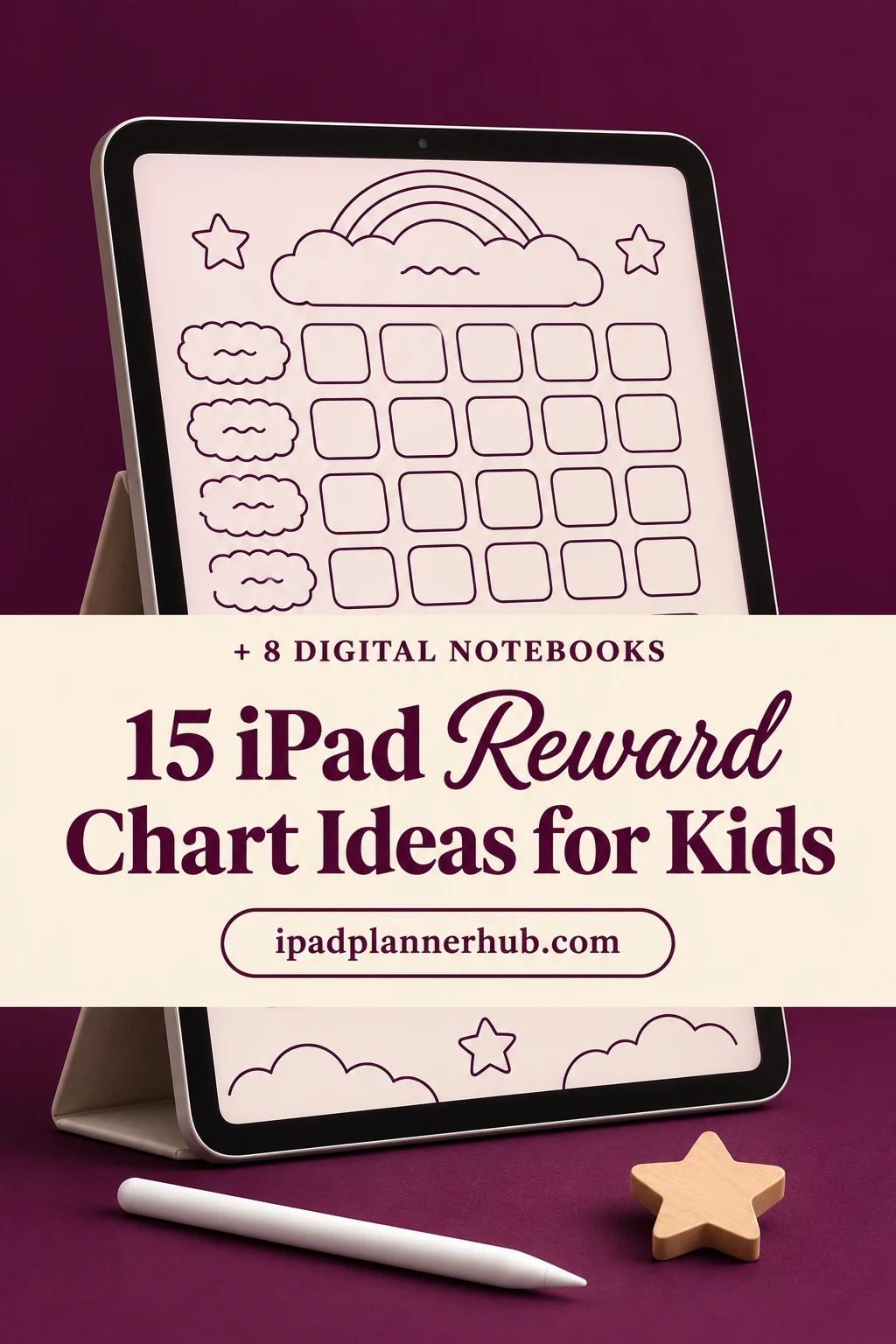
Keep a chart small enough to read on a tablet. Choose one goal, mark the box with your child, and do not turn the page into a point system with separate rules. You create every row by hand in a notebook.
Start with one task your child can see
Give the page one action that can be observed, not a broad character label. A child can tell whether a coat is on the hook. The mark should be placed together, on the same day, as close to the action as possible.
- Keep the task visible: write it as an action such as “dish by the sink” rather than “help more.”
- Keep the mark simple: one box per day is easier to explain than points, stars and colors stacked together.
- Keep the reward small: choose a short, nonmaterial reward so the chart stays focused on the habit.
- Keep the record private: a child’s progress is not a public comparison page.
15 iPad reward chart ideas for kids you can draw
Start with one layout; borrow other ideas only as needed. A reward chart can be a single row of boxes, a small reward menu and a short weekly note. Add another page only when an existing entry makes you wish you had a clear place for a particular detail.
Choose one clear goal and one mark
- 1.One visible action. Write the goal as a short action the child can see or hear: “coat on the hook after school” works better than “be ready.” Keep the box tied to that single action.
- 2.One shared checkmark. Open the chart together and place the mark at the same time. If the mark appears later, add a short parent note so the child can connect it to the moment.
- 3.One mark per day. Use one box or tap, not a star plus a color plus a point. A single mark keeps the record simple and easier to explain to a young child.
- 4.Three-day starter row. Draw only three or four boxes before the first small reward. A quick finish gives the child a chance to practice the routine before the chart gets longer.
- 5.Reward menu page. Write three to five small, nonmaterial rewards chosen with the child, such as an extra story, a song choice or a park stop. Keep the menu on its own page so the chart stays uncluttered.
Draw the weekly grid and keep it readable
- 6.One-row weekly grid. Draw a task label on the left and a box for each day of the week on a graph or dot page. Use one row per goal; add a second row only when the first is being used.
- 7.Short action labels. Use a brief verb phrase such as “put dish by sink” or “hang bag up.” A label should still name the action, even when space is tight.
- 8.Blank master page. Keep a clean copy of the grid before you write any names or dates. Duplicate that page when a new week starts so every chart stays straight.
- 9.Comfortable checkboxes. Draw the daily boxes at the size your child can mark without frustration. Test two sizes on a practice page before copying the chart for the week.
- 10.One section per child. If two children have separate goals, give each child a labeled section or tab. Put no comparison chart, score or ranking between them.
Review and adjust without making the chart a test
- 11.Weekly summary. Count only the boxes that are marked and write “3 of 5 days marked” instead of a total score. A missed box stays visible as not marked, not as a failing grade.
- 12.Too hard or too easy check. At the end of the week, change an unclear goal without blaming the child. If no boxes are marked, the action may need to be smaller or the time of day adjusted.
- 13.Reward chart boundary. Give the page a clear purpose, such as a personal goal. Label any separate chore list as household duties so its marks do not get mixed into this chart.
- 14.Private notes page. Write sensitive observations in a separate linked section that will not appear in a public screenshot or Pinterest pin. The chart is for the family, not for comparison.
- 15.Next reward together. Before the new week begins, agree on the next reward and write it on the menu page. Choosing the reward early makes the connection between task and finish clearer.
Eight digital notebooks for your own reward chart pages
These eight general notebooks offer different page structures, from grids and linked sections to simple lined pages. The sellers describe general notebook layouts; this article suggests ways to turn them into charts, without promising ready-made reward pages or automatic point tracking. You need your own compatible device and annotation app. Check each listing for stylus recommendations. Choose the one that matches how many children or how many weeks you want to keep in one place.
TL;DR: Compare eight general notebooks with grids, columns and lined pages for a self-created reward chart. The sellers describe general notebook layouts; ready-made reward pages are not promised here. Choose a page structure, draw your chart and add a reward menu.
Quick Picks
- Best for a parent-drawn weekly grid: Digital Notebook
- Best for a five-part family notebook: Cute Hyperlinked Notebook – 5 Tab
- Best for a clean graph or dot page: Digital Notebook 5 Hyperlinked Tabs
- Best for a large multi-child setup: Digital Notebook 24 Hyperlinked Tab
- Best for separate notes around each chart: Digital Notebook Hyperlinked Goodnote
- Best for a chart with notes below: Watercolor Hyperlinked Digital Notebook
- Digital Notebook – Best for a parent-drawn weekly grid
- Cute Hyperlinked Notebook – 5 Tab – Best for a five-part family notebook
- Digital Notebook 5 Hyperlinked Tabs – Best for a clean graph or dot page
- Digital Notebook 24 Hyperlinked Tab – Best for a large multi-child setup
- Digital Notebook Hyperlinked Goodnote – Best for separate notes around each chart
- Watercolor Hyperlinked Digital Notebook – Best for a chart with notes below
- Undated Cute Orange Bullet Journal – Best for bright visual marks
- DaisyNotes | Digital Notebook | Purple – Best for a simple action and mark list
Grids and tabs for weekly charts
Best for a parent-drawn weekly grid
1. Digital Notebook
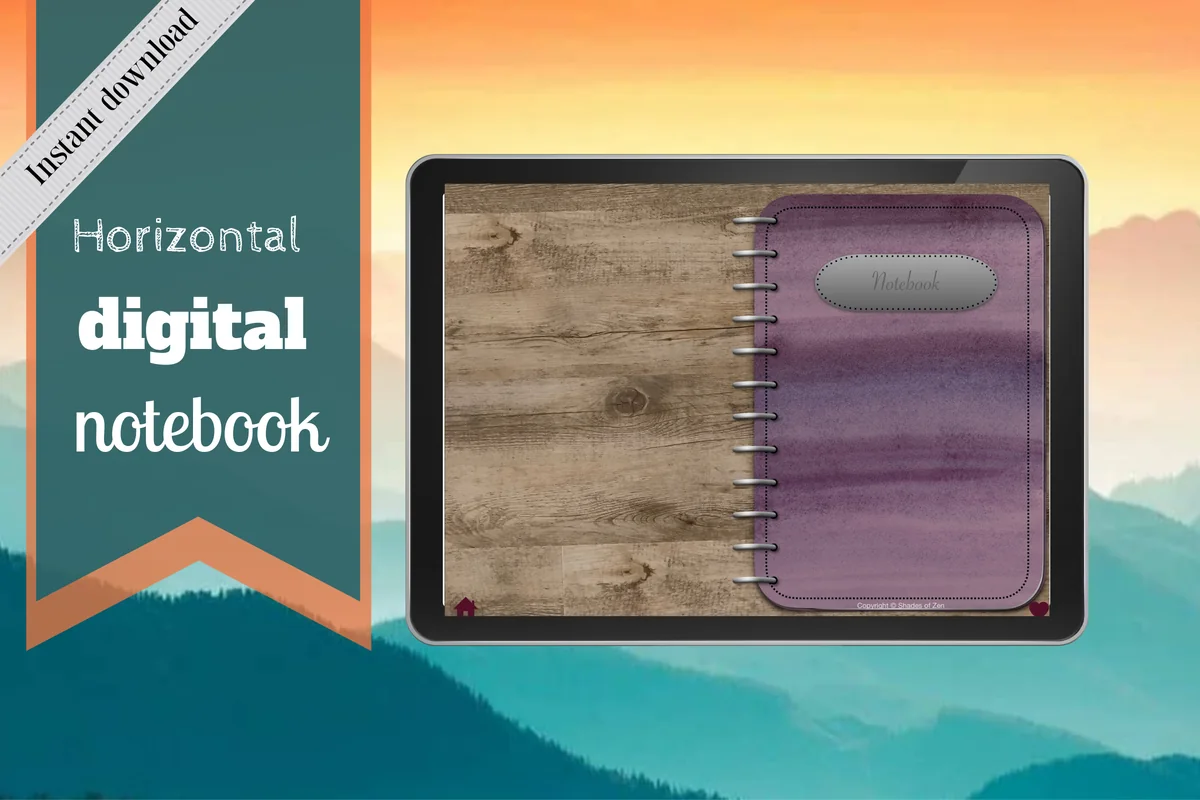
Orientation: LandscapeLayouts: Grid, dot, lined and column pagesDates: Undated
Best for: drawing a simple row-per-task chart and splitting sections by child or week. Designed by Shades of Zen.
- 12 linked sections and 16 note templates
- Previewed layouts include grids, dots, lines and columns
- Undated notebook for GoodNotes or a PDF annotation app
- Hyperlinked tabs between sections are shown in the listing
The graph and dot pages are the most natural place for a weekly chart: a task column plus seven day columns, with one small mark per day. Use one section for the current week and another for a blank master page you can copy. The notebook is undated, so you can start on the day you need it. Add your task labels and marks to the page.
Best for a five-part family notebook
2. Cute Hyperlinked Notebook – 5 Tab
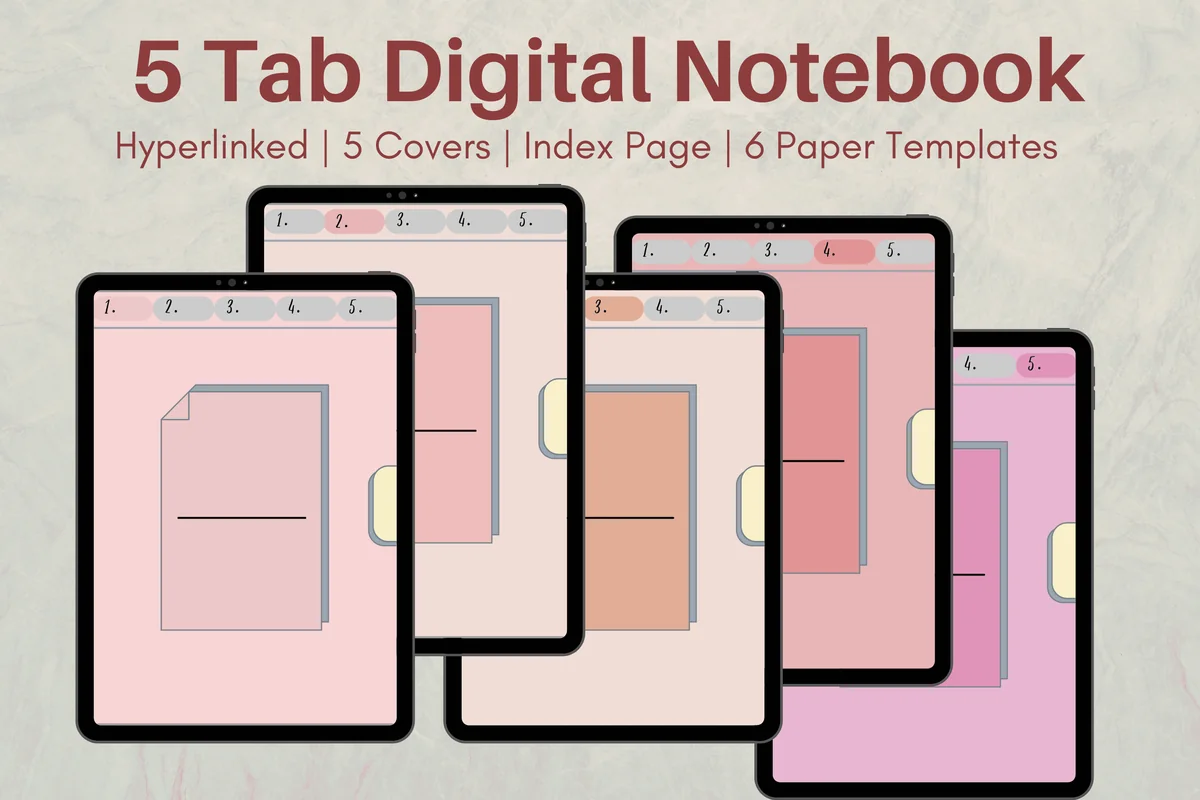
Orientation: Not statedLayouts: Ruled, two-column, Cornell, dot, grid and blankDates: Undated
Best for: making separate sections for each child or for five weeks without a full planner. Designed by Melissam Illustration.
- One PDF for iPad apps including GoodNotes 5, Notability, Noteshelf and Xodo
- Five covers, six paper templates, five section dividers and an index
- Five linked tabs with an index page
- Previewed paper includes ruled, two-column, Cornell, dot, grid and blank pages
Use the five linked tabs as a calm way to keep one child from landing on another child's chart. Label the tabs by name or by week, then duplicate a blank grid page behind each section. Use the paper templates to draw the rows and labels yourself.
Best for a clean graph or dot page
3. Digital Notebook 5 Hyperlinked Tabs
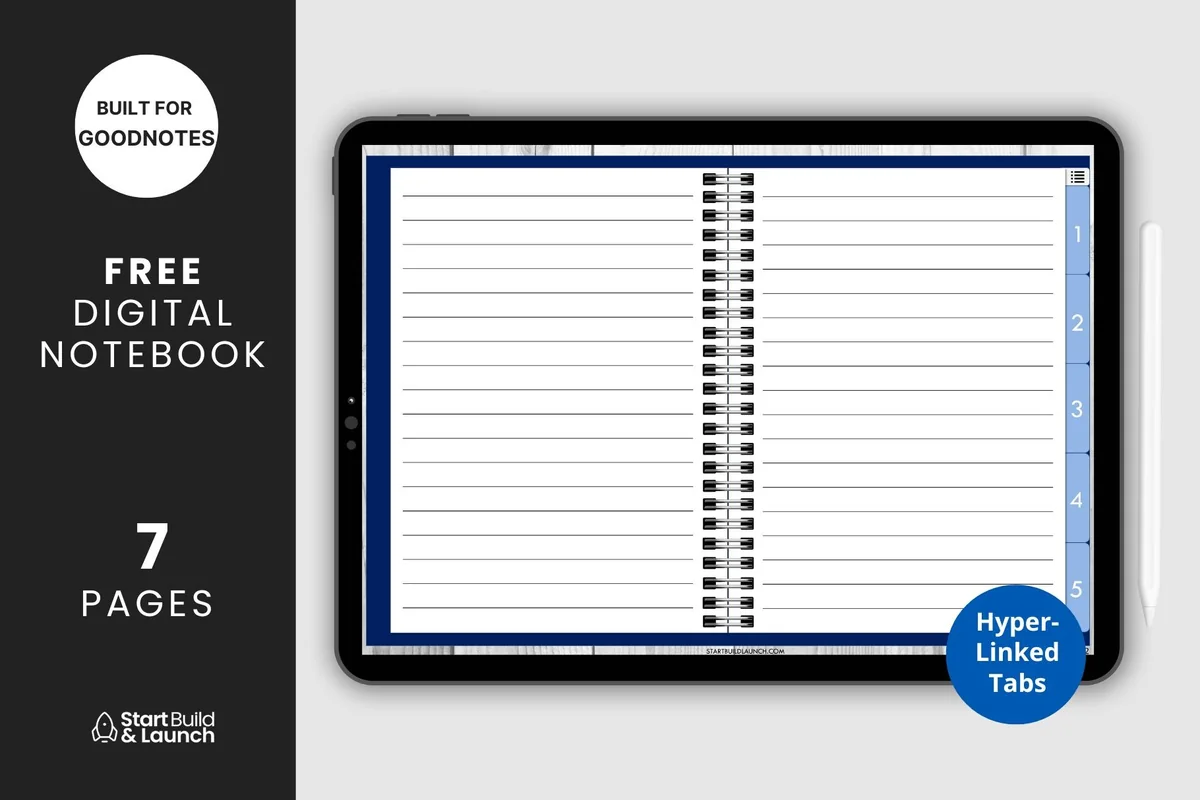
Orientation: LandscapeLayouts: Blank, lined, graph, Cornell and dottedDates: Undated
Best for: making a mark grid with five clearly separated sections. Designed by aviswilliams.
- PDF designed for iPad or tablet with stylus; GoodNotes, Noteshelf and Notability named
- Five sections and five paper templates
- Hyperlinked tabs and a contents page
- Previewed pages include blank, lined, graph, Cornell and dotted paper
The graph and dotted pages make a straightforward box grid for one action per row. Use the five linked sections for separate weeks, tasks or children, and label the index so you can return to the right page. Add the chart labels and checkmarks by hand.
Larger libraries for charts and parent notes
Best for a large multi-child setup
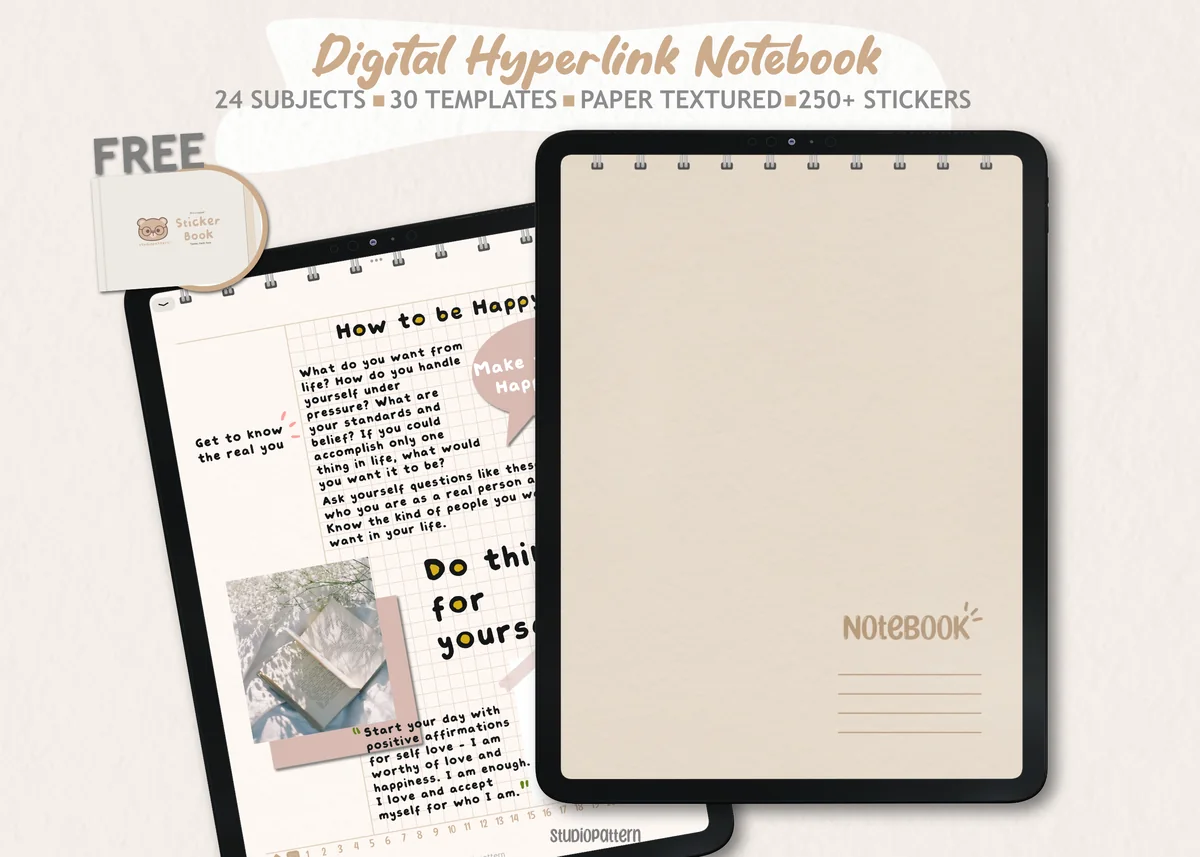
4. Digital Notebook 24 Hyperlinked Tab
Orientation: PortraitLayouts: Grid, dot, ruled, column, planning and sticker pagesDates: Undated
Best for: giving each child or period its own section when one small notebook is not enough. Designed by studiopattern.
- Hyperlinked PDF, PDF manual, PNG stickers and a .goodnotes sticker book
- 24 sections and 30 note templates
- 250+ individual PNG stickers plus one sticker book
- Seller lists GoodNotes, Notability, Xodo, Noteshelf and Notes Writer; an iPad or tablet with Apple Pencil or another stylus is recommended
This is the largest structure in the set, so it fits a family who wants to keep every chart and a few notes in one file. Reserve a section for each child, another for blank masters and a later section for weekly reviews. Grid, dot and column pages can hold a simple chart, but reward-specific pages are not shown in the listing. The app is purchased separately.
Best for separate notes around each chart
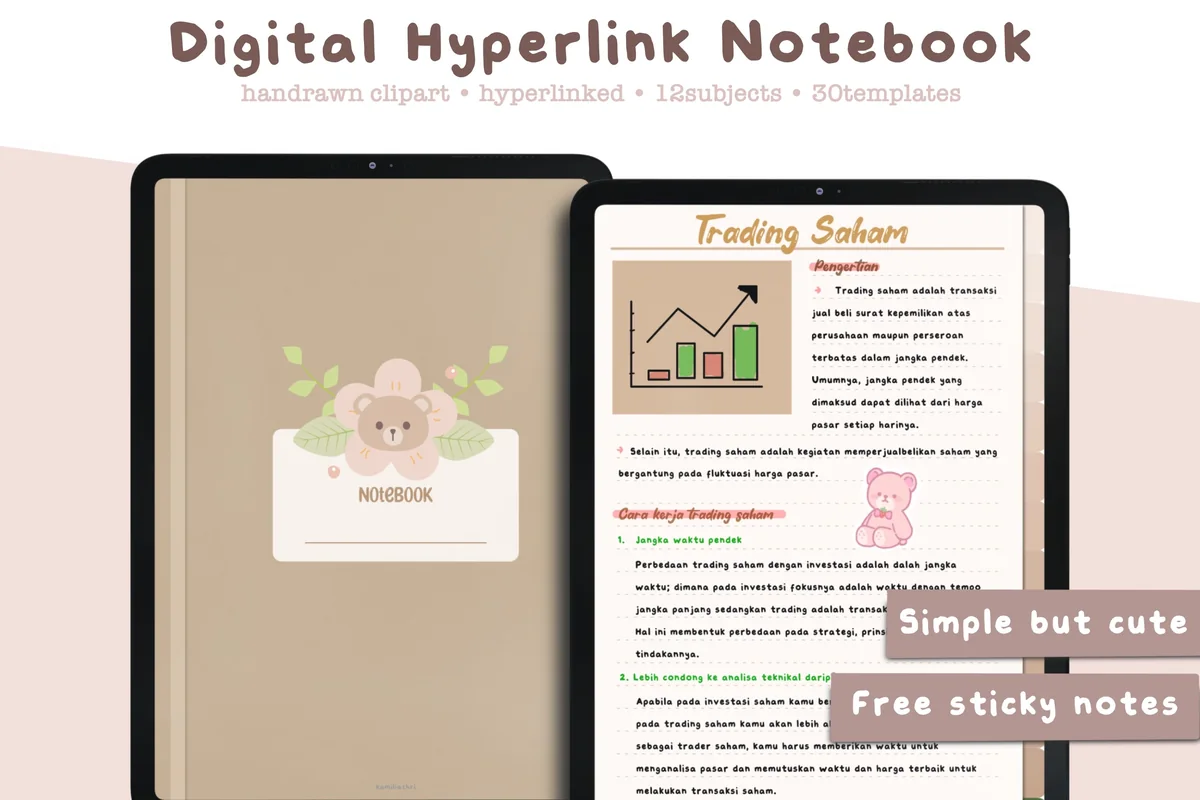
5. Digital Notebook Hyperlinked Goodnote
Orientation: Not statedLayouts: Columns, dotted, lined, geometric templates and sticky-note pagesDates: Undated
Best for: keeping a chart page and parent observations in the same linked section. Designed by studiopattern.
- Interactive PDF for GoodNotes and a PDF for print
- 12 sections and 30 paper templates
- Bonus pre-cropped GoodNotes stickers and 10 individual PNG files
- Seller lists GoodNotes, Notability, Xodo, Noteshelf and Notes Writer; an iPad or tablet with Apple Pencil or another stylus is recommended
The template library gives you columns for the chart and lined pages for notes about what worked or which task was too broad. Use one section for the chart, one for the reward menu and one for your weekly reflection. You add the child's name and the task labels yourself. Use the linked sections to keep those records together.
Best for a chart with notes below
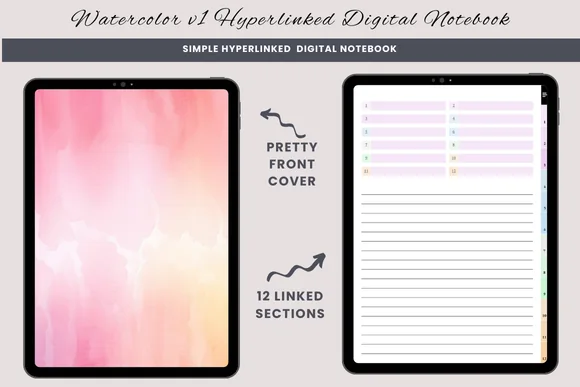
6. Watercolor Hyperlinked Digital Notebook
Orientation: Not statedLayouts: Lined, blank and half-linedDates: Undated
Best for: drawing a simple grid and keeping a space for the child's explanation or a parent note. Designed by daysfilledwithjoy.
- One PDF for GoodNotes or a similar PDF annotation app
- 12 sections with lined, blank and half-lined page types
- Blank pages can be duplicated to extend a section
- Preview shows index, dividers, ruled, blank and half-lined pages
A half-lined page gives you a chart on the blank half and a few lines for notes below it. The pink watercolor cover is decorative, but the reward chart itself is still one you draw. Use twelve sections for several weeks or tasks and keep a blank master page to copy for each new period.
Decorative pages and simple action lists
Best for bright visual marks
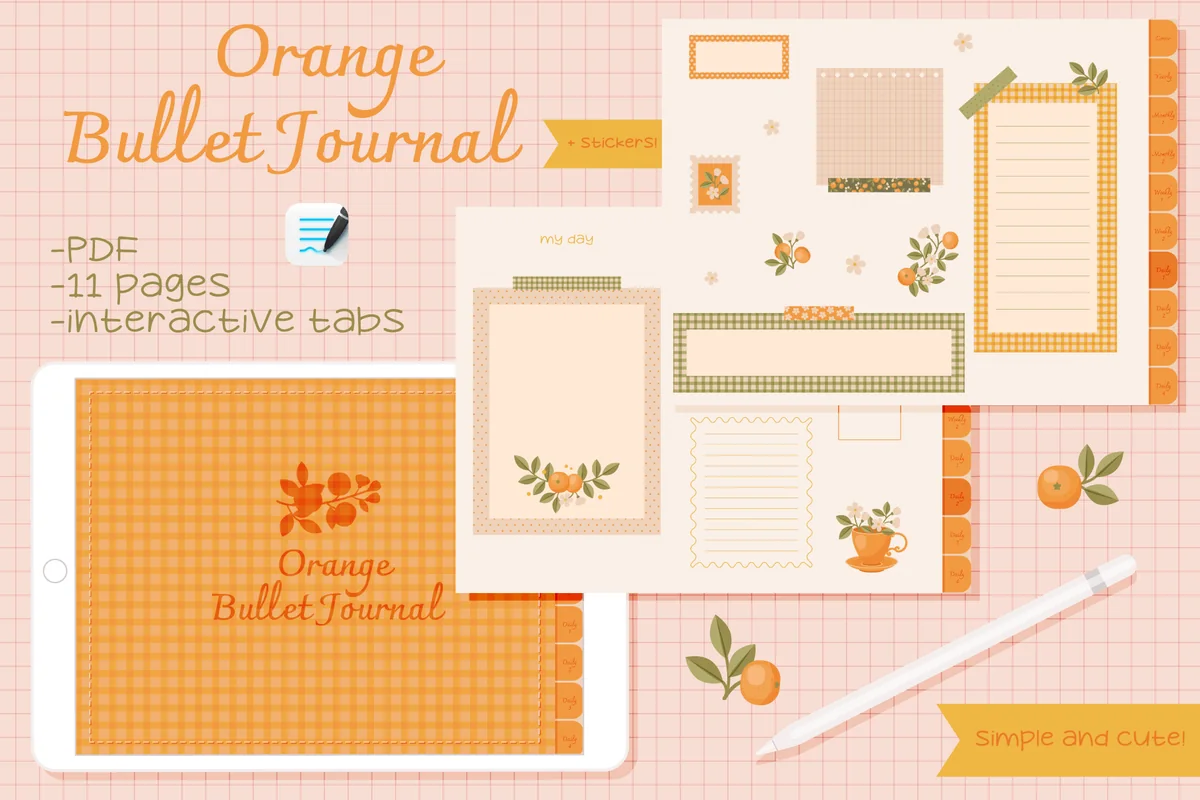
7. Undated Cute Orange Bullet Journal
Orientation: Not statedLayouts: Weekly columns, calendar block, honeycomb, notes and sticker pageDates: Undated
Best for: a cheerful chart with hand-labeled blocks and a small sticker reward. Designed by digitaliya_studio.
- PDF journal and .goodnotes stickers
- 11 pages and a 32-sticker bonus visible in the product previews
- Interactive clickable journal with tabs
- Preview shows an orange palette, weekly columns, honeycomb blocks, notes and a sticker sheet
The orange weekly columns and honeycomb blocks can become a visual chart for younger kids: write one task per row and mark one block together. The included sticker sheet can act as the mark itself or as a small sticker reward after a completed row. This is a suggested use of the journal layouts, rather than a promise of ready-made reward pages or rules.
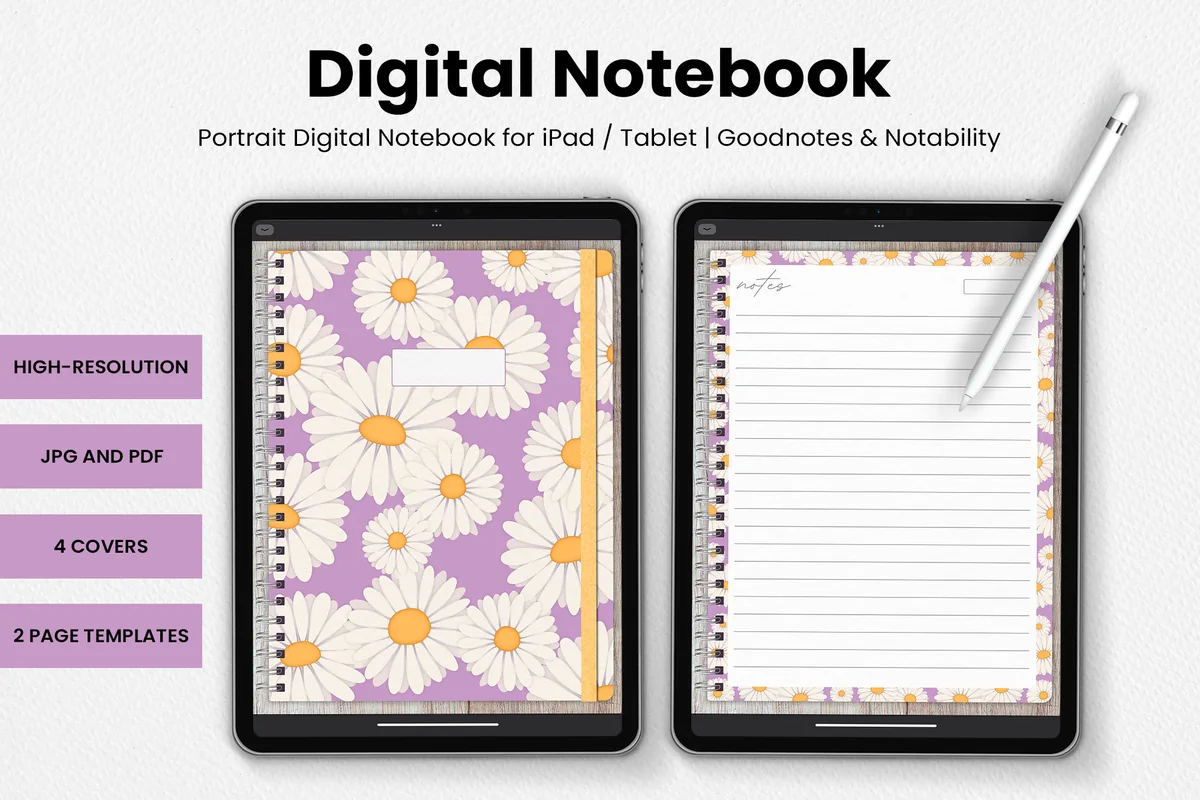
Best for a simple action and mark list
8. DaisyNotes | Digital Notebook | Purple
Orientation: PortraitLayouts: Two lined page designsDates: Undated
Best for: a compact chart with a short list and a parent note line. Designed by catsquills.
- Portrait digital notebook for GoodNotes and Notability
- Four covers and two page templates
- JPG and PDF files at 2770 by 3500 px and 300 dpi
- Preview shows two lined designs with daisy covers and wood-texture backgrounds
Use one line for each action and leave a small box at the left for the checkmark. The two lined designs are simple enough for a very short chart, and the four covers help you keep separate notebooks for separate kids. The listing does not describe hyperlinks; use page titles and a clean index you write yourself. The chart itself stays manual.
Quick Comparison
| Tool | Reward chart use | Page structure | Main distinction |
|---|---|---|---|
| 1. Digital Notebook | Parent-drawn grid | 12 sections | 16 paper templates |
| 2. Cute Hyperlinked Notebook – 5 Tab | Child or week sections | 5 linked tabs | 6 paper templates |
| 3. Digital Notebook 5 Hyperlinked Tabs | Clean mark grid | 5 linked sections | 5 paper types |
| 4. Digital Notebook 24 Hyperlinked Tab | Many children or periods | 24 sections | 30 paper templates |
| 5. Digital Notebook Hyperlinked Goodnote | Chart plus notes | 12 sections | 30 paper templates |
| 6. Watercolor Hyperlinked Digital Notebook | Chart with note space | 12 linked sections | Lined, blank, half-lined |
| 7. Undated Cute Orange Bullet Journal | Bright visual chart | Clickable tabs | 11 pages shown |
| 8. DaisyNotes | Digital Notebook | Purple | Simple action list | 2 page templates | 4 daisy covers |
Set up a reward chart on iPad
Keep an untouched template page before writing the first entry. That clean copy lets you adjust spacing after a few real marks without repeatedly erasing old handwriting. For general app navigation, our GoodNotes planning tips cover the wider setup.
A small setup you can repeat
- 1.Create a two-page start. Make one blank master grid and one child-facing chart. Keep the master clean so you can copy it for a new week or a second child.
- 2.Label the chart. Write the child’s name, the task and the week boundaries at the top. Keep the wording short in case you need a larger mark box later.
- 3.Link the reward menu. Put the menu on its own page and note the page number or use the notebook’s existing linked section. Do not assume writing a title creates a clickable link.
- 4.Mark together once a day. Place one checkmark at the time of the completed action. Add a parent note only when the mark needs context.
- 5.Duplicate the master page. At the start of a new week, copy the clean master instead of erasing the old chart. This keeps a weekly history without turning the current chart into a crowded archive.
Example: a four-day starter chart with one missed box
Here is an invented example of a simple record, not a prescription for rewards. A child is working on placing shoes by the door before dinner. The chart has four boxes. Monday, Tuesday and Thursday are marked jointly. Wednesday is blank because the child fell asleep early, not because the task was refused.
- Marked: 3 of 4 days.
- Review: the task wording was clear, so the chart stays the same.
- Blank box: leave Wednesday blank rather than adding a guessed mark.
- Next chart: use the same master page for the next reward and keep one row.
If the next week has a genuine absence or a late bedtime, simply leave the box blank and note the reason nearby. Empty days do not need to become zeros or punishments.
Reward chart vs chore chart: keep the boundary clear
Use a reward chart for one personal habit and a chore chart for rotating household work. This keeps the reward tied to the child’s own effort rather than a family duty. If you need a chore list, keep it in another notebook section or planner so the two records do not blur into one point system.
Template or app: where the chart lives
A notebook is a place to write and review. A behavior app or reminder tool may use notifications or sync, but these notebook listings do not establish those connections. If you use an app for reminders, copy only the useful summary into the chart. Keep the original app as the reminder source and the notebook as the family record.
- Notebook: task label, daily marks, reward menu, weekly note.
- Reminder app: separate prompt or routine cue if you choose to use one.
- Parent observation: dated note for later review, not automatic data.
If you want broader family planning options, see daily routine planners for schedules or habit tracker ideas for other manual tracking layouts. Those cover wider routines; this reward chart keeps attention on one goal at a time.
FAQ: reward chart for kids on iPad
What should a beginner put in a kids reward chart?
Start with one visible task, a box for each day you decide to track, and a short reward menu. Keep unclear days blank and labeled as not marked. You can add a weekly summary after the first few charts feel easy to use.
Do these digital notebooks include ready-made reward chart templates?
The sellers present these as general digital notebooks. Ready-made reward chart pages are not promised here; the ideas in this article use their paper layouts to create your own rows, labels and reward menu.
Can I use every notebook in GoodNotes?
Each listing names GoodNotes or a compatible PDF annotation app, but some include extra formats. Check the current listing and your exact app before purchasing rather than assuming all eight share the same file setup.
Will the chart sync with a calendar or send reminders?
These notebook listings do not establish automatic calendar synchronization or reminder delivery. Hyperlinks move between pages. A reminder app is a separate tool, and the notebook does not receive those notifications by itself.
Should I use a reward chart for every behavior?
For this starter layout, choose one clear, observable action you can mark together. Stacking many behaviors, points and conditions can make the page harder for a child to understand and harder for you to review.
Can a reward chart replace professional help?
No. A reward chart can hold dated family observations, but it cannot diagnose behavioral concerns or prescribe a support plan. Bring ongoing concerns to a qualified healthcare or education professional rather than relying on a notebook record.
Keep the iPad reward chart for kids easy to read
The most useful iPad reward chart for kids is the one your child can understand at a glance. Choose a roomy layout and keep its labels short. Let the notebook’s sections hold your master, menu and private notes, and leave plenty of blank space for a fresh week.
You May Also Like
Looking for more planning ideas for your tablet? Browse the everyday planners archive.
Purchases through selected links may earn this site a commission without changing your price. Our affiliate disclosure explains the arrangement.