A glitter heading can look lovely while you draw it and turn into a fuzzy stripe when the page gets smaller. I chose these three sets of Procreate glitter brushes for the differences visible in their stroke samples: fine shimmer, textured ribbons and larger scattered sparkles. The useful question is which mark suits your artwork, rather than which pack has the biggest number.
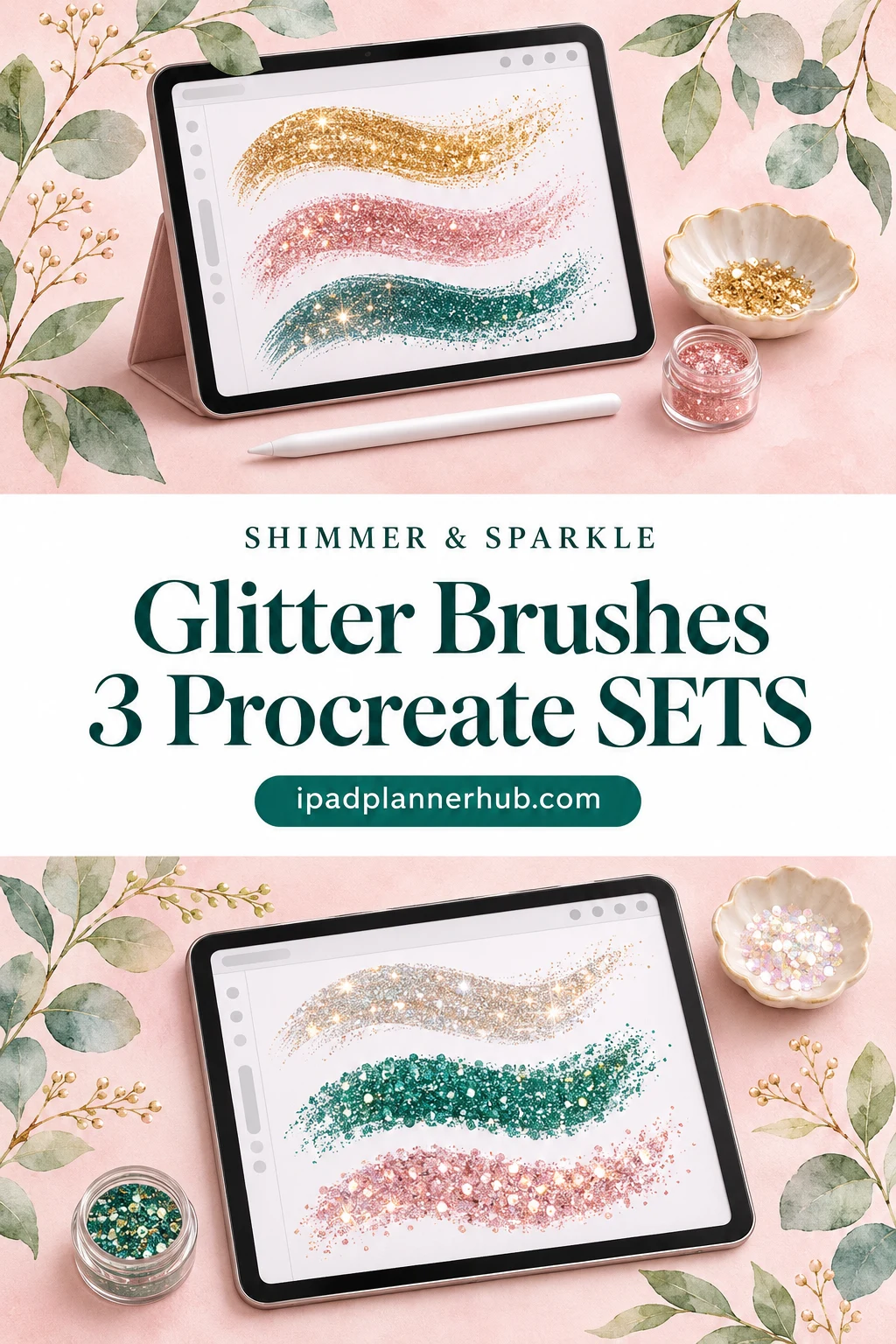
This shortlist compares three brush packs for creating your own lettering, borders and sticker accents on iPad. I reviewed the product descriptions and all public previews; I have not installed or tested the paid files. After the comparison, there is a swatch routine and a way to keep the sparkle separate from the information on a planner page.
Procreate Glitter Brushes: A Three-Set Shortlist
Each listing is for Procreate brushes, not a collection of ready-made planner stickers. I ranked the broadest visible texture range first, followed by a numbered collection and a smaller mixed set. The gold examples are a style reference, not a promise of animated shine or physically reflective artwork.
TL;DR: Three Procreate-only sets: DrawingStoryShop offers 70+ glitter brushes and wide stroke variety; Infinity Art Works has 20 numbered brushes with scattered and patterned marks; Jyllyco combines 17 brushes with fine shimmer, broad strokes and larger sparkles. These are brush packs, not finished sticker collections.
Quick Picks
- Best for texture variety: 70+ Procreate Glitter Brushes
- Best for a numbered shortlist: Procreate 20 Glitter Brushes
- Best for a smaller mixed palette: Procreate Brush – Glitter Brushes
- 70+ Procreate Glitter Brushes – Best for texture variety
- Procreate 20 Glitter Brushes – Best for a numbered shortlist
- Procreate Brush – Glitter Brushes – Best for a smaller mixed palette
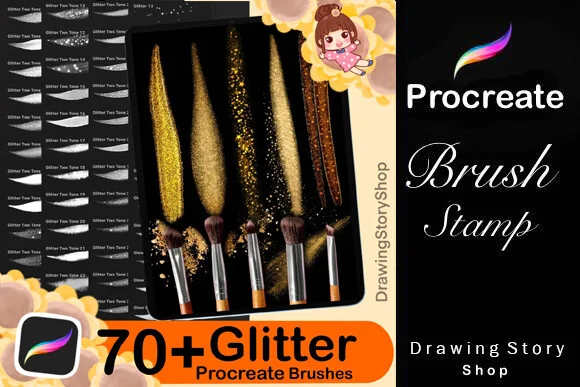
Best for texture variety
1. 70+ Procreate Glitter Brushes
Format: 70+ brushes for Procreate on iPad
Best for: comparing many glitter stroke styles before choosing a finish. Designed by DrawingStoryShop.
- 70+ glitter brushes designed for Procreate on iPad
- PDF instructions for importing the brushes
- Previews include gold, pink, blue and green stroke examples
- A preview recommends choosing both primary and secondary colors
The reason this goes first is the range of marks, not just the largest number. The previews move from thin ribbons to grainy sweeps and loose sparkle trails. I like that breadth for a project where the heading and the border need related textures without identical strokes. It also means more choices to sort through; a smaller pack may suit a single recurring accent better.
Best for a numbered shortlist
2. Procreate 20 Glitter Brushes
Format: 20-brush .brushset for Procreate on iPad
Best for: matching a visible sample to a compact brush collection. Designed by Infinity Art Works.
- 20 glitter brushes in a brushset
- For Procreate on iPad; the listing specifies Apple Pencil or a pressure-sensitive pen
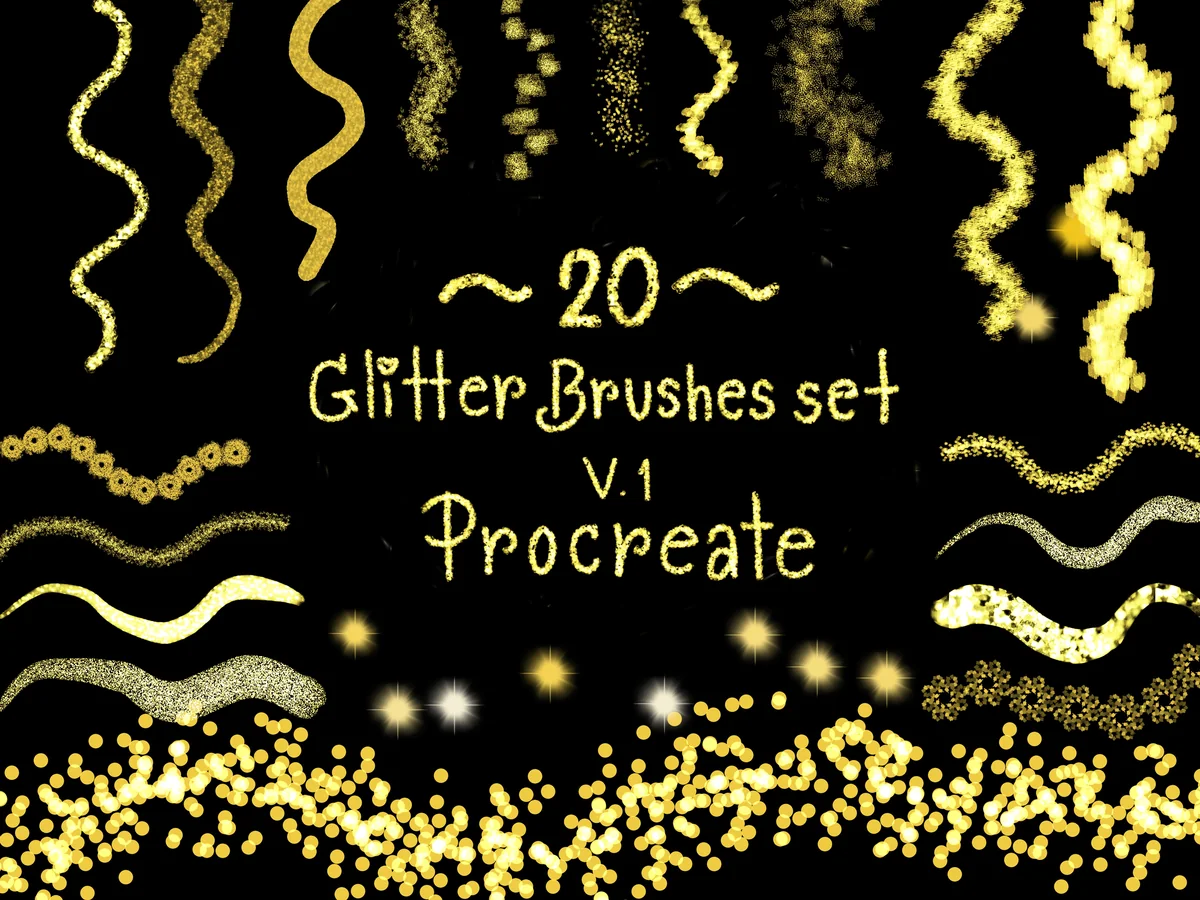
- Numbered previews show brushes 1 through 20
- Examples include fine strokes, soft dots, ring-like trails and dense particle scatter
The numbered samples make individual marks easy to find: 14 shows a dense scatter of particles, 15 has larger soft points, and 20 forms a linked, ring-like trail. Start here when you already know the kind of accent you want. The compact range is easier to compare on the page, though the previews cannot tell you how each brush will feel to draw with.
Best for a smaller mixed palette
3. Procreate Brush – Glitter Brushes
Format: 17 brushes for Procreate only
Best for: combining fine shimmer and larger sparkle accents. Designed by Jyllyco.
- 17 glitter brushes for Procreate only
- The listing explicitly excludes Photoshop and other applications
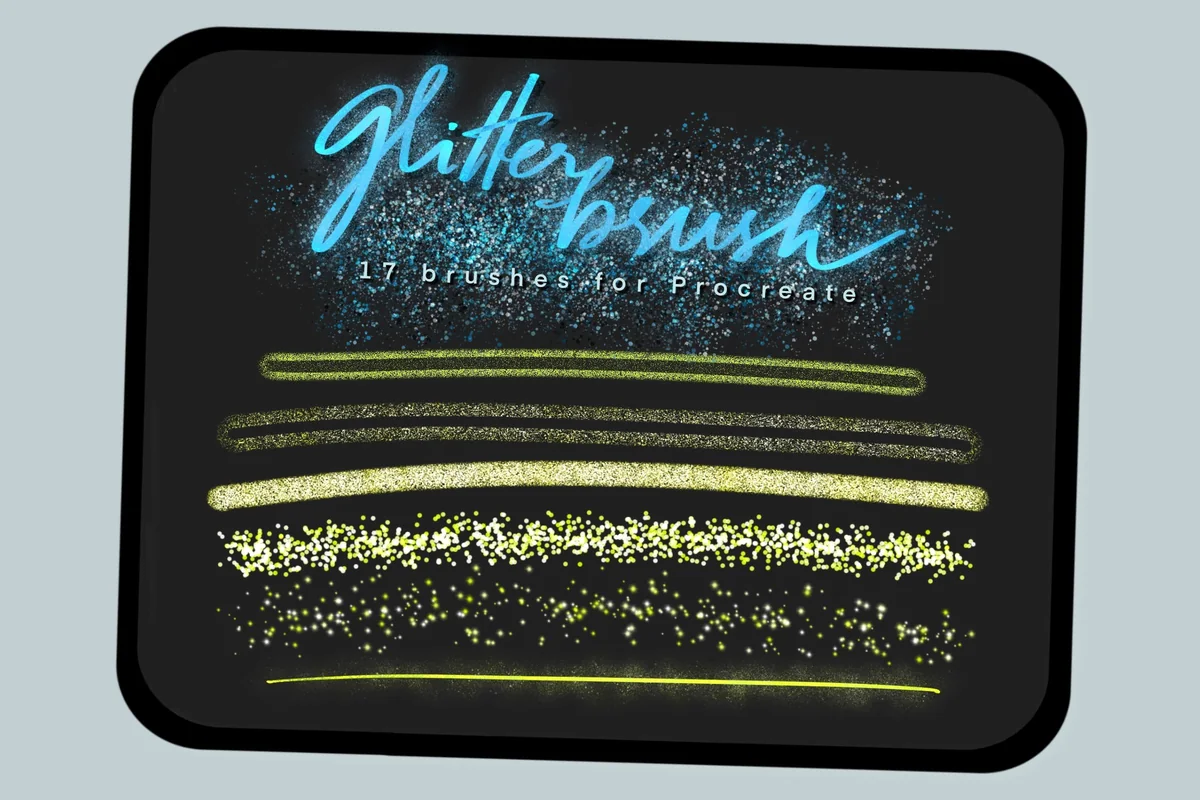
- Previews show fine-grain bands, broad textured strokes and larger light-like dots
- A lettering example shows teal glitter strokes with sparse star-like accents
The smallest collection still contrasts powdery shimmer, outlined strokes and big bright dots. That mix gives a lettering project several distinct accent options without the longest brush list. No tutorial or extra color palettes are listed, so choose it for the visible marks rather than assumed extras.
Quick Comparison
| Brush pack | Included | Preview character | Choose it for |
|---|---|---|---|
| 1. 70+ Procreate Glitter Brushes | 70+ brushes | Ribbons, grain and scattered trails | Exploring several finishes |
| 2. Procreate 20 Glitter Brushes | 20 brushes | Numbered stroke and scatter samples | Selecting a specific mark |
| 3. Procreate Brush – Glitter Brushes | 17 brushes | Fine shimmer, broad strokes and bright dots | A smaller mixed collection |
Read the Marks Before You Count the Brushes
The previews distinguish three jobs that can get bundled together under “glitter.” A narrow textured line can carry a word. A field of dots can surround that word. A broad grainy band can fill a shape. Start with the pack whose samples show the mark you need; treat the other textures as extras.
- Fine shimmer: closely spaced grains that read as a textured surface. Jyllyco shows this in narrow bands and broader swatches; DrawingStoryShop has fine-grained stroke examples too. For small decorative lettering, compare this texture with a plain version of the same word.
- Scattered sparkle: separated particles with visible space between them. Infinity Art Works shows both small dense scatter and larger soft points. This suits a corner accent or a loose trail around a title, where the gaps are part of the design.
- Textured ribbon: a continuous stroke whose edge or center carries the effect. DrawingStoryShop shows several ribbon-like and tapered marks. Compare these for a larger heading or border; the samples do not establish that every brush produces the same thin line.
These categories describe what the preview artwork looks like. They do not establish the internal settings of every brush. A bright dot in a sample is not evidence of a glow filter, and a metallic-looking line does not mean the file includes a separate foil texture.
A sparkling fill needs a recognizable pattern when the subject is a mermaid tail or a fantasy creature. The Procreate scale brush comparison separates clean scallops, textured rows and a dedicated glimmer option, so you can choose the scale structure as well as the shine.
A Gold Preview Is Not a Locked Color Palette
DrawingStoryShop illustrates choosing primary and secondary colors before using the brush. Its other previews show pink, green and blue examples as well as gold. Follow that instruction for this set; the other two listings do not document the same color behavior.
- For DrawingStoryShop: start with the two-color instruction shown in the preview, then compare the result on a blank swatch layer. Keep the color pair noted beside the stroke so you can repeat the combination you prefer.
- For Infinity Art Works: use the numbered samples to choose a mark first. The public examples are largely gold on black; they do not document every possible color combination or pressure response.
- For Jyllyco: the teal lettering and gold-toned swatches show more than one color treatment. They do not establish that every brush behaves identically when you change colors.
If a particular gold tone is essential, the sample image alone is not a color specification. Screen appearance and the background in the example are part of what you are judging. My buying decision would rest on the mark shape and texture before trying to match a precise metallic shade.
Make a Swatch That Resembles the Finished Accent
Try a small comparison page before committing a whole illustration to a new texture. The aim is to answer a concrete question: does the mark still communicate what I want at the size where somebody will see it? This is a suggested workflow, not a test result for these packs.
A repeatable swatch routine 4 steps
- 1Copy the actual shape. Use the short word, curved border or small star you intend to decorate, rather than only a long straight stroke. Keep a plain version beside it. A texture that suits a wide sample may be a poor choice for the narrowest part of your letter.
- 2Compare a few distinct marks. Put a fine shimmer, a fuller textured stroke and a loose scatter on separate rows. Label the brush names or sample numbers. For the DrawingStoryShop set, record the primary and secondary colors as well, following its preview instruction.
- 3Judge the intended background. Compare the accent against the actual page color and next to ordinary text. Most of the product samples use dark backgrounds. That presentation cannot tell you how the same texture will look beside pale planner boxes or a light sticker outline.
- 4Review the smaller view. Look at the whole page rather than staying zoomed into the glitter grains. If the word becomes hard to distinguish or the decoration looks like noise, try a different mark, a larger accent or less glitter. Keep the plain alternative if it communicates better.
Once a row works for your design, keep it as a visual reference. There is no need to use every brush in a pack to justify choosing it. One reliable heading texture and one contrasting accent may be enough for a coherent page.
Keep the Sparkle Around the Information
For planner artwork, give glitter a limited role: marking a celebration, framing a monthly title or decorating one sticker. Keep decoration distinct from checkboxes, appointments and reminders. The examples below are layout suggestions, not extra assets included in the packs.
- A celebration title: try the fuller stroke on a large word and leave the date in plain lettering. DrawingStoryShop has a broad range of visible stroke textures to compare for this role.
- A corner trail: explore the dot and scatter samples in the Infinity collection. Keep them outside the area reserved for tasks so that decorative particles do not resemble bullet points.
- A small sticker accent: compare Jyllyco’s fine shimmer with its larger dots on the actual shape. A thin edge and a few separated sparkles are different treatments; choose deliberately instead of layering both by default.
- A repeating border: the ring-like Infinity sample is a more specific visual motif than a generic dusting of glitter. Check the whole border at page size before repeating it around every box.
A useful stopping point is when one part of the page has a clear decorative emphasis and the rest still reads comfortably. If the heading, frame, task labels and background all compete, remove an effect before shopping for another brush pack.
Check the App, the Files and the Buying Promise
All three listings specify Procreate. Infinity Art Works also names iPad and a pressure-sensitive pen, while Jyllyco explicitly says its set will not work in Photoshop or other applications. None of these listings promises a native GoodNotes brush library.
- What you are getting: tools for making artwork. A brush count does not mean that many finished stickers, templates or ready-made compositions.
- File details: Infinity Art Works explicitly identifies a brushset. DrawingStoryShop mentions an import-instructions PDF. Jyllyco does not list a tutorial in its short description, so I have not counted one as an extra.
- Hardware and versions: check your own Procreate setup and the current product requirements before purchasing. I have not verified a minimum app version or tested these sets on a particular iPad.
- Usage rights: read the current Creative Fabrica license and the designer’s terms for your intended use. DrawingStoryShop distinguishes finished artwork from redistribution of the brushes themselves; that is not permission to repackage the source tools.
I have left prices out of the comparison because the purchase and subscription options can change. There is also no verified free pack in this shortlist. Check what your purchase or subscription includes before choosing a pack.
FAQ: Choosing a Glitter Brush Pack
Are these brushes for Procreate or for GoodNotes?
They are Procreate brush packs. Create your artwork in the supported app; do not expect these brush files to become GoodNotes drawing tools. If your goal is a finished planner sticker, that is a separate artwork and file-preparation task.
Which pack makes the choice easiest to see before buying?
Infinity Art Works shows numbered examples from 1 through 20, so it is the most straightforward visual shortlist here. That is a judgment about the public previews, not proof that its brushes are easier to control than the others.
How do I use glitter in Procreate without covering the text?
Reserve a textured stroke for a heading or place scattered particles around an edge. Keep important writing plain and compare the result at the final viewing size. The swatch routine above is designed to catch a lovely close-up that becomes distracting on the full page.
Will these create an animated or moving shine?
The listings describe brush sets and show still artwork. They do not promise animation, moving reflections or a complete glow-effect workflow. Bright-looking dots and metallic-looking samples should be judged as visual styles.
Does the largest brush count mean the best fit?
Only if the extra marks help your project. DrawingStoryShop is my choice for comparing many textures. Infinity gives a smaller numbered range, while Jyllyco offers the smallest mixed collection. A specific stroke you like matters more than a quantity you will rarely use.
Choose One Mark You Want to Repeat
My starting point for Procreate glitter brushes would be the actual accent: a textured word, a border or a few scattered points. DrawingStoryShop gives the broadest range here; Infinity makes individual samples easy to compare; Jyllyco keeps the collection smaller while showing several distinct finishes. Save a plain alternative beside the glitter version and let the full-page view decide which one earns its place.
For other kinds of planner artwork, the Procreate brushes for planners roundup covers a broader mix of decorative tools. Keep this shortlist for the narrower job of choosing shimmer and sparkle textures.
You May Also Like
Some links are affiliate links, which may earn me a commission when a purchase is made. Your price stays the same. Details are in the affiliate disclosure.