Most lists of the best note taking apps for iPad judge them on lecture notes and typing speed. If you plan on your iPad, the real test is different: open a hyperlinked planner PDF, tap a tab and see whether the app jumps to the right page or just draws a line on it. Some apps pass that test easily, some only partly, and a couple were never built for it.
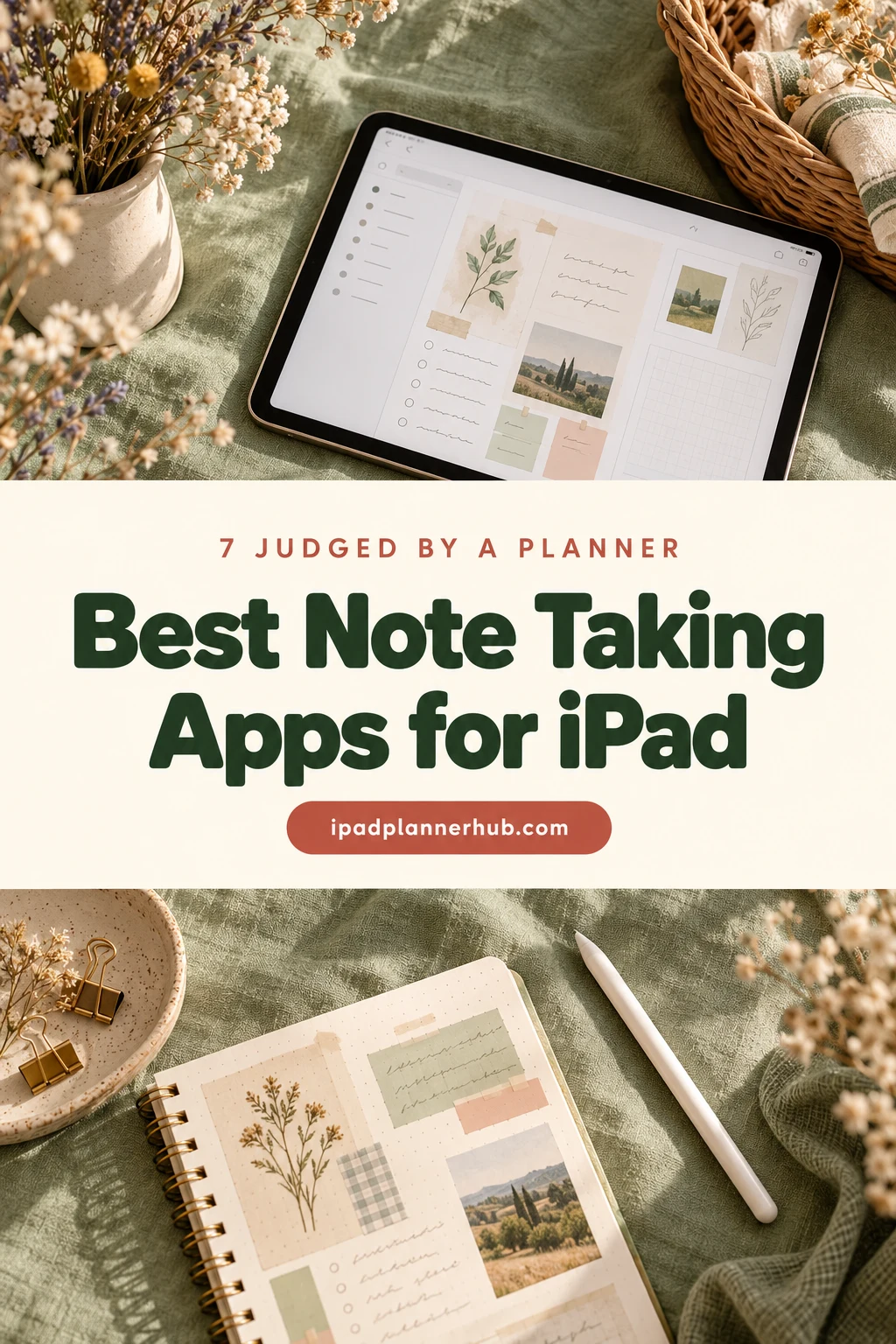
Below are 7 iPad note-taking apps I’d consider, judged by how they handle a planner: links and tabs, handwriting, stickers, price and where your pages sync. Then a short GoodNotes vs OneNote section, because that’s the question people ask most, and 4 planners whose designers say which apps they work in. App details are as of October 2026; prices for GoodNotes and Notability are US prices from their official pricing pages and the US App Store.
The 7 Apps at a Glance
| App | Best for | Planner links | Free to start |
|---|---|---|---|
| GoodNotes | Digital planners and stickers | Yes, made for them | Yes, 3 notebooks |
| Notability | Lecture and meeting notes with audio | Yes | Yes, 5 notes |
| Noteshelf | A GoodNotes alternative with a notebook feel | Yes | Yes, with limits |
| ZoomNotes | Huge files and zoomable pages | Yes | Lite version |
| OneNote | Typed notes shared with Windows | Usually no | Yes |
| Apple Notes | Quick lists and sketches | Not for planners | Free, built in |
| Nebo | Handwriting that turns into text | Not its focus | Yes, with limits |
The Best Note Taking Apps for iPad, One by One
1. GoodNotes: the default for digital planners
GoodNotes treats a planner PDF as one notebook, keeps its tabs clickable and has an Elements tool for saving stickers, washi tape and images you reuse every week. Pages can flip sideways, which suits landscape spreads. Most planner makers test their files in GoodNotes first, so instructions and sticker books usually assume it.
- Price: free plan with 3 notebooks, Essential at $11.99 a year, Pro at $35.99 a year, or a one-time Special Edition at $35.99 on Apple devices.
- Devices: iPad, iPhone, Mac, Windows, Android and the web.
- For planning: the best fit. A whole hyperlinked planner counts as one of the 3 free notebooks.
The full breakdown of plans is in my GoodNotes price guide, and the tips that make planning faster are in my GoodNotes tips for planning.
2. Notability: notes first, planner second
Notability shines when the same iPad holds class or meeting notes: it records audio that plays back in sync with your handwriting, and typed and handwritten notes sit together on one page. Planner PDFs open fine and their links work. Pages scroll vertically, which is comfortable for long notes and less natural for a landscape weekly spread.
- Price: free Starter plan with 5 notes; paid plans in the US App Store start with Lite at $14.99 a year.
- Devices: iPad, iPhone, Mac, the web, and Android since 2026.
- For planning: good, especially if you also record lectures. The side-by-side is in GoodNotes vs Notability.
3. Noteshelf: the closest GoodNotes alternative
Noteshelf works like a shelf of notebooks with covers, pens, highlighters and a sticker library, so a planner feels at home in it. Hyperlinked PDFs keep their links, and many planner designers list Noteshelf next to GoodNotes and Notability. It also records audio and can turn handwriting into text.
- Price: free to start with limits, with a paid upgrade; check the App Store for the current plan.
- For planning: a solid choice if GoodNotes doesn’t click for you and you still want a notebook-style app.
4. ZoomNotes: for huge files and tiny handwriting
ZoomNotes is built around zooming: pages can be enlarged far beyond a normal notebook, so you can write very small and still read it later. It handles large PDFs and their links, which helps with planners of a thousand pages or more. The interface has many settings and takes longer to learn than GoodNotes.
- Price: there’s a free Lite version to try; the full app is sold in the App Store (check the current price there).
- For planning: worth it for people who outgrow other apps or who like dense, detailed pages.
5. OneNote: great for typed notes, weak for planner PDFs
Microsoft OneNote is free with a Microsoft account and syncs through OneDrive to Windows, Mac, Android and the web. Notebooks, sections and pages are easy to organize, and typing is comfortable. A PDF, though, comes in as a picture of each page, so the tabs of a hyperlinked planner usually stop working. That’s why many planner designers write “not designed for use with OneNote” in their descriptions.
- Price: free to use; storage depends on your OneDrive plan.
- For planning: fine for simple pages you write on, like a monthly calendar grid. Not for a planner you navigate by tabs.
6. Apple Notes: free, fast and already on your iPad
Apple Notes is built into the iPad and costs nothing. A swipe from the corner with the Apple Pencil opens a Quick Note, checklists are quick to make, and notes sync through iCloud to your iPhone and Mac. You can mark up a PDF, but Apple Notes isn’t a planner app: there are no notebook tabs, and a 500-page planner isn’t what it was made for.
- Price: free.
- For planning: a good companion for grocery lists and quick ideas, next to a planner in another app.
7. Nebo: when your handwriting needs to become text
Nebo, by MyScript, is known for turning handwriting into typed text with very good accuracy, including lists and diagrams. It’s great for notes you’ll later paste into an email or a document. It can work with PDFs, but planner tabs and sticker libraries aren’t its focus.
- Price: free to start with limits, with a paid upgrade in the App Store.
- For planning: skip it for a planner; keep it for handwritten notes that need to be shared as text.
Judged by a Planner: How Each App Handles a Hyperlinked PDF
This is the test from the title. A planner from Creative Fabrica is a PDF with hundreds of links: tabs on the side, months on top, buttons back to the index. Here’s what happens in each app:
- Tabs jump to the right page: GoodNotes, Notability, Noteshelf and ZoomNotes. In GoodNotes, links respond in read-only mode or with a tap in the writing modes, depending on your settings.
- Links usually don’t respond: OneNote, because the PDF becomes printed images.
- Not built for it: Apple Notes and Nebo can show a PDF, but navigating a whole planner there is slow.
- Stickers you reuse: easiest in GoodNotes (Elements) and Noteshelf; in other apps you paste PNGs from Photos or Files.
- Undated pages: every planner app above lets you duplicate a page, so an undated weekly or daily page can be reused all year.
Before buying a planner, read the compatibility line in its description. Designers usually name the apps they’ve checked, and some name the ones they haven’t, such as OneNote, Kindle or reMarkable.
App compatibility tells you whether preset tabs work; finding your own added notes is a separate navigation task. The bullet journal index guide explains collection names and written page identifiers, giving a growing notebook a directory that does not depend on every entry becoming a tappable link.
GoodNotes vs OneNote
GoodNotes vs OneNote comes down to what you put in the app. GoodNotes is a handwriting app: Apple Pencil on a page, PDFs that keep their links, notebooks that look like paper. OneNote is a typed-notes app with good pen support: free, organized in sections and pages, and strong when your notes have to open on a Windows laptop at work or school.
| What matters | GoodNotes | OneNote |
|---|---|---|
| Hyperlinked planner | Links and tabs work | Links usually don’t work |
| Main input | Apple Pencil, plus text boxes | Typing, plus pen ink |
| Stickers | Elements library | Paste images |
| Price | 3 free notebooks, then from $11.99 a year | Free with a Microsoft account |
| Windows and Android | Yes, sync on paid plans | Yes, through OneDrive |
For a digital planner I’d pick GoodNotes. For students whose class notes live in a school Microsoft account, OneNote for typed notes plus GoodNotes for the planner is a common and sensible split.
Which App I’d Pick for Each Kind of Planner
- A hyperlinked digital planner with stickers: GoodNotes, or Noteshelf if you prefer its feel.
- College notes with recordings plus a planner: Notability.
- A planner of 1,000+ pages or very small handwriting: ZoomNotes.
- Work notes that must open on Windows: OneNote, with a simple monthly calendar at most.
- Free and nothing to install: Apple Notes for lists, GoodNotes free plan for one planner.
- Handwriting to text: Nebo.
4 Planners That Say Which Apps They Work In
Whichever app you choose, the planner has to match it. I picked 4 hyperlinked planners from my roundups whose designers list the apps they support, from GoodNotes and Notability to Noteshelf, ZoomNotes and OneNote. I skipped one popular undated planner because a sample cover shows a past year.
TL;DR: 7 note-taking apps for iPad compared for planning: GoodNotes, Notability, Noteshelf, ZoomNotes, OneNote, Apple Notes and Nebo, with what each does with a hyperlinked planner PDF. Then 4 planners whose designers say which apps they work in.
Quick Picks
- Best for all-in-one for GoodNotes or Notability: Digital Planner for Ipad, GoodNotes
- Best for small planner for Noteshelf: Pink Pastel Digital Planner
- Best for oneNote: Dark Mode Minimalist Digital Calendar
- Best for zoomNotes and other PDF apps: Hyperlinked Bill Tracker Planner
- Digital Planner for Ipad, GoodNotes – Best all-in-one for GoodNotes or Notability
- Pink Pastel Digital Planner – Best small planner for Noteshelf
- Dark Mode Minimalist Digital Calendar – Best for OneNote
- Hyperlinked Bill Tracker Planner – Best for ZoomNotes and other PDF apps
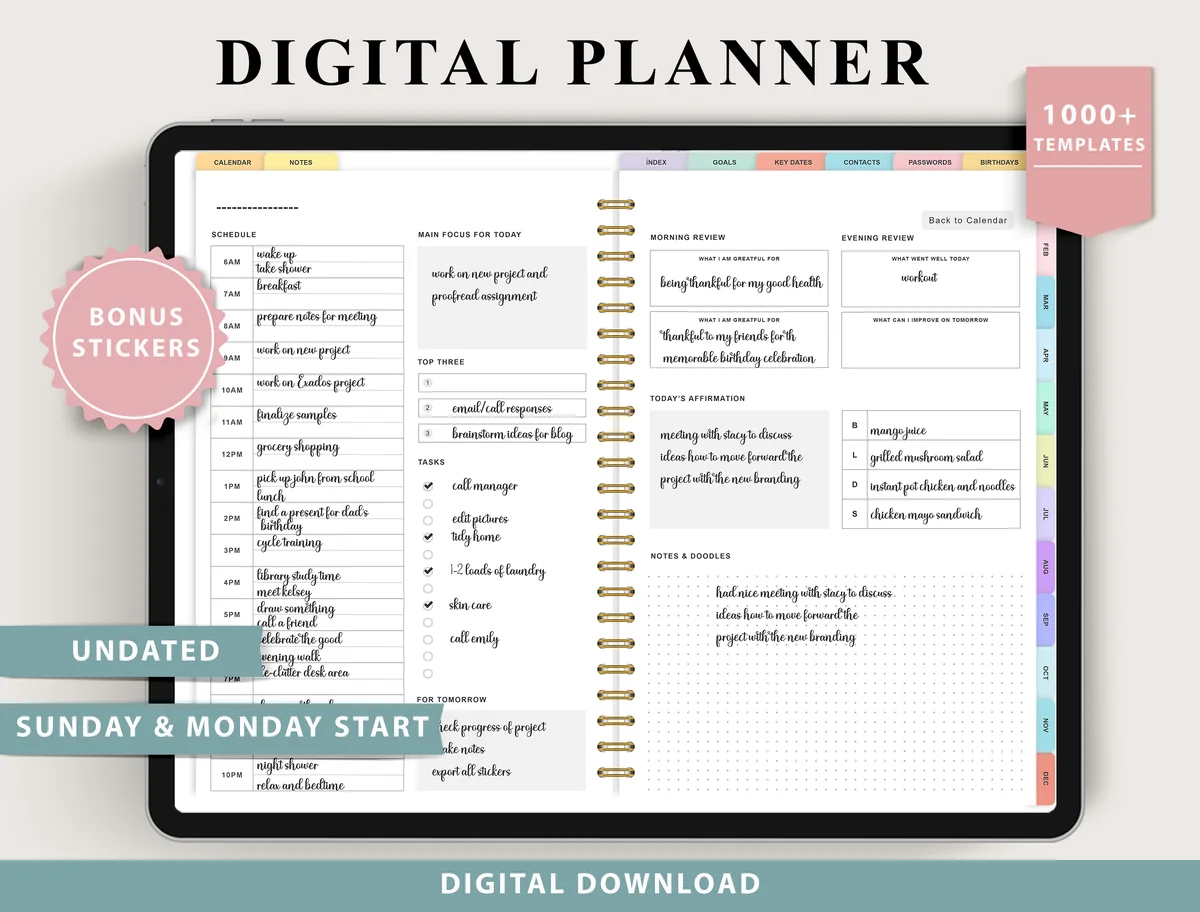
Best all-in-one for GoodNotes or Notability
1. Digital Planner for Ipad, GoodNotes
Layouts: Monthly, Weekly (4 layouts), Daily (4 layouts), 100+ templatesDates: UndatedWeek start: Monday or Sunday
Best for: indecisive planners, fitness trackers, finance trackers. Designed by ThePlannersDelight.
- Undated, Monday and Sunday start versions
- 4 weekly and 4 daily layout options, 100+ templates
- Fitness, finance, nutrition, wellness and productivity trackers
- 50,000+ hyperlinks and buttons per the product images, plus bonus stickers
- Designer lists GoodNotes, Notability, Samsung Notes, CollaNote and Xodo, and says it isn't designed for OneNote
This is the kind of file the handwriting apps are built for: thousands of links, tabs on the side and pages you'll tap all day. I like that the designer says plainly it isn't made for OneNote, which matches what I explain about OneNote above. With 868 favorites it's one of the most saved planners in my lists.
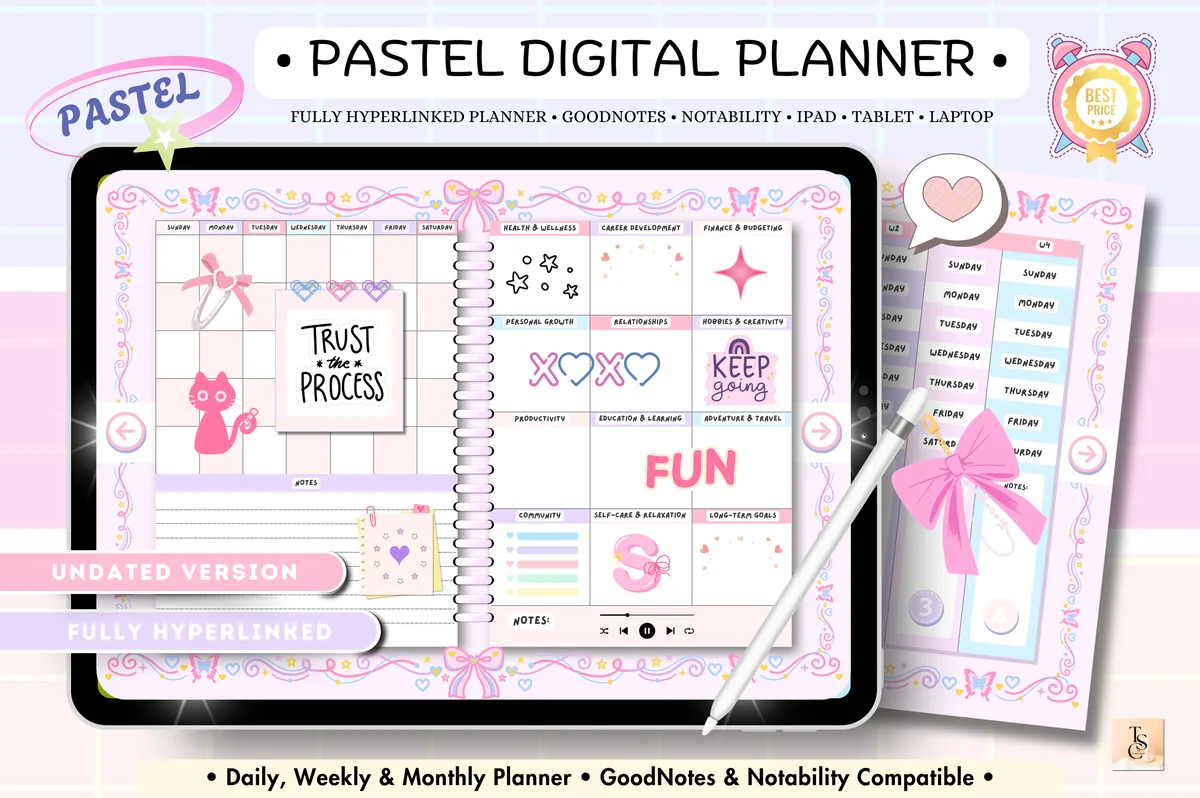
Best small planner for Noteshelf
2. Pink Pastel Digital Planner
Orientation: PortraitLayouts: Daily (Sun–Sat), Weekly + self-care, meal and vitamin checklists, Productivity, Health and Finance sectionsFormat: Hyperlinked PDF, 60 pagesDates: UndatedWeek start: Sunday
Best for: pastel lovers, portrait planners, wellness trackers. Designed by Tas Creative Studio.
- 60 fully hyperlinked pages, portrait, undated
- Daily pages Sunday to Saturday plus a weekly page with self-care and meal checklists
- Productivity, health and finance sections with habit, reading and budget pages
- Instructions and guide included
- Designer lists GoodNotes, Notability, Noteshelf, Xodo and Samsung Notes
Sixty pages is a good size for testing a new app: it opens fast, and you'll see in one evening whether the tabs respond the way you like. Noteshelf is named outright, which is less common than GoodNotes and Notability.
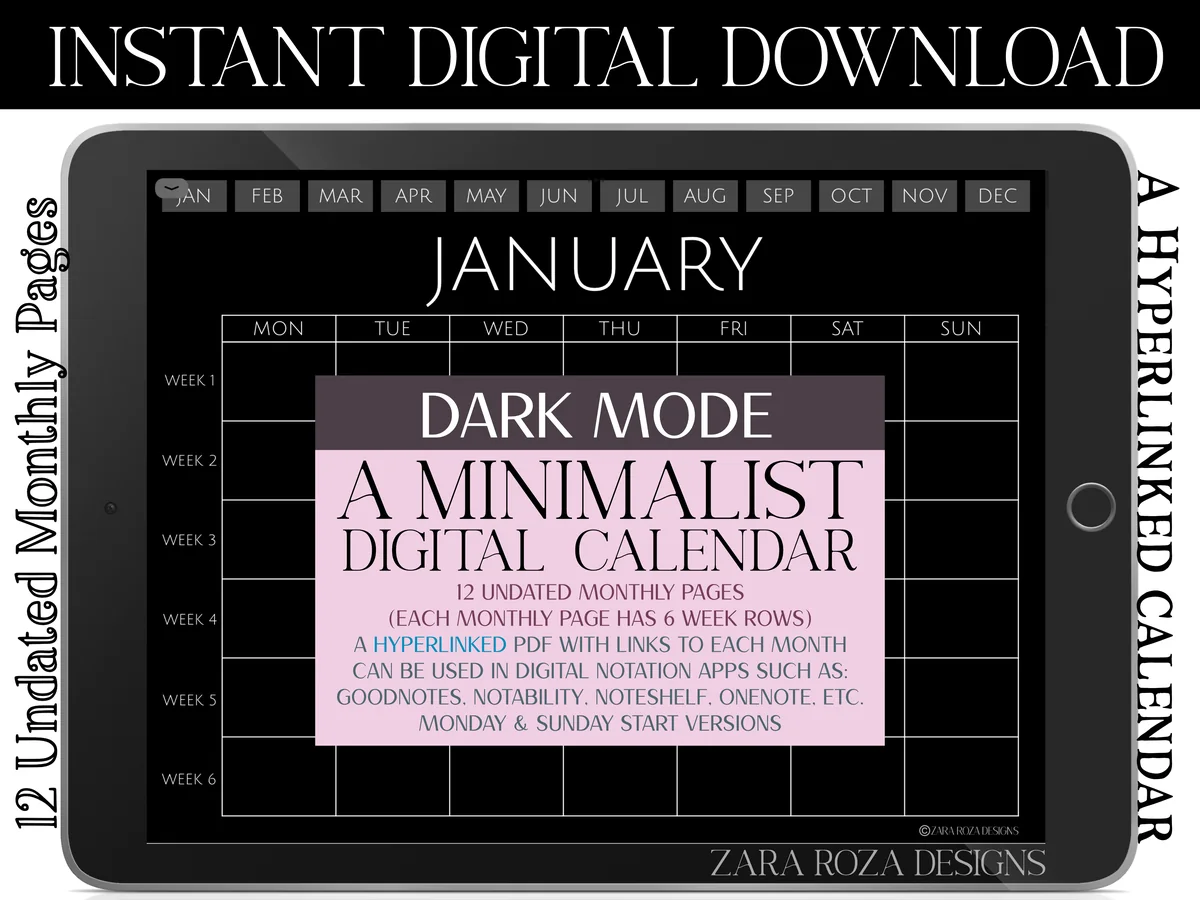
Best for OneNote
3. Dark Mode Minimalist Digital Calendar
Orientation: LandscapeLayouts: Monthly (12 pages, 6 weeks)Dates: UndatedWeek start: Monday or Sunday
Best for: dark mode fans, night planners, month-at-a-glance planners. Designed by ZaraRozaDesigns.
- 12 undated monthly pages, each with 6 week rows
- Links to all 12 months along the top of every page
- Monday start and Sunday start PDFs
- Dark background with light lines and text
- Designer lists GoodNotes, Notability, Noteshelf and OneNote
A month grid is the one planner format that still makes sense in OneNote, because you write in the boxes instead of jumping between tabs. If the month links don't respond there, the page itself still works. In GoodNotes or Notability you get the links too.
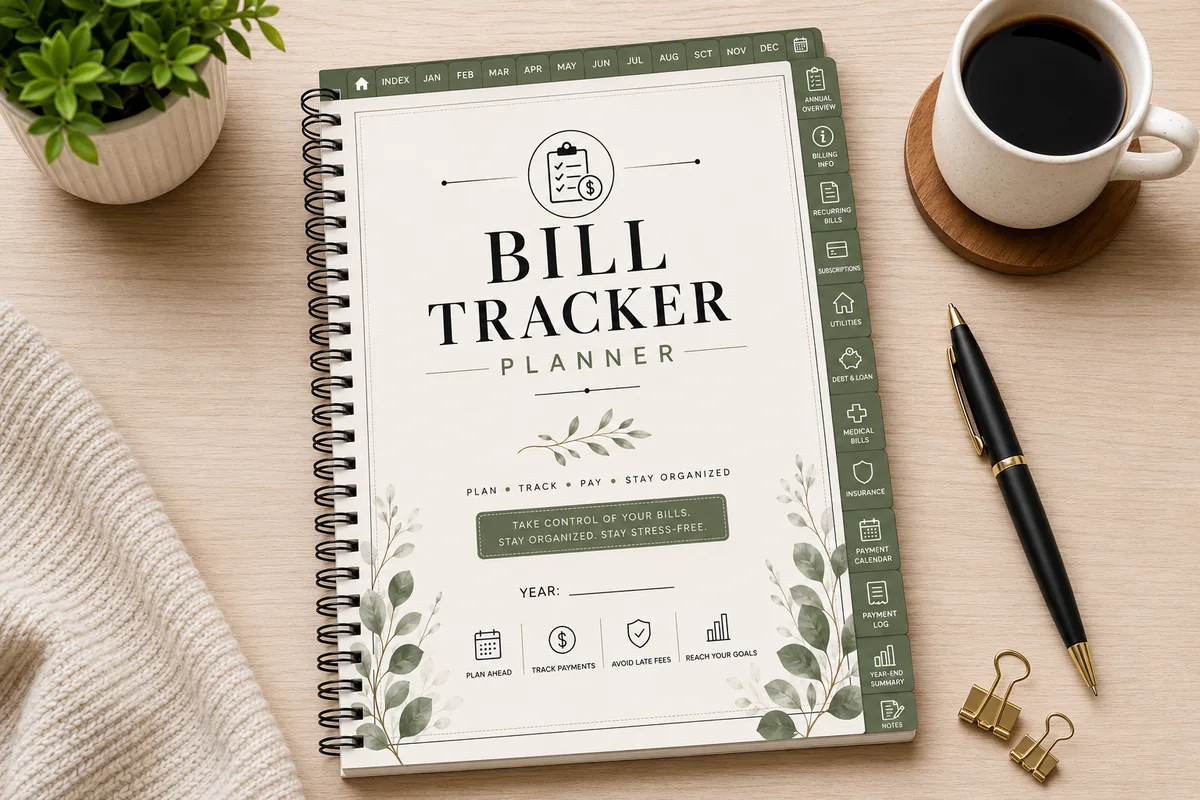
Best for ZoomNotes and other PDF apps
4. Hyperlinked Bill Tracker Planner
Orientation: Portrait (A4)Layouts: Annual bill overview, 12 monthly bill trackersDates: Undated
Best for: bill payers, households, subscription trackers. Designed by Azhir.
- 52 hyperlinked pages with a clickable index and monthly tabs
- Annual bill overview, 12 monthly bill trackers and payment summaries
- Subscription, utility, debt, medical and insurance trackers
- Lined, grid, dot grid and blank notes pages
- Designer lists GoodNotes, Notability, Noteshelf, Xodo, CollaNote, Samsung Notes, ZoomNotes and PDF Expert
The longest app list in this set, ZoomNotes and PDF Expert included, so it's the safest pick if you haven't settled on an app. It's also a good reminder that a note-taking app can hold more than notes: the monthly bills live behind tabs, with notes pages at the back.
Quick Comparison
| Planner | Format | Apps the designer lists | Stand-out extra |
|---|---|---|---|
| 1. Digital Planner for Ipad, GoodNotes | Undated, Monday or Sunday start | GoodNotes, Notability, Xodo | 100+ templates, 868 favorites |
| 2. Pink Pastel Digital Planner | Portrait, undated, 60 pages | GoodNotes, Notability, Noteshelf | Self-care, health, finance tabs |
| 3. Dark Mode Minimalist Digital Calendar | Landscape, 12 undated months | GoodNotes, Notability, OneNote | Dark mode, month links |
| 4. Hyperlinked Bill Tracker Planner | Portrait, undated, 52 pages | 8 apps incl. ZoomNotes | Bills, subscriptions, debt |
What I Look For in an iPad Note-Taking App for Planning
- Links that respond: the whole point of a hyperlinked planner.
- Page duplication: undated planners depend on it.
- A sticker or element library: saves minutes every week.
- Handwriting search: finding last month’s note without flipping pages.
- Backups: automatic backup to iCloud or another cloud, separate from sync.
- A free plan: test the app with your planner before paying.
How to Test an App With Your Planner in 10 Minutes
- Install the app and stay on its free plan.
- Open the planner PDF from the Files app and share it to the app.
- Tap three tabs and a month link: do they jump, or do they draw?
- Write a line in the smallest box with the Apple Pencil.
- Duplicate one weekly page.
- Paste a sticker and see how many taps it took.
- Search for a word you just wrote.
- Turn on backup before you plan anything real.
If the app passes, keep it. If tabs don’t respond, check whether the app has a read-only or link mode before giving up on it.
Once an app handles your planner reliably, consider how you will organize notes from several talks. These conference notes ideas use a session index and speaker headers to keep each talk traceable, with a separate place for your own follow-up ideas.
FAQ
Which app is better for note-taking on iPad?
For handwritten notes and planners, GoodNotes. For lectures with audio, Notability. For typed notes shared with Windows, OneNote. The best one is the app that handles the files you actually use.
Is Notability or GoodNotes better for iPad?
For planning, GoodNotes: a whole planner counts as one of its 3 free notebooks, pages can flip sideways and stickers live in Elements. Notability is better when audio recording with your notes matters most.
Is GoodNotes for iPad free?
Yes, to start. The free plan has no time limit and keeps 3 notebooks. Paid plans are $11.99 or $35.99 a year, and on Apple devices there’s a one-time Special Edition for $35.99 (US prices, October 2026).
Is there a free note-taking app for iPad?
Apple Notes and OneNote are free. GoodNotes, Notability, Noteshelf and Nebo have free plans or versions with limits, and ZoomNotes has a Lite version. For one digital planner, the GoodNotes free plan is usually enough.
Which is better, GoodNotes or Freeform?
They do different jobs. Freeform is Apple’s free whiteboard for boards and brainstorming on an endless canvas. GoodNotes is for pages: notebooks, planners and PDFs with working links. For a planner, GoodNotes.
Can I use a digital planner in OneNote?
You can write on its pages, but the tabs and links of a hyperlinked planner usually won’t work, and many designers say their planners aren’t made for OneNote. A simple monthly calendar is the format that works best there.
What is the best note-taking app for college students on iPad?
Notability if you record lectures, GoodNotes if you want class notes and a planner in one app, OneNote if your school runs on Microsoft. My digital study planners open in GoodNotes and Notability.
Final Thoughts
The best note taking apps for iPad are the ones that respect your files. For a hyperlinked planner that means GoodNotes first, then Notability, Noteshelf and ZoomNotes; OneNote, Apple Notes and Nebo are better kept for typed notes, quick lists and handwriting to text. Start on a free plan, run the 10-minute test, and then pick a planner from my undated digital planners, best digital planners for 2027 or digital planner templates. If you’re torn between a workspace and a notebook, read Notion vs GoodNotes, or see all how-to guides.
You May Also Like
This post contains affiliate links. If you buy through them, I may earn a small commission at no extra cost to you. Learn more.