You open the iPad to check today’s plan, a badge on the mail icon catches your eye, and ten minutes later the planner is still closed. The iPad isn’t the problem; the screen around the planner is. A good iPad productivity setup puts the planner first and moves everything that pulls you away one tap further back.
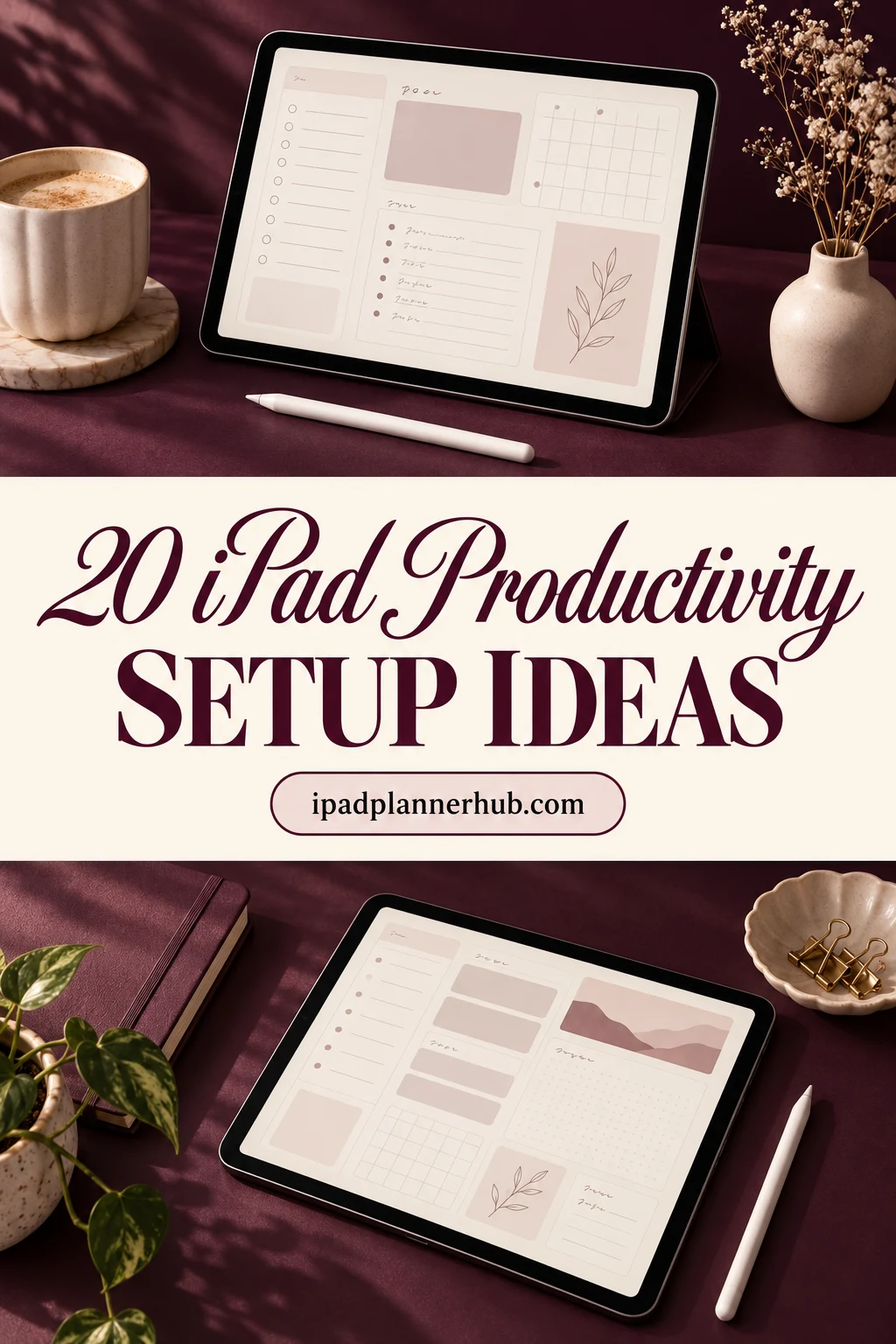
Here are 20 ideas that turn the iPad into a calm planning desk, sorted into five groups: the Home Screen and dock, Focus and notifications, the planner as the hub, Apple Pencil and keyboard habits, and an evening wind-down. After the ideas come 5 planners from my published roundups that suit different kinds of days. Setting names follow iPadOS as of October 2026; Apple moves menus between versions, so a label may read slightly differently on your iPad.
The Setup at a Glance
| What gets in the way | Idea that helps |
|---|---|
| The planner is three swipes away | A planning Home Screen page and a short dock (ideas 1 and 2) |
| Notifications break every plan | A Focus that lets only the essentials through (ideas 6 and 7) |
| Calendar and planner disagree | Open them side by side (idea 11) |
| Ideas get lost before they reach the planner | Quick Note from the corner (idea 13) |
| Evenings turn into scrolling | Downtime and a 5-minute shutdown (ideas 9 and 20) |
Home Screen and Dock: Make the Planner the First Thing You See
1. Give planning its own Home Screen page
A productivity Home Screen setup starts with one rule: keep the first page for planning only: your note app with the planner, Calendar, Reminders and Files. Move games, streaming and social apps to a later page or leave them in the App Library. When you unlock the iPad, the first thing on screen is the plan, not the feed.
2. Keep the dock short
Four or five apps in the dock are easier to hit without looking than twelve. Put the planner app first. In Settings, under Home Screen and multitasking options, you can switch off suggested and recent apps in the dock, so a game you opened last night doesn’t sit next to your planner in the morning.
3. Stack the widgets that answer “what’s next?”
A Calendar widget for today’s events, a Reminders widget for the short list and a clock with a second time zone, if you work across them, cover most of what you glance at. Stacking widgets on top of each other keeps the page tidy; swipe the stack to switch. Leave news and photo widgets off the planning page.
4. Choose a productivity wallpaper with room to breathe
A busy photo behind icons makes the page look full even when it isn’t. An iPad productivity wallpaper works best when it’s a soft gradient, a muted texture or a plain color that matches your planner. Some people use a wallpaper with faint blocks that mark where the widgets and the planner icon go, which keeps the layout from drifting.
5. Put the rest in folders by job
On the second page, group apps by what they do: “Write”, “Read”, “Money”, “Learn”. A folder named for a job is easier to find than one named “Utilities”, and it stops the second page from becoming a new junk drawer.
Focus and Notifications: Protect the Planning Time
6. Build a “Plan” Focus
In Settings, Focus, create a new Focus mode and allow notifications only from the people and apps you’d answer during planning: Calendar, Reminders, perhaps one work chat. Everything else waits quietly until the Focus ends.
7. Link the Focus to your planning Home Screen
Each Focus can show only the Home Screen pages you pick. Link “Plan” to the page from idea 1 and the other pages disappear while it’s on. You can’t scroll your way into a game you can’t see.
8. Turn the Focus on by schedule
A Focus can switch on at a set time or when you open a chosen app. Schedule “Plan” for the 15 minutes when you usually plan (Sunday evening, or every weekday at 8:30) so the quiet starts without a decision.
9. Use Screen Time for the hours after work
Downtime in Screen Time limits the iPad to the apps you allow during set hours, and App Limits cap the time for a category such as social or games. Allow the planner app during Downtime, so the evening review is still possible when the rest is locked.
The Planner as the Hub of Your iPad Productivity Setup
10. Keep one planner file and one home for it
Two planners split your attention and you stop trusting either. Choose one main file, keep the original PDF in a Files folder on iCloud Drive, and keep add-ons (sticker books, note pages) in the same folder in your note app. If you’re still choosing the app itself, I compare the options in the best note taking apps for iPad.
11. Open the planner next to Calendar
A PDF planner doesn’t sync with the Calendar app, so let them sit side by side instead: Calendar on one half, today’s page on the other, and you copy only what matters into the hours. Depending on your iPad and iPadOS version this is Split View, Stage Manager or resizable windows; the idea is the same. Landscape planners give each half the most room, and my landscape digital planners list has options for that.
12. Make a shortcut that opens the plan at the right time
In the Shortcuts app, a personal automation can open your note app at a set time of day, together with the “Plan” Focus. Inside the app, bookmark today’s page or this week, so the planner opens where you left off. My GoodNotes tips for planning show how to bookmark and jump between pages fast.
13. Catch ideas with Quick Note, then move them
Swipe up from the bottom-right corner of the screen with Apple Pencil (or a finger, if you turn that on) and a Quick Note opens over whatever you’re doing. Jot the thought and get back to work. Once a day, move the notes into the planner’s to-do or idea section (select the text and drag it across, or copy it by hand) and delete them, so Quick Notes don’t become a second planner.
14. Give the weekly review a fixed page
Pick one page in the planner for the weekly review and duplicate it every Sunday: what got done, what rolls over, the one thing for next week. If your planner has no review page, any notes page works. Of all the iPad productivity tips here, ten minutes on that page does the most.
Apple Pencil and Keyboard Habits
15. Write in any text field with Scribble
With Scribble on (Settings, Apple Pencil), you can handwrite into search bars, Reminders and Calendar events and the iPad turns it into typed text. You stay on the pencil instead of switching to the on-screen keyboard every few minutes.
16. Set the pencil once, then forget the toolbar
Choose what double-tap (or squeeze, on Apple Pencil Pro) does in your note app, usually switching to the eraser or the last tool. Pen colors saved as favorites do the rest: one color for work, one for home, one for what’s urgent.
17. Learn the keyboard shortcuts of the apps you use most
If your iPad lives in a Magic Keyboard or another keyboard case, hold the Command key in an app to see the shortcuts it offers. Command-Space for search and Command-Tab for switching apps alone save a lot of reaching for the screen. Keep the keyboard for email and documents and the pencil for the planner.
18. Dictate the notes, plan by hand
Dictation is quick for long notes after a call or a meeting. Afterwards, write the two or three actions from those notes into the planner by hand. Typed notes are good for keeping a record; the handwritten list is the one you’ll actually follow.
Evening: Close the Day on the iPad
19. Switch to Dark Mode and Night Shift on a schedule
In Display and Brightness, set Dark Mode to turn on automatically at sunset and schedule Night Shift for warmer colors in the evening; both also sit in Control Center for a quick switch. A planner on dark paper keeps the page in the same mood; my dark mode digital planners are made for that.
20. End with a 5-minute shutdown
Tick off what got done, move what didn’t to tomorrow, write tomorrow’s top 3, and put the iPad on the charger outside the bedroom if you can. When you open it in the morning, the plan is already waiting on the first page.
5 Planners That Work as the Center of the Setup
Every idea above assumes one planner you actually open. I picked 5 hyperlinked planners from my published roundups, one for each kind of day: a full work and life hub, a time-blocking system for Focus sessions, a light daily page for a side-by-side view, a one-page dashboard and a dark planner for the evening. All are undated or dated 2027, none are Canva templates.
TL;DR: 20 iPad productivity setup ideas in 5 groups: Home Screen and dock, Focus and notifications, the planner as the hub, Apple Pencil and keyboard, and the evening wind-down. Then 5 hyperlinked planners, each suited to a different kind of day.
Quick Picks
- Best for a work and life hub: Work Life Planner 2027 Landscape
- Best for focus sessions: Premium ADHD Time Blocking System
- Best for a Split View day: Daily Schedule Planner, Daily to Do List
- Best for one-page dashboard: Productivity Planner • Coffee Latte
- Best for evening planning: Digital Planner Undated Dark Mode
- Work Life Planner 2027 Landscape – Best for a work and life hub
- Premium ADHD Time Blocking System – Best for Focus sessions
- Daily Schedule Planner, Daily to Do List – Best for a Split View day
- Productivity Planner • Coffee Latte – Best one-page dashboard
- Digital Planner Undated Dark Mode – Best for evening planning

Best for a work and life hub
1. Work Life Planner 2027 Landscape
Orientation: LandscapeLayouts: Monthly, Weekly, Daily + Work, Meetings, Self-Care tabsDates: 2027Week start: Monday or Sunday
Best for: busy professionals, work-life balancers, 2027 planners. Designed by Print Magic StudioX.
- Dated January to December 2027, Monday start and Sunday start files
- 365 daily pages with an hourly schedule from 6 am to 9 pm, top 3, to do and notes
- 6 subject tabs: Work, Tasks, Meetings, Self-Care, Routines and Life, 4 templates under each
- A weekly page for every week with the week's one thing, wins and what rolls over
- Landscape page sized for the 13-inch iPad Pro (1376 x 1032), scales to any 4:3 tablet
If the planner is the hub of your setup, this one has the most spokes: meetings, routines and self-care each get a tab, and the daily page already holds an hourly plan and a top 3. Landscape suits an iPad in a keyboard case. It is dated 2027, so it fits a fresh start in January rather than a mid-year one.
Best for Focus sessions
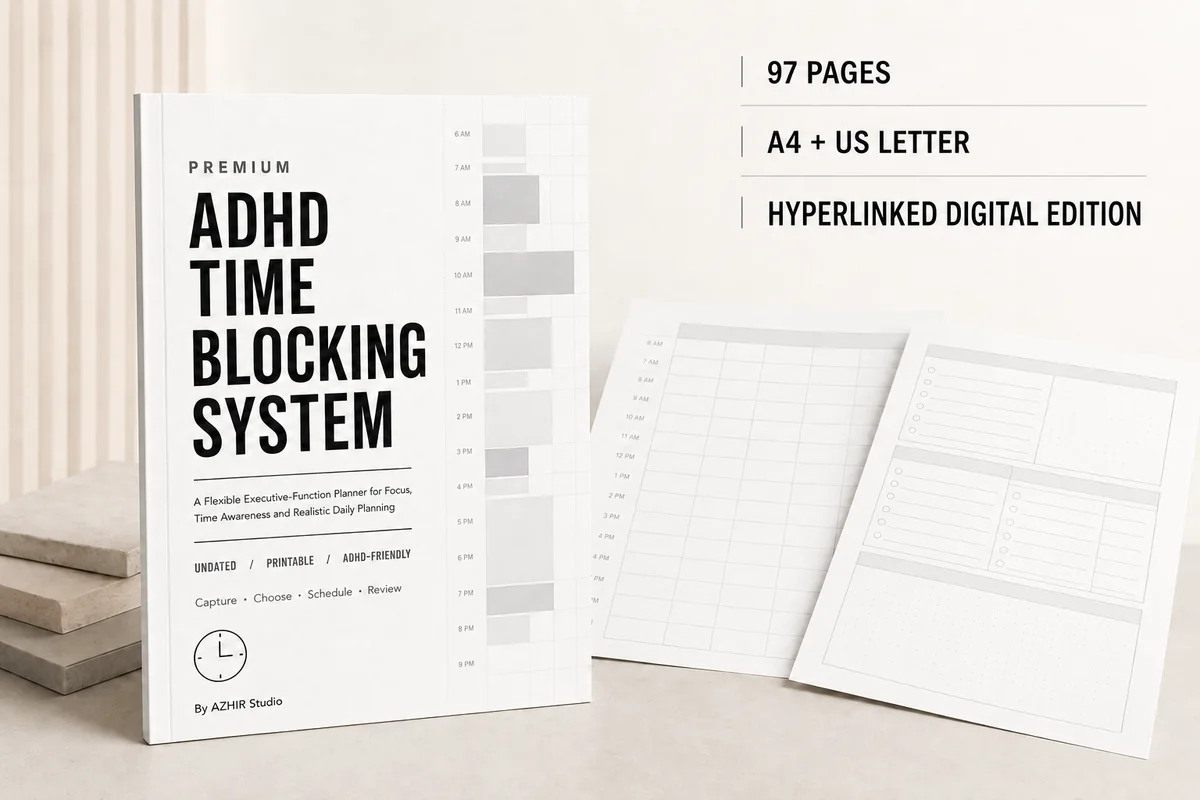
2. Premium ADHD Time Blocking System
Orientation: PortraitLayouts: Daily, Weekly, Monthly, hourly and half-hour time blockingFormat: Hyperlinked PDF, 97 pages (+ A4 and US Letter printables)Dates: Undated
Best for: ADHD planners, deep work fans, overwhelmed days. Designed by Azhir.
- 97-page undated hyperlinked PDF for GoodNotes, Notability and similar apps
- Hourly and half-hour time blocking plus a three-block day planner
- Focus-block, deep-work, Pomodoro and focus-sprint planning pages
- Routine, shutdown and restart pages, distraction recovery worksheets
- Also comes as A4 and US Letter printables
This is the planner for ideas 6 to 9. A Focus mode cuts the noise on the iPad, and the focus-block and deep-work pages give that quiet hour a plan. The shutdown pages match idea 20. The design is plain black, white and gray, which some will find calm and others too bare.

Best for a Split View day
3. Daily Schedule Planner, Daily to Do List
Layouts: Daily (hourly, 5 or 6 a.m. start)Dates: Undated
Best for: time blockers, soft color lovers, minimalists. Designed by ThePlannersDelight.
- Undated daily schedule page for GoodNotes or Notability on iPad
- Two versions: hours from 5 am or from 6 am
- Top priorities, to do and notes beside the schedule
- Mood tracker and a rating for the day at the foot of the page
- 3 pastel colors on an ivory base, digital and printable
A single page is all a side-by-side view needs: Calendar on one side, this schedule on the other, and you copy only what matters into the hours. Duplicate the page each morning and the file stays small. It has no monthly or weekly pages, so pair it with your calendar for the bigger picture.

Best one-page dashboard
4. Productivity Planner • Coffee Latte
Orientation: LandscapeLayouts: One-page productivity plannerDates: Undated
Best for: minimalists, coffee lovers, one-page planners. Designed by Tas Creative Studio.
- One undated A4 landscape productivity page
- To-do list, pending tasks, key goals and reflection columns
- An idea parking lot and a notes box
- Digital and printable PDF versions
- Works in GoodNotes, Notability, Noteshelf and other PDF apps
Not a full planner but a dashboard: one page where today's tasks, goals and stray ideas meet. The idea parking lot is a good home for anything you catch with Quick Note (idea 13). Keep it as the first page of your notes notebook and it opens in a tap.
Best for evening planning
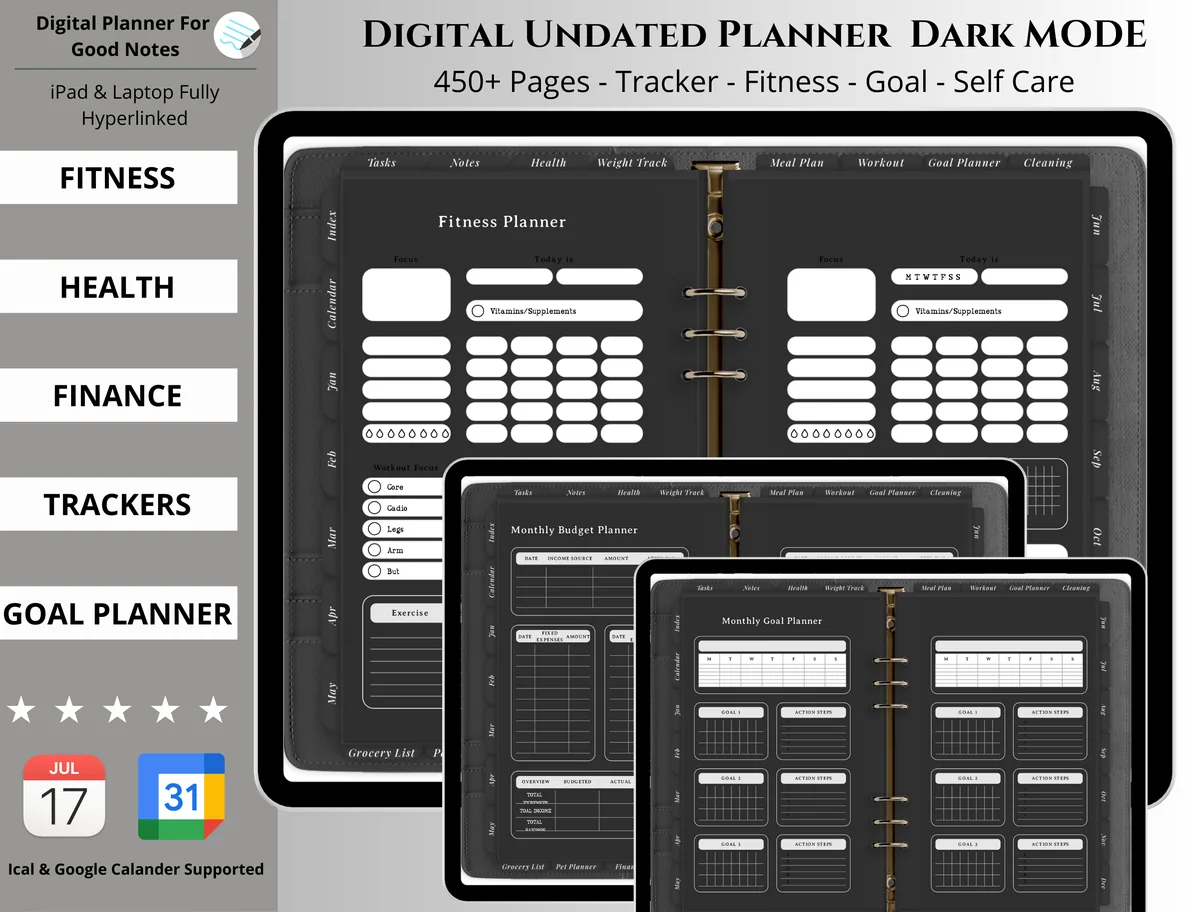
5. Digital Planner Undated Dark Mode
Orientation: LandscapeLayouts: Daily, Weekly, Monthly + fitness, health, meal, budget, cleaning trackersDates: Undated
Best for: dark mode fans, all-in-one planners, busy households. Designed by PlannerPlanet.
- 450+ hyperlinked pages on dark paper, undated
- Daily, weekly and monthly pages with tabbed navigation
- Fitness, health, finance, goal and self-care sections
- Meal plan, cleaning, weight and pet planner pages
- Made for GoodNotes on iPad
Dark Mode and Night Shift soften the iPad in the evening, and a white planner page undoes that. This one keeps the whole file dark, so the evening review in idea 20 stays easy on the eyes. The cover mentions calendar apps, but a PDF does not sync with them: dates still go in by hand.
Quick Comparison
| Planner | Format | Role in the setup | Stand-out extra |
|---|---|---|---|
| 1. Work Life Planner 2027 Landscape | Landscape, dated 2027 | The hub for work and home | 6 subject tabs, 365 daily pages |
| 2. Premium ADHD Time Blocking System | Portrait, undated, 97 pages | Focus blocks and shutdown | Pomodoro and deep-work pages |
| 3. Daily Schedule Planner, Daily to Do List | Portrait, undated | Today's page beside Calendar | 5 am or 6 am start |
| 4. Productivity Planner • Coffee Latte | Landscape, undated, 1 page | Daily focus dashboard | Idea parking lot |
| 5. Digital Planner Undated Dark Mode | Landscape, undated, 450+ pages | Evening review | Dark paper, many trackers |
Template or App: What the Planner Adds
Most lists of iPad productivity apps send you to task managers and calendar apps. They’re good at reminders and syncing, and a PDF planner is not: it won’t ping you or update itself across devices. What the planner adds is the part apps skip, which is thinking with a pencil. You see the whole week, choose what matters and write it down, and writing it is often what makes it stick. A practical split: Calendar for fixed appointments, Reminders for things that need an alert, the planner for priorities, time blocks and reviews.
A 15-Minute Setup Order
- Import the planner into your note app and keep the original PDF in Files (idea 10).
- Clear the first Home Screen page and add the planner, Calendar and Reminders (idea 1).
- Trim the dock and switch off suggested apps (idea 2).
- Add a widget stack for today’s events and reminders (idea 3).
- Create the “Plan” Focus, link it to the first page and schedule it (ideas 6 to 8).
- Bookmark today’s page in the planner (idea 12).
- Turn on Scribble and set the pencil double-tap (ideas 15 and 16).
- Schedule Dark Mode and Night Shift for the evening (idea 19).
iPad Productivity Questions
Which iPad is best for a productivity setup?
Any current iPad paired with a compatible Apple Pencil can run a digital planner. An iPad Pro or iPad Air productivity setup gives more screen for two apps side by side, while an iPad mini productivity setup is easy to carry but cramped for landscape spreads. Pick the size you’ll carry every day; the setup ideas work on all of them.
Can a digital planner sync with Apple Calendar?
No. A planner is a PDF with links between its own pages; it doesn’t read or write calendar events. Keep fixed appointments in Calendar and open it next to the planner when you plan the day (idea 11).
Do I need a keyboard to plan on an iPad?
Not for planning: the pencil and the planner are enough. A keyboard helps if the iPad also handles email, long documents or work chats, and then keyboard shortcuts (idea 17) are worth learning.
What should go on a productivity Home Screen?
Only what you open while planning: the note app with your planner, Calendar, Reminders, Files and a widget stack for today. Everything else goes to later pages or the App Library.
Is a hyperlinked planner better than a plain notebook?
For a year of pages, yes: tabs take you to the month, week or tracker in one tap instead of scrolling through hundreds of pages. For a single daily page or a dashboard, a plain PDF is enough.
Where to Begin This Week
Build the iPad productivity setup in small steps: one planning page on the Home Screen, a short dock and a “Plan” Focus. Use them for a week before adding Shortcuts, widgets or a new wallpaper, and keep only what you actually reach for. If the planner itself is the missing piece, my daily digital planners for iPad and digital work planners are good places to look. More setup help lives in the how-to guides section.
You May Also Like
This post contains affiliate links. If you buy through them, I may earn a small commission at no extra cost to you. Learn more.