The course is over, and now it feels obvious that the Saturday timetable would be difficult. But did you notice that before signing up, or only after missing a session? These decision journal ideas give your original expectations a place on your iPad, with a separate page for what happened later.

Start with one choice that deserves thought rather than recording every small preference. The 15 page ideas below form a before-and-after system you can draw yourself. Five optional notebooks and planning tools follow; none is sold here as a ready-made decision journal.
What a Decision Journal Keeps That a Daily Diary Might Miss
A decision journal records a particular choice before you act, including the alternatives, expectations and reasoning. Later, you compare that entry with an outcome. A daily diary can contain the same material, but a consistent decision ID and review page make the pair easier to find.
The Alliance for Decision Education separates the original decision from later reflection. Farnam Street’s decision-journal guide also emphasizes writing before acting and retaining the reasoning behind expectations. I have adapted that before-and-after structure into practical page arrangements rather than reproducing either template.
15 Decision Journal Ideas for the Before-and-After Record
Use the ideas as fields, not 15 separate daily assignments. For a simple choice, a short original page and one review page can cover the essentials. The hypothetical decision journal example follows one pottery-course choice through all three stages. Use these journal prompts for decision making selectively; a short choice may need only a few fields.
Define the choice before you act1–5
- 1Give the choice a name and ID. Write one sentence that someone else could understand: ‘D01: Should I join the Saturday pottery course or keep learning at home?’ Add today’s date and say what is outside this choice. You are deciding how to learn this term, for example, rather than whether to change careers. The ID connects the original entry, any new evidence and your later review. Use the same ID on each page instead of relying on page order alone.
- 2Put a deadline beside the decision. Record when an answer is actually needed and what waiting would change. A class might close registration on Friday; that is different from feeling you should decide tonight. If the deadline is your own preference, label it that way. Add a small waiting-cost note: would you lose a place, gain useful information or simply delay starting? This helps you see the timing assumption later without pretending every choice must be rushed.
- 3Keep realistic alternatives together. List two or three options you could genuinely take, including leaving things as they are when that remains possible. For the pottery example, your options might be the weekend class, a shorter workshop or a month of practice at home. Give each option a short code. Avoid comparing one detailed favorite with two vague placeholders. Write what each alternative actually involves so the rejected options remain recognizable when you revisit the decision.
- 4Name the limits you cannot ignore. Make a compact list of available time, materials, travel and other commitments. Separate a firm boundary from a preference: being unavailable on Saturday morning is a constraint; liking a particular studio is a preference. Put a question mark beside any uncertain limit. For example, you may know the class duration but still need to check the journey. This page records the conditions of your choice without turning your journal into an unrelated life audit.
- 5Set criteria before seeing the result. Choose a few things the decision needs to accomplish, such as access to feedback, a manageable schedule and time for independent practice. Mark which criterion matters most to you. You can use a simple priority order without inventing a mathematical score. Write one trade-off you are willing to accept, such as a longer journey for instructor feedback. Keep these original priorities visible when reviewing, rather than silently replacing them with whichever criterion later looks favorable.
Save the thinking behind your choice6–10
- 6Divide facts from assumptions. Use two columns headed ‘Known now’ and ‘Still an assumption.’ A published timetable can support the class time; the thought that you will practice every evening belongs in the second column. Add a source and date beside important facts, even if it is just a course email. If you learn something new, append a dated note. Keep the original assumption readable so the eventual review can show which part of your reasoning needed checking.
- 7Choose one useful information check. Ask which missing fact could realistically change your preference. Then write how you will check it and when to stop searching. You could ask the studio whether beginners receive individual feedback before registration closes. ‘Read everything about pottery’ has no useful stopping point. If the answer will arrive too late, record that limitation. The goal of this page is a focused next question, not an obligation to remove every uncertainty before acting.
- 8Describe an observable expectation. For each serious option, write what you expect to see and by when. ‘After four sessions I expect to complete a small bowl with instructor feedback’ is easier to review than ‘This will be good for me.’ If you choose a confidence estimate, label it as your own judgment and explain why. A number does not make the estimate scientific. Keep expectations modest enough to observe, and distinguish an intended action from a result outside your control.
- 9Save a brief context note. Add a line about conditions that may matter: a busy week, tiredness, pressure from someone else or enthusiasm after seeing a friend’s work. This is a description of the moment, not a diagnosis or an excuse. Keep it short enough that you will actually write it before choosing. At review time, ask whether the context affected what information you sought or how quickly you acted, rather than assuming it explains the whole outcome.
- 10Write the strongest case against your favorite. Give the alternative you are leaning away from a fair sentence. Practicing at home might offer flexibility that the class cannot. Note the condition under which that advantage would matter, such as an unpredictable work schedule. This is more useful than inventing a weak objection you can dismiss immediately. If the counterargument reveals a fact you still need, send it back to your information-check note instead of burying it below the final choice.
Preserve the original and return to it11–15
- 11Freeze the original explanation in place. Before acting, write a short paragraph naming your choice, its main reason and the trade-off you accepted. Put the date beside it. Leave that paragraph intact and add later updates below or on another page with the same ID. You may keep a separate copy for reference, but a normal PDF notebook is editable and is not an audit-proof record. The useful habit is preserving the earlier version rather than polishing it after the result.
- 12Give the review a date and a question. Choose a time when meaningful evidence should exist. For a four-session class, the review might follow the final session rather than the day after registration. Add the question you will answer: ‘Did the feedback help me finish the bowl, and could I manage the schedule?’ Put an alert in your usual reminder app if you need one. Writing a date on a PDF page does not create an automatic notification or synchronize your calendar.
- 13Record the outcome on a separate page. Begin the review with the same decision ID and the actual review date. Write what happened before explaining it. You might have attended three sessions, finished one bowl and missed a class because the studio changed its timetable. Point to useful evidence, such as the revised schedule or your project photo. Mark anything still unknown or incomplete. Keep an early update separate from a final outcome so a half-finished result does not acquire false certainty.
- 14Compare process and outcome separately. Read the original entry before judging yourself. Ask what was reasonable with the information available then, which assumption proved wrong and what genuinely surprised you. A pleasing result does not establish that every part of the process was sound. Equally, a disappointing result may include events you could not reasonably have known. Be specific about one strength and one weakness in the process instead of ending with a global verdict such as ‘I make bad choices.’
- 15Carry one change into the next decision. Finish with a small rule you can test next time: ‘Before booking a weekly course, check the cancellation and timetable-change policy.’ Link the next relevant decision to this note. If the lesson needs action now, put that action and its date on your project page or task list. Avoid filling the review with ten new habits. One observable adjustment gives the next entry something concrete to examine without promising that journaling will guarantee a better result.
Arrange Three Pages in Your iPad Notebook
You can make this system on pages you already own. I would only buy a different notebook if its layout solves a repeated problem, such as needing more space for comparisons or a clear monthly filing route.
- Page A, decision index: decision ID, short title, original-entry location, review date and review location. Keep open and reviewed entries distinguishable with a word rather than color alone.
- Page B, before choosing: choice and deadline at the top, facts and assumptions in columns, then alternatives, expectations and your final explanation.
- Page C, later review: matching ID, actual result, evidence, surprises and one change for next time. Leave room for an interim update if the result is not settled.
A ruled page works for sentences; a two-column sheet helps keep evidence and inference apart. On either layout, write the ID where you can see it without opening another page. Notebook tabs can help with navigation, but they do not automatically connect your original entry to its review.
5 iPad Tools for Pages You Create Yourself
These are alternatives for different writing styles, not five specialist decision planners. The project worksheet is mainly for implementation after a choice; the notebooks and journals provide room for your original reasoning and later review. Choose one starting point, then add the headings yourself.
TL;DR: Five alternatives, not a five-item shopping list: compare options in a sectioned notebook, write longer entries in a ruled journal, plan implementation on a project worksheet, or use decorated pages and monthly filing. Create your own decision fields.
Quick Picks
- Best for comparing options: Digital Notebook
- Best for longer reasoning: Digital Ruled Journal
- Best for acting on a choice: Project Planner – Printable & Digital
- Best for short written entries: DaisyNotes | Digital Notebook | Purple
- Best for monthly filing: Digital GoodNotes Journal – Tie Dye
- Digital Notebook – Best for comparing options
- Digital Ruled Journal – Best for longer reasoning
- Project Planner – Printable & Digital – Best for acting on a choice
- DaisyNotes | Digital Notebook | Purple – Best for short written entries
- Digital GoodNotes Journal – Tie Dye – Best for monthly filing

Best for comparing options
1. Digital Notebook
Orientation: LandscapeLayouts: 16 note templates; 12 sections
Best for: facts and assumptions on a two-column page. Designed by Shades of Zen.
- 12 expandable sections with individual dividers
- 16 note templates, including two-column, Cornell, lined and dot-grid pages
- GoodNotes and PDF annotation apps named by the designer
The two-column layout is the useful distinction here: facts can stay beside assumptions while section dividers separate home, learning and creative projects. I would give each choice an ID to connect its original entry with a later review. You create the questions and index yourself; this is a general notebook, not a specialist decision template.
Best for longer reasoning
2. Digital Ruled Journal
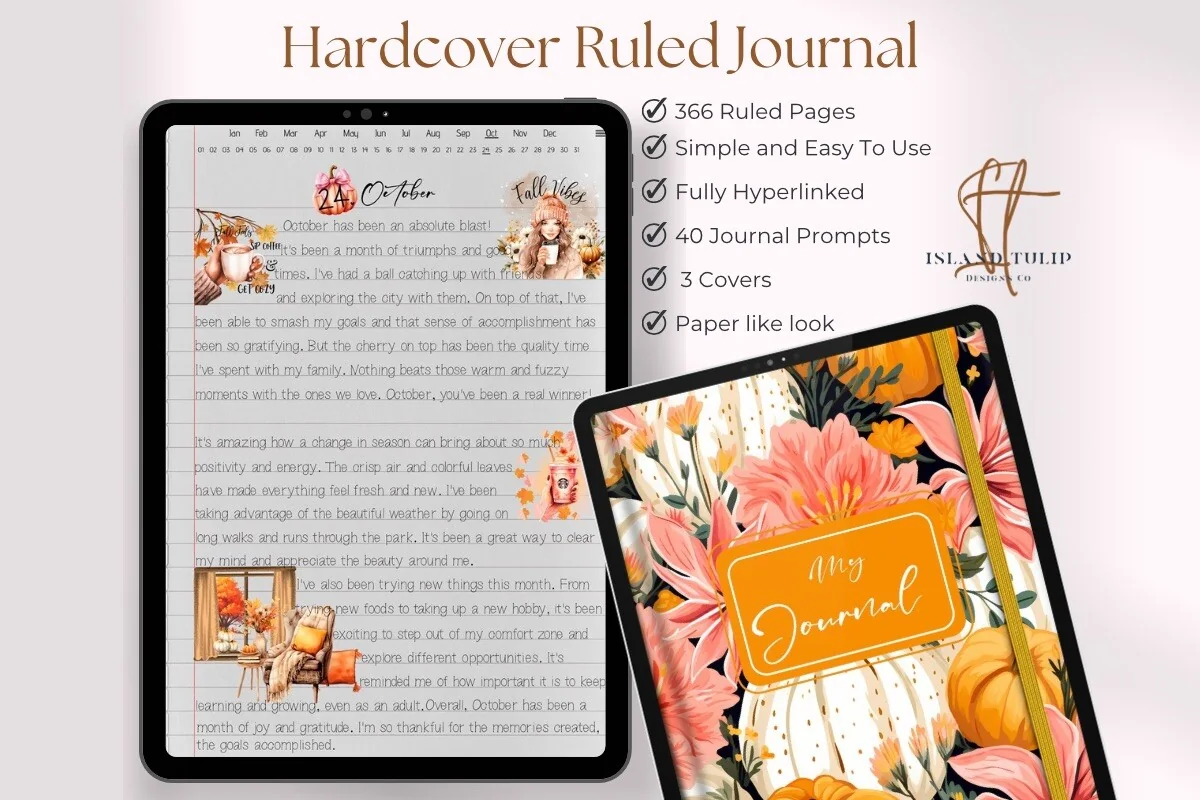
Orientation: PortraitLayouts: 366 ruled pages; month and day index
Best for: a written explanation followed by a separate outcome review. Designed by Island Tulip Designs Co.
- 366 ruled pages
- Three floral covers
- Month and numbered-day navigation
- 40 journal prompts in PNG and precropped GoodNotes formats
Ruled pages give a complicated choice room to breathe: explain the alternatives in full sentences, then reserve another page for the outcome. The month-and-day navigation suits chronological filing rather than decision topics, so keep a separate list of IDs and review locations. The included prompts are general journaling extras, not decision-review questions.
Best for acting on a choice
3. Project Planner – Printable & Digital
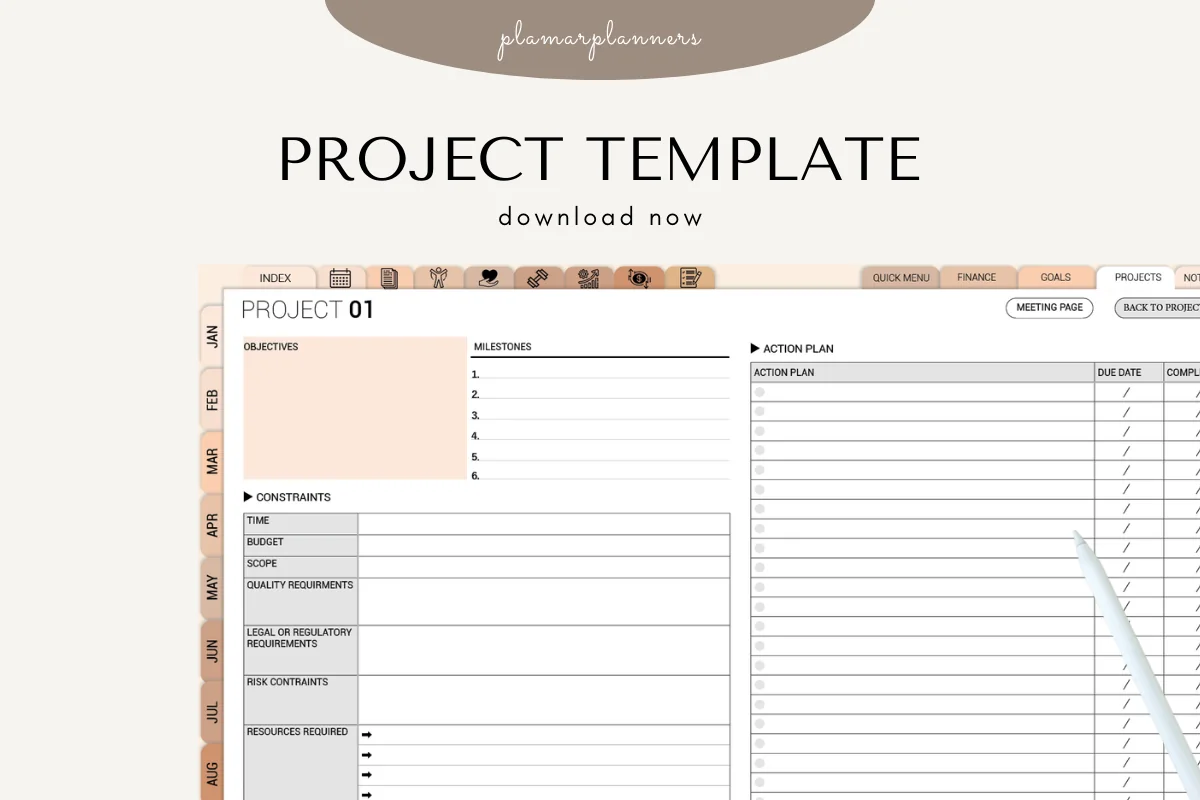
Orientation: LandscapeLayouts: Project objectives, constraints, milestones and action plan
Best for: turning a selected option into milestones and an action plan. Designed by Plamarplanners.
- Digital tablet format and printable PDFs described
- GoodNotes, Notability and Xodo named
- Objectives, constraints, resources, milestones and action-plan fields visible
- Several color variants of the same project layout pictured
Once the choice is made, this worksheet can help carry it out. Its constraints and resources fields hold practical limits, while milestones and an action plan turn the selected option into tasks. Keep the original reasoning in a separate entry. The description lists several page types, but the gallery mainly demonstrates one layout in different colors; I would not choose it on the assumption that all seven layouts have been shown. Small fields may require zooming, and pictured tabs do not establish working links.
Best for short written entries
4. DaisyNotes | Digital Notebook | Purple
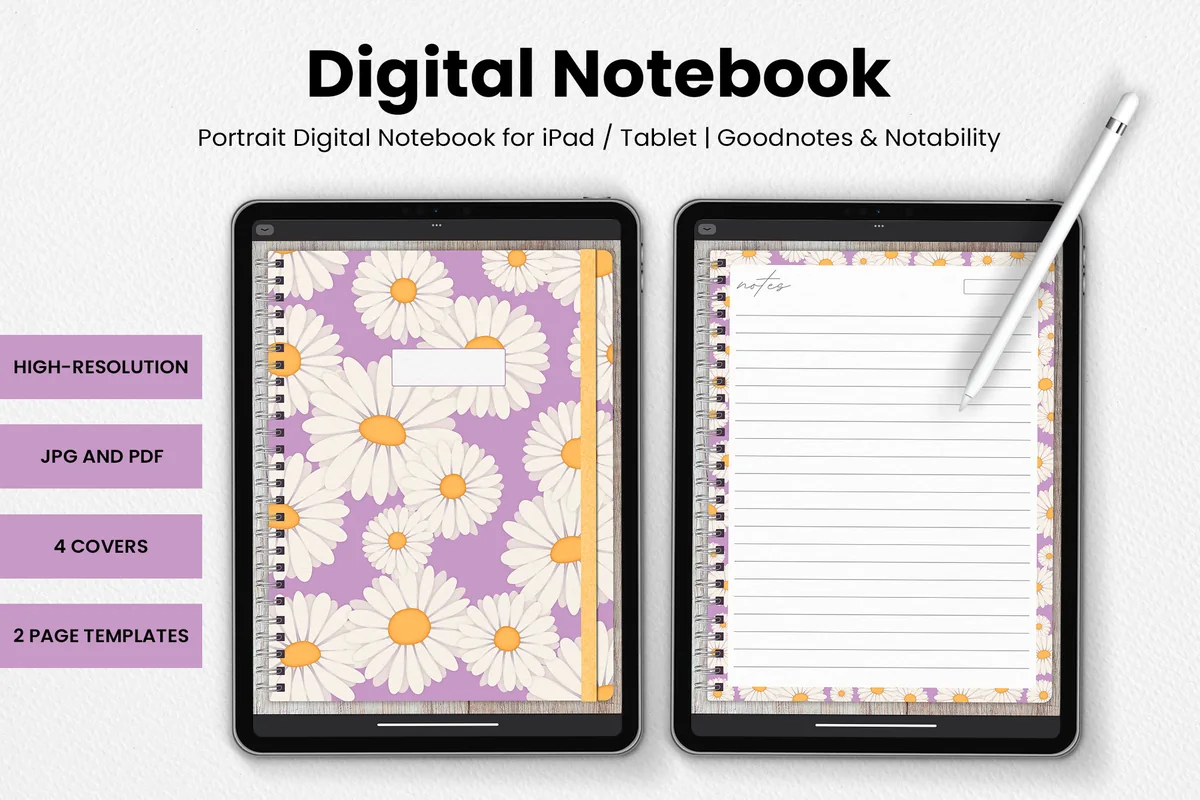
Orientation: PortraitLayouts: 2 page templates; 4 covers
Best for: brief before-and-after notes on decorated ruled pages. Designed by catsquills.
- GoodNotes and Notability compatibility
- JPG and PDF formats
- Four covers and two page templates
- Purple daisy borders and ruled writing areas
DaisyNotes suits a few clear sentences paired with a later review. I like the ruled writing area and small date box for that compact format. The floral border leaves less room for a complicated comparison; use the landscape notebook if alternatives need their own columns. Add your own decision questions and index to these general notebook pages.
Best for monthly filing
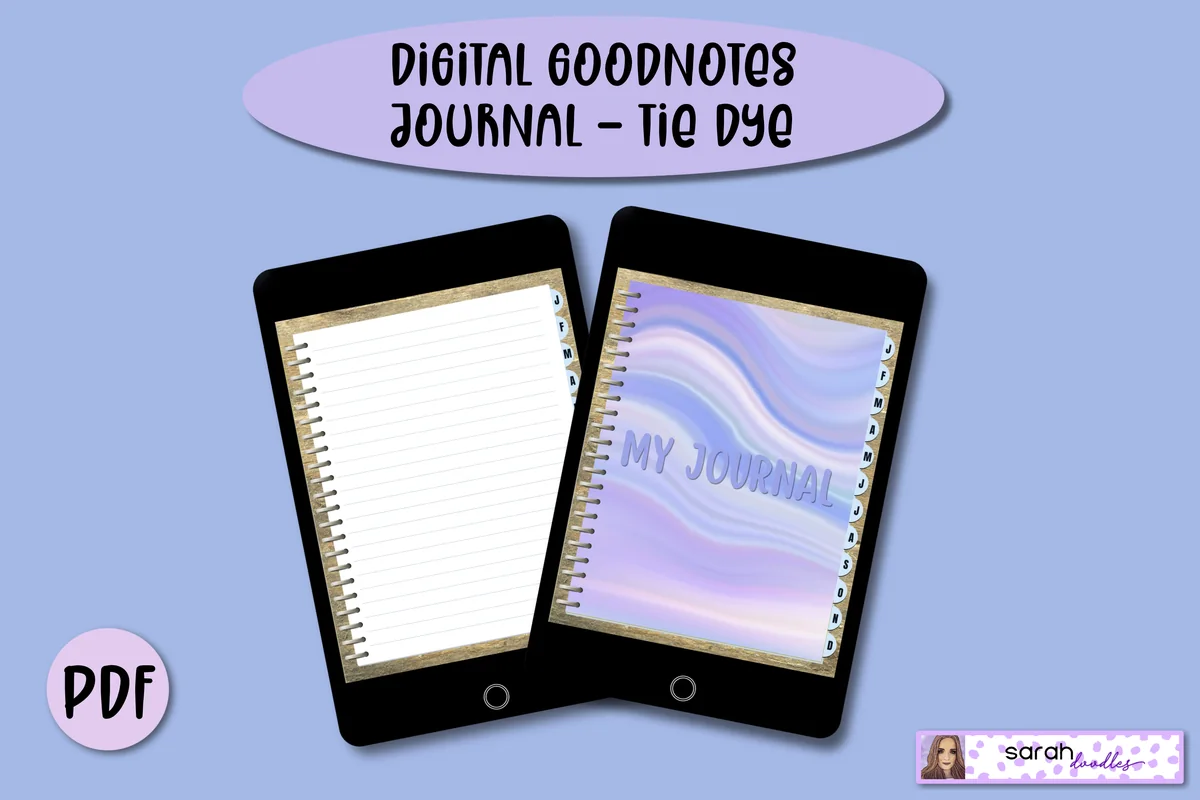
5. Digital GoodNotes Journal – Tie Dye
Orientation: PortraitLayouts: 5 lined pages per month; monthly dividersDates: Undated
Best for: grouping occasional decisions by the month they were made. Designed by Sarah Doodles.
- Hyperlinked PDF for iPad and PDF annotation apps described
- Twelve monthly dividers with linked tabs described and pictured
- Five lined pages per month pictured
- Designer describes adding more pages in GoodNotes
Month tabs help when you remember a choice by when it happened. The five lined pages per month are an initial allocation, not a limit of five decisions; the designer explains adding pages in GoodNotes. Keep the original and review under the same ID even if they fall in different months. The tie-dye dividers offer a different look from the floral options, but the PDF does not create review reminders.
Quick Comparison
| Tool | Structure | Useful for | Keep in mind |
|---|---|---|---|
| 1. Digital Notebook | Sectioned notebook | Side-by-side reasoning | Add your own decision fields |
| 2. Digital Ruled Journal | Ruled journal | Long explanations | Manual decision index needed |
| 3. Project Planner – Printable & Digital | Project worksheet | Implementation after choosing | Keep original reasoning elsewhere |
| 4. DaisyNotes | Digital Notebook | Purple | Decorated notebook | Concise entry pairs | Create your own decision index |
| 5. Digital GoodNotes Journal – Tie Dye | Monthly journal | Occasional decisions | Add your own review reminder |
Read the Comparison by the Job You Need Done
- Several options to compare: the landscape Digital Notebook has a pictured two-column template and section dividers.
- Long explanations: the Digital Ruled Journal gives you ruled pages and chronological navigation. DaisyNotes is a more decorated alternative for shorter entries.
- A chosen project to implement: the Project Planner has visible constraints, resources, milestones and action-plan fields. Keep your original choice narrative elsewhere.
- Occasional notes filed by month: the Tie Dye journal has monthly dividers and an initial set of five lined pages per month.
Keep the Review Small Enough to Finish
Do not wait for a perfect explanation. Start with the result you can observe and leave uncertainty visible. A note saying the outcome is still incomplete is more useful than an invented lesson. If the choice no longer matters, close the entry with a reason rather than leaving a mysterious blank review date.
- Changed circumstances: append the new fact and its date; do not rewrite what was known before.
- A partial result: label the review interim and name the remaining evidence.
- Repeated friction: check whether the same missing information appears across several entries before deciding it is a pattern.
- A next action: move it to the place you actually check for tasks. The journal preserves reasoning; it does not replace your reminder system.
FAQ: Decision Journals on iPad
What should I write in my first decision journal entry?
Name one concrete choice, the date, realistic alternatives and your main expectation. Write why you chose an option before acting, then set a review question and date. You can add more fields once you know which details you tend to miss.
Can I use a blank PDF instead of a specialist template?
Yes. A ruled page or two-column notebook can hold your own headings, decision ID and review record. The five products above provide general layouts. None is required to try the method, and none is presented as an automated decision-making tool.
How often should I review a decision?
Use the time when an observable outcome is likely to exist. A course choice might be reviewed after the course; a longer project may need an interim update. The review date is your own arrangement, not a universal monthly rule.
Do I need probabilities or a score for every option?
No. Clear expectations and reasons are a workable starting point. If you use a confidence percentage, describe it as a personal estimate and record the reasoning. A subjective number is not an external forecast or proof that an outcome will happen.
Will a PDF journal send reminders or link entries automatically?
The PDF pages do not create calendar notifications or automatically match entries by ID. Put reminders in a separate app when needed. Some products offer linked navigation, which depends on the app and its settings. I have not tested the purchased files or their links; the comparisons above use the listings and previews.
Is this the Atomic Habits decision journal template?
No. These are independently written page ideas and general iPad products. There is no claimed connection with Atomic Habits, its author or a branded template.
Leave the Next Review Something Honest to Read
Choose one of these decision journal ideas for a real choice this week: record what you expect before acting, then give the later result its own space. I would keep the first system plain and add structure only when it helps you find the original reasoning. The useful artifact is a readable pair of entries, not a notebook filled for its own sake.
You May Also Like
Some product links are affiliate links, which can earn this site a commission while leaving your purchase price unchanged. Details are in the affiliate disclosure.