A recruiter replies, and you cannot remember which resume you sent or where you saved the job description. These job search planner ideas give each opening a small paper trail on your iPad, so you can find the last action and decide what happens next.
Below are 15 pages you can draw in a PDF notebook, followed by four adaptable iPad templates. They cover the search before you are hired: researching roles, preparing applications, recording interviews and closing open loops. You do not need to build every page before sending your next application.
Job Search Planner Ideas Begin with One Application ID
My starting point is an application ID, such as J01, written everywhere the same opening appears. A company name alone gets confusing when you apply for two roles there. Keep a small index with the ID, employer, exact position and page number, then add the same ID to the resume version record and interview notes.
The example below is fictional. It shows how one entry can stay short while still pointing to the information you will need later.
- J01: customer support associate at Example Company; posting saved in your own files.
- Current status: application sent; last action recorded with its date.
- Materials: resume-support-v2.pdf and cover-letter-J01.pdf.
- Next action: check the response date the recruiter gave you; interview notes on page 8.
Treat the notebook as your record of the process. A PDF does not read your inbox, detect an interview invitation or update an employer portal. Keep appointment alerts in your calendar and change each status manually when something actually happens.
15 Pages for Your Search, from Research to Review
Define the Search and Keep Your Materials Straight
- 1Target-role brief
Write the role you want in one sentence, then add three criteria that would make an opening worth a closer look. These might concern the work itself, schedule or location. Give must-haves a separate line from preferences so an appealing job title does not hide an unsuitable arrangement. Leave a space for questions you cannot answer from the posting. This page is your own decision aid, and you can revise it as you learn what different employers mean by the same title.
- 2Company research list
Make a short list of organizations you want to investigate, with a careers-page link, your reason for interest and the date you last checked. Keep this separate from submitted applications: a company you admire is not yet an active opportunity. Add one research question beside each name, such as which team handles customer onboarding. When you find a suitable opening, create its application ID and move the relevant details into that role’s page rather than copying the entire company list.
- 3Vacancy snapshot
Give each promising opening a page with its application ID, exact title, posting URL and any deadline stated by the employer. Note when you found it and save your own reference copy if you need one. Add a few role-specific duties rather than pasting pages of text into a tiny box. If the posting changes, record the new information with a date; do not silently overwrite the version you used to prepare your application. Leave uncertain requirements as questions to research.
- 4Requirement-to-evidence match
Divide a page into two columns. On the left, summarize an important requirement; on the right, describe a real example from your experience that addresses it. A support role might ask for explaining a process clearly, while your example concerns training a new teammate. Mark gaps honestly instead of stretching an unrelated task into a qualification. This comparison helps you see which examples belong in the application and which topics deserve preparation before an interview. It does not assess your eligibility for you.
- 5Resume version register
Record the application ID, exact filename, revision label and date sent. Keep the actual resume in your chosen file location; the register simply helps you identify it. Use names that distinguish versions, such as resume-support-v2.pdf, rather than final-final.pdf. When you revise the document after submitting, keep the earlier entry intact so you can review what that employer received. Add a portfolio or writing-sample filename on the same line if it was part of the application.
- 6Cover-letter working page
Use three small areas: why this organization interests you, one relevant example from your experience and what you still need to verify. Write rough notes first, then prepare the letter in your document editor. Cross out claims you cannot support before they reach the finished version. A useful page keeps the employer’s particular work visible while you edit, instead of becoming a generic paragraph you send everywhere. Link the finished filename back to the application ID and version register.
Move from Applications to Interview Preparation
- 7Application progress log
Draw columns for ID, submission date, current stage, last contact and next action. Keep the stage vocabulary small enough that you will actually use it: preparing, submitted, interview, waiting or closed may be sufficient. A blank response date means unknown, not rejected. Put the longer history on the vacancy page so this log stays scannable. When you return after several days away, you should be able to spot the next action without rereading every email or rebuilding the whole timeline.
- 8Contact and conversation map
Keep the person’s name, professional role, how you connected and the specific point you agreed to revisit. Distinguish a recruiter handling J01 from someone offering general advice about the field. Add a source or conversation date so you can reconnect with context. Avoid turning the page into a collection of unrelated personal details. If a contact recommends another person, record the introduction you were offered rather than assuming you have permission to use their name in any message.
- 9Weekly search capacity
Block out the time you realistically have, then divide it among research, application materials, conversations and interview preparation. Leave room for rest and commitments outside the search. A week with an interview may look different from a week spent exploring possible roles. Write a small outcome beside each block, such as reviewing the J01 requirements, rather than filling the schedule with vague instructions to be productive. If the plan overruns, change the next week’s allocation instead of treating every unfinished block as a failure.
- 10Interview story bank
Give each genuine example from your experience a short label, then outline the situation, your responsibility, what you did and the result you can support. Keep your own contribution distinct from the team’s work. Add the requirements that example might help explain, such as prioritization or resolving a misunderstanding. These are prompts for preparation, not scripts you must recite word for word. When a result has no numerical measure, describe the observable outcome honestly rather than inventing a percentage to make the page look stronger.
- 11Before-interview page
Put the role ID, appointment details, format and questions for the employer at the top. Add the topics you want to revisit and any practical checks for that particular conversation, such as the meeting link or travel plan. Keep the calendar invitation as the source for the appointment time and check it again if details change. Leave a wide blank area for unexpected questions so you can add notes without searching through your preparation text.
- 12After-interview debrief
Return to the same role ID and record the questions asked, information you learned and anything you agreed to send. Separate facts from impressions with two headings: what was said and what I think it means. If you forgot part of an answer, write that uncertainty down instead of turning your memory into an exact quotation. Finish with one preparation adjustment for the next conversation. This gives the reflection a practical endpoint and keeps an interview entry from becoming an endless replay of everything you wish you had said.
Close Open Loops and Review the Search
- 13Follow-up queue
For each open loop, record who you need to contact, the purpose, the last reply and any timing the person actually gave you. If no date was agreed, label your own review date as a personal plan. A promise to send a portfolio link is different from waiting for a hiring decision, so give each its own action. Check the conversation before sending a message and mark the action complete afterward. Put a reminder in your calendar if you need an alert; the PDF page will not notify you.
- 14Offer questions and comparison
When there is a real offer to consider, return to your original criteria and list the information you have in writing. Give unanswered questions their own column instead of filling gaps with assumptions from an interview. For example, distinguish a stated work location from an arrangement you still need clarified. Keep this page focused on your priorities and questions for the employer. It is a comparison worksheet you create, and it cannot interpret an agreement or decide whether accepting a role is right for you.
- 15Application closure and weekly review
Mark an application closed when you have a clear reason to do so, such as a rejection, withdrawal or accepted offer. If the reason is unknown, leave it unknown. In the weekly review, identify one open loop to close, one useful preparation change and the place you will resume next time. Count completed actions only if the count helps you plan; it is not a measure of your value. Archive closed entries where you can find them without letting them crowd the active application log.
Turn the Ideas into a Small iPad System
Choose a page layout for the information you need to compare. Two-column paper suits requirements and evidence; a lined page gives interview reflections more room; a project overview can hold milestones and preparation tasks. Use a few headings consistently before adding decorative elements or extra sections.
- 1Create the index first
Write one real application ID, employer and role on a simple index page. Add a page number or a section name you can find again. Keep the ID stable when the status changes so earlier notes still refer to the same opening.
- 2Copy only the layouts you need
Start with the application log, resume version register and a vacancy page. Add an interview page when a conversation is arranged. Keep an untouched template page if you want to duplicate the same layout later, using the page controls in your annotation app.
- 3Test the return path
Close the notebook and reopen it. Find the role, the file you sent and the next action without relying on memory. If that takes too long, improve the index before adding more pages. Check links in your app rather than assuming every notebook has the same navigation.
4 iPad Templates to Adapt for Your Job Search
I selected these for their general note layouts and planning structure. They are alternatives, so you do not need all four. Add your own application fields to these general layouts. Keep employer portals as the source for application updates.
TL;DR: These four general iPad templates offer sectioned notes, project actions or ruled writing pages. Add your own job-search headings and update application statuses manually.
Quick Picks
- Best for separating applications: Digital Notebook
- Best for mapping next actions: Project Planner – Printable & Digital
- Best for interview reflections: Digital Ruled Journal
- Best for a small starting notebook: DaisyNotes Digital Notebook – Pink
- Digital Notebook – Best for separating applications
- Project Planner – Printable & Digital – Best for mapping next actions
- Digital Ruled Journal – Best for interview reflections
- DaisyNotes Digital Notebook – Pink – Best for a small starting notebook
Organize Research and Next Actions

Best for separating applications
1. Digital Notebook
Orientation: LandscapeLayouts: Lined, dot grid, graph, two-column and Cornell notesDates: No dated calendar shown
Best for: keeping employer research, evidence and interview notes in distinct sections. Designed by Shades of Zen.
- 12 expandable sections with individual dividers
- 16 note templates, including two-column, Cornell, lined and dot-grid pages
- For GoodNotes and other PDF annotation apps
- Hyperlinked section tabs
Two-column paper is the useful detail here: put a requirement on the left and your evidence on the right. The section dividers also give different employers their own place without making every page a dated diary entry. Use it as a central notebook when your application list needs to lead into longer research notes. You create the job IDs, status headings and follow-up fields yourself; it does not include a recruiting dashboard.
Best for mapping next actions
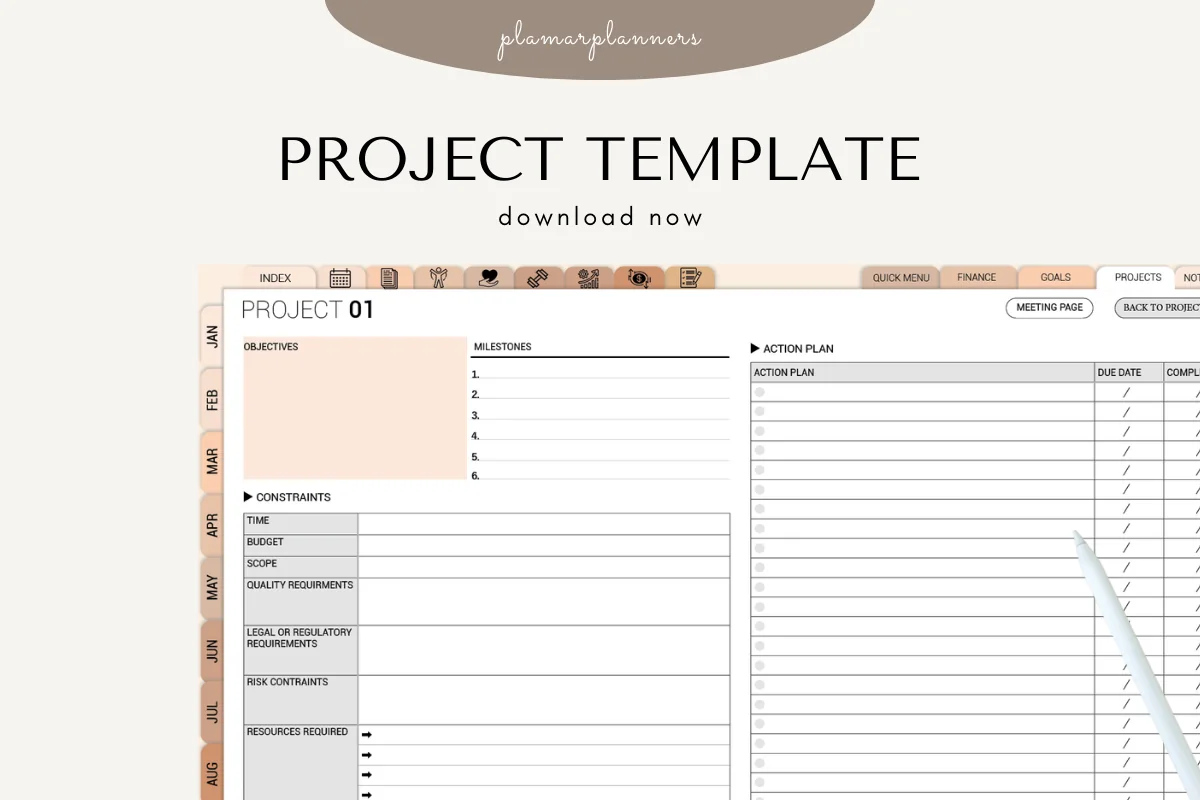
2. Project Planner – Printable & Digital
Orientation: Landscape previewLayouts: Objectives, milestones, constraints and action planDates: Blank date fields shown
Best for: turning one target role into milestones and a short action plan. Designed by Plamarplanners.
- Digital version for GoodNotes, Notability or Xodo
- Project overview, task breakdown and milestone pages
- Resources, budget, progress and priority action pages
- Objectives, constraints and an action plan with blank date fields
A job search has tasks that are easy to postpone because they are not applications: revising a portfolio example, arranging a practice conversation or checking a qualification. This project layout gives those tasks a visible sequence. Its landscape overview is more structured than blank note paper, but the headings remain about projects. Repurpose them for your search and keep individual application histories elsewhere if the action-plan rows become crowded. The listing also includes printable files; choose the digital version for your iPad.
Record Interviews and Reflections
Best for interview reflections
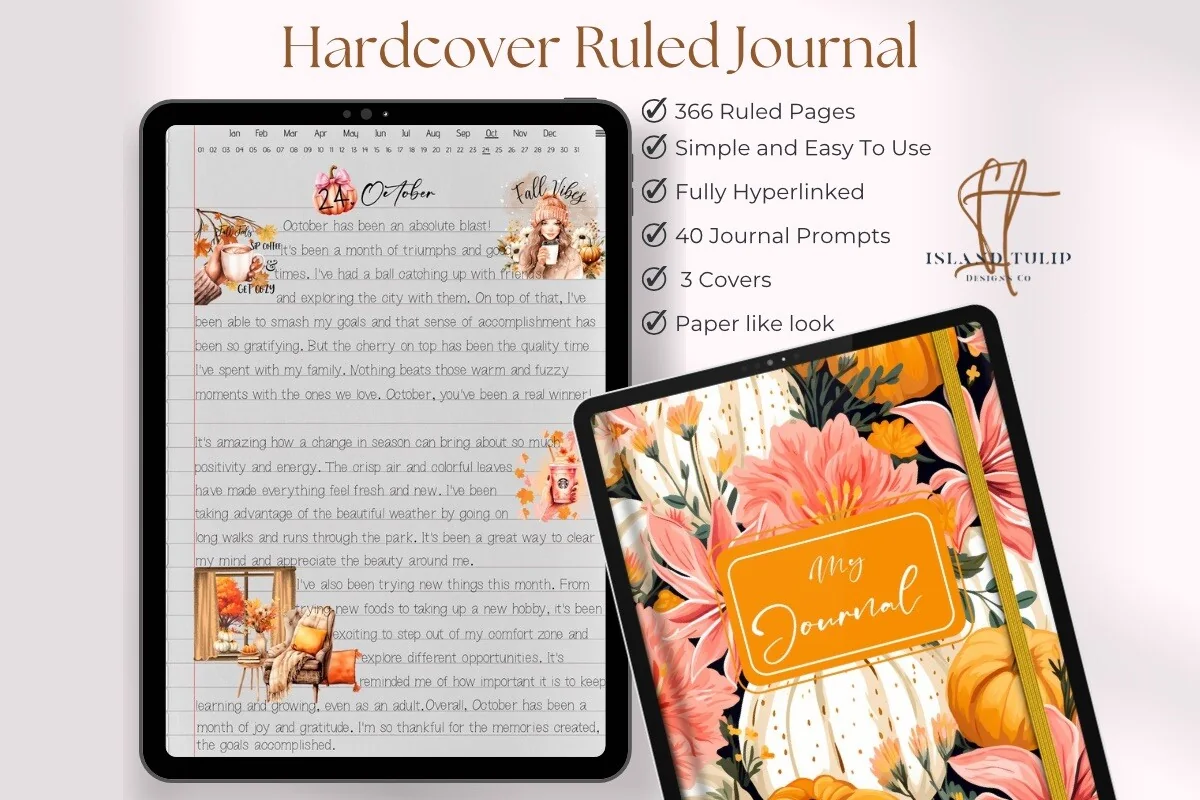
3. Digital Ruled Journal
Orientation: PortraitLayouts: Daily ruled writing pages; month/day indexDates: Month/day navigation; no year shown
Best for: writing a dated debrief after a conversation. Designed by Island Tulip Designs Co.
- 366 ruled pages
- Three floral covers
- Month and day navigation
- 40 journal prompts in PNG and GoodNotes element formats
The lined daily pages suit a short account of what happened in an interview, especially when you want room for the exact question and your reaction beneath it. Use month and day navigation to return to the conversation date. Put the job ID at the top of your entry and keep a separate index if several employers are active at once. Treat the extra prompts as personal journaling material; they do not provide interview questions or a career workbook.
Start with a Simple Writing Notebook
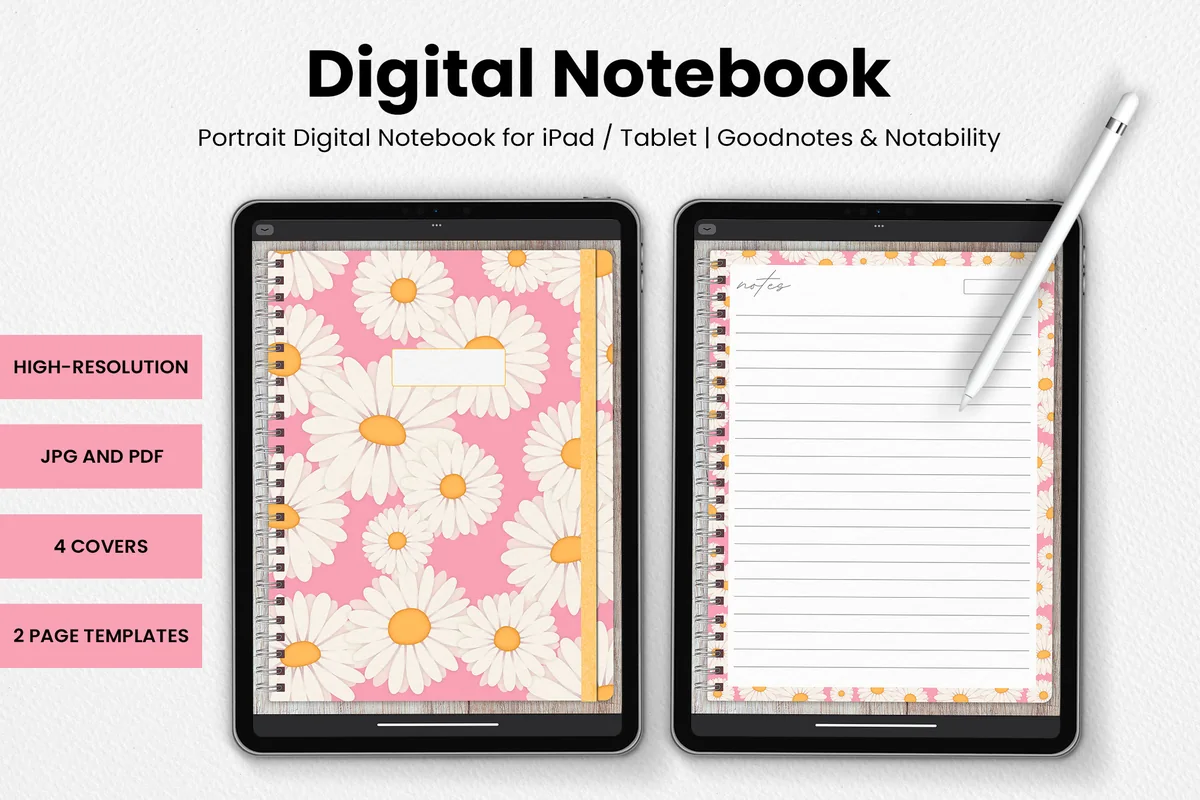
Best for a small starting notebook
4. DaisyNotes Digital Notebook – Pink
Orientation: PortraitLayouts: Two writing-page templates with a lined writing areaDates: No dated calendar shown
Best for: keeping a short application index beside plain written notes. Designed by catsquills.
- Portrait digital notebook for GoodNotes and Notability
- Four covers and two page templates listed
- JPG and PDF formats listed
- Pink daisy decoration and lined writing area pictured
A short search may need less structure, not another set of tabs to label. DaisyNotes offers a small set of writing pages with a pink floral border, which suits an application index followed by a few employer notes. Compared with the sectioned notebooks, the limitation is navigation: clickable employer tabs and automatic links between pages are not advertised. Start here for a deliberately simple record, and write page numbers into your index as you add entries.
Quick Comparison
| Template | Page structure | Use in your search | Limitation |
|---|---|---|---|
| 1. Digital Notebook | 12 sections; 16 note templates | Research and requirement matching | You create the application fields |
| 2. Project Planner – Printable & Digital | Project overview and action plan | Milestones and preparation tasks | General project headings |
| 3. Digital Ruled Journal | Ruled journal with day navigation | Conversation debriefs | Needs a separate application index |
| 4. DaisyNotes Digital Notebook – Pink | Two page templates; four covers | A compact handwritten record | No linked section system promised |
Keep the Application Record Useful After Setup
A page can be tidy and still fail to tell you what to do next. During a review, look for missing actions and unclear filenames before changing colors or adding another tracker. The record should help you resume the search after a break.
- Check active entries: does each one have a dated last action and a clear next step?
- Reconnect the materials: can you identify the resume, letter and samples attached to that application?
- Separate unknowns: keep unanswered questions visible instead of treating silence as a decision.
- Move appointments: copy agreed interview appointments into the calendar you use for alerts, and check the source invitation.
- Close completed loops: archive the history while keeping anything you may need to reference.
Use a PDF Notebook or a Spreadsheet?
Choose according to the work you want the file to do. A notebook gives you space to write a role-specific explanation or sketch a preparation page. A spreadsheet is worth considering when sorting many rows is the main task. Neither choice makes a hiring decision or keeps every external system up to date for you.
- PDF notebook: choose it for handwritten research, evidence comparisons and interview reflections. Maintain the index and statuses yourself.
- Spreadsheet: consider it when you mainly want a sortable application list. Keep any longer notes easy to locate from that list.
- Calendar: use a separate appointment tool for timed alerts and confirm the latest details from the invitation.
Where the Planning Approach Comes From
Duke University’s Job Search Tracker treats research, materials, networking and interviews as distinct parts of a search, with time adjusted to personal capacity. Stanford’s job-search action plan also covers preparation, tailored documents and tracking progress. The iPad page layouts above are my way of organizing those tasks, my own page designs rather than university templates.
The two resources suggest different time allocations. I have not turned either allocation into a universal quota. Use the weekly-capacity page to make your own plan, and change it when interviews, responsibilities or the stage of your search change.
FAQ: Job Search Planner Ideas
Can I start with an ordinary digital notebook?
Yes. Begin with an application index and one vacancy page, then add a resume register or interview notes when you need them. A sectioned notebook can help separate material, but the headings and job IDs are yours to create. You do not need a specialist job-search template to try this approach.
Which pages belong in a small job search plan?
Choose a target role, record one active opening and decide the next action you can take with the time available. Add the page that supports that action. The 15 ideas are a menu: the offer-comparison page can wait until you have an offer, while an application log may be useful from the beginning.
Will a job search plan PDF update application statuses for me?
Maintain these PDF records by hand, using your messages and employer portals to update the log. An employer’s applicant tracking system is separate from your notebook, and a handwritten status does not change what appears in that system.
Do these notebooks send follow-up reminders?
The pictured note pages and linked navigation are not reminder services. Record your next action in the notebook and set an alert in your calendar if needed. Recheck any timing the employer gave you before acting on an older note.
What personal information belongs in the planner?
Keep the record focused on the application: role details, professional contacts, material filenames and your preparation notes. Avoid putting passwords, identity documents or unnecessary personal details into a notebook you may share. Check what is visible before sharing a screenshot or an exported page.
Can I use one page for several openings at the same employer?
Use a separate application ID for each opening, even if the employer is the same. A shared company-research page can serve both, while the resume versions, deadlines and interview history stay distinct. That separation helps you avoid attaching one role’s preparation notes to another conversation.
Make Your Next Application Easier to Resume
Open one active role and write its ID, the material you last sent and the next step you can actually take. Add an interview page or a comparison spread only when it serves that role. These job search planner ideas are most useful when they help you return to a specific task, rather than giving you another notebook to finish.
You May Also Like
This article contains affiliate links. If you purchase through them, I may earn a commission at no extra cost to you. Read the affiliate disclosure.