The deadline is in your calendar, the brief is in a message, and the next step is somewhere in yesterday’s notes. A project planner helps bring those pieces onto one page before another week disappears into checking what you meant to do.
I narrowed this shortlist to two focused PDF templates for GoodNotes or Notability and one broader iPad business planner with a Projects tab: a landscape brief with milestones, a compact checklist, and a dated notebook for planning ahead. They suit personal planning on an iPad. If your real problem is assigning work to a team or getting automatic deadline alerts, the template-versus-app section below will help you avoid buying the wrong kind of tool.
Three Project Planner PDFs, from Brief to Work Calendar
My choices are based on the product descriptions and all available preview images, not hands-on testing of purchased files. I left out Canva templates, KDP interiors and printable-only options without confirmed iPad annotation support. A PDF can be both printable and suitable for digital annotation; the important distinction here is what the seller actually provides.
TL;DR: Two focused project templates and one broader digital planner for 2027: a landscape brief for objectives and milestones, a compact checklist, and a business notebook with a Projects tab. All are PDFs for digital annotation; no automatic reminders or team task assignment are advertised.
Quick Picks
- Best for a structured project brief: Project Planner – Printable & Digital
- Best for a short task list: Digital Project Planner Printable
- Best for projects within a work calendar: Business Growth Planner 2027 Landscape
- Project Planner – Printable & Digital – Best for a structured project brief
- Digital Project Planner Printable – Best for a short task list
- Business Growth Planner 2027 Landscape – Best for projects within a work calendar
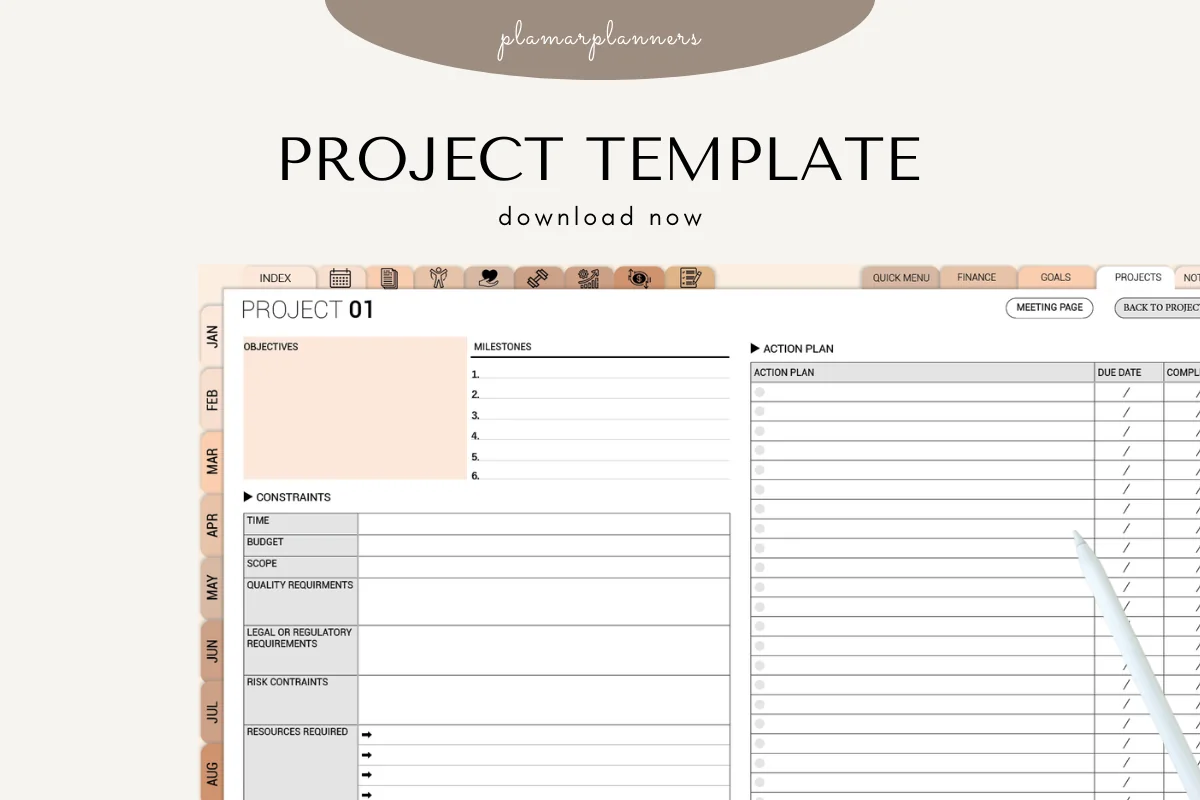
Best for a structured project brief
1. Project Planner – Printable & Digital
Orientation: LandscapeLayouts: Objectives, constraints and action planDates: No prefilled dates shown
Best for: keeping objectives, constraints, milestones and actions on one overview. Designed by Plamarplanners.
- PDF project templates with a tablet-friendly version; the listing names GoodNotes, Notability and Xodo
- The previews show objectives, milestones, resources and constraints beside an action plan
- Task rows include due-date and completed-on columns; four color treatments are shown
I would start with this layout when the project needs more than a checklist. The constraints column makes time, budget and scope visible beside the milestones instead of hiding them in separate notes. Its narrow writing fields may need zooming on a small iPad. The preview has tabs, but I have not tested working hyperlinks or the purchased PDF.
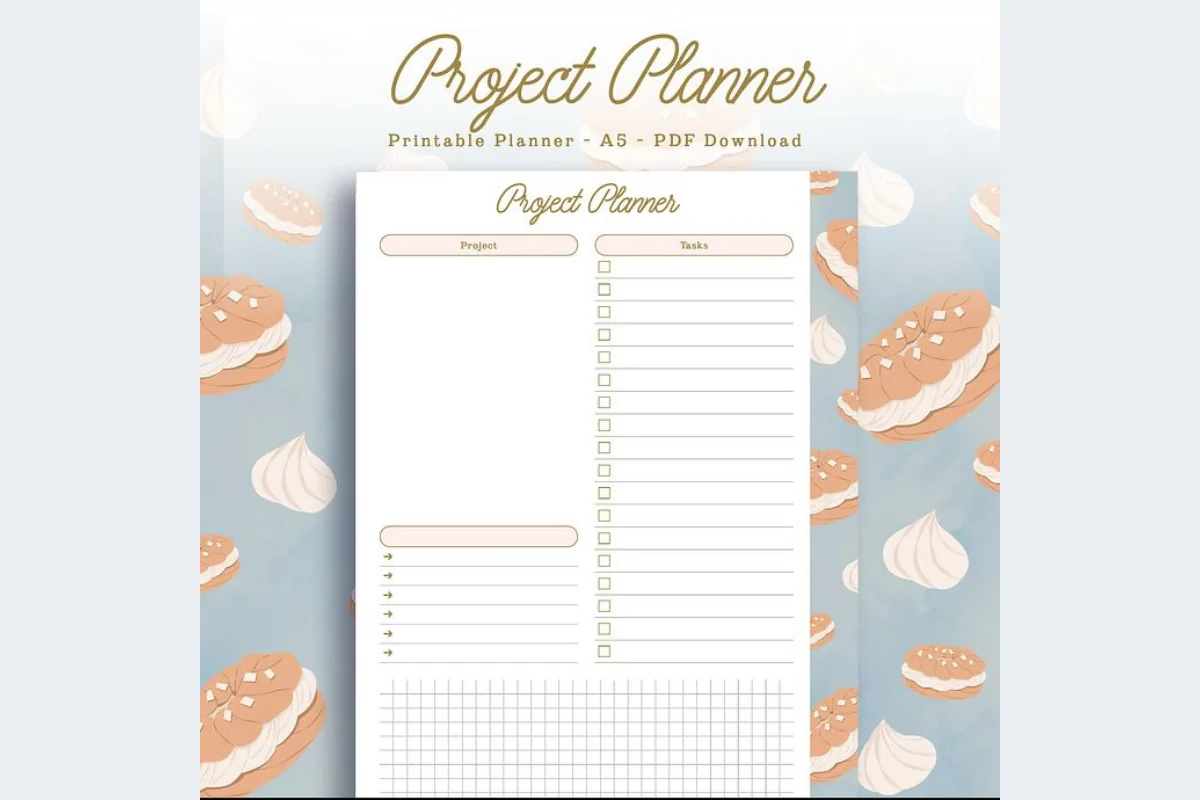
Best for a short task list
2. Digital Project Planner Printable
Orientation: PortraitLayouts: Project/task sheetsDates: No prefilled dates shown
Best for: a small project that needs space to write rather than many sections. Designed by PlannerPlanet.
- Two-page PDF described as compatible with GoodNotes and Notability
- Previews show two similar project/task layouts, one with a decorative border
- Visible project field, checkbox task column, lined writing space and a grid area
For a short assignment, this layout keeps the project name, checklist and thinking space together without a large notebook to navigate. I prefer the plain-looking variation when the task list needs to stand out. Although the description mentions timelines and milestones, the previews show a compact writing template, with no dedicated Gantt chart or detailed milestone system visible.
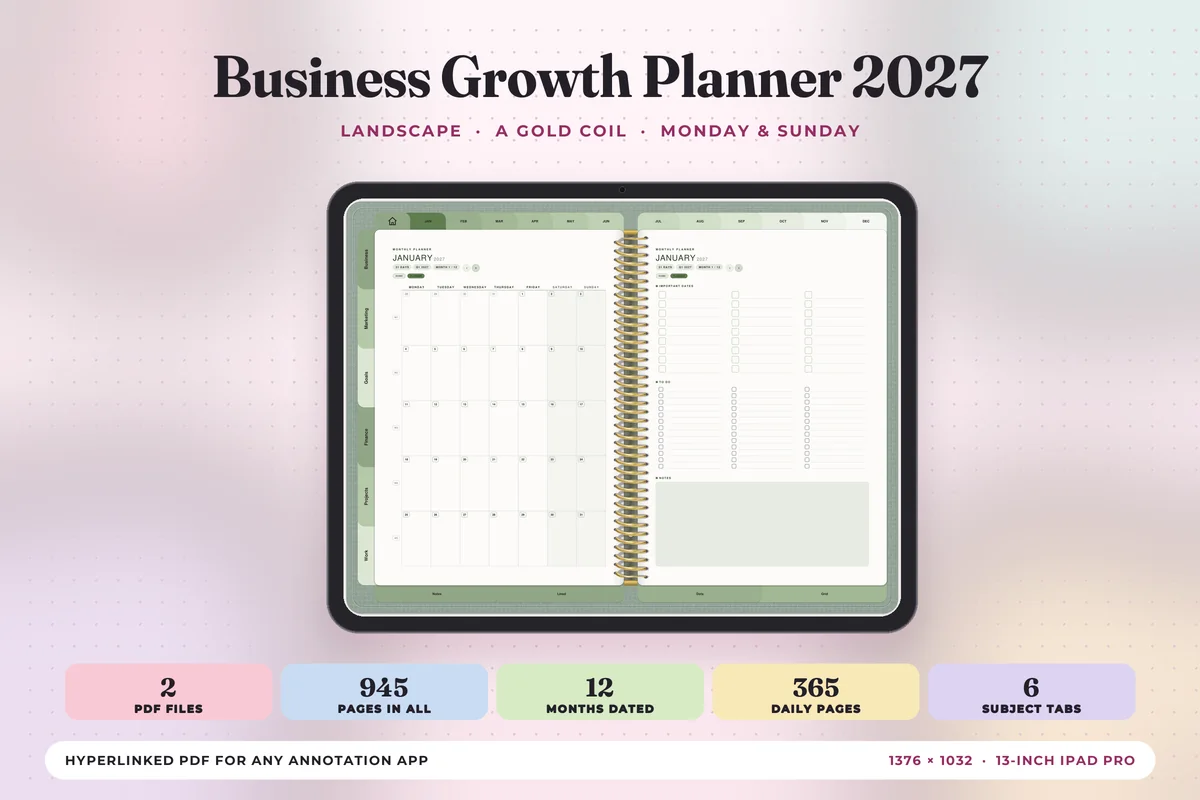
Best for projects within a work calendar
3. Business Growth Planner 2027 Landscape
Orientation: LandscapeLayouts: Project templates and daily, weekly, monthly pagesDates: 2027
Best for: growing businesses, two-page spread fans, goal setters. Designed by Print Magic StudioX.
- Two hyperlinked PDFs, with Monday-start and Sunday-start versions
- Six subject tabs include Projects, Business, Marketing, Goals, Finance and Work
- The listing specifies four templates per subject, plus monthly, weekly and daily planning pages
- Landscape 4:3 pages; the description names the 13-inch iPad Pro page format and PDF annotation apps
This is the broader option, not a standalone project template. I would consider it when moving a project milestone into a daily work schedule is the missing step. The Projects tab belongs to a larger dated business notebook, so skip it if a compact undated sheet is all you need. The seller describes hyperlinked navigation; that is not automatic calendar synchronization or a reminder system.
Quick Comparison
| Planner | Best for | Dates | Structure |
|---|---|---|---|
| 1. Project Planner – Printable & Digital | Objectives and milestones | No prefilled dates shown | Landscape project overview |
| 2. Digital Project Planner Printable | Short personal projects | No prefilled dates shown | 2 pages; checklist and grid |
| 3. Business Growth Planner 2027 Landscape | Projects plus work scheduling | 2027 | Business notebook with Projects tab |
Choose the Page That Matches Your Sticking Point
A long task list and an unclear project are different problems. Before choosing a project planner template, name the part of the work that keeps slipping. A digital planner gives that thinking a home; an iPad planner app supplies the tools you use to write on it. That distinction matters more than the number of pages in the file.
- The finish date keeps surprising you: consider the 2027 Business Growth Planner. A month grid gives the deadline a visible place beside other commitments. It is a dated purchase, so it makes sense for work scheduled in that year.
- You know the goal but keep losing the details: the Plamar landscape overview puts resources, milestones and task deadlines together. It is the strongest fit here for a one-page brief you can consult while working.
- You postpone starting because the system feels too big: the PlannerPlanet checklist leaves fewer decisions to make about where things belong. Use it for a small assignment, an event preparation list or a personal creative project.
For example, organizing a portfolio update may only need a list of pieces to revise and space for notes. Preparing a client launch needs a clearer view of approvals, resources and deadlines. Neither job becomes easier just because the planner includes more decorative pages.
A small room update needs its own details, too: measurements, purchase choices and a way to find receipts. These home project planner ideas show how to organize those records around one desk corner, from the initial brief to the final loose ends.
Before a room update, you may need to decide what belongs in the space at all. These decluttering journal ideas focus on item decisions and follow-through, giving the project checklist a clearer starting point.
A quick check before you choose
- Writing space: look at the width of the action column, not just the overall page size. Several tiny fields can be harder to use than one generous notes area.
- Page orientation: a landscape sheet puts more information side by side. A portrait sheet keeps a long checklist in one vertical flow. Neither is automatically better on every iPad.
- Dates: distinguish an undated form with start and due-date fields from a calendar with dates already printed.
- Navigation: a visible tab is not proof of a working link. The Business Growth Planner explicitly advertises hyperlinked PDFs. Plamar shows tabs without enough information to verify their behavior, while PlannerPlanet works as a short writing template.
- Scope: decide whether you need one project overview or a broader work planner. For meetings, weekly schedules and several kinds of work in one notebook, compare the digital work planners too.
6 Steps to Plan a Project with Your iPad PDF
The page should help you decide what happens next. Start with the result and work backward, then use the task column for actions you can actually begin. The sequence below is a suggested planning method, not an extra feature included with any of these products.
- 1Name the finished result. Replace “work on portfolio” with “send a five-piece portfolio PDF to the client.” A concrete deliverable makes it easier to recognize when the project is finished.
- 2Write the deadline and the constraints. Record the final due date, available work sessions, materials and anything you cannot decide alone. If the template has no separate constraint field, use its notes area.
- 3Choose a few milestones. For the portfolio example: select the pieces, finish revisions, assemble the PDF, then review and send it. These are checkpoints, rather than every small action.
- 4Break the first milestone into tasks. “Review the existing folder” and “choose five pieces” are easier to start than “improve portfolio.” Leave later tasks broad until you know enough to make them specific.
- 5Mark what depends on something else. Write “waiting for client images” beside the relevant action. A checkbox alone cannot explain why the work has stopped.
- 6Choose one next action and a work session. Put the action on the project sheet and reserve time in the calendar or weekly planner you already use. Keep the deliverable and its working time connected.
Keep the levels of the plan separate
| Level | Portfolio example | What to write |
|---|---|---|
| Result | Send the portfolio PDF | The finished deliverable and final deadline |
| Milestone | Revisions approved | A checkpoint before the next stage |
| Next action | Open the first piece and list changes | A task you can begin in a work session |
| Waiting item | Client sends replacement images | The dependency and when to follow up |
A milestone is useful when it tells you something has changed: the draft exists, approval has arrived, or the materials are ready. “Do more work” does not give you that signal. When the action list gets long, keep the main page for the current stage and move detailed steps to a separate list; these to-do list templates offer other layouts for that job.
For a student research project, a completed milestone should point back to the session behind it. The research journal page ideas keep observations, file references and unresolved questions in a separate record, so the project overview can remain focused on the next action.
Set Up the PDF on Your iPad Before Filling Every Page
Start with the actual PDF file rather than a screenshot of the preview. The listings describe digital annotation support, but that is not a promise that every advertised behavior has been tested in your app version. Check one page first so you can find problems before you build a whole project around it.
- 1Save an untouched original. Keep the original PDF separate from the copy you annotate. Give the working copy the project name so it is easy to recognize later.
- 2Import the PDF into your note-taking app. Plamar and PlannerPlanet name GoodNotes and Notability; Business Growth describes iPad-sized PDFs for annotation apps. In Notability, the current help guide describes importing through the Library or from inside a new note.
- 3Try one realistic entry. Write a project title, a full task and a due date at the zoom level you expect to use. A tiny sample word will not tell you whether the task column is comfortable.
- 4Check navigation if the file includes links. With the Business Growth PDF, test a side tab and a return route. Follow your app’s current link controls rather than assuming a tab is broken because it does not respond while you are writing.
- 5Complete one project overview. Add the result, a few milestones and the next action. Leave unused pages alone until they serve a real part of the project.
For the app-specific details, use the official Notability import guide and Goodnotes PDF hyperlink guide. Goodnotes distinguishes link controls by platform; a PDF hyperlink must already exist in the file. A decorative heading or colored tab does not become a working link just because you import the page.
Use the previews to set realistic expectations
- Plamar: four color treatments show the same project overview. Do not mistake those color options for four different planning methods.
- PlannerPlanet: the two pages look similar, with plain and decorative treatments. Do not buy it expecting two unrelated planning methods.
- Business Growth: its Projects tab is part of a larger 2027 notebook. The previews show the tab and broader planning layouts; they do not show every project template in detail.
- All three: app compatibility describes where you can use the file. It does not establish automatic task scheduling, working form fields or team collaboration.
Template or App: Where Should Deadlines Live?
For personal project management, a PDF gives you a place to think through the work in your own handwriting. A task or calendar app may provide the alerts, assignments and scheduling features you need around that plan. None of these three listings advertises automatic calendar synchronization or deadline notifications, so I would not rely on the template to remind you.
- Choose a PDF template for: sketching an idea, keeping a handwritten brief, reviewing a small project and connecting notes with actions.
- Check a dedicated app for: reminders, shared task ownership, recurring work or a calendar integration. Verify those features in the app itself before depending on them.
- Use both when: you want the project context on your iPad page and a dependable alert elsewhere. Keep the reminder short and refer back to the project by name.
Do not maintain two competing task lists if you can avoid it. Decide which place holds the detailed actions and which place holds the reminder. For example, the project page can contain the revision checklist while the calendar holds a single work session called “Portfolio revisions.” If business administration needs its own space, the digital business planners are a broader comparison.
Review the Work Without Rewriting the Whole Plan
A page can look busy while the project stands still. During a short review, look for changes in the work rather than how many boxes you filled. These prompts are a practical way to keep an overview useful after the first enthusiastic setup.
- Finished: which action produced something you can use, send or review? Check it off and name the result if the wording was vague.
- Waiting: what needs a reply, a file or a decision? Add the dependency and a follow-up action instead of repeatedly moving the same unfinished task.
- Changed: has the scope, available time or final deadline moved? Update the overview before assigning more work to the old plan.
- Next: what is the smallest useful action for the next work session? Give it a clear verb and a place on the list.
- Closed: is the project actually finished, paused or no longer needed? Record that decision so an abandoned idea does not look like an active commitment.
At the end, leave a few notes about what you would repeat or change. A notes area or an additional page can hold those reflections with any of these templates. You do not need a built-in retrospective section to write down a useful lesson.
To understand a project choice later, save its reasoning before you act, not only in the closing reflection. The decision journal page ideas pair original expectations with a separate outcome review, while your project overview can keep holding the actions that follow.
FAQ: Planning Projects with GoodNotes PDFs
Can I use a printable project template in GoodNotes?
A printable label alone does not establish digital compatibility. Plamar and PlannerPlanet explicitly name GoodNotes and Notability; Business Growth specifies iPad-sized PDFs for annotation apps. Check the file format and app support on the listing you choose; do not assume an editable Canva link is the same as a ready-to-annotate planner PDF.
Which option is best for a beginner?
For a small project with a simple checklist, PlannerPlanet offers the simplest structure here. If you already know you need objectives, resources and milestone fields, the Plamar sheet is a better starting structure. Choose by the decisions you need to make, rather than by how experienced you feel.
Will these planners send deadline reminders?
No reminder feature is advertised for these PDF products. Put a time-sensitive alert in a calendar or task app that supports it. A written date on a planner page should be treated as information you review, not an alarm.
Are any of these project PDFs free?
None is presented here as a verified standalone freebie. Check the current listing and checkout terms: a zero price alone does not establish that a file is available without a subscription or promotion.
Do I need a Gantt chart to manage a personal project?
A short project can begin with a result, milestones, tasks and a final deadline. If you need a timeline showing several overlapping activities and dependencies, look for a dedicated Gantt view. None of the preview sets here establishes that feature, and a field labeled timeline is not the same thing.
Give the Next Work Session a Clear Starting Point
The best project planner for your iPad is the one that makes your next action easy to find. Pick Plamar for a structured project brief, PlannerPlanet for a compact checklist, or Business Growth for a Projects tab alongside a 2027 work calendar. Start with one real project, write what finished means, and decide what you will do in the next work session.
You May Also Like
This article contains affiliate links. If you purchase through them, I may earn a commission at no extra cost to you. Read the affiliate disclosure.