The receipt says $28, your banking app shows $34, and the refund you were waiting for has finally arrived. A page full of numbers can still leave you unsure what you actually spent. These expense tracker ideas give each purchase a place, with simple layouts you can draw or adapt on your iPad.
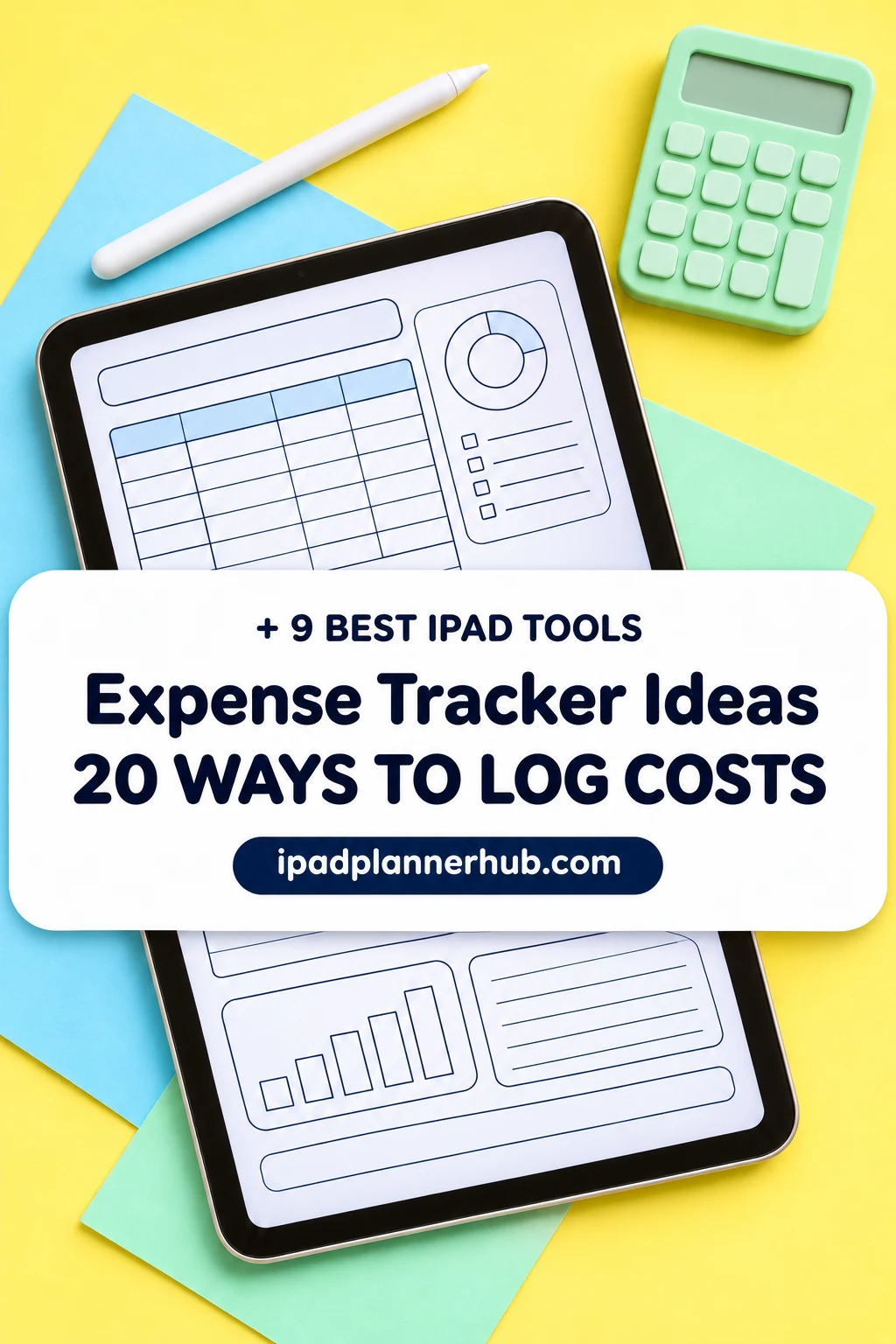
I have organized 20 layouts around three jobs: capturing transactions, making totals understandable, and checking awkward entries. Start with one main log and one review page. The nine digital tools later in this guide offer different supporting pages; they do not all contain ready-made versions of these ideas.
Set the rules before decorating your expense sheet
An expense record answers what you spent, when, and on what. A bill calendar answers when something is due; a budget assigns money before you use it. Keep those jobs distinct, even when they share a planner. Here, the examples describe a personal spending record, not tax or business accounting.
- Give each purchase one main entry. Summary boxes point back to the log instead of becoming extra purchases.
- Choose a date convention. You might write the purchase date and add a separate posted-date note when checking your statement.
- Keep the amount readable. Use one currency per page, align decimal places and write refunds with a consistent sign or label.
- Use categories you can repeat. Start with a handful that fit your life. A shop name alone may not tell you whether an entry was food, clothing or a gift.
The Consumer Financial Protection Bureau suggests reviewing account history and keeping receipts to understand actual spending. Its budgeting guide also describes organizing records by category and starting with a week if the task feels overwhelming. The layouts below are my own ways to arrange those records.
20 expense tracker ideas, grouped by the job they do
Each idea changes a field, a page arrangement or a review step. You do not need 20 separate trackers. Pick the smallest combination that lets you find the original entry and explain your total a week later.
Capture everyday purchases Ideas 1–5
- 1One-line transaction log. Draw columns for date, description, category and amount. Give the description the most width: “household supplies” will mean more next month than “store.” Add a small check column at the edge for later statement matching. Start here before adding charts: every total can lead back to an identifiable purchase.
- 2Daily total strip. Add seven small boxes along a weekly page, one per day. Calculate each box from the main log and label it “summary.” On a busy day, write the transaction rows first and the total later. A blank box should mean “not reviewed”; use an explicit zero only after checking that you had no recorded spending that day.
- 3Weekly transaction spread. Put Monday through Wednesday on one page and Thursday through Sunday on the facing page, with the same columns on both. Leave a wider notes area for unusually busy days. The week is a viewing window, not permission to lose the transaction date: write the date on every row so late entries still make sense.
- 4Cash purchase log. Keep a short list for purchases that will not appear individually on a card statement. Record the item and amount when you receive the receipt. If you also note an ATM withdrawal, mark it as money moved into cash, separate from your purchase total; otherwise the withdrawal and the later cash purchases can count the same money twice.
- 5Receipt reference column. Number receipts R01, R02 and so on, and put the reference beside the matching transaction. A single receipt can support several category rows; repeat the reference rather than losing that connection. Keep the image or paper in a consistent place. The reference is an index, not a claim that your PDF app automatically stores or recognizes receipts.
Make the month easier to read Ideas 6–10
- 6Monthly category columns. Place a category name at the top of each narrow column, then write dates and amounts below it. Keep a transaction description elsewhere if the columns become cramped. This works best with a small category set. When one column fills faster than the rest, continue it on a labeled extra page instead of squeezing smaller and smaller handwriting into the margin.
- 7Payment-method legend. Use short labels such as CA for cash, DB for debit and CR for credit. Write the legend on every new page so it survives copying. This helps you find the right statement during review. Avoid full card numbers or account credentials; a neutral nickname is enough to tell two payment methods apart.
- 8Recurring versus one-off marker. Add an R or O beside each completed expense. The mark describes a transaction that happened; it does not create a future bill reminder. At the weekly review, gather the R entries to see the recurring charges you actually paid. Keep cancellation dates and next renewal dates on a separate subscription or bill page.
- 9Planned versus unplanned flag. Put a small P or U beside a purchase using your own prewritten definition. For example, “planned” could mean it was on your list before the shopping trip. Treat the flag as information, not a score of whether you were good or bad. Add a brief note when an unplanned cost was necessary, so the context survives the total.
- 10Vendor grouping. Use a second view to collect entries from the same store or service, with their original dates or row references. It can reveal several small purchases that are hard to notice in a chronological list. Label the view “summary only.” If you copy full amounts into it, keep it outside the transaction sum so the same purchases do not inflate your spending.
Give adjustments a clear trail Ideas 11–15
- 11Refund adjustment log. Keep the original purchase visible and add a new row when the refund arrives, using a minus sign or a clear refund label. Link the two rows with a reference. Separate “requested” from “received”: an expected refund should not silently reduce the amount you report as already returned. This arrangement is especially useful when a return crosses into the following month.
- 12Split-category entry. When a receipt spans categories, give its parts separate rows with one receipt reference. In a made-up $30 purchase, $18 for food and $12 for household supplies should add back to $30. Keep the original receipt total as a checking note, not a third expense. Save detailed food-by-item analysis for a dedicated grocery page.
- 13Online order actual-cost log. Write the final charged amount, including the shipping or other charges shown in the order record. Add the order reference and leave a space for later adjustments. Record the completed charge rather than the shopping-cart estimate. If the order is split into several charges, link those rows instead of entering the full order total again for each parcel.
- 14Shared-cost reimbursement trail. Put “paid by me,” “expected back” and “received back” in separate fields. If you pay $40 and later receive $15 from a friend, the record should show both movements and your chosen personal-share summary. Do not treat the expected reimbursement as received money. For joint household accounts or disputed costs, agree on the recording convention before comparing totals.
- 15Correction reference. Give an error a visible correction note, such as “row 12 category changed to transport.” If an amount is wrong, make the replacement legible and explain whether it replaces or adjusts the old row. A correction trail is easier to understand than an unexplained erased number. Use your PDF app’s editing tools carefully; the layout itself does not protect entries from accidental changes.
Close the week with useful context Ideas 16–20
- 16Statement reconciliation checklist. Add four short checks: date checked, amount matched, duplicate ruled out and unresolved item noted. Tick an entry only after comparing it with the relevant record. Keep pending charges distinguishable from posted ones. A mismatch is a prompt to inspect the source, not proof of fraud or a reason to change the planner total until the numbers happen to agree.
- 17Category color key. Assign a small colored dot to each category while leaving the words and amount in ordinary readable text. Color can help you scan a page, but the written label should still work without it. Limit the palette to distinctions you use. A colorful page with inconsistent category names will be harder to total than a plain page with clear labels.
- 18Small-purchase tally. Choose a threshold for your own review, such as purchases under $10, and tally qualifying entries from the main log. The threshold is a design choice, not a recommended spending limit. Add the sum as well as the count: six small purchases can mean very different totals. This is a summary of existing rows, never a replacement for recording them.
- 19Weekly exception box. Reserve a box for unusual costs, refunds still pending and charges you need to check. Write the original row reference beside each note. This keeps an exceptional week understandable without explaining every ordinary purchase twice. At the next review, mark each item resolved or carry it forward with the date, rather than leaving a mystery note on an old page.
- 20Month-end handoff. Finish with three lines: category totals, unresolved entries and one change to the recording process. Carry open items to the next month’s review page with references, rather than pretending the month was perfectly closed. Your next action might be widening a description column or simplifying categories. Keep future spending limits in the budget itself; this page explains the record you already made.
Expense tracker design ideas for a readable monthly dashboard
For a handwritten expense tracker dashboard, place the month and review date at the top, category totals down one side, and unresolved entries below. Keep the detailed log on its own page so the overview stays readable. These expense sheet ideas use the same transaction records rather than creating another set of purchases to total.
If you want background images, keep them in the header or outside the writing area and leave amount columns plain. Try a sample row with your usual pen width before copying the layout for a full month. Give the page a name that describes its job, such as “Daily Spending Log,” “Travel Costs” or “Monthly Money Review.” These money tracker ideas let decoration and page names support the record without crowding it.
A small worked example: purchase, refund, final total
Here is an invented personal spending example in dollars. It illustrates the refund-log convention above, not a tax rule. You buy supplies for $28, pay a separate $6 shipping charge and later receive an $8 refund. A signed-amount ledger makes the sequence visible.
| Entry | Signed amount | Reference |
|---|---|---|
| Supplies purchase | $28.00 | R01 |
| Separate shipping charge | $6.00 | R01-S |
| Refund received | −$8.00 | Refund linked to R01 |
| Net recorded expense | $26.00 | $28 + $6 − $8 |
- If the $28 already included shipping, do not add the $6 row.
- If the refund is only requested, leave it in the exception box until received.
- If you choose a different refund convention, label it and apply it consistently. Do not combine two conventions in the same total.
9 best iPad tools to support your expense record
I chose these for their listed spending pages and the layouts visible in their galleries. Some are small ledgers; others provide a monthly overview or a place for finance within a daily planner. My comments are based on those descriptions and previews, not a hands-on test of the purchased files. Check the current listing and the requirements of your PDF annotation app before buying.
TL;DR: For individual transactions, start with Coffee Latte or the Daily Spend Count logs. Choose a monthly overview for category totals, or an all-in-one planner if your expenses need to sit beside your schedule. Every option requires manual records; the original ideas below are not promised contents of each PDF.
Quick Picks
- Best for one simple transaction sheet: Expense Tracker • Coffee Latte
- Best for repeated daily spending logs: Digital Budget Planner, Financial Planner
- Best for expense spreads with notes: Monthly, Debt, Expense Digital Planner
- Best for a dedicated expense tracker: Gold Budget Digital Planner/Hyperlinked
- Best for a compact monthly overview: Budget Digital Planner Hyperlinked Tabs
- Best for a small purchases record: Simple Savings Planner, Digital Planner
- Expense Tracker • Coffee Latte – Best for one simple transaction sheet
- Digital Budget Planner, Financial Planner – Best for repeated daily spending logs
- Monthly, Debt, Expense Digital Planner – Best for expense spreads with notes
- Gold Budget Digital Planner/Hyperlinked – Best for a dedicated expense tracker
- Budget Digital Planner Hyperlinked Tabs – Best for a compact monthly overview
- Simple Savings Planner, Digital Planner – Best for a small purchases record
- Digital Budget Planner, Finance Tracker – Best for a broader finance workbook
- Undated Digital Planner, Life Planner – Best for a calm all-in-one planner
- All-in-One Digital Planner ( 112 Pages ) – Best for a colorful planning hub
Transaction sheets and spending logs
Best for one simple transaction sheet
1. Expense Tracker • Coffee Latte
Orientation: LandscapePaper: A4Format: PDF
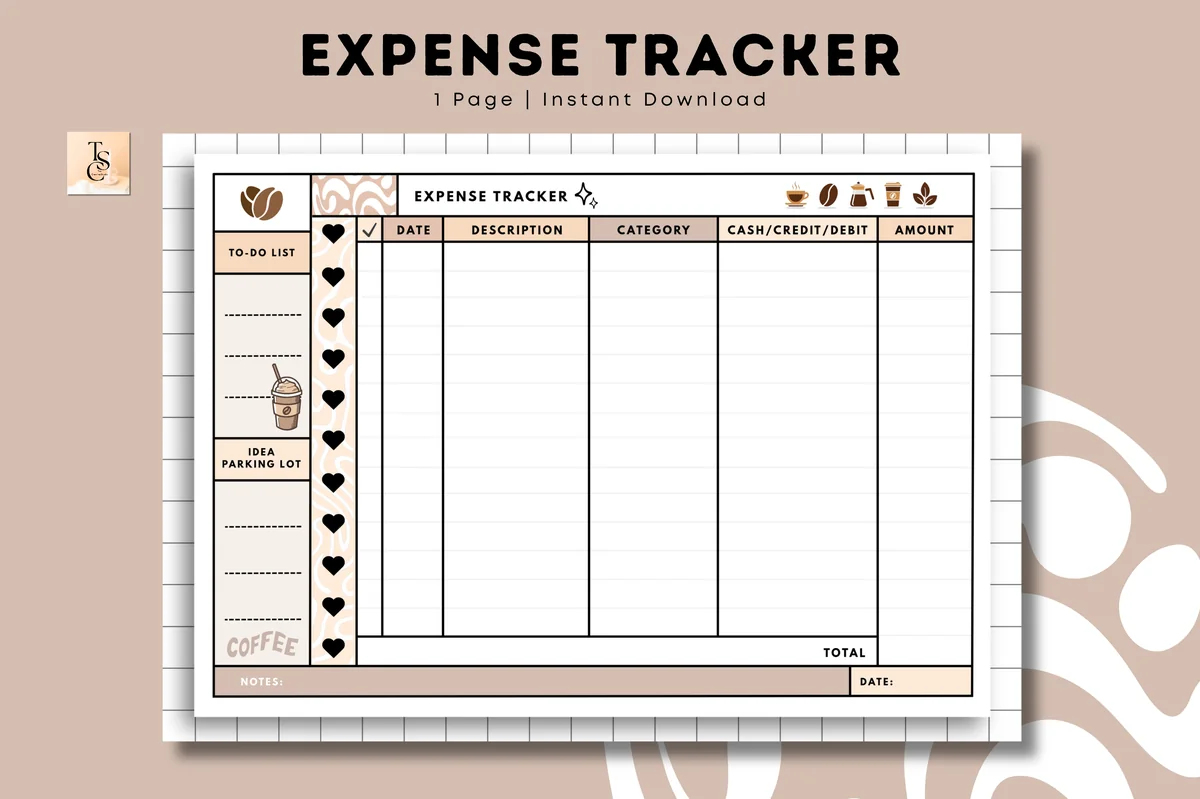
Best for: a short transaction list with a payment-method column. Designed by Tas Creative Studio.
- One-page A4 landscape PDF, with digital and printable versions listed
- Date, description, category, payment method and amount columns
- Compatible with GoodNotes, Notability, Noteshelf and Xodo
The clearest starting point here is also the smallest. The visible headings let you judge the writing space before choosing a larger planner. I like the separate cash/credit/debit column for the payment-method idea above. For a refund, add a short reference in the description; there is no dedicated refund field in the preview.
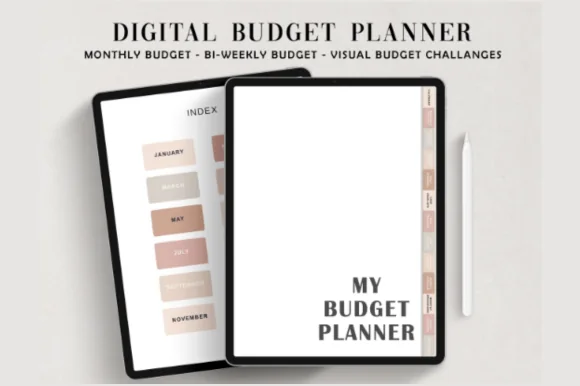
Best for repeated daily spending logs
2. Digital Budget Planner, Financial Planner
Orientation: PortraitLayouts: Daily logs, monthly and biweekly budgetsFormat: Hyperlinked PDF
Best for: keeping transaction records beside monthly and biweekly budgets. Designed by ThePlannersDelight.
- Hyperlinked PDF for GoodNotes, Noteshelf and Notability
- Daily Spend Count logs and weekly expense check-in
- Monthly and biweekly budget pages plus a yearly overview
- The seller requires an Apple tablet for use with a stylus such as Apple Pencil. The planner purchase does not include the apps, tablet or writing stylus.
Daily entries have a clear next step here: carry them into the weekly check-in, then the monthly budget breakdown. The three linked spending logs per month give a longer record room to continue. I prefer this structure when a standalone sheet would leave the review unfinished. The hyperlinks navigate between pages; you still calculate and check the totals yourself.

Best for expense spreads with notes
3. Monthly, Debt, Expense Digital Planner
Orientation: Landscape spreadsLayouts: Monthly expense and notes pagesFormat: Hyperlinked PDF
Best for: combining monthly expense pages with dotted and graph notes. Designed by MOMAT THIRTYONE.
- Undated hyperlinked PDF for GoodNotes, Xodo and Noteshelf
- 24 expense pages and 12 monthly planner pages
- Dotted and graph notes sections
The pink two-page monthly expense spread gives categories more room than a narrow single column. Dotted and graph pages leave space for a receipt index or correction log. Its strength is the monthly rhythm: keep the transaction details together, then use the notes to explain an unusual total.
Best for a dedicated expense tracker
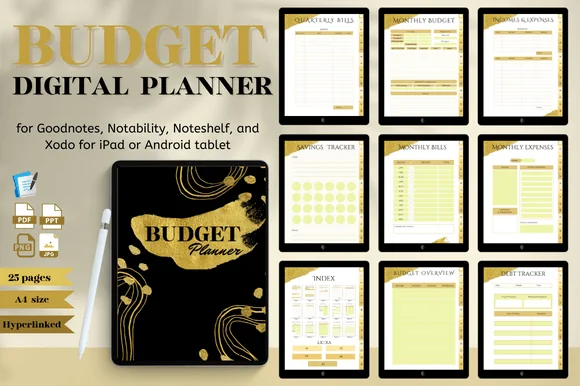
4. Gold Budget Digital Planner/Hyperlinked
Orientation: PortraitPaper: A4Format: Hyperlinked PDF
Best for: keeping a transaction ledger separate from summary pages. Designed by Nann Digital Art.
- 25-page A4 hyperlinked planner for iPad PDF annotation apps
- Expense Tracker, Incomes & Expenses and Monthly Expenses pages
- Budget overview and five extra notes pages
The separate Expense Tracker is the useful distinction behind the gold-and-black design. The gallery pairs a transaction-style list with monthly summary sheets, so purchases and totals can stay on different pages. Keep each purchase on the ledger and carry only totals to the overview. The PDF is the relevant format for this workflow.
Monthly overviews and broader finance records
Best for a compact monthly overview
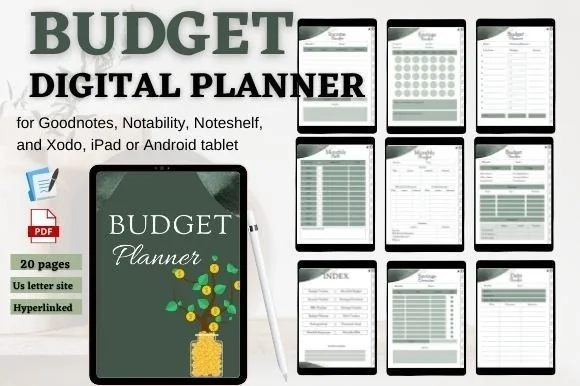
5. Budget Digital Planner Hyperlinked Tabs
Orientation: PortraitPaper: US letterFormat: Hyperlinked PDF
Best for: reviewing category totals in a smaller budgeting system. Designed by mixxdigitaldesign.
- 20-page digital and printable planner for GoodNotes, Notability, Noteshelf and Xodo
- Monthly Expenses and Monthly Budget pages
- Income tracker, bills pages and extra notes
The green monthly expense layout suits an overview rather than a long receipt-by-receipt history. Pair it with a transaction list on a notes page, then transfer each category total once. This compact system makes sense when the month is your main review window and another page holds the details.
Best for a small purchases record
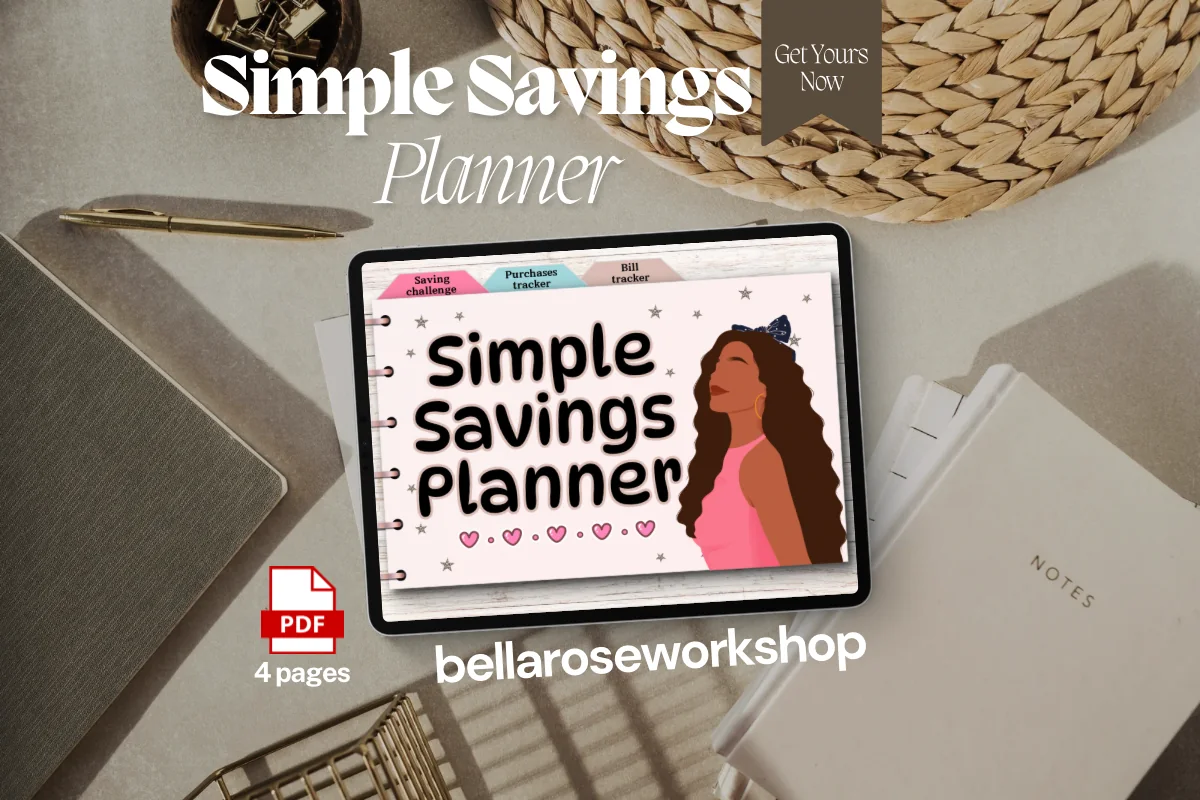
6. Simple Savings Planner, Digital Planner
Orientation: LandscapeLayouts: Purchases, savings and billsFormat: Hyperlinked PDF
Best for: tracking purchases without a full annual planning system. Designed by bellaROSEworkshop.
- Four-page hyperlinked digital PDF
- Purchases Tracker with a navigation tab
- Saving Challenge and Bill Tracker also included
Four pages may be enough if an elaborate planner makes you avoid writing anything down. The Purchases Tracker is relevant, but the gallery mainly displays savings and bills; its exact purchase-column arrangement is not visible. That limits how closely you can assess the writing space before buying. This is a digital-use PDF, not an editable design template.
Best for a broader finance workbook
7. Digital Budget Planner, Finance Tracker
Orientation: Portrait pages shownLayouts: Expense and spending workbookFormat: GoodNotes workbook
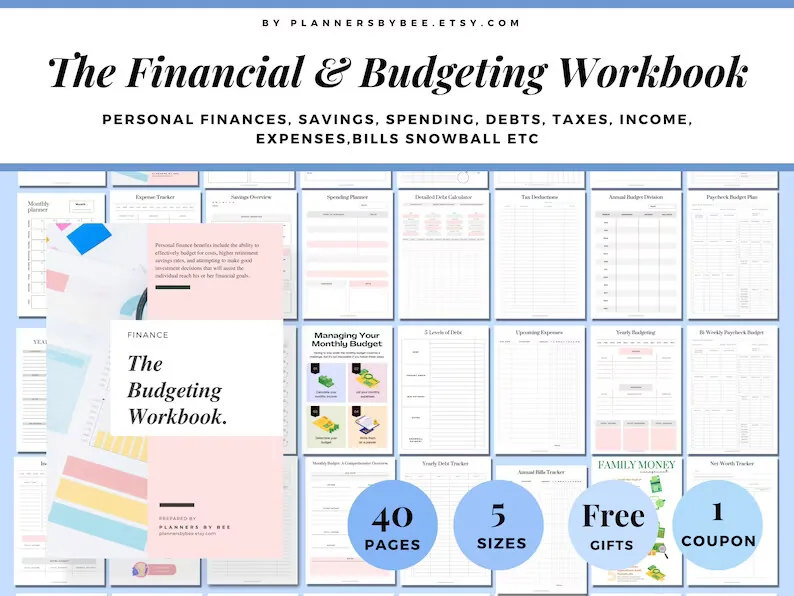
Best for: seeing an expense record within a wider financial review. Designed by PlannersByBee.
- GoodNotes financial and budgeting workbook
- Expense Tracker and Spending Planner visible in the cover montage
- 40 pages and five sizes advertised on the cover
This offers a broader finance review around the expense record. The single cover montage shows an Expense Tracker and Spending Planner beside other money pages. It gives less layout detail than Coffee Latte, so I cannot assess a particular column width from the gallery. Consider it when the surrounding workbook matters more than a close-up view of the ledger.
Expense tracking inside an everyday planner
Best for a calm all-in-one planner
8. Undated Digital Planner, Life Planner
Orientation: PortraitFormat: Hyperlinked PDFDates: UndatedWeek start: Monday and Sunday versions
Best for: keeping actual expenses beside your everyday schedule. Designed by ThePlannersDelight.
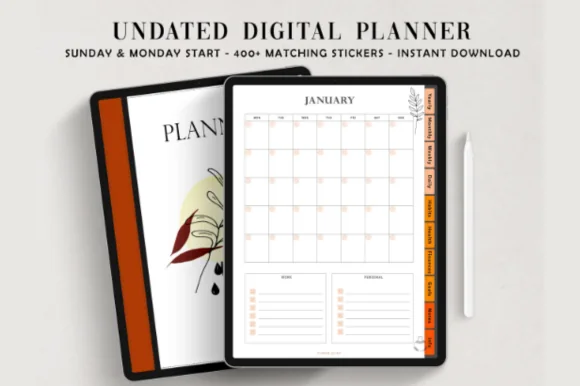
- Autumn Hues undated hyperlinked PDF for GoodNotes and Noteshelf
- Expenses Tracker, Revenue Tracker and Monthly Budget shown together
- Monday-start and Sunday-start planner files
The warm orange palette offers a quieter alternative to the console design below. The finance preview separates expenses, revenue and the monthly budget, keeping different money movements distinct. This suits a reader who wants the schedule and spending record in one file. Add your own receipt references or refund labels as needed.
Best for a colorful planning hub
9. All-in-One Digital Planner ( 112 Pages )
Orientation: LandscapeLayouts: Daily, weekly, monthly and financeFormat: Hyperlinked PDFDates: Undated
Best for: keeping finance pages in a playful daily planning file. Designed by Tas Creative Studio.
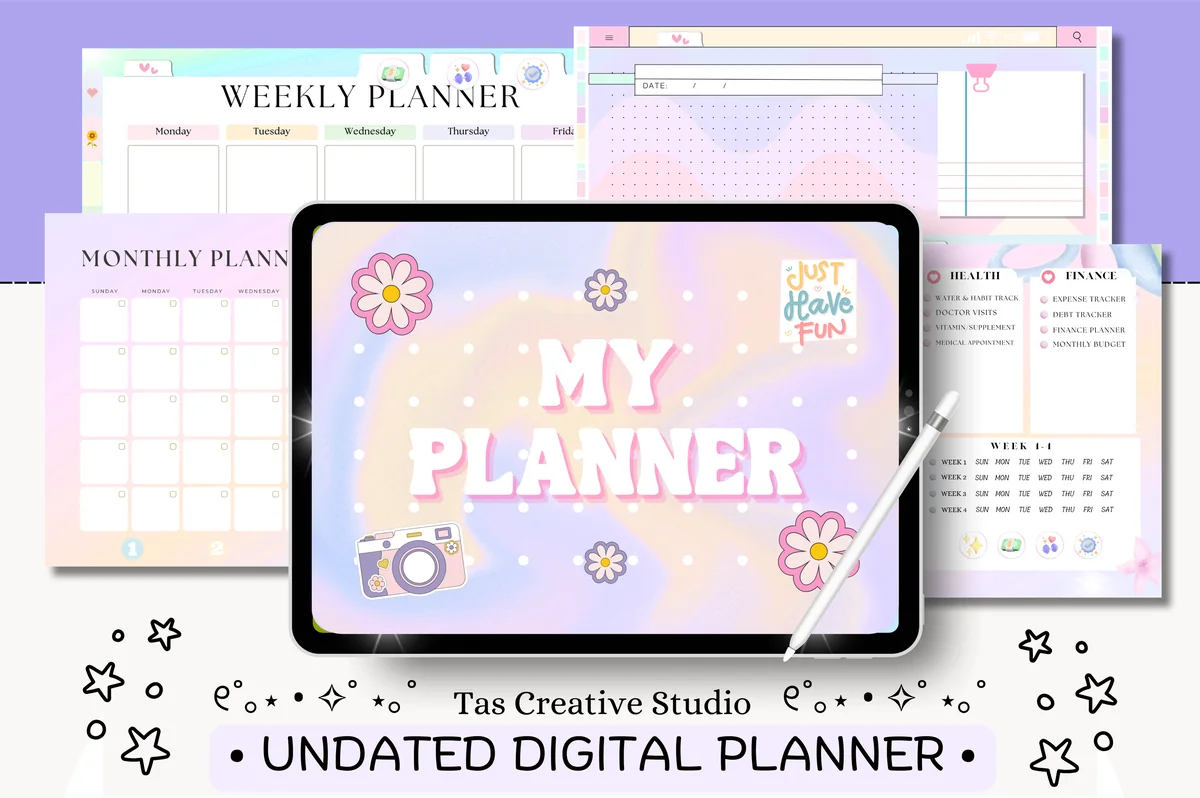
- 112-page undated landscape hyperlinked PDF
- Finance preview shows Monthly Budget and Finance Tracker
- Compatible with GoodNotes, Notability, Noteshelf and Xodo
The finance section is why this pastel console design belongs here. A visible Finance Tracker sits beside budget, savings and bill pages, letting a weekly review stay within one planner. It is a larger everyday hub rather than a specialist receipt system. The 20 ideas in this article are proposed arrangements, not 20 matching templates included in this PDF.
Quick Comparison
| Planner | Tracking role | Relevant pages | Keep in mind |
|---|---|---|---|
| 1. Expense Tracker • Coffee Latte | Single-page records | Date, category and payment method | Add your own refund notation |
| 2. Digital Budget Planner, Financial Planner | Daily-to-monthly review | Daily Spend Count and weekly check-in | Manual arithmetic |
| 3. Monthly, Debt, Expense Digital Planner | Monthly spreads | Expense pages plus graph notes | Manual entries and totals |
| 4. Gold Budget Digital Planner/Hyperlinked | Ledger and summary | Expense Tracker and Monthly Expenses | Do not enter totals as new purchases |
| 5. Budget Digital Planner Hyperlinked Tabs | Category totals | Monthly Expenses overview | Use notes for a detailed ledger |
| 6. Simple Savings Planner, Digital Planner | Compact purchase record | Purchases Tracker listed | Purchase columns not exposed in gallery |
| 7. Digital Budget Planner, Finance Tracker | Broad finance review | Expense Tracker in cover montage | Only one gallery image |
| 8. Undated Digital Planner, Life Planner | Schedule plus finance | Separate expense and revenue pages | Custom fields added by you |
| 9. All-in-One Digital Planner ( 112 Pages ) | Colorful planning hub | Finance Tracker and Monthly Budget | General planner, not receipt software |
Build a weekly review you can finish
The useful part of a monthly expense tracker is being able to explain its total. Keep your weekly review short enough to repeat. The following sequence is an optional workflow for the layouts above, not an automatic feature of the files.
From loose receipts to a checked week
- 1Gather the records. Bring together receipts, order confirmations and the account history for the period. Add missing cash purchases while you can still identify them. Keep any item you cannot explain in the exception box rather than guessing its category.
- 2Match and label. Compare each ledger row with its source. Check whether a pending entry became a posted charge, and look for copied transactions before adding new ones. Keep category spellings consistent so “transport” and “transportation” do not quietly become two totals.
- 3Calculate once. Total the transaction rows using your stated adjustment convention. Carry those totals to the summary page, then check that the category totals agree with the overall number. A handwritten PDF requires you to do this work; decorative charts do not verify it.
- 4Carry questions forward. Write unresolved references on the next review page and mark the period reviewed. Choose one practical improvement, such as a better receipt index. If the task feels too large, simplify the fields before adding another tracker.
Use spending tracker ideas to spot money habits
Record purchases daily if that helps you remember cash spending, check them weekly, and bring the totals together at month-end. For a longer view of spending habits, place three completed monthly summaries side by side. Calculate an average monthly total for a category by adding its totals and dividing by the number of complete months you included. Keep an unusual car repair or travel cost visible in the notes so the average has context.
To connect money management with the next month’s plan, write one observation and one action beside the checked totals. You might notice repeated delivery charges and decide to group orders to save money, or see that you overspend against a category limit you set yourself. Keep transfers toward an emergency fund or savings account in a separate savings summary, using the recording convention above. The review gives you a record to use in financial decisions; the page does not make those decisions for you.
Handwritten PDF, spreadsheet or expense app?
A handwritten iPad record gives you freedom to arrange the page and annotate a confusing purchase. That freedom comes with manual entry and checking. Choose the tool around the work you want it to perform, rather than assuming a linked PDF behaves like an account-connected app.
- PDF planner: useful for handwriting, visual layouts and notes alongside your schedule. These listings do not establish bank synchronization, receipt recognition or automatic totals.
- Spreadsheet: useful if you want formulas and sorting, provided you set them up and verify the inputs. It is a different workflow from the manual planner options here.
- Expense app: worth investigating if account imports or receipt processing are essential. Check the actual feature list, cost and data permissions of any service you consider.
For the wider planning context, my budget planner ideas guide covers how spending records can sit beside goals and other money pages. Keep this expense log focused on actual transactions; you can use what you learn when deciding your next budget.
FAQ: Personal Expense Tracking Questions
What should a simple expense tracker include?
Start with a date, a description you will recognize, a category and an amount. Add a receipt reference or payment-method field if it solves a real problem for you. Keep a separate place for unresolved entries. A page with five clear columns is more useful than one with twelve fields you never fill in.
Which monthly bills belong in my expense log?
Choose categories for the bills you actually pay, such as rent or mortgage, electricity, water, internet, phone service and auto insurance. Add groceries, fuel, health care and subscriptions when they fit your household. Keep due dates on the bill calendar and enter the payment in your expense log when it happens, following your chosen date convention.
If you track student loans or other debt payments, label them consistently with your personal spending convention. When purchases made with credit cards already appear in the log, keep the later payment from your bank account separate from those purchases so you do not count them twice. For an annual cost such as property taxes, record the actual payment in the log and keep any monthly planning allowance on the budget page.
Should I use a daily or monthly expense tracker?
They can work together. Daily rows capture individual purchases; a monthly view summarizes them by category or period. Use one source ledger and label the second view as a summary. If you prefer weekly pages, preserve the transaction dates so you can still group them correctly when a week crosses two months.
Can I make these pages in GoodNotes?
You can arrange a handwritten log on a suitable page in your note-taking app, or import a compatible PDF. The original ideas here describe layouts, not app-specific instructions or included product templates. Check your app version’s page tools and PDF support before relying on duplication, links or other editing functions.
How should I handle refunds and transfers?
Keep refunds linked to the original purchase and distinguish requested refunds from money received. In this guide’s personal spending convention, moving money between your own accounts is labeled separately from buying something. Credit-card payments also need care if the original purchases are already in your expense total. This is a recording example, not guidance for formal financial reporting.
What information is safe to keep, and when should I ask for help?
Use neutral account nicknames and keep passwords, complete card details and access codes out of an expense page. Think about where your notes and receipt images are stored and shared. These layouts organize records; they do not replace financial advice. If bills are becoming unmanageable, or you need tax, debt or business-accounting guidance, seek an appropriately qualified professional for your circumstances.
Start with a record you can explain
Before copying your layout for another month, check whether you can trace one category total back to its original entries. If a description or receipt reference leaves you guessing, widen that field or add a clearer note. Keep the expense tracker ideas that helped you complete that check, and remove fields you left unused.
You May Also Like
This article contains affiliate links. If you buy through them, I may earn a commission at no extra cost to you. See our affiliate disclosure.