The renewal notice lands in September, just when your monthly budget already looks full. An annual budget planner gives that bill a place before it arrives, alongside the income and seasonal costs you expect across twelve months.

Build the year view before choosing a new planner. Below are eight connected page ideas, a worked example that keeps a bill separate from money set aside for it, and seven iPad planners with useful supporting pages. You can also make the entire setup on paper or in your current notebook.
What belongs in an annual budget planner?
An annual budget is a twelve-month view of expected income and outgoings. It complements the monthly budget by showing timing: a comfortable annual total can still contain a difficult month. Start with known bills and past records, then mark estimates clearly instead of making every future month look equally certain.
- Original plan: what you expected at the start, with a date and the assumptions behind the amounts.
- Actual record: money received and paid, checked against your records after the month ends.
- Revised forecast: your latest estimate for the months still ahead, with a reason for each change.
- Separate savings-transfer record: money moved between your own accounts, kept apart from the same bill when it is paid.
The basic recordkeeping follows Consumer.gov’s budgeting guide: gather income and bill records, plan the month, track spending and compare it with the plan. The eight-page arrangement below is my editorial way to extend that process across a year, rather than an official required format.
Give your annual budget planner template a category key
Use a small category key on your budget worksheet so monthly entries roll into the same annual totals. Separate fixed expenses, such as a rent payment that stays unchanged, from changing costs such as utilities, groceries and entertainment. Include child care or student loans only when they belong to your household, and give occasional shopping its own estimate instead of hiding it among regular bills.
Keep a breakdown of debt repayment beside the spending record if you need to monitor those payments across the year. When you track purchases made with credit cards, label the later card payment so you do not count the purchase and its repayment as two new purchases. Record cash spending from receipts too, then use the same categories when you compare each month’s budget versus actual spending.
Eight page ideas for a twelve-month money plan
Use the same month order on every page, even if you start midyear. A rolling July-to-June plan is easier to follow when the bill calendar, forecast and review all begin in July. Keep the year and the date of your latest update at the top of your own pages.
1. Make an income forecast with confidence notes
Draw twelve rows, one for each month, and add columns for expected income, source, expected receipt date and a short confidence note. For regular employment, use take-home pay consistently. Leave a tentative payment labeled tentative; a hoped-for bonus should not quietly become money already available.
Build the income page
- 1Copy the normal received pay amount from your records, rather than a headline salary figure. Put each expected receipt in the month it is likely to arrive.
- 2Add a small note beside a changing amount, such as reduced hours in August or an unconfirmed project payment. Use a separate symbol for estimates.
- 3Leave an Actual received column blank until the money arrives. At review time, copy the checked total here instead of overwriting the original estimate.
For instance, a fictional $2,800 monthly take-home estimate gives $33,600 across twelve unchanged months. That arithmetic is a planning example, not a promise of income. If hours change, revise the affected months and keep the earlier assumption visible.
2. Give each annual bill its due month
Create an annual payment calendar with the bill name, expected amount, due date, payment frequency and the record you used to check it. A renewal that arrives once a year belongs in the month it is due. Leave space to replace an estimate when the actual notice arrives.
- Mark monthly, quarterly and annual frequency explicitly so a yearly total does not multiply the wrong number.
- For a September renewal, place the full expected bill in September’s expense forecast.
- Add a reminder to verify an unknown date; do not turn an old date into a confirmed deadline.
Use a short label such as “renewal estimate, check notice” rather than a vague star. The CFPB’s Your Money, Your Goals toolkit separates a bill calendar from a spending tracker, a useful distinction for this setup too.
3. Sketch a seasonal spending map
Put the twelve months along a simple strip and write the events that can change ordinary spending underneath: travel, birthdays, a move or a change in commuting. Add an estimated amount beside the relevant event and link it to one expense category in the forecast. An event label on its own is only a reminder, not a budget entry.
Turn events into estimates
- 1List events you actually expect, using your household calendar rather than a generic seasonal checklist. A quiet December is a valid entry.
- 2Use a past statement, receipt or current quoted amount as the starting point. If none is available, label the amount as an estimate and give it a review date.
- 3Put the resulting cost into one month and one category in the main matrix. Keep the decorative event strip as a visual guide so its figures are not added again.
4. Add a one-off cost register
The bill calendar catches known recurring dates; this register holds planned costs that do not repeat neatly. Think of replacing a worn desk chair or paying for a particular course, with columns for item, target month, estimate, certainty and next action. Keep optional projects distinguishable from commitments already made.
A fictional $180 chair planned for June can be an estimate until a purchase decision is made. If you move the purchase to October, cross-reference the revision log and move the forecast entry once. Do not leave $180 in both months unless two separate purchases are genuinely intended.
- Known amount and date: enter both and note the source.
- Known need, uncertain timing: choose a provisional month and flag it for review.
- Optional idea: keep it visibly separate until you decide to include it in the forecast.
5. Put savings goals on a separate timeline
Create a short line for each goal with a target amount, target date, opening balance and planned transfers. This page answers when you intend to move money into savings. The expense forecast answers when you expect to pay an outside bill; the two views should not be added together without checking what they represent.
For a goal with an opening balance of $60 and a $300 target, the remaining amount is $240. Twelve equal $20 transfers would close that example gap if all were made. If the target date is sooner, twelve future transfers will not meet it: use the actual number of transfer dates before the deadline.
Keep the page small. The goal here is to see timing and intended movements, not to prescribe an investment, borrowing strategy or guaranteed savings result. Record completed transfers separately from planned ones.
6. Keep plan and actual figures side by side
Make the main annual matrix readable first. Twelve month columns multiplied by many categories can become tiny on an iPad, so use twelve rows and a few summary columns, or two six-month pages. Put category-level transactions on a linked monthly page rather than squeezing every receipt into the year view.
| Month | Planned income | Planned expenses | Actual expenses | Expense difference |
|---|---|---|---|---|
| January | $2,800 | $2,300 | $2,360 | +$60 |
| February | $2,800 | $2,350 | Not closed | Not calculated |
| September | $2,800 | $2,540 | Not closed | Not calculated |
These invented figures illustrate the layout only. Here, expense difference means actual expenses minus planned expenses, so January’s +$60 means spending exceeded the plan. Write that definition on the page; a bare plus sign can mean different things in different templates. September includes the example $240 annual bill on top of $2,300 of other expenses.
Close one row without rewriting history
- 1Check actual income and expenses against your records, and add up each category using one consistent recording method. The PDF does not perform the arithmetic for you.
- 2Enter actual figures beside the original plan. Keep months that have not closed visibly open instead of filling them with zero, which would imply no spending.
- 3Calculate the difference and write one factual explanation for a material change. Then update future estimates in the forecast view, keeping the original plan intact.
For a visual summary, draw a paired bar chart beneath the matrix, with one income bar and one expense bar for each closed month. Use one scale for every month and label whether the bars show planned or actual amounts so seasonal trends remain readable. Keep the exact dollar totals in the table above, and add a short note explaining a visible change rather than treating the chart as a separate calculation.
7. Keep a quarterly revision log
Use a dated change log after each three-month block, or sooner if a major assumption changes. Give each line a reason, affected months, old estimate, new estimate and next review date. The log explains why the latest forecast differs from the plan you began with.
- Example: on April 5, a confirmed monthly service cost rises from $40 to $45 starting in May.
- Update May through December: eight months × $5 adds $40 to the remaining-year forecast.
- Keep January through April as recorded. The change is a future estimate update, not a reason to alter past receipts.
This review frequency is a suggested routine, not a financial rule. A new pay schedule may justify an earlier update. The point is to leave an explanation another reader, or your future self, can understand.
8. Make a next-year handoff page
At the end of the planning period, write down which annual bills repeated, which estimates missed their timing and which one-off expenses should not be carried forward. Add a short list of dates to verify next time. Copying a total without its context can turn a single purchase into a permanent assumed cost.
Leave a useful starting point
- 1Bring forward recurring bill names and review dates, then verify the next amount when you receive a current notice. Last year’s charge is evidence for an estimate, not confirmation of a new price.
- 2Summarize the largest differences between planned and actual expenses. Note whether each was a timing change, a price change or a genuinely new cost.
- 3Archive the completed year with a clear label and begin a fresh plan. Carry over savings balances as opening balances, rather than treating money already saved as new income.
One $240 bill: expense, reserve and payment
Suppose an annual service costs $240 and is due in September. The expense forecast has one $240 payment in September. A separate savings plan might show twelve $20 transfers across a full preparation cycle; those transfers move your own money and are not another $240 purchase of the service.
| Record | What to enter | How to read it |
|---|---|---|
| Annual expense forecast | $240 in September | Expected payment to the service provider |
| Savings-transfer log | $20 on each of twelve transfer dates | Own-account movements tracked separately |
| Actual expense record | Actual service payment when paid | Replaces the estimate for comparison; does not add a second copy |
Timing matters: if you start from zero in January and need the full amount before a September payment, twelve monthly transfers will not all arrive in time. Choose the preparation dates to match the real deadline and existing balance. The $20 × 12 example describes a full cycle, not a claim that any start date works.
- Do not total the service payment and its reserve transfers as two purchases in the same expense category.
- If your household budget treats savings as an allocation, label that subtotal separately from outside spending.
- Do not count both a purchase and the later movement of money used to settle that same purchase as two copies of the original cost. Keep the method consistent.
Seven iPad tools to support the year view
These are optional planning files, selected from their descriptions and every available listing preview. My review covers public listing material, rather than hands-on use of the paid files. Some supply a yearly summary or annual bill record; others provide monthly pages or Notes for your own layout. An annotation app is separate. Expect manual records rather than spreadsheet calculations, a bank connection or automatic totals.
TL;DR: These seven digital tools offer yearly summaries, bill records or space for a custom annual matrix. The eight page ideas work in a notebook you already own; arithmetic, transfers and revisions are manual.
Quick Picks
- Best for a visible yearly overview: Undated Budget Planner for GoodNotes
- Best for following the plan through the months: Digital Budget Planner, Financial Planner
- Best for quarterly checkpoints: Gold Budget Digital Planner/Hyperlinked
- Best for a compact annual setup: Budget Digital Planner Hyperlinked Tabs
- Best for annual bill dates: Hyperlinked Bill Tracker Planner
- Best for a workbook-style bill reference: Digital Budget Planner, Finance Tracker
- Undated Budget Planner for GoodNotes – Best for a visible yearly overview
- Digital Budget Planner, Financial Planner – Best for following the plan through the months
- Gold Budget Digital Planner/Hyperlinked – Best for quarterly checkpoints
- Budget Digital Planner Hyperlinked Tabs – Best for a compact annual setup
- Hyperlinked Bill Tracker Planner – Best for annual bill dates
- Digital Budget Planner, Finance Tracker – Best for a workbook-style bill reference
- All-in-One Digital Planner (112 Pages) – Best for keeping the budget beside the calendar

Best for a visible yearly overview
1. Undated Budget Planner for GoodNotes
Orientation: PortraitLayouts: Yearly overview and monthly spendingDates: Undated
Best for: starting with a year-level page rather than twelve separate monthly files. Designed by Perla Designs.
- Hyperlinked PDF described as 30 slides for GoodNotes
- Yearly Overview, Spending Summary and Monthly Spending shown in the two listing previews
- Undated format with a monthly calendar in the index
The Yearly Overview is the clearest starting point in this set for seeing months together. The preview shows month rows and income, expense and savings columns, so keep that page as a summary and use the monthly records for detail. It is not the full forecast-and-revision system described above: the separate original plan and dated change log are your additions. Only two listing images are available; I have not tested the paid file.
Best for following the plan through the months
2. Digital Budget Planner, Financial Planner
Orientation: PortraitLayouts: Monthly budget, spending and yearly overviewDates: Undated calendar
Best for: connecting a yearly summary with monthly budgets and spending records. Designed by ThePlannersDelight.
- Hyperlinked PDF for GoodNotes, Noteshelf or Notability
- Monthly Budget, Daily Spend Count, Bill Tracker and weekly expense reflection
- Yearly Overview and an undated calendar page
- According to the seller, use an Apple tablet with a writing stylus, for example Apple Pencil. The apps, tablet and stylus do not come with this planner.
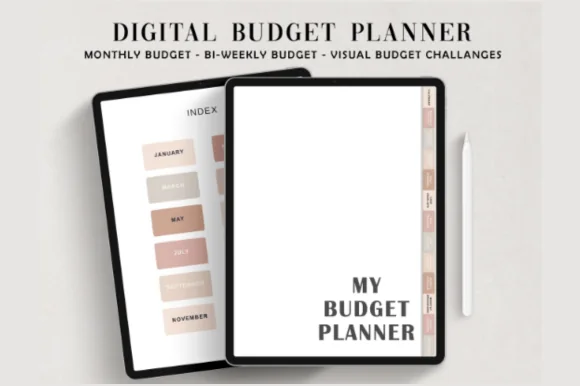
A yearly number needs somewhere to meet the transactions behind it. This planner connects monthly budgets and daily spending logs with a Yearly Overview. Put the forecast in your annual matrix, then bring each month's checked totals back to the overview. The biweekly budget and visual challenges are optional extras; they do not calculate an annual projection or update a forecast for you.
Best for quarterly checkpoints
3. Gold Budget Digital Planner/Hyperlinked
Orientation: PortraitLayouts: Monthly and quarterly bills with Notes
Best for: building a custom annual sheet beside less frequent bill records. Designed by Nann Digital Art.
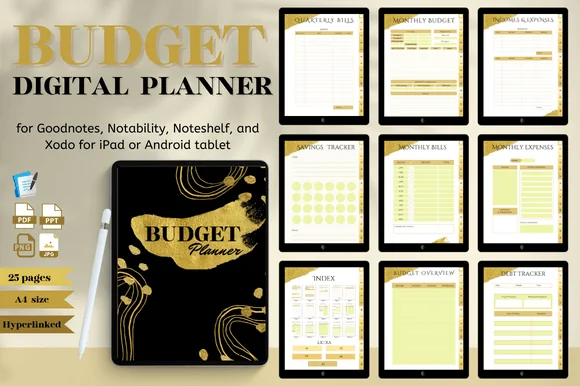
- 25-page A4 hyperlinked digital planner for iPad annotation apps
- Quarterly Bills, Monthly Bills, Income Tracker and Expense Tracker
- Five extra pages; lined and grid Notes shown in the gallery
Quarterly Bills is a useful bridge between an annual calendar and a monthly ledger. Put a known payment in its due month in your forecast, then use the quarterly page to check the next few months without rewriting the entire year. The grid Notes shown in the gallery can hold your own change log. Its black-and-gold layout is more decorative than the first two options, and every total remains manual.
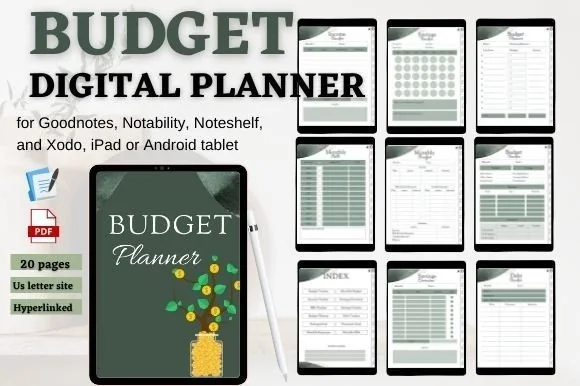
Best for a compact annual setup
4. Budget Digital Planner Hyperlinked Tabs
Orientation: PortraitLayouts: Income, monthly budget, bills and Notes
Best for: keeping a short income and bills record with room for your own annual labels. Designed by mixxdigitaldesign.
- 20-page US Letter hyperlinked digital planner
- Income Tracker, Monthly Budget, Monthly Bills and Savings Overview
- Notes and Extra Pages; GoodNotes, Notability, Noteshelf and Xodo listed
For a small setup, the separate income and bills pages are more useful than a large collection of unrelated trackers. Use the green planner's extra space for a twelve-row annual table, with one row per month, and keep its Income Tracker for actual receipts. The listing does not promise a dedicated twelve-month forecast. It suits a short custom annual record; the year-planning sequence is yours to build.
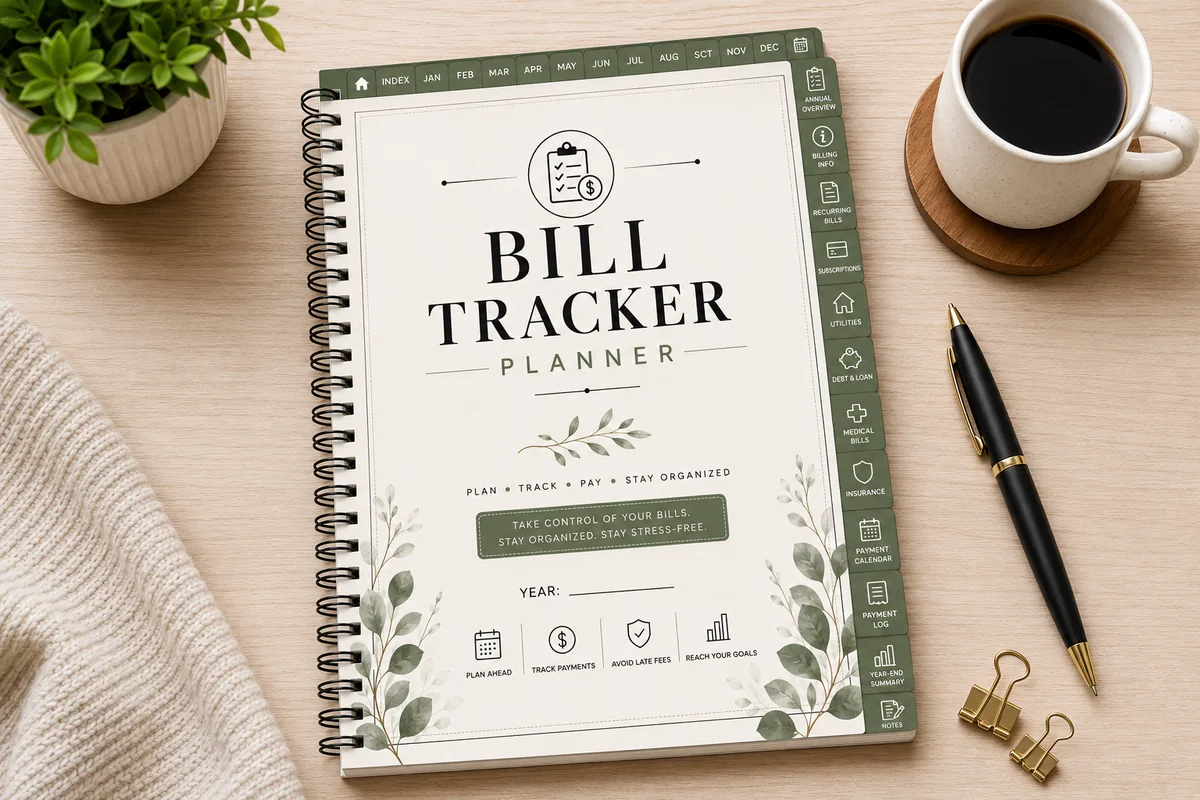
Best for annual bill dates
5. Hyperlinked Bill Tracker Planner
Orientation: Portrait A4Layouts: Bill overview and monthly bill recordsDates: Undated
Best for: keeping recurring obligations visible across monthly and yearly bill records. Designed by Azhir.
- 52-page undated hyperlinked PDF described for Goodnotes and other annotation apps
- Annual Bill Overview, 12 Monthly Bill Trackers and Year-End Financial Summary listed
- Portrait A4 format; lined, grid, dot-grid and blank Notes listed
This is a bill-side companion to the annual plan. Annual Bill Overview and the monthly trackers are listed features, but the only available image shows the cover, so I cannot assess their internal column widths or handwriting space. Keep income forecasts and broader spending estimates in your own matrix. Its focused bill records suit readers who need payment months kept together without a general life planner.
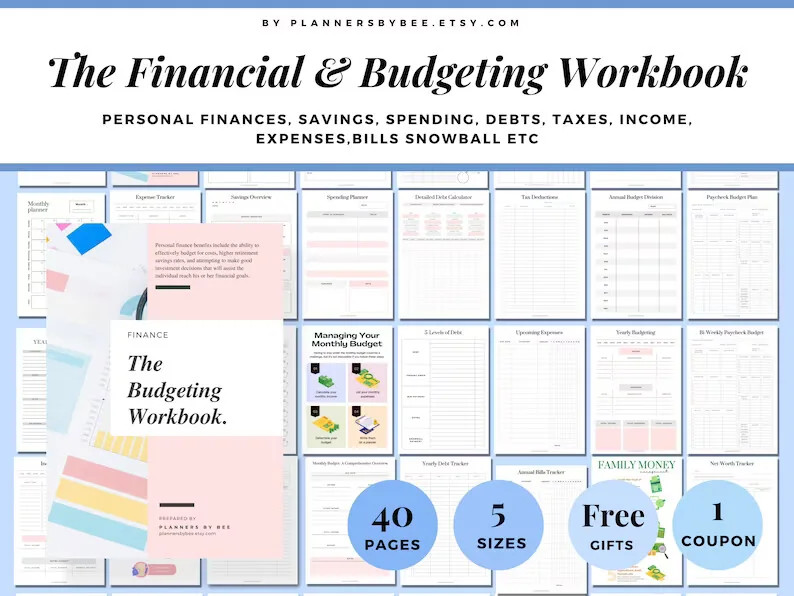
Best for a workbook-style bill reference
6. Digital Budget Planner, Finance Tracker
Orientation: Portrait pages shownLayouts: Budget workbook and annual bill tracker
Best for: keeping a broad finance workbook beside an annual plan you draw yourself. Designed by PlannersByBee.
- GoodNotes finance workbook identified in the listing
- Single promotional preview labels an Annual Bill Tracker and monthly budget pages
- Portrait page layouts shown; detailed internal fields are not legible in the listing image
The Annual Bill Tracker visible in the promotional image gives this workbook a specific role here: a place to reference annual obligations. That single collage does not show enough detail to promise a ready-made twelve-month income forecast, nor have I checked a purchased PDF. Keep the article's annual matrix as the main planning page and this workbook as an optional supporting record. Compare the listing carefully if readable page examples are important to your choice.
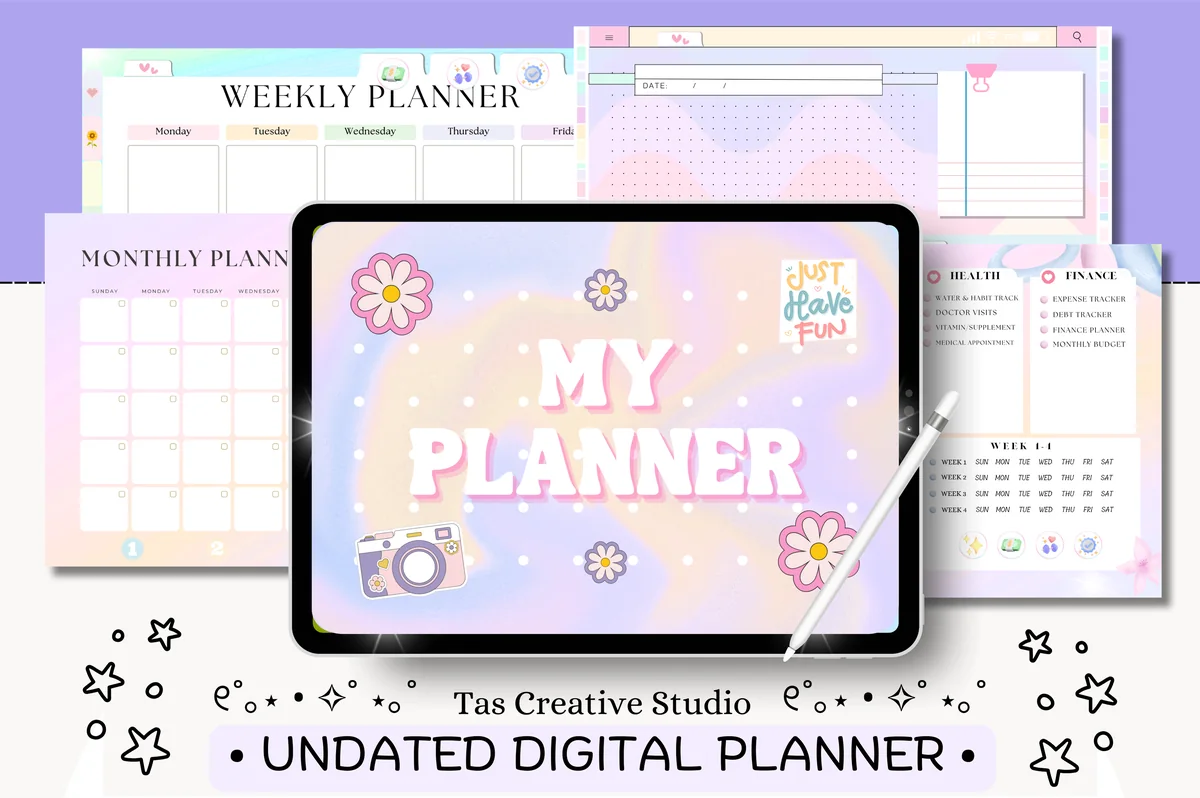
Best for keeping the budget beside the calendar
7. All-in-One Digital Planner (112 Pages)
Orientation: LandscapeLayouts: Monthly finance, calendar and dotted NotesDates: Undated
Best for: adding a handmade annual forecast to a general planner with finance pages. Designed by Tas Creative Studio.
- 112-page horizontal, hyperlinked, undated PDF
- Monthly Budgeting, expense, savings and bill tracking listed; finance pages shown in preview 16
- Dotted note-taking space shown in preview 17; GoodNotes and Notability listed
This pastel planner places finance beside everyday scheduling, which can help when seasonal spending is tied to events. Use its monthly budget for that month's detail and draw the annual forecast on the dotted note space. A horizontal screen offers a different writing arrangement from the portrait options, but the listing does not provide a dedicated annual budgeting workflow. The colorful game-console artwork is prominent, so check that it leaves the visual space you want for a numbers page.
Quick Comparison
| Planner | Annual role | Relevant pages | What you add |
|---|---|---|---|
| 1. Undated Budget Planner for GoodNotes | Year-level summary | Yearly Overview and Spending Summary | Add original-plan and revision records |
| 2. Digital Budget Planner, Financial Planner | Monthly evidence trail | Budget, daily spending and yearly overview | Build the forecast matrix yourself |
| 3. Gold Budget Digital Planner/Hyperlinked | Quarterly review | Quarterly Bills, income, expenses and Notes | Custom annual matrix on an extra page |
| 4. Budget Digital Planner Hyperlinked Tabs | Compact custom setup | Income, monthly bills and extra pages | Create the year view and review labels |
| 5. Hyperlinked Bill Tracker Planner | Annual obligations | Annual Bill Overview and monthly trackers | Income forecast is a separate addition |
| 6. Digital Budget Planner, Finance Tracker | Supporting workbook | Annual Bill Tracker shown in collage | Fine internal fields not assessable |
| 7. All-in-One Digital Planner (112 Pages) | Budget plus scheduling | Monthly finance pages and dotted Notes | Add a custom annual forecast |
Keep the annual view connected to ordinary months
After choosing a layout, give it a short maintenance routine. The annual page should point to the monthly detail that explains its totals. If you need help building that detail first, the broader budget planner ideas guide covers everyday page choices without replacing this twelve-month forecast.
A repeatable monthly check
- 1Open the month’s bills, income and spending records, and check the amounts before copying summary totals. Keep estimates distinct from received or paid amounts.
- 2Bring the totals into the annual row and label the month closed only when you have checked it. Add a brief note for a change that affects the rest of the year.
- 3Review the next two months for annual payments and planned one-off costs. Adjust the forecast when there is new evidence, and write the date and reason in the revision log.
For a pay-cycle view between annual reviews, these biweekly budget templates address paycheck timing. A year that balances on paper does not show whether the money will be available on a particular payment date, so keep the date-level record alongside it.
Template or app: choose the work you want to do
- Choose a handwritten PDF setup when you want to annotate assumptions, draw your own tables and review figures manually. Check that the handwriting space is readable on your device.
- Consider a spreadsheet separately when automatic totals and formulas are the main requirement. The manual files above do not gain those functions from their hyperlinks.
- Keep reminders separate when you need an alert. A PDF date or monthly tab is not proof of a calendar notification, bank sync or automatic bill payment.
You can start with one annual matrix, one bill calendar and one change log. Add the seasonal map or goal timeline only when it explains something the main page cannot. A smaller record that you revisit is more useful than eight attractive blank pages.
FAQ: annual budget planning questions
Can I start an annual budget in the middle of the year?
Yes. Label a rolling twelve-month period, or keep completed months as actuals and forecast the remaining months of the calendar year. Use the same start month across your pages, and do not present a partial-year total as a full-year result.
Is an annual bill overview the same as an annual budget?
No. An annual bill overview helps organize bills across the year. A broader annual budget also needs expected income, other spending, the timing of planned costs and a way to compare estimates with actuals. You can combine the overview with your own matrix.
Should I divide every annual cost by twelve?
Dividing can give a monthly planning amount, but it does not change the bill’s payment date. A reserve that begins shortly before a deadline needs a different timeline or an existing balance. Keep the full expected bill in its due month and record reserve transfers separately.
Can these digital planners calculate totals or connect to my bank?
No such function was established for these products. Their hyperlinks are for navigation. Plan to enter and calculate figures yourself in a compatible annotation app; use a separate tool if automatic arithmetic or banking features are essential.
Is this personal financial advice, and when should I get help?
This is a general recordkeeping workflow with invented arithmetic examples, not a recommendation about credit, investments or taxes. If the plan shows that essential payments cannot be met, or you need decisions about debt or tax obligations, seek a qualified professional or reputable financial counselor for your circumstances. Buying a planner does not resolve a shortfall.
Give the next change somewhere to go
Start your annual budget planner with known income, the next annual bill and a clearly labeled estimate for the months ahead. Keep the first plan, enter actual figures beside it and date each revision. You will have a useful record of what changed without needing to redraw the entire year whenever one number moves.
You May Also Like
This article contains affiliate links. If you buy through them, I may earn a commission at no extra cost to you. Read the affiliate disclosure.