A no spend month works better when the rule is written before the first tempting purchase. You still pay for essentials. The experiment is to pause chosen nonessential spending, record what happens and decide which habits are worth keeping.
Set up the challenge in a planner you already own before buying anything new. Below are seven practical steps, a worked example and eight iPad budget tools for different parts of the record. They are general budget files you adapt, not eight ready-made no-spend templates.
What counts as a no spend month challenge?
In a full no-buy month, you keep essential spending and pause discretionary purchases. A smaller version can focus on a category such as clothes, home decor or takeout. Write which version you mean so a successful day has a clear definition.
Both Fidelity’s explanation of a no-spend challenge and Johnson Financial Group’s no-spend guide distinguish essential purchases from discretionary ones. Your planner turns that distinction into a rule you can actually check.
- Keep: housing, necessary food, medical needs, required transport and payments you owe.
- Pause: the optional categories you name in advance. A category-specific challenge can be narrower than an essentials-only month.
- Record separately: an unexpected necessary purchase, a planned exception and an off-rule purchase. They tell different stories.
Needs depend on your circumstances. A replacement work item may be necessary even when browsing for upgrades is paused. The point of the rules sheet is to make that distinction calmly, without using a colored calendar as a judgment about yourself.
Seven steps to set up your month on an iPad
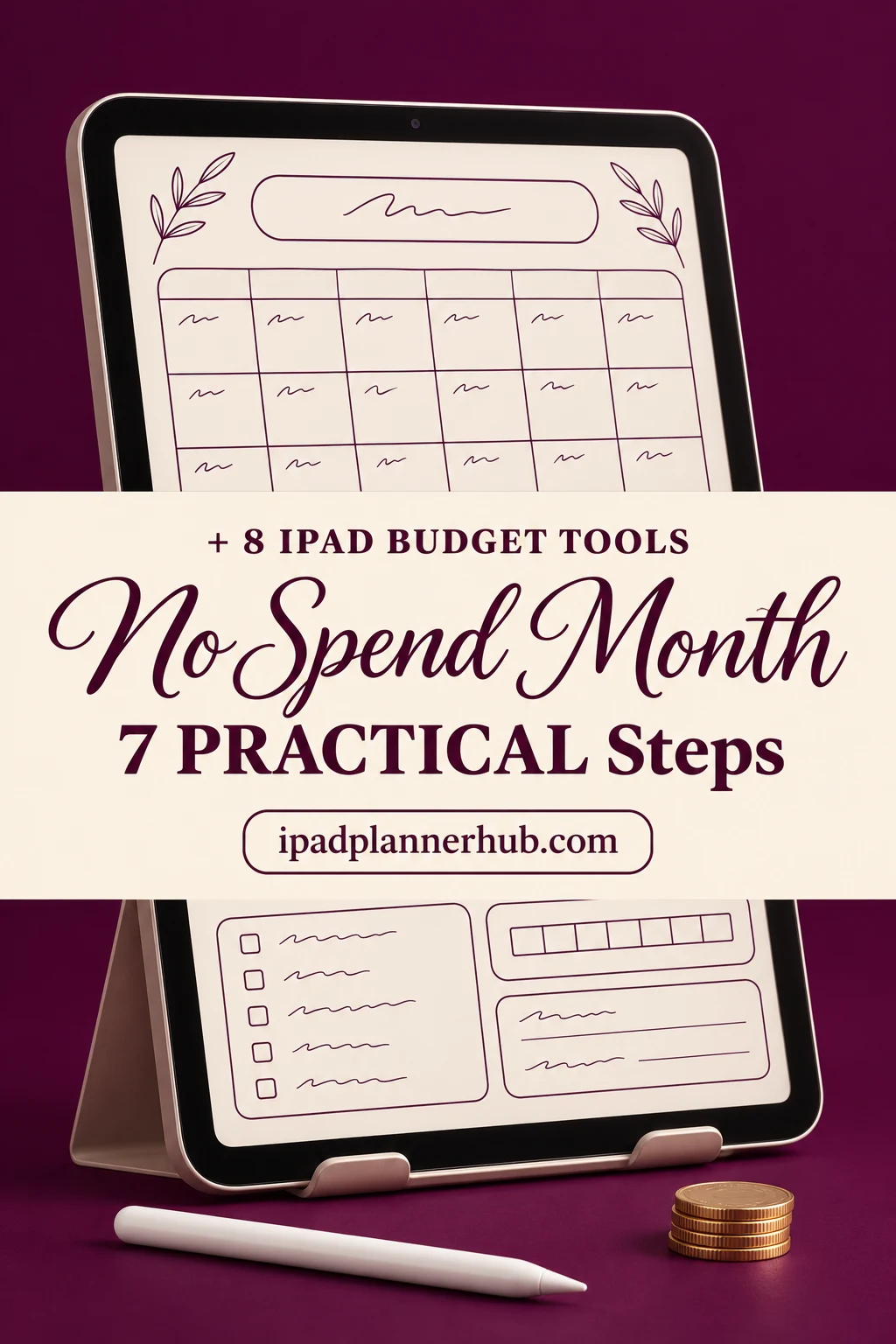
For a no spend month tracker, use a rules page, a calendar and a short log. You can create them on blank pages in an existing notebook; a decorative layout is optional. Keep the same month label on each page so the record stays together.
- 1
Choose the category and the dates
Write a start date, an end date and a sentence that names the spending you are pausing. For example: “From the first through the last day of this month, I am pausing nonessential home decor purchases.” That is easier to assess than “be better with money.”
Look at the calendar for travel, birthdays or appointments before choosing the scope. If this is your first attempt, one discretionary category can be a more useful experiment than a sweeping rule you cannot define. A calendar month may have 28, 29, 30 or 31 days; number the grid for the actual period.
- 2
Write your allowed list and exceptions
Create two headings: “Still in the budget” and “Paused this month.” Under the first, list the essentials you expect to pay. Under the second, name the purchases you want to interrupt. Add any planned exception before the challenge begins, including what it covers.
For a shared household, agree whose spending is included. Your personal challenge does not automatically cover a partner’s account or a roommate’s groceries. Write the boundary in one sentence. If an essential cost changes, update the record rather than hiding the transaction to protect a streak.
- 3
Build a calendar with a readable legend
Your no spend month calendar can be a reused monthly grid with a tiny legend beside it. I like four plain labels: “rule followed,” “allowed expense,” “off-rule purchase” and “review needed.” Add a letter or symbol as well as color so the meaning survives a grayscale view or a small screen.
An allowed grocery trip does not need to become a failed day. If you want to count days with literally no transactions, keep that as a separate total. It answers a different question from whether you followed the challenge. Include a short note for a mixed day instead of inventing a fifth rule halfway through.
- 4
Prepare an alternative before the usual trigger
List two or three situations in which you tend to shop, then write an alternative beside each one. A free library book may replace browsing a book sale. An existing meal plan may help with an unplanned takeout order. Pick options that fit the category you actually paused.
Make a waiting list for optional items rather than keeping them in a shopping cart. Record the item and why you wanted it, without treating its price as savings. Review the list later; you may still need something, or you may find that the urge was tied to a temporary situation.
- 5
Keep a daily record of purchases and pauses
Give the log columns for date, item or situation, category, amount, rule label and a short note. Record allowed spending too. Otherwise, the calendar can look quiet while ordinary costs are missing from the review. A skipped purchase belongs in a separate “considered” list, with no claim that the price was saved.
For a day with an off-rule purchase, write the amount and what happened. Continue with the next entry. You do not need to erase the month or wait for another first day. If many entries are hard to classify, that is useful evidence that the rules need clearer boundaries.
- 6
Check in each week without changing the past
Choose a short recurring review time. Compare your entries with receipts, debit card transactions and credit card activity, mark any missing purchases and look at the next week’s required payments. This catches a forgotten subscription before the final review and keeps necessary expenses visible.
Ask three questions: Which rule was clear? Which situation led to an unplanned purchase? What practical preparation would help next week? Record a change with its date. Keep the old rule visible so the final review does not make a revised challenge look as if it had always been the plan.
- 7
Close the month and choose one habit to keep
Total the actual spending in your paused categories, then review required expenses and any exceptions. Note a pending charge or refund separately if it has not settled. Compare like categories and explain unusual costs instead of presenting a single difference as proof of a successful financial transformation.
Finish with one next action: keep the waiting list, continue a weekly review or repeat the same category with a clearer exception. If you set money aside, record the actual amount and date in your savings log. A planner records your action; it does not transfer money or calculate a bank balance for you.
No spend month tips for shopping triggers and weekends
Before setting the rule, look through recent bank statements to identify where optional spending money went. Choose a category you want to understand, then write the purpose of the pause beside it. Keep recurring bills and necessary gas in the allowed budget so the challenge does not hide required costs.
Plan grocery shopping around food you already have, and write down what you still need before entering the store. If eating out is the category you paused, decide what you will eat during a busy evening before it arrives. Put an impulse buy on the waiting list instead of leaving it one click away in a cart.
Try no spend month ideas that fit your weekend
Write a free entertainment option beside the weekend plans on your calendar: borrow a library book, finish a craft with supplies you own or invite friends over using food already in the budget. Choose something you want to do so the pause has an alternative to browsing shops. For couples taking part together, agree on shared plans and personal exceptions before either partner makes a purchase.
A rules sheet you can copy into your planner
This is an original example for a home-decor pause. Replace the category and exceptions with your own. Someone pausing takeout would need a different allowed list, especially if meals away from home are necessary for work or accessibility.
- Period: the first through the last day of the chosen month.
- Paused: decorative cushions, candles, ornaments and optional storage upgrades.
- Allowed: normal household bills, necessary groceries and replacing a broken item needed for daily living.
- Planned exception: an already agreed gift within the existing gift budget.
- Decision rule: write uncertain items on the waiting list and label the day “review needed” until classified.
- Review: check the log weekly and close it after the final day’s entries are reconciled.
Keep the rules close to the log. A separate notes page is helpful if your expense tracker has narrow rows. On the calendar, a letter such as A for an allowed purchase can link to the dated entry without crowding a small day cell.
Record a skipped purchase without inventing savings
A price on a waiting list is an intention you interrupted. It is not automatically money added to savings. You might not have bought the item anyway, and another necessary cost may have used the available money. Keep the waiting list and your actual savings record separate.
For an original bookkeeping example, suppose you considered a $45 decor item and did not buy it. Your prior comparable month had $80 of decor spending; this month has $20. Record three different observations: the $45 item stayed on the waiting list, decor spending was $60 lower, and the amount actually set aside is whatever your records show. If that deposit was $25, enter $25 in the savings log, not $45 or $60.
For the transaction check, the CFPB’s spending assessment guidance supports using account history and receipts and comparing the budget with actual balances. The example above is an organizational illustration, not a promised result or a savings target.
Choose a budget tool for the part you want to record
Start with the task, then choose the file. A daily ledger supports transaction detail; a bill tracker keeps required payments visible; a savings plan can record the result after reconciliation. You do not need all eight, and you do not need to buy a planner to try the steps.
The following tools are selected from their public listings and preview images. They require your own handwriting or entries. Where only a cover is available, the card says so. App costs and behavior can vary; these are digital planning tools used with the apps specified in each listing, not banking apps.
TL;DR: Use the seven steps to create your own challenge pages first. These eight budget tools support different parts of the process; none is presented as a dedicated no-spend-month template.
Quick Picks
- Best for a detailed daily record: Digital Budget Planner, Financial Planner
- Best for a monthly summary: Undated Budget Planner for GoodNotes
- Best for writing your own rules: Gold Budget Digital Planner/Hyperlinked
- Best for category totals: Expenses Tracker 4years Interactive PDF
- Best for protecting bill payments: Hyperlinked Bill Tracker Planner
- Best for a broader money review: Digital Budget Planner, Finance Tracker
- Digital Budget Planner, Financial Planner – Best for a detailed daily record
- Undated Budget Planner for GoodNotes – Best for a monthly summary
- Gold Budget Digital Planner/Hyperlinked – Best for writing your own rules
- Expenses Tracker 4years Interactive PDF – Best for category totals
- Hyperlinked Bill Tracker Planner – Best for protecting bill payments
- Digital Budget Planner, Finance Tracker – Best for a broader money review
- Simple Savings Planner, Digital Planner – Best for recording savings deposits
- Rabbit Savings Tracker PDF Files – Best for a visual savings finish
Daily records and monthly totals

Best for a detailed daily record
1. Digital Budget Planner, Financial Planner
Orientation: PortraitLayouts: Monthly and biweeklyFormat: Hyperlinked PDFDates: Undated calendar
Best for: matching daily spending with the monthly budget. Designed by ThePlannersDelight.
- Undated calendar and daily spend count pages
- Monthly and biweekly budgets, bill tracker and weekly expense check-in
- Hyperlinked PDF with matching PNG stickers
- Seller requirements: an Apple tablet (iPad) and a writable stylus such as Apple Pencil. Apps, tablet and stylus are not included and require separate purchase.
The daily spending page is the strongest match for the log below. I like having a weekly check-in beside it: a colored calendar cell can tell you that a rule was followed, while the log explains where the money went. Use the undated calendar for your own legend; this is a general budget planner, not a ready-made no-buy challenge.
Best for a monthly summary
2. Undated Budget Planner for GoodNotes
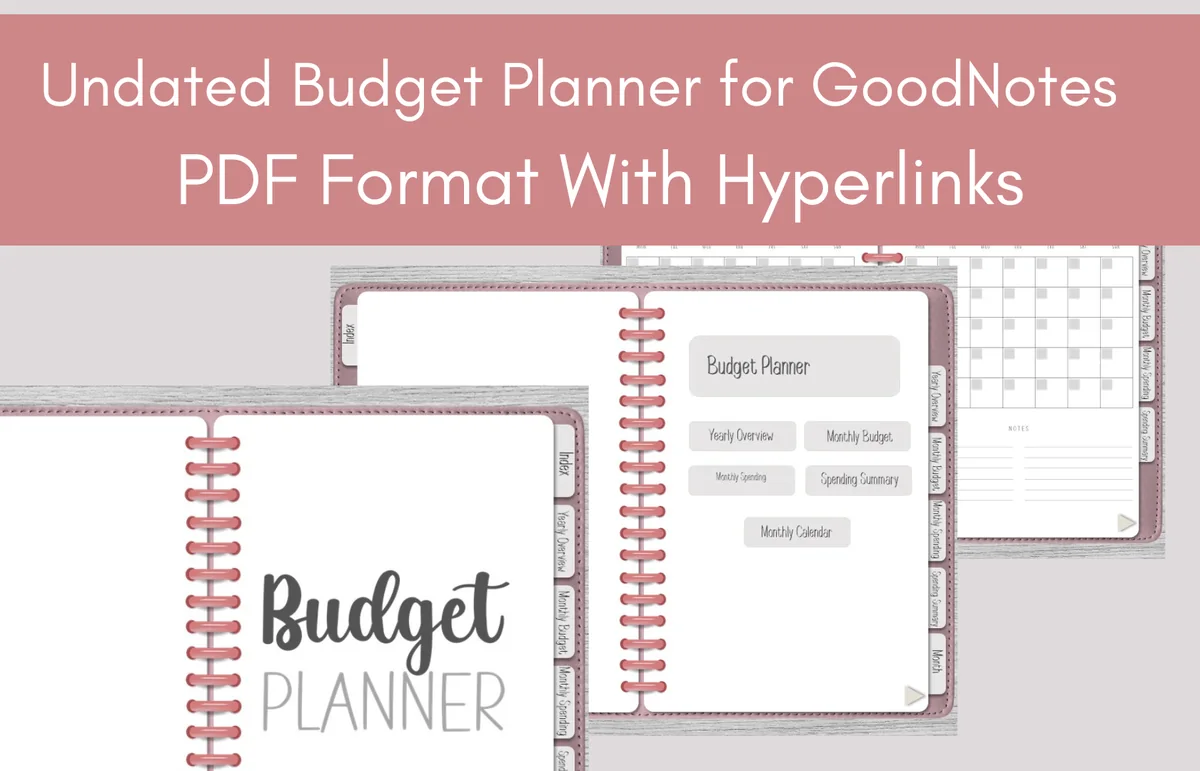
Orientation: LandscapeFormat: Hyperlinked PDFDates: Undated
Best for: reviewing a single month without a large challenge system. Designed by Perla Designs.
- 30-page hyperlinked PDF for GoodNotes
- Yearly overview, monthly budget and monthly spending pages shown in previews
- Spending summary for reviewing categories
Perla Designs gives the month a clear home. Put the challenge totals into the spending summary, then compare them with the monthly budget. The pink ring-bound layout is a visual alternative to the first planner; the short listing does not promise a daily no-spend calendar or automatic calculations.

Best for writing your own rules
3. Gold Budget Digital Planner/Hyperlinked
Orientation: PortraitLayouts: Budget and notesFormat: Digital planner
Best for: keeping a rules sheet beside expense and bill pages. Designed by Nann Digital Art.
- 25-page digital and printable planner for iPad PDF apps
- Monthly expenses, monthly bills, budget and savings pages
- Five extra pages, with lined, grid and blank notes shown
The extra notes pages make this useful for the setup stage. A blank page can hold allowed expenses, replacements and your calendar legend without squeezing rules into a transaction row. The gold-and-black cover leads into pale yellow tables; the no-spend structure is something you add yourself.
Best for category totals
4. Expenses Tracker 4years Interactive PDF
Orientation: PortraitLayouts: Monthly category recordFormat: PDF
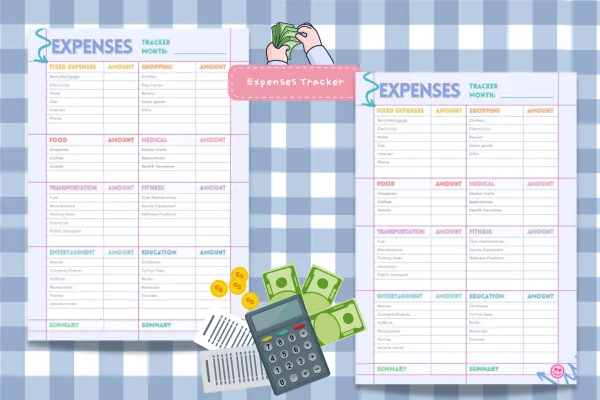
Best for: sorting the month into spending categories. Designed by Zoom4Design.
- Interactive PDF advertised for iPad and GoodNotes
- 48 monthly tracking pages advertised
- Preview shows fixed expenses, shopping, food, medical and other category areas
This layout keeps the categories visible, which suits a pause on shopping while household bills continue. The two public images show an expense sheet and its cover, not all 48 pages. Use it as a category ledger, with day-by-day challenge marks on a separate page. Editable-field behavior inside a particular iPad app has not been tested.
Bills and wider budget context
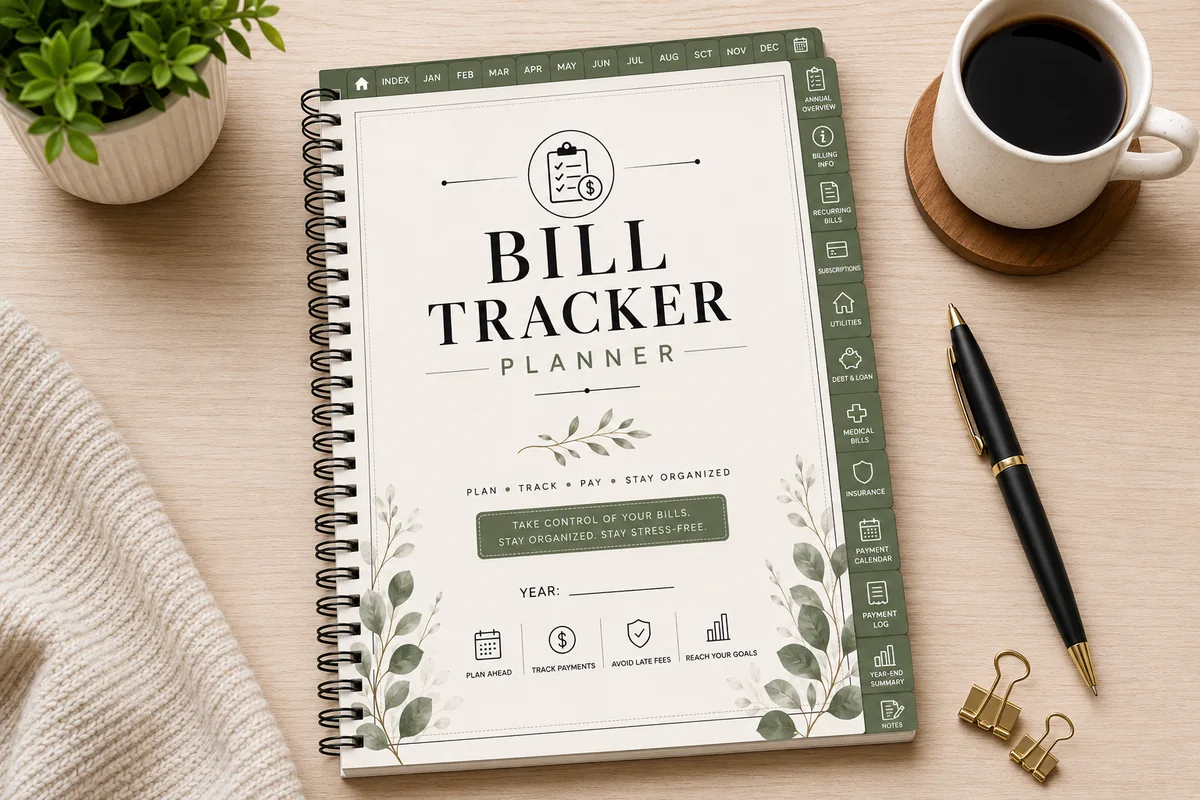
Best for protecting bill payments
5. Hyperlinked Bill Tracker Planner
Orientation: PortraitPaper: A4Format: Hyperlinked PDFDates: Undated
Best for: separating required payments from paused purchases. Designed by Azhir.
- 52-page hyperlinked PDF listed for Goodnotes, Notability and other annotation apps
- Monthly bill trackers, payment summaries and recurring-bill sections in the listing
- Lined, grid, dot-grid and blank notes listed
A no-spend month still has due dates. This narrower tool is useful when your main risk is confusing a challenge rule with a payment you must make. Only the cover is publicly shown; the bill sections are described in the listing. Use a notes page for your discretionary-spending rule.
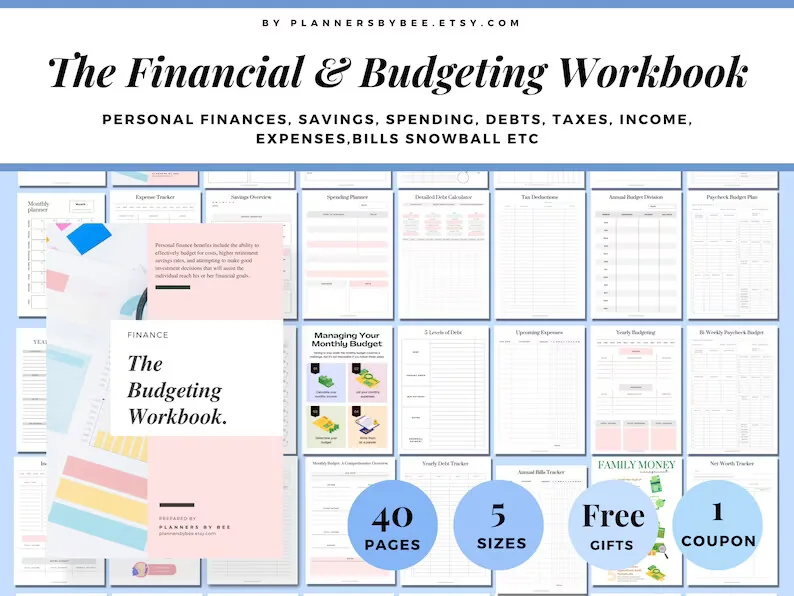
Best for a broader money review
6. Digital Budget Planner, Finance Tracker
Orientation: PortraitLayouts: Financial recordsFormat: Digital workbook
Best for: connecting the challenge to the rest of your budget. Designed by PlannersByBee.
- Financial and budgeting workbook described for GoodNotes
- Single cover montage shows spending and savings overview pages
- Cover advertises 40 pages and five sizes
The workbook is broader than this one-month experiment. It may suit you if you want the challenge review beside your other financial records, rather than inside a dedicated tracker. Only a cover montage is available, so a specific no-spend layout or automatic calculator should not be assumed.
Record actual savings after the review
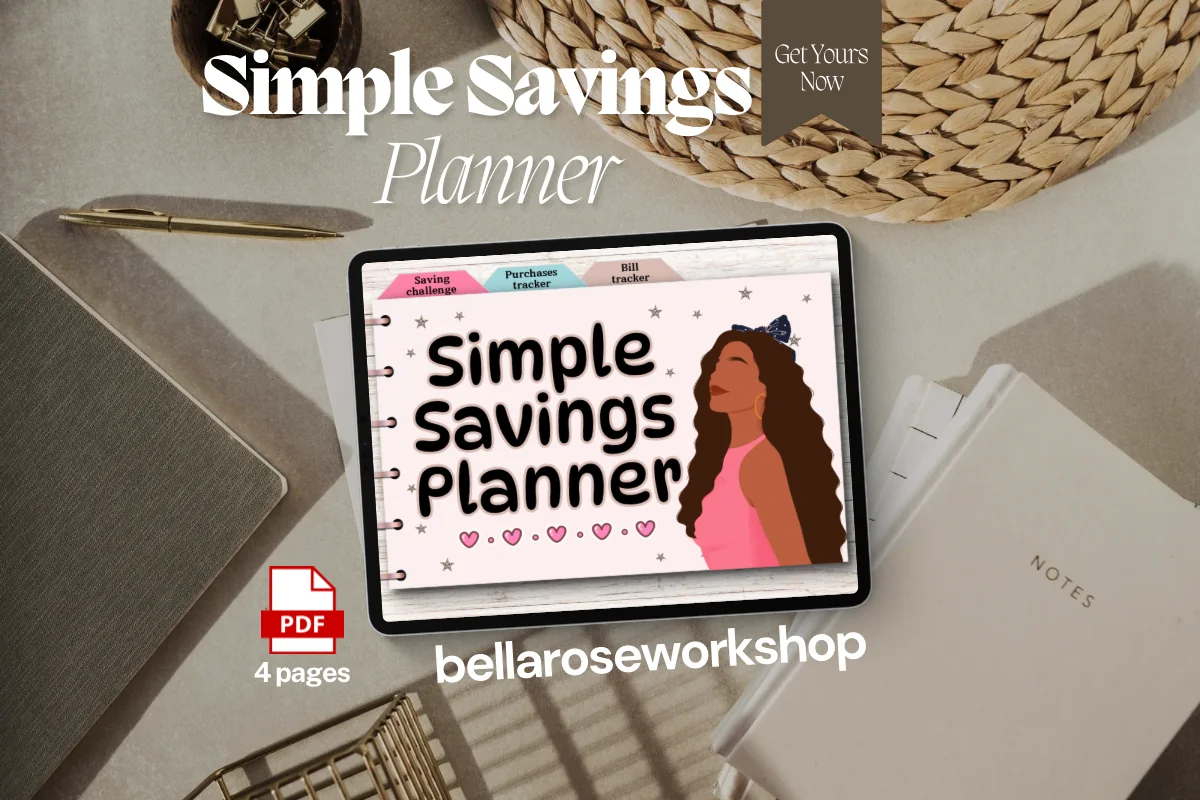
Best for recording savings deposits
7. Simple Savings Planner, Digital Planner
Orientation: LandscapeLayouts: Monthly deposit logFormat: Hyperlinked PDF
Best for: recording what you actually set aside after the review. Designed by bellaROSEworkshop.
- Four-page hyperlinked PDF shown in the previews
- Saving challenge with monthly deposit, balance and notes columns
- Purchases tracker and bill tracker named in the listing
Small can be useful here. The saving challenge uses monthly deposit rows, so it is a place to record actual money set aside, not a daily no-spend grid. Keep the skipped-purchase list elsewhere, then enter a deposit only when you have really made it. This is a digital-use PDF, not an editable design template.
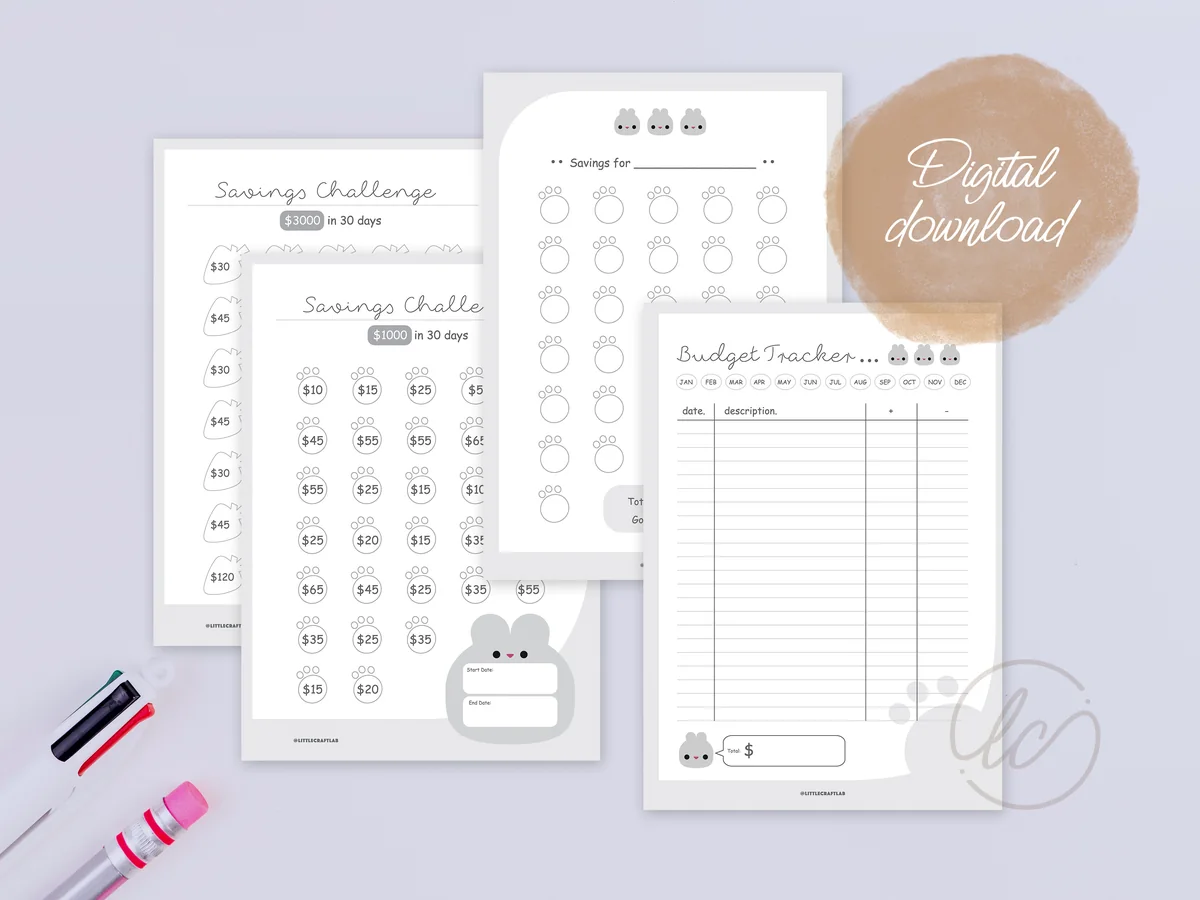
Best for a visual savings finish
8. Rabbit Savings Tracker PDF Files
Orientation: PortraitPaper: A4Format: PDF and JPG
Best for: marking real progress after reconciling the month. Designed by Little Craftlab Studio.
- JPG and PDF files for GoodNotes or Notability use
- Two fixed-amount savings challenges, a savings plan and a budget tracker
- A4 layout with rabbit-themed progress shapes
The undenominated savings-plan page is the flexible part for this article. Assign a value to a paw only after deciding what the reconciled amount represents. The preset $1,000 and $3,000 challenges are optional alternatives, not targets a no-spend month is expected to meet. Use the budget tracker to record amounts; coloring a rabbit or paw does not move money.
Quick Comparison
| Tool | Role this month | Useful pages | Adaptation or limit |
|---|---|---|---|
| 1. Digital Budget Planner, Financial Planner | Daily log and weekly review | Calendar and spending pages | Add your own rules and legend |
| 2. Undated Budget Planner for GoodNotes | Monthly totals | Budget and spending summary | Keep the daily challenge log separately |
| 3. Gold Budget Digital Planner/Hyperlinked | Rules and exceptions | Expenses, bills and extra notes | Build the calendar yourself |
| 4. Expenses Tracker 4years Interactive PDF | Category ledger | Categorized expense sheet | Public previews do not show every month |
| 5. Hyperlinked Bill Tracker Planner | Required payments | Bill and payment records | Only a cover is publicly shown |
| 6. Digital Budget Planner, Finance Tracker | Whole-budget context | Spending and savings overview | Single cover montage only |
| 7. Simple Savings Planner, Digital Planner | Actual savings deposits | Monthly saving challenge and purchase log | No daily calendar grid |
| 8. Rabbit Savings Tracker PDF Files | Visual end-of-month progress | Savings plan and budget tracker | Fixed challenges are not required goals |
Make the chosen pages work together
After comparing the files, choose one home for each kind of information. Copying the same amount into three different places can make the month harder to reconcile. Use this simple page map to keep a calendar mark connected to a real entry.
- Rules page → decision: tells you whether a purchase is allowed, paused or an exception.
- Calendar → date: shows the day’s label, with a note if the day was mixed.
- Expense log → amount: holds the actual purchase and its category.
- Waiting list → intention: holds purchases you considered, without adding their prices to savings.
- Review page → result: holds reconciled totals and the next habit to try.
If you choose Simple Savings or Rabbit Savings, keep the calendar and rules on another page. If you choose the bill tracker, keep the discretionary log beside it. The general budget planners can hold more of the system, but you still need to create the challenge’s rules and labels yourself.
A short end-of-month review
Write the review while the entries are still easy to recognize. A useful result can be discovering that one category was easy to pause while another needed a different rule. You do not need a perfect streak to learn that.
- Total actual spending by the categories you chose.
- Check pending transactions and explain unusual essentials or planned exceptions.
- Count rule-followed days separately from days with no transactions at all.
- Record actual savings deposits, withdrawals or other uses of the remaining money without double-counting.
- Keep one practical habit and write the next review date.
If you use money left in your bank account for debt payoff, record the actual payment separately from savings deposits. Match it to the transaction record before entering the result in your planner. Seeing where the remaining money went gives you a clearer review than counting every skipped purchase as money saved.
For broader page ideas after this experiment, budget planner ideas covers ongoing budgeting sections. Keep this month’s challenge record focused on its own rule rather than rebuilding your entire financial notebook.
FAQ: Rules, tracking and budget questions
Can I buy groceries during a no spend month?
Yes, necessary food stays in the budget. Write your allowed groceries rule before you begin so it is clear how you treat optional extras, delivery charges or convenience purchases. Do not skip adequate food to preserve a calendar streak.
Does a no-spend calendar have to mean zero transactions?
Only if that is the count you chose. You can track days with no transactions, or days that followed the challenge rules despite allowed spending. Give them separate labels if you want both totals; they are not interchangeable.
What happens if I make an off-rule purchase?
Record it, note the situation and continue. During the next review, decide whether the preparation or rule needs to change. Keep any revision dated instead of rewriting earlier entries as if the new rule had always applied.
Do these iPad planners include a ready-made no-spend-month template?
No dedicated no spend month template is promised here. The selections offer budget, expense, bill, savings or notes pages. You add the rules and calendar legend; the cards explain where a separate page is needed.
When is this challenge the wrong approach?
If essential needs or required payments are already difficult to cover, a stricter challenge is not a substitute for practical assistance. Do not postpone medical care or required bills to make the tracker look successful. A qualified financial counselor can help assess a budget that does not cover necessities; seek appropriate personal support if tracking makes spending anxiety worse.
Keep a record you can use next month
A useful no spend month leaves you with clear rules, an honest transaction record and one habit worth repeating. Begin with the pages already on your iPad, then choose a budget tool only if it fills a specific gap in that record.
You May Also Like
This article is for general planning education, not personalized financial advice. Some links are affiliate links, which may earn me a commission at no extra cost to you. Read the affiliate disclosure.