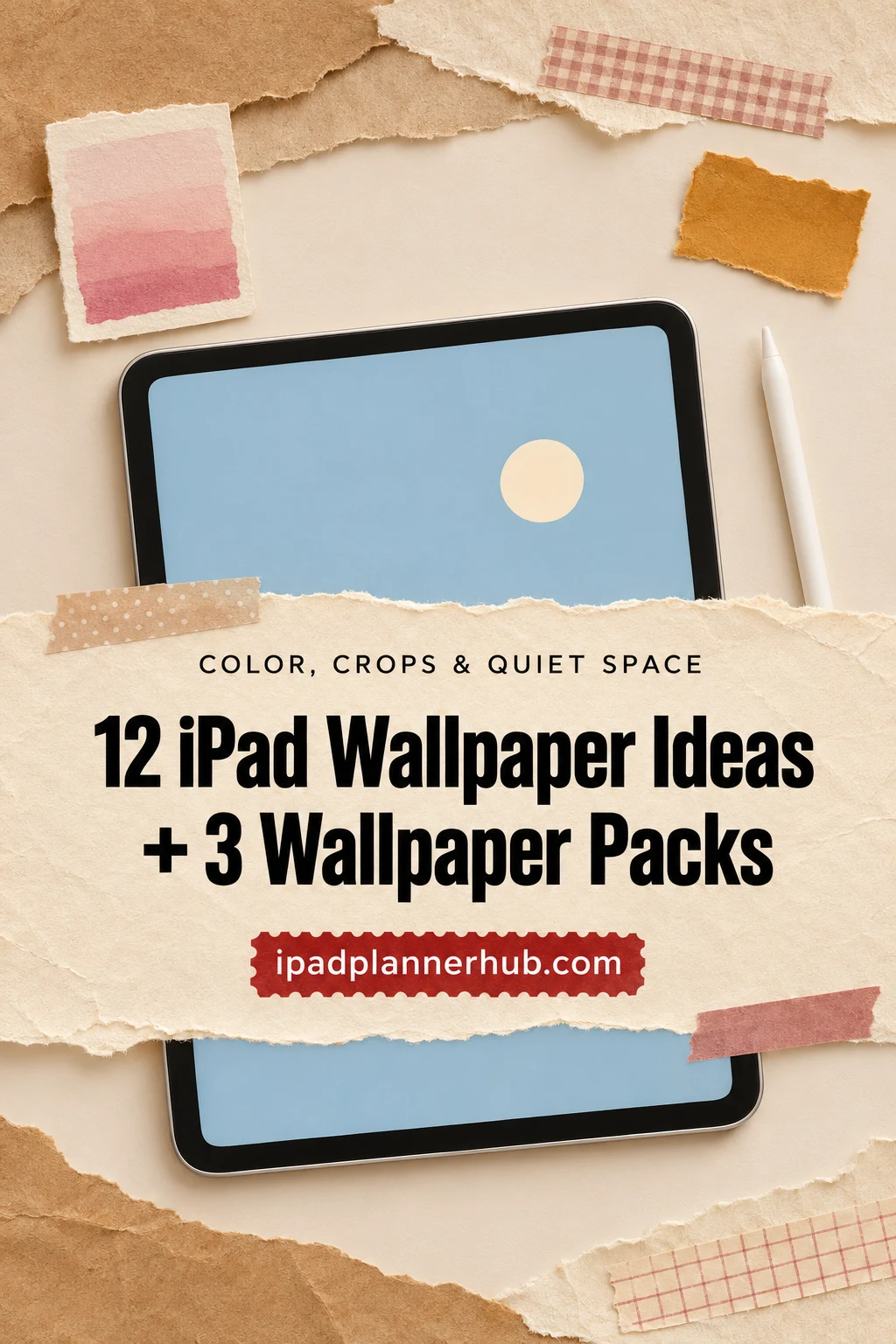
You find a lovely background, put it on your iPad, and suddenly a widget covers the best part. Turn the screen sideways and the tiny moon disappears too. These iPad wallpaper ideas start with the space your screen needs, then add the color and artwork. I prefer a background that still feels intentional with the apps visible, not only in a clean product photo.
Below are twelve composition prompts you can make with your own images or artwork, followed by three Creative Fabrica wallpaper packs. The prompts are design suggestions; the packs are optional sources of finished imagery. My comparison is based on their descriptions and galleries; I have not tested the image files on an iPad. A pretty preview can help you choose a direction, but your own screen is the place to decide the final crop.
iPad Wallpaper Ideas: Start with the Screen You Actually Use
Before picking a style, decide whether the image is for your Lock Screen, your Home Screen or a coordinated pair. A scenic picture can be the whole point when the tablet is locked. Behind app names and widgets, the same scene may become visual noise. The useful question is which parts of the picture must remain visible when the screen is doing its everyday job.
- Lock Screen: leave breathing room around the clock and any information you keep there. Avoid placing a face or a greeting in the same area.
- Home Screen: judge the image with your actual icons and widgets visible. A quiet area is useful only if it falls behind the things you need to read.
- Both orientations: protect the main subject near the center and let expendable texture continue toward the edges. Treat this as a crop strategy to test, not a universal safe-zone measurement.
Twelve Background Directions, from Quiet Color to a Small Scene
Choose one direction first. You can borrow a palette from one idea and the composition from another, but give the finished image one clear job. Making a small sketch before browsing image packs helps: mark where the clock, dock and largest widget will sit, then put the subject somewhere that remains visible.
Quiet Color with Room for the Interface
- 1Blue mist with a soft center. Start with pale blue, then add a slightly deeper blue near two edges. Keep the center free of sharp lines so it can sit behind a widget without making the text compete. For blue iPad wallpaper ideas, this gives you color without needing a literal ocean or sky scene. Make the gradient transition broad enough that a small crop does not turn it into a hard stripe.
- 2Pink and cream with one warm accent. Use cream for most of the image and a dusty pink glow in one corner. Add a little peach only if the palette feels too flat. For pink iPad wallpaper ideas, the balance matters more than filling every inch with pink: one large quiet field gives colorful app icons somewhere to land. Check white and dark labels against the exact part of the background behind them.
- 3A dark field with a small glow. Try deep navy with one soft violet or amber highlight. Keep that highlight away from the brightest interface text. The aim is a restrained night palette, not a claim about battery savings or eye comfort. A very dark image can hide a small subject completely, so inspect it at the screen brightness you normally use rather than judging only a bright editing canvas.
- 4Cream paper with an uneven edge. Make most of the image a plain warm neutral, then add a narrow irregular color border. Let the border be expendable if a crop removes part of it. Avoid drawing a frame that has to touch all four display edges exactly: it may look lopsided when the view changes. For a softer result, keep the edge texture low contrast and the center almost empty.
A Subject That Survives a Different Crop
- 5One small character, not a crowded cast. Give a cat, cloud or other small character plenty of surrounding space. Place it near the middle rather than in the far corner, then check whether the dock hides its feet. Cute does not have to mean dozens of little objects. The kitty pack below illustrates the playful direction, but its narrow source dimensions make it a more cautious choice for a wide screen.
- 6A personal photo with background to spare. Choose one of your own photos where the person, pet or object has generous space around it. A close-up with the subject touching the edge gives you little freedom to adjust. If the image is meaningful but crowded, keep it as a Lock Screen option and choose a simpler Home Screen companion. Keep an untouched copy so an experimental crop does not become your only version.
- 7A tiny landscape with a quiet sky. Sketch a low hill or a distant line of trees under a broad sky. Make the horizon a starting point, not a ruler that must align with an exact row of icons. This gives landscape-oriented use a visual anchor while leaving an open region above it. Test the upright view too: the remaining slice should still read as a scene rather than an accidental fragment.
- 8A seasonal scene with one focal area. Choose a winter illustration or an autumn interior, then identify the detail you actually want to keep: a snowman, a window or a lamp. Let smaller decorations fall outside that priority. The Christmas pack has a visible greeting as well as characters; the autumn pack has several different scenes. Neither means you should expect every detail to survive every crop.
Playful Details and Coordinated Screens
- 9A Y2K accent on a simple field. Use one chrome-like bubble, tiny star or rounded shape against a broad pastel field. A whole page of tiny stickers can look lively in a mood board but become clutter behind apps. Make your own small accent or use artwork you have permission to adapt. The descriptions reviewed do not identify these packs as Y2K collections; this is an independent styling prompt.
- 10A collage with an intentional empty patch. Limit the collage to a few personal images and repeat one background color between them. Keep a generous empty patch where your largest widget sits. Do not bake labels like Calendar into the artwork unless you are willing to remake them when the layout changes. A collage should still make sense without the widget, since a rotation can change the relationship between the two.
- 11A two-color pair for Lock and Home. Give the Lock Screen the fuller picture and the Home Screen a simpler image using two of its colors. For an amber autumn scene, try ochre and warm cream; for a pink character image, try blush and a muted mint. Matching does not require identical pictures. The shared palette can connect the screens while each composition serves a different amount of visible interface.
- 12A wallpaper planned around widgets. Start with your current widget positions, then design the empty space around them. Keep detailed texture away from small text, and leave the same region usable when you turn the tablet. If that is impossible, simplify the image rather than adding more decorative boxes. For iPad wallpaper ideas with widgets, the wallpaper is the background layer; it does not create functional widgets or organize the apps itself.
Three Wallpaper Packs to Compare by Composition
These three packs offer a winter landscape, pink character art and autumn scenes. Their file proportions affect the composition: a narrow portrait illustration and a broad landscape JPG leave different amounts of room around the subject. Compare the listed dimensions with the orientation you use before choosing a scene.
TL;DR: For a broad winter scene, compare the Christmas JPG pair. For pink character art, the kitty pack has a narrow portrait source. For warm autumn imagery, compare the ten PNG scenes and check their pixel dimensions before choosing.
Quick Picks
- Best for A wide illustrated winter scene: Christmas Wallpaper Backgrounds for FREE
- Best for playful pink art for an upright screen: Cute Little Kitty Wallpaper
- Best for warm autumn scenes without a calendar: Aesthetic Fall Wallpaper for IPhone
- Christmas Wallpaper Backgrounds for FREE – A wide illustrated winter scene
- Cute Little Kitty Wallpaper – Playful pink art for an upright screen
- Aesthetic Fall Wallpaper for IPhone – Warm autumn scenes without a calendar
A wide illustrated winter scene
1. Christmas Wallpaper Backgrounds for FREE
Orientation: Landscape sourceLayouts: 2 JPG filesDates: Seasonal Christmas artwork
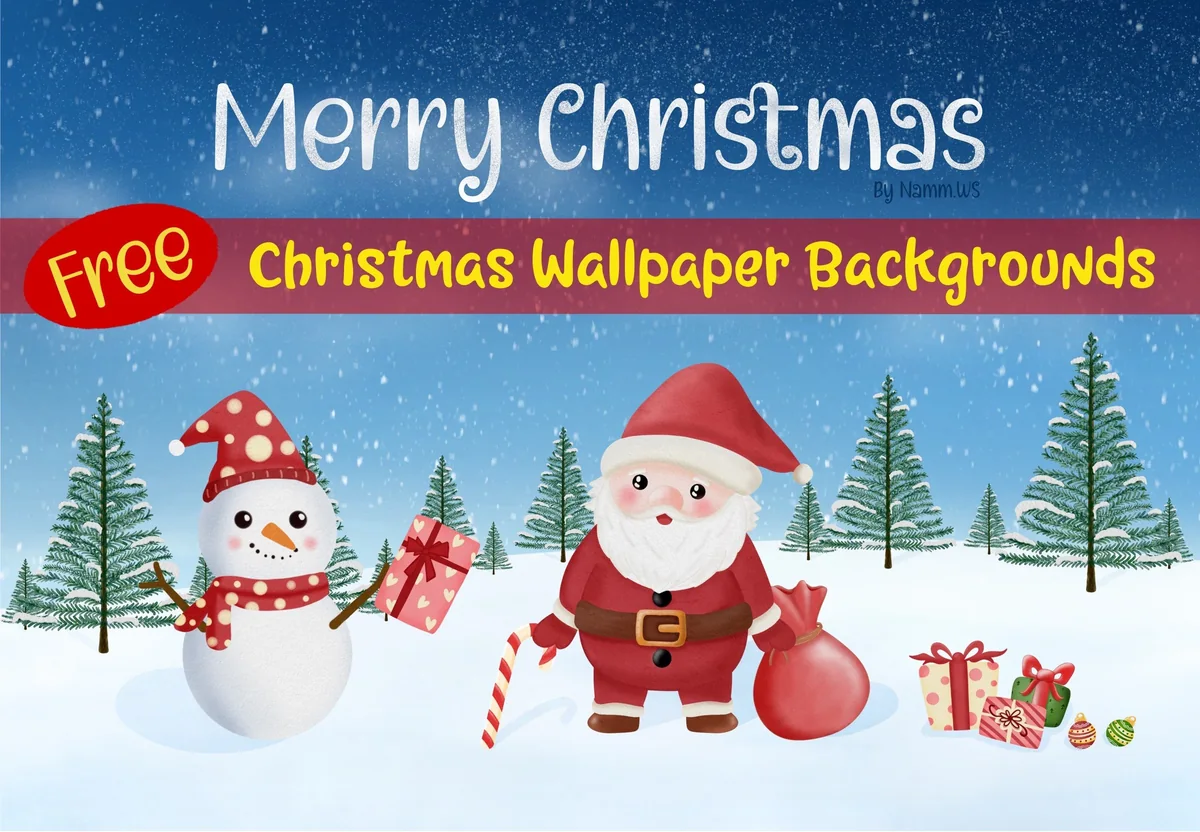
Best for: a seasonal screen with a blue sky and snowy foreground. Designed by Namm.WS.
- 2 JPG files: one described for iPad and one for computer
- 4330 × 3000 pixels for each listed file
- Santa, a snowman, trees and a greeting appear in the previews
The broad snowy foreground and blue sky give this scene two distinct areas to work with. I like the cheerful illustration for a seasonal Lock Screen, where the characters can be the main event. The greeting is part of the pictured design, so check where the system clock falls rather than assuming the top is empty. A landscape file gives you more width than the narrow kitty pack, but you still need to inspect the portrait crop. The seller's product name includes FREE; check the current terms on Creative Fabrica before choosing it.
Playful pink art for an upright screen
2. Cute Little Kitty Wallpaper
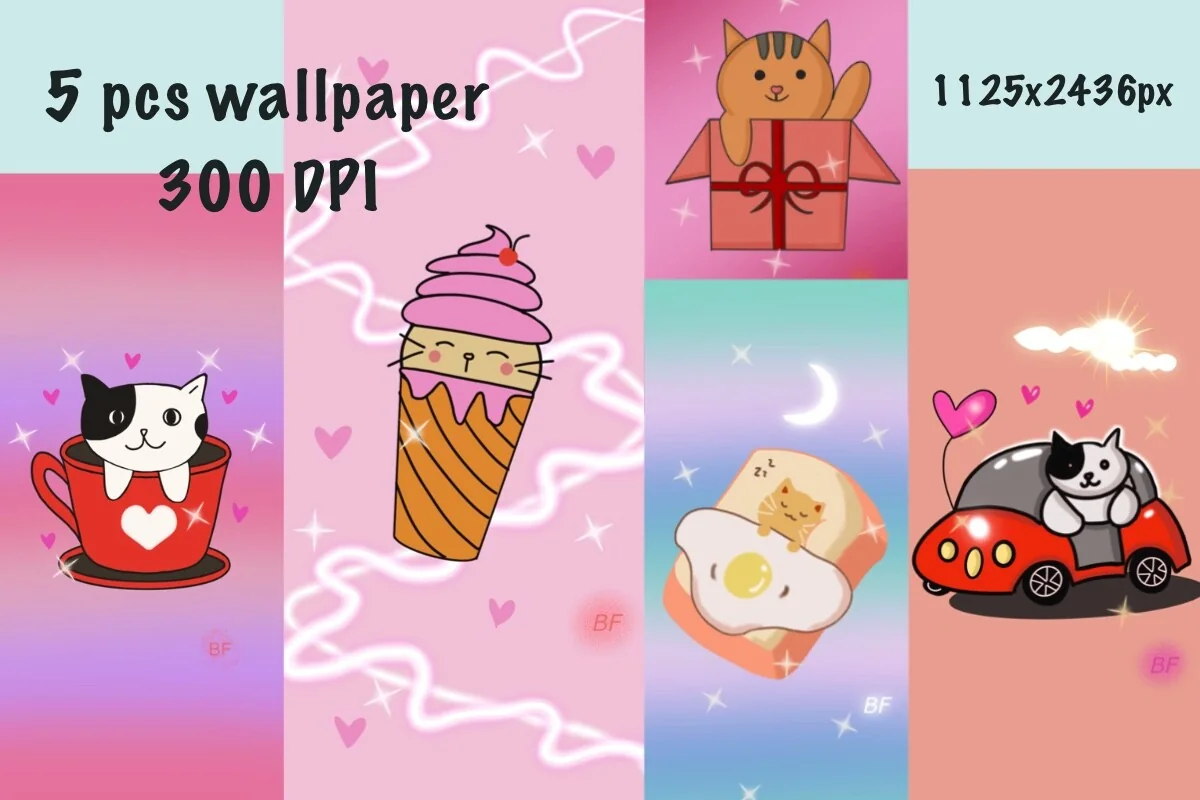
Orientation: Portrait sourceLayouts: 5 wallpapers shown on coverDates: No calendar shown
Best for: a cute portrait composition with cats and snack motifs. Designed by Suci Afiati.
- JPG/JPEG files described for iPad and phone
- Cover shows 5 wallpapers at 1125 × 2436 pixels
- Preview scenes include cats, an ice-cream cone and a cat on toast
Pink, mint and peach panels make this the most playful option here. The cover shows five designs, and the device mockups show how the ice-cream and toast illustrations look upright. These upright compositions suit a portrait-focused screen, with the subject kept clear of widgets. The important limitation is the cover's 1125-pixel width: this is a narrow image, not a 4K iPad canvas. Expect to assess enlargement and cropping on your own model, especially in landscape. The mockup is a demonstration, not evidence that the full image will stay visible behind your icons.
Warm autumn scenes without a calendar
3. Aesthetic Fall Wallpaper for IPhone
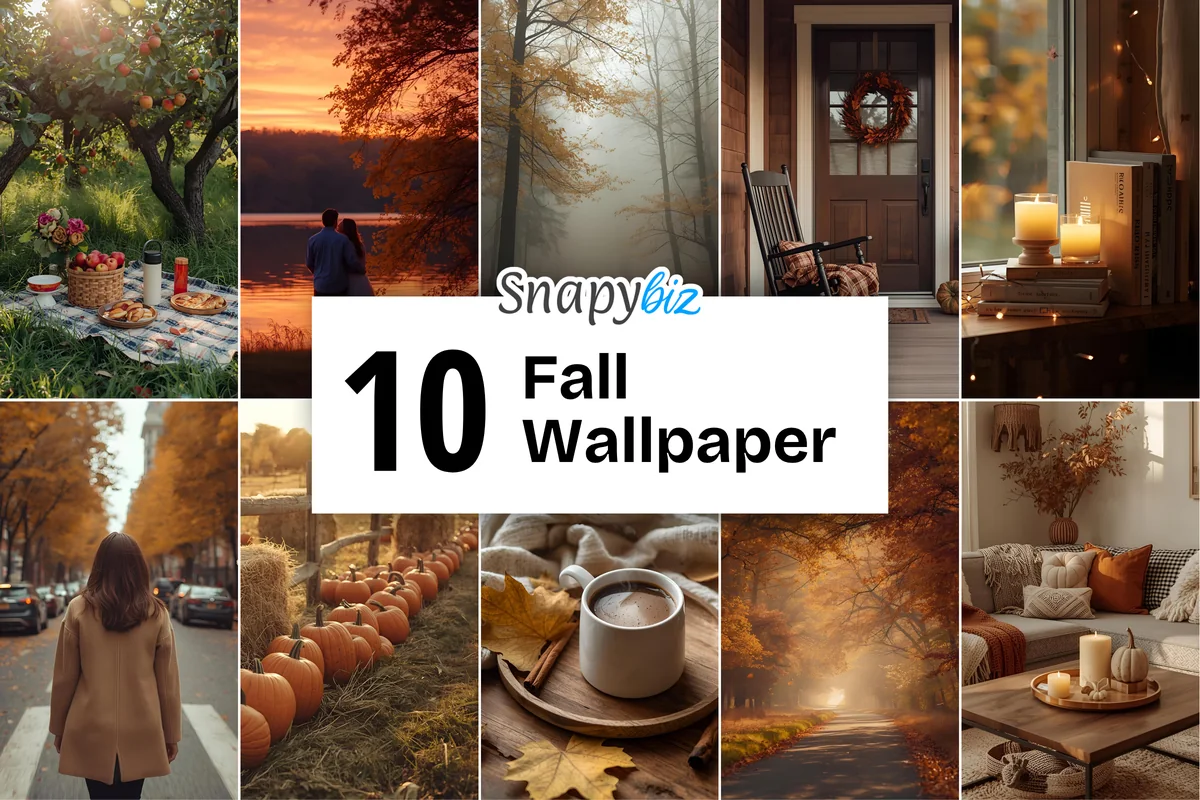
Orientation: Portrait previewsLayouts: 10 PNG wallpapersDates: Autumn scenes; no calendar shown
Best for: a seasonal palette of amber light, pumpkins and cozy interiors. Designed by SnapyBiz.
- 10 wallpapers in PNG format
- Seller explicitly includes iPad among intended uses
- Previews show woodland, pumpkins, hot drinks and interior scenes
A candlelit room and a misty forest give very different results even within the same autumn palette. The room offers warm dark areas, while the forest has more fine texture behind icons. I like choosing by that difference rather than selecting whichever thumbnail looks most dramatic. Although the title says iPhone, the description also names iPad. Pixel dimensions are not stated in the description I reviewed, and the gallery mainly demonstrates phone-shaped compositions. Treat the seller's fit-all-screens wording as a prompt to check the crop, not a promise that each scene will retain every detail on your tablet. Choose this pack for the seasonal imagery, with that size uncertainty in mind.
Quick Comparison
| Wallpaper pack | Visual direction | Files | Check first |
|---|---|---|---|
| 1. Christmas Wallpaper Backgrounds for FREE | Winter illustration | 2 JPGs, 4330 × 3000 | Greeting competes with clock |
| 2. Cute Little Kitty Wallpaper | Cute portrait scenes | 5 shown; JPG/JPEG | 1125-pixel source width |
| 3. Aesthetic Fall Wallpaper for IPhone | Autumn atmosphere | 10 PNGs | Pixel dimensions unstated |
Check the File Before You Commit to a Crop
A search for iPad wallpaper 4K tells you the look you want, but a search label is not evidence of the image’s dimensions. Read the pixel width and height of the actual file. A phone-shaped image can have a long vertical edge while still being too narrow for the wide composition you want. DPI is a print-related setting; pixel dimensions are the useful starting point for assessing a screen image.
- Known dimensions: the Christmas listing gives 4330 × 3000 pixels. Compare that landscape shape with your intended view.
- A narrow source: the kitty cover gives 1125 × 2436 pixels. Do not describe that pack as 4K or promise a sharp landscape result.
- Unknown dimensions: the autumn description gives PNG format and ten images, but no pixel size. Check the current listing or ask the seller before relying on a high-resolution claim.
- Preview versus original: use the actual image file for your final decision. A screenshot of a store mockup includes a device frame and says little about the quality of the image file.
Choose an Aesthetic Before Chasing a 4K Label
For aesthetic iPad wallpaper ideas, start with a palette you can repeat across both screens: pale blue and cream, blush and mint, or navy with a small amber glow. Keep one focal detail on the Lock Screen and carry just its colors onto the Home Screen. If you want a cute iPad wallpaper in 4K, choose the character composition first, then assess the original file dimensions using the checks above. A resolution label does not tell you whether the character will stay visible beside your widgets.
A Two-Orientation Review You Can Repeat
Use this checklist with whichever file you choose. Keep the first version and the revised version so you can compare them with the same apps visible.
From Image Choice to a Readable Screen
- 1Inspect the original image. Check the pixel dimensions, identify the focal point and look for any embedded words. If a file comes in an archive, inspect the received files rather than using the shop thumbnail. Keep the original intact before making a crop or adding decoration.
- 2Review the upright composition. Look at the clock, icon names, dock and widgets with the image in place. Is any important part of the picture hidden? Is a white label sitting on a pale highlight? Note a specific problem, such as the cat’s face behind the clock, instead of simply deciding the screen feels busy.
- 3Turn the tablet sideways. Recheck the same subject and text areas. A composition that works only upright is still a valid choice if that is how you use the device, but recognize the tradeoff. If both orientations matter, move the focal point inward, use a broader source or choose a quieter image.
- 4Keep one change at a time. Try a different crop before changing the palette and the widgets together. If the picture still competes with labels, switch the Home Screen to a simpler companion. Revisit the result after a normal session, when the novelty of the picture has worn off.
Choose by Mood, Not by a Gender Label
If you are choosing iPad wallpaper ideas for girls, try a blush-and-cream field with a small cat illustration, or use blue mist for a quieter screen. For boys, try a navy gradient with an amber glow or a low landscape beneath an open sky. Treat these as starting points you can swap freely: choose the colors and subjects the person enjoys. Keep the detailed version for the Lock Screen and simplify the background behind study widgets.
- Calm and practical: try the blue mist, cream field or simple two-color pair.
- Cute and expressive: try one character with generous space, or a small original Y2K accent.
- Seasonal and scenic: compare a winter illustration with a warm autumn image, keeping the main subject clear.
Frequently Asked Questions
What should my wallpaper be on my iPad?
Start with an image you like that still leaves the clock and app labels readable. If you use a keyboard case most of the time, prioritize the landscape composition. If you frequently rotate the tablet, choose a subject with space around it and inspect both views before settling on the crop.
Where can I find cool wallpaper for my iPad?
Your own photos or original artwork are a good starting point. For finished imagery, compare the three Creative Fabrica packs above by file dimensions and style.
To find aesthetic wallpaper for iPad on Pinterest, narrow your visual search to a palette and composition, such as blue mist with an open center or pink character art with a plain background. Compare a few saved images by where the clock and widgets would sit, then follow the pin to the original creator. For a Y2K look, choose a single rounded star or bubble accent with open space around it. A “4K” caption on a pin does not establish the dimensions or usage rights of the image file.
Do I need a free wallpaper app?
For choosing a visual direction, start with an image you already own before comparing another app. The ideas here use ordinary image compositions rather than app-specific effects. I have not ranked free wallpaper apps, and a product with FREE in its name should still have its current access terms checked.
Are these packs 4K wallpapers?
I would not label this selection that way. The Christmas JPGs have listed dimensions of 4330 × 3000, the kitty cover states 1125 × 2436, and the autumn description does not give pixel dimensions. Compare width, height and your intended crop rather than applying one resolution label to the whole selection.
What are the ten most popular iPad wallpapers?
This guide does not have a popularity ranking or measured usage data for individual images. The twelve prompts are composition ideas, and the three packs are choices based on their descriptions and previews. Choose by the screen you need rather than a popularity claim without a named measurement.
Can I make several matching wallpapers?
Yes as a design project: create a small series with the same palette and vary the focal point or amount of empty space. Keep a simple Home Screen companion beside a fuller scenic image. Automatic rotation and saved wallpaper configurations depend on your system version; this guide does not give an automation procedure.
Keep the Picture, Give the Screen Some Space
Judge these iPad wallpaper ideas with your app labels visible and the tablet turned both ways. Keep the crop if you can read the labels and still see the face, landscape detail or other subject you chose the image for. If either view hides that detail, shift the crop or use a simpler companion image on the Home Screen.
You May Also Like
This article contains affiliate links. If you choose a product through these links, I may earn a commission at no extra cost to you. Read the affiliate disclosure.