
Someone says “we should get coffee,” another friend suggests Saturday, and the details disappear into two different chats. These social calendar planner ideas give those loose invitations a home on your iPad, from the first suggestion to the message you send after meeting.
Start with a notebook you already own and three headings: Invitations, Confirmed, Next contact. The four options below are alternatives if you need a different writing surface. This is a personal plans system for friends and family, with fields you write yourself; it is separate from a social media content calendar.
TL;DR: Keep one invitation register, one place for confirmed details and one next-action date. The four notebooks and journals below offer different writing surfaces for that manual system. Choose by navigation: custom sections, daily links or monthly dividers. The invitation fields in this article are yours to write.
Quick Picks
- Best for separate invitation lists: Watercolor Hyperlinked Digital Notebook
- Best for notes by meeting date: 365 Days Daily Digital Journal
- Best for a running contact log: Digital Ruled Journal
- Best for monthly invitation reviews: Digital GoodNotes Journal – Art Deco
- Watercolor Hyperlinked Digital Notebook – Best for separate invitation lists
- 365 Days Daily Digital Journal – Best for notes by meeting date
- Digital Ruled Journal – Best for a running contact log
- Digital GoodNotes Journal – Art Deco – Best for monthly invitation reviews
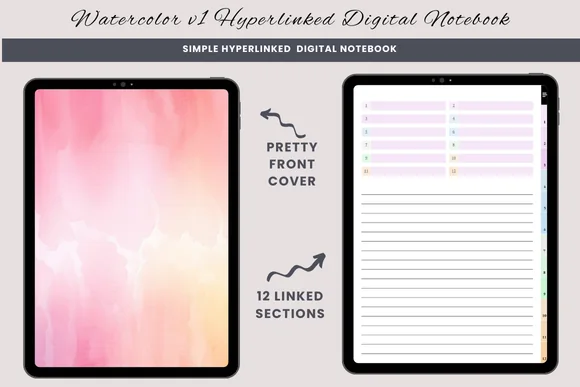
Best for separate invitation lists
1. Watercolor Hyperlinked Digital Notebook
Orientation: PortraitLayouts: Blank, lined, half-linedSections: 12 linked sectionsFormat: PDF for annotation apps
Best for: keeping ideas, pending invitations and confirmed details in different sections. Designed by daysfilledwithjoy.
- 12 hyperlinked sections
- Lined, blank and half-lined pages
- One PDF for GoodNotes or a similar PDF annotation app
- Pages can be duplicated for more writing room
The twelve-section index gives this workflow somewhere to live without requiring a full daily diary. I like the lined page for an invitation register and the half-lined page for a venue note above the details. Write the status labels yourself; the watercolor notebook supplies paper and navigation, rather than a ready-made invitation tracker.
Best for notes by meeting date
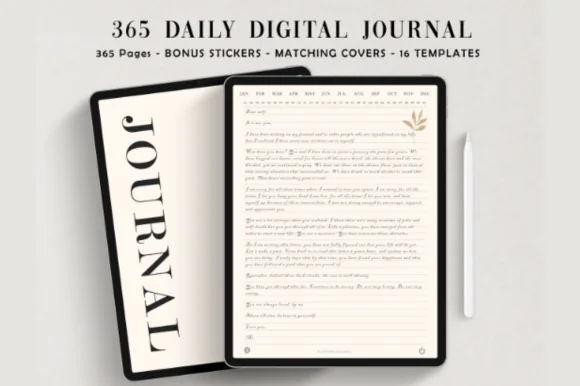
2. 365 Days Daily Digital Journal
Orientation: PortraitLayouts: Daily lines; 16 extra templatesDates: Undated daily pages
Best for: finding a meeting note through its month and day. Designed by ThePlannersDelight.
- 365 undated daily pages; 384 total pages listed
- Narrow-lined and wide-lined PDF versions
- 16 additional page templates, including lists and columns
- Bonus covers and PNG stickers; GoodNotes and Notability listed
This is the date-led option: the preview shows month and day links on each daily sheet. A short event reference in your invitation register can point you back to the right date. Its ivory pages favor a simple written note over a dense event dashboard. The seller requires a writable tablet and a stylus such as Apple Pencil; the app, tablet and stylus are separate.
Best for a running contact log
3. Digital Ruled Journal
Orientation: PortraitLayouts: Ruled writing pages
Best for: writing a chronological record of invitations and follow-up. Designed by Island Tulip Designs Co.
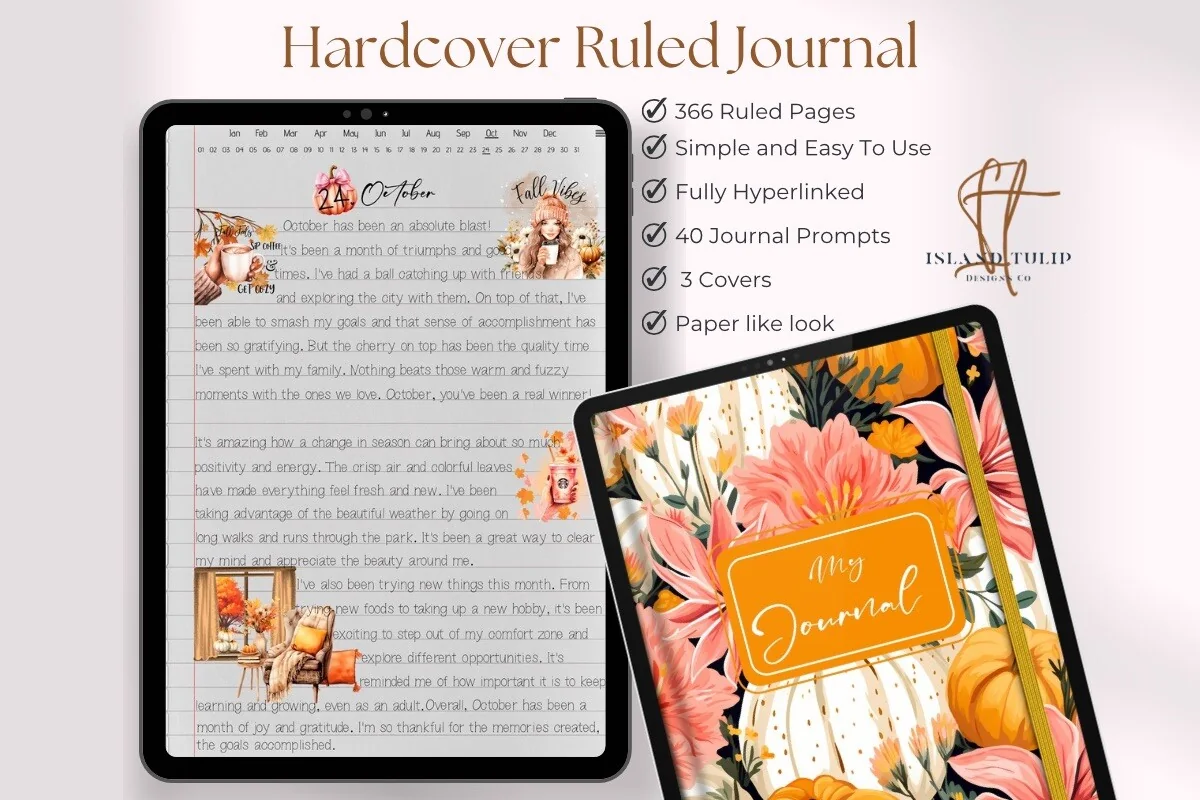
- 366 ruled pages
- Fully hyperlinked navigation
- Three cover choices
- 40 journal prompts in PNG and precropped GoodNotes formats
A running log suits someone who would rather add the next line than maintain several custom sections. The gallery shows a daily page with month and date navigation, plus an index. Use one short event reference beside each update so an invitation and its later cancellation remain connected. The included prompts are journaling extras; my proposed contact fields are something you write yourself.
Best for monthly invitation reviews
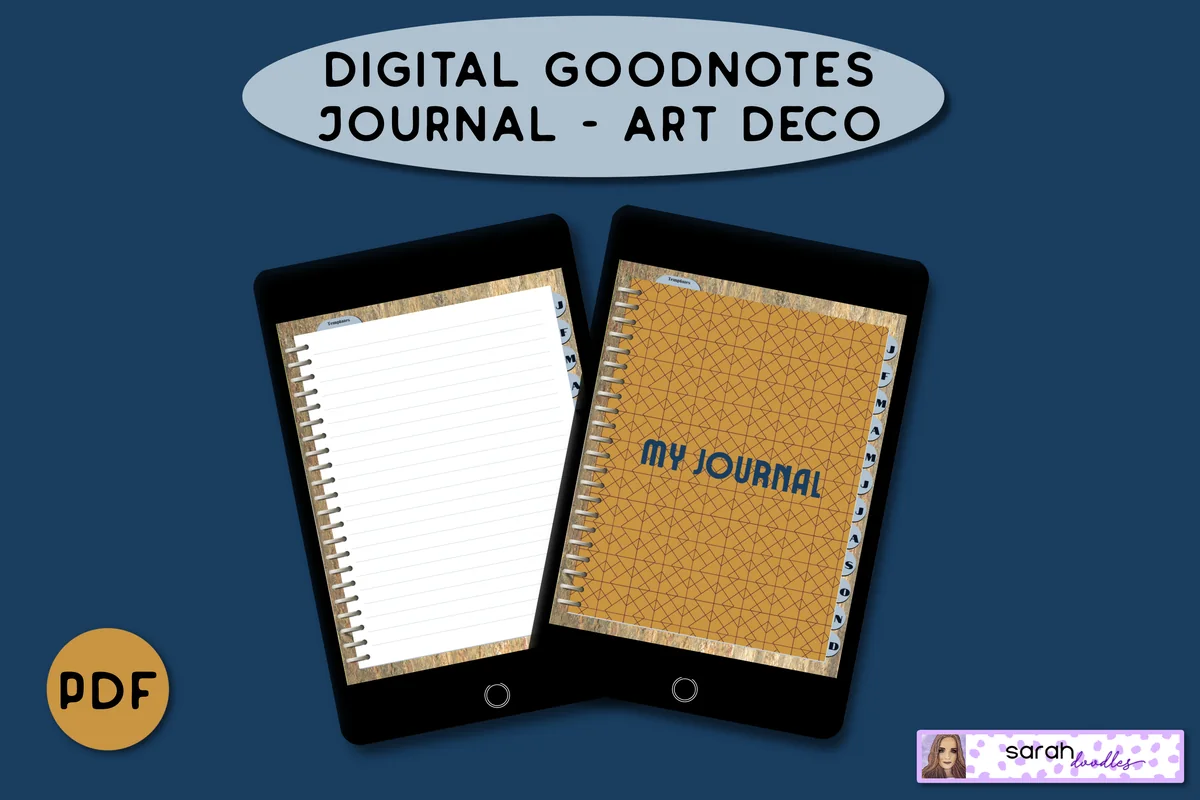
4. Digital GoodNotes Journal – Art Deco
Orientation: PortraitLayouts: Lined, brain-dump, priorityDates: Undated monthly sections
Best for: collecting open invitations under the month when you will review them. Designed by Sarah Doodles.
- Hyperlinked monthly dividers in an undated PDF journal
- Five lined pages allocated per month; pages can be duplicated
- Brain-dump and priority templates
- For GoodNotes, Notability, Xodo or similar annotation apps
Monthly dividers make this a useful middle ground between a long running log and twelve custom lists. An open-invitations page near each month divider keeps the monthly review together; a lined sheet can hold confirmed details. The brain-dump page can hold possible outings before anyone is invited. The seller recommends an iPad or tablet with Apple Pencil or stylus and specifies personal use only: do not share, sell, alter or replicate the product.
Quick Comparison
| Notebook or journal | Navigation | Writing surface | Useful role |
|---|---|---|---|
| 1. Watercolor Hyperlinked Digital Notebook | 12 sections | Blank, lined, half-lined | Separate lists |
| 2. 365 Days Daily Digital Journal | Month and day links | Narrow or wide lines | Date-led notes |
| 3. Digital Ruled Journal | Daily links and index | 366 ruled pages | Running log |
| 4. Digital GoodNotes Journal – Art Deco | Monthly linked tabs | Lined and brain-dump | Monthly review |
Social Calendar Planner Ideas: Give Every Invitation a Next Step
A date alone does not tell you whether anyone has agreed to meet. Keep the proposal, the current status and your next action together. Then use the confirmed details to check the calendar you rely on for appointments.
- Invitation register: one line per proposed plan, even when there is no date yet.
- Event note: the latest agreed time, place and practical details, with a reference back to the register.
- Next-action list: only the things you can do, such as send two date options or check a reservation.
Think of the path as Idea → Invitation sent → Awaiting reply → Confirmed → Met → Follow-up. A cancellation closes the current arrangement; a proposed replacement returns to awaiting reply. These are suggested handwritten labels, so you can shorten them to match the way you speak.
Capture the invitation before the details scatter
- 1Give each plan a short reference. Write “C1: coffee with Maya” or another memorable label beside the first invitation. Repeat it on a longer event note, rather than rewriting the whole conversation. If two plans involve the same person, add a different reference for each. This keeps the picnic discussion separate from a birthday dinner without turning your notebook into a complicated database.
- 2Separate the idea from the invitation. An idea is “try the new café”; an invitation is “ask Maya about Thursday or Saturday.” Give ideas their own small list so they do not look like promises already made. When you send a message, move the useful details into the register and write what you asked. The notebook should tell you what has happened, rather than what you hope might happen.
- 3Offer a small choice of dates. When a vague suggestion stalls, write two realistic options before messaging your friend. Check your existing appointments and travel time first. Leave a space for “neither works” so you can return to the conversation without treating the first options as fixed. Your page might read “Thursday after work / Saturday morning; ask which suits,” with the answer recorded underneath.
Make waiting visible without chasing every reply
- 4Write who has the next action. Add a short “Next” field: “me: suggest a place” or “waiting for Alex: confirm the time.” This distinguishes a task you can complete from a conversation that needs an answer. Keep the language neutral. The purpose is to help you remember your part, rather than build a scorecard of who replies fastest or how often someone makes plans.
- 5Choose a review date, not an assumed deadline. Beside a pending invitation, write when you will look at it again. For an outing next month, your next weekly review might be enough; for a reservation closing soon, note the actual booking deadline. A review date is your cue to decide what to do. It does not mean the other person has agreed to answer by that date.
- 6Use words alongside color. A soft highlight can make confirmed plans easy to spot, but add the word “confirmed” and the date of the reply too. A plain “pending” remains clear if you change pen colors or view a screenshot without the original palette. I like a very small legend: P for pending, C for confirmed and X for closed, with the meanings written at the top.
Confirm the details that make the meeting possible
- 7Create one current event note. Once you have an actual agreement, write the latest date, start time, meeting point and people expected. Add an end time if you have agreed one, or your own leaving-time limit if needed. Keep that distinction visible. A café name alone may be ambiguous when it has several branches, so include the branch or street you actually agreed on.
- 8Keep practical questions in a short checklist. Under the event note, add only the open questions that affect this outing: book a table, check transport, ask about step-free access or confirm who brings the picnic blanket. Assign yourself an action rather than guessing another person’s needs. For example, “ask which venue works” is more useful than filling a notebook with assumptions about a friend’s preferences.
- 9Check your appointment calendar after confirmation. Compare the agreed plan with work, travel and other commitments before treating the slot as settled. If you want a notification, enter it separately in the calendar app you use for alerts. Write “calendar checked” beside the event note when you have done that task. Writing it in a notebook PDF does not create an app event or send an invitation.
Handle changes without leaving two live versions
- 10Mark the old arrangement as replaced. If Saturday becomes Sunday, cross out the old date neatly and write “replaced by Sunday proposal” beside it. Do the same check in your appointment calendar yourself. Keep the old note legible enough to understand the change, but give the current details one obvious home. A new date stays pending until the people involved actually agree to it.
- 11Close a cancellation clearly. Use “cancelled” for a meeting that will not happen, then decide whether a new invitation exists. “Maybe next month” can return to the ideas list without becoming another outstanding commitment. If you want to reconnect, give yourself a gentle next action such as “ask about next month at the next review.” You do not need to invent a replacement date immediately.
- 12Give weather-sensitive plans one agreed fallback. For a park walk or outdoor lunch, leave a line for the alternative you have discussed: a different location, another date or a decision point. Write who will send the final message. A blank fallback field means the question is still open, not that everyone knows the plan. Avoid reserving multiple dates indefinitely while waiting for a possible change.
Finish the outing and keep the next contact manageable
- 13Write one useful follow-up action. After meeting, note a specific thing you want to do: send the book title you mentioned, share a photo privately or thank the host. One action is enough. This closes the loop on a real conversation without making friendship feel like admin. If there is nothing to send, you can mark the outing complete and leave the next-contact space empty.
- 14Keep a next-time idea separate from a promise. If someone mentions a museum you might enjoy together, add it to the ideas list with a short note about the conversation. Only create a new invitation when you are ready to ask. This lets a good idea survive without silently filling next month’s calendar. You can revisit it when you have the time and interest to arrange another outing.
- 15Review unfinished plans once a week. Look through pending invitations, confirmed details and your own follow-up actions. Close anything that is no longer relevant, choose the next message worth sending and check upcoming dates against your appointment calendar. Stop when those decisions are clear. The goal is a short useful review, not a target number of outings or a perfectly full social schedule.
A Coffee Invitation Worked Through from Start to Finish
Here is a fictional example of the same entry changing over time. The important part is the change in status, rather than the number of pages you use. Keep the reference on one line of the register and expand the details only when the plan needs them.
- First suggestion: “C1 | Maya | coffee | idea | next: offer Thursday evening or Saturday morning.”
- Message sent: “C1 | options sent Monday | pending | next: review Thursday.”
- Reply received: “C1 | Saturday, 10 a.m., Oak Café on Main Street | confirmed | next: check calendar.”
- Date changes: “Saturday cancelled; Sunday suggested | pending | next: wait for reply.”
- New agreement: “Sunday, 10 a.m., same café | confirmed | calendar updated manually.”
- After meeting: “Met Sunday | next: send the recipe we discussed | complete once sent.”
For a group dinner, add a simple reply list under the event note. Write “yes,” “no” or “waiting” beside each person only after their actual answer. If one person changes their mind, update that row and the head count instead of rewriting the whole event. Share the final arrangement through the conversation channel your group already uses.
Set Up Your iPad Notebook Without Building a Second Calendar
Choose a lined page for a compact register, or a blank page if you want wider fields. Make one reusable handwritten example before duplicating anything. Long headings and too many columns are awkward when you later zoom out to find the next action.
A small setup you can maintain
- 1Choose your home page. Use a section index, a monthly divider or the next ruled page, depending on the notebook you picked. Add the title “Personal plans” and the three headings from the start of this article. You are creating your own organization on existing writing pages, so there is no need to look for an included social calendar template.
- 2Write one complete sample entry. Give a real or fictional invitation a reference, person, proposal, status and next action. Read it at the zoom level you normally use. If you cannot find the status quickly, shorten the text or give that field more room before copying the layout. A spacious two-line entry can be more practical than a narrow table.
- 3Add a route back to the details. In the register, write the month, date or section where you keep the event note. Use the notebook’s existing navigation to reach that place. When duplicating pages, follow the product and app instructions; do not assume new pages create new hyperlinks. Check the original tabs after arranging your notes and keep important reminders in your calendar app.
Build a monthly view around confirmed plans
Draw a simple calendar view on a blank page and write only confirmed outings in the date boxes. Keep future suggestions in the invitation register so an unanswered message does not appear to reserve a weekend. Use the same short event reference across both pages to connect each date with its current details.
Customize your handwritten form with two or three custom fields that affect your next decision, such as “reply received,” “booking needed” and “travel time.” Keep those labels consistent when you organize a new month, and leave out personal data you do not need. When you move to a fresh page, transfer only open invitations and upcoming agreements, then mark the old page as replaced so you can identify the latest version.
Template or App: Which Part Belongs Where?
The notebook is for thinking through arrangements and keeping a readable record. A calendar app is the place to set the notifications you need. A handwritten PDF entry does not synchronize itself with a calendar or send an RSVP; perform those actions separately and check that they were saved.
- Notebook: possible outings, the latest reply, practical questions and what you will do next.
- Calendar app: the agreed appointment and any alert you set there.
- Conversation: invitations, confirmations and changes that the other people actually receive.
If you need a broader home for appointments and household tasks, the digital life planner guide covers that wider setup. For this workflow, keep your notebook record short enough that a change is easy to spot. Adding more places to write the same time creates more places you must update.
Choose a Writing Surface by the Way You Retrieve a Plan
Start with how you will find the note next week. Watercolor gives you twelve sections to name; the 365 Days journal organizes its daily pages by month and day. Digital Ruled Journal suits a running written log, and Art Deco gathers notes by month.
- You think by status: choose custom sections for ideas, pending invitations and confirmed event notes.
- You think by date: daily links can help you find the note you made for a particular meeting.
- You review monthly: monthly dividers put open invitations beside the period you are checking.
- You dislike maintenance: begin with a running log and short event references before adding sections.
None of the proposed handwritten fields requires you to buy several notebooks. Pick one surface, then try the invitation cycle on a single page. The article explains the organization you add; product navigation and writing surfaces are described separately in the cards above.
Common Snags and a Smaller Fix
- Too many pending plans: decide which invitation you actually want to follow up, and close the rest clearly. Silence is not a confirmation.
- A crowded weekend: leave travel and preparation room before suggesting another time. An empty slot does not have to be filled.
- Several versions of the details: mark the current arrangement in one event note and update the calendar entry yourself.
- A page full of private information: keep only what helps arrange the outing. Avoid passwords, private histories and sensitive details about friends.
- A screenshot to share: send a short typed summary of the agreed plan or check the image carefully for other people’s notes before sharing it.
FAQ: Personal Social Planning on iPad
What should a personal social calendar include?
Start with the person or group, proposed plan, current status and your next action. Add the agreed time and place when confirmed. A short reference connects the invitation register to a longer event note without making you copy every detail into two places.
Is this the same as a social media content calendar?
No. A content planner organizes posts, channels and publishing work. This system organizes personal invitations and meetings. A social media calendar template in Excel or Google Sheets answers a different task, so its posting fields are not useful substitutes for replies and meeting details here.
How far ahead should I plan social activities?
Write down an idea as soon as you want to keep it, but confirm dates according to the actual event and the people involved. Check real reservation deadlines where relevant. My suggested weekly review is a personal organization routine, not a rule about how quickly friends should respond.
Will the notebook send reminders or collect replies?
A PDF note does not create a calendar alert or collect live replies. Send your invitation yourself and record the response you receive. For a reminder, create and check an event in the calendar app you use for notifications.
Do I need a ready-made social planner page?
You can write the suggested fields on lined or blank notebook paper. The products above offer different paper and navigation choices. Choose a ready-made page only if its actual fields fit your workflow; a decorative heading alone will not keep pending and confirmed plans distinct.
How do I keep track of someone I want to see again?
Write a specific next action, such as “send the exhibition link,” or keep an outing idea for your next review. Leave it as an idea until you send a new invitation. There is no need to assign a contact quota or keep a detailed record of someone’s private life.
Start with the Invitation You Keep Meaning to Send
The most useful social calendar planner ideas make the next decision easier: ask, wait, confirm, update or close. Choose one pending invitation, write its current status and give yourself one next action. Once that works on a single iPad page, add only the sections that help you find the plan again.
You May Also Like
This article contains affiliate links. If you purchase through them, I may earn a commission at no extra cost to you. Read the affiliate disclosure.