The planner is open, the week is blank, and the first line of writing slants uphill while your palm leaves a stray dot in the margin. Ten minutes later the page looks nothing like the neat spreads that made you buy the planner. Most of that is fixable with a few Apple Pencil tips: the right settings, a fresh nib, a better grip and a little practice on the right paper.
These 15 tips are about the pencil itself, not the note app: which model you have, nib care, gestures, handwriting and comfort. For the app side (tabs, lasso, Elements), my GoodNotes tips for planning cover it. After the tips you’ll find 7 picks from my published roundups that give the pencil something to practice on. Setting names follow iPadOS as of October 2026; Apple moves menus between versions, so a label may read slightly differently on your iPad.
What Goes Wrong and Which Tip Helps
| The problem | Tip that helps |
|---|---|
| A setting you read about is missing | Check which pencil you have (tip 1) |
| The pencil feels scratchy or skips | Look at the nib (tips 4 and 5) |
| You keep reaching for the toolbar | Double-tap, squeeze and corner swipes (tips 7 to 9) |
| Letters drift out of the boxes | Paper spacing and short drills (tips 11 to 13) |
| The hand cramps after a long session | A grip, a stand and a matte surface (tips 14 and 15) |
Know Your Pencil Before You Change Anything
1. Find out which Apple Pencil you own
Half the confusion around pencil advice comes from guides written for a different model. There are four, and they differ in how they pair and what they can do:
| Model | Pairs and charges | Pressure | Gestures on the pencil |
|---|---|---|---|
| Apple Pencil (1st generation) | Plugs into the iPad’s Lightning port, or into a USB-C iPad with Apple’s adapter | Yes | None |
| Apple Pencil (USB-C) | USB-C cable between pencil and iPad | No | None |
| Apple Pencil (2nd generation) | Magnet on the side of the iPad | Yes | Double-tap |
| Apple Pencil Pro | Magnet on the side of the iPad | Yes | Double-tap, squeeze, barrel roll |
Which iPad works with which pencil changes every time Apple releases a new iPad, so I don’t keep a list here: Apple’s compatibility page is the one to trust. If you’re shopping, check that page with your exact iPad model before buying.
2. Pair it once, the right way
How to set up Apple Pencil on iPad depends on the model in the table: unlock the iPad, then either attach the pencil to the magnetic side (2nd generation and Pro) or connect it by cable (USB-C and 1st generation), and tap Pair when the prompt appears. If the prompt never shows, check that Bluetooth is on. After that the pencil reconnects by itself.
3. Keep an eye on the battery
A magnetic pencil shows its charge in a small banner when you attach it, and the Batteries widget keeps the number on the Home Screen. Planning sessions are short, so the easy habit is to leave a magnetic pencil on the side of the iPad between them and charge a cable model before the weekly review, not in the middle of it.
The Nib: Apple Pencil Tips in the Literal Sense
4. Check the nib when writing starts to feel scratchy
The pencil tip is a small plastic nib, and like a real pencil it wears down. Signs it needs a change: the writing feels rough or the lines skip, the tip looks flat, or you can see the metal inside. A worn nib can also scratch the screen, which is a better reason to replace it than any handwriting worry. How long it lasts depends on how much you write; light planners can go a long time on one.
5. Swap it in ten seconds
Turn the old tip counterclockwise until it comes off, then screw the new one on clockwise until it’s snug. Don’t force it. Apple sells its own replacement tips in a pack of four; check the pack lists your pencil model before you buy.
6. Pick a hard tip for writing, a soft one for drawing
Replacement and fine tips come in several materials. Hard plastic and metal tips glide, which suits fast writing and small planner boxes. Rubber and silicone covers add grip on glass, which artists like for drawing but which can feel sticky when you write. Metal tips last longest, but they’re louder on the screen and may wear down a screen coating over time, so they’re a choice to make on purpose, not by accident.
Gestures That Keep You Out of the Toolbar
7. Decide what double-tap does
On the 2nd generation and Pro, Settings, then Apple Pencil, then Double-Tap lets you choose between switching to the eraser, switching to the last tool or showing the color palette. Planners usually want the eraser. Note-taking apps can override this with their own setting, so if the gesture does something unexpected, check the app too.
8. Squeeze for the palette (Apple Pencil Pro)
The Apple Pencil Pro adds a squeeze on the barrel, with a small vibration so you know it worked. By default it opens the tool palette in apps that support it; in the same Apple Pencil settings you can switch it to the eraser, the last tool, a shortcut or off, and lower the sensitivity if you squeeze by accident while writing. One gesture for the eraser and one for the palette means you rarely touch the toolbar at all.
9. Swipe from a corner for a Quick Note or a screenshot
Under Pencil Gestures in the Apple Pencil settings, a swipe up from a bottom corner can take a screenshot or open a Quick Note. The screenshot is handy for saving a finished weekly spread to Photos; the Quick Note catches an idea mid-meeting so you can move it into the planner at the evening review.
10. Use hover to aim at small boxes
On iPads that support hover, holding the pencil just above the screen shows where the tip will land and which tool and color are active. For a habit tracker with tiny squares or a monthly page with narrow cells, that preview saves a lot of undo. The Pro also adds barrel roll in supported apps such as Notes and Freeform: rotate the pencil and a shaped pen or highlighter turns with it.
Neater Handwriting With the Apple Pencil
11. Match the paper to your handwriting size
Most messy planner pages are a mismatch: big handwriting squeezed into narrow lines. Before you blame the pencil, write the same short list on lined, dot grid and graph paper and see which spacing your letters fit naturally. Dot grid is forgiving because it guides without boxing you in. If your planner’s lines are too tight, write the long notes on a separate notebook page and keep the planner for short entries.
12. Rest your palm and hold the pencil a little higher
The iPad ignores a resting palm while the pencil is on the screen, so you can write with your hand down, as on paper. Hovering your hand to avoid the glass is what makes letters wobble. Hold the pencil a bit further from the tip than a pen and keep the grip light; a tight grip is the usual reason for cramps and shaky lines. If stray marks still appear, turn on pencil-only drawing in your note app.
13. Drill for ten minutes, then write for real
Glass is slicker than paper, so your hand needs a short adjustment period. Fill a page with ovals, straight lines and the words you write most (the days of the week, “groceries”, “call”), slowly, at your planner’s size. Tracing a lettering workbook in your note app works well: import the PDF, write over the grey guides, then clear and repeat. My lettering practice sheets for iPad roundup has more options if you get hooked.
Comfort for Long Planning Sessions
14. Try a matte screen protector if glass feels too slippery
A paper-feel protector adds a little drag, which many people find makes handwriting steadier. The trade-offs are real: the screen looks slightly less sharp, and the textured surface wears the nib faster, so tip 4 comes up more often. If you mostly watch video on the iPad, plain glass may suit you better. It’s a personal call, not a must.
15. Add a grip and raise the iPad
The Apple Pencil is thin and smooth, and a simple silicone grip or sleeve makes it closer to a regular pen. Then look at the angle: writing on an iPad flat on a desk bends the wrist, while a low tilt on a stand or folded case keeps it straighter. Thirty minutes of weekly planning feels very different with both.
7 Pages and Stickers to Practice Your Apple Pencil On
Tips stick when the pencil has something to do every day. I picked 7 items from my published roundups that each train one skill from above: two notebooks with several paper types, a lettering workbook, a plain daily notebook, an undated planner with blank month dividers and two GoodNotes sticker packs you write inside. All are undated PDFs or PNG stickers, none are Canva templates.
TL;DR: 15 Apple Pencil tips in 5 groups: know your pencil, care for the nib, set the gestures, write neater and stay comfortable. Then 7 picks to practice on: 2 notebooks with several paper types, a lettering workbook, a daily notebook, an undated planner and 2 GoodNotes sticker packs.
Quick Picks
- Best for finding your paper: Digital Notebook 5 Hyperlinked Tabs
- Best for handwriting drills: Hand Lettering Practice with 6 Styles
- Best for sketch and notes on one page: Watercolor Hyperlinked Digital Notebook
- Best for writing every day: Daily Planning Pages Digital Notebook
- Best for hand-lettered headers: Floral Undated Digital Planner
- Best for writing inside stickers: 100+ Digital Planner Stickers GoodNotes
- Digital Notebook 5 Hyperlinked Tabs – Best for finding your paper
- Hand Lettering Practice with 6 Styles – Best for handwriting drills
- Watercolor Hyperlinked Digital Notebook – Best for sketch and notes on one page
- Daily Planning Pages Digital Notebook – Best for writing every day
- Floral Undated Digital Planner – Best for hand-lettered headers
- 100+ Digital Planner Stickers GoodNotes – Best for writing inside stickers
- Digital Stickers Bujo – Best for skipping the ruler
Best for finding your paper
1. Digital Notebook 5 Hyperlinked Tabs
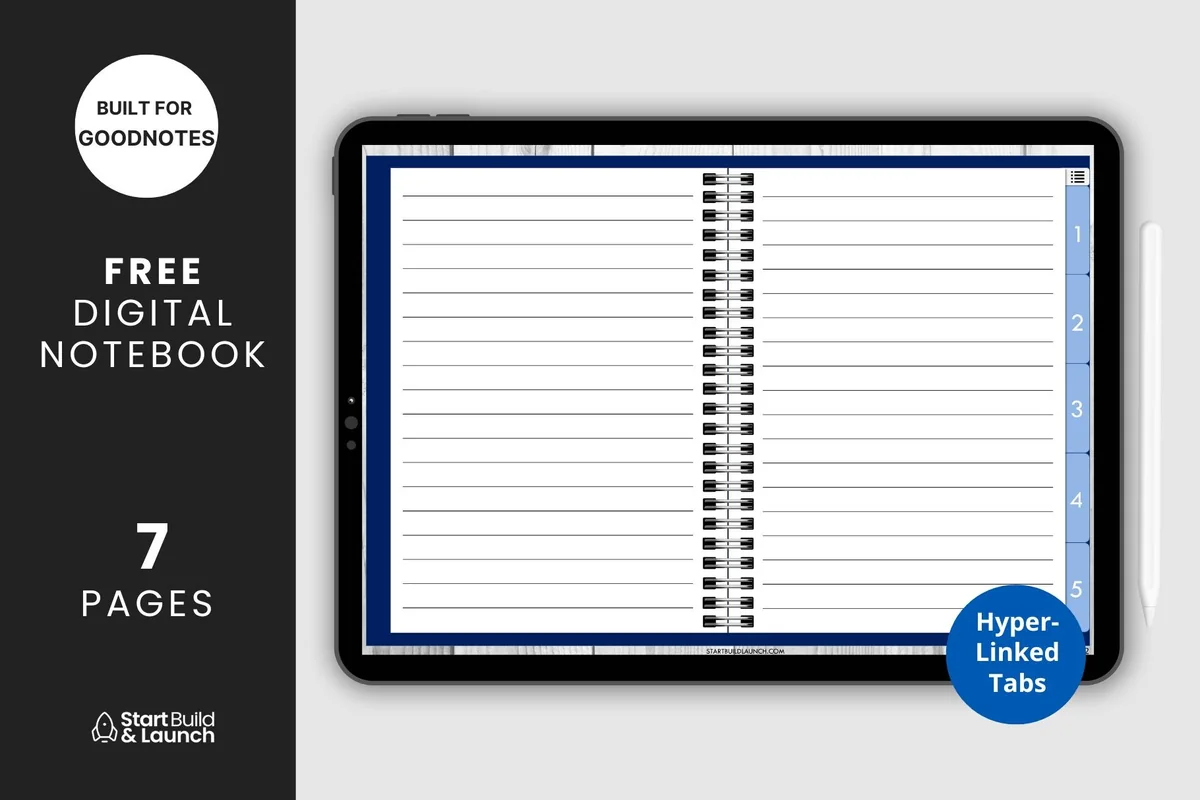
Paper: Lined, Blank, Graph, Cornell, Dot gridSections: 5 hyperlinked tabs + index
Best for: beginners, high school students, minimalists. Designed by aviswilliams.
- 5 hyperlinked tabs, each its own section, plus a blank cover and an index page
- Paper types: blank, lined, graph, Cornell and dot grid
- 7 pages in all: cover, index and the 5 papers; duplicate pages as you write
- Described for GoodNotes, Notability and Noteshelf on an iPad with a stylus
Tip 11 asks you to test line spacing, and this is the cheapest way to do it: write the same shopping list on lined, dot grid and graph paper and keep the one where your letters looked calm. With 7 pages the file stays tiny, so it's also a safe sandbox for trying gestures without touching your real planner.

Best for handwriting drills
2. Hand Lettering Practice with 6 Styles
Layouts: 100 words in 6 styles, 100+ pages, blank sheetFormat: PDF + 2 Procreate brushes + color palette
Best for: lettering beginners, style explorers, journal header makers. Designed by jenstrokeandstyle.
- 100 words in 6 styles: modern, bouncy, faux, expanded, capital and flourished
- Lined guidelines plus a blank practice sheet
- 2 PDF files, A4 and US Letter, works on the iPad or printed
- A pressure-sensitive lettering brush, a monoline brush and a color palette for Procreate
This is the one for tip 13. Import the PDF into your note app and trace the grey words, a line a day, until the strokes feel steady. The designer says the Procreate brushes are pressure sensitive, so they need a pencil with pressure (the USB-C model has none). It's a lettering workbook, not a planner, and it can be printed too.
Best for sketch and notes on one page
3. Watercolor Hyperlinked Digital Notebook
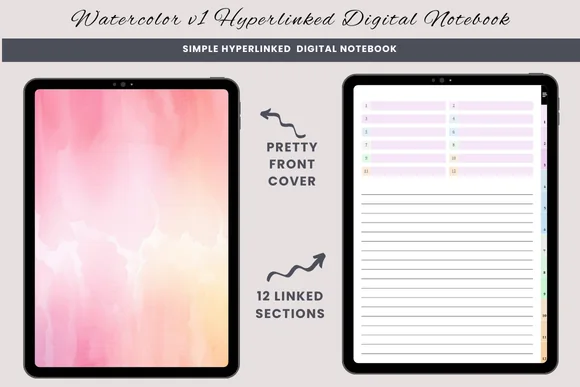
Orientation: PortraitLayouts: 12 sections with lined, blank and half-lined pagesFormat: Hyperlinked PDFDates: Undated
Best for: free-form writers, sketch and write journalers, topic-by-topic journalers. Designed by daysfilledwithjoy.
- 12 hyperlinked sections with watercolor dividers
- 3 page types in each section: lined, blank and half-lined
- Duplicate a page to add more
- Made for GoodNotes and other PDF annotation apps
The half-lined page is where the pencil earns its keep: a quick sketch, a hand-drawn chart or a tilt-shaded heading on top, writing underneath. Name the 12 sections yourself, for example ideas, lists and weekly reviews. There are no dates, so it works as a companion notebook next to your planner.

Best for writing every day
4. Daily Planning Pages Digital Notebook
Orientation: PortraitLayouts: DailyFormat: PDF without hyperlinks + PNGsDates: Undated
Best for: beginners, workday planners, watercolor lovers. Designed by daysfilledwithjoy.
- Daily page with an hourly column and a "Get it done" checklist
- A notes box at the bottom of each page
- Not hyperlinked: duplicate the page as you need
- One PDF for GoodNotes plus bonus PNGs; the designer notes the graphics were made with AI
Neat handwriting comes from repetition more than from settings, and a daily page gives you a reason to write every day. No tabs here, which keeps it simple: duplicate yesterday's page, fill in the hours and tick the boxes. Choose it if you want practice that is also your actual plan.
Best for hand-lettered headers
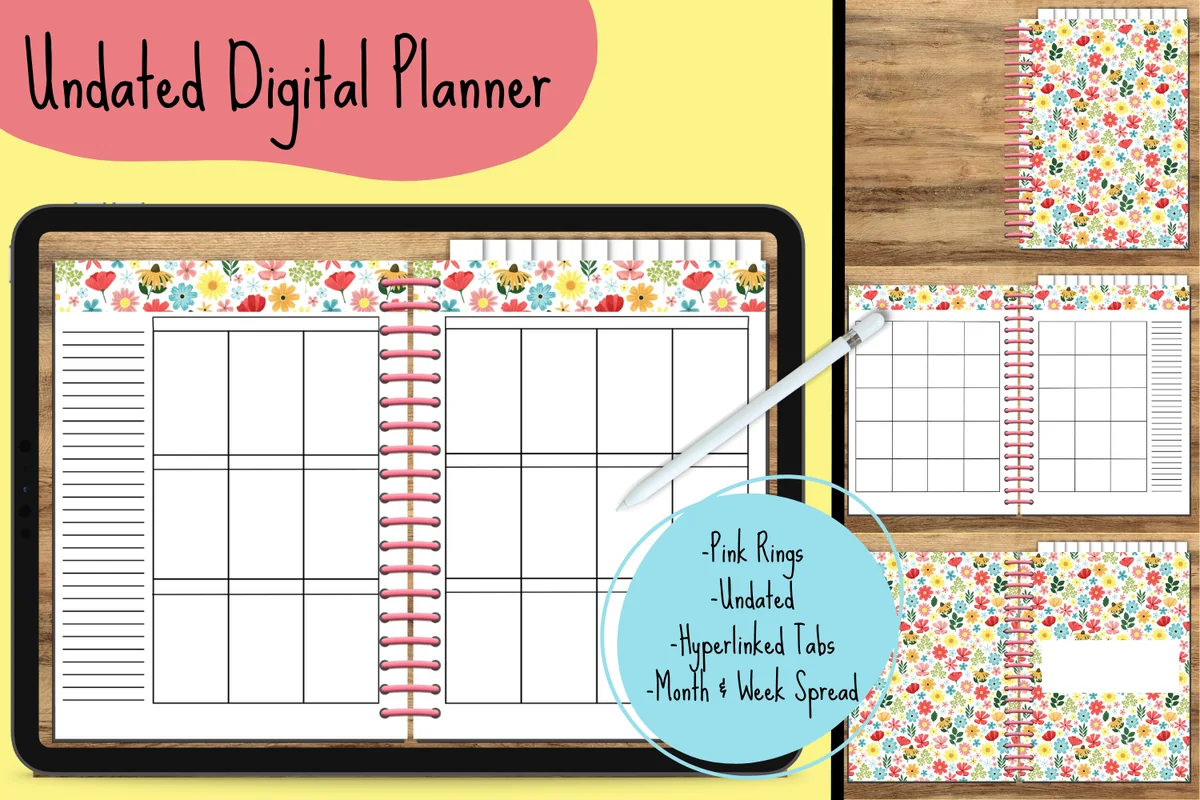
5. Floral Undated Digital Planner
Orientation: LandscapeLayouts: Monthly, WeeklyDates: Undated
Best for: creative planners, beginners, floral lovers. Designed by Georgia White.
- Monthly and weekly spreads, undated
- Hyperlinked tabs to blank dividers for each month
- Colorful floral design
- PDF for GoodNotes
The month dividers are left blank on purpose, so this is where the lettering practice from pick 2 goes on show. Write the month name large, then try a smaller style on the weekly spreads. It's a simple planner: if you need trackers and finance pages, look at a fuller one.
Best for writing inside stickers
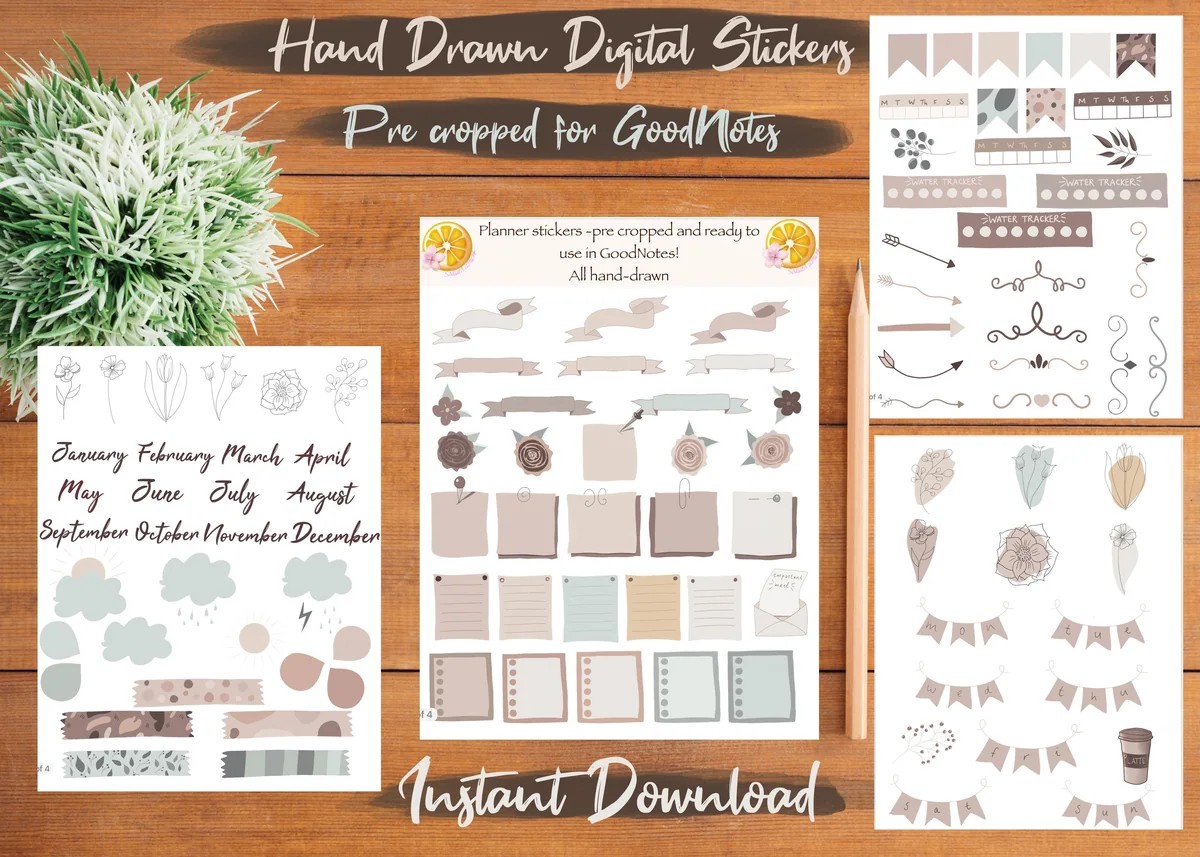
6. 100+ Digital Planner Stickers GoodNotes
Layouts: 100+ hand-drawn earthy stickers: month names, banners, sticky notes, boxes, flagsFormat: GoodNotes file (4 pages, pre-cropped) + single transparent PNGs
Best for: neutral planner fans, GoodNotes beginners, daily spreads. Designed by Sakura Lemon Designs.
- Over 100 hand-drawn stickers in earthy, neutral tones
- Each sticker pre-cropped for GoodNotes, tested by the designer in the app
- A GoodNotes file with all stickers on 4 pages, plus single transparent PNGs
- Month names, banners, sticky notes, lined boxes and small florals (as shown in the previews)
Writing inside a small box is the best test of pencil control, and this pack is full of them: lined notes, banners and sticky notes. Drop one on the page, zoom in and write the three things for today. The neutral colors sit well on almost any planner. It's the most-favorited pick in this list on Creative Fabrica.
Best for skipping the ruler
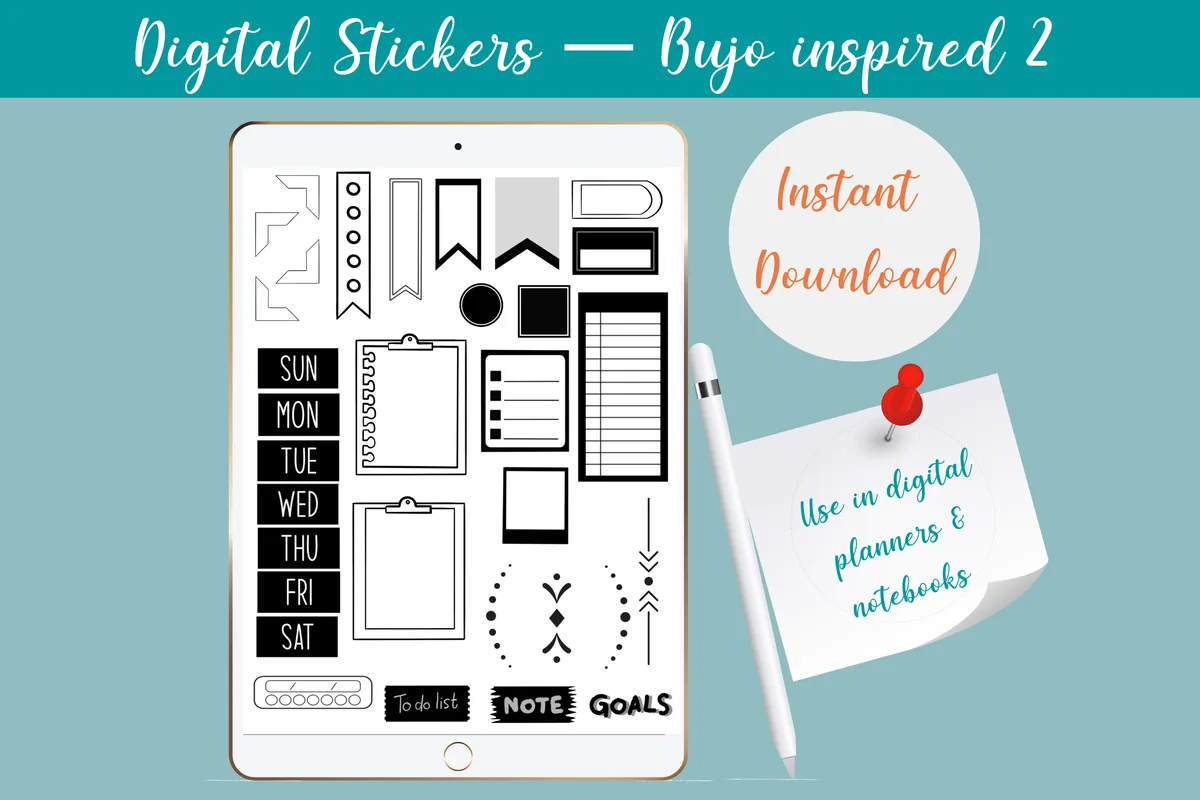
7. Digital Stickers Bujo
Layouts: 32 black and white bujo banners, arrows, frames, dividers, mini month gridFormat: PNG + GoodNotes sticker file
Best for: minimal bujo fans, black and white lovers, weekly spread makers. Designed by Shades of Zen.
- 32 black and white hand-drawn stickers inspired by bullet journal layouts
- Banners, arrows, frames, dividers and checkbox columns (as shown in the previews)
- Individual PNG files with transparent backgrounds
- A GoodNotes sticker file for easy import
Straight boxes and dividers are the slow part of a hand-drawn spread. Let these do the lines and keep the pencil for the words inside them. It's a small set in plain black, so it suits a minimal bujo look and any paper color.
Quick Comparison
| Pick | Type | What the pencil practices | Stand-out extra |
|---|---|---|---|
| 1. Digital Notebook 5 Hyperlinked Tabs | Notebook, 5 paper types | Line spacing and letter size | Index page you fill in |
| 2. Hand Lettering Practice with 6 Styles | Lettering workbook, 100+ pages | Steady strokes and spacing | 2 Procreate brushes |
| 3. Watercolor Hyperlinked Digital Notebook | Undated notebook, 12 sections | Sketching plus writing | Half-lined pages |
| 4. Daily Planning Pages Digital Notebook | Daily notebook, no links | Short daily lists and times | Hourly column + checklist |
| 5. Floral Undated Digital Planner | Undated planner | Large lettered titles | Blank month dividers |
| 6. 100+ Digital Planner Stickers GoodNotes | Sticker pack, 100+ | Writing in small spaces | GoodNotes file + PNGs |
| 7. Digital Stickers Bujo | Sticker pack, 32 | Writing, not ruling lines | Monochrome bujo frames |
Your First Week With the Pencil
- Day 1: check the model and the nib, set double-tap (and squeeze on a Pro).
- Day 2: write one list on three paper types and keep the spacing that fits.
- Days 3 to 5: ten minutes of drills before the daily page, then plan the day by hand.
- Day 6: write inside stickers and small tracker boxes, using hover to aim.
- Day 7: letter the next month’s title and compare it with day 1.
Apple Pencil Questions
How long does an Apple Pencil tip last?
There’s no fixed number: it depends on how much and how hard you write and on the surface. A paper-feel protector wears tips faster than plain glass. Replace the tip when it feels rough or the metal starts to show.
Does the Apple Pencil come with spare tips?
The first-generation pencil came with a spare tip in the box; the second generation dropped it. Check the box contents of your model, and if there’s no spare, a pack of replacement tips is worth keeping in the drawer.
How do I know when my Apple Pencil is charged?
Attach a magnetic pencil and a banner shows the battery level. For any paired pencil, the Batteries widget on the Home Screen or in Today View shows the charge.
Do I need an Apple Pencil for a digital planner?
Not strictly: hyperlinked tabs work with a finger, and you can type into most note apps. But a digital planner is designed for handwriting, and a stylus with palm rejection is what makes writing in small boxes practical. The USB-C model has no pressure sensitivity, which matters for lettering brushes, not for everyday planning.
Which apps work best with the Apple Pencil for planning?
GoodNotes and Notability are the usual choices for PDF planners, and both open hyperlinked planners. I compared them in GoodNotes vs Notability.
Which Apple Pencil Tips to Start With
If you only change three things this week, make them a fresh nib, a gesture for the eraser and the right paper spacing; those three fix most messy pages on their own. Comfort and drills come next. When the pencil feels natural, add stickers and lettered headers: the functional planner stickers and GoodNotes note templates roundups are good next stops. For more Apple Pencil tips on the app side, and other setup help, see the GoodNotes tips and the rest of the how-to guides.
You May Also Like
This post contains affiliate links. If you buy through them, I may earn a small commission at no extra cost to you. Learn more.