A sunny icon can mean three different things: the forecast you checked before leaving, the sky you saw at lunch, or a bright mood. Give weather digital stickers one clear job before filling a whole month with them. A small daily sky journal is a useful place to start: one symbol, one observation, and enough room to write what actually happened.

My shortlist compares three visual approaches rather than three nearly identical bundles. There is a muted set, a neon set, and a bolder kawaii pack. I reviewed their listings and previews for this selection; I have not purchased the files or tested their import. After the comparison, you can choose a logging rule, make a compact weather key, and plan a page that still works on changeable days.
Weather Digital Stickers: Three Packs with Different Jobs
Each paid set is weather-focused and offered for digital planning. I left seasonal word art and general craft graphics out of the shortlist. The free floral weather strips appear separately because they solve a different layout problem.
TL;DR: Three weather packs with different visual roles: muted icons for quiet notes, neon outlines for bright monthly pages, and expressive kawaii characters for a sky diary. Compare the actual file details before choosing a GoodNotes workflow.
Quick Picks
- Best for muted palette: Weather Digital Sticker Pack
- Best for bright outline style: Neon Weather Goodnote Digital Sticker
- Best for expressive characters: Kawaii Weather Digital Sticker Pack
- Weather Digital Sticker Pack – Best muted palette
- Neon Weather Goodnote Digital Sticker – Best bright outline style
- Kawaii Weather Digital Sticker Pack – Best expressive characters

Best muted palette
1. Weather Digital Sticker Pack
Layouts: 16 PNG files; two edge treatments shown
Best for: a small daily weather mark beside handwritten journal entries. Designed by studiopattern.
- 16 PNG files, approximately 500 px on the longest side, plus GoodNotes pre-cropped stickers
- RGB color; 300 DPI is the listed resolution
- Soft yellow, gray and pink weather characters; wind, rain, sun, rainbow and thermometer motifs appear in the previews
- Borderless and white-border-with-shadow treatments shown in the previews
The subdued palette leaves handwriting in the foreground. I like the two edge treatments for keeping a consistent illustration style across different page backgrounds. Count this as 16 files, rather than 16 distinct weather conditions; the listing does not identify the pre-cropped GoodNotes file extension.
Best bright outline style
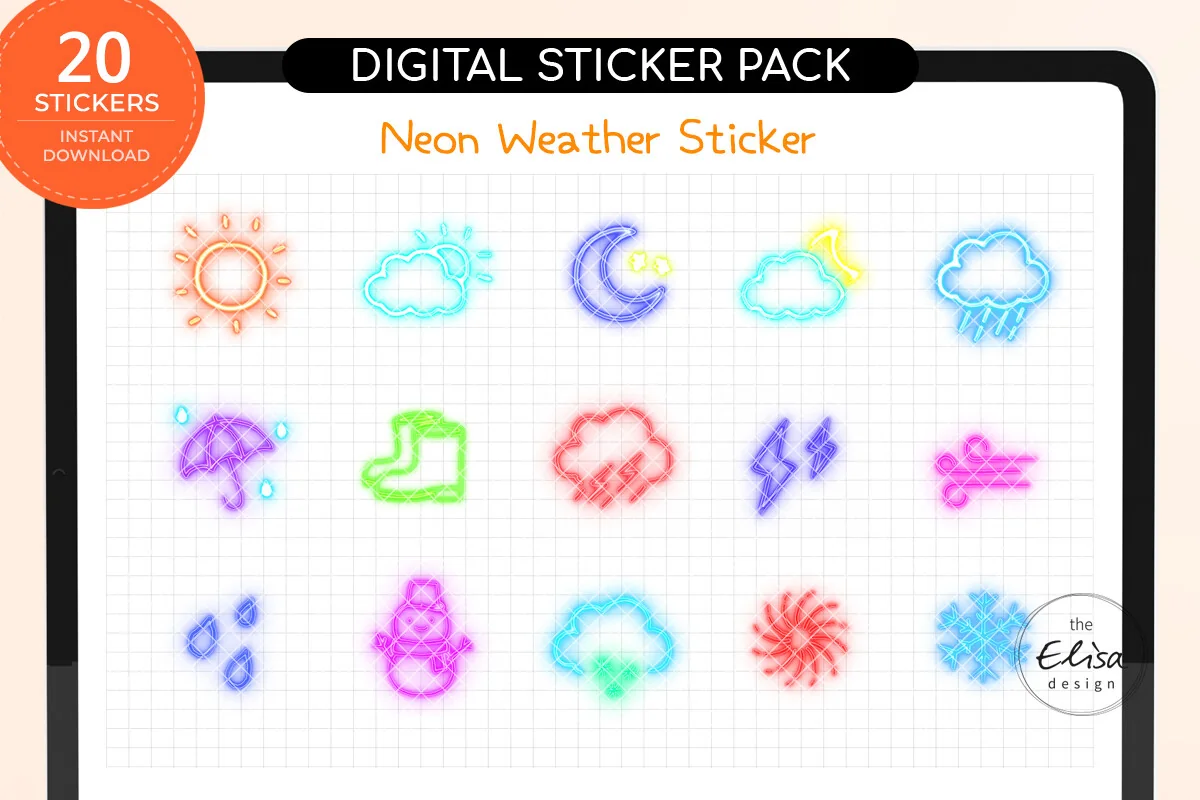
2. Neon Weather Goodnote Digital Sticker
Layouts: 20 individual PNG stickers + one GoodNotes sheet
Best for: colorful monthly logs and pages with a small dedicated weather space. Designed by The Elisa Design.
- 20 individual transparent PNG stickers at 72 DPI
- One pre-cropped GoodNotes sticker sheet; 21 files total in the ZIP
- Glowing outline-style sun, cloud, rain, wind, snowflake and thermometer designs appear in the previews
- Digital use only; the seller explicitly says the artwork is not intended for printing
These outlines have the strongest visual energy of the three sets. Give each icon its own corner instead of placing handwriting over the glow. The calendar mockup shows how to arrange them; a calendar template is not listed among the included files.
Best expressive characters
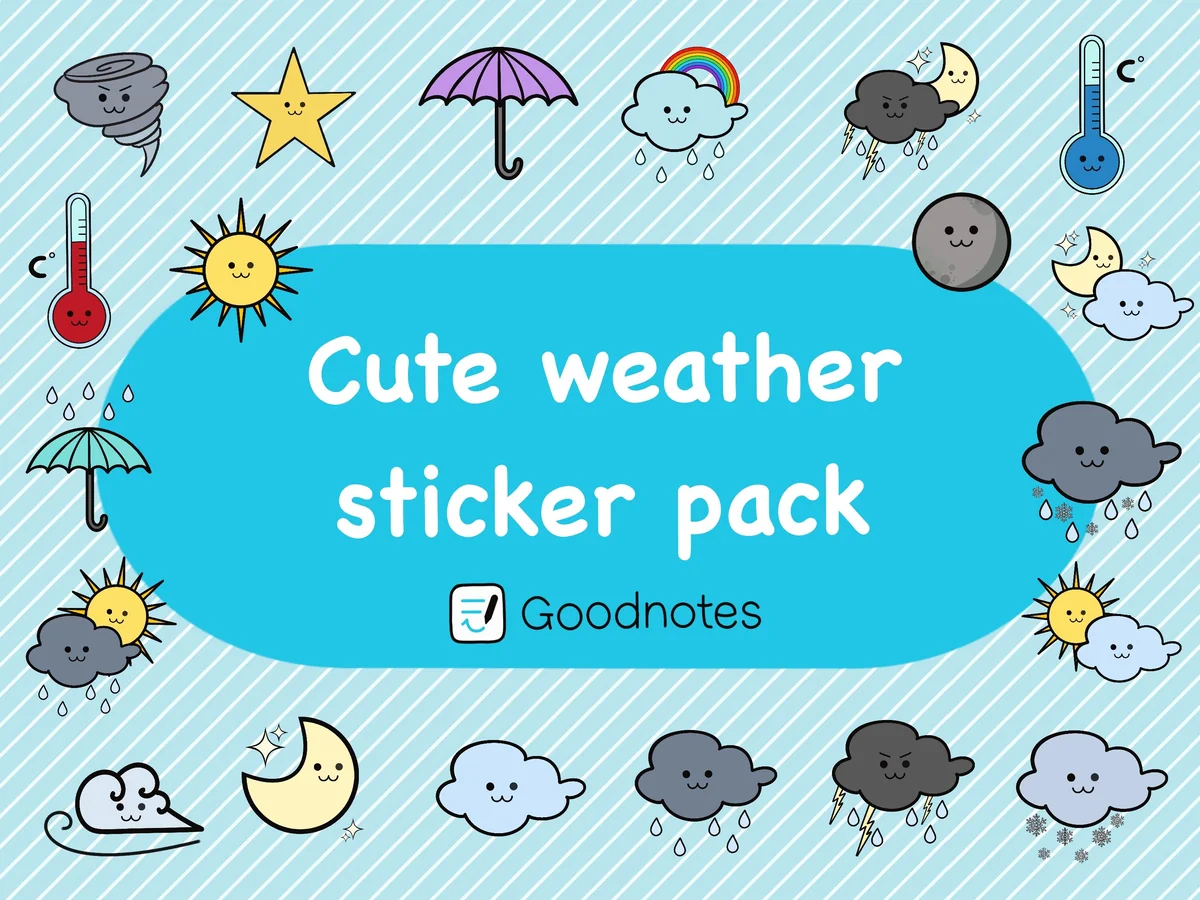
3. Kawaii Weather Digital Sticker Pack
Layouts: 20 stickers; PNG background is transparent
Best for: daily planners, weather trackers, journalers. Designed by Milana Rosenwald.
- 20 digital stickers for GoodNotes, with transparent-background PNGs
- Sun, umbrella, rain, snow, wind, thermometer and moon-and-cloud motifs appear in the previews
- Dark outlines with yellow, blue, purple and gray details
- The third preview advertises a Goodnotes sticker file; the short written description does not specify its packaging
The moon-and-cloud combinations suit an evening diary, while the bold outlines give the characters presence in a dedicated journal margin. Keep a written time beside the icon if you also log daytime weather. The preview advertises a Goodnotes file, but its structure remains unspecified in the written listing.
Quick Comparison
| Sticker pack | Look | Files | Main distinction |
|---|---|---|---|
| 1. Weather Digital Sticker Pack | Muted character icons | 16 PNG files + GoodNotes pre-cropped | Borderless and outlined effects |
| 2. Neon Weather Goodnote Digital Sticker | Bright neon outlines | 20 PNGs + one GoodNotes sheet | Digital-only artwork |
| 3. Kawaii Weather Digital Sticker Pack | Outlined kawaii characters | 20 stickers; transparent PNGs | Daytime and nighttime motifs |
Decide What Your Weather Symbol Records
A forecast entry and an observation entry answer different questions. A forecast helps you plan an outdoor task; an observation preserves a detail from your day. Either can belong in a planner, but a month of unlabeled mixed entries becomes difficult to interpret. Choose the purpose before choosing an icon color.
- Forecast: mark what you expect at a named time, then keep the original symbol if you want a record of your plan.
- Observed weather: mark what you actually saw, with a time if the day changed.
- Daily summary: choose one condition that best represents your day and add a short note for an exception.
- Decorative accent: use a sun or cloud for the look of the spread, without counting it as a weather observation.
For a first sky journal, I prefer observations at a repeatable moment: breakfast, a walk, or the start of an evening entry. You do not need to fill in missing days from memory. An empty square is clearer than a guessed condition, especially if you later compare the notes with photos or outdoor plans.
Use a Small Key Instead of Every Icon in the ZIP
A bundle can include several pictures for the same idea. A cloud with rain, an umbrella, and a pair of rain boots do not have to become three different categories in your log. Begin with a small working vocabulary, then keep the decorative variants outside the record itself.
| Mark | Suggested meaning | Useful note |
|---|---|---|
| Sun | Sunny when observed | Add a time on a changeable day |
| Cloud | Cloud cover | Use words for partial or full cover |
| Rain cloud | Rain observed | Note a shower or sustained rain |
| Snow symbol | Snow observed | Leave unused when irrelevant locally |
| Wind symbol | Wind worth recording | Describe its effect on your plans |
This is a suggested personal key, not a meteorological classification. Put the key on the same page or a nearby reference page. If you change the meaning of a symbol halfway through the month, write down the change rather than expecting yourself to remember it.
Give Changeable Days Enough Room
One large icon can make a calendar look finished while hiding the interesting part of the day. If your morning walk was sunny and your return journey was wet, a second small symbol and a time can be more useful than a larger decorative scene. Reserve a narrow weather margin rather than covering the appointment box.
A day-by-day sky journal layout
- Set aside the weather space. Use a narrow column beside each daily entry, or a small corner inside each calendar box. Keep the position consistent so you can scan the week. Leave your task list and appointment times in their usual places; the weather log should not force you to redesign the entire planner.
- Place one primary symbol. Choose the icon that matches your logging rule, then leave space beside it for a few words. For example, a rain cloud beside “walk home, 5 p.m.” records more context than an umbrella floating in the page header. Add the time and activity yourself.
- Handle the exception with a note. If the day changes, add a second smaller symbol or write a short transition such as “clear morning, wet afternoon.” Use the same convention tomorrow. Two marks should explain the day rather than fill every remaining gap; stop when the entry is readable at your normal viewing size.
- Review the page as a page. Look at the full week rather than the enlarged sticker. Check that day numbers, handwriting and links remain visible. If the weather section has taken over, reduce the sticker size or move the extra details to your daily journal. Keep the same rule for the rest of that week.
A worked example: Monday gets a cloud and “breakfast”; Tuesday gets a sun and “lunch outside”; Wednesday gets rain and “bus home.” These are illustrative entries, not a claim about any location’s actual weather. The small amount of context makes the page a record of your days instead of a chart of unexplained pictures.
Match the Artwork to the Space You Have
Muted fills, neon outlines and bold cartoon faces take up visual space differently. Compare each set with the planner page you already use. A white weekly page with black handwriting has different needs from a colorful scrapbook spread with photos and patterned borders.
For a scrapbook-style sky diary, the torn-paper pieces and retro borders in these vintage digital sticker packs offer ways to frame a photo or date. Keep that decoration outside the weather column so each observation still has a clear symbol and time.
- For quiet handwritten pages: start with studiopattern’s muted icons. Its borderless and white-outline previews give you two edge treatments to consider.
- For a bright monthly log: the Neon Weather set supplies colorful outlines. Keep a plain area around the glow so the symbol does not compete with surrounding decoration.
- For an expressive diary: Milana Rosenwald’s characters include moon-and-cloud combinations alongside daytime weather. Use a written time to distinguish an evening entry from a full-day summary.
A product preview enlarged on a screen cannot tell you how much detail will remain at your final sticker size. Once you have the files, check one icon in the actual planner before arranging a whole month. If a face or fine outline becomes indistinct, give it more room or use a simpler symbol from the same set. You do not need every design to work inside the smallest calendar square.
The advertised DPI numbers are also different: studiopattern lists 300 DPI and Neon lists 72 DPI. These are file specifications, not a side-by-side screen quality test. Neon is intended for digital pages; its seller excludes printing.
GoodNotes Files, Individual PNGs, and Sticker Sheets
These packages use similar vocabulary for different arrangements of images. An individual PNG is a separate picture. A PNG sheet contains several designs together, while a native GoodNotes file is an app document. Check the included-file list rather than assuming that every preview of a sheet describes the same file format.
- Individual PNGs: useful when you want to select a few images and organize your own collection. Transparency refers to the background, not automatic sorting.
- A PNG sheet: may require you to isolate the design you want; it is not the same thing as a folder of separate pictures.
- GoodNotes-ready stickers: studiopattern lists pre-cropped stickers without identifying a file extension. Neon names a GoodNotes file. Kawaii’s preview also advertises one, though its description only lists PNGs.
Goodnotes documents PNG and .goodnotes support in its file-import guidance. For reusable images, its Elements instructions explain collections and insertion. Use the seller’s included-file list to choose between these workflows.
Build a small reusable weather collection
- Select the working images. Start with the sunny, cloudy, rainy and other symbols you actually intend to record. Keep the original product folder separately so your working selection does not become the only copy of the artwork. There is no need to import every decorative variation into your everyday collection.
- Create the collection. In Goodnotes, open Elements, move to the end of the collection list and select the plus icon. Name the collection for its purpose, then use Add Photos or Import from to add your chosen images and create it. Follow the current official instructions if the interface on your device differs.
- Use the same collection in your journal. Open Elements, select the collection and choose or drag a symbol onto the page. Repeat your chosen logging rule rather than changing meanings with each illustration. Keep a separate written weather key if you use similar clouds for different conditions; an image collection does not define the meaning for you.
If the package includes a native sticker book instead, read the seller’s instructions before reorganizing it. A ready-made document and a personal Elements collection are different starting points. The routine above creates your own Elements collection from images.
Free Option: Retro Floral Weather Strips
Retro Floral Weather Digital Stickers is a freebie on the checked Creative Fabrica page. It is separate from the three paid picks above. The previews show narrow floral strips with H/L fields and small weather symbols, so it suits a dedicated weather row better than a large standalone character.
The listing includes a Goodnotes file, PNG sheets, Zoomnotes and Noteful files. The artwork is intended for digital use rather than printing. If you like recording temperatures, the H/L spaces give you somewhere to write them; they do not fetch weather data. Check the current Freebies offer before obtaining the files, since availability can change.
View the Retro Floral Weather freebie.
FAQ: Weather Stickers for an iPad Journal
Will these stickers update the forecast automatically?
The listings offer images and sticker files, not a live weather service. Enter your forecast or observation yourself. If you want a forecast on the same page, write its source and time so it stays distinct from what you observed later.
Do I need a GoodNotes sticker book to use PNG weather icons?
No. PNG images are a supported Goodnotes import format, and Elements can organize images for reuse. A native sticker book is another packaging option. It may be convenient, but a PNG file does not become incompatible simply because it lacks that extra document.
Does the Kawaii pack contain only PNG files?
The description explicitly lists transparent PNGs, while the third preview also advertises a Goodnotes sticker file. Ask the seller about the native file’s format if that determines your purchase. The transparent PNGs are the clearest part of the written file list.
Can I print every pack in this shortlist?
No. Neon Weather is explicitly digital-only. Studiopattern describes its files as suitable for printing as well as digital use; that statement should not be extended to the other packs. This comparison focuses on iPad planning and does not test print output.
Should I use weather icons as a mood tracker?
You can invent a personal mood key, but keep it separate from the sky record. A rainy symbol could otherwise mean sadness on one day and actual rainfall on another. Use a written label or a distinct row if you want both kinds of entry.
Are these full digital planners?
They are sticker packs, not complete planning systems. A calendar shown in a mockup illustrates placement unless the included-file list explicitly promises that calendar. Choose your planner separately and keep enough open space for the weather marks.
Start with One Week of Sky Notes
Choose weather digital stickers for the page you want to read back: muted icons beside quiet notes, neon outlines in a bright log, or characters for a more expressive diary. Before decorating a whole month, give one week a clear observation rule and a small key. That week will show whether you need more symbols or simply a little more writing space.
For a broader mix of everyday labels beyond the weather row, see my functional digital sticker shortlist. Keep the sky journal narrow enough that it can sit beside your regular tasks rather than replace them.
You May Also Like
This article contains affiliate links. I may earn a commission if you purchase through them, at no extra cost to you. Read the affiliate disclosure.