The countdown looks lovely at the top of your planner, until the glitter covers the place where you meant to write tomorrow’s appointments. I looked for New Year digital stickers that could give a page its festive moment and still leave room for an ordinary January week.
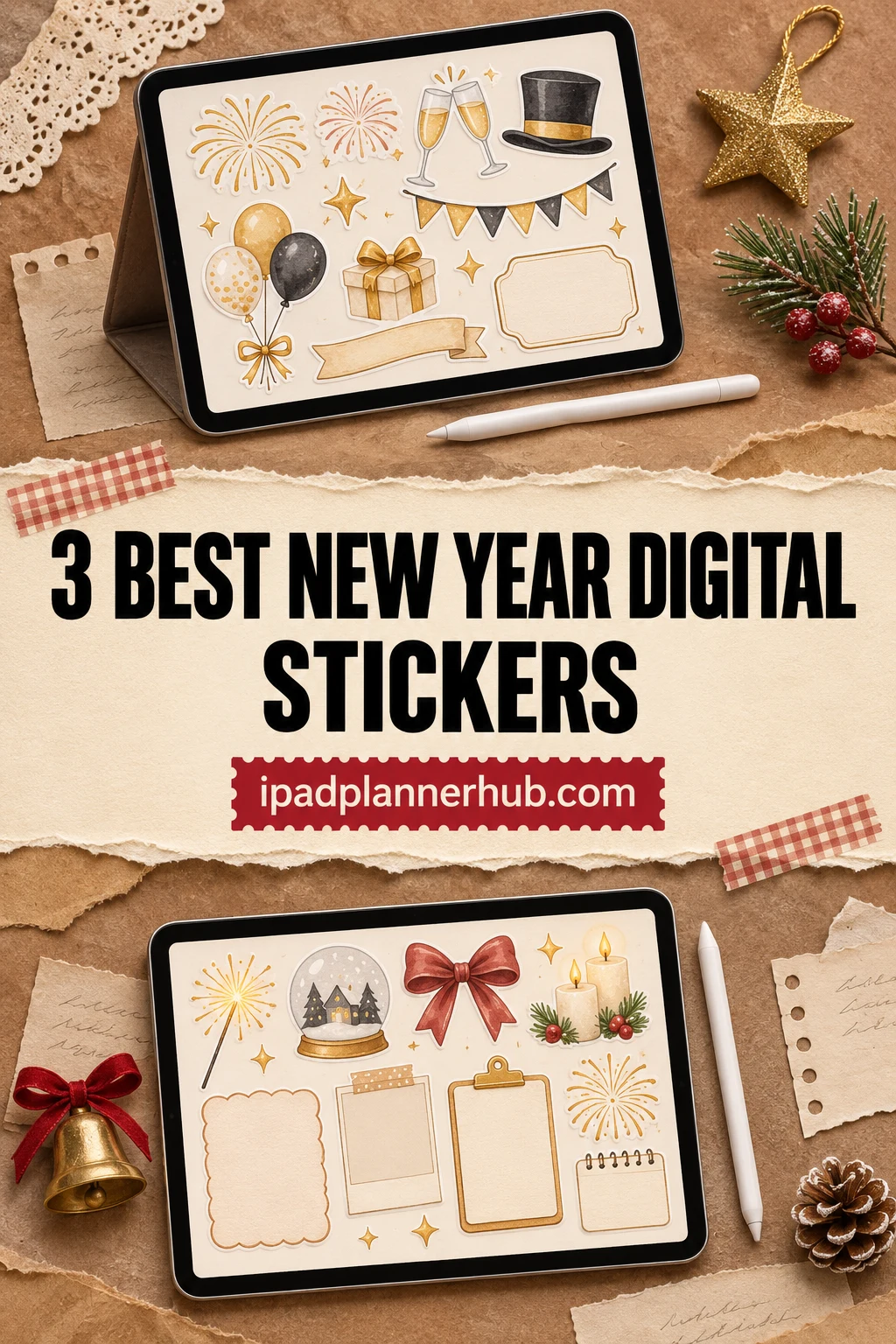
My shortlist has three different jobs in mind: a silver celebration week, a bright resolution page, and a softer illustrated goals spread. These are digital files for iPad planning, not physical sticker sheets. I reviewed the listings and previews rather than buying or importing the packs, so the file differences below matter more than promises about a flawless setup.
The 3 New Year Digital Sticker Sets I Shortlisted
TL;DR: Three different ways to start a New Year page: a silver weekly kit, colorful resolution labels, or watercolor goal illustrations. Only Silver Glam explicitly includes a GoodNotes file; the other two provide individual PNGs. Two free accessory packs appear separately below.
Quick Picks
- Best for monochrome weekly kit: Silver Glam New Year Digital Stickers
- Best for goal-label assortment: New Year’s Resolutions – PNGs
- Best for illustrated goal accents: New Year Goals Vision Board Clipart
- Silver Glam New Year Digital Stickers – Best monochrome weekly kit
- New Year’s Resolutions – PNGs – Best goal-label assortment
- New Year Goals Vision Board Clipart – Best illustrated goal accents
Best monochrome weekly kit
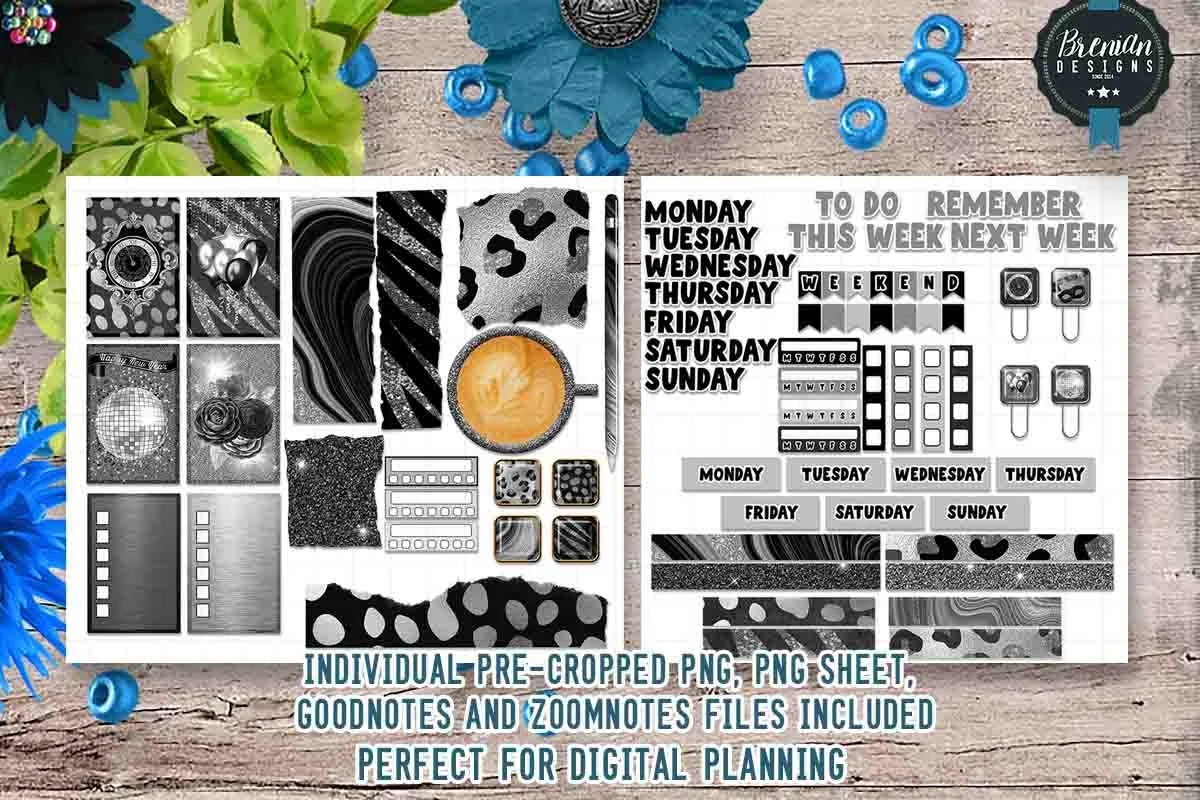
1. Silver Glam New Year Digital Stickers
Layouts: 50+ pre-cropped stickers
Best for: a black-and-silver celebration week with space for tasks. Designed by Bren Wotherspoon.
- Over 50 pre-cropped stickers, with PNG sheets, a GoodNotes file and a ZoomNotes file
- Preview includes weekday labels, checklist boxes, narrow strips, clocks and glitter accents
- Designed for digital use; the seller says these are not suited for printing
The useful part of this glittery set is the quiet half: weekday labels and checklists that can carry an ordinary week. I like the mix of silver textures and black boxes for a page that still needs appointment times. Keep the busiest patterns at the edge; putting handwriting over them would make the page harder to read.
Best goal-label assortment
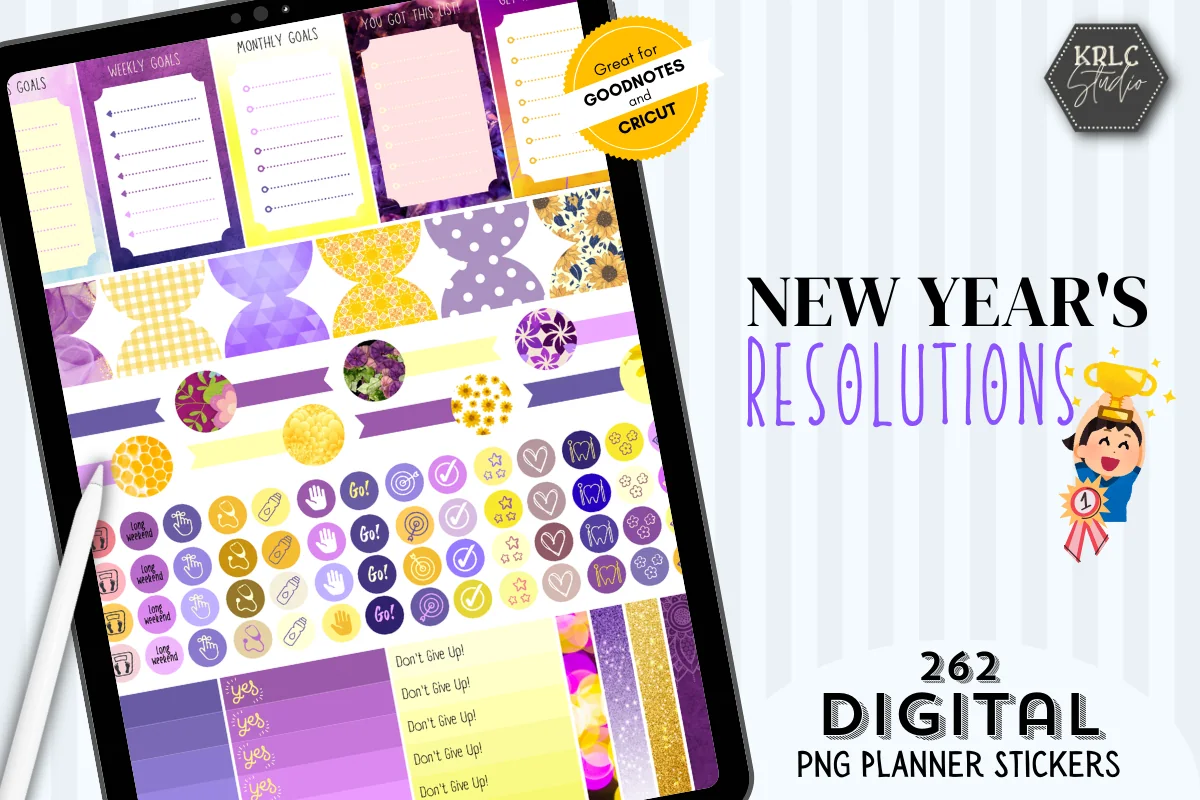
2. New Year’s Resolutions – PNGs
Layouts: 262 individual transparent PNGs
Best for: a bright goal page that continues into January. Designed by KRLC Studio.
- 262 individual transparent PNGs at 96 DPI
- Purple and yellow palette, with goal boxes, motivational phrases and small activity icons visible in the previews
- The description names GoodNotes use; it does not list a ready-made GoodNotes sticker book
The goal boxes make this a useful option for the first Monday after the party: each gives you somewhere to write a next step. Start with a small working selection from the 262 PNGs so you can find your regular labels without browsing every file. The purple-and-yellow palette is a stronger visual commitment than Silver Glam’s monochrome pieces.
Best illustrated goal accents
3. New Year Goals Vision Board Clipart
Layouts: 28 designs + 28 lightweight PNGs
Best for: a soft watercolor goals page with a few visual prompts. Designed by KawaiiDigitalByNan.
- 28 transparent PNG illustrations plus 28 lightweight 1000 × 1000 px versions
- Full-size artwork is 3600 × 3600 px at 300 DPI
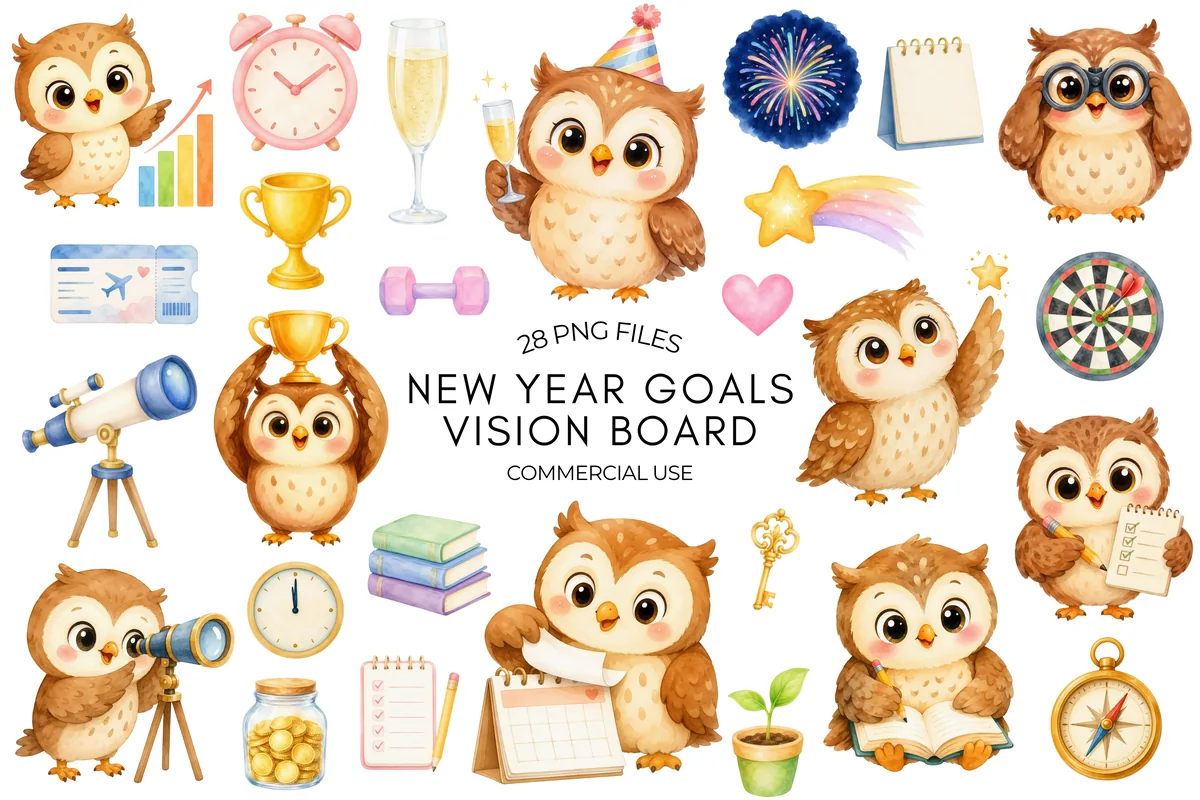
- Owls, books, a savings jar, a clock, fireworks and other goal-related illustrations
- The listing names GoodNotes and Notability; no native app sticker book is specified
The smaller app-oriented copies give this craft-style bundle a clear digital-planning use. Pair an owl with a checklist or a book stack with a handwritten action to mark a goal category. The cute characters suit a playful page; they may feel out of place in a formal, minimal layout.
Quick Comparison
| Sticker pack | Palette | Files | Useful distinction |
|---|---|---|---|
| 1. Silver Glam New Year Digital Stickers | Black and silver | 50+ stickers; GoodNotes and ZoomNotes files | Weekly labels and checklists |
| 2. New Year’s Resolutions – PNGs | Purple and yellow | 262 individual PNGs | Goal boxes and motivational labels |
| 3. New Year Goals Vision Board Clipart | Soft watercolor | 28 designs in two PNG sizes | Illustrated goal categories |
Choose New Year Digital Stickers by the Page You Need
A party spread and a resolution page do different work. Before choosing a pack, decide what you need to see when you open the planner: the evening’s plan, a memory you want to keep, or the next thing you intend to do. That decision is more helpful than comparing sticker counts alone.
- 1For a celebration week: look for labels and writing boxes alongside the decorative pieces. A pretty header is less useful if every appointment still needs a separate box.
- 2For a resolution page: choose small labels that can sit beside a handwritten action. Leave enough room to explain what the goal means this week.
- 3For a visual goals page: choose a few recognizable illustrations, then write your own captions. A book or travel icon can start the thought; it cannot tell you what to do next.
- 4For a memory page: reserve the largest space for your photo or story. Let the stickers frame the memory rather than become the main event.
Start with one main set. Add another only for a missing function, such as goal labels beside decorative illustrations. A shared ink color can tie the two palettes together.
A Small Spread for Midnight, Memories, and Monday
You do not need to rebuild an entire planner for New Year’s Eve. My suggested setup uses three areas, each with a clear purpose. Keep them on separate pages if you write a lot, or give each a section of a single journal spread.
- 1Midnight: plan the actual evening. Write where you will be, who you are meeting, and any practical details you want to remember. Put a celebratory accent beside the heading, away from the time and address. If the evening is a quiet one at home, a short list of what you want to cook, watch, or read is enough.
- 2Memories: leave a deliberate blank. Reserve a photo-sized area and three lines for a moment from the night. Add a short prompt such as “What I want to remember.” Do the decorating around that space so you do not have to squeeze the memory into a leftover corner.
- 3Monday: give one goal a next step. Write one thing you want to continue, one thing you want to change, and a small action for the coming week. A goal sticker belongs beside the action, with a place to review what happened later.
For example, “read more” could become “put the book beside my tea and read on Tuesday evening.” That is a sample planning choice, not a promise that a sticker will build a habit. The page should help you remember your intention without turning the first week of January into a performance.
Three ways to arrange the same idea
- 1A busy celebration: place the schedule first, then a small decorative strip and a memory box below it. Keep any practical reminders in plain handwriting.
- 2A quiet New Year: use one illustration, a few reflection lines, and a short list for tomorrow. You do not need party imagery to make the page feel seasonal.
- 3A working New Year’s Eve: keep your shift or appointments at the top. Put a small celebration note at the bottom so the page still reflects your day rather than an imagined party.
If you are still planning gifts, food, and December events, the Christmas digital sticker shortlist covers that earlier part of the season. This setup begins at the year-end transition; it is not a replacement for your whole December planner.
Keep the Sparkle out of Your Writing Space
A sticker can look clear in a large preview and feel crowded beside handwriting on your iPad. Compose a small sample area, then judge it at the size you normally read.
- 1Pick a visual anchor. Use one clock, illustration, or heading as the main accent. Give the rest of the page a supporting role.
- 2Protect the functional area. Keep dates, times, and next steps on plain backgrounds. Put patterned boxes where they will not compete with your writing.
- 3Repeat one small detail. A matching label or narrow strip can connect the pages without repeating the biggest decoration.
- 4Check contrast. Look at pale artwork on your chosen page background and dark labels beside your handwriting. If either is hard to see, change the placement or keep that piece off the page.
- 5Stop before the margins fill. Blank space is useful when a plan changes. Leave somewhere to add the detail you did not know on December 31.
For a denser collage, use a separate memory page. That gives the illustrations room without making the weekly schedule harder to scan.
A photo from the evening can sit on a torn-paper accent, with a retro month heading above your handwritten memory. These vintage stickers for digital journals compare those background and heading styles if you want a quieter alternative to glitter on the separate memory page.
PNG Files, Sticker Sheets, and GoodNotes Files
“Digital stickers” describes the artwork, but it does not tell you how the files are packaged. Check the included-file list before choosing a set. An individual PNG, an image containing a whole sticker sheet, and a native GoodNotes document are different starting points.
- Individual PNGs: separate image files. The two goal-oriented sets here use this format; a ready-made GoodNotes sticker book is not listed for either.
- PNG sheets: several stickers shown together in an image. Do not assume the sheet itself contains separately movable objects.
- GoodNotes file: explicitly included with Silver Glam, along with pre-cropped PNGs and a ZoomNotes file. I have not checked its import behavior in the current app.
For individual images on iPad, Goodnotes documents the Images tool: choose Insert from…, select a file, and position it on the page. Its image insertion guide also explains cropping. Start with one image so you can judge the result before adding a whole collection.
Make a small seasonal Elements collection
- 1Open Elements, go to the end of the collection list, and select the plus icon.
- 2Name the collection, use Import from… or Add Photos to add your chosen images, then create it.
- 3Open that collection and select or drag an Element onto the page.
These steps follow Goodnotes’ Elements instructions. Collections let you reuse saved content; they do not add artwork that was absent from your purchase. My suggested seasonal collection would contain only the few pieces I expect to use again.
Turn a Goal Icon into a Useful January Reminder
Give each vision-board image a written job. These suggestions connect a visual prompt to a planning action; choose only the categories that matter to you.
- 1Books: write the next title or the time you want to set aside, rather than an impressive annual target you have not thought through.
- 2A savings symbol: add a personal reminder to review a budget or record a purchase. The decoration is not a financial plan.
- 3Travel: pair the image with one research task, such as choosing possible dates. Keep practical details elsewhere if they need more room.
- 4A plant: use it for a hobby or a small home project, with one next action beneath it.
- 5A clock: mark a review time. A check-in can simply ask whether the plan still fits your week.
Here is a compact pattern you can copy in your own handwriting: image → intention → next action → review date. For example, a book illustration could lead to “more reading,” then “choose one book,” then a short check-in next weekend. The useful information is in the words you add, not in the number of icons you collect.
Two Free Accessories for a Small Festive Accent
If all you want is a decorative corner, the two accessory packs below may be enough. Both were listed as Creative Fabrica freebies when checked. They are outside the three-pack shortlist, and availability can change.
- New Year Accessories Digital Stickers: nine pre-cropped stickers with a GoodNotes file and PNG sheets. The preview shows coordinated coffee cups, candles, and pens in dark-and-gold patterns. These are digital decorations, not printable stickers.
- Teal New Year Accessories: nine pre-cropped stickers with a GoodNotes file. Similar cup, candle, and pen motifs use teal patterns. This is a small accessory set rather than a full weekly planning kit.
Match the accessory palette to your main set: dark metallics beside Silver Glam, or teal for a cooler accent. One cluster near the heading is enough if the page already has large illustrations.
FAQ: New Year Sticker Questions
Which set includes a GoodNotes file?
Silver Glam includes one, as do the two free accessory packs. Resolutions and Goals Vision Board list individual PNGs instead. Naming GoodNotes as a possible use does not mean a native app file is included.
Can I use these for the coming New Year?
The selected packs show no fixed year in the previews I reviewed. Write your own year heading if you want one. I excluded a gold glitter set with an old year visible in its artwork; an undated title alone is not enough to judge a seasonal pack.
Which free packs add just a small accent?
The two accessory sets above were listed as Creative Fabrica freebies when checked, and both include a GoodNotes file. Their nine-piece size makes them small accents rather than substitutes for every kind of planning label. Recheck the listing before choosing.
Can I print the packs in this shortlist?
The seller says Silver Glam is unsuitable for printing. Goals Vision Board includes 300 DPI artwork as well as smaller digital copies. Resolutions mentions print-and-cut use but lists 96 DPI PNGs, so check the intended print size before using it on paper.
How do I keep stickers available in Goodnotes?
Save your chosen images in an Elements collection, then insert them from that collection when needed. Goodnotes documents this in its Elements guide linked above. A small New Year collection can be easier to browse than mixing seasonal decorations into every everyday sticker group.
Leave Room for the First Ordinary Week
The best New Year digital stickers for your page are the ones that support what you want to write. Choose a celebration kit for the evening, labels for a goal page, or a few illustrations for a visual prompt. Then leave room for the appointment, changed plan, or small memory that will make the page yours.
You May Also Like
This article contains affiliate links. If you buy through them, I may earn a commission at no extra cost to you. Read the affiliate disclosure.