A budget page is a list of numbers, and lists of numbers are easy to skip. Budget stickers change that. A small house icon next to the rent, a bill due box on the day the phone bill leaves, a piggy bank above the savings line: you see the month at a glance instead of reading it. In a digital planner they also never run out, so the same rent icon can sit on every month of the year.

Below are 6 budget sticker packs from Creative Fabrica I’d use in a GoodNotes planner, from a 144-piece set of budget widgets to kawaii money icons, watercolor payday stickers, savings goal badges, savings quotes and plain bill due boxes. After the list: what to look for, how to sticker a monthly budget page and a sinking funds tracker, ideas and how to add the stickers in GoodNotes.
The 6 Best Budget Stickers I Found for GoodNotes
I skipped print-and-cut sheets for physical planners, SVG and Cricut files, clipart made for sticker shops, full budget planners (they have their own list) and one GoodNotes set whose preview shows an old dated calendar. The same designer often sells one budget pack in four or five colors; I picked one color, not the whole row.
TL;DR: 6 budget sticker packs for GoodNotes and other iPad note apps: 144 pink and grey budget widgets, kawaii bear money icons, 40 watercolor payday stickers, bold savings goal badges, handwritten savings quotes and bill due boxes in 100 colors. None of them has a year on it, and the cards say which packs come pre-cropped for GoodNotes.
Quick Picks
- Best for overall budget pack: Pink Grey Budget Digital Stickers Set
- Best for cute money icons: Finance Planner Digital Sticker Pack
- Best for watercolor payday set: Pay Day Digital Planner Stickers
- Best for savings goals: Financial Digital Stickers for Budgeting
- Best for savings quotes: Digital Financial Stickers | Budget Plan
- Best for bill due reminders: 100 Bill Due Quarter Box Planner Clipart
- Pink Grey Budget Digital Stickers Set – Best overall budget pack
- Finance Planner Digital Sticker Pack – Best cute money icons
- Pay Day Digital Planner Stickers – Best watercolor payday set
- Financial Digital Stickers for Budgeting – Best for savings goals
- Digital Financial Stickers | Budget Plan – Best savings quotes
- 100 Bill Due Quarter Box Planner Clipart – Best bill due reminders

Best overall budget pack
1. Pink Grey Budget Digital Stickers Set
Layouts: 144 budget stickers: bill icons, payday, debt, savings, weekly and today's spending widgets, no-spend monthFormat: Cropped + uncropped PNG, 5 A5 sheets (PDF + PNG)
Best for: monthly budget pages, pink planners, sinking funds. Designed by Tas Creative Studio.
- 144 budget stickers, cropped and uncropped, in pink, peach and grey
- Bill icons (house, car, phone, Wi-Fi, electricity), payday, debt, savings and emergency fund labels
- Widgets you can write in: weekly spending, today's spending, no-spend month, account balances, savings goals
- 5 A5 sticker sheets as PDF and transparent PNG; the description names GoodNotes, Notability, Noteshelf and Xodo
This is the pack I'd start with, because it covers the whole budget page: icons for each bill, boxes to write amounts in and a no-spend month grid. It also has the most favorites of any budget sticker set I looked at on Creative Fabrica. The same designer sells the pack in green, blue and orange; the pink and grey one is the most popular.

Best cute money icons
2. Finance Planner Digital Sticker Pack
Layouts: 24 kawaii money icons: bear with cash, piggy bank, money bag, card, calculator, payday receipt; 3 effectsFormat: PNG (300 DPI) + pre-cropped GoodNotes file
Best for: kawaii fans, savings pages, payday spreads. Designed by studiopattern.
- 24 stickers: a teddy bear with cash, a piggy bank bear, money bags, a credit card, a calculator and a payday receipt
- Three versions of each sticker: original, white border and emboss
- Pre-cropped for GoodNotes, plus individual PNG files at 300 DPI
- Warm browns, soft teal and gold on a neutral background
Budget pages can look stern, and this little bear fixes that: a money bag next to the savings box makes the page easier to open on a Sunday. The three effects are a nice touch, the white border version stands out on busy pages. It's an icon pack, not a set of writing boxes, so pair it with the first pack if you want widgets too.

Best watercolor payday set
3. Pay Day Digital Planner Stickers
Layouts: 40 watercolor money stickers: PAY DAY banner, piggy bank, coin jar, envelopes, ATM, PAID stamp, chartsFormat: Pre-cropped stickers
Best for: payday spreads, money journals, watercolor planners. Designed by Youssef Artist.
- 40 pre-cropped stickers in a watercolor style
- A PAY DAY banner, piggy bank, coin jar, cash envelopes, ATM, calculator and a PAID stamp
- A house key, shopping bags and colored bar charts for bills, shopping and progress
- The description mentions digital planners, budgeting trackers and iPads; the designer says the art is made with AI and reviewed by hand
If your planner is more watercolor than kawaii, this is the set for payday: the PAY DAY banner and the PAID stamp tell the story of the page on their own. The illustrations are detailed, so they look best a bit larger, as a header or a corner piece. The designer is open about using AI, which I'd rather know than not.

Best for savings goals
4. Financial Digital Stickers for Budgeting
Layouts: 20 bold finance badges: no spend challenge, emergency fund, envelope budget, retirement, goal getterFormat: PNG
Best for: savings goals, emergency fund trackers, bold planners. Designed by DigitalsbyJakaylaco.
- The Financial Freedom kit: 20 finance-themed designs about budgeting, saving and investing
- Bold badges like No Spend Challenge, Emergency Fund, Envelope Budget, Budget Boss and Save Smart
- Retirement nest egg, goal getter and celebrate wins stickers for milestones
- Described for GoodNotes, Notability and digital planners
These are loud, bold badges, and that's the point: a big Emergency Fund shield at the top of a savings tracker is hard to ignore. I'd use them as one sticker per goal page rather than as small accents. A few stickers repeat the same idea in two versions, so the 20 designs feel like about 12 different messages.
Best savings quotes
5. Digital Financial Stickers | Budget Plan
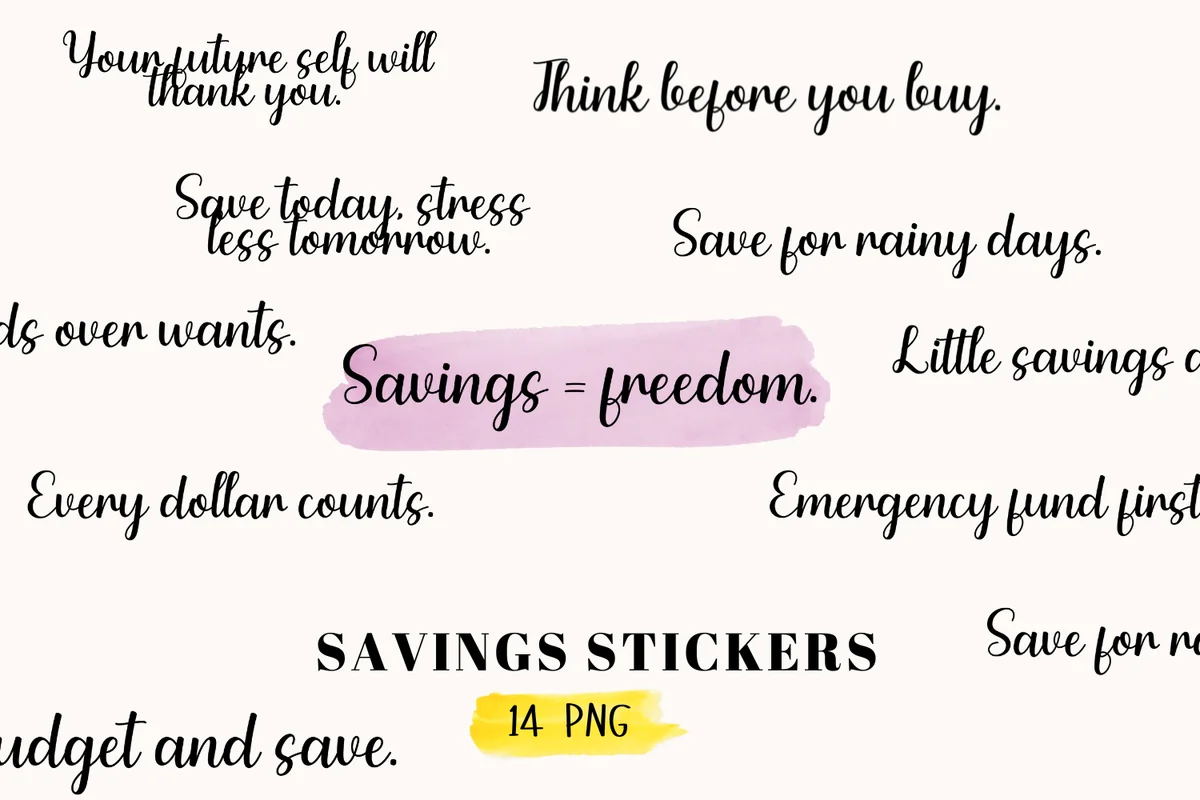
Layouts: 14 handwritten savings quotes in black scriptFormat: PNG (transparent)
Best for: minimal budget pages, spending lists, motivation. Designed by Aneta Design.
- Handwritten savings quotes like "Every dollar counts", "Needs over wants", "Think before you buy" and "Emergency fund first"
- Black script on a transparent background, so they fit any planner color
- The cover shows 14 PNG stickers; the title of the description says 20
- Compatible with GoodNotes, Notability and Samsung Notes, according to the description
Text stickers are the most useful thing on a budget page for me: "Needs over wants" above the spending list does more than any piggy bank. The black script works on white, beige and pastel pages alike. The description says 20 stickers, but the cover shows 14 PNGs, so I'd count on 14.
Best bill due reminders
6. 100 Bill Due Quarter Box Planner Clipart
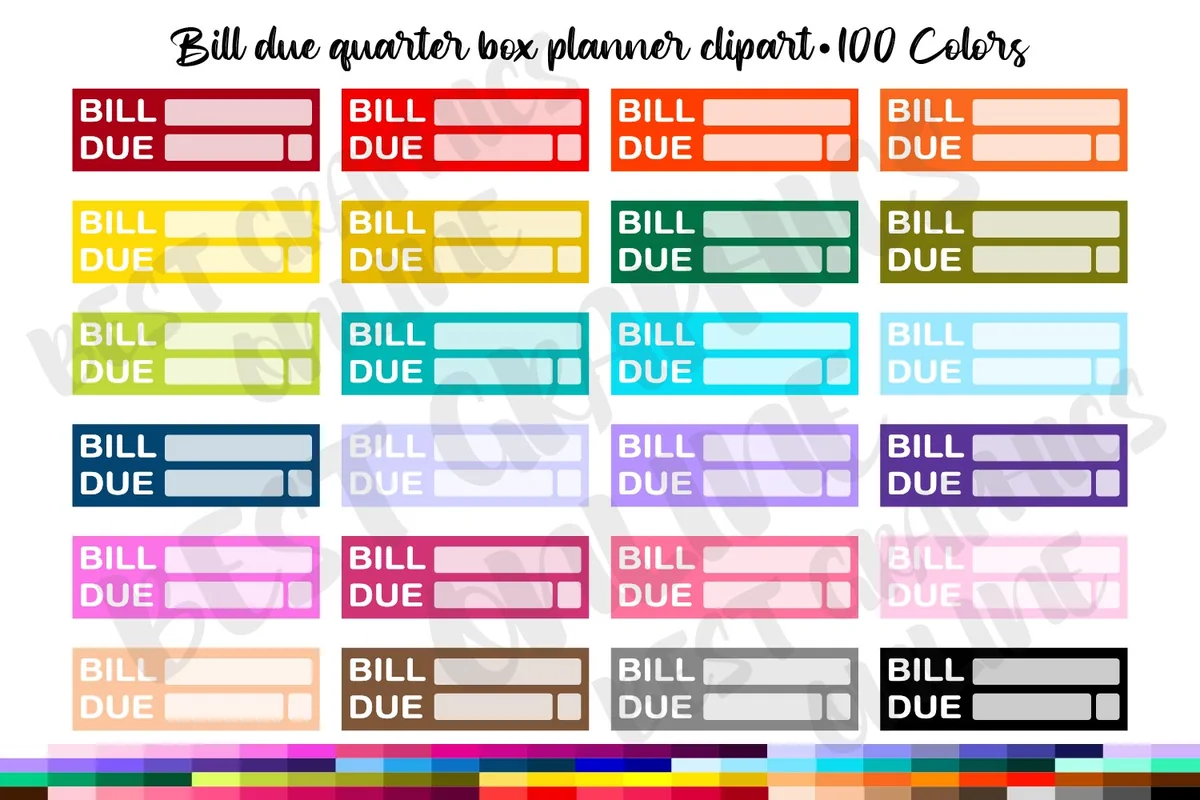
Layouts: Bill due quarter box in 100 colorsFormat: 100 PNG (300 DPI, 1.5 x 0.5 in)
Best for: functional planners, bill calendars, color coding. Designed by bestgraphicsonline.
- A small "BILL DUE" quarter box with blank fields to write the bill and amount in
- 100 colors, each a separate PNG with a transparent background
- 300 DPI, about 1.5 by 0.5 inches, sized for a weekly or monthly box
- The description says it suits a digital planner; it's a PNG set, there is no GoodNotes file
It's the plainest pack here and maybe the most practical: one bill due box on the day the rent leaves your account. With 100 colors you can match every bill to a color, rent in red, phone in blue, and see the month at a glance. Save the colors you use to Elements once, because adding PNGs one by one gets old fast.
Quick Comparison
| Sticker pack | Style | What you get | Best page |
|---|---|---|---|
| 1. Pink Grey Budget Digital Stickers Set | Soft pink and grey | 144 stickers, 5 A5 sheets | Monthly budget |
| 2. Finance Planner Digital Sticker Pack | Kawaii, warm neutrals | 24 PNG, 3 effects, GoodNotes file | Savings and payday |
| 3. Pay Day Digital Planner Stickers | Watercolor, detailed | 40 pre-cropped stickers | Payday and bills |
| 4. Financial Digital Stickers for Budgeting | Bold badges, bright | 20 PNG designs | Savings goals |
| 5. Digital Financial Stickers | Budget Plan | Black script quotes | 14 PNG (cover) | Spending page |
| 6. 100 Bill Due Quarter Box Planner Clipart | Plain functional box | 100 color PNGs | Bill calendar |
Which Budget Stickers Fit Which Page
- A whole monthly budget: the pink and grey set has bill icons and boxes to write amounts in, enough to build the page from stickers alone.
- A friendly savings page: the kawaii bear icons make money pages feel less serious.
- Payday: the watercolor payday set has a PAY DAY banner and a PAID stamp for the day the money comes in and the bills go out.
- Big goals: the savings goal badges head an emergency fund or a no-spend challenge.
- A reminder to yourself: the savings quotes sit above a spending list.
- Bill dates: the bill due boxes mark each bill on a monthly calendar, in its own color.
What I Look For in Budget Stickers
- Stickers you can write in. A bill due box, a weekly spending list or an account balance widget does real work on a budget page. Pure decoration is nice, but a page needs a few working pieces too.
- Icons for real bills. Rent, car, phone, Wi-Fi, electricity, groceries. When each bill has its own picture, a monthly list is much faster to read.
- Made for the screen. Transparent PNGs or a pre-cropped GoodNotes file. Print-and-cut sheets look fine on paper and awkward on an iPad page.
- One style per planner. Soft pastels, kawaii, watercolor or bold badges: mixing all four on one page makes it noisy. Pick one pack as the base and add a second only for accents.
- No dates. None of these packs has a year on it, so they work for every month you budget.
Every Dollar Gets a Sticker: How to Sticker a Monthly Budget Page
The title of this post is the method: each dollar you plan for gets a job, and each job gets a sticker. That’s the idea of a zero-based budget, made visual. Here is how I’d set up one monthly budget page in GoodNotes:
- Income at the top. Write the month’s income and put a payday sticker next to each paycheck: the PAY DAY banner from the watercolor set or the payday label from the pink and grey set.
- One icon per fixed bill. House for rent, car for the car payment, phone, Wi-Fi, electricity. Write the amount next to each icon.
- Bill dates on the calendar. On the monthly calendar, add a bill due box on each due date. Give every bill its own color and keep it the same each month.
- Savings and sinking funds. Give each savings goal a badge, such as the Emergency Fund shield from the savings goal pack, and write how much goes into it this month.
- What’s left to spend. Put a weekly spending widget at the bottom for groceries and fun money. When income minus bills and savings equals zero, every dollar has its sticker.
- A quote on top. Finish with one line like “Needs over wants” from the savings quotes. It’s the first thing you see when you open the page to spend.
Want a page with these sections already built? My budget planner ideas have more layouts, and the 50/30/20 budget templates split income into needs, wants and savings for you.
How to Build a Sinking Funds Tracker with Stickers
A sinking fund is money you put aside each month for a cost you know is coming: car repairs, holiday gifts, a vacation, the yearly insurance bill. A tracker page keeps all of them in one place:
- One column per fund. Put a sticker at the top of each column: a car for repairs, a gift for the holidays, a coin jar for the vacation.
- The goal and the date. Under the sticker, write the target amount and when you need it. Divide one by the number of months to get your monthly amount.
- Color in the progress. Draw ten small boxes under each fund and color one in for every 10% saved, or drop a coin sticker into each box.
- Mark the finish. When a fund is full, add a celebrate wins sticker from the savings goal pack or a PAID stamp from the payday set.
The pink and grey set already has savings goal widgets with a dollar line, so you can skip the drawing. For fill-in savings charts, see my savings challenges for 2027.
Budget Sticker Ideas for a Digital Planner
- A no-spend month grid: one sticker on every day you spend nothing.
- A piggy bank next to each transfer to savings.
- A PAID stamp on each bill once it’s paid, so the month fills up with checkmarks.
- A bill due box two days before the real due date, as a safety reminder.
- A color for each category: groceries green, bills blue, fun money pink.
- A debt payoff page with one sticker for every payment made.
- An envelope budget page: one envelope sticker per category, with the amount written on it.
- A payday spread every two weeks if you are paid biweekly.
- A savings quote on the first page of the month, before the numbers.
Paid every two weeks? My biweekly budget templates plan the budget paycheck by paycheck, and the payday stickers above fit right on those pages.
Digital Budget Stickers vs Printed Budget Stickers
Search for “budget stickers” and most of what comes up is sticker books for paper planners and budget binders. Digital budget stickers are images you place on iPad pages. You never run out of bill due boxes, you can resize a widget to fit a box, and a change to the budget is one tap, not a peeled sticker. Some packs here, like the pink and grey set, also come as full sheets you could print, but here they are for the planner on your iPad.
How to Add Budget Stickers in GoodNotes
- Unzip the files in the Files app on your iPad.
- GoodNotes file: if the pack has one (the kawaii bear icons do), open it in GoodNotes. The stickers are laid out on pages, ready to copy.
- Single PNGs: in your planner, tap the image tool and pick a sticker from Photos or Files. Resize it with the corners.
- Save your favorites: select a sticker with the lasso tool and add it to Elements. Make one collection called “Budget” and it shows up in every notebook.
- Writable widgets: place the widget first, then write on top of it with the pen. If you lock the image, you can’t move it by accident while writing.
Using Notability or Noteshelf? PNG stickers go onto the page as images there too. My GoodNotes vs Notability comparison covers how each app handles stickers, and my GoodNotes stickers list has more functional packs to mix in.
FAQ
What are budget stickers?
They are planner stickers for money pages: bill icons, payday labels, savings badges, bill due boxes, spending widgets and money quotes. Digital budget stickers come as PNGs with a transparent background or as a GoodNotes file for a planner on a tablet.
How do you use budget stickers in a planner?
Give each bill and each savings goal its own sticker, put bill due stickers on the dates in your monthly calendar, and use writable widgets for amounts. The section on how to sticker a monthly budget page above shows the whole setup step by step.
Can you add stickers in GoodNotes?
Yes. Add a PNG with the image tool, or open a GoodNotes sticker file and copy stickers from it. To keep them handy, select a sticker with the lasso and add it to Elements, and it is there in every notebook.
Are there free budget stickers for GoodNotes?
Some designers share small free sets, and GoodNotes has its own sticker library. The packs in this list are on Creative Fabrica, where they’re paid individually or included with an All Access subscription.
Do budget stickers work in Notability?
Yes. PNG stickers work in any app that adds images to a page, including Notability, Noteshelf and ZoomNotes. A GoodNotes sticker file only opens in GoodNotes, so for other apps use the PNGs from the same pack.
Can a sticker budget replace advice from a professional?
No. Stickers make a budget easier to see and to stick with, but they don’t change the math. If debt keeps growing, bills are going unpaid or you are thinking about a loan, a nonprofit credit counselor or a financial advisor can look at your whole situation and help with a plan.
Final Thoughts
The best budget stickers turn a page of numbers into a month you can read at a glance: an icon for every bill, a box for every due date and a badge for every goal. Start with the pink and grey set for a full monthly page, add the bill due boxes to your calendar, and save both to Elements before the next payday. For a planner to put them in, see my digital budget planners and the full planner stickers collection.
You May Also Like
This post contains affiliate links. If you buy through them, I may earn a small commission at no extra cost to you. Learn more.