Class timetable ideas are most useful when they show the awkward parts of your week: a 9:10 start, a lab that meets every other Tuesday, or a room across campus. Choose the layout around those details first, then add color. A neat grid is only helpful if you can tell where to be and when to leave.

Compare seven digital options first, then explore 15 different ways to arrange fixed classes on an iPad. Two include schedule pages; the other five are notebooks or paper for drawing your own. These are page designs, not calendar apps, and the proposed layouts are my suggestions rather than features promised by every product.
Choose class timetable ideas by the shape of your week
- Same times every week: start with a day-column grid or period matrix.
- Unequal lesson lengths: use a half-hour scale or exact-time list.
- Alternating or rotating classes: keep the cycle name visible on every page.
- Different buildings: give travel its own space between classes.
Write the term and an effective-from date at the top of the master page. For every entry, keep course code, start time, end time and room together. Use the official timetable as your reference when filling it in; a decorative PDF should not become the authority when the school changes a class.
7 iPad options for building your timetable
TL;DR: Choose one of 15 timetable layouts by how your classes repeat. Below are 7 iPad options: 2 sets with schedule pages, 4 notebooks for drawing your own layout, and 1 paper pack. PDF pages need manual updates.
Quick Picks
- Best for semester navigation: Digital Semester Planner for Goodnotes
- Best for custom time intervals: Editable Student Planner
- Best for twelve expandable sections: Digital Notebook
- Best for five clean sections: Digital Notebook 5 Hyperlinked Tabs
- Best for varied layouts within a notebook: Digital Notebook 5 Hyperlinked Tab
- Best for a blank-page timetable: Watercolor Hyperlinked Digital Notebook
- Digital Semester Planner for Goodnotes – Best for semester navigation
- Editable Student Planner – Best for custom time intervals
- Digital Notebook – Best for twelve expandable sections
- Digital Notebook 5 Hyperlinked Tabs – Best for five clean sections
- Digital Notebook 5 Hyperlinked Tab – Best for varied layouts within a notebook
- Watercolor Hyperlinked Digital Notebook – Best for a blank-page timetable
- Digital Notebook Papers – GoodNotes – Best for adding paper to an existing notebook
Ready-made schedule starting points
Best for semester navigation
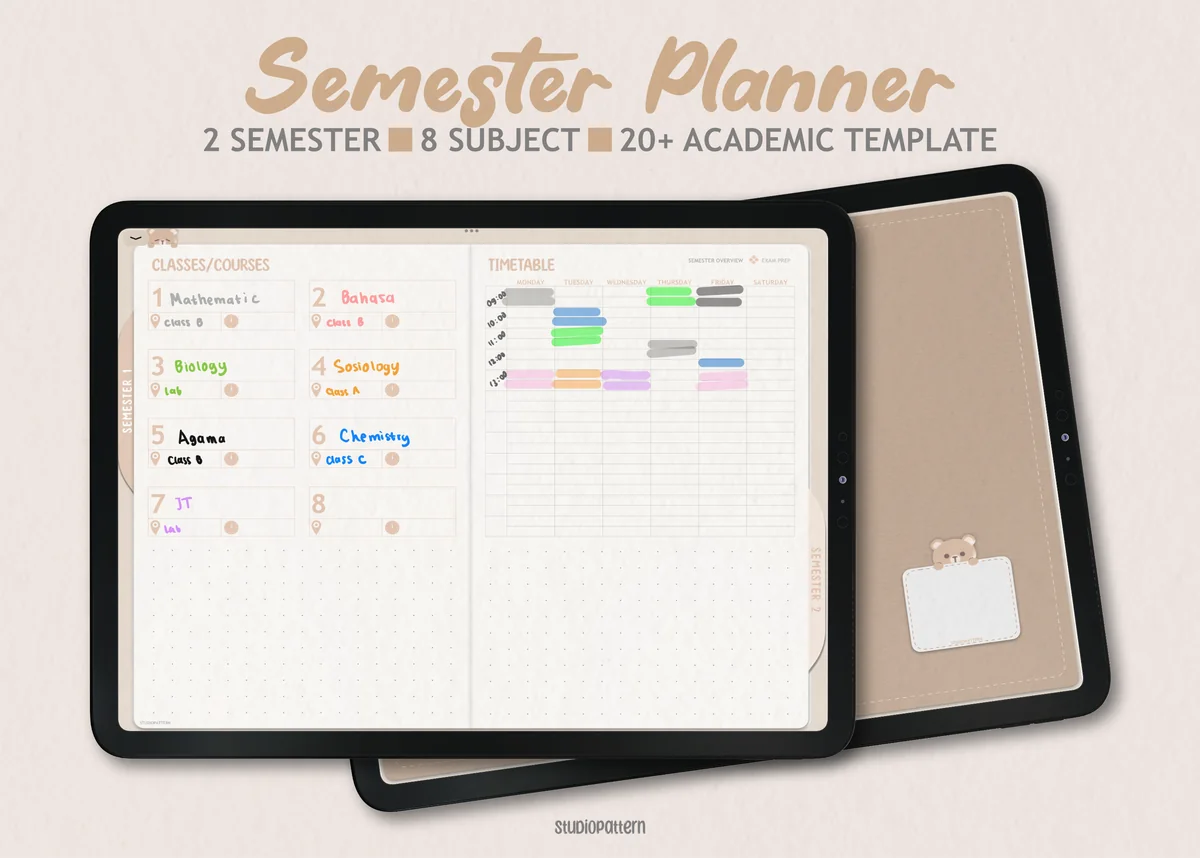
1. Digital Semester Planner for Goodnotes
Orientation: LandscapeLayouts: Semester timetable; class overviewDates: Undated
Best for: college students, high school students, exam season. Designed by studiopattern.
- Two semesters with up to eight classes per semester
- Semester dashboard and semester timetable
- Hyperlinked PDF plus a manual; calendar elements for Goodnotes only
The timetable and class overview belong together here. I like this option when a schedule needs to lead into the right course notes. The A/B, travel and rotation layouts below are still your own additions; the listing does not promise automatic conflict detection.
Best for custom time intervals
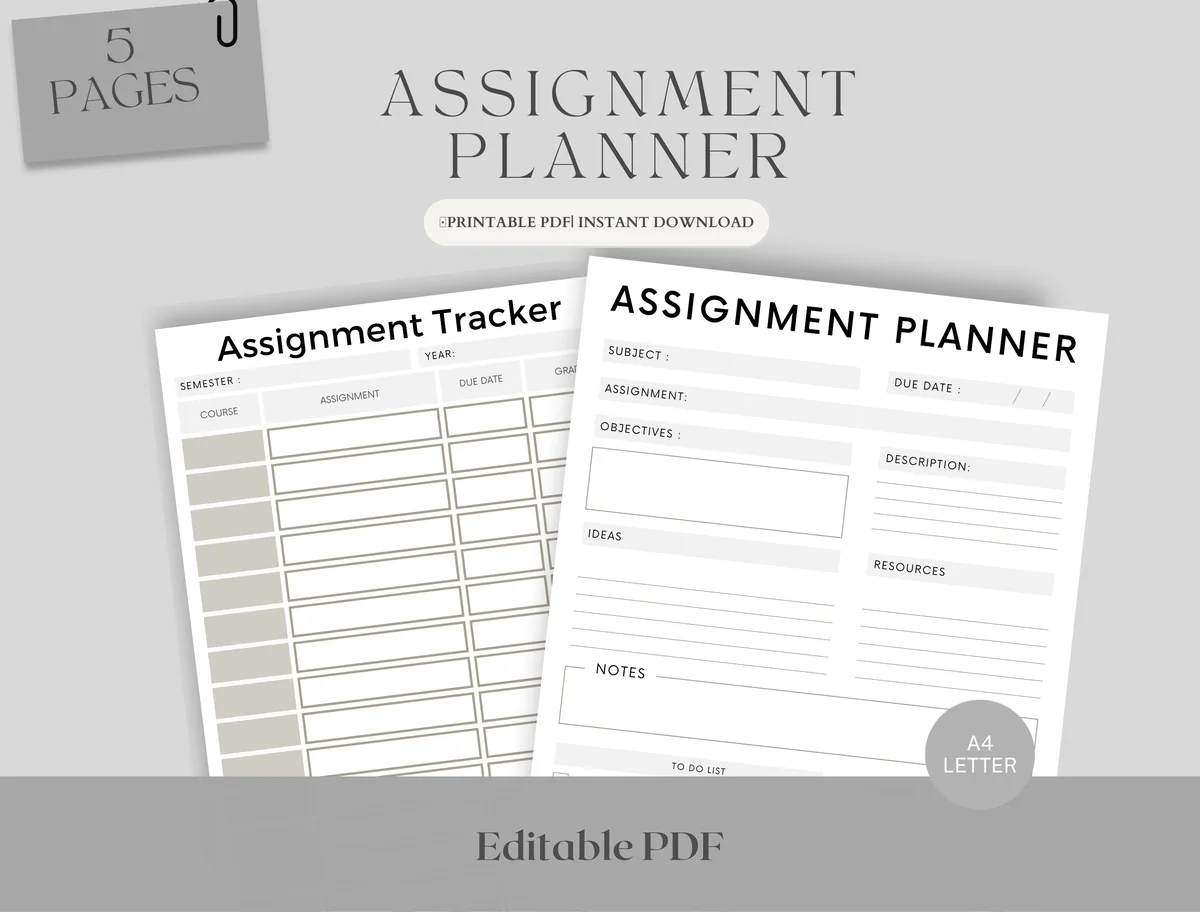
2. Editable Student Planner
Orientation: PortraitLayouts: Hourly and custom-time weekly schedulesDates: Undated
Best for: high school students, college students, deadline jugglers. Designed by Upbeat.
- Five-page assignment planning set in PDF format
- Two weekly schedules: one-hour slots and a customizable time column
- A4 and Letter sizes; iPad use with Goodnotes or Notability is stated
The unlabelled time column is the useful part for classes starting at 9:10 or 11:35. Use that version instead of squeezing uneven lessons into hourly boxes. This is a small assignment bundle with weekly pages, rather than a hyperlinked semester notebook.
Notebooks for your own timetable layout
Best for twelve expandable sections
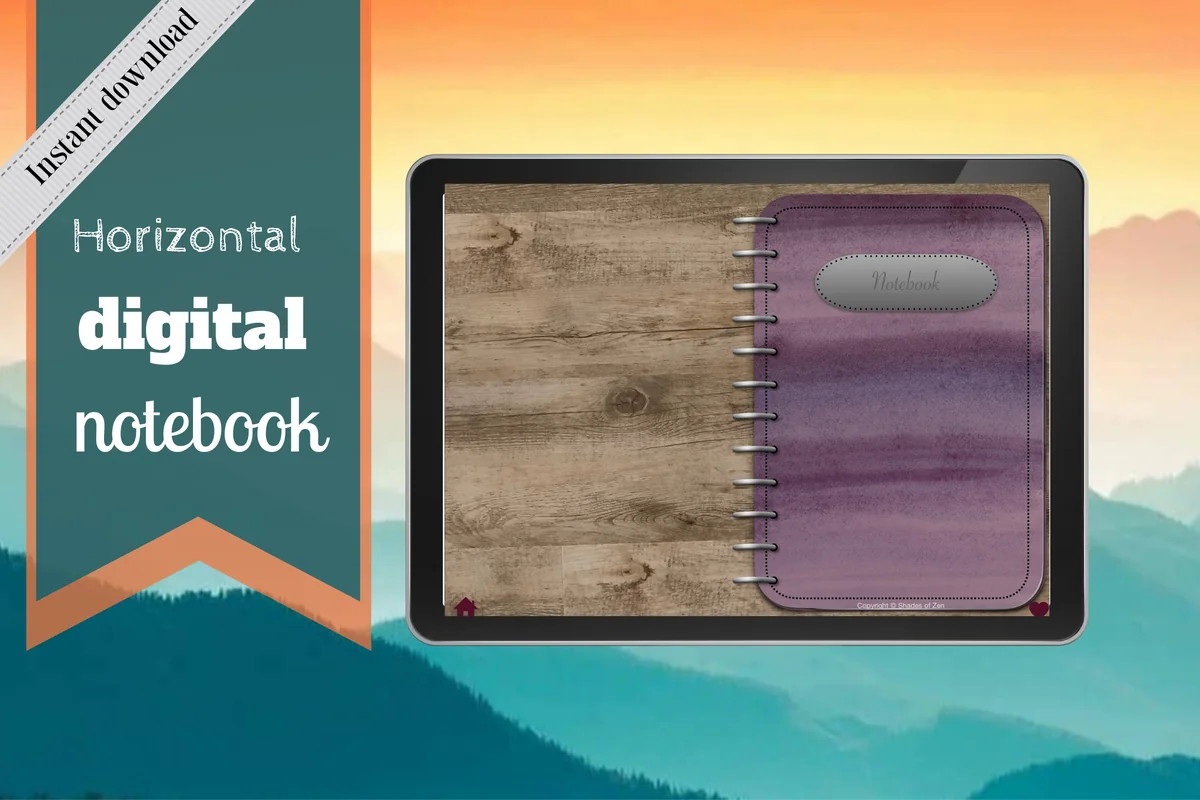
3. Digital Notebook
Orientation: LandscapeLayouts: 16 note templates; graph and columnsDates: Undated
Best for: landscape note-takers, busy students, meeting notes. Designed by Shades of Zen.
- Twelve hyperlinked sections with section dividers
- Sixteen note templates, including graph, dots and two columns
- Designed for Goodnotes or a PDF annotation app
The landscape spread leaves room for a wide weekly grid. Use graph paper to draw equal time units, then reserve another section for rooms and course codes. There is no promised ready-made class timetable: the flexibility comes from drawing and duplicating your own page.
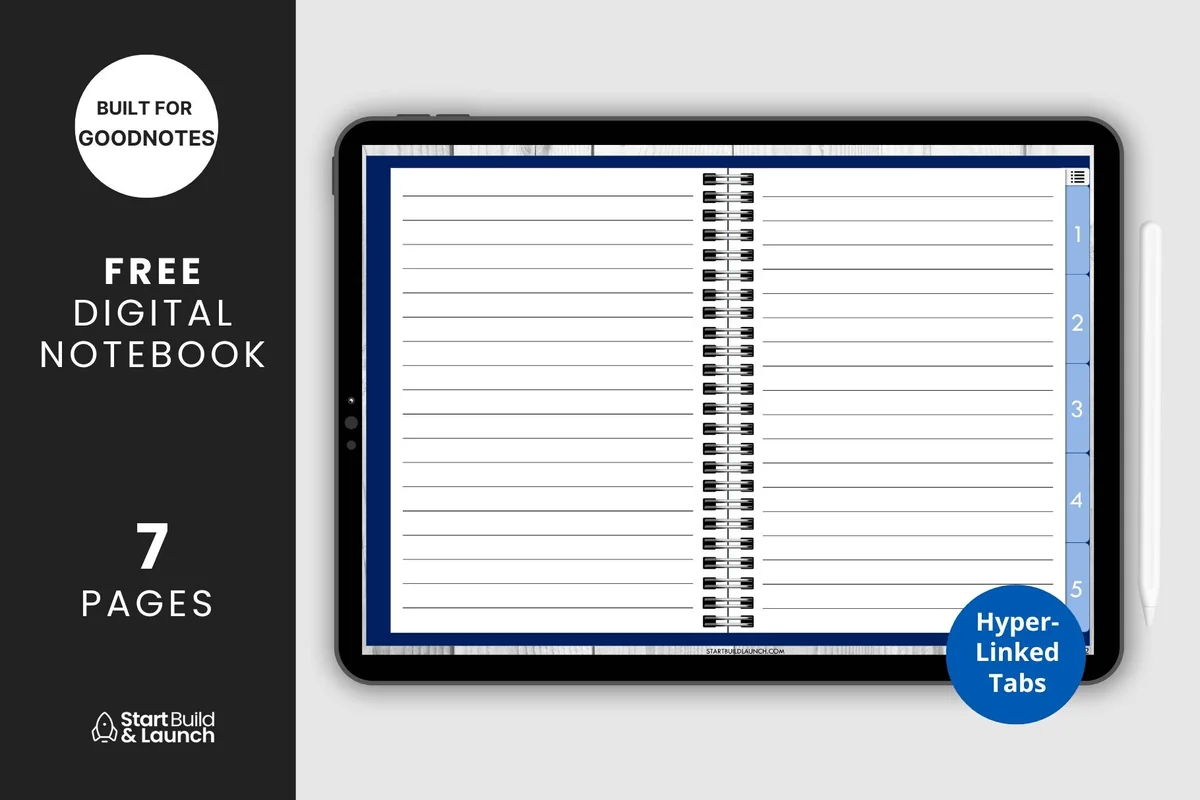
Best for five clean sections
4. Digital Notebook 5 Hyperlinked Tabs
Orientation: LandscapeLayouts: Blank; lined; dotted; graph; CornellDates: Undated
Best for: beginners, high school students, minimalists. Designed by aviswilliams.
- Hyperlinked PDF notebook with an index and five sections
- Blank, lined, dotted, graph and Cornell note paper
- Listing names Goodnotes, Notability and Noteshelf
Five sections are enough for a current timetable, Week A, Week B, room reference and an archive. I prefer the graph page for a precise scale; the lined page works better for an agenda list. The product is notebook paper, so you supply the timetable labels and entries.
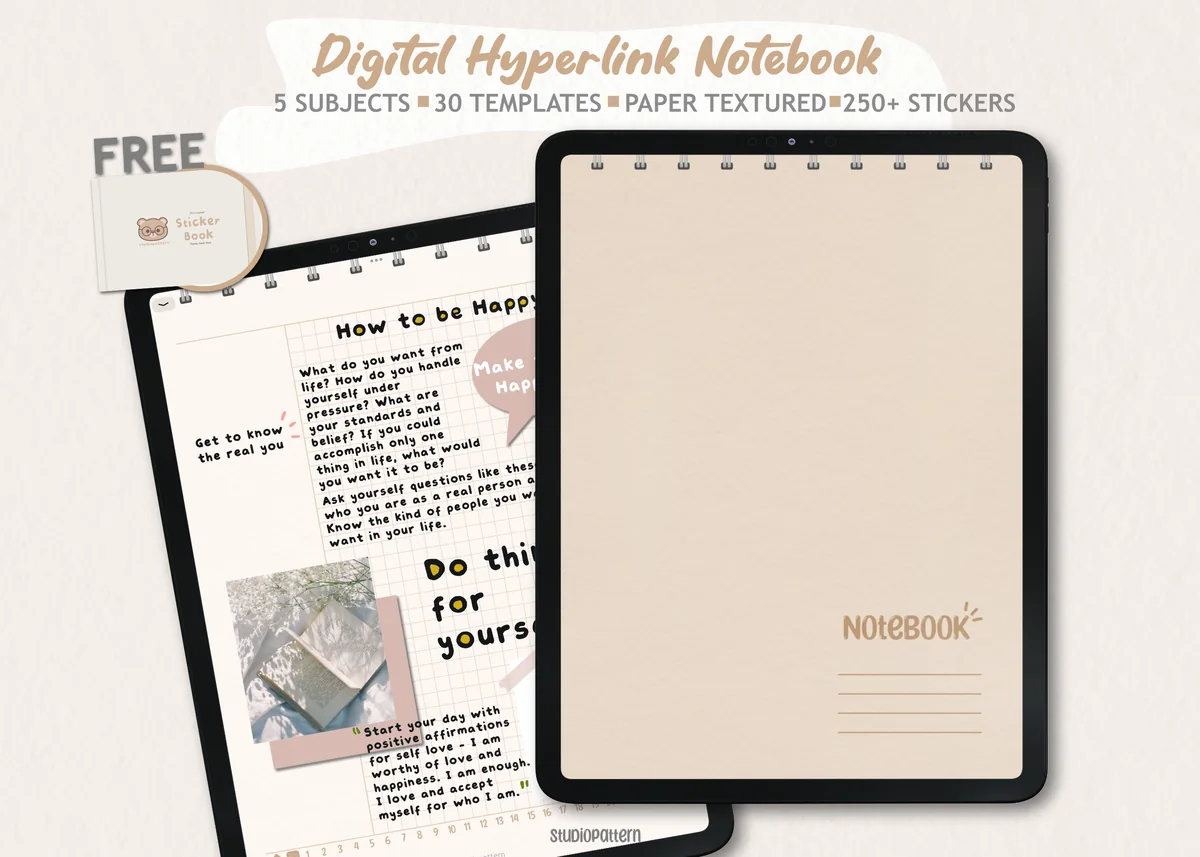
Best for varied layouts within a notebook
5. Digital Notebook 5 Hyperlinked Tab
Orientation: Portrait notebook with wide page optionsLayouts: 30 templates; weekly and daily pagesDates: Undated
Best for: 5-subject students, sticker lovers, neutral aesthetic fans. Designed by studiopattern.
- Five linked sections and a contents page
- Thirty note-taking templates, including weekly, monthly and daily pages shown in previews
- Hyperlinked PDF with a manual and 250+ individual PNG stickers
The paper menu offers more choices than a plain notebook, including wider weekly spreads. Pick a page that leaves space for room names before adding decoration. Its planner pages are useful starting points, but a six-day rotation or campus travel view still needs your own labels.
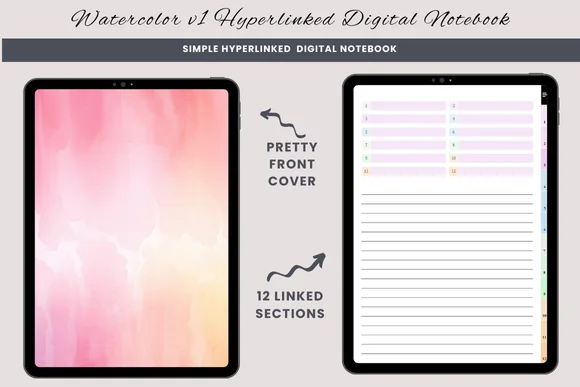
Best for a blank-page timetable
6. Watercolor Hyperlinked Digital Notebook
Orientation: PortraitLayouts: Lined; blank; half-linedDates: Undated
Best for: free-form writers, sketch and write journalers, topic-by-topic journalers. Designed by daysfilledwithjoy.
- One hyperlinked PDF with twelve sections
- Lined, blank and half-lined pages
- Pages can be duplicated in a PDF annotation app such as Goodnotes
A blank page makes sense for a route-style day or a lecture-and-lab pair that does not fit an ordinary grid. The half-lined page gives you a sketch area above a short room or transport list. Unlike the graph-paper choices, you will need to draw the timing guides yourself.
Separate paper for an existing notebook
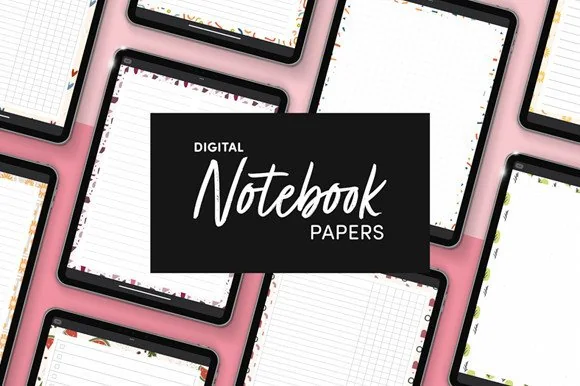
Best for adding paper to an existing notebook
7. Digital Notebook Papers – GoodNotes
Orientation: PortraitLayouts: 8 per design; columns and squareDates: Undated
Best for: list makers, decorative note-takers, planner add-ons. Designed by catsquills.
- Nine portrait paper designs with eight layouts per design
- Layouts include columns, dots, square, lines and notes
- PNG and PDF files; Goodnotes and Notability are named
The square or column layouts can become a small class schedule inside a notebook you already have. This is a paper pack, not a hyperlinked organizer. Choose a less busy border if your schedule needs long room names, and keep any legend outside the writing area.
Quick Comparison
| iPad option | Best for | Starting page | Structure |
|---|---|---|---|
| 1. Digital Semester Planner for Goodnotes | Semester dashboard | Timetable included | Two semesters |
| 2. Editable Student Planner | Uneven lesson times | Two weekly schedules | A4 and Letter |
| 3. Digital Notebook | Wide weekly grids | Graph and two-column paper | Twelve sections |
| 4. Digital Notebook 5 Hyperlinked Tabs | A/B week organization | Five paper types | Five sections |
| 5. Digital Notebook 5 Hyperlinked Tab | Mixed page layouts | 30 templates | Five linked sections |
| 6. Watercolor Hyperlinked Digital Notebook | Freeform layouts | Blank and half-lined paper | Twelve sections |
| 7. Digital Notebook Papers – GoodNotes | Existing notebooks | Square and column paper | PNG and PDF |
15 class timetable ideas, from simple grids to rotating weeks
Pick one master view from the first two groups. Add a compact daily view only if it solves a separate problem, such as checking the next room between lessons. All times and course codes below are fictional examples; replace them with your actual schedule.
Straightforward weeks
- 1Day-column weekly grid. Draw five columns for Monday through Friday and put time down the left edge. Extend the scale from your earliest class to your latest finish, leaving weekends out unless you have weekend classes. Each block holds a course code, its exact interval and its room.
For example, place BIO 101, 09:00–10:00, B12 in Monday’s first block. Keep the text in the same order everywhere so a quick glance works. This is the clearest starting point when most lessons recur at the same time each week. - 2Days as rows. Turn the page sideways in your mind: each weekday gets a horizontal strip, and classes run left to right in time order. Use equal-size boxes when you mainly need the sequence, with start and end times written inside each box.
Leave a visible gap between morning and afternoon sessions. This class timetable design suits a short day with two or three lessons, especially on portrait paper. If duration matters, label the view “sequence” so equal boxes do not imply equal teaching time. - 3Period-number matrix. Put period numbers down the side and weekdays across the top. Add a narrow key beside the table translating P1, P2 and P3 into actual start and end times. Write room and subject in each cell.
This is useful for school timetable ideas when the institution publishes fixed lesson periods. Keep recess and lunch as named rows if they interrupt the numbering. If a special day uses different bells, give it its own time key instead of silently reusing the ordinary one. - 4Half-hour time scale. Use graph paper with one row for each 30-minute interval. A 90-minute lecture occupies three rows; a two-hour lab takes four. Draw a lighter line through a row if you need a quarter-hour start.
The scale makes long classes and usable gaps easier to compare. Write exact times even when a block nearly fits the grid, such as 10:10–11:40. Do not round a start time just to keep the colored rectangles tidy. - 5Exact-time agenda. Make four columns: day, time range, class and room. Give each lesson one row, sorted by start time. Avoid a vertical time scale entirely.
An entry can read “Tue | 09:10–10:35 | HIS 204 | C18.” This works when lesson lengths vary too much for a small grid. Separate days with a clear heading, and add a final row showing when you can leave after the last class.
Weeks that change
- 6Week A and Week B pages. Create two matching pages with the same scale and the same course abbreviations. Give each page a large A or B label and write the actual date range beneath it. Keep both pages beside each other in the notebook.
An alternating lab belongs only on the week when it meets. Never rely on color alone to identify the active page. At the start of the cycle, check the institution’s week designation and update the visible date range before copying any daily view. - 7Six-day or seven-day rotation. Replace weekday headings with Day 1 through Day 6, or the length of your actual cycle. Keep a separate small mapping strip that connects calendar dates to cycle days.
The main timetable stays stable while the mapping changes. A holiday can affect the mapping differently across institutions, so copy the official sequence rather than guessing how it advances. This avoids forcing a rotating cycle into a five-column Monday-to-Friday grid. - 8Selected-group timetable. Place the course code above two smaller lines: teaching group and room. During enrollment, keep possible seminar groups on a separate comparison page. Transfer only the group you are actually assigned to into the live timetable.
For instance, CHEM 110 lecture and CHEM 110 seminar G3 should remain separate entries. A small G3 label helps distinguish otherwise identical course names. Archive the alternatives once registration is settled so you do not accidentally attend an unassigned session. - 9Lecture-and-lab paired view. Give each course a row with two neighboring areas: lecture sessions on the left, labs or tutorials on the right. Put day, interval and room in both areas, even if they happen in the same building.
Add a recurrence note such as “lab: Week B only” when it applies. This is a useful reference page for checking whether every part of a course is represented. Keep a chronological master grid too if you need to see overlaps across different courses. - 10Campus-and-travel timeline. Arrange the day as a vertical chain: class block, transfer block, next class block. Name both buildings in the transfer block and write the time you need to leave the first location.
If a lesson ends at 10:20 and the next begins at 10:40, the gap is 20 minutes; your own route determines whether that is enough. Include packing up, stairs or waiting where relevant. A transfer that does not fit needs a scheduling decision, not a smaller font.
Compact and exception views
- 11Today’s next-class strip. Copy only today’s lessons into a narrow list with time, course and room. Put the next class at the top of your view, keeping a small link or page reference back to the master timetable.
A strip is easier to scan while walking than a full weekly spread. Rebuild it from the active week page each morning, especially in an A/B system. Treat it as a temporary copy: edits belong on the master page first. - 12Morning and afternoon split. Divide one day into two broad panels, with a center band for lunch or a long midday break. Keep each class’s exact time in its own box rather than relying on the panel boundary.
This helps when a long empty middle makes a single time scale waste space. Put “no classes” in a genuinely free panel so it is distinguishable from an unfinished page. For evening lessons, add a third panel instead of squeezing them into the afternoon. - 13In-person and online location view. Use two lanes for the day: campus and online. Each entry still needs its start and end times. In the online lane, use a short platform or course-portal reference; keep private meeting credentials elsewhere.
Add a transition note when you must find a quiet place between a campus class and a live online lesson. The lanes identify location, not freedom to overlap. A synchronous online class can conflict with an in-person session just as two room-based classes can. - 14Temporary-change sidebar. Keep the ordinary week untouched and add a narrow “changes this week” area with date, affected class and replacement details. Mark the original block with a small symbol that points to the sidebar.
For example: “Thu seminar moved from D4 to D9; time unchanged.” Include an expiry date so the note does not become a permanent room change by accident. When a change becomes permanent, update the master and remove the temporary note. - 15Conflict-check overlay. Duplicate your proposed timetable before registration closes and use the copy only to inspect clashes. Outline overlapping intervals, then check the travel gap between consecutive sessions. Write the unresolved choice in a separate decision box.
For example, 13:00–14:00 and 13:45–14:30 overlap by 15 minutes. Do not erase one class to make the page look resolved. Keep both visible until the institution confirms an alternative, then rebuild the final timetable from the accepted classes.
Build the page without losing the important details
Make the plain version first. A timetable that fits your handwriting and your longest room name is easier to decorate later than a finished design with nowhere to put the facts. Use these steps before committing to a full term of copies.
- 1Collect the fixed entries. Copy the official day, start, finish, room and recurrence for each class. Separate tentative enrollment choices from accepted sessions. Write the source-check date beside the page title so you know how current the copy is.
- 2Choose the scale. Use periods for fixed bells, a measured grid for duration, or a list for irregular intervals. Test the busiest day first. If the room text overflows, change the layout before filling the remaining days.
- 3Check the gaps. Read each day from top to bottom. Compare every finish time with the next start, then account for your actual route between locations. Mark unresolved conflicts as questions rather than treating empty-looking space as usable time.
- 4Add a text-backed color key. Assign a short course code to every block, then add a restrained highlight. The code must remain readable if the page is viewed without color. Keep decorative borders outside the time and room columns.
- 5Make one master and one archive. Give the current page a clear title and effective date. When it changes, save the old version in an archive section. Copy daily strips from the new master, and keep calendar reminders as a separate system if you need alerts.
An aesthetic timetable that stays readable
- Keep the key small: one course code and one accent per subject is enough; do not make room changes a second competing color system.
- Reserve the center for information: washi-style borders, stickers and headings belong around the grid, leaving start times and room names unobstructed.
- Use consistent time notation: choose 24-hour labels or clear AM/PM labels, particularly when morning and afternoon classes share the same hour number.
- Test the real viewing size: inspect your busiest day at the zoom you normally use on the iPad. If you must zoom in to identify a room, shorten the label with a visible key or choose a larger layout.
For broader revision and assignment pages, the study planner ideas guide covers the rest of an academic planning system. Keep this timetable focused on fixed attendance; a long homework list makes the location and timing information harder to find.
Template or app: decide whether you need alerts
The options above are PDF-based pages or paper assets for annotation. Treat the timetable as a visual reference that you fill in and update. These listings do not promise live enrollment updates, automatic clash checks or calendar synchronization. Use a separate calendar if you need those functions.
- Choose a page when you want a custom layout, handwritten room notes or a visual A/B reference.
- Keep a separate calendar when you need timed notifications. Enter those events deliberately and check that recurring weeks match.
- Follow the institution’s system for official cancellations, room changes and registration decisions. Update your page after checking that source.
FAQ: Class timetable layout questions
What should a class timetable include?
Start with the day, exact start and end times, course code, room or online location, and recurrence. Add the term and effective date to the page. Teacher details and longer course information can live on a separate reference page.
How do I show classes that alternate every other week?
Use clearly labeled Week A and Week B pages with actual date ranges. Keep the scale and abbreviations identical across them. Check the official week pattern before copying a daily strip; do not infer the active week from color.
Can I make a class timetable on an iPad without a ready-made template?
Yes. A blank, graph or dotted page can hold a manually drawn layout. Choose a notebook compatible with your annotation app, then add your own time labels, class blocks and room key. The notebook does not create the schedule for you.
What is the difference between a class timetable and a study plan?
Here, the class timetable records fixed attendance: when a lecture, lab or seminar meets and where it takes place. A study plan allocates your own preparation and revision time around those commitments. Keep the two distinguishable even if they share a notebook.
How do I keep a timetable current when a room changes?
Use a dated change note for a one-off move. For a permanent move, update the master page and any daily copy, then archive the superseded version. Recheck the official announcement if the replacement location or duration is unclear.
Start with the day that is hardest to fit
The most useful class timetable ideas make your real constraints visible. Try one layout with your busiest day, check the intervals and room changes, then build the rest of the week. Choose a ready-made schedule for a regular pattern, graph paper for a measured grid, or blank paper for an unusual cycle. Keep the first version plain until every class has a place.
You May Also Like
This article contains affiliate links. If you buy through them, I may earn a commission at no extra cost to you. Read the affiliate disclosure.