Two clients can approve the same campaign concept and still need different final files. A social media manager planner on iPad gives those differences somewhere to live: the brief, the version under review, the person making the decision and the next action. Build it around client approvals first, then place the content calendar beside that record.
Here are twelve custom page ideas and eight digital tools to build them in. The social-planning option includes content and statistics pages; the other choices are general notebooks or papers. For the client-specific fields, the ideas below suggest adding your own. They organize manual work, while publishing, account access and official approvals stay in your agreed business systems.
Eight iPad tools for your client planning pages
The useful distinction is between a ready-made social content overview and room to design your own approval record. I kept the specialist planner first, then compared compact notebooks, paper inserts and larger archives. Choose for the number of separate records you need to find again, rather than the biggest page count.
TL;DR: Start with a brand brief, an asset register and a version decision log. Add review deadlines and a handoff checklist once that core works. One option below has social-planning pages; the notebooks and paper set provide space for your own client fields. Use these pages as manual planning companions; the product descriptions do not specify publishing or approval-service integrations.
Quick Picks
- Best for the content overview: Social Media Digital Planner
- Best for visual brand briefs: Watercolor Hyperlinked Digital Notebook
- Best for a revision comparison: Digital Notebook by Shades of Zen
- Best for a compact client desk: Digital Notebook 5 Hyperlinked Tabs
- Best for protecting review time: Digital Notebook 5 Hyperlinked Tab by studiopattern
- Best for an existing notebook: Digital Notebook Papers – GoodNotes
- Social Media Digital Planner – Best for the content overview
- Watercolor Hyperlinked Digital Notebook – Best for visual brand briefs
- Digital Notebook by Shades of Zen – Best for a revision comparison
- Digital Notebook 5 Hyperlinked Tabs – Best for a compact client desk
- Digital Notebook 5 Hyperlinked Tab by studiopattern – Best for protecting review time
- Digital Notebook Papers – GoodNotes – Best for an existing notebook
- Digital Notebook 24 Hyperlinked Tab – Best for an expanding client archive
- Cute Digital Notebook Hyperlinked by studiopattern – Best for testing your page format
Start with a content overview and a compact client packet
Best for the content overview
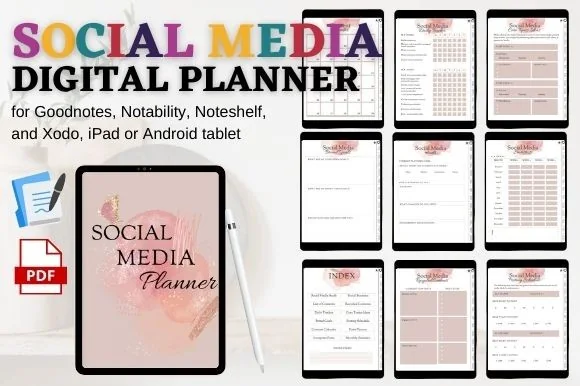
1. Social Media Digital Planner
Orientation: PortraitLayouts: Content calendar and posting pagesDates: Numbered calendar grid shownWeek start: Not specified
Best for: mapping campaign posts before requesting client approval. Designed by mixxdigitaldesign.
- Hyperlinked tabs and index shortcuts
- Content Calendar, Posting Schedule and Posts Planner pages
- Social Media Audit, Social Statistics and Monthly Statistics pages
- Designed for GoodNotes, Notability, Noteshelf or Xodo on iPad or Android tablets
The Content Calendar and Brand Goals pages give a useful starting point for content planning. Keep a separate approval log beside them, with an asset ID and the version sent to each client. Use the named social statistics pages for manual records; the product description does not specify an automatic analytics connection.
Best for visual brand briefs
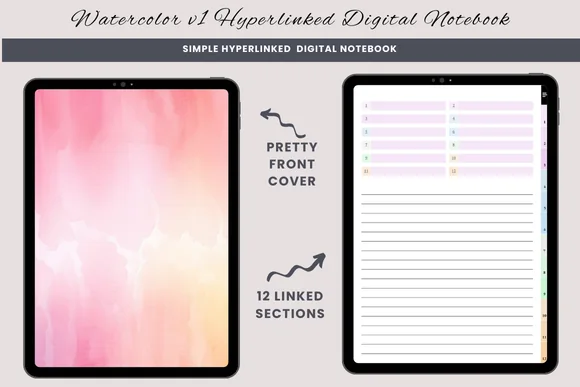
2. Watercolor Hyperlinked Digital Notebook
Orientation: PortraitLayouts: Lined, blank, half-linedDates: No calendar dates shownWeek start: Not applicable
Best for: combining a small sketch with client instructions. Designed by daysfilledwithjoy.
- 12 linked sections with lined, blank and half-lined pages
- One PDF for GoodNotes or a similar PDF annotation app
- Pages can be duplicated when you need more writing space
Half-lined paper leaves a natural place for a visual reference above the written brief. Use a section for each client and write the approval contact and scope on its opening page. The notebook supplies lined, blank and half-lined paper; the client-specific headings are yours to create.

Best for a revision comparison
3. Digital Notebook by Shades of Zen
Orientation: LandscapeLayouts: 16 note templatesDates: No calendar dates shownWeek start: Not applicable
Best for: putting requested edits beside the response. Designed by Shades of Zen.
- 12 expandable sections with hyperlinked tabs and individual dividers
- 16 note templates, including lined, dotted, graph and Cornell notes
- Instructions for GoodNotes or another PDF annotation app
The landscape spread suits a two-column revision record: request on the left, action and version on the right. Twelve linked sections can separate client records. Choose one note template for the whole process so a change request is easy to read again a week later.
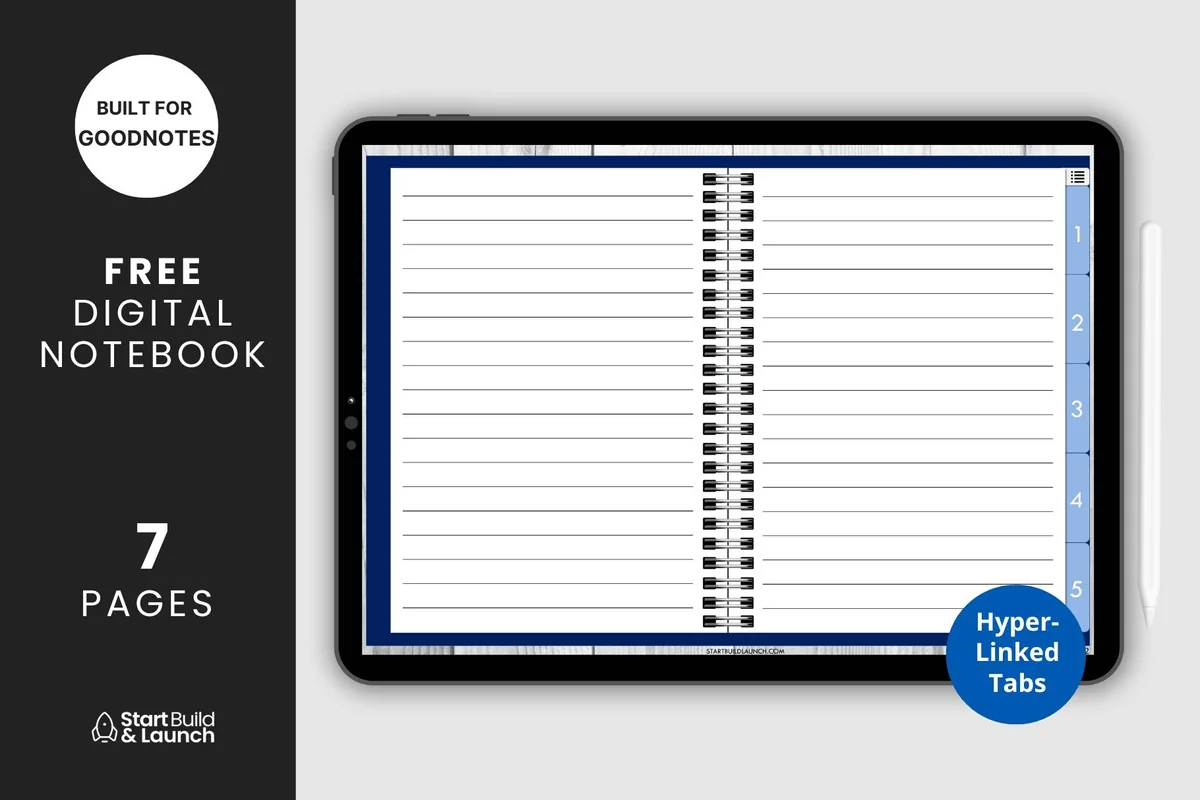
Best for a compact client desk
4. Digital Notebook 5 Hyperlinked Tabs
Orientation: LandscapeLayouts: Blank, lined, dotted, graph, CornellDates: No calendar dates shownWeek start: Not applicable
Best for: organizing a few active accounts with a clear index. Designed by aviswilliams.
- Index page and five hyperlinked sections
- Blank, lined, dotted, graph and Cornell note papers
- PDF designed for an iPad or tablet with a stylus; GoodNotes, Noteshelf and Notability are suggested
Five sections encourage a small, deliberate setup. Name a section for each current client, or divide one larger client into brief, calendar, revisions, decisions and handoff. The Cornell paper can hold meeting notes and a short action summary. This PDF is designed for an iPad or tablet with a stylus.
Best for protecting review time
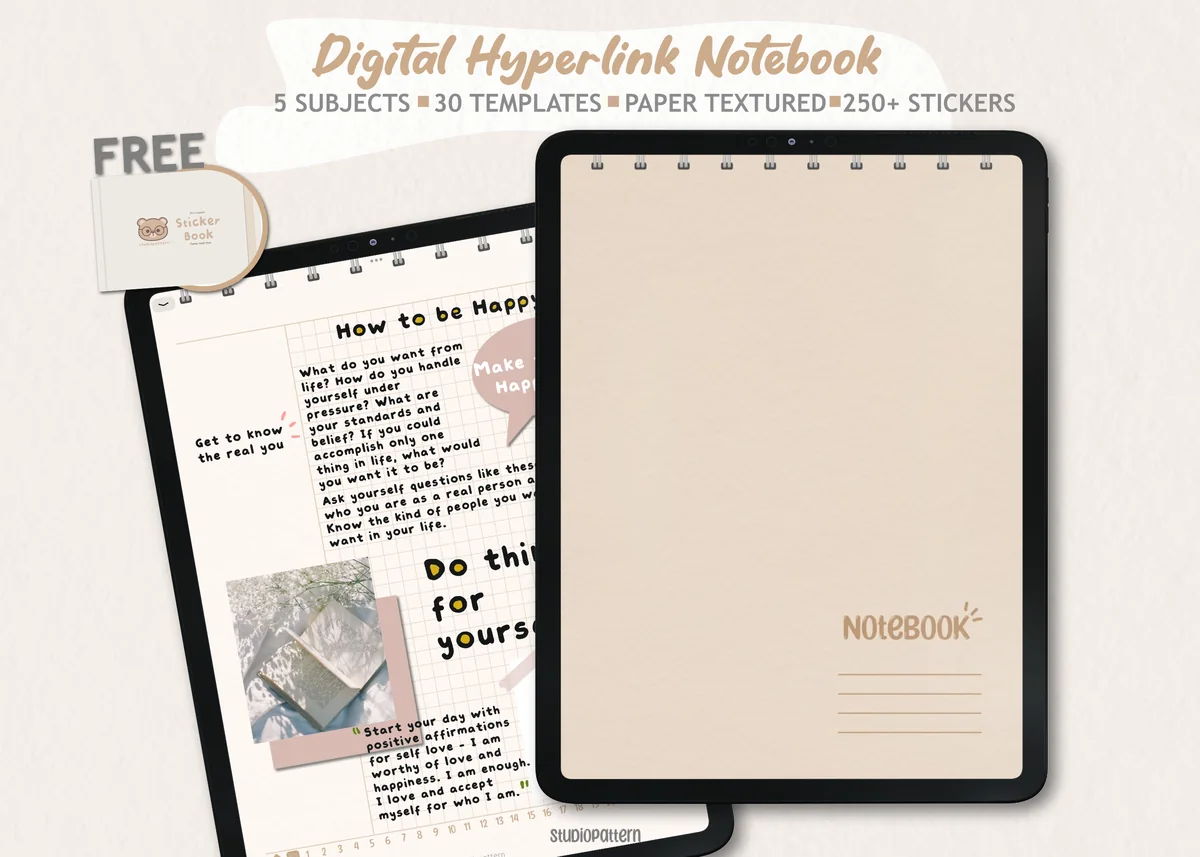
5. Digital Notebook 5 Hyperlinked Tab by studiopattern
Orientation: PortraitLayouts: General planning and note papersDates: No calendar dates shownWeek start: Not specified
Best for: reserving editing and follow-up sessions on general planning pages. Designed by studiopattern.
- Five sections, a linked contents page and 30 paper templates
- Monthly, weekly, daily, habit and checklist papers
- Hyperlinked PDF, PDF manual, 250+ individual PNG stickers and one precropped GoodNotes sticker-book file
- Best used with an iPad or tablet and Apple Pencil or stylus; annotation app may cost extra
The general weekly and daily papers are useful when approval follow-ups compete with production work. Keep a review block beside a list of pending client decisions, rather than treating the planned posting date as the only deadline. An iPad or tablet with an Apple Pencil or stylus is recommended; the annotation app may cost extra.
Add custom papers or room for a larger client archive
Best for an existing notebook
6. Digital Notebook Papers – GoodNotes
Orientation: PortraitLayouts: Columns, lists, grids and notesDates: No calendar dates shownWeek start: Not applicable
Best for: adding a custom approval grid to pages you already use. Designed by catsquills.
- Nine portrait paper designs for GoodNotes and Notability
- Eight layouts per design: columns, habit tracker, to-do, numbered list, dots, square, lines and notes
- PNG and PDF files; 2550 × 3300 px, US Letter proportions
The column paper is the useful part for this task: label it asset, version, reviewer, due date and decision. This PNG/PDF paper set fits a setup where a notebook is already in place. Its description lists page designs and layouts, rather than a linked client-management system.
Best for an expanding client archive
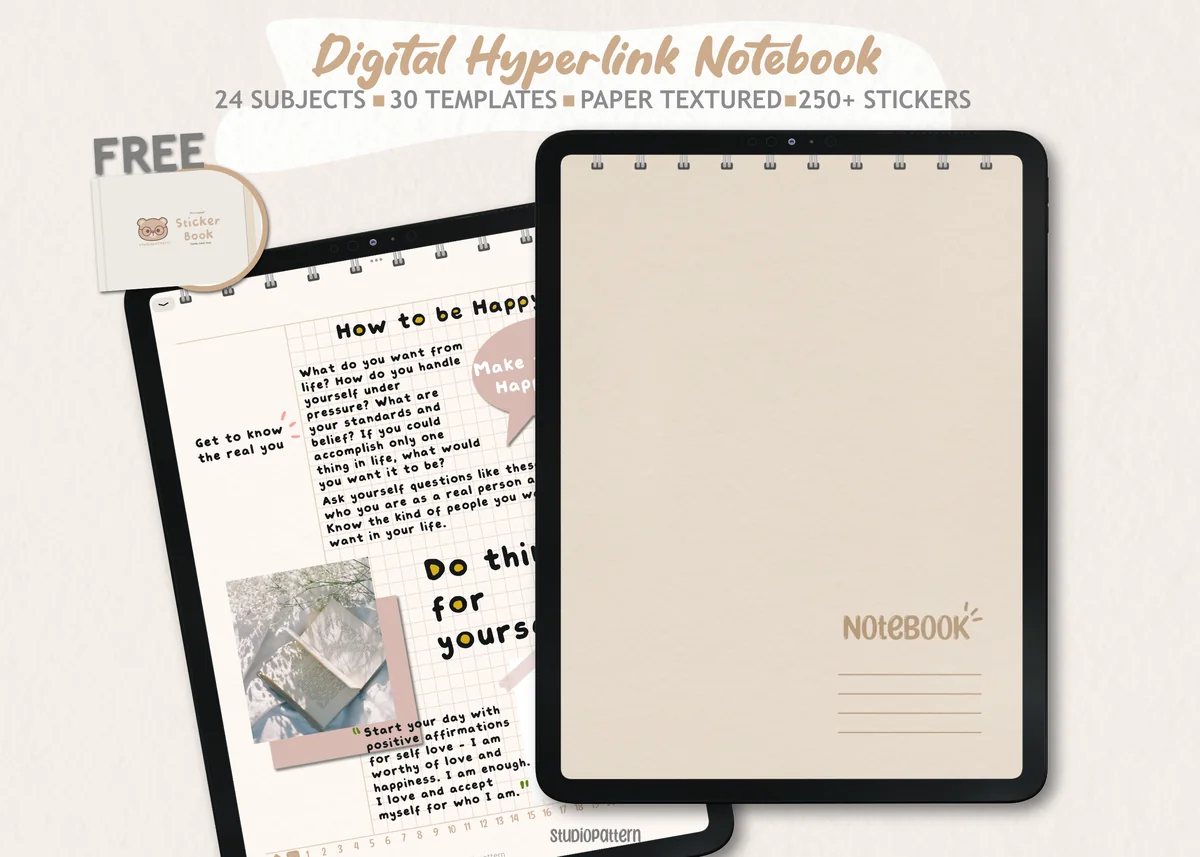
7. Digital Notebook 24 Hyperlinked Tab
Orientation: PortraitLayouts: Note papers and general planning pagesDates: No calendar dates shownWeek start: Not specified
Best for: separating active work and completed campaign records. Designed by studiopattern.
- 24 linked sections and a contents page
- 30 paper templates; previews show note papers and general monthly, weekly and daily planning pages
- Hyperlinked PDF, PDF manual, 250+ PNG stickers and one precropped GoodNotes sticker book
- Best used on an iPad or tablet with an Apple Pencil or stylus; annotation app may require a separate purchase
Twenty-four linked sections offer more room for separate client or campaign packets than the five-section notebook. Keep the index disciplined: client code, campaign and active or archived status. It includes general planning papers as well as note templates. Use an iPad or tablet with an Apple Pencil or stylus; an annotation app is a separate requirement.
Best for testing your page format
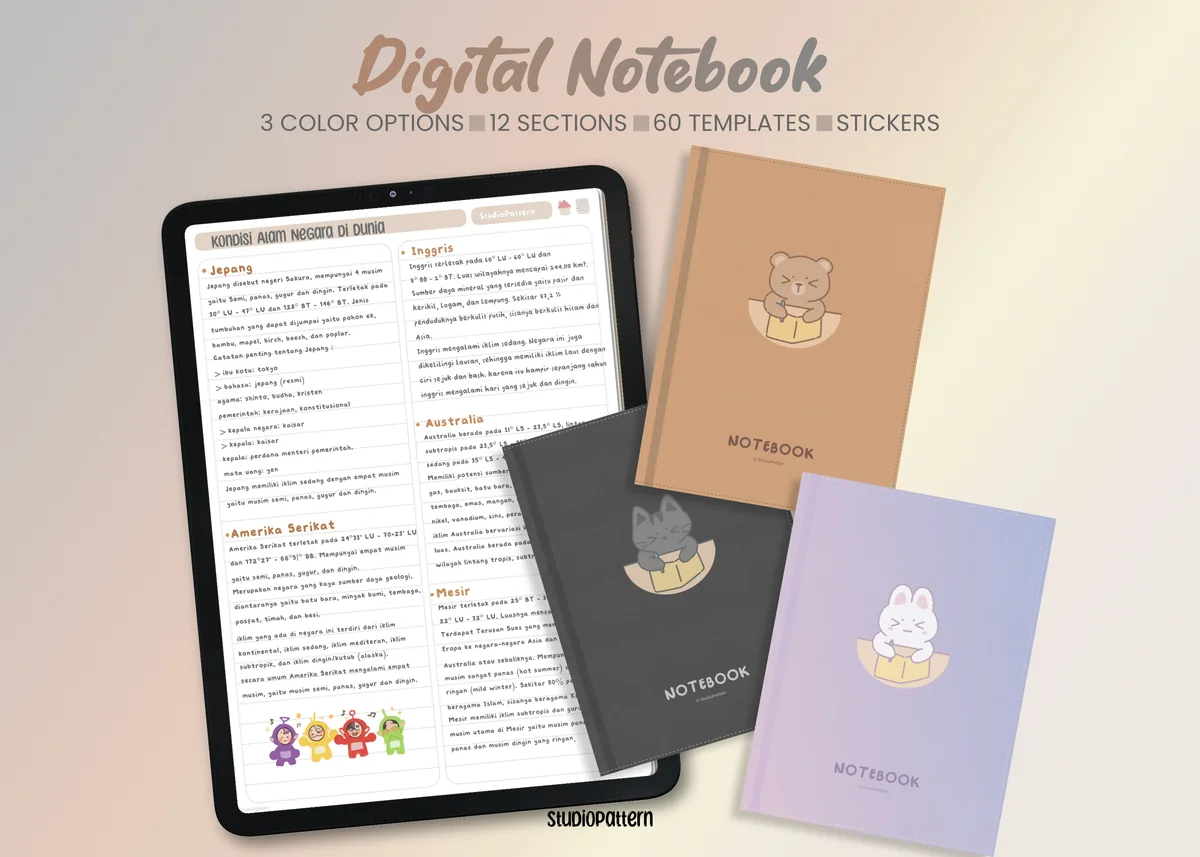
8. Cute Digital Notebook Hyperlinked by studiopattern
Orientation: PortraitLayouts: Note papers plus checklist, monthly, weekly and daily pagesDates: Calendar-style grid pages shownWeek start: Not specified
Best for: choosing a repeatable client packet from several paper layouts. Designed by studiopattern.
- 12 linked sections and a contents page
- 60 note templates; previews show blank, ruled, grid, dotted and general planning choices
- PDF notebook and PDF manual; individual PNG stickers included
- Best used with an iPad or tablet and Apple Pencil or stylus; annotation app may cost extra
A larger paper menu makes sense if the team has not settled on a revision-log layout. Try a split page for feedback and a grid for status tracking, then keep the layout that is easiest to scan. The twelve sections and sixty note templates are general-purpose. An iPad or tablet with an Apple Pencil or stylus is recommended, and the app may cost extra.
Quick Comparison
| Digital tool | Navigation | Page choices | Client planning role |
|---|---|---|---|
| 1. Social Media Digital Planner | Linked index | Social planning pages | Campaign overview |
| 2. Watercolor Hyperlinked Digital Notebook | 12 linked sections | 3 paper types | Visual brand briefs |
| 3. Digital Notebook by Shades of Zen | 12 linked sections | 16 note templates | Revision comparisons |
| 4. Digital Notebook 5 Hyperlinked Tabs | 5 linked sections | 5 paper types | Small client roster |
| 5. Digital Notebook 5 Hyperlinked Tab by studiopattern | 5 linked sections | 30 paper templates | Review work sessions |
| 6. Digital Notebook Papers – GoodNotes | Paper set | 9 designs, 8 layouts each | Custom approval grid |
| 7. Digital Notebook 24 Hyperlinked Tab | 24 linked sections | 30 paper templates | Campaign archive |
| 8. Cute Digital Notebook Hyperlinked by studiopattern | 12 linked sections | 60 note templates | Flexible client packet |
What belongs in a social media manager planner?
A social media content planner maps the content, channel and intended publication time. For client work, add the decision trail: who reviewed which version and what remains unresolved. A good planner keeps creative ideas separate from approval status, while a content planner gives the team a shared vocabulary for the next step. Use it as a social media manager organizer for the agreed social media strategy: keep client goals, content choices and pending decisions together.
- Client layer: brand goals, audience, scope, reviewer and agreed response window.
- Content layer: asset ID, channel, format, caption reference, visual reference and proposed posting date.
- Decision layer: version sent, review deadline, feedback, explicit decision and approved file reference.
- Delivery layer: scheduler handoff, final checks, live URL and a short performance review.
This is a client-management companion, not a replacement for the person doing the work. A manager might write captions, commission visuals, brief creators or coordinate team members, depending on the contract. Put that division of responsibility on the first page so everyone knows who creates, who reviews and who can authorize a post.
12 custom page ideas, from brand brief to handoff
Start with one fictional client before duplicating a packet. The examples below use Cedar Café and Harbor Studio, two invented businesses sharing a general launch idea but running separate approval workflows. The page names and fields are suggestions to draw or type into your chosen notebook, not a claim about included product templates.
Define the account before filling its calendar
- 1Brand brief and boundaries. Write the client code, audience, campaign objective, tone, required wording and topics to avoid. Add the name or role of the authorized reviewer and the reference location for approved brand assets. For Cedar Café, the goal might be visits to a new lunch menu; for Harbor Studio, it might be inquiries about a workshop. A shared visual idea does not make their promises interchangeable.
- 2Scope and responsibility map. List tasks such as captions, images, Instagram Reels, comment replies and reporting. Give each task an owner and a reviewer, with a short note about what is outside the agreement. A simple “create / review / authorize / schedule” row prevents a creative contributor from being mistaken for the final decision-maker. Record any change in scope before adding another recurring task.
- 3Client content calendar. Sketch a monthly overview for campaign milestones and relevant holidays, then use a weekly view for individual posts. Include client code, channel, asset ID, proposed time and status. Work backward from publication to leave room for creation, review and revision. Keep dates provisional until the client’s decision and your scheduling capacity make the plan realistic.
Color can help distinguish clients or channels, but write the client code as well. A colored dot alone becomes ambiguous when a page is shared in grayscale or a colleague uses a different color key. Keep the monthly calendar for the overview and the weekly spread for detailed work sessions; do not squeeze the entire revision history into a calendar square.
Keep the exact version attached to the decision
- 4Asset register. Give each item a stable ID, such as CED-014, and record its format, channel, caption reference and visual reference. A row can point to a permitted shared folder rather than storing every file in the notebook. Separate posts across multiple platforms when captions, crops or approval requirements differ. An asset ID remains useful even when the proposed posting date moves.
- 5Review deadline queue. Track the version sent, reviewer, requested response date and next follow-up. Distinguish “sent for review” from “approved.” Add a contingency: if the deadline passes, pause, move the proposed publication date or ask the designated contact for a decision according to your agreement. Silence should not silently become permission. A planner helps you see the queue; it cannot make the decision for the client.
- 6Revision request log. Use columns for request, source, version affected, owner and action taken. Replace a vague note such as “make it warmer” with a concrete question about color, wording or tone. Preserve the original request and write the response beside it. If two reviewers disagree, flag the conflict and ask the authorized decision-maker rather than averaging incompatible instructions.
- 7Approved-version record. Write the exact asset ID, version, approval scope, decision-maker and reference to the official approval message. Approval of a caption is not automatically approval of its image, price claim or use on another channel. When a later edit changes the approved material, mark the new version as awaiting review until the appropriate approval is recorded. Keep the older decision visible for context.
The distinction that matters here is latest version versus approved version. “Latest” describes when a file changed; “approved” describes a specific decision. Put those labels in separate fields, even if they initially contain the same version number. That small separation makes the handoff much easier to check.
Deliver the right files and learn from the week
- 8Client conversation summary. After a call, note the decision, open question, action owner and due date. Link or reference the official meeting record where your business permits it. For longer discussions, the meeting notes templates guide offers a separate place for detailed notes; bring only decisions and next actions into the client packet. Avoid copying private messages that are unrelated to the work.
- 9Handoff packet checklist. List the approved caption, final visual, asset ID, version, channel, intended time and time zone. Add the person receiving the packet and where the final files are stored. Check that the filename matches the approved-version record before marking the handoff complete. The checklist is your manual check, not proof that a scheduling tool has received or published anything.
- 10Reschedule and exception page. Record what changed, why the old slot is no longer suitable and which approvals need checking again. For a delayed promotion, the caption and offer wording may need review as well as the date. Keep the original slot and the replacement slot visible until the handoff is updated. This page is especially useful when one campaign affects several accounts but each client responds at a different speed.
- 11Weekly results and client questions. Choose the measures that answer the campaign question, such as reactions, comments, shares or click-throughs. Record the reporting period and source beside each manually entered figure. Add one observation and one question for the client instead of treating every rise as a success. Separate content performance from approval delays so a late review does not disappear inside a general analytics summary.
- 12Campaign closeout and archive index. At the end of a campaign, record the final asset locations, unresolved items, handoff date and archive reference. Retain material according to your business and client agreements; do not invent a universal retention period. Write one process improvement for the next campaign, such as requesting a backup reviewer before a launch week. Keep completed packets out of the active review queue.
One concept, two clients: follow the approval trail
Imagine a short “meet the team” post adapted for Cedar Café and Harbor Studio. The café requests a caption change, while the studio approves its first version. The planning mistake would be to label the shared concept “approved” and assume both files can move to scheduling. Give each client a separate row and let the decisions differ.
- Cedar Café / CED-014: v1 sent; caption edit requested; v2 awaiting the authorized reviewer. The proposed posting slot remains provisional.
- Harbor Studio / HAR-009: v1 approved for the named channel; final visual and caption references match the decision. The packet can move to the designated scheduling person.
- Next check: confirm that Cedar’s revised caption has not overwritten Harbor’s approved file, and that each packet names its own client and version.
If Cedar later changes the image, add a new version entry rather than overwriting the approved record. If Harbor asks to reuse the post on another channel, check the approval scope and create a separate channel entry where necessary. The point is a readable trail of decisions, not an ever-growing stack of nearly identical screenshots.
How to create your first client packet on iPad
Choose the notebook by how you want to navigate. A five-section option can hold a few active clients; twelve or twenty-four sections leave more room for campaign packets. A paper set is useful when you already have a notebook. Check the chosen product’s requirements and your annotation app before committing to a setup.
Build a small repeatable workflow
- 1Import and test the base. Open the notebook PDF in a compatible annotation app, or place the PNG/PDF paper into an existing notebook as appropriate. Test an index link and duplicate a note page before entering real client work. Keep an untouched original so you can create another clean packet later. Do not assume that a sticker-book file is the main notebook.
- 2Make the minimum three pages. Create a brand brief, an asset register and a decision log. Add the client code to each page header and choose one version naming convention. Use fictional information to check whether the latest approved file can be located without guessing. If the answer is unclear, simplify the fields before duplicating the packet.
- 3Add the calendar and review routine. Plan a manageable week first, then sketch the month’s campaign milestones. Reserve time for review, revisions and handoff, not just content creation. Batch related tasks into work sessions so creating social media posts leaves time for checking them before scheduling posts. Use the monthly content calendar for the campaign overview and keep the client’s decision trail in the same packet.
- 4Agree on the source of truth. Tell collaborators where official approval lives and how a planner note points to it. Decide who updates the manual record after a conversation or file change. Use approved sharing and storage arrangements, then check that a colleague can follow one sample asset from brief to handoff. Use clear notebook records to support team collaboration, and keep permissions and official approvals in the agreed business system.
Template or app: which part does each tool handle?
A social media manager planner template gives you pages to annotate. A scheduler is a separate operational tool that can publish through connected accounts when configured and authorized for that purpose. The product descriptions do not specify account connections, approval-request delivery or automatic calendar synchronization with a publishing service.
- Use the notebook for: handwritten planning, brand context, revision comparisons, decisions and a weekly review.
- Use the agreed business system for: official approvals, account permissions, shared files and publishing operations.
- Use platform reporting or your approved analytics source for: measured results. Enter relevant figures in the planner manually, with a reporting period and source.
Do not put passwords, recovery codes, session details or unnecessary personal information on a client page. Use client codes where practical, keep sensitive records in approved systems and check access before sharing a screenshot. Use a linked notebook to organize client records, and manage account access through your approved business system.
Keep weekly approvals from becoming another inbox
A weekly review is a practical place to collect outstanding decisions. Scan the queue for missing owners, upcoming response deadlines, conflicting feedback and approved items that have not reached handoff. Then decide what can move, what needs a question and what should leave the active week. Use your agreed response windows rather than assuming every client can turn work around overnight.
- Before requesting review: check that the reviewer has the right version and a clear question.
- Before a handoff: match the final filename, client, channel and approval scope.
- At the week’s close: move completed work to the archive, carry forward open decisions and write the next follow-up date.
If the main problem is an overloaded working week, pair the client packet with a digital work planner for time blocks. For a longer campaign with dependencies, a project planner can hold the wider task sequence. Keep this article’s packet focused on client review so those tools have distinct jobs.
FAQ: social media client planning
What is a social media content planner?
It is a place to organize content ideas, channels and intended publication dates. For a manager working with clients, add an asset ID, version, reviewer and decision reference. Those fields make it easier to distinguish a draft from a file that can move to handoff.
Can I manage multiple accounts with an iPad planner?
You can keep manual planning records for multiple clients in separate sections or notebooks. Write a client code on each page and keep each account’s versions separate. The product descriptions do not specify account connections, profile switching or publishing permissions.
Do social media planners include analytics?
The Social Media Digital Planner here lists Social Statistics and Monthly Statistics pages. Those pages give you somewhere to record figures manually; they are not evidence of automatic reporting. Record the source and period for each metric so a later comparison is meaningful.
Do social media managers make content?
Some roles include captions, visuals or video production; others focus on strategy, coordination or reporting. The scope page should name the actual responsibilities agreed with that client. Assign a creator and reviewer to each item instead of assuming the manager personally makes every asset.
What should a social media manager planner template include first?
Start with a client brief, an asset register and an approved-version log. Add review deadlines and a handoff checklist when the basic record is easy to maintain. A small packet that stays current is more useful than twelve mostly empty pages.
Can a PDF act as a social media manager scheduler?
It can hold your intended posting schedule and manual status notes. The product descriptions do not specify automatic publishing or connected-calendar updates. Transfer approved files to your authorized publishing process and record the handoff separately from the live-post check.
Start with the next client decision
The most useful social media manager planner is the one that answers a practical question: which version can move forward, and who decides? Pick a digital tool that gives your client records enough space, then build the brief, register and decision log first. Add the other page ideas as real work calls for them, keeping the approved file and next action easy to find.
You May Also Like
This article contains affiliate links. If you buy through them, I may earn a commission at no extra cost to you. Read the affiliate disclosure.