
You remember writing the answer, but the page has vanished somewhere between a reading list and last month’s notes. These bullet journal index ideas give that page a useful address. Start with a readable collection name and a pointer you can follow; add color where it helps you find something.

The 25 ideas below are alternatives to combine, not 25 pages to set up tonight. A two-column index and a small continuation rule may be enough. After the ideas, I compare five optional iPad PDFs for different kinds of navigation, including a paper pack for the notebook you already have.
What belongs on an index page?
A bullet journal index works like a table of contents: a collection name points to the pages where that collection lives. The traditional arrangement grows as you add pages, rather than requiring an alphabetical order. An index entry should tell you what is there and where to open it; an attractive title without an address cannot do that job.
- Index: “Balcony planting notes: HOME-03, HOME-08.” It locates material.
- Key: “★ means currently active.” It explains symbols used in your journal.
- Collection: the actual planting notes, measurements and decisions on those pages.
- Tab: a route into a section. A month tab does not identify every subject written during that month.
The official Bullet Journal guide to index variations describes dedicated indexes, specific entry names and threading between pages. Archer and Olive’s index explanation also distinguishes a chronological journal contents list from an alphabetical book index. The examples here adapt those organizing principles to an iPad notebook; they are proposed layouts, not features included in every PDF.
25 bullet journal index ideas, grouped by the problem they solve
Choose one main directory and add a supporting list only when you have a reason. These bullet journal index examples use invented page IDs and sample titles so you can copy the structure without copying someone else’s categories.
Choose the route you remember first
- 1Two-column contents page. Draw a wide column for collection titles and a narrow one for addresses. Write “Kitchen measurements | HOME-02” as one complete entry. Leave enough space for a second address beside a title when the collection continues elsewhere. I like this starting layout for a few ongoing collections: you can add entries without sorting them.
- 2Topic-first alphabetical index. Use a separate page for subjects you usually remember by name: apartment, books, recipes or study. Add broad letter ranges rather than reserving a whole page for every letter. Under “Books,” point to the relevant collection addresses. Keep this as a secondary locator if you also want the main contents page to reflect the order in which pages were created.
- 3Date-first session index. List the date, a specific session title and its address: “Nov 7 / pottery glaze review / ART-04.” The date helps when you remember the occasion more clearly than the topic. Include the year if the notebook spans several years. Avoid an entry that says only “meeting”; it will look much like all the other meetings when you return later.
- 4One index per section. Put a local register at the beginning of a busy section. Your home section might list measurements, repair quotes and paint references without mixing them into the reading list. Keep section names short and stable. This arrangement suits a PDF with existing section tabs, but you still need to enter the titles and page addresses inside each section yourself.
- 5Master index of smaller indexes. When local registers become useful, make one front page that points to those registers. “Home → section 3 index” is enough; copying every home entry to the master page would double the maintenance. Use the master for orientation and the local list for detail. If the notebook is still small, stay with one index until you actually need a second level.
Build lists around what you need to retrieve
- 6Active collections shortlist. Keep a small list of the collections you are opening this week, with their normal addresses. It might contain a course notebook, a home project and a reading comparison. Remove an item from the shortlist when it becomes inactive, while leaving its main index entry intact. This gives temporary priorities a place without repeatedly rewriting the permanent contents page.
- 7Reference-only directory. Separate information you consult from pages you are still developing. A reference entry might read “Curtain measurements / checked Nov 7 / HOME-06.” Include a revision date where old information could confuse you. The directory should point to the full reference page, not squeeze all its facts into tiny index writing. Revisit it when the underlying information changes.
- 8Project name and page-range register. Give each project a recognizable name followed by the pages it occupies. “Hallway refresh: HOME-10 to HOME-13” works when those pages are genuinely consecutive. If a later note lands elsewhere, append that address rather than pretending the range includes everything in between. This keeps the index honest when projects expand at different speeds.
- 9Index by recurring question. Use the question you tend to ask when looking for a page: “Which clay mix held its shape?” or “Where are the shelf dimensions?” Point each question to the corresponding experiment or reference collection. This is especially useful when your original page titles were creative but vague. You do not need a question entry for every page, only for searches you repeatedly make.
- 10People or meeting locator. Organize recurring meetings by a project label or agreed initials, then add dates and addresses. “Studio planning / Nov 7 / WORK-05” can be more useful than a list of names. Keep private contact details and passwords out of the index. Its job is to guide you to notes, and a short neutral title is easier to scan or share.
- 11Course and lesson locator. Use the actual course title, then the lesson or concept: “Photography basics / exposure triangle / STUDY-09.” Add a second address for practice notes if they live elsewhere. A course-only label becomes unhelpful once you take several classes on the same subject. This directory locates your learning pages; it does not need to repeat the entire lesson outline.
- 12Reading-source locator. Record an author or short book title beside the address of your notes. Add a chapter label if you have several entries about the same book. Keep quotations and your response on the collection page, so the index remains a navigation list. For choosing what to collect in the first place, the separate commonplace book ideas guide covers that content decision.
- 13Materials and experiment locator. Use a stable sample name such as “Glaze G-04” beside the journal address and trial date. Match that identifier to the label on your photo or sample sheet. A color name alone may not distinguish several similar trials. You can then find the result from either the physical label or the journal index without duplicating your experiment notes in both places.
Keep addresses understandable as pages move
- 14Small symbol legend. Choose a few symbols that change how you retrieve a collection: a star for active, a check for closed, perhaps an arrow for continued. Put the meaning beside the symbol on a key page. Do not make decoration carry essential information by itself. A word such as “closed” beside the mark also helps when a symbol is hard to recognize at a small size.
- 15Stable page identifiers. Write a short identifier on the page itself, such as HOME-03, and copy that exact identifier into the index. Keep it when you insert a new page before it. This is a manual addressing convention, not the page number displayed by an app. It is useful when the order of your PDF pages may change and you want the written reference to remain meaningful.
- 16Continuation pointers. When a collection continues on another page, add a small “next: HOME-08” note to the old page and “from: HOME-03” to the new one. Add both addresses to its index entry. These written pointers are a form of threading; they do not become tappable links simply because you write them. Use an app link only if your chosen app supports that action.
- 17Alias list for renamed collections. If “Apartment ideas” becomes “Home projects,” leave a brief alias: “Apartment ideas → Home projects.” Keep the original page identifier on the underlying pages. The alias is most useful for an old name you are likely to remember later. A rename should improve the title without forcing you to fix every historical mention elsewhere in the notebook.
- 18Closed collection archive. Mark a finished collection as closed, then move its entry to an archive directory if the active list is crowded. Preserve its address and a short completion date. Do not erase the only pointer just because the project is over. Reference pages and past decisions can still be useful after the tasks associated with them have finished.
- 19Quarterly index rollover. At a quarter boundary, begin a fresh index page for new material and link it to the previous register by its written address. Carry forward only active collections, keeping older entries in the older index. A quarter is a suggested review interval, not a rule of the method. Use a different interval if your notebook fills more slowly or your projects run longer.
Make the directory easy to scan and repair
- 20Frequently opened page list. Reserve a small favorites area for pages you consult repeatedly, even when they are not active projects. A household reference sheet may stay there longer than a current task list. Give each item its address and keep the main index entry too. This separates frequency of use from urgency, which stops a temporary shortlist becoming a permanent crowded directory.
- 21Consistent title prefixes. Start related titles with the same useful word: “Course: photography,” “Course: ceramics” or “Home: paint.” Consistent wording makes a visual scan easier and may help typed-text search in your app. Search behavior for handwriting varies, so keep a visible page address as well. Prefixes should describe the material, rather than adding an elaborate code you have to decode every time.
- 22Color plus text labels. Use a color beside a written category name, such as blue plus “Study.” The text still conveys the category if the colors look similar or the page is viewed in grayscale. A colored line or digital washi tape strip can mark the edge of a heading area, but leave the title and address readable. Decoration should not squeeze out the information you need.
- 23Unindexed inbox. Keep one short list of pages that still need an index entry. During your weekly sorting session, give each page a clear title and address, then cross it off the inbox. This is a temporary repair queue, not a second permanent contents page. If it keeps growing, reduce the number of things you index instead of designing more complicated capture rules.
- 24Broken-pointer correction log. When an address fails, write the wrong pointer and the corrected one in a small repair list. Fix the main index entry and any continuation note that uses it. A repeated problem may reveal that you are using changing app page numbers as permanent identifiers. Once the corrections are complete, keep only the unresolved repairs visible so the log remains useful.
- 25Five-minute retrieval test. Choose three questions you genuinely want the notebook to answer, then try to reach the relevant pages using only the index. Notice whether you hesitate over a title, follow a wrong address or reach a section without finding the page. Repair that specific weakness. Five minutes is a suggested time box for the exercise, not a promise about how quickly every journal can be organized.
Five iPad PDFs for different kinds of index
The useful distinction is where the built-in navigation ends and your own directory begins. Some of these PDFs have a section index or month tabs; one is a pack of paper layouts. You create the subject entries yourself; the built-in links do not index your new notes. I reviewed the listings and all their preview images, rather than testing purchased files.
TL;DR: Choose one index layout and a stable way to label pages before adding decoration. These 25 ideas cover topic lists, continuation pointers and maintenance. Five optional iPad PDFs follow; you create the subject entries yourself. The selection includes notebooks, journals and a paper pack, not five ready-made index templates.
Quick Picks
- Best for a section-first index: Digital Notebook
- Best for adding an index to an existing notebook: Digital Notebook Papers – GoodNotes
- Best for locating entries by date: Digital Ruled Journal
- Best for a month-based working journal: Digital GoodNotes Journal – Art Deco
- Best for a compact decorated directory: Undated Cute Orange Bullet Journal
- Digital Notebook – Best for a section-first index
- Digital Notebook Papers – GoodNotes – Best for adding an index to an existing notebook
- Digital Ruled Journal – Best for locating entries by date
- Digital GoodNotes Journal – Art Deco – Best for a month-based working journal
- Undated Cute Orange Bullet Journal – Best for a compact decorated directory
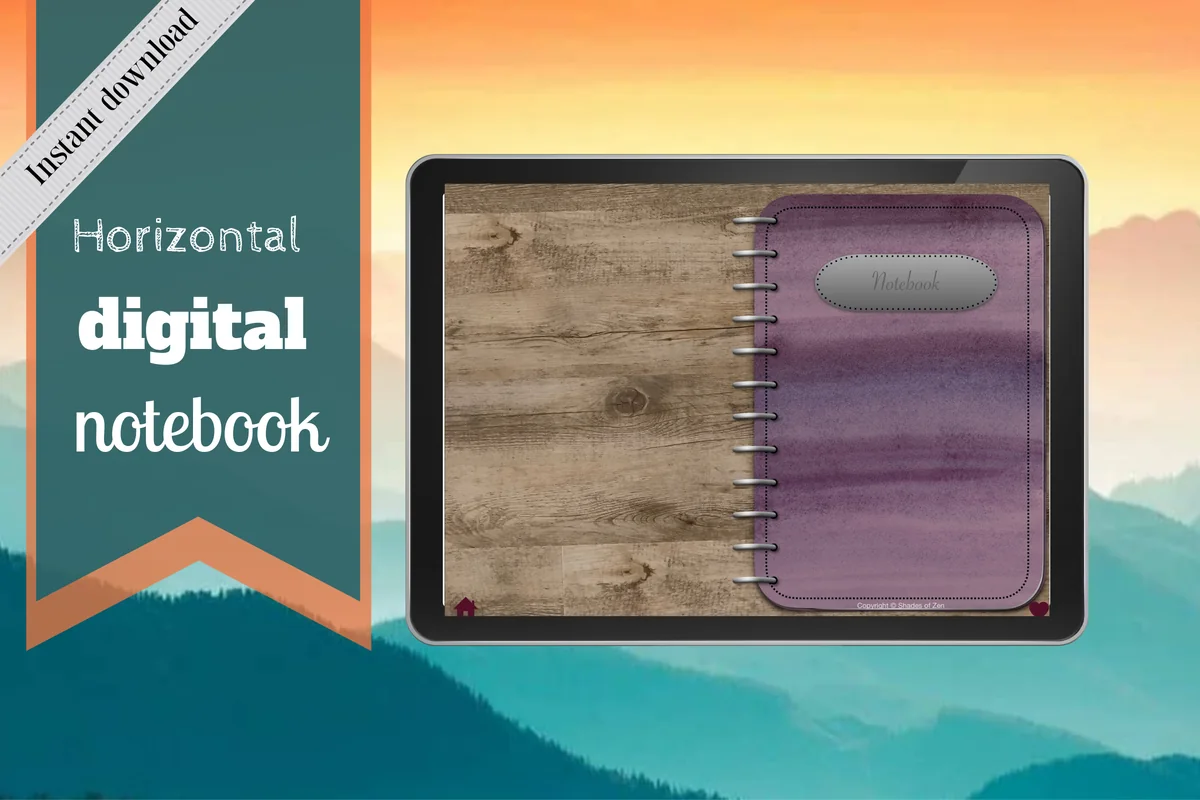
Best for a section-first index
1. Digital Notebook
Orientation: LandscapeLayouts: Section index; blank, lined, dotted, graph and Cornell notesDates: Undated note templates
Best for: collections that grow across twelve named notebook sections. Designed by Shades of Zen.
- Twelve sections with linked tabs and a pictured section index
- Sixteen note templates, including dotted, lined, graph and Cornell pages
- Landscape PDF notebook with GoodNotes import instructions
The numbered section index is the useful starting point here. Give each section a clear name, then keep a short page register inside it as the collection grows. I like the choice of ruled and column layouts for long titles. The rings occupy part of the spread; a custom entry you write is not automatically a new hyperlink.
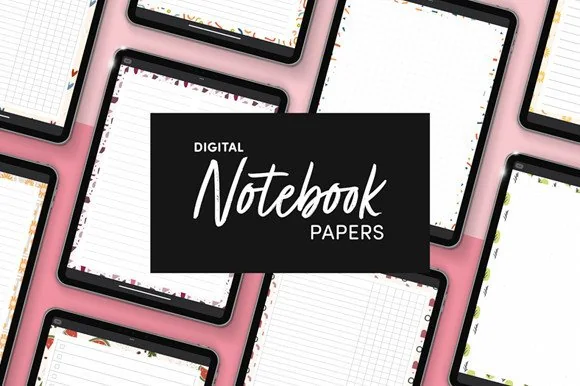
Best for adding an index to an existing notebook
2. Digital Notebook Papers – GoodNotes
Orientation: PortraitLayouts: Columns, numbered list, dots, square, lines and notesFormat: PNG and PDF
Best for: drawing a contents page without replacing the rest of your journal. Designed by catsquills.
- Nine portrait paper designs for GoodNotes and Notability
- Eight layouts per design, including columns, numbered list, dots and lines
- PNG and PDF files; 2550 by 3300 pixels listed
You may only need an extra page, rather than another whole notebook. A column layout can hold collection names on the left and addresses on the right, while a numbered list suits a compact contents page. This pack supplies paper layouts, not a linked navigation system. You write the headings and add any supported links yourself.
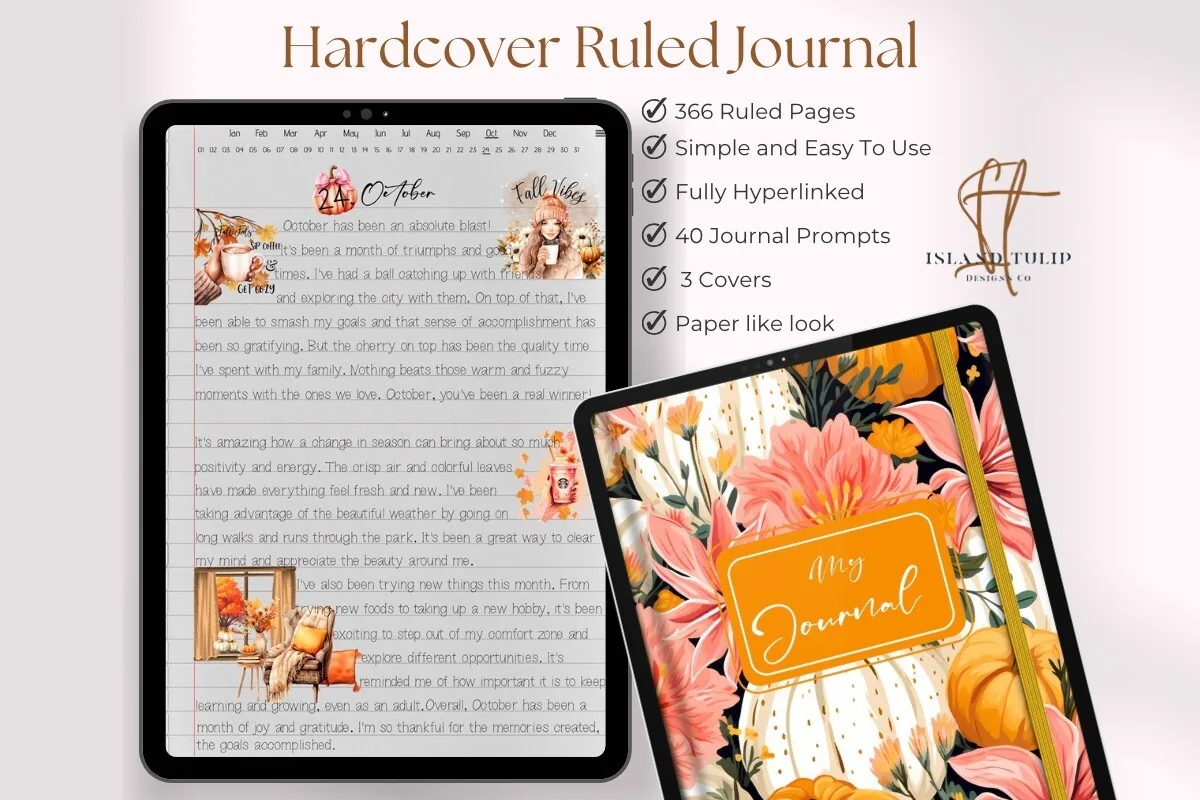
Best for locating entries by date
3. Digital Ruled Journal
Orientation: PortraitLayouts: Ruled daily pages and month/day indexDates: Month and day navigation without a calendar year
Best for: a chronological diary with a separate subject register. Designed by Island Tulip Designs Co.
- 366 ruled pages with three cover choices
- Hyperlinked journal with 40 PNG and precropped GoodNotes prompts
- Gallery shows an Index arranged by months and numbered days
Its Index is a date locator, which is useful if you remember when a conversation happened. For topics that return throughout the year, add your own register: “Garden notes: March 4, April 12.” Keep that subject register separate from the month-and-day navigation, and index only entries you expect to revisit.
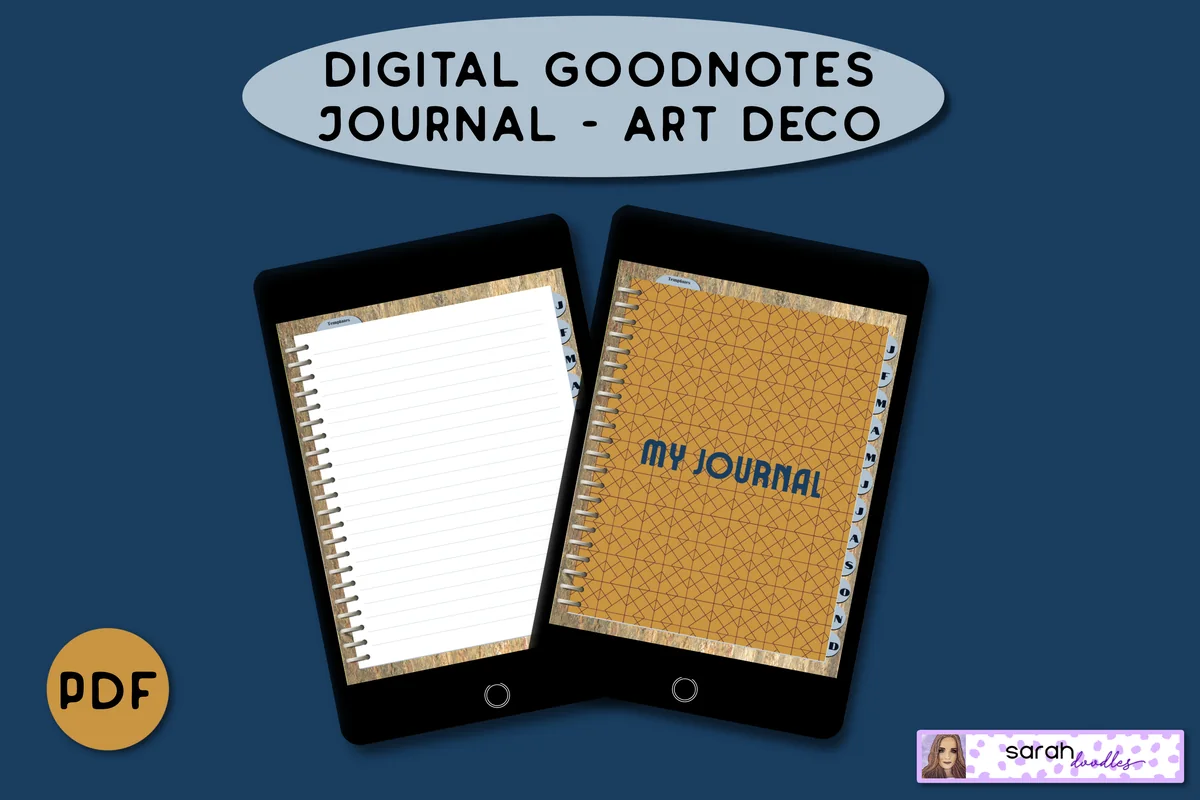
Best for a month-based working journal
4. Digital GoodNotes Journal – Art Deco
Orientation: PortraitLayouts: Month dividers, lined notes and brain-dump pagesDates: Undated
Best for: monthly note bundles with a small directory on the first writing page. Designed by Sarah Doodles.
- Undated PDF journal for iPad and PDF annotation apps
- Month tabs linked to monthly dividers; five lined pages allocated per month
- Brain-dump and priority templates shown in the gallery
Put a short directory on the first writing page of each month: topic, date and local page ID. That keeps the monthly tab useful even when you add more notes. The Art Deco version adds pictured brain-dump layouts, but neither those pages nor the month tabs create an automatic subject index. Choose it for the monthly rhythm, rather than for a large hierarchy of topics.
Best for a compact decorated directory
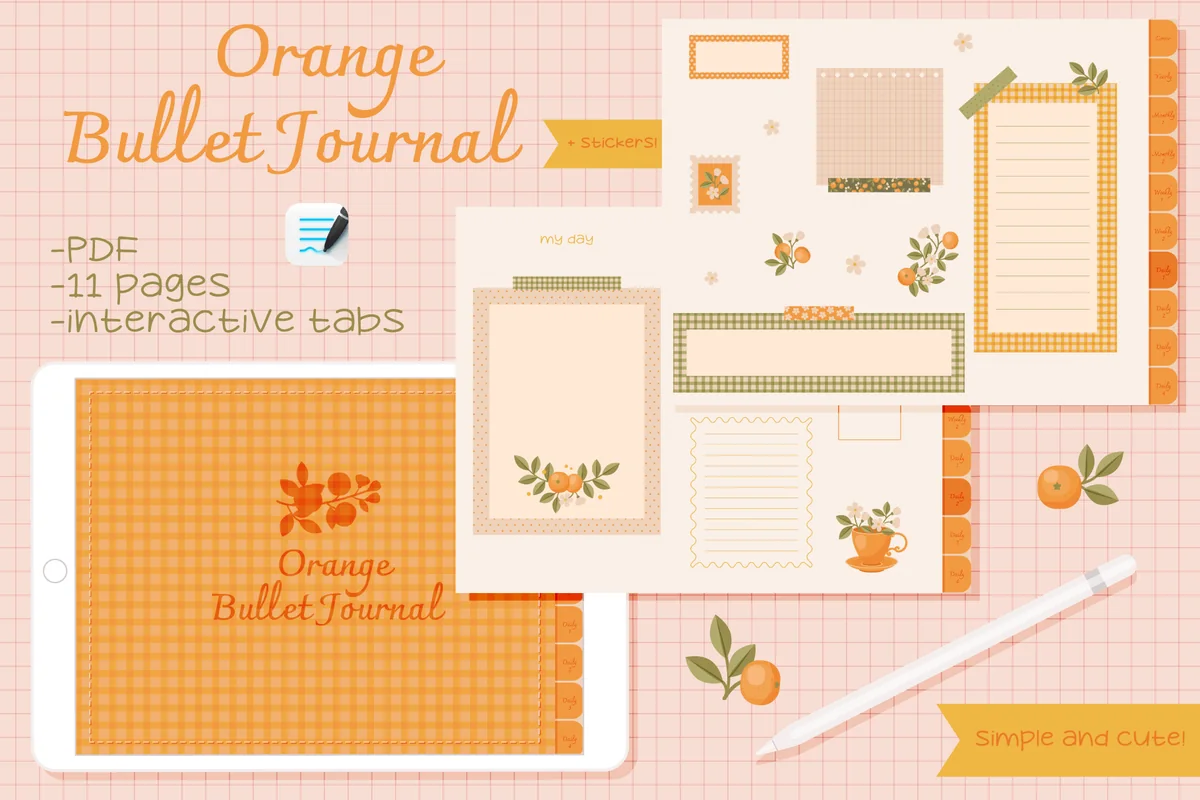
5. Undated Cute Orange Bullet Journal
Orientation: LandscapeLayouts: Fill-in calendar, weekly arrangements and note framesDates: Undated
Best for: a handful of short collection names in ready-made writing frames. Designed by digitaliya_studio.
- Interactive PDF bullet journal with GoodNotes import instructions
- Eleven pages advertised; fill-in calendar and decorative writing frames pictured
- Clickable tabs and a separate .goodnotes sticker file
The little writing frames suit a short list such as “Meals / Reading / Home,” each followed by an address. They leave much less room for a long alphabetical register than a plain ruled page. This is the compact option in the selection. A dedicated collection index is not shown, so reserve one of the writing areas for your own list.
Quick Comparison
| PDF option | Index approach | Starting point | Limit |
|---|---|---|---|
| 1. Digital Notebook | Section name, then local page ID | Twelve sections and note templates | You maintain the detailed register |
| 2. Digital Notebook Papers – GoodNotes | Manual contents-page insert | Columns and numbered-list papers | No built-in notebook navigation |
| 3. Digital Ruled Journal | Month and day, then subject notes | Date index and ruled writing pages | Subject index is an extra manual page |
| 4. Digital GoodNotes Journal – Art Deco | Monthly directory plus page IDs | Month dividers, lines and brain dump | New subject pointers are manual |
| 5. Undated Cute Orange Bullet Journal | Small collection shortlist | Tabbed journal and decorated frames | Limited writing room; no built-in topic index |
Turn a blank page into a working directory
For a simple bullet journal index template, draw three fields: collection title, address and status. Skip the status field if you do not use it. A crowded register with tiny writing is harder to maintain than a short list with enough room to add a continuation.
| Collection | Address | Status |
|---|---|---|
| Balcony planting notes | HOME-03, HOME-08 | Active; continued |
| Photography basics | STUDY-09 | Reference |
| November monthly log | NOV-01 | Current month |
These are sample entries to write yourself. A page ID is the label you put on the page; it is separate from its current position in the app’s thumbnail strip.
Set up the first entries in four passes
- 1Choose the route. Decide whether you remember topics, sections or dates most reliably. Use that as your main index arrangement. Keep a second route only for material that is genuinely hard to locate through the first.
- 2Name three existing collections. Give each a specific title that you will recognize later. “Photography basics” carries more meaning than “Course.” Write the same name on the page and in its index entry.
- 3Give each page an address. Add your chosen identifier to a visible corner. Copy it into the directory, then follow the pointer back to the page before adding more entries. Check both ends of every continuation pair.
- 4Leave room for change. Keep space beside an entry for another address, and write where the index continues if it outgrows its page. You can add an index page later; you do not need to predict the final size of the notebook.
What changes when the journal is digital?
A built-in tab, a written address and an app-created link serve different purposes. A tab can take you to the seller’s existing destination; a written address tells you which page to look for. Creating an additional tappable route depends on the annotation app and its version, so check its current help before building your workflow around that feature.
- Keep a visible fallback. Pair a meaningful title with a stable page ID even if you also add a link.
- After inserting or duplicating pages: check a few index entries and built-in navigation routes. Do not assume a new page inherits the links you wanted.
- For a monthly journal: place your manual subject directory on a writing page near the monthly divider. Keep the existing calendar navigation available.
- For a paper pack: import a suitable page into your existing notebook and create the contents list there. The paper has no section links.
Keep the index useful after the first week
Add an entry when you create a collection you expect to revisit. You do not have to index every daily log or every paragraph. The goal is to retrieve useful material without creating a second journal full of administration.
- At capture: give an important new page its title and ID. If you cannot index it immediately, put that ID in the temporary inbox.
- At a weekly review: clear the inbox, update active collections and repair failed pointers.
- At a monthly review: mark closed collections and check whether a vague category needs a clearer name. The monthly review ideas can help you decide what deserves to stay active.
- When the index fills: continue on another page and point both registers to each other. Keep the old entries available.
FAQ: finding pages in a growing bullet journal
How many pages should I leave for an index?
Begin with a readable amount of space for the collections you already have, rather than reserving a large fixed quota. When it fills, continue on another page and add a pointer. A digital notebook still needs that visible continuation rule if you use a handwritten contents list.
What is the difference between an index and a key?
The index gives collection titles and their locations. The key explains symbols, such as a star for active work. Keep the symbol meanings together, then use only the ones that help you scan your index entries.
Can I add an index after starting the notebook?
Yes. Create a directory on an available page, list the collections you want to retrieve and give each an address. Add older material as you encounter it. You do not need to catalog every page before the index becomes useful.
Should the index be alphabetical or chronological?
A traditional bullet journal index grows in the order collections are added. Alphabetical topics can work as a separate reference directory when names are your main retrieval cue. Pick the route you will remember rather than maintaining two identical lists.
Does a hyperlinked PDF automatically index my new notes?
The built-in links take you to preset sections or dates, depending on the PDF. Write your own subject entries and addresses. Check whether your chosen app supports extra links before relying on them.
Give one lost page a reliable address
Try these bullet journal index ideas on one collection you have already struggled to find. Write a specific title, add a stable address and use the pointer to open the page again. If that works, add the next collection. Keep your current notebook if it has enough space; the five PDFs are optional starting points for a different page style or navigation structure.
For page content beyond the directory itself, the digital bullet journal ideas guide covers collections and logs. This index can stay small while those pages grow.
You May Also Like
This article contains affiliate links. If you buy through them, I may earn a commission at no extra cost to you. Read the affiliate disclosure.