A client sends “one small change” just as another project reaches review. Your freelancer planner needs to show whether that change fits this week, who is waiting and what you have actually agreed to deliver. On an iPad, a few clearly named pages can make those decisions easier to see before you reply.
Start with a shared weekly capacity page, then link it to individual client notes. The 14 ideas describe your own client-work setup, rather than a list of included product pages. The eight digital planning tools below provide different starting layouts for GoodNotes or another compatible annotation app.
TL;DR: Count available work sessions before you accept another revision. Use the 14 ideas below to create your own client register, capacity map and handoff checks. These eight tools offer a project framework, notebook navigation or paper layouts; choose the starting structure you actually need.
Quick Picks
- Best for an existing project overview: Project Planner – Printable & Digital
- Best for short client briefs: Watercolor Hyperlinked Digital Notebook
- Best for feedback beside actions: Digital Notebook by Shades of Zen
- Best for a compact work queue: Digital Notebook 5 Hyperlinked Tabs
- Best for weekly capacity planning: Digital Notebook 5 Hyperlinked Tab by studiopattern
- Best for a larger client index: Digital Notebook 24 Hyperlinked Tab
- Project Planner – Printable & Digital – Best for an existing project overview
- Watercolor Hyperlinked Digital Notebook – Best for short client briefs
- Digital Notebook by Shades of Zen – Best for feedback beside actions
- Digital Notebook 5 Hyperlinked Tabs – Best for a compact work queue
- Digital Notebook 5 Hyperlinked Tab by studiopattern – Best for weekly capacity planning
- Digital Notebook 24 Hyperlinked Tab – Best for a larger client index
- Cute Digital Notebook Hyperlinked by studiopattern – Best for experimenting with columns
- Digital Notebook Papers – GoodNotes – Best for extending an existing notebook
A project framework to start from
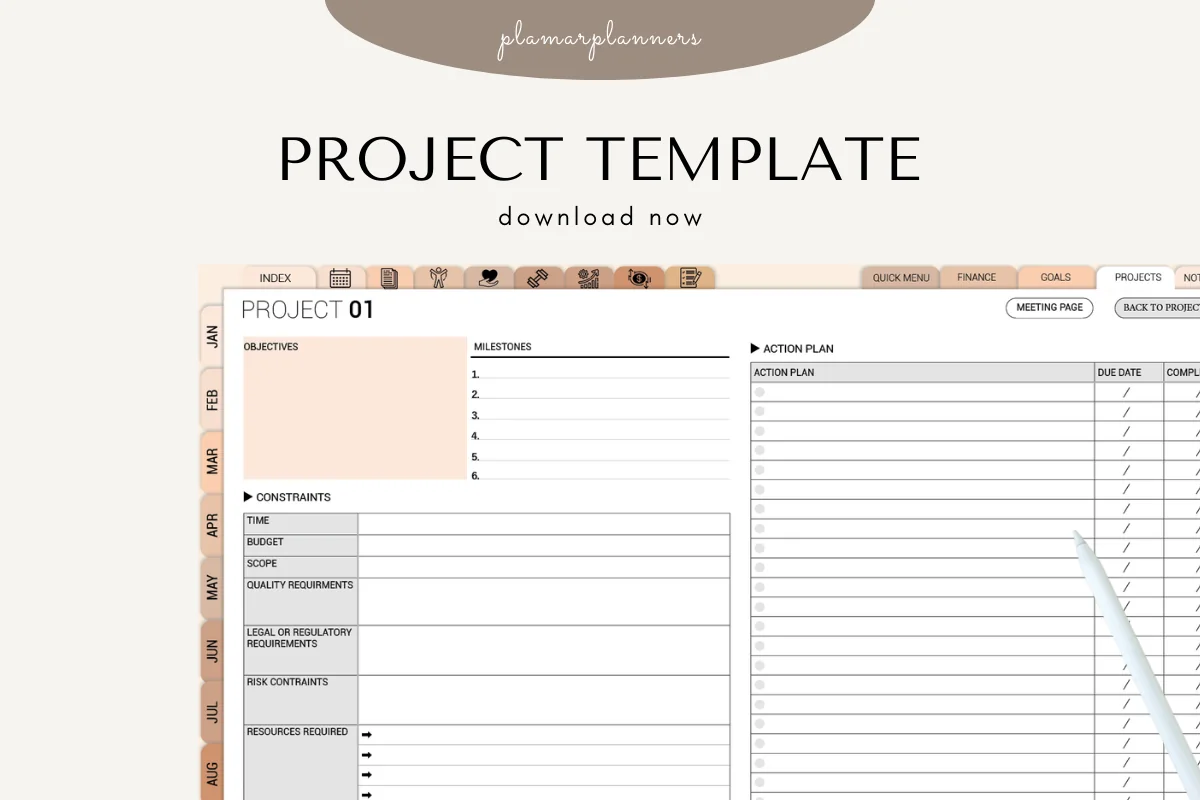
Best for an existing project overview
1. Project Planner – Printable & Digital
Orientation: LandscapeLayouts: Objectives, constraints and action planDates: No prefilled dates shownWeek start: Not applicable to the project overview
Best for: seeing scope constraints beside milestones before placing work in the week. Designed by Plamarplanners.
- PDF project templates with a tablet-friendly version; the listing names GoodNotes, Notability and Xodo
- The previews show objectives, milestones, resources and constraints beside an action plan
- Task rows include due-date and completed-on columns; four color treatments are shown
The visible objectives, constraints and action rows make this a useful starting framework for a client brief. Scope and resources have their own fields, so the page can support a decision about an extra request. Use a separate weekly capacity map alongside the project overview. The narrow fields may need zooming on a smaller iPad.
Notebooks for your own client-work pages
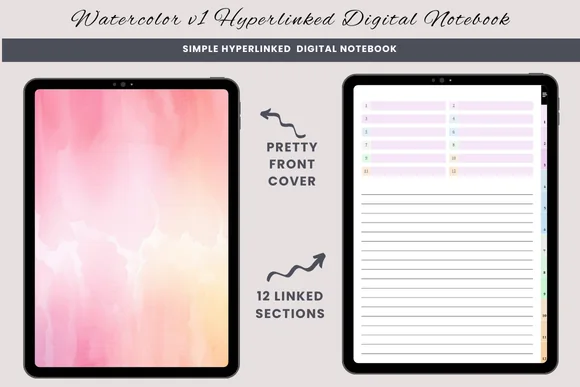
Best for short client briefs
2. Watercolor Hyperlinked Digital Notebook
Orientation: PortraitLayouts: Lined, blank, half-linedDates: No calendar dates shownWeek start: Not applicable
Best for: keeping the agreed result and next decision together. Designed by daysfilledwithjoy.
- 12 linked sections with lined, blank and half-lined pages
- One PDF for GoodNotes or a similar PDF annotation app
- Pages can be duplicated when you need more writing space
The half-lined sheet is a useful place for a rough concept above a short scope note. Give one linked section to each active client and keep an index of page titles. You supply the deliverables, review dates and boundaries; the notebook provides simple writing space.

Best for feedback beside actions
3. Digital Notebook by Shades of Zen
Orientation: LandscapeLayouts: 16 note templatesDates: No calendar dates shownWeek start: Not applicable
Best for: turning a client comment into a specific next action. Designed by Shades of Zen.
- 12 expandable sections with hyperlinked tabs and individual dividers
- 16 note templates, including lined, dotted, graph and Cornell notes
- Instructions for GoodNotes or another PDF annotation app
A horizontal spread gives a long client comment room beside the response it needs. Try the two-column paper for feedback on the left and a proposed action on the right. Sixteen templates offer choices, but the revision categories and version labels are yours to add.
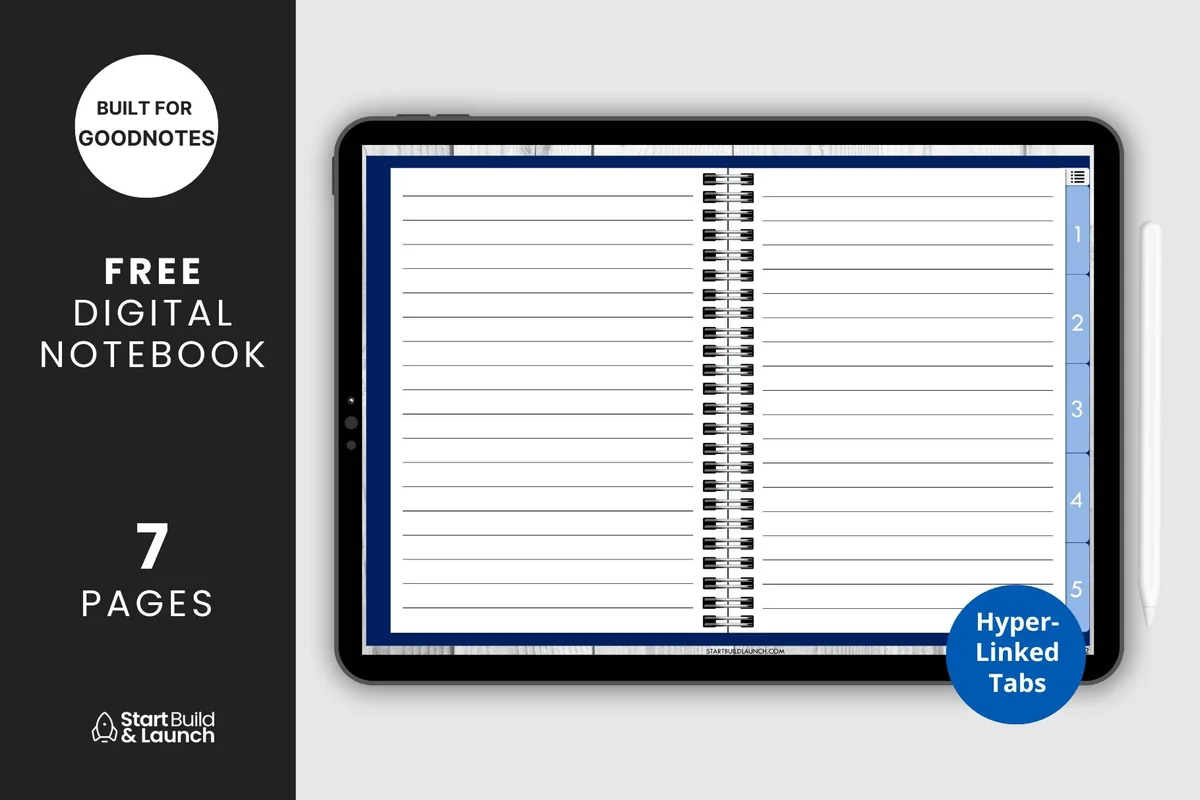
Best for a compact work queue
4. Digital Notebook 5 Hyperlinked Tabs
Orientation: LandscapeLayouts: Blank, lined, dotted, graph, CornellDates: No calendar dates shownWeek start: Not applicable
Best for: separating inbox, active work, review, waiting and archive. Designed by aviswilliams.
- Index page and five hyperlinked sections
- Blank, lined, dotted, graph and Cornell note papers
- PDF designed for an iPad or tablet with a stylus; GoodNotes, Noteshelf and Notability are suggested
Five tabs suit a process-based setup when separate client folders would feel too busy. Use an anonymous code at the top of each page so an item can move between your active and waiting lists without losing context. The seller describes use on an iPad or tablet with a stylus.
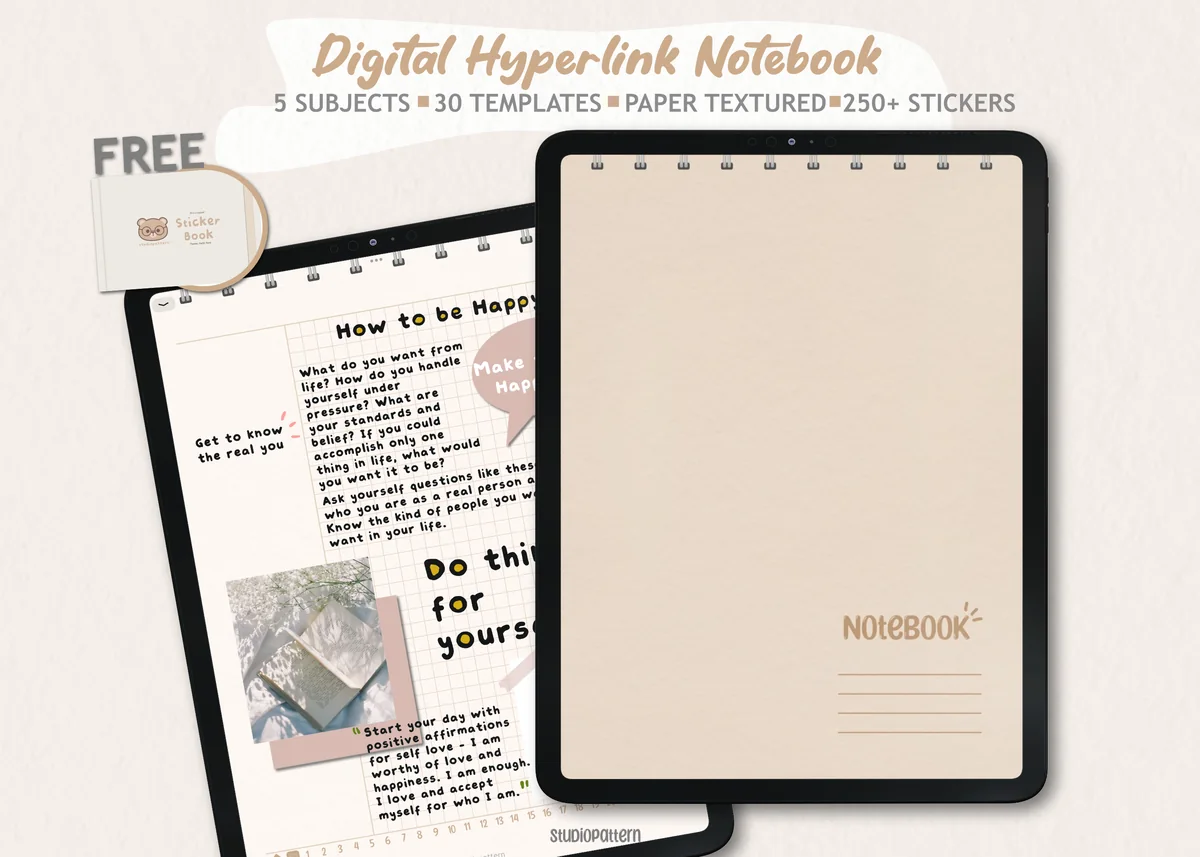
Best for weekly capacity planning
5. Digital Notebook 5 Hyperlinked Tab by studiopattern
Orientation: PortraitLayouts: General planning and note papersDates: No calendar dates shownWeek start: Sunday on the previewed weekly layout
Best for: placing your own work sessions alongside calls and deadlines. Designed by studiopattern.
- Five sections, a linked contents page and 30 paper templates
- Monthly, weekly, daily, habit and checklist papers
- Hyperlinked PDF, PDF manual, 250+ individual PNG stickers and one precropped GoodNotes sticker-book file
- Best used with an iPad or tablet and Apple Pencil or stylus; annotation app may cost extra
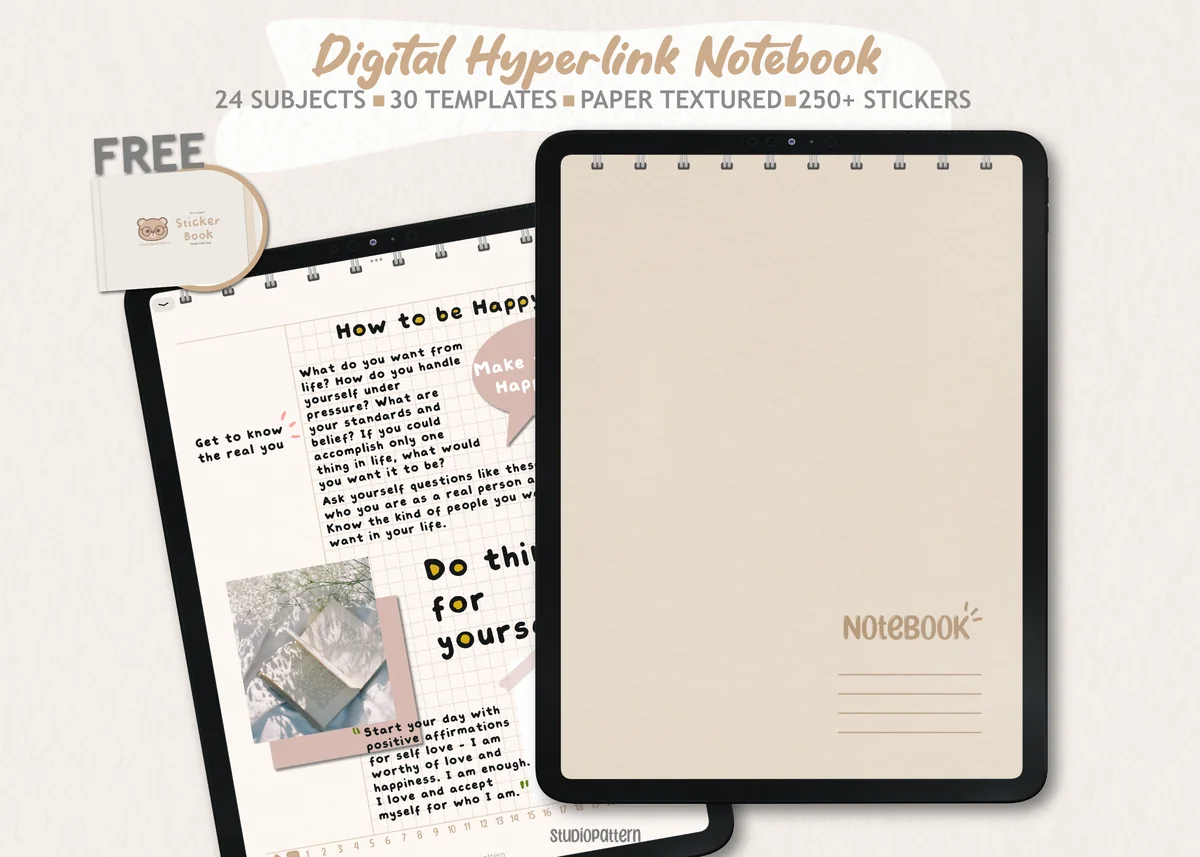
The previewed weekly paper is the useful difference here: block your available sessions first, then add client codes and the work each session can hold. The general monthly and daily papers can support different views of the same week. This is a general notebook, so build the scope and approval fields yourself.
Best for a larger client index
6. Digital Notebook 24 Hyperlinked Tab
Orientation: PortraitLayouts: Note papers and general planning pagesDates: No calendar dates shownWeek start: Sunday on the previewed weekly layout
Best for: keeping different client histories in separate sections. Designed by studiopattern.
- 24 linked sections and a contents page
- 30 paper templates; previews show note papers and general monthly, weekly and daily planning pages
- Hyperlinked PDF, PDF manual, 250+ PNG stickers and one precropped GoodNotes sticker book
- Best used on an iPad or tablet with an Apple Pencil or stylus; annotation app may require a separate purchase
Twenty-four sections leave room for separate client histories and a shared weekly overview. That is useful when you need to revisit past decisions, although unused tabs do not need invented categories. The included general planning papers support your schedule. You can adapt a checklist with client-specific handoff headings.
Best for experimenting with columns
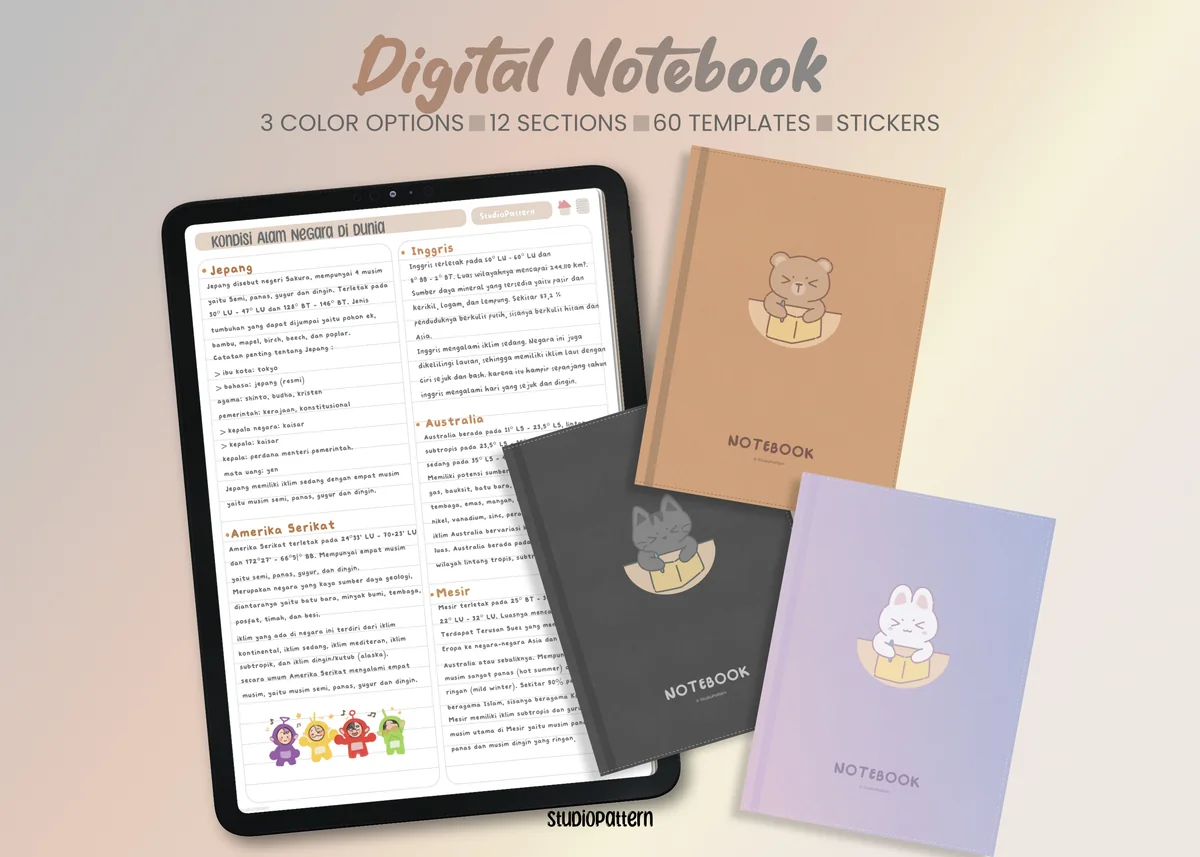
7. Cute Digital Notebook Hyperlinked by studiopattern
Orientation: PortraitLayouts: Note and general planning papersDates: No calendar dates shownWeek start: Not specified in the description
Best for: finding enough writing space for feedback and version notes. Designed by studiopattern.
- 12 linked sections and a contents page
- 60 note templates; previews show blank, ruled, grid, dotted and general planning choices
- PDF notebook and PDF manual; individual PNG stickers included
- Best used with an iPad or tablet and Apple Pencil or stylus; annotation app may cost extra
This option is about paper variety rather than a specialist freelance workflow. Compare a split-column sheet with a wide ruled page using the same fictional revision note, then keep the one that leaves room for an explicit next step. The covers and optional stickers are a style choice, not a productivity feature.
Paper layouts for a notebook you already use
Best for extending an existing notebook
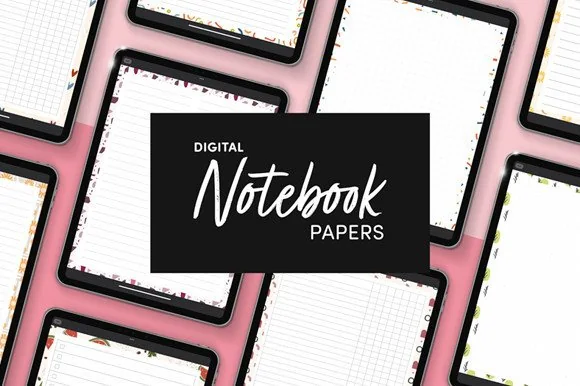
8. Digital Notebook Papers – GoodNotes
Orientation: PortraitLayouts: Columns, lists, grids and notesDates: No calendar dates shownWeek start: Not applicable
Best for: adding a revision log without moving your whole setup. Designed by catsquills.
- Nine portrait paper designs for GoodNotes and Notability
- Eight layouts per design: columns, habit tracker, to-do, numbered list, dots, square, lines and notes
- PNG and PDF files; 2550 × 3300 px, US Letter proportions
If your current notebook already holds your projects, a column sheet may be enough. Add headings for request, version, next action and review date, then test one week before adding more pages. These are PNG and PDF papers; the description does not specify a linked notebook index.
Quick Comparison
| Digital tool | Navigation | Paper choices | Client-work use |
|---|---|---|---|
| 1. Project Planner – Printable & Digital | Project overview | Objectives, constraints, actions | A scope-aware starting page |
| 2. Watercolor Hyperlinked Digital Notebook | 12 linked sections | 3 paper types | Short scope notes |
| 3. Digital Notebook by Shades of Zen | 12 linked sections | 16 note templates | Feedback into actions |
| 4. Digital Notebook 5 Hyperlinked Tabs | 5 linked sections | 5 paper types | A five-stage queue |
| 5. Digital Notebook 5 Hyperlinked Tab by studiopattern | 5 linked sections | 30 paper templates | Weekly work sessions |
| 6. Digital Notebook 24 Hyperlinked Tab | 24 linked sections | 30 paper templates | Separate client histories |
| 7. Cute Digital Notebook Hyperlinked by studiopattern | 12 linked sections | 60 note templates | Layout trials |
| 8. Digital Notebook Papers – GoodNotes | Individual papers | 8 layouts per design | One extra revision sheet |
What belongs in a freelancer planner template for several clients?
Keep the big picture in one place: active clients, agreed outputs, available work sessions and decisions that block progress. Give detailed notes their own pages so a weekly list does not become a transcript of every conversation. A business owner working alone needs to see the limits of the week as clearly as the to-do list.
- Shared weekly view: fixed appointments, available sessions, due work and a small space for unexpected changes.
- Client detail: the current brief, scope boundary, latest version and next approval needed.
- Decision trail: the request, your response, the agreed next action and where the actual agreement is stored.
Use one main calendar for appointments. Your PDF pages can hold thinking, comparisons and handwritten plans, but a linked notebook does not automatically synchronize with a calendar or send a client reminders. Keep the official files and agreements in their proper work system; use short references in the planner.
Ideas 1–4: make each client commitment visible
- 1Client register with one next action
Create columns for client code, project, current stage, next action, owner and check date. “Waiting” on its own is too vague: write “waiting for C2 to choose a concept; check Thursday.” Keep completed clients in an archive page rather than letting them crowd the active register. This page is an overview, not a contact database.
- 2Scope snapshot you can read before replying
At the top of a client page, write the agreed result in plain words. Below it, list included outputs, review arrangements and exclusions as they appear in your actual agreement. If those details are undecided, mark them as questions. A planning note does not create new terms or replace the agreement; it helps you notice what needs clarification.
- 3Deliverable map with a clear stopping point
Break a project into visible outputs, such as a draft article, a revised article and a final file. Beside each, write what needs to be true before it moves forward. For a video project, that might be approval of the outline before editing begins. Avoid writing only “finish project,” which hides the intermediate decisions and makes estimates harder to compare.
- 4Client preference and decision sheet
Use a lined page for choices the client has already made: tone, format, reference direction and the person who approves. Date each entry and note the message or document that supports it. Keep suggestions separate from approvals so an exploratory comment does not silently become a requirement. Remove unnecessary personal details from your working notes.
Ideas 5–8: plan a week that has room for real work
- 5Capacity map in work sessions
Draw the week as a set of available work sessions after appointments, administration and personal commitments. Choose a session length that reflects your work; it need not be an hour. Reserve some unassigned room if your schedule allows. Then estimate how many sessions each output needs, including checking and handoff, rather than treating every task as equally small.
- 6A visible limit for active revisions
Add Ready, Active, Review and Waiting headings to a page. Decide how much work you can keep active at once, then write that limit at the top. Move an item only when its next action changes. This is an experiment in focus, not a universal rule: analyze whether the limit fits your projects after a week and adjust it deliberately.
- 7Deadline strip with dependency notes
Mark delivery dates on a monthly overview, then add the earlier approval or input each one depends on. “Client copy due before layout” is more useful than another colored dot. If an input arrives late, review the downstream schedule before promising the original date. Keep any changed commitment visible until it is agreed in the normal client communication channel.
- 8Daily focus linked to a client outcome
Choose a short set of priorities from the weekly plan and give each a client code. “C1: revise opening section for review” says more than “writing.” Put calls in their actual time slots and place focused work around them. A horizontal layout can show the day in sequence; a column layout can separate appointments from tasks without pretending both lists are the same.
Ideas 9–11: turn feedback into an orderly revision queue
- 9Feedback inbox with a sorting pass
Capture incoming comments in one inbox before deciding what to do. Give each comment a source reference and version label, then sort it into clarification, agreed revision or possible extra work. Do not turn every message into an immediate task. Sometimes two comments conflict, and the next useful action is a question to the approver rather than another edit.
- 10Version-by-version revision log
Make columns for version, requested change, action taken and review status. Write the exact part affected in a few words, such as “opening paragraph” or “second scene.” This keeps feedback on an earlier version separate from comments on the current one. The actual document remains the source for the full text; your log is a compact record of what needs attention.
- 11Change-request decision page
When a request appears outside the agreed scope, record what changed and which existing commitment it affects. Draft a response that offers a decision: replace an agreed item, move the schedule or discuss a separate piece of work. Do not label it accepted simply because it reached your inbox. Carry the result into the planner after the client discussion, with a reference to that agreement.
Ideas 12–14: close the loop without losing the next week
- 12Waiting list with a review date
Keep work that depends on someone else out of the active task list, but give it a check date and named owner. “Awaiting approval from C3; follow up Friday” is enough for the planner. If that approval affects another deadline, mark the dependency too. A waiting item should have a reason and a next check, not disappear until it becomes urgent.
- 13Acceptance and handoff checklist
Build a short checklist for the particular deliverable: correct version, required file format, agreed destination and the response still needed from the client. Add “sent” and “accepted” as separate states when your process uses them. File delivery alone does not tell you whether someone has reviewed it. Store access credentials elsewhere, not on a shared planning screenshot.
- 14Weekly review and next-week carryover
Review the active register, waiting list and unused or overfilled sessions together. Carry forward only work that still has a purpose, and write why an item moved. Compare estimates with what happened so the next plan reflects your day-to-day work. One sentence about a useful lesson is more actionable than filling a page with inspirational quotes you never revisit.
At the weekly review, translate a broad project goal into a deliverable that can fit a real session. For a creative brief, that might mean an outline ready for comment rather than an entire campaign. Keep past estimates as a reference, and note which resources or client inputs were missing. This gives you concrete ways to improve the next plan without treating a full calendar as proof of productivity.
Three clients, two open sessions: a worked planning example
Imagine a freelance writer has already scheduled the week’s fixed commitments. Two work sessions remain. C1 needs one session for an agreed revision; C2 needs one session to check and hand off a finished piece. C3 asks for a new comparison section. These are fictional estimates chosen to show the decision, not recommended timings for your business.
- Keep C1 active: the agreed revision has a defined output and occupies the first remaining session.
- Protect C2’s handoff: checking and sending the final file occupies the second session, even though most of the writing is finished.
- Log C3’s request: put the new section on the change-request page and identify whether it changes the existing scope.
- Offer a clear choice: propose a later slot or discuss which existing commitment could move; do not promise an invisible third session.
If C1’s feedback has not arrived, that session may become available, but first check any dependency or existing promise attached to it. An empty-looking box is not automatically spare capacity. Record the revised plan and communicate a changed date before treating it as settled.
The useful outcome is a sentence you can send: “I can schedule the additional section after the current handoffs, or we can discuss replacing an agreed section.” Adapt that wording to your agreement and circumstances. This page helps prepare a conversation; it is not legal advice or a substitute for agreed terms.
Set up your iPad pages in a small first pass
- 1Choose a navigation structure. Start with either client sections or process sections. Client sections suit longer histories; process tabs suit a smaller shared queue. Keep a page index so the same request does not acquire two different homes.
- 2Make three starter pages. Create a client register, weekly capacity map and revision log. Add the other ideas only when a real decision needs them. Duplicate a blank or suitable paper in your annotation app rather than redrawing the same headings each day.
- 3Try a fictional project. Write one output, one feedback note and one waiting item. Check that you can find the current version and next action without searching through unrelated pages. Test hyperlinks using your app’s navigation mode.
- 4Run one real weekly review. Look at missed estimates, cramped lines and repeated copying. Change the layout where it causes friction, then preserve a clean master page for the next week. Keep a backup using your app’s supported export or backup process.
Template or app: which job should the planner do?
A freelance client planner template can be a good home for handwritten thinking, scope summaries and a visible weekly map. A freelancer planner app may be a better fit when you need shared assignments, automatic notifications or a live status board for several people. Choose around the actual workflow instead of assuming a PDF has the behavior of project-management software.
- Use notebook pages for: personal working notes, alternative plans, annotated feedback and a simple review routine.
- Use a calendar for: timed appointments and reminders you need to receive automatically.
- Use the agreed client system for: shared files, approvals, permissions and the official record of decisions.
Paper planners and an iPad notebook can support the same habit of checking a week before adding work. The digital version lets you duplicate a layout and keep several page types together. If a paper planner would work for your way of thinking, start with similarly simple digital pages rather than buying a complex system just for its menus.
Choose the starting layout by the decision you need to make
- Start with an existing project framework: Plamarplanners’ project template places objectives, constraints and action rows on one overview. Add your own weekly capacity and revision pages alongside it.
- Mostly brief notes: the Watercolor notebook offers three paper types and twelve linked sections. It is a straightforward place for a scope snapshot.
- Feedback needs two sides: Shades of Zen’s landscape notebook includes two-column and Cornell choices in its sixteen templates.
- A compact shared queue: aviswilliams’ five-tab notebook keeps the navigation small while you create the workflow headings.
- Weekly planning paper matters: the five-section and twenty-four-section studiopattern notebooks show general weekly and daily papers in their previews.
- Keep your existing setup: the catsquills paper pack adds individual layouts. The Cute notebook is another option when you want a broader selection of note templates.
Do not create a new page just because a tab is empty. Prefer enough writing room for the decision in front of you, and test whether your handwriting fits at a comfortable zoom. The practical measure is how quickly you can answer “what happens next for this client?” without reconstructing the whole project.
FAQ: client planning on an iPad
Can I build this in GoodNotes without a ready-made freelance template?
Yes. Start with a suitable notebook or paper layout and add your own register, session blocks and revision headings. Check the individual product’s listed app compatibility and files before choosing. General weekly paper is useful for scheduling, while blank or column paper can hold the client-specific fields.
How often should I update client pages?
A practical starting routine is to capture new requests as they arrive, update the next action after a decision and review the full week before making new commitments. That is a suggested routine, not a requirement to rewrite everything daily. Only change the pages whose information has changed.
Should every client get a separate notebook?
Not necessarily. One notebook with client sections may be easier for a small client list, while separate notebooks can suit longer histories or different access needs. Keep a shared capacity view either way so the same work session is not promised twice. Avoid mixing unrelated confidential notes in material you plan to share.
Will a hyperlinked PDF send reminders or synchronize with my calendar?
Hyperlinks navigate between pages; they do not by themselves create calendar synchronization or automatic notifications. Keep reminders in an appropriate calendar or task tool. Write a short cross-reference in the planner if it helps connect the appointment with the preparation work.
Is this a budget planner or a way to find freelance jobs?
This setup covers client commitments, working capacity and revisions. It does not calculate taxes, set an hourly rate, predict earnings or find jobs. Keep financial records in the appropriate system, and use a separate budget page if you need a personal overview. A delivery reference can connect the systems without copying sensitive financial details here.
What should I leave out of shared planner screenshots?
Use anonymous client codes and remove private messages, personal contact details, access links and credentials. Check the whole screenshot, including nearby tabs and notes, before sharing. Follow the confidentiality arrangements and tool permissions that apply to your work; a visually tidy page is not permission to disclose its contents.
Build the next week around commitments you can see
A useful freelancer planner makes the available week and the next client decision visible together. Start with the register, capacity map and revision log, then add a handoff checklist when it solves a real gap. The aim is a plan you can revise honestly when work changes, with space to explain the next step before promising it.
You May Also Like
This article contains affiliate links. If you choose a product through one of them, I may earn a commission at no extra cost to you. Read the affiliate disclosure for details.