You open an account you rarely use, then wonder which email address you registered with. A digital password book can bring those scattered account notes into one readable place on your iPad, provided you understand what a PDF can and cannot do.
I compared three layouts: an alphabet-tabbed book, a landscape table and a sheet of individual account boxes. My first choice for navigation is Kinu’s Blue book; the two simpler logs make more sense when you only need a few pages. The comparison is based on product descriptions and previews; I have not tested the purchased PDFs.
Before choosing: these are PDF stationery files. I would use them as an account-reference index and leave secret fields empty. A printed password label, a lock icon or a notebook cover does not provide encryption.
The 3 Best PDF Account Books and Logs I Found
TL;DR: Kinu is the only alphabet-tabbed book here. Coffee Latte keeps entries in one landscape table; HelArtShop uses twelve separate boxes per sheet. All three offer PDF layouts for note-taking apps, not encrypted password storage.
Quick Picks
- Best for alphabet tabs: Digital Password Book (Blue)
- Best for one landscape sheet: Online Password Tracker • Coffee Latte
- Best for separate account boxes: Password Keeper Printable
- Digital Password Book (Blue) – Best for alphabet tabs
- Online Password Tracker • Coffee Latte – Best for one landscape sheet
- Password Keeper Printable – Best for separate account boxes

Best for alphabet tabs
1. Digital Password Book (Blue)
Orientation: PortraitLayouts: Light and darkSections: A–Z; 3 pages per letterFormat: Hyperlinked PDF
Best for: finding account notes by name rather than scrolling through a single list. Designed by Kinu Planners.
- Hyperlinked A–Z tabs with three pages for each letter, advertised as 78 pages
- Light and dark PDF versions in one ZIP archive
- Four JPG covers; the previews include covers with and without title text
- Two columns of account spaces with Name, User, E-mail, Password and Notes lines
- For Goodnotes; the alphabet-tab preview also names Notability
The alphabet tabs are the reason I put Kinu first. A large collection of account references needs a way to reach the right section, and three pages per letter give it more structure than a spare sheet in a planner. I also like having a light and a dark version without choosing a separate listing. The small writing lines and side tabs are the trade-off: zoom into an entry before deciding whether this layout feels comfortable. The other colors shown in the last preview are advertised alternatives, not a six-color bundle promised by this Blue listing.

Best for one landscape sheet
2. Online Password Tracker • Coffee Latte
Orientation: LandscapeLayouts: One-page tablePaper: A4Format: PDF
Best for: a short account-reference list with dates and a wide, spreadsheet-like arrangement. Designed by Tas Creative Studio.
- One-page password tracker, shown in all three previews
- A4 landscape PDF; the description lists printable and digital use
- Columns for date, email or user name, website and password
- Coffee illustrations, a to-do area, an idea parking lot and notes space
- GoodNotes, Notability, Noteshelf, XODO and Samsung Notes are named in the description
Coffee Latte gives the most direct side-by-side view: the website, account name and date sit on the same row. That makes it my preference for a small account inventory, especially if you would leave the password column blank and use the page for references. It is a single sheet, though, not a tabbed notebook or an automated tracker. The decorative sidebar takes room away from the table, so someone with large handwriting may prefer a plainer page.
Best for separate account boxes
3. Password Keeper Printable
Orientation: PortraitLayouts: 12 account boxesPaper: A4, A5, US LetterFormat: PDF
Best for: keeping each account in its own small block, with a choice of standard page sizes. Designed by HelArtShop.
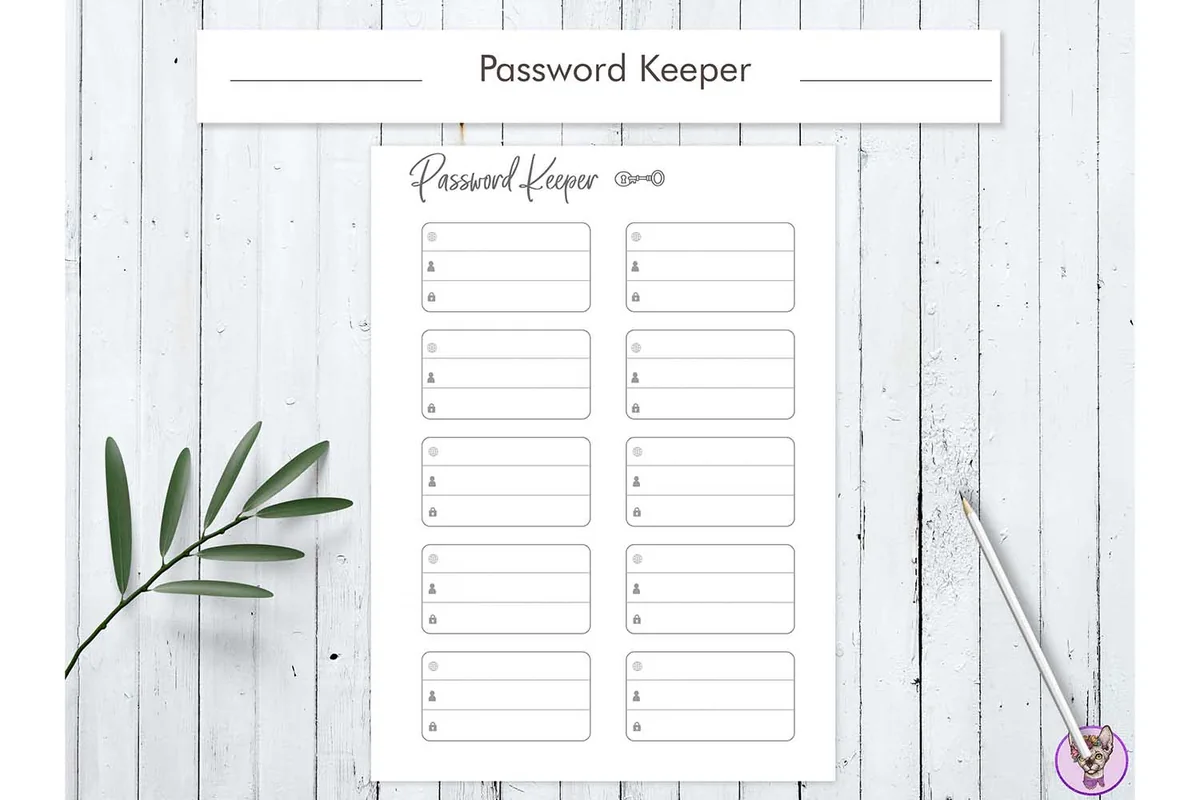
- Twelve account boxes per sheet, arranged in two columns of six
- Three PDF files in A4, A5 and US Letter sizes
- Portrait layout with a light background and small account-field icons
- Supports digital use on iPad in Goodnotes and Notability
- Text can be added via Adobe Reader or Preview; no hyperlinks advertised
Separate boxes make this a useful option for a modest reference list where visual boundaries matter more than navigation. The portrait sheet has twelve entries, but each box is compact, with small icon labels that offer less guidance than Kinu’s written fields. A4, A5 and US Letter files give you a choice of page sizes. Choose it for that simple structure; alphabet tabs and a dark version are not advertised.
Quick Comparison
| Password book or log | Best for | Layout and navigation | Files included |
|---|---|---|---|
| 1. Digital Password Book (Blue) | A longer alphabetized account index | Portrait; hyperlinked A–Z tabs | Light/dark PDFs + 4 JPG covers |
| 2. Online Password Tracker • Coffee Latte | A short dated account inventory | A4 landscape; one table, no tabs claimed | 1 PDF; printable and digital use listed |
| 3. Password Keeper Printable | A small list divided into individual blocks | Portrait; 12 boxes, no tabs claimed | 3 PDFs: A4, A5 and US Letter |
Choose a digital password book by how you find an account
A password keeper can be an alphabetized book or a single account sheet. This digital password organizer comparison focuses on PDF stationery: a password log you open in a note-taking app, rather than an electronic password keeper device. The most useful distinction is how you want to retrieve a note. Do you remember the service’s name, want to scan a few accounts at once, or prefer a separate block for each one? Those three habits point to different layouts, even though all three products are called password books or trackers.
- Start with the service name: Kinu’s alphabetical tabs suit an index of online accounts. Choose one naming rule, such as the name you see on the service’s website, so the same account does not end up under two different letters.
- Start with a short overview: Coffee Latte keeps date, account name and website together across one landscape row. It gives a small collection an at-a-glance structure, but it is not a database you can sort with a tap.
- Start with a visual boundary: HelArtShop divides the page into twelve boxes. Each entry has its own space, which may suit a short household reference list better than a wide table.
A larger page count is not automatically the better purchase. Kinu allocates the same number of pages to each letter, while your own account names may cluster under a handful of letters. Conversely, a one-page log stays simple until you add enough copies that finding the right entry becomes the new chore.
Writing space matters more than the cover
I would inspect the account area before choosing a color. Kinu has two columns of small fields; Coffee Latte spreads entries across a wider table but reserves space for decoration; HelArtShop uses compact boxes. None of the previews demonstrates how your own handwriting will fit, so the layouts should guide a shortlist rather than promise a perfect writing experience.
- Long account names: allow room for a recognizable service name, rather than squeezing it into a decorative margin. The website and account-name columns in Coffee Latte are visible, but their width is fixed.
- Large handwriting: plan to zoom into Kinu’s lines or HelArtShop’s boxes. Zooming enlarges the view; it does not add more blank room inside a field.
- Contrast preference: Kinu supplies light and dark versions. That is a choice of page appearance, not proof that one version improves eye health or automatically follows the iPad’s appearance setting.
- Paper as an alternative: HelArtShop includes A4, A5 and US Letter PDFs, while Coffee Latte lists A4 landscape. Choose the included size you need instead of assuming every file includes every paper format.
The illustrations deserve a second look, too. Coffee Latte has a to-do strip and an idea parking lot, but that does not make it a full daily planner. Kinu shows other tab colors in a promotional preview, while this particular purchase is the Blue version. I have kept those distinctions in the comparison instead of treating everything pictured as an included extra.
Use the log as an account index, not a secret vault
A PDF layout gives you a place to write; it does not establish how the information is protected. None of these three listings provides evidence of a built-in encrypted vault. Use the printed fields selectively: a password line can stay blank when your notebook is only an account index.
A small account-reference system
- 1Name the service consistently. Use a recognizable label and, if useful, the public website address. Put “Garden Club” under G every time, rather than alternating between a formal organization name and a nickname. This is an organizational convention you choose, not an automatic feature of the PDF.
- 2Decide what belongs on the page. A service name, a broad category and a reminder of where its login is managed may be enough. Leave password and recovery-code fields empty. You do not have to use every printed line, and a blank secret field is better than recording information you did not intend to expose.
- 3Add a review cue that has a clear meaning. On Coffee Latte, you could use the date column for “account reference checked,” rather than implying the sheet verifies anything itself. On the other layouts, use available notes space only where it exists. Keep the convention understandable without adding confidential details.
- 4Try the system with fictional entries. Use a made-up service such as “Garden Club Example” to check the writing space and where you would look for it later. This reveals awkward labels or crowded lines before you commit to a larger account index. It also keeps setup screenshots free of personal account data.
For example, an index entry could read “Garden Club Example | membership | login held in my password manager.” That is an illustration of a reference note, not an instruction to copy a real credential here. Even non-secret account information can be personal, so limit the detail to what you actually need.
Import the PDF without expecting new features
All three listings name Goodnotes or GoodNotes; Notability is named in Kinu’s preview and in the other two descriptions. That establishes the sellers’ intended PDF use, not identical behavior in every app version. The note-taking app and iPad are separate from the stationery purchase.
Set up a clean working copy
- 1Identify the actual PDF. Kinu describes a ZIP archive with PDFs and JPG covers; the other two list PDF files directly. If your purchase arrives in an archive, open it in Files and identify the document you want to import. For Kinu, choose the light or dark version rather than importing every asset as a separate notebook.
- 2Import as a document. Goodnotes’ official import guide describes Library View → New → Import, followed by selecting the file. Keep the original blank file so that you can start again without reconstructing a marked-up page.
- 3Check the layout with fictional text. Write a long made-up account name and see whether you prefer zooming into a portrait box or using a landscape row. For Kinu, try several A–Z tabs; Coffee Latte and HelArtShop do not promise equivalent links. A border that looks like a tab does not create navigation.
- 4Expand only when needed. Kinu’s description suggests duplicating pages for extra room. After making a copy, check the navigation rather than assuming an existing tab now targets the new page. For a simple sheet, decide whether a second page will improve your index or just give you another list to search.
For link behavior, follow the current Goodnotes hyperlink instructions. On iOS, they describe selecting the linked element; other platforms have their own instructions. Older seller guides may tell everyone to switch modes, so I would check the app’s present behavior before assuming a file is broken.
What Goodnotes Password Protection actually changes
Goodnotes’ Password Protection FAQ distinguishes notebook access restrictions from encryption. Its current documentation says the feature is available on iOS and iPadOS, uses one shared password for protected notebooks and does not encrypt their contents. Those are app features, not capabilities added by buying any of these PDFs.
- Access restriction: an app-level unlock requirement is different from a page design. A PDF sold with “password” in its title does not supply that feature.
- Recovery limit: Goodnotes says a forgotten protection password cannot be reset. Supported device authentication may help if it was enabled beforehand; it is not a reason to treat the notebook as a recovery service.
- Cross-platform limit: the FAQ says protected notebooks cannot currently be opened in Goodnotes for Android, Windows or Web. A seller listing general PDF app compatibility does not override that app restriction.
Choose these products for layout and reference organization. If your main goal is credential storage or autofill, you need to evaluate password-manager software separately.
Check these details before paying
The price and availability on Creative Fabrica can change, so I have not ranked the files by a temporary sale. I would compare what each layout includes, then open the listing and confirm the current terms. A smaller log may be the sensible choice if a multi-page book is more organization than you need.
- Files: Kinu lists light/dark PDFs and four JPG covers; Coffee Latte lists one PDF; HelArtShop lists three paper sizes. Do not confuse a display mockup with another included file.
- Navigation: buy Kinu for its advertised alphabet links. Do not choose either sheet expecting hyperlinked category pages.
- Appearance: check the actual account fields, not just the surrounding props. The pastel background of a promotional image is not necessarily a writing page.
- Fit: consider whether you need a standalone notebook or a simple insert. Digital-use wording does not promise editable design layers, automatic sorting or an app subscription.
FAQ: Choosing and Using a PDF Password Log
Is a digital password book the same as a password manager?
No. These products are PDF layouts for recording notes in a compatible app. They do not advertise a credential vault, password generation or autofill. A sheet can serve as an account-reference index, with confidential fields left empty.
Which of these books has alphabet tabs?
Kinu’s Digital Password Book (Blue) advertises hyperlinked A–Z tabs and three pages per letter. The Coffee Latte and HelArtShop logs are simpler sheets; their listings do not promise alphabet navigation.
Can a product called Printable still work on an iPad?
Yes, when the seller explicitly supports it. HelArtShop’s description names digital use on iPad with Goodnotes and Notability. That does not mean every printable on Creative Fabrica is suitable, and it does not turn this particular sheet into a tabbed notebook.
Do I receive all six Kinu color versions?
The last preview advertises availability in six colors, but the Blue listing’s included-file description promises light and dark PDFs plus four covers. Treat the other colors as separate alternatives; this purchase does not promise all six.
Can I add extra pages to these logs?
Kinu explicitly suggests duplicating pages when you need more room. Page-management options for a simple PDF depend on the app you use. Check the result with fictional entries, especially where existing hyperlinks should lead; duplicating a page does not establish a new alphabet-tab destination.
Will Goodnotes encrypt my password-book notebook?
Its current Password Protection FAQ says that the feature restricts access but does not encrypt notebooks. It also describes a shared protection password and recovery limits. Choose the PDF for its layout, and consult the linked official FAQ before relying on app-level protection.
Pick the smallest layout that solves your filing problem
For a growing alphabetized index, I would start with Kinu. For a brief landscape overview, Coffee Latte is the more direct choice; for separate account blocks and standard paper sizes, HelArtShop has the clearer fit. The right digital password book is the one whose navigation and writing space match your reference notes, with privacy decisions made separately from the cover design.
Begin with a few fictional entries, keep the original file clean and leave secret fields unused. That small trial tells you more about the usefulness of a PDF log than the number of decorative extras around it.
You May Also Like
This article contains affiliate links. If you buy through them, I may earn a commission at no extra cost to you. Read my affiliate disclosure.