You have a good opening line, three clips on your phone and an edit called “final-new.” The video still is not ready. A content creator planner can give each of those loose pieces a place on your iPad, with one next action that moves the video forward.
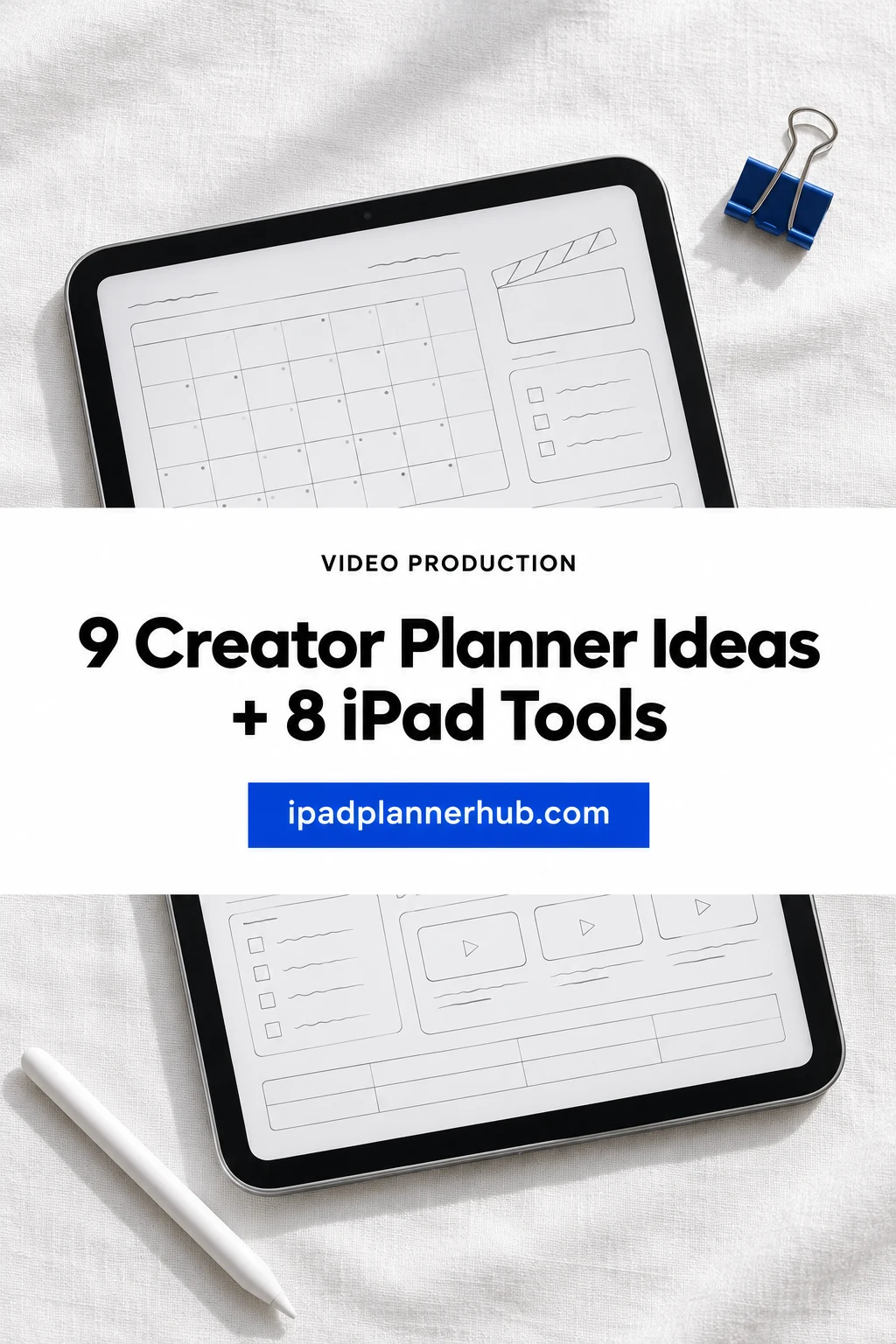
Build a small production packet for one video before filling a month of publishing boxes. These nine page ideas connect the brief, script, shoot and edit. The eight digital tools below provide places to create those pages, rather than a promise of a ready-made video production system.
Build a content creator planner for one video
Use one project ID across the packet, such as TUT-01 for a short tutorial. Keep the actual footage in a clearly named project folder and record filenames in the planner. Your pages can describe the assets without becoming the only place those assets exist.
Decide what the camera needs to capture
- 1Write a one-video brief. Give the page five fields: audience, problem, useful result, main message and next action for the viewer. For a tutorial about dividing an iPad notebook, the audience might be a beginner who cannot find their notes. The result is one organized section, and the call to action is to try that setup. Add the intended channel and format so the script has a clear destination. Keep unrelated ideas in an idea bank.
- 2Draft the script beside the visuals. Draw two columns labeled Spoken words and On-screen action. Start with the problem, show the method and end with the result. Leave room to change a sentence after reading it aloud. In the notebook tutorial, “Name the first section” belongs beside a close-up of that action. A script written this way exposes instructions that sound clear but still need a visual demonstration.
- 3Turn the script into a numbered shot list. Give each required shot an ID, framing, action and completion box. For our example: A01 shows the unorganized notes, A02 shows the section being named and A03 shows a note placed inside it. Add a detail shot only when it explains something the wide view cannot. Keep the list short enough to check during filming. A storyboard sketch can sit beside a shot that is hard to explain in words.
Make the filming session possible
- 4Collect props, location and setup needs. List the iPad, stand, recording device, charger and any physical props the demonstration needs. Add the location, likely interruptions and a backup plan for noise or poor light. Write one practical setup check beside each dependency, such as clearing private notifications before recording the screen. The purpose is to arrive ready to film the brief, rather than discovering a missing item after setting up the camera.
- 5Plan the shoot in setup order. Group shots that share a camera position or prop arrangement. You can film A02 and A03 together even if A01 appears first in the finished video. Reserve separate space for setup, a short test recording, the essential shots and pickups. Put a realistic finish time at the top. If the session runs short, the brief tells you which three shots still make a complete tutorial.
- 6Keep a clip log while recording. Use columns for shot ID, actual filename, usable take and missing action. A note such as “A02, TUT01_A02_take02, usable; finger covers title in take01” is more helpful than “good shot.” Check the recorded clip before marking it usable. If a step needs to be filmed again, give it a specific pickup note. Keep original media and backup copies outside the planner, with their locations recorded here.
Finish the edit and learn from the release
- 7Give edit notes a version and timestamp. At the top, write the cut version you are reviewing. Under it, record a timestamp or shot ID, the issue and the requested change. For example: “v2, 00:08, A02 title is hidden; replace with take02.” Separate necessary fixes from optional polish. Mark each fix when it has been checked in the next cut, so an old note cannot silently become a new instruction.
- 8Use an export and playback checklist. List the destination, intended orientation, captions, title treatment, audio check and the exact export filename. Inspect the actual exported file, not only the editing timeline. In our tutorial, check that the section title stays readable in the intended vertical view and that the final demonstration is not covered by captions. Platform requirements can change, so verify the current requirements for your destination before exporting.
- 9Record the release and one useful lesson. Write the approved version, chosen channel, intended release time and actual published link. Once it is live, add a review date and one question connected to the brief, such as whether viewers understood the section-naming step. Record available performance figures with their observation dates, keeping different channels separate. Finish with one next experiment, such as a closer opening shot, rather than rebuilding your whole content strategy after one result.
These are pages you create on blank or general planning paper. If you prefer a smaller notebook, combine the brief and script, put logistics beside the shoot plan, and keep export checks with the release review. The nine jobs still matter even when they share fewer sheets.
Once several video packets are active, compare their next stages before booking another shoot. The content batching workflow for iPad adds a view across pieces, so scripts that are ready can share a filming session while videos awaiting research stay on hold.
Choose a digital base for your production packet
Choose by the part of the workflow that is hardest to manage. A linked notebook suits scripts, visual notes and separate projects. A social planner is useful for the release calendar, while extra papers can extend a notebook you already own. An extra clip-log page may solve the problem without a larger system.
TL;DR: Start with one video and nine pages: brief, script, shot list, logistics, shoot plan, clip log, edit notes, export check and release review. The tools below offer social planning pages, blank notebooks or digital papers. For this workflow, add video-specific columns, timestamps and shot IDs to your chosen note pages; choose the paper pack only if you already have a place to keep it.
Quick Picks
- Best for release planning: Social Media Digital Planner
- Best for a nine-page video packet: Watercolor Hyperlinked Digital Notebook
- Best for side-by-side planning: Digital Notebook by Shades of Zen
- Best for a small production hub: Digital Notebook 5 Hyperlinked Tabs
- Best for reserving work sessions: Digital Notebook 5 Hyperlinked Tab by studiopattern
- Best for an existing notebook: Digital Notebook Papers – GoodNotes
- Social Media Digital Planner – Best for release planning
- Watercolor Hyperlinked Digital Notebook – Best for a nine-page video packet
- Digital Notebook by Shades of Zen – Best for side-by-side planning
- Digital Notebook 5 Hyperlinked Tabs – Best for a small production hub
- Digital Notebook 5 Hyperlinked Tab by studiopattern – Best for reserving work sessions
- Digital Notebook Papers – GoodNotes – Best for an existing notebook
- Digital Notebook 24 Hyperlinked Tab – Best for a larger video archive
- Cute Digital Notebook Hyperlinked by studiopattern – Best for exploring page layouts
Plan the release and build a small video packet
Best for release planning
1. Social Media Digital Planner
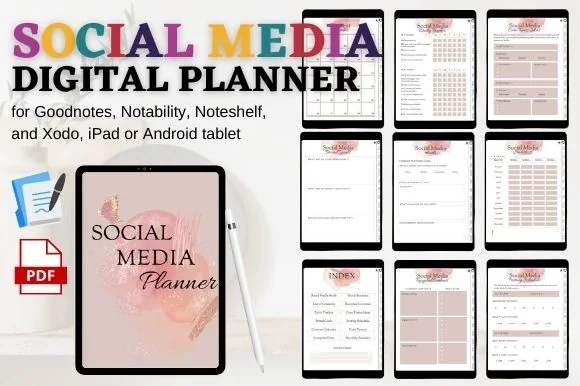
Orientation: PortraitLayouts: Content calendar and posting pagesDates: Calendar dates added by youWeek start: Not specified
Best for: placing a finished video in your posting schedule. Designed by mixxdigitaldesign.
- Hyperlinked tabs and index shortcuts
- Content Calendar, Posting Schedule and Posts Planner pages
- Social Media Audit, Social Statistics and Monthly Statistics pages
- Designed for GoodNotes, Notability, Noteshelf or Xodo on iPad or Android tablets
The Content Calendar and Posting Schedule are the reason I included this option. Use them once a video is ready to leave the edit stage. Keep the script, shot list and detailed revision notes in your own production pages; the listed social-planning sections do not establish a dedicated filming workflow.
Best for a nine-page video packet
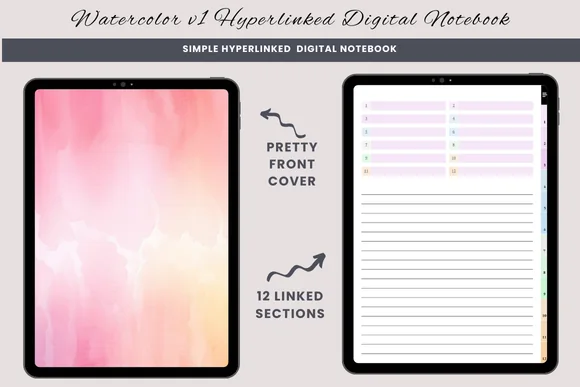
2. Watercolor Hyperlinked Digital Notebook
Orientation: PortraitLayouts: Lined, blank, half-linedDates: No calendar dates shownWeek start: Not applicable
Best for: pairing script lines with simple frame sketches. Designed by daysfilledwithjoy.
- 12 linked sections with lined, blank and half-lined pages
- One PDF for GoodNotes or a similar PDF annotation app
- Pages can be duplicated when you need more writing space
I like the half-lined paper for this workflow: sketch the frame in the open area and write the corresponding narration underneath. Twelve sections leave room to separate a few active videos from ideas and completed projects. The nine production headings in this article are yours to add to the blank notebook.
Best for side-by-side planning
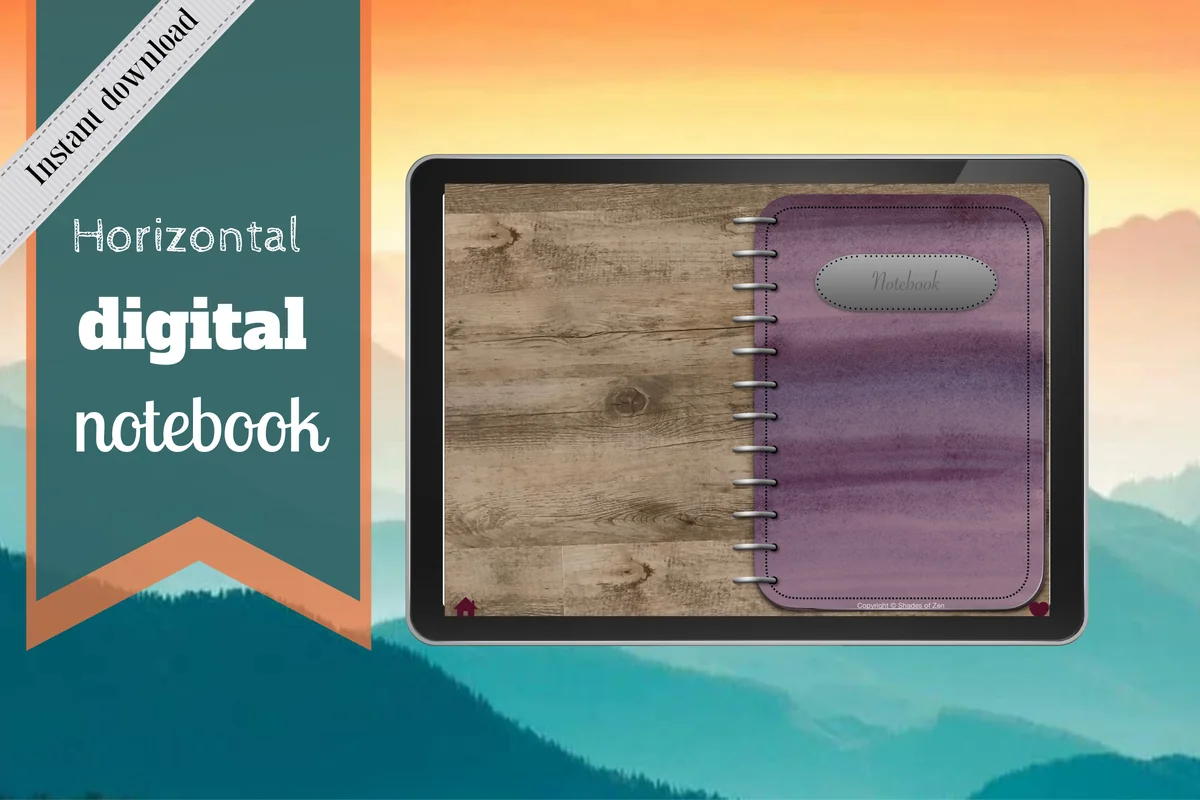
3. Digital Notebook by Shades of Zen
Orientation: LandscapeLayouts: 16 note templatesDates: No calendar dates shownWeek start: Not applicable
Best for: matching spoken lines with visuals in a wider spread. Designed by Shades of Zen.
- 12 expandable sections with hyperlinked tabs and individual dividers
- 16 note templates, including lined, dotted, graph and Cornell notes
- Instructions for GoodNotes or another PDF annotation app
The landscape spread makes a two-column script a sensible starting point. Put spoken words on one side and the required action or close-up on the other, using one of the note templates as your base. Its twelve linked sections suit a small library of separate video projects, without requiring a dedicated calendar for each one.
Best for a small production hub
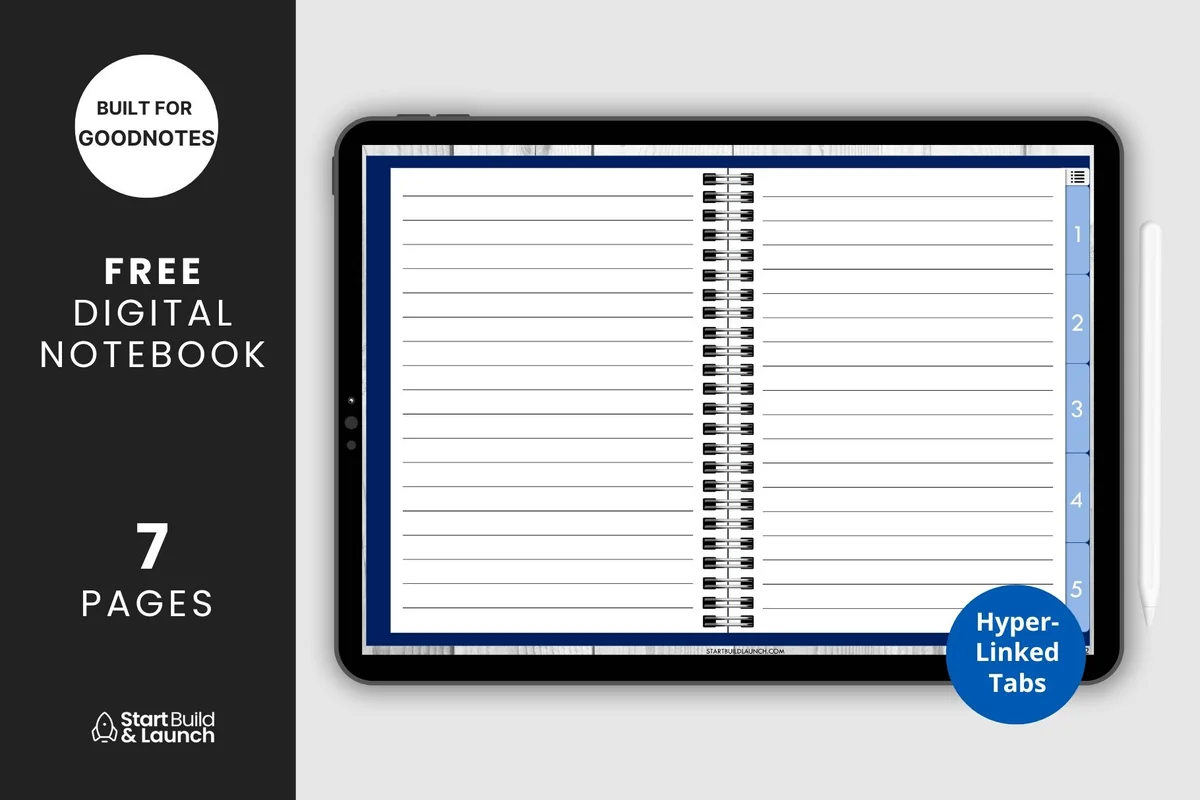
4. Digital Notebook 5 Hyperlinked Tabs
Orientation: LandscapeLayouts: Blank, lined, dotted, graph, CornellDates: No calendar dates shownWeek start: Not applicable
Best for: grouping brief, script, shoot, edit and release notes. Designed by aviswilliams.
- Index page and five hyperlinked sections
- Blank, lined, dotted, graph and Cornell note papers
- PDF designed for an iPad or tablet with a stylus; GoodNotes, Noteshelf and Notability are suggested
Five tabs make a manageable starting structure. Keep the nine page ideas inside five stages rather than trying to make a tab for every page. Blank paper works for a storyboard, while Cornell paper offers room for an edit note and a short action summary. The seller designs this PDF for an iPad or tablet with a stylus.
Best for reserving work sessions
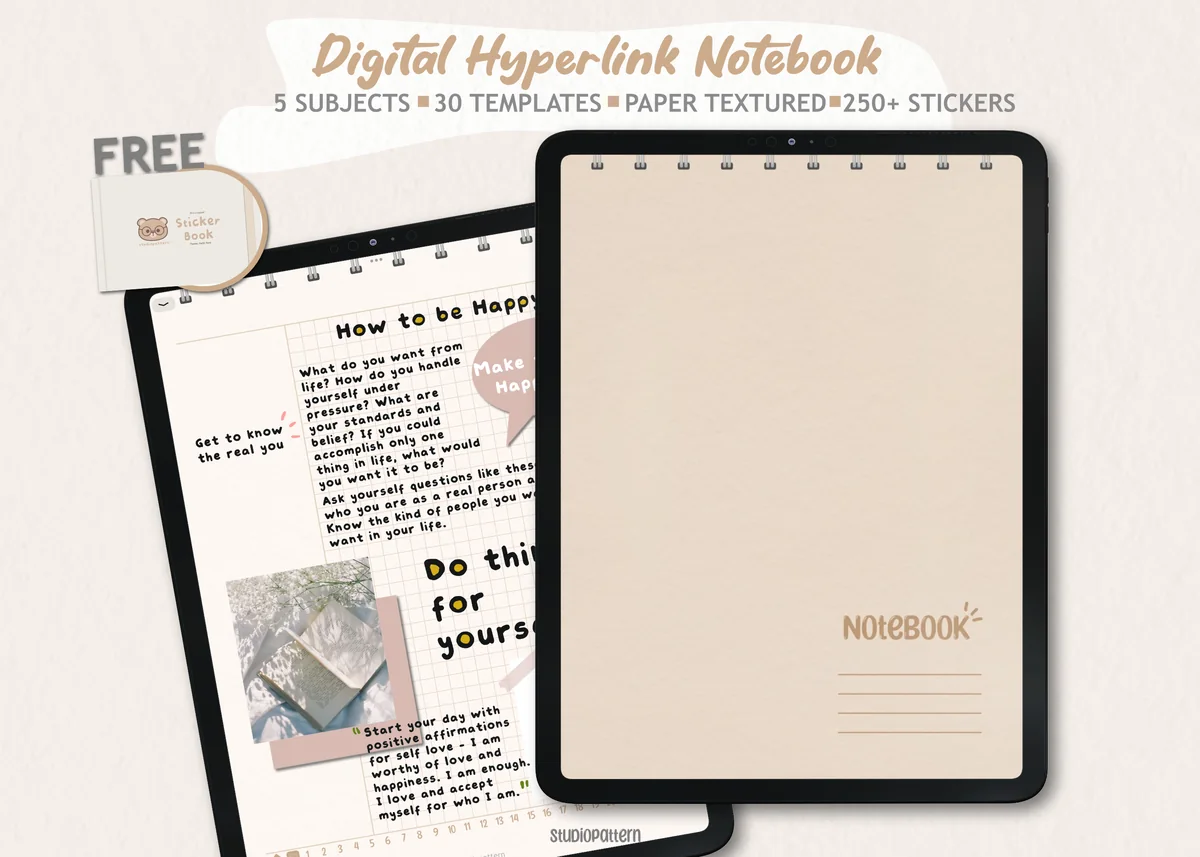
5. Digital Notebook 5 Hyperlinked Tab by studiopattern
Orientation: PortraitLayouts: General planning and note papersDates: No calendar dates shownWeek start: Not specified
Best for: putting filming and editing time on general planning pages. Designed by studiopattern.
- Five sections, a linked contents page and 30 paper templates
- Monthly, weekly, daily, habit and checklist papers
- Hyperlinked PDF, PDF manual, 250+ individual PNG stickers and one precropped GoodNotes sticker-book file
- Best used with an iPad or tablet and Apple Pencil or stylus; annotation app may cost extra
A shot list needs time on your week, not just a place in your notes. This notebook includes general weekly and daily planning papers alongside note papers, so you can reserve an editing session and keep its task list nearby. It is best used with an iPad or tablet and Apple Pencil or stylus; the annotation app may cost extra.
Customize your papers or expand the project archive
Best for an existing notebook
6. Digital Notebook Papers – GoodNotes
Orientation: PortraitLayouts: Columns, lists, grids and notesDates: No calendar dates shownWeek start: Not applicable
Best for: adding column sheets for shots or numbered clip notes. Designed by catsquills.
- Nine portrait paper designs for GoodNotes and Notability
- Eight layouts per design: columns, habit tracker, to-do, numbered list, dots, square, lines and notes
- PNG and PDF files; 2550 × 3300 px, US Letter proportions
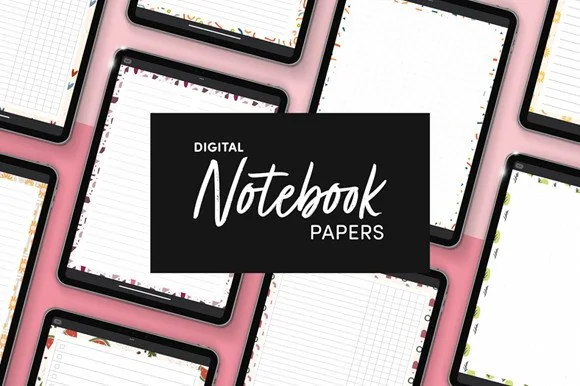
If your project notebook already works, a paper pack may be enough. The column layout can become a shot list, and the numbered-list layout can hold clip notes. You create those headings yourself. This is a set of portrait papers, rather than a complete linked notebook or an automatic production tracker.
Best for a larger video archive
7. Digital Notebook 24 Hyperlinked Tab
Orientation: PortraitLayouts: Note papers and general planning pagesDates: No calendar dates shownWeek start: Not specified
Best for: keeping several video packets in separate linked sections. Designed by studiopattern.
- 24 linked sections and a contents page
- 30 paper templates; previews show note papers and general monthly, weekly and daily planning pages
- Hyperlinked PDF, PDF manual, 250+ PNG stickers and one precropped GoodNotes sticker book
- Best used on an iPad or tablet with an Apple Pencil or stylus; annotation app may require a separate purchase
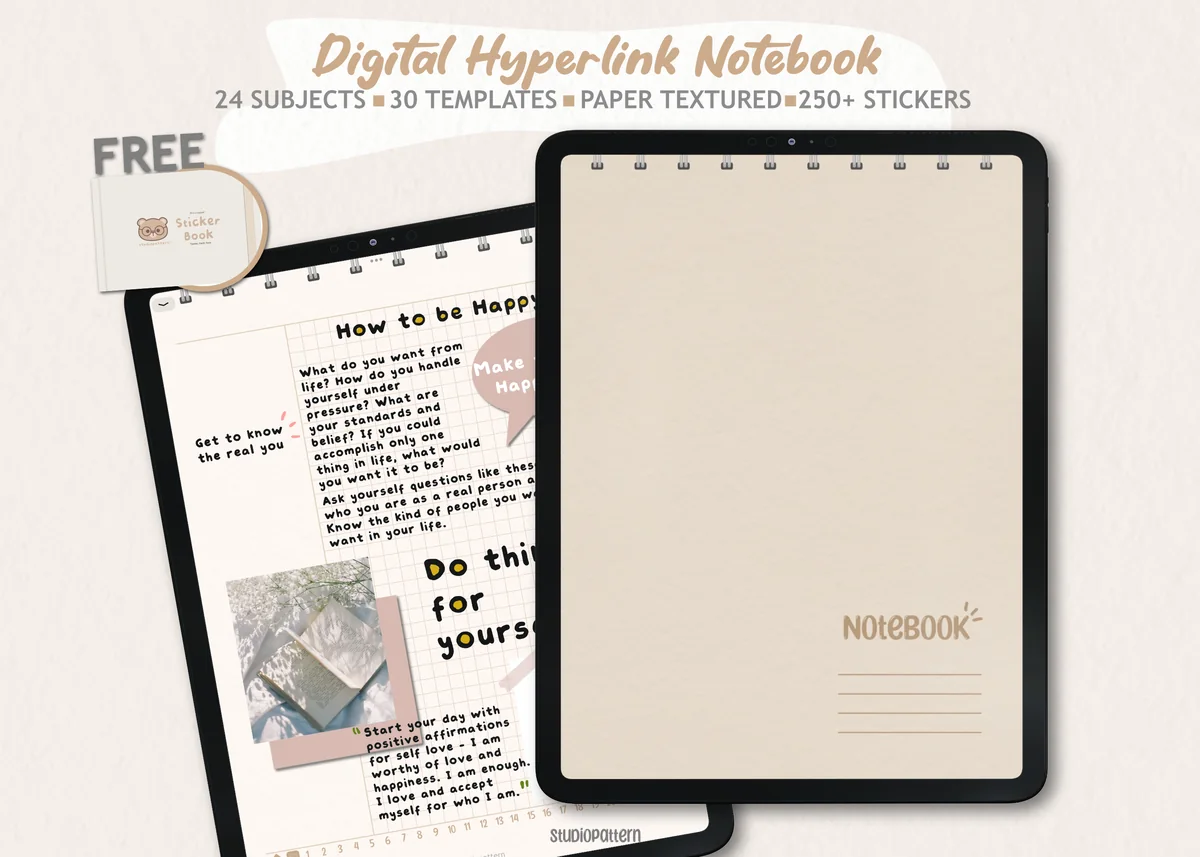
Choose the larger index when finished and active videos have begun to crowd each other. The advantage over the five-section notebook from the same designer is room for more distinct projects, rather than a different production method. General monthly, weekly and daily papers sit alongside the note templates. An iPad or tablet with a stylus is recommended, and the annotation app is separate.
Best for exploring page layouts
8. Cute Digital Notebook Hyperlinked by studiopattern
Orientation: PortraitLayouts: Note and general planning papersDates: No calendar dates shownWeek start: Not specified
Best for: trying script, visual and review layouts before standardizing. Designed by studiopattern.
- 12 linked sections and a contents page
- 60 note templates; previews show blank, ruled, grid, dotted and general planning choices
- PDF notebook and PDF manual; individual PNG stickers included
- Best used with an iPad or tablet and Apple Pencil or stylus; annotation app may cost extra
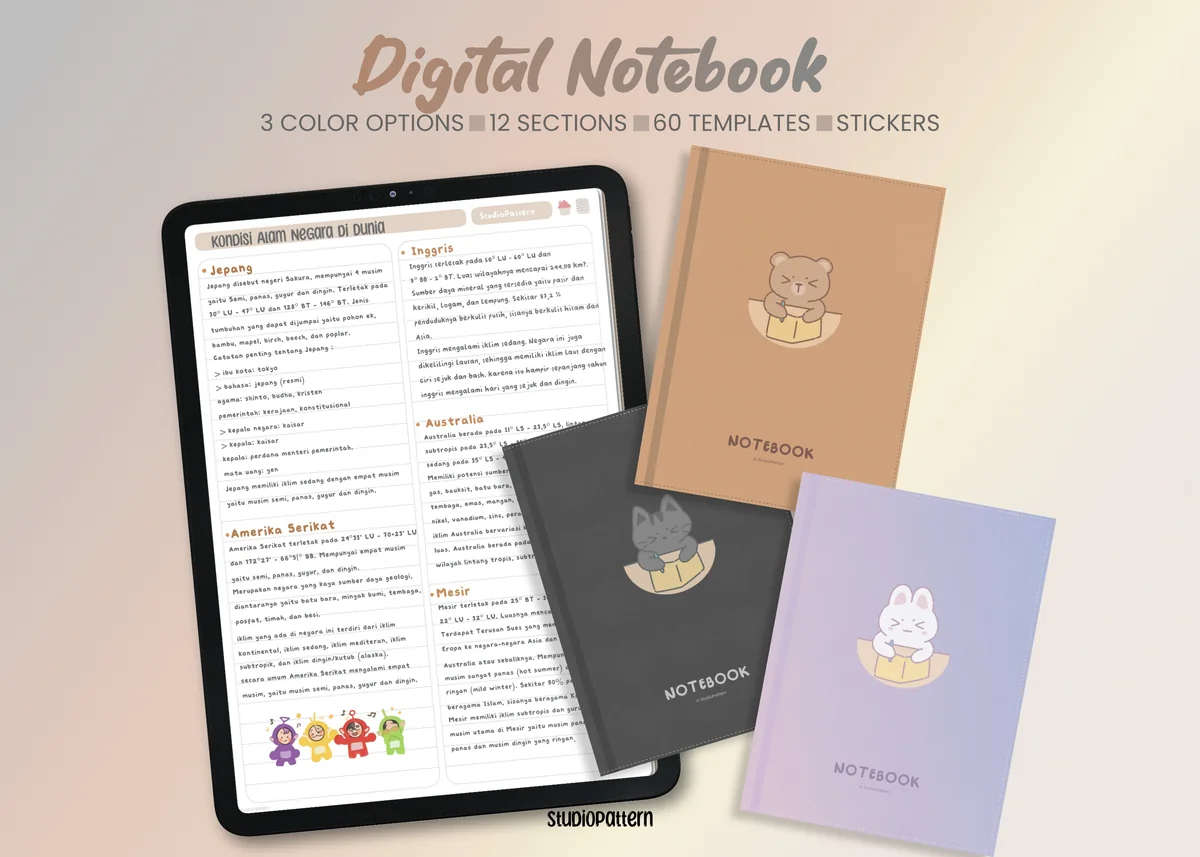
The broader paper menu is useful when a blank storyboard needs a different layout from a dense edit log. After trying a few layouts, keep a small repeatable packet so each project starts with familiar pages. The preview includes general planning pages and note papers; you supply the video-specific labels. Use with an iPad or tablet and Apple Pencil or stylus, with the app purchased separately if required.
Quick Comparison
| Digital tool | Navigation | Page choices | Production role |
|---|---|---|---|
| 1. Social Media Digital Planner | Linked index | Social planning pages | Release dates |
| 2. Watercolor Hyperlinked Digital Notebook | 12 linked sections | 3 paper types | Script and sketches |
| 3. Digital Notebook by Shades of Zen | 12 linked sections | 16 note templates | Audio and visual notes |
| 4. Digital Notebook 5 Hyperlinked Tabs | 5 linked sections | 5 paper types | Five workflow stages |
| 5. Digital Notebook 5 Hyperlinked Tab by studiopattern | 5 linked sections | 30 paper templates | Work sessions |
| 6. Digital Notebook Papers – GoodNotes | No linked index promised | PNG and PDF papers | Custom shot columns |
| 7. Digital Notebook 24 Hyperlinked Tab | 24 linked sections | 30 paper templates | A larger project archive |
| 8. Cute Digital Notebook Hyperlinked by studiopattern | 12 linked sections | 60 note templates | A flexible page library |
Set up your first project without overbuilding it
Start with the next video you can realistically finish. Digital planners offer a structure, but the page labels and a repeatable review are what make the structure useful. Your content planner helps you stay organized when its next action matches the files you actually have.
A small setup sequence
- 1Choose one home for the packet. Use one linked section per video, or group the pages under Brief, Shoot, Edit and Release. Write the project ID on each page and in your media folder name. A planner template should reduce the work of finding the next step, so begin with only the layouts you need. You can add more sections when several active projects make that necessary.
- 2Make one reusable master packet. Create the nine headings on your preferred papers, leaving the examples out of the clean master. Keep one working copy for TUT-01. In a compatible PDF annotation app, use its supported page-copying or duplication controls when you need another packet. Keep a separate copy of the original file so a mistaken edit does not become your only template.
- 3Assign a status and a next action. Write one current status: brief, script, ready to film, edit, review or ready to release. Beside it, write a task you could actually complete, such as “record A03 close-up.” If another person is involved, add an owner and a due date. Do not mark a project ready to release while an essential shot or required correction is still missing.
- 4Reserve time outside the packet. Put filming and editing sessions into the weekly view you already use. For a separate weekly base, see my weekly digital planner comparison. Review the packet before the session, then check the clip log or cut version afterward. Keep only as many active videos as your available work sessions can support.
Template or app: choose where the work belongs
A production-planning PDF is a document you annotate. It can hold a script, a shot table and your own status updates; a handwritten checkbox does not publish a video. A content calendar is the view of intended releases. The production packet holds the decisions and assets needed to reach those dates.
- Choose a PDF notebook when you prefer handwriting, rough frame sketches and a flexible packet you can mark up on iPad. Check the product’s listed app compatibility and file format before purchasing.
- Consider a planning app or Notion template when a shared database, linked tasks or team assignments are your main need. That is a separate tool choice, not a feature supplied by a PDF notebook. This selection contains iPad planning files rather than Notion templates.
- Use an editor or publishing tool for the actual cut, export, upload and any supported scheduling. A linked tab is navigation within a document; it does not establish automatic posting, a calendar integration or an analytics connection.
The physical content planner book or social media planner book approach can use the same nine headings. The iPad advantage here is keeping reusable pages and visual annotations in the same planning document, provided the file and your chosen app support your intended workflow. You still need a separate system for media storage.
Keep a release calendar connected to real production progress
The calendar should reflect what is ready, not hide what is stuck. Add a project ID, working title, content pillar, destination, release date and current status. A simple weekly view can show the next few releases; a monthly view is useful for spotting a crowded week before you promise another video.
- Separate production and release dates. A Tuesday filming session and Friday release are different commitments. Reserve editing and review time between them.
- Keep your themes visible. Choose a few content pillars that fit your audience, then label each video with the relevant one. The brief still needs a specific viewer problem; a broad pillar alone is not a script.
- Plan repurposing after the master works. Record a useful excerpt, a still image or a follow-up question as a possible new asset. Give a second format its own crop, caption and playback checks before release.
- Review the week before adding more work. Look for missing shots, unfinished revisions and a backlog that is larger than your available editing time. A consistent routine can mean fewer complete videos, rather than a daily target you cannot maintain.
For a broader view of deadlines across several kinds of work, my digital work planner shortlist covers meetings and tasks. Keep this article’s packet focused on a single video; move unrelated work into the wider plan.
A worked example: a three-shot notebook tutorial
Suppose the brief is “Help a beginner create one useful notebook section.” Here is how the pages connect without adding a second planning system. These are example labels, not a claim that the products contain this tutorial.
- Brief and script: name the viewer’s problem, show one useful action and finish with a visible result. The spoken instruction about naming a section sits beside the matching screen view.
- Shot list and shoot plan: record A01 for the problem, A02 for the action and A03 for the result. Film the two close-ups in one setup, then check that the viewer can read the section name.
- Clip log and edit: map A01–A03 to real filenames. If A02 take01 hides the title, request take02 in a timestamped note against v1, then inspect the change in v2.
- Export and release: play the vertical export, check captions and audio, record its filename and place that approved version in the release calendar. After release, note a viewer question worth answering in the next tutorial.
Common mistakes that make a planner harder to trust
- Calling an idea “scheduled” before the edit exists. Keep idea, production and release states separate. If a deadline slips, record the blocker and revise the date instead of erasing the trail.
- Renaming every cut “final.” Give review notes a version and keep the approved export filename on the release page. Store the older versions where you can distinguish them.
- Copying a huge workflow into every short video. Use the pages that answer a real decision. A simple tutorial may need one sketch; a complicated demonstration may need several.
- Decorating before deciding. Content creator planner stickers can mark a status or stage if you enjoy them. Words such as “needs pickup” are clearer than a color you may forget.
- Expecting the PDF to manage your media. Save footage in a project folder and maintain an independent backup. The notebook is your planning record, not proof that the video files are protected.
FAQ: planning video content on iPad
How do I plan content as a content creator?
Pick one viewer problem and one useful result, then move through brief, script, shots, filming, edit, review and release. Put a next action beside the current stage. Build the calendar around the work sessions you can support, rather than treating a list of release dates as a production plan.
What is the best content planner for a solo video creator?
Choose by the missing part of your process. Blank linked pages work well for scripts and sketches; a social planner supports a posting calendar; a paper pack extends an existing notebook. For tracking the next action across several projects, compare the project planners for iPad as well.
Can I make my own video planning template from a blank notebook?
Yes. Add your own brief, script, shot list and review headings to suitable note papers, then keep a clean master packet. The universal notebooks here provide paper choices and navigation. For this workflow, add video-specific columns, timestamps and shot IDs to your chosen note pages.
How do I use the planning files on an iPad?
Match the file to an app named in the listing. For a PDF notebook, import the received PDF into a compatible annotation app, then check writing and linked navigation before building a large packet. The paper pack includes PNG and PDF papers; it does not promise the same linked notebook structure. Device and app requirements should be checked separately.
Do these pages replace a Notion workspace or an automatic scheduler?
No. They are planning pages, not a shared database or a publishing service. If your main problem is assigning team work, consider a suitable collaborative tool separately. If you need scheduled posting, check a publishing tool’s current features and permissions; marking a release date in a notebook does not upload anything.
How often should I review the planner and performance?
Check the next action before a filming or editing session; a weekly review is a useful starting routine for active projects. After a release, record available metrics with a date and one question related to the original goal. There is no universal posting ratio or daily frequency that makes an incomplete production process work.
Finish one packet, then repeat the useful parts
A useful content creator planner leaves you knowing what to film, which file to edit and which version can go live. Start with one brief and three essential shots. Once you have completed that cycle, keep the pages that helped and simplify the ones that only created more writing.
You can try the nine headings in a notebook you already own. If its navigation or papers get in the way, use the comparison above to choose a better base for your own video production packet.
You May Also Like
This article contains affiliate links. If you purchase through them, I may earn a commission at no extra cost to you. Read the affiliate disclosure.