Your camera is set up, but two captions are still blank and another post needs a fact checked. A useful content batching workflow on iPad makes those differences visible before you spend the afternoon trying to finish everything at once.
Start with a small group of posts and a page that shows their next shared task. Below are eight digital tools for keeping that plan, followed by nine custom page ideas and a six-post example. The notebook pages are a base for your own headings, not a promise of a ready-made batch dashboard.
TL;DR: Choose one small batch, give each post an ID and move similar work through separate research, writing, filming and editing sessions. Use a custom matrix to hold unfinished pieces outside the filming queue. The social planner offers calendar pages; the notebooks and papers provide space for your own batch headings.
Quick Picks
- Best for the posting handoff: Social Media Digital Planner
- Best for research and scripts: Watercolor Hyperlinked Digital Notebook
- Best for a wide batch matrix: Digital Notebook by Shades of Zen
- Best for a five-stage system: Digital Notebook 5 Hyperlinked Tabs
- Best for booking batch sessions: Digital Notebook 5 Hyperlinked Tab by studiopattern
- Best for adapting your current setup: Digital Notebook Papers – GoodNotes
- Social Media Digital Planner – Best for the posting handoff
- Watercolor Hyperlinked Digital Notebook – Best for research and scripts
- Digital Notebook by Shades of Zen – Best for a wide batch matrix
- Digital Notebook 5 Hyperlinked Tabs – Best for a five-stage system
- Digital Notebook 5 Hyperlinked Tab by studiopattern – Best for booking batch sessions
- Digital Notebook Papers – GoodNotes – Best for adapting your current setup
- Digital Notebook 24 Hyperlinked Tab – Best for separate client batches
- Cute Digital Notebook Hyperlinked by studiopattern – Best for choosing your working paper
Map the batch and reserve its work sessions
Best for the posting handoff
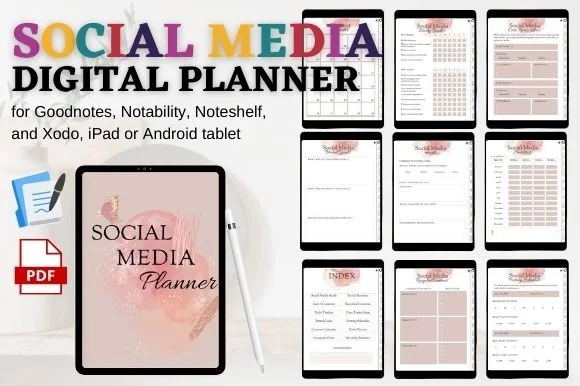
1. Social Media Digital Planner
Orientation: PortraitLayouts: Content calendar and posting pagesDates: Calendar dates added by youWeek start: Not specified
Best for: moving approved batch items onto a content calendar. Designed by mixxdigitaldesign.
- Hyperlinked tabs and index shortcuts
- Content Calendar, Posting Schedule and Posts Planner pages
- Social Media Audit, Social Statistics and Monthly Statistics pages
- Designed for GoodNotes, Notability, Noteshelf or Xodo on iPad or Android tablets
The Content Calendar, Core Topics Ideas and Posting Schedule give a batch somewhere to go after review. Keep the stage matrix on a separate custom page: a publishing date alone does not tell you whether the caption or footage is ready. The listing includes statistics pages; automatic analytics collection is not specified.
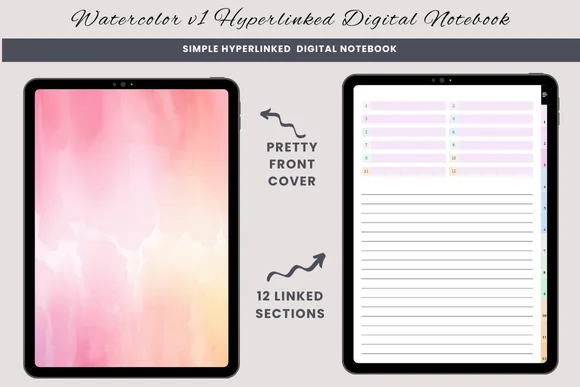
Best for research and scripts
2. Watercolor Hyperlinked Digital Notebook
Orientation: PortraitLayouts: Lined, blank, half-linedDates: No calendar dates shownWeek start: Not applicable
Best for: keeping source notes beside a batch of caption drafts. Designed by daysfilledwithjoy.
- 12 linked sections with lined, blank and half-lined pages
- One PDF for GoodNotes or a similar PDF annotation app
- Pages can be duplicated when you need more writing space
Half-lined paper gives a useful split: reference or visual idea above, draft text below. Use the twelve linked sections for recurring content pillars or a small set of clients. You add the batch IDs and readiness marks yourself; the notebook supplies lined, blank and half-lined pages rather than preset social workflows.
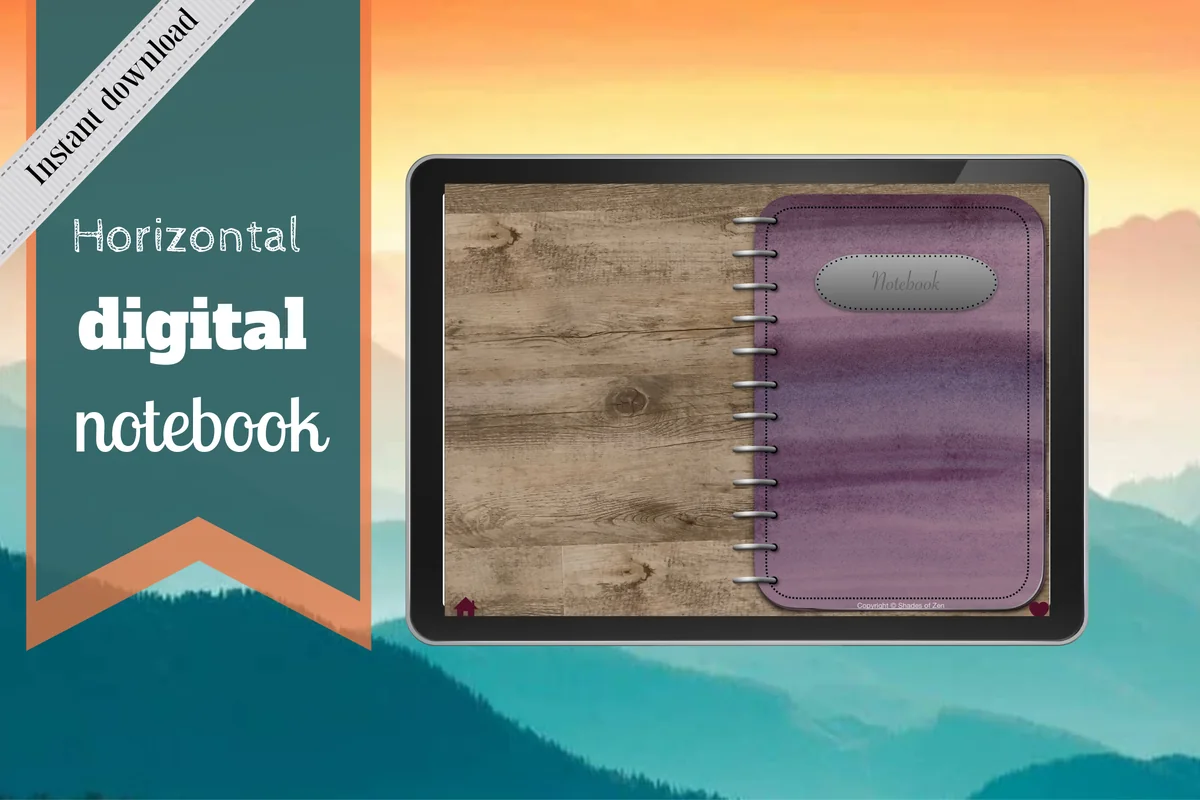
Best for a wide batch matrix
3. Digital Notebook by Shades of Zen
Orientation: LandscapeLayouts: 16 note templatesDates: No calendar dates shownWeek start: Not applicable
Best for: drawing stages across several post rows. Designed by Shades of Zen.
- 12 expandable sections with hyperlinked tabs and individual dividers
- 16 note templates, including lined, dotted, graph and Cornell notes
- Instructions for GoodNotes or another PDF annotation app
The landscape spread gives a matrix room for one post per row and several stage columns. Sixteen note templates leave a choice between a grid and a looser two-column brief. Start with a handful of rows so writing remains readable, then duplicate a page for the next batch instead of squeezing a month into tiny cells.
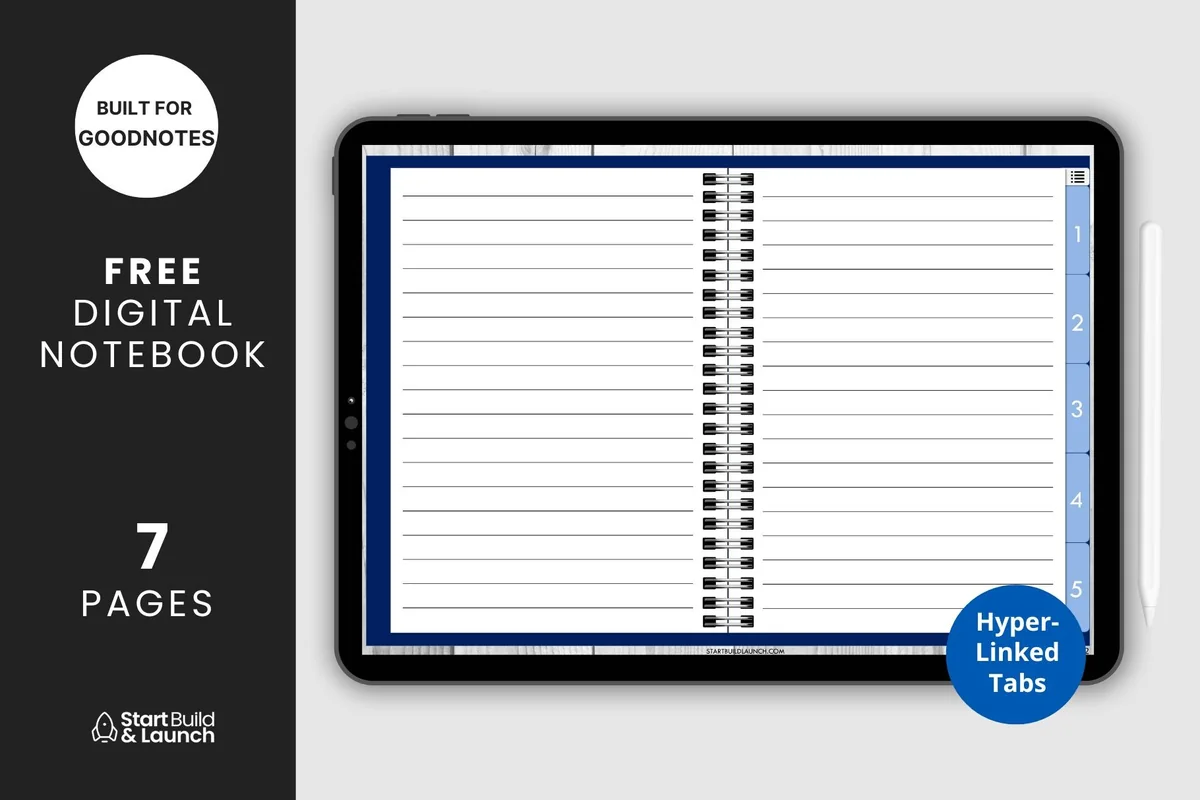
Best for a five-stage system
4. Digital Notebook 5 Hyperlinked Tabs
Orientation: LandscapeLayouts: Blank, lined, dotted, graph, CornellDates: No calendar dates shownWeek start: Not applicable
Best for: separating ideas, research, writing, filming and review. Designed by aviswilliams.
- Index page and five hyperlinked sections
- Blank, lined, dotted, graph and Cornell note papers
- PDF designed for an iPad or tablet with a stylus; GoodNotes, Noteshelf and Notability are suggested
Five linked tabs are enough for a compact stage-based notebook. Put the active matrix near the index, and keep each stage list behind its matching tab. Graph paper supports your own columns; Cornell paper can pair a source note with a short summary. This PDF is designed for an iPad or tablet with a stylus.
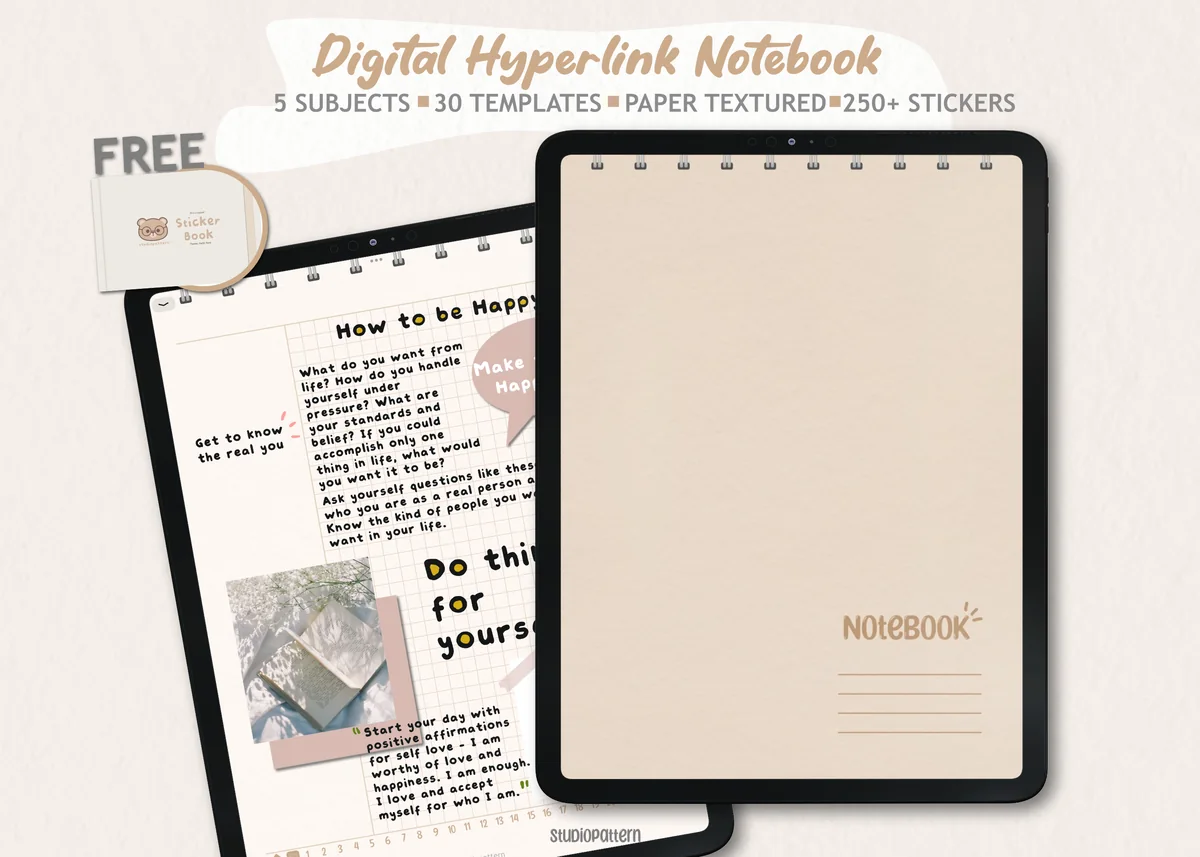
Best for booking batch sessions
5. Digital Notebook 5 Hyperlinked Tab by studiopattern
Orientation: PortraitLayouts: General planning and note papersDates: No calendar dates shownWeek start: Not specified
Best for: keeping writing and filming blocks alongside batch notes. Designed by studiopattern.
- Five sections, a linked contents page and 30 paper templates
- Monthly, weekly, daily, habit and checklist papers
- Hyperlinked PDF, PDF manual, 250+ individual PNG stickers and one precropped GoodNotes sticker-book file
- Best used with an iPad or tablet and Apple Pencil or stylus; annotation app may cost extra
The weekly and daily planning papers make this a useful bridge between a task list and available time. Reserve a writing block, then write its small completion target beside it, such as four first-draft captions. The five sections and thirty paper templates are general-purpose. An iPad or tablet with Apple Pencil or stylus is recommended, and the annotation app may cost extra.
Adapt existing pages or separate larger batch libraries
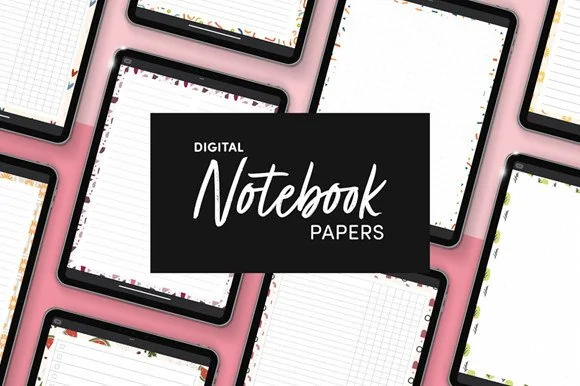
Best for adapting your current setup
6. Digital Notebook Papers – GoodNotes
Orientation: PortraitLayouts: Columns, lists, grids and notesDates: No calendar dates shownWeek start: Not applicable
Best for: adding matrix columns without replacing a working notebook. Designed by catsquills.
- Nine portrait paper designs for GoodNotes and Notability
- Eight layouts per design: columns, habit tracker, to-do, numbered list, dots, square, lines and notes
- PNG and PDF files; 2550 × 3300 px, US Letter proportions
The columns and numbered-list papers can become a batch matrix and an exception queue in a notebook you already keep. This set has nine portrait paper designs with eight layouts per design in PNG and PDF. Add your own content fields; a linked section index is not part of the stated paper-pack contents.
Best for separate client batches
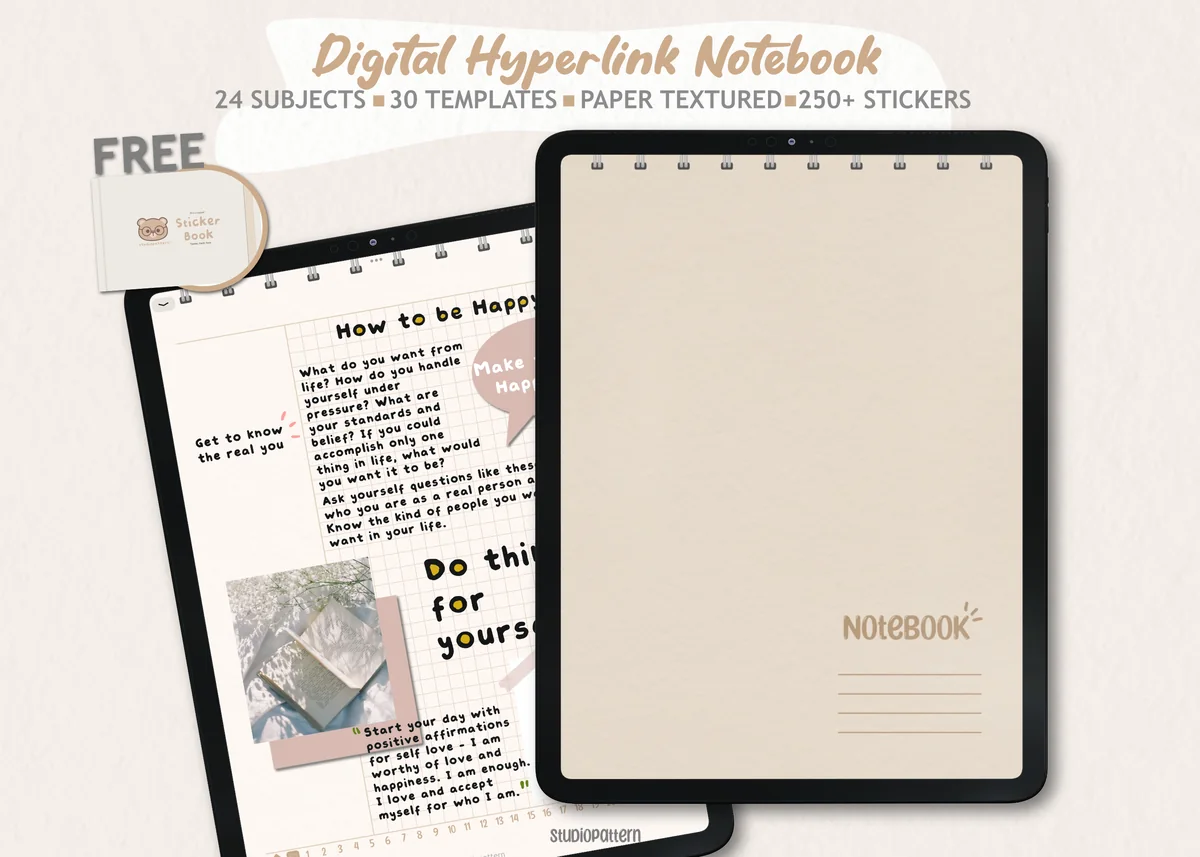
7. Digital Notebook 24 Hyperlinked Tab
Orientation: PortraitLayouts: Note papers and general planning pagesDates: No calendar dates shownWeek start: Not specified
Best for: keeping several independent batch packets apart. Designed by studiopattern.
- 24 linked sections and a contents page
- 30 paper templates; previews show note papers and general monthly, weekly and daily planning pages
- Hyperlinked PDF, PDF manual, 250+ PNG stickers and one precropped GoodNotes sticker book
- Best used on an iPad or tablet with an Apple Pencil or stylus; annotation app may require a separate purchase
Twenty-four linked sections give more room to separate client or campaign packets than the five-section option from the same designer. Keep each batch boundary clear rather than mixing all captions into a single long list. The thirty paper templates include general planning pages. Use an iPad or tablet and stylus; an annotation app may require a separate purchase.
Best for choosing your working paper
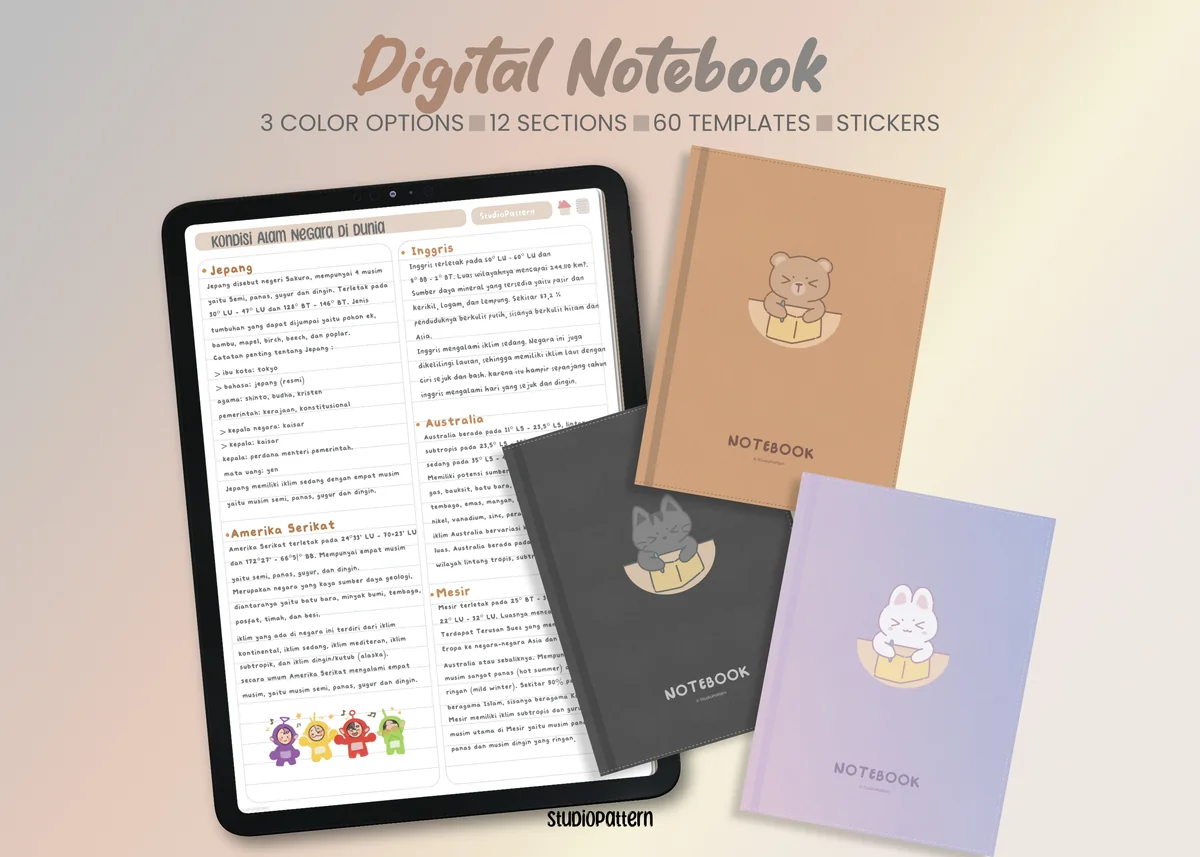
8. Cute Digital Notebook Hyperlinked by studiopattern
Orientation: PortraitLayouts: Note and general planning papersDates: No calendar dates shownWeek start: Not specified
Best for: trying a grid for stages and ruled paper for captions. Designed by studiopattern.
- 12 linked sections and a contents page
- 60 note templates; previews show blank, ruled, grid, dotted and general planning choices
- PDF notebook and PDF manual; individual PNG stickers included
- Best used with an iPad or tablet and Apple Pencil or stylus; annotation app may cost extra
The sixty-template menu suits a workflow that needs both a compact matrix and longer writing pages. Pair a grid for stage tracking with ruled paper for caption drafts, then repeat those choices for the next batch. Twelve linked sections hold the packets. The notebook is best used with an iPad or tablet and stylus, with the app separate if needed.
Quick Comparison
| Digital tool | Navigation | Page choices | Batching role |
|---|---|---|---|
| 1. Social Media Digital Planner | Linked index | Social planning pages | Posting handoff |
| 2. Watercolor Hyperlinked Digital Notebook | 12 linked sections | 3 paper types | Research and drafts |
| 3. Digital Notebook by Shades of Zen | 12 linked sections | 16 note templates | A wide stage matrix |
| 4. Digital Notebook 5 Hyperlinked Tabs | 5 linked sections | 5 paper types | Five stage sections |
| 5. Digital Notebook 5 Hyperlinked Tab by studiopattern | 5 linked sections | 30 paper templates | Session capacity |
| 6. Digital Notebook Papers – GoodNotes | No linked index promised | PNG and PDF papers | Add-on matrix papers |
| 7. Digital Notebook 24 Hyperlinked Tab | 24 linked sections | 30 paper templates | Several batch archives |
| 8. Cute Digital Notebook Hyperlinked by studiopattern | 12 linked sections | 60 note templates | Flexible page layouts |
Content batching means grouping the work, not finishing one post at a time
Social media content batching means creating multiple pieces through sessions of similar work. Batching content creation starts with choosing ideas, then grouping research, writing and capture tasks. Instead of researching, writing, filming and editing a single post before starting again, you might research six topics, draft four captions and then film the four that are ready. The useful unit is a shared action, rather than a pile of unfinished posts.
That gives you fewer reasons to switch between writing, finding files and resetting equipment. It does not guarantee faster output or eliminate creative fatigue. A small batch with a clear stopping point is more useful than a full month of ideas that cannot pass the research stage.
- Content pillar: a recurring subject your audience expects, such as product care, process or customer questions. Use it to choose relevant ideas.
- Batch: a limited group of pieces that can share a work session, such as four demonstrations needing the same table and lighting.
- Content calendar: the intended publication dates. Keep these separate from the dates when you create the material.
- Stage matrix: the working view that tells you which pieces can move into the next session.
A creator planner for one video follows its brief through release. This workflow looks across several pieces at once. The question changes from “What does this video need?” to “Which four pieces are ready for the same kind of work?”
When one row needs more detail than a stage mark, keep its shot list, clip filenames and cut revisions in a separate video packet. These content creator planning pages show how to record those details under the same project ID.
Choose the batch before opening the camera
- 1A bounded batch list
Write a batch name, a review date and a short list of post IDs. Add audience, content pillar, format and intended purpose beside each idea. For a small business, “answer care questions” is a more useful purpose than “post more.” Keep a running idea inbox elsewhere; the batch list holds only work you have chosen to attempt.
- 2A post-by-stage matrix
Give each post a row and make columns for research, text, capture, edit and review. Use written marks such as Ready, Working, Hold and Done, with a tiny legend at the top. A check in Research means the sources are gathered and the relevant claims checked, not merely that a browser tab is open. Add a short reason to any Hold cell.
- 3A shared research packet
Collect related questions, source links, product details and reference images before starting the writing block. Record which post ID needs each source and what remains uncertain. For example, a care instruction may need verification before a demonstration can be filmed. Leave that item on Hold and keep the available sources for the other posts together.
Use one main notebook as the place to find the batch plan. Media files can live in a separate folder, but the same short IDs should appear in both places. B01 in your notes should point to B01 in the caption file and filming list; a title change should not force you to hunt for the original asset.
Create in layers with a clear session limit
- 4A caption and script queue
Put the post ID, opening line, main point and one call to action on a ruled page. Draft several texts before switching to graphics. Reading the captions together helps you notice repeated openings or a missing audience question. Mark a draft as ready for capture only when it tells you what needs to be shown; polishing every sentence can wait for the review block.
- 5A shared setup sheet
List the location, background, props, clothing if relevant and shots that can share the setup. Group demonstrations needing the same surface together even when their posting dates differ. Put post IDs beside each required image or clip. A shared setup is not a reason to film an unverified claim: the Hold mark still applies.
- 6A session capacity page
Write the time available, a modest target and a stopping rule. As a planning example, reserve a short setup window, a focused capture block and time to label files afterward; adjust these to your actual pace. Keep a smaller fallback target in view, such as two complete demonstrations. This page turns a crowded batching day into a decision about what can fit.
A written completion target is easier to act on than “work on social.” “Draft four captions” gives you a point to stop and check the result. Put the session in a weekly iPad planner so it has a place among client calls, deliveries and ordinary business tasks.
Protect the handoff when a batch is uneven
- 7An edit queue with file references
For every captured piece, record the post ID, actual file names, required output and next edit action. Keep “captured” separate from “edited.” If a demonstration has a usable opening but needs one close-up, write the missing shot rather than calling the whole post almost done. Review the group for consistent language, colors and graphics without making unrelated posts identical.
- 8An exception and carryover list
Write the held post ID, reason, next action and the earliest sensible return session. This keeps one missing source or prop from blocking four usable pieces. Do not silently copy every unfinished task into the next week. Decide whether it still serves the audience, needs a smaller scope or should leave the active batch.
- 9A reviewed calendar handoff
Only move a piece into the ready-to-schedule list after checking its text, visual, factual claims and call to action. Record the approved file and intended channel beside the publication date. Leave room for timely material rather than filling every slot far ahead. After publication, note the response you want to learn from; a manual review note is enough to guide the next batch.
A content batching example: six posts, four ready to film
Imagine a small stationery business preparing a week of Instagram content: two short care demonstrations, two desk-setup tips, a materials comparison and a customer question. Give them IDs B01 through B06. The comparison needs a source checked, and the customer answer needs permission to use the submitted image. Those two pieces stay out of the filming session.
- Research block: gather care instructions and setup references for B01–B04. Mark B05 Hold: verify materials claim. Mark B06 Hold: image permission.
- Writing block: draft the four available captions together. Give each a different opening and a clear purpose, while keeping the business voice consistent.
- Capture block: film the four ready pieces using the same desk and props. Put the required post IDs on the setup sheet before starting.
- Edit block: name and review the four pieces. A missing close-up returns only its own row to Capture; it does not reset the whole batch.
- Handoff: place approved items in the calendar. Revisit the two held rows when their specific next actions are complete.
This is a planning example, not a promised output for a particular number of hours. If two finished pieces are realistic, make two your first target. Start batching for one week before you try to batch a month; the first cycle should teach you how much work each stage actually takes.
Make a content batching template on iPad in four passes
Set up a page you can reuse
- 1Choose a readable base.
Use landscape graph paper for a wide matrix, or a portrait list when writing room matters more. Start with six rows and five stage columns. If the handwriting becomes cramped, split the matrix across two pages instead of shrinking it.
- 2Name sections by task.
Keep the active matrix, research notes, writing queue, capture plan and review notes easy to reach. A five-tab notebook can hold these stage groups; extra pages can sit inside each section. Save completed batches separately so today’s queue stays short.
- 3Link the plan to real files.
Write the same post ID on every related page and media folder. Add the exact approved file name at handoff. Handwritten file references are enough; do not assume a PDF notebook can automatically read your media library or update a status.
- 4Duplicate after one real cycle.
Keep a clean copy of your working page once the headings make sense. Remove fields you never used and add the one missing decision that slowed you down. Repeat the structure for the next batch, carrying over only items you deliberately choose.
Template or app: what handles scheduling?
The digital products above keep your planning notes on iPad. The listings do not specify automatic publishing, date synchronization or analytics collection. Entering a planned date is different from setting up a scheduled post in a publishing service.
For a simple system, separate three jobs: your notebook stores the plan, a media folder stores the assets, and the publishing platform handles the actual post. Choose any additional app based on a missing job, rather than because your page looks too simple. Check the current platform instructions before relying on a scheduling feature.
- Solo owner: start with your existing annotation app, a small notebook packet and clearly named media files.
- Client work: add an approval owner and decision date to each row. Keep confidential details in the tools your client authorizes.
- Several accounts: label the intended account and platform explicitly. A suitable caption for one audience may need a rewrite for another.
- Repurposed material: carry over the useful idea, then check whether the new format needs different wording, framing or context.
Keep the next batch smaller when the queue jams
A long research queue usually needs fewer active ideas or better preparation, not another filming day. If writing is the slow stage, reserve a separate caption session and stop booking capture time for unfinished scripts. If review is full, finish reviewing before opening a fresh batch.
- Keep an idea inbox for spontaneous thoughts so they do not interrupt the current session.
- Leave a little open capacity for timely updates and changes to product information.
- Treat repeated carryover as a signal to reduce scope or remove a piece, rather than a reason to plan longer hours.
- Use a project planner when a held item has several dependent actions, or a digital work planner when outside deadlines need their own view.
FAQ: building a workable batching routine
What does batching content mean?
It means grouping similar creation tasks for several pieces into a shared session. Writing several captions together is a batch; writing, filming and editing one post from start to finish is a single-piece workflow. You can use both methods when a particular piece needs special treatment.
How do I start with limited time as a small business owner?
Choose a few pieces that share an audience and setup, then reserve one task-specific block. Prepare the sources before writing and keep a fallback target. If you have only enough time for captions today, finish that stage and schedule filming separately instead of promising a whole week of finished posts.
Do I need a content batching app on iPad?
Use a compatible PDF annotation app, a notebook or paper layout you can write on, and a place for the media files. Check each product’s app and stylus requirements before choosing. A dedicated scheduling service is a separate decision; the handwritten plan can work without one.
How often should I have a batching session?
Begin with a weekly cycle and adjust after observing your available time and review needs. Some tasks may fit a short recurring block, while filming needs a longer setup. You do not need a single all-day session to benefit from grouping similar work.
Can I use this for Instagram and other platforms?
Yes, as a manual planning method. Add a channel field to each post row and adapt captions, visual framing and calls to action for that audience. For example, turn the useful sections of an existing guide into separate post ideas, then check each version in its intended format before publication.
Do I need the 5-3-2 rule or seven fixed creation steps?
No fixed posting ratio or stage count is required for this notebook system. Choose themes that support your audience and business goals, then track the stages your work actually needs. A simple research, text, capture, edit and review matrix is a starting structure, not a universal strategy.
Give the next session one clear job
A useful content batching system tells you what is ready, what is held and what the next focused session can finish. Start with the nine page ideas as a menu, choose the few you need, and keep the six-post example beside your first matrix. I would choose a tool for its writing space and navigation first, then let one completed cycle show which extra pages earn their place.
You May Also Like
This article contains affiliate links. If you buy through them, I may earn a commission at no extra cost to you. Read the affiliate disclosure.