Opening a busy workspace can leave you hunting for the task you meant to start. These Notion dashboard ideas put today’s priorities and a clear route to your notes first, with layouts you can adapt for an iPad. These 20 ideas cover different home-page layouts, followed by eight Notion templates you can adapt to your own system.
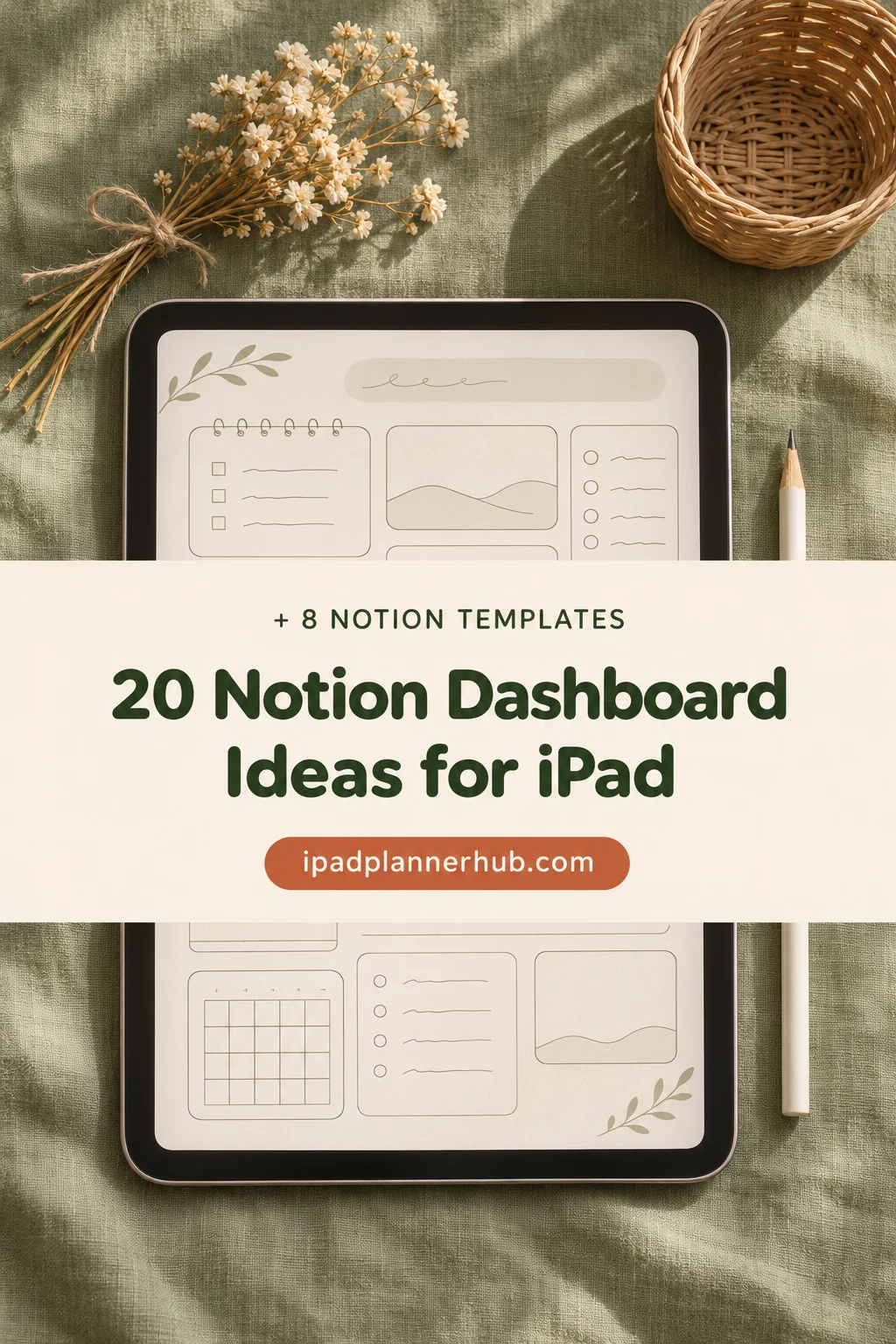
A dashboard is a home page that brings useful information and navigation together. It can combine headings, links, notes and database views; it does not have to be a complicated life operating system. The ideas here describe pages you can assemble yourself, so a template is an optional starting structure rather than a requirement.
Choose a home-page job before a visual theme
Write one sentence before arranging blocks: “When I open this page, I need to decide what to do next.” Replace the last part with your actual need, such as finding class notes or reviewing a project. A dashboard layout should serve that decision. A Notion dashboard template supplies a starting structure, while a productivity dashboard helps you see current work. Your Notion dashboard view can be as simple as one filtered task list; several Notion dashboards only make sense when each has a separate job.
- Daily focus: a short action list, one capture area and links to current work.
- Navigation: a small set of clearly named destinations, with reference material on subpages.
- Review: current projects, unfinished commitments and a place to choose the coming week’s priorities.
- Study: upcoming assignments, subject links and the notes needed for the next class.
A calendar belongs on the home page when dates drive your decisions. A board suits work moving between statuses, while a list is easier to scan when the item name matters most. Notion’s guide to database views explains those layouts; the examples below are my suggestions for choosing among them.
20 Notion Dashboard Ideas to Build Around Your Day
Borrow one layout first. These Notion dashboard layout ideas are small enough to explain without a screenshot full of unreadable labels. Treat them as Notion dashboard examples to customize around your own tasks, rather than a complete system to copy unchanged. Combine compatible ideas only after the first version has helped you finish real work.
Start with action and attention
- 1Today, then everything else. Place a short Today list first, followed by links to the wider task database. Choose three priorities manually rather than displaying every overdue item as equally urgent. Keep reference pages below the fold so opening Notion leads to a decision.
- 2The quick-capture landing pad. Put an Inbox heading and a plain capture list near the top. Record “ask about the invoice” before deciding its project or date. During a review, turn useful notes into actions or move them to reference; do not leave the inbox as permanent storage.
- 3A next-action board. Use To Do, In Progress and Done as visible stages for a small set of active tasks. Write actions such as “draft opening paragraph” rather than vague project names. Move stalled work back to a planning page instead of adding more active cards.
- 4A low-noise focus page. Use one heading, the task you intend to work on and a link to its supporting notes. Park unrelated ideas in a small list underneath. This is a useful dashboard sample for days when a broad management dashboard creates more choices than you need.
- 5A waiting-for corner. Add a short list for replies, approvals and borrowed items. Record the person, what you are waiting for and a sensible follow-up date. Review it beside your active tasks, while keeping it separate from work you can actually do today.
Give study and projects a clear entrance
- 6The campus launchpad. For Notion dashboard ideas for students, begin with the next class, upcoming assignments and subject links. Keep lecture notes on their course pages. Your home page answers “what is due and where do I start?” rather than reproducing every notebook.
- 7A single-project desk. Make the project outcome, next action, milestone dates and working notes easy to find together. Link finished material from a lower reference section. This layout suits a dissertation chapter, portfolio update or home project without requiring an all-in-one life system.
- 8The weekly workload view. Group commitments around the current week, with a brief capacity note above them. Include work, study and personal obligations when they compete for the same hours. Leave an unscheduled area for useful tasks that have no real deadline.
- 9A creator’s production page. Use a compact board for Idea, Draft, Edit and Ready, plus a link to the current brief. Keep inspiration separate from committed work. These are fields to create in your own workspace, not a claim that every template below contains a content calendar.
- 10A learning-and-notes gateway. Show links to current courses, a reading queue and a small quick capture inbox. Add a “next session” note to the active course page so you can resume without rereading everything. Keep the long resource library off the main screen.
Connect life areas without overcrowding
- 11A three-door personal dashboard. Choose three destinations such as Work, Home and Learning. Under each, link only the pages you use this week. Among these Notion personal dashboard ideas, this is a simple starting point for one home base with visibly separate responsibilities.
- 12The routine launchpad. Put a short opening checklist above task links and a closing checklist lower down. Use concrete actions such as checking tomorrow’s commitments or clearing the capture list. Avoid adding every desirable habit: the routine should help you enter or leave your day.
- 13A habit check-in strip. Give a few repeating actions their own small section, apart from one-off tasks. Record what counts as completion before building progress displays. A repeated reading session is a habit; returning a library book is a task with an end point.
- 14A home-administration doorway. Link household tasks, subscriptions and shopping from a compact Home section. Show the next household action on the landing page, leaving detailed records one tap deeper. Keep sensitive account information out of examples, public screenshots and shared inspiration boards.
- 15A goal-to-week bridge. Write one current goal, its next milestone and the action you will schedule this week. Put the wider vision page behind a link. A goal dashboard earns its space when it connects intention to a specific action instead of only displaying a motivational quote.
Notion dashboard design ideas to make the layout inviting
- 16The one-column iPad home. Stack priorities, capture and navigation in that order. Use short names so links remain understandable on a narrow screen. Check both portrait and landscape on your own device; a wide desktop composition may need a simpler arrangement for touch use.
- 17A color map with a purpose. Assign a restrained color to each life area and use it consistently in headings or icons. Keep the words readable without relying on color alone. For a page you want to save on Pinterest, this is a more useful starting rule than filling every gap with decoration.
- 18A seasonal cover, stable navigation. Change a small visual accent when you want a fresh mood, while keeping the task area and link order familiar. Your Notion dashboard aesthetic can change without relocating the tools. Use images you have permission to use, especially when sharing a public page.
- 19A named home base. Try a name that describes the page’s job: Daily Desk, Study Station, Home Base, Weekly Reset or Project Room. These Notion dashboard name ideas work because their meaning survives a theme change. Keep labels such as Tasks and Notes literal inside the page.
- 20The weekly reset station. Place unfinished actions, active project links and a short review prompt together. Ask what moved forward, what is blocked and what deserves space next week. Keep a link back to Today so reviewing the system ends with a practical next step.
Eight template starting points for these layouts
Choose a template by the home-page structure you want to keep. The cards explain the included sections; the layout ideas above may require you to rearrange blocks, add your own lists or simplify navigation. A PDF access file for a Notion template is not a handwriting planner to import into Goodnotes.
TL;DR: Start with a task list, a place for quick notes and a few navigation links. The 20 ideas are layouts to build or adapt; the eight Notion templates provide different starting structures, not twenty ready-made dashboards.
Quick Picks
- Best for a task-first home: Getting Things Done Notion Template
- Best for quick capture: Life OS Notion Template
- Best for a campus launchpad: Notion Student Planner
- Best for layered navigation: Notion Template, Notion Life Planner
- Best for a reflective home: Notion Template, Notion Life Planner
- Best for visual life areas: Notion Template ADHD, Life Planner
- Getting Things Done Notion Template – Best for a task-first home
- Life OS Notion Template – Best for quick capture
- Notion Student Planner – Best for a campus launchpad
- Notion Template, Notion Life Planner – Best for layered navigation
- Notion Template, Notion Life Planner – Best for a reflective home
- Notion Template ADHD, Life Planner – Best for visual life areas
- Notion Template ADHD, Notion Life Plan – Best for a routine launchpad
- 12 Week Year Planner Notion Template – Best for a goal-cycle hub
Action and quick capture
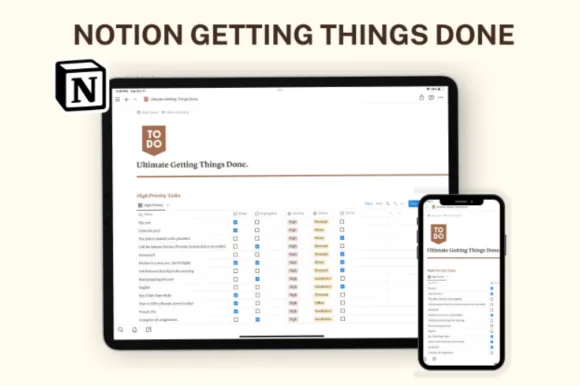
Best for a task-first home
1. Getting Things Done Notion Template
Sections: Priorities + statusFormat: Notion template
Best for: seeing priorities and task status before opening other life pages. Designed by ThePlannersDelight.
- High Priority Tasks checklist and a light-mode Notion dashboard
- To Do, In Progress and Done sections, with priority levels
- Clock and calendar; PDF containing a link to the Notion template
The strongest reason to start here is its narrow question: what needs your attention next? The preview puts a priority table above a task board, so the home page has a working center rather than a wall of decorative links. Keep the priority checklist short. The product name is not evidence of a complete GTD course or coaching program.
Best for quick capture
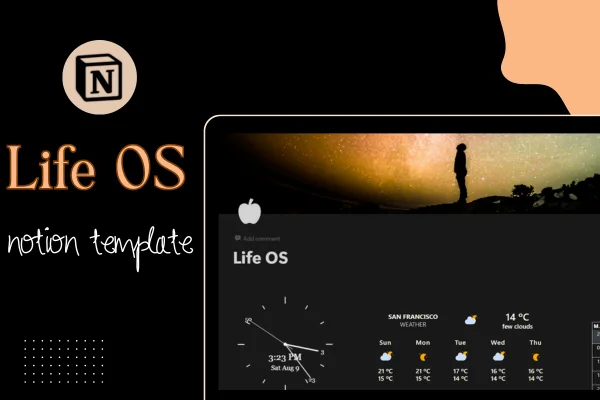
2. Life OS Notion Template
Sections: Inbox + weekly agendaFormat: Notion template
Best for: collecting loose ideas while keeping a broad life overview. Designed by Dohaforkdp.
- Dashboard with top three tasks, weekly agenda and a filtered master to-do list
- Quick capture inbox; goals, projects, learning and household modules
- English-only template; PDF with a link for duplication into Notion
Quick Capture makes this the most useful starting point for the inbox idea above. The dark dashboard also provides links to life areas, so an incoming thought can eventually move to a project, a reading list or a household page. That breadth takes upkeep: choose the modules you actually revisit. Put task capture ahead of its weather and clock displays.
Study and everyday navigation
Best for a campus launchpad
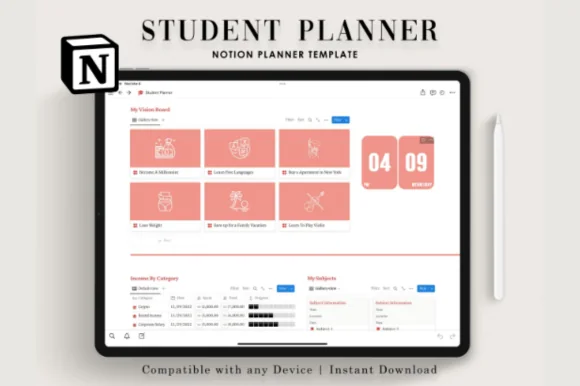
3. Notion Student Planner
Sections: Academics + notebooksFormat: Notion template
Best for: opening assignments and class notes from one study home page. Designed by ThePlannersDelight.
- Light-mode Notion dashboard with daily tasks and a monthly tasks board
- Academic section, notebooks, goals and a calendar
- Coral academic previews include class schedule, subjects and assignments; PDF with template link
The academic navigation gives a student home page a clear destination for each tap. Subject and assignment pages belong near the top during term; the media and shopping sections can stay lower down. I like this as a base for the campus launchpad rather than a generic personal landing page. It still needs your courses, dates and current workload entered.
Best for layered navigation
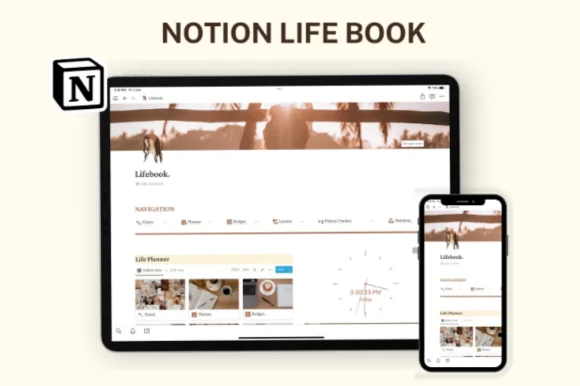
4. Notion Template, Notion Life Planner
Sections: Navigation + life areasFormat: Notion template
Best for: linking a daily landing page to weekly, monthly and yearly plans. Designed by ThePlannersDelight.
- Notion Lifebook with navigation bar and yearly, monthly, weekly and daily planning
- Vision, budget, subscriptions, leisure and nutrition sections
- Brown visual theme; PDF containing the Notion template link
Use its planning levels as destinations, not as four competing agendas on the opening screen. A compact daily list and a prominent Weekly link keep longer horizons one tap deeper. The warm brown navigation is easy to distinguish from the beige reflection-focused option. Its household scope is useful only if those pages have a role in your routine.
Best for a reflective home
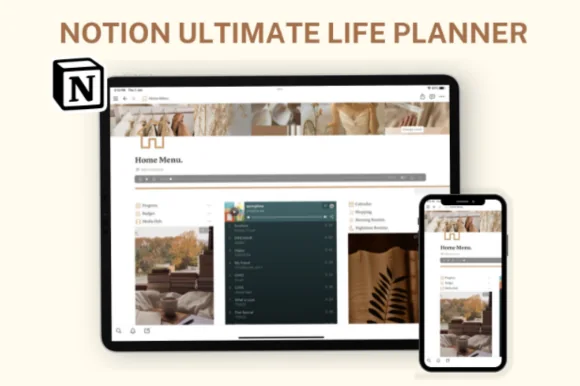
5. Notion Template, Notion Life Planner
Sections: Routines + journalFormat: Notion template
Best for: making routines and a short end-of-day reflection easy to reach. Designed by ThePlannersDelight.
- Beige home menu, weekly priorities and a to-do list
- Morning and night routines, journal and daily reflection
- Calendar, budget, media, recipes and fitness; PDF with a Notion template link
The beige gallery suits a home page that feels like a gentle starting point. Routines and reflection are the practical reason to choose it: a morning checklist can open the day, while a short journal entry closes it. Keep its lifestyle links below the immediate priorities. It is a different emphasis from the Lifebook, whose separate planning horizons deserve more attention.
Best for visual life areas
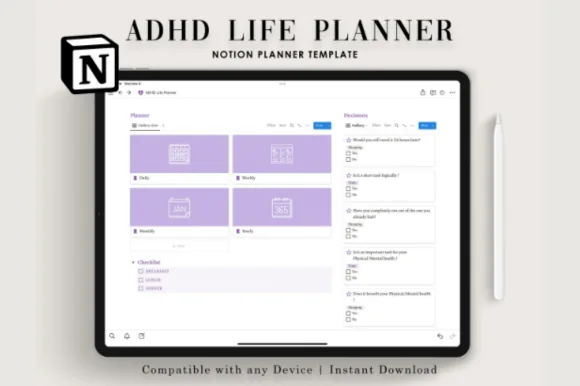
6. Notion Template ADHD, Life Planner
Sections: Tiles + planning pagesFormat: Notion template
Best for: using colored destinations to separate planning from reference pages. Designed by ThePlannersDelight.
- Lavender dashboard and yearly, monthly, weekly and daily planning pages
- Checklist, decisions, habit tracker, sleep log and goals sections
- Reading, media, travel and household sections; digital Notion template with a PDF access file
The lavender tiles give each life area a recognizable visual place. That helps the color-map idea: preserve the same color for a destination and its related pages instead of adding a new palette everywhere. The number of included sections can also become a distraction, so bring only a few into your main navigation. ADHD is the seller’s product name, not a promise of treatment or improved symptoms.
Routines and focused goals
Best for a routine launchpad
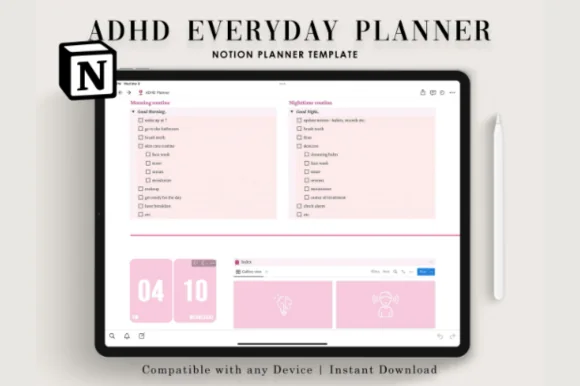
7. Notion Template ADHD, Notion Life Plan
Sections: Checklists + focus areasFormat: Notion template
Best for: putting opening and closing checklists ahead of reference material. Designed by ThePlannersDelight.
- Pink dashboard with morning and nighttime routines
- High-priority tasks, projects, contacts, checklist and reminders
- Focus, Reflect, Plan and Be Present sections; Notion template with a PDF access file
This pink layout has a distinct workflow, not just a different color from the lavender planner. The routine checklists and Focus, Reflect, Plan and Be Present destinations suggest a useful sequence for starting and ending a day. Adapt the labels to actions you understand at a glance. The ADHD wording identifies the listing; the template is an organization aid and does not replace healthcare.

Best for a goal-cycle hub
8. 12 Week Year Planner Notion Template
Sections: Weekly review + next stepsFormat: Notion template
Best for: keeping one focused planning cycle and its review within reach. Designed by Dohaforkdp.
- Mission and values, vision and goals, notes and daily planner
- Tasks tracker, weekly review and tracking, overall results and next steps
- Daily check-in, weekly plans and habit section; English-only Notion template with PDF access link
A goal-cycle home page needs a destination for the next action and another for the review. This template provides both, with a narrower time frame than a whole-life system. Put the current goal and weekly plan near the top, and use Overall Results at the end of the cycle. The twelve-week format is a planning structure, not a guarantee that a year’s results will happen faster.
Quick Comparison
| Template | Home-page role | Useful sections | Setup consideration |
|---|---|---|---|
| 1. Getting Things Done Notion Template | Task-first | Priorities + status | Keep the checklist short |
| 2. Life OS Notion Template | Whole-life hub | Inbox + weekly agenda | English only; broad scope |
| 3. Notion Student Planner | Student hub | Academics + notebooks | Enter your own course data |
| 4. Notion Template, Notion Life Planner | Planning levels | Navigation + life areas | Avoid four duplicate agendas |
| 5. Notion Template, Notion Life Planner | Reflection hub | Routines + journal | Keep lifestyle links secondary |
| 6. Notion Template ADHD, Life Planner | Visual navigation | Tiles + planning pages | Many optional sections |
| 7. Notion Template ADHD, Notion Life Plan | Routine launchpad | Checklists + focus areas | Adapt labels to your habits |
| 8. 12 Week Year Planner Notion Template | Goal-cycle hub | Weekly review + next steps | English only; focused cycle |
Turn a starting template into your own home page
Make a working copy before changing navigation or removing sample content. Follow the seller’s access instructions; Notion’s public-page duplication guide explains how to copy an enabled page into your workspace. A template preview shows a design, not your existing appointments or tasks.
Build a first version in five steps
- 1Pick one opening decision. Choose whether this home page is for daily actions, navigation or review. Write its purpose at the top temporarily. If a section does not help that purpose, move it to a linked page rather than trying to make it smaller.
- 2Choose where tasks live. Use one main task database if you need different views of the same work. Add simple properties such as status and date only when useful. Keep brief capture notes separate until you decide whether they are tasks.
- 3Add the smallest useful view. Start with a list or table of current work. A table exposes properties; a board emphasizes status; a calendar emphasizes dates. Give each view a clear name, and remember that a filtered view is another way to see the same records.
- 4Test it with real items. Enter a few actual tasks and notes, then check that the expected items appear. If something is missing, inspect the view filters and date values before creating a second copy. Try opening a project and returning home on the iPad.
- 5Reduce the touch workload. Review the page in portrait orientation, simplify link names and move rarely used properties out of the way. The test is whether you can capture a thought and find the next task comfortably, not whether the whole workspace fits in one screen.
For a first database, keep the structure modest. The same task can appear in several views without becoming several tasks; this is why I prefer views to manually copied daily lists. Verify any view’s filter against the result you expect, especially around due dates. For a broader planning workflow, our iPad project planner comparison offers a handwriting-based alternative.
Keep the dashboard useful after the first week
A productivity dashboard needs maintenance, but that maintenance should be short. Start with a brief daily glance and a weekly reset, then adjust the rhythm to the amount of work in the system. These are suggested habits, not an automatic service included with a template.
- At the start of the day: select realistic priorities and capture anything missing.
- During work: update status where the task already lives rather than copying it to a fresh checklist.
- At the weekly reset: process the inbox, review waiting items and check active projects for a next action.
- When a section stays unused: remove its home-page shortcut or move it lower, keeping the underlying information if you still need it.
If the page feels slow or visually heavy, first remove unnecessary embedded media and reduce the amount of information shown. Use narrower views when they make the page easier to scan, without assuming that a filter guarantees faster loading. For persistent app issues, use Notion’s current support guidance rather than rebuilding a workspace blindly.
FAQ: Choosing and Organizing a Notion Dashboard
What should a Notion dashboard include?
Begin with priorities, a capture area and navigation to the pages you use most. Add dates or project status only when they support an everyday decision. A personal home page can be useful with three sections; it does not need a budget, habit tracker and journal simply because a template offers them.
Which home-page layout suits a Notion beginner?
A small page with a short task list and clear links is a sensible first version. The task-first layout is easier to maintain than a large life system when you are still learning how your pages connect. Choose a template for its useful structure, then add complexity only when a real need appears.
Should I use one dashboard or several?
Use one home page as your entry point and smaller subpages when different work needs different detail. A student might keep one opening page with separate course hubs. Avoid maintaining independent copies of the same tasks just to give each area its own visual theme.
Will these home-page layouts work on an iPad?
These ideas are designed around opening pages, checking tasks and navigating notes on an iPad. Actual template layouts can vary with screen size and app behavior, so check the current Notion app on your device before committing to a wide layout. For handwritten notes and PDF planning, compare Notion and Goodnotes before choosing your format.
Is a template purchase or special dashboard feature necessary?
You can build the page concepts here from your own headings, lists and suitable database views. A paid template supplies an existing structure and design. The listings describe Notion templates; a Notion subscription is not mentioned in their descriptions. This article uses dashboard to mean a useful home page, rather than promising access to a particular paid interface feature.
Can a dashboard replace my other planning apps?
It may give tasks and notes a shared starting point, but a template is not proof of calendar integration or automatic migration. Keep a reliable place for time-sensitive appointments while you decide which responsibilities belong in Notion. A weekly PDF planner remains another option if writing by hand makes your review simpler.
Give the home page one job worth returning for
Choose the Notion dashboard ideas that remove a real pause in your day: finding the next task, capturing a thought or opening the right notes. Start with one layout, use it for a week and change what gets in the way. The eight templates offer different structures, but the useful part is the path you create from opening the page to doing something that matters.
You May Also Like
Purchases made through eligible Creative Fabrica links may fund my work on this site through commissions, without changing the price you pay. My policy is explained in the affiliate disclosure.