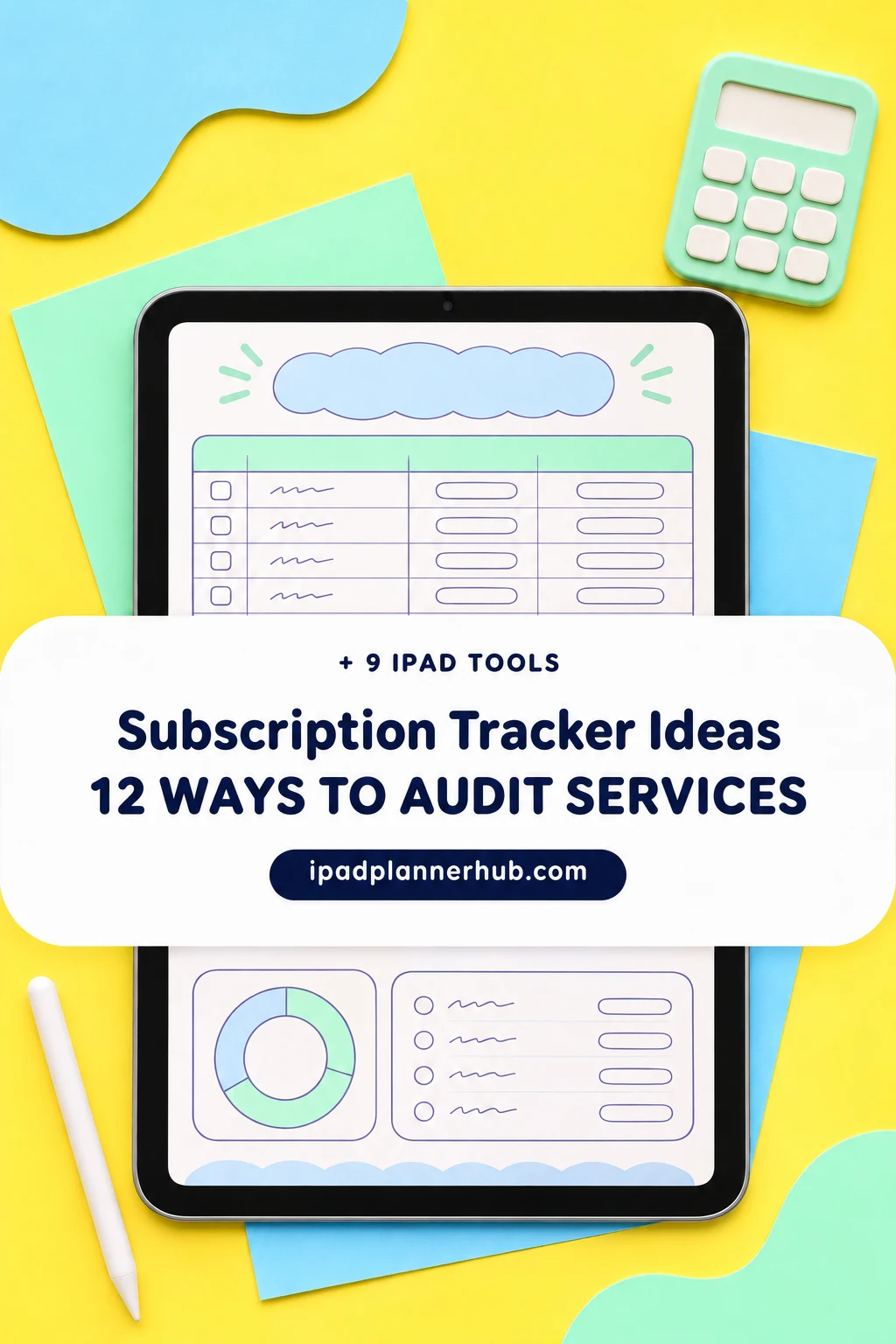
A renewal charge lands on your statement, and you cannot remember the last time you opened the service. These subscription tracker ideas connect each recurring charge with its purpose, actual use and next action. I prefer that audit trail to a payment date with a “paid” tick beside it.
Start with a notebook you already have, on paper or on your iPad. The twelve layouts below are my suggestions for organizing the audit. After the workflow, I compare nine optional iPad tools with bill, spending, calendar or Notes pages that can support it.
Build a service audit, not just a payment calendar
A payment calendar answers when money is expected to leave. A subscription audit also asks which account owns the service, what the renewal terms say, and whether a decision has actually taken effect. Keep expected dates, observed charges and completed actions in separate fields. That distinction is especially useful when a trial ends, a price changes or an account moves between family members.
- Start with evidence: recent statements, receipts, account settings and the service’s current terms. A remembered price can be a prompt to check, rather than the figure you treat as final.
- Give each service one short ID: S01, S02 and so on. Use the same ID in your inventory, usage note and follow-up log so similarly named plans do not get mixed together.
- Write a status and a date: “price checked,” “request sent” and “confirmation received” describe different events. An empty box should mean “not checked,” rather than silently mean “nothing to do.”
For your wider spending picture, the budget planner ideas guide covers income, costs and review pages. Here I am keeping the focus on the life of a recurring service, from sign-up to the final follow-up.
12 subscription tracker ideas for a complete review
Choose the records that answer a real question for you. You can combine several on one Notes page rather than create a separate page for every idea. I would start with the inventory, comparable costs and action history, then add trial or household details only where needed.
Find what you have and what happens next
- 1Service inventory. Make one row per service with its ID, plan name, purpose, billing interval and account owner. Add a source and “checked on” date for the price. If you discover two plans from the same company, keep separate rows until you know whether they serve different accounts. This is the index for your audit, not a storage place for passwords or full payment details.
- 2Free-trial register. Record the trial start, stated end, first stated charge and where you found the cancellation instructions. Leave an unclear term marked “check” instead of inventing a deadline. The FTC advises reading trial terms and setting a calendar reminder before a trial ends. Your reminder is a prompt to act, not proof that cancellation happened.
- 3Renewal review calendar. Put the actual renewal date on a calendar and add a separate review task before it. Choose a review date that gives you time to read the terms and act; there is no universal number of days that fits every service. Write the service ID in the calendar square, then keep the detailed terms in its note. A PDF calendar does not send an alert by itself.
- 4Terms reference card. Keep the official account-settings location, the date you checked it and a reference to the relevant message or saved terms. Separate the cancellation method from the date you intend to review it. This keeps a vague note such as “cancel online” from becoming your entire plan. If the service changes its terms, add a dated entry rather than overwrite the earlier reference.
Compare cost with actual use
- 5Common-period cost comparison. Write both the billed amount and a monthly or annual equivalent. Use the same period when comparing services, and label the arithmetic as a comparison. An annual plan of $120 has a $10 monthly equivalent, but it still requires the actual annual payment on its billing date. Do not place twelve imaginary $10 charges into your payment record.
- 6Actual charge ledger. Record the date, amount and billing period shown on the statement, then compare them with the expected renewal. Use a separate note for a difference, such as “expected $12; observed $14; checking account notice.” Keep the observed amount unchanged while you investigate. A planned cancellation should never cause you to erase a charge that really appeared.
- 7Short usage log. Choose a small observation window and write what you actually used: a class attended, a project completed or a film watched. A tick can be enough for a simple service; an occasional service may need a short explanation. Zero use during one week is a question to explore, not automatic proof that the service has no value. Compare against the reason you subscribed.
- 8Overlapping-service comparison. Put two services side by side with columns for purpose, feature you use, billing period and any difference that matters to you. “Both are entertainment” is too broad to establish duplication. One might be used by another household member or for a particular course. End the comparison with an open question or a decision, rather than a total that pretends the services are identical.
Make a decision and keep the evidence
- 9Household responsibility note. Name the person who manages the account, the person reviewing it and who needs to agree before a change. Those can be different people. Add the date you discussed a shared plan and the next action. Keep the audit factual: do not mark somebody else’s service canceled because you stopped using it, and do not put account credentials in a shared planner.
- 10Keep, pause or cancel decision log. Write the chosen action, the reason and the date you will revisit it. Mark a pause as an option to check until the service actually offers it and you understand its terms. A “keep” decision can also be useful: it records why the service earns its place for now. Put planned changes in an action column rather than treat them as completed savings.
- 11Cancellation evidence reference. After following the service’s process, record when you sent the request, the response and where the confirmation is kept. Distinguish “request sent” from “confirmation received,” and note any stated access-end date separately. The FTC recommends retaining cancellation correspondence. A planner entry should point to the evidence; it should not replace the company’s response or declare a refund that has not been received.
- 12Next-statement verification. Set a follow-up task to compare the next relevant statement with the request and confirmation. The FTC recommends checking statements after cancellation; CFPB also advises monitoring accounts after payment instructions change. If a charge needs attention, record the contact date and next step. Close the audit entry only when your evidence supports the status you write.
A worked example: equivalent cost is not the payment schedule
Imagine two fictional services you are reviewing. Studio A is $12 each month. Library B is $120 once a year. Both examples assume an unchanged price for the whole comparison period, with no extra charges. This is arithmetic for organizing the record, not a recommendation to switch to annual billing.
| Example service | Actual billing | Common-period comparison | Record separately |
|---|---|---|---|
| Studio A | $12 each month | $12 × 12 = $144 per year | Each actual monthly charge |
| Library B | $120 once a year | $120 ÷ 12 = $10 monthly equivalent | The full $120 renewal date |
The comparison gives you consistent units; it does not establish which service is better. Your usage record might show that you rely on one for a weekly class and only open the other occasionally. Keep that explanation next to the cost instead of reducing the whole decision to the smaller monthly equivalent.
- Inventory: service ID, purpose and current billing interval.
- Decision: keep for now, review on a chosen date, or follow the cancellation process.
- Evidence: what was requested, what response you received and what the statement later shows.
Choose an iPad tool by the page you need
The audit can stay in an ordinary note. If you want a PDF planner around it, start with the existing page that saves you setup: a named subscription tracker, a bill ledger, a calendar or a grid Notes page. The digital budget planner comparison is a better starting point if you want to organize your whole budget first.
The selection brings together digital iPad tools for keeping these records. I have not purchased or tested the paid files; I compared the public descriptions and available previews. The individual reviews distinguish confirmed PDF planners from the GoodNotes workbook listed as Digital Budget Planner, Finance Tracker. Use the audit instructions to organize your own entries and follow-up tasks.
TL;DR: Use a notebook you already have or choose one of these nine optional digital tools. One names a Subscription Tracker; the others support bills, spending, calendar or custom notes. All entries and calculations are manual.
Quick Picks
- Best for a dedicated subscription page: Hyperlinked Bill Tracker Planner
- Best for comparing charges with spending: Digital Budget Planner, Financial Planner
- Best for compact audit notes: Budget Digital Planner Hyperlinked Tabs
- Best for separate comparison pages: Gold Budget Digital Planner
- Best for a spending summary: Undated Budget Planner for GoodNotes
- Best for a minimal charge log: Simple Savings Planner, Digital Planner
- Hyperlinked Bill Tracker Planner – Best for a dedicated subscription page
- Digital Budget Planner, Financial Planner – Best for comparing charges with spending
- Budget Digital Planner Hyperlinked Tabs – Best for compact audit notes
- Gold Budget Digital Planner – Best for separate comparison pages
- Undated Budget Planner for GoodNotes – Best for a spending summary
- Simple Savings Planner, Digital Planner – Best for a minimal charge log
- Digital Budget Planner, Finance Tracker – Best for a yearly bill reference
- All-in-One Digital Planner – Best for calendar and notes together
- Undated Digital Planner, Life Planner – Best for flexible grid pages
Start with subscriptions and recurring bills
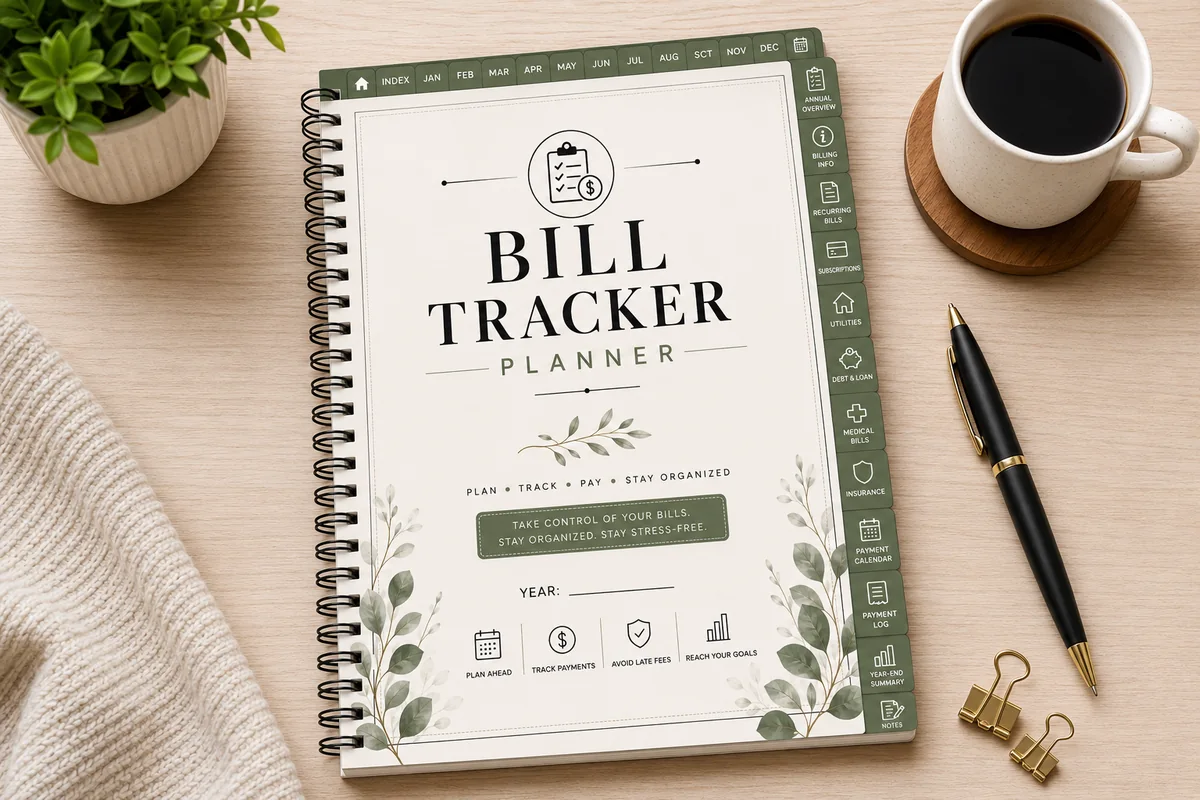
Best for a dedicated subscription page
1. Hyperlinked Bill Tracker Planner
Orientation: Portrait A4Layouts: Bills and payment recordsDates: Undated
Best for: keeping a named Subscription Tracker alongside recurring bills and Notes. Designed by Azhir.
- 52-page undated hyperlinked PDF with portrait A4 layout
- Monthly Bill Trackers, Payment Log and Bill Payment Calendar listed
- Compatible with GoodNotes, Notability and Noteshelf
This is the closest match when you want a named home for the service list. Its description includes a Subscription Tracker, Recurring Bills Tracker and several Notes formats. The only public image is the cover, so I cannot judge the exact tracker columns. Put your usage and cancellation evidence on Notes if the tracker does not have those fields. It is a manual PDF, not a service that detects accounts or cancels them.
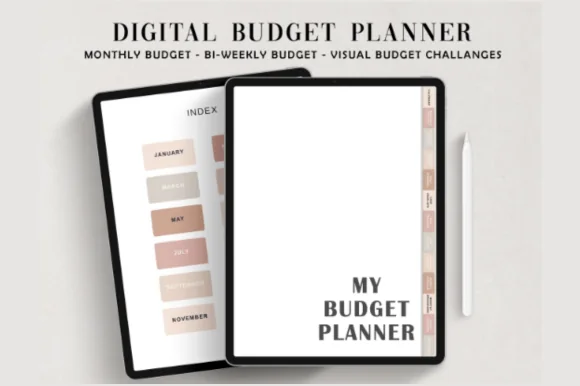
Best for comparing charges with spending
2. Digital Budget Planner, Financial Planner
Orientation: PortraitLayouts: Monthly budget, spending and reviewDates: Undated
Best for: reviewing subscription charges next to monthly spending. Designed by ThePlannersDelight.
- Hyperlinked PDF for GoodNotes, Noteshelf or Notability
- Monthly budget, daily spending logs and bill tracker
- Weekly expense check-in, monthly breakdown and undated calendar
- An Apple tablet and a writing stylus are needed; Apple Pencil is the seller’s example. This file excludes the device, stylus and apps.
The bill tracker and daily spending logs make it easier to keep two different numbers: the expected renewal and the charge that actually appeared. I like the weekly expense check-in for a brief review of services you used that week. This is a budget planner rather than a subscription-audit workbook. Keep the twelve-part audit in a separate app note; do not assume the bill grid contains trial terms or cancellation evidence.
Keep a compact audit beside the bill list

Best for compact audit notes
3. Budget Digital Planner Hyperlinked Tabs
Orientation: PortraitLayouts: Income, monthly budget, bills and notes
Best for: building a short service inventory on Notes and extra pages. Designed by mixxdigitaldesign.
- 20-page hyperlinked PDF with US Letter layout
- Income Tracker, Monthly Budget and Bills Tracker
- Notes and extra pages; GoodNotes, Notability, Noteshelf and Xodo listed
The green twenty-page planner has a clear role here: use Monthly Bills for amounts and Notes for the audit. An extra page can hold the comparison between two overlapping services without crowding the payment grid. Its compact scope appeals to me more than a large life planner if subscriptions are your only task. The subscription inventory, trial register and decision fields are your own additions, not named templates in this PDF.
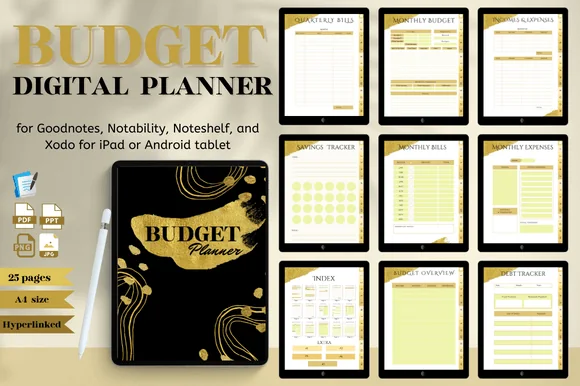
Best for separate comparison pages
4. Gold Budget Digital Planner
Orientation: PortraitLayouts: Income, expenses, quarterly bills and notes
Best for: using extra Notes pages for cost and service comparisons. Designed by Nann Digital Art.
- 25-page A4 digital planner with hyperlinked navigation
- Income Tracker, Expense Tracker, Monthly Bills and Quarterly Bills
- Five extra pages with lined and grid note layouts shown
Five extra pages give this black-and-gold planner a useful place for decisions beyond the bill list. I would use the grid option for monthly-equivalent figures and a lined page for the reason behind keep, pause or cancel. Monthly and Quarterly Bills can hold actual payment schedules. Keep a yearly renewal on its real date; the existence of a quarterly form does not turn an annual charge into four payments.
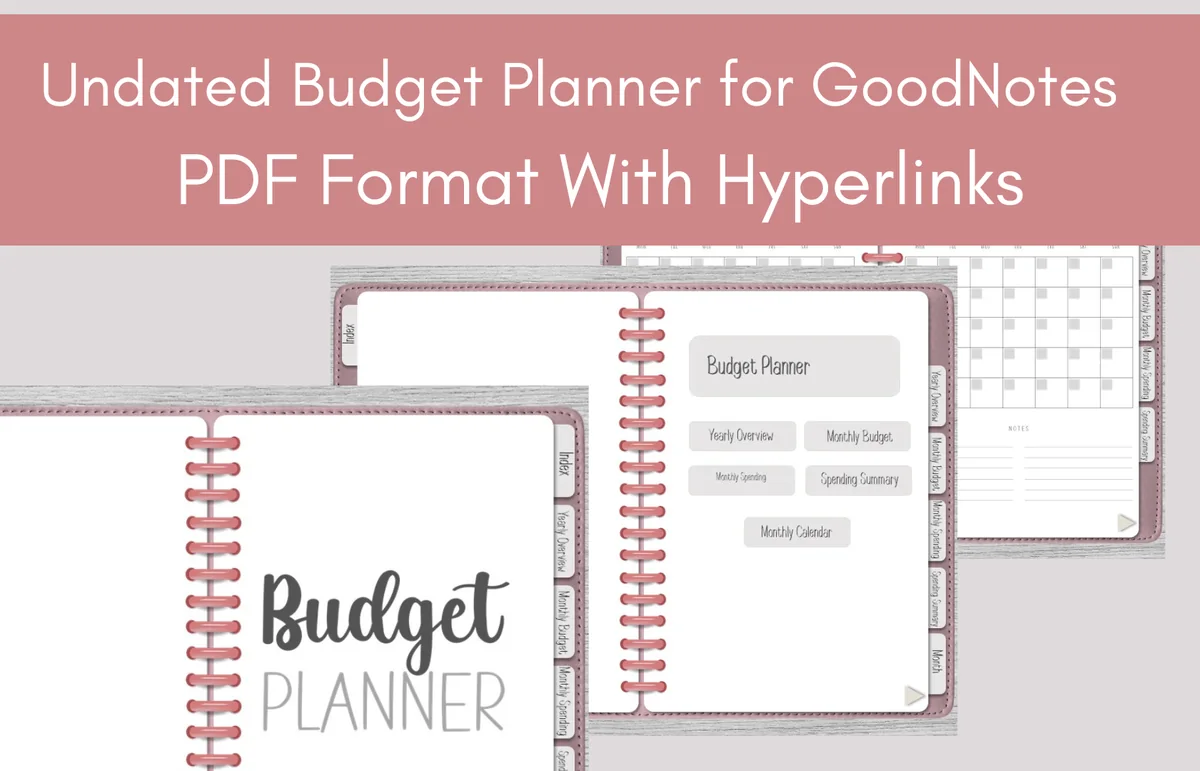
Best for a spending summary
5. Undated Budget Planner for GoodNotes
Orientation: PortraitLayouts: Monthly budget, spending and calendarDates: Undated
Best for: keeping a compact monthly view beside your own audit note. Designed by Perla Designs.
- 30-page hyperlinked PDF for GoodNotes
- Monthly Budget, Spending Summary and Monthly Calendar
- Yearly Overview and Monthly Spending pages
This thirty-page GoodNotes PDF shows a Monthly Calendar, Monthly Spending, Spending Summary and Yearly Overview. It suits a reader who wants to compare actual recurring charges across the month without adopting a whole life planner. Put trial conditions and cancellation correspondence in a separate app note; neither is established as an included form.
Best for a minimal charge log
6. Simple Savings Planner, Digital Planner
Layouts: Savings, purchases and billsFormat: PDF
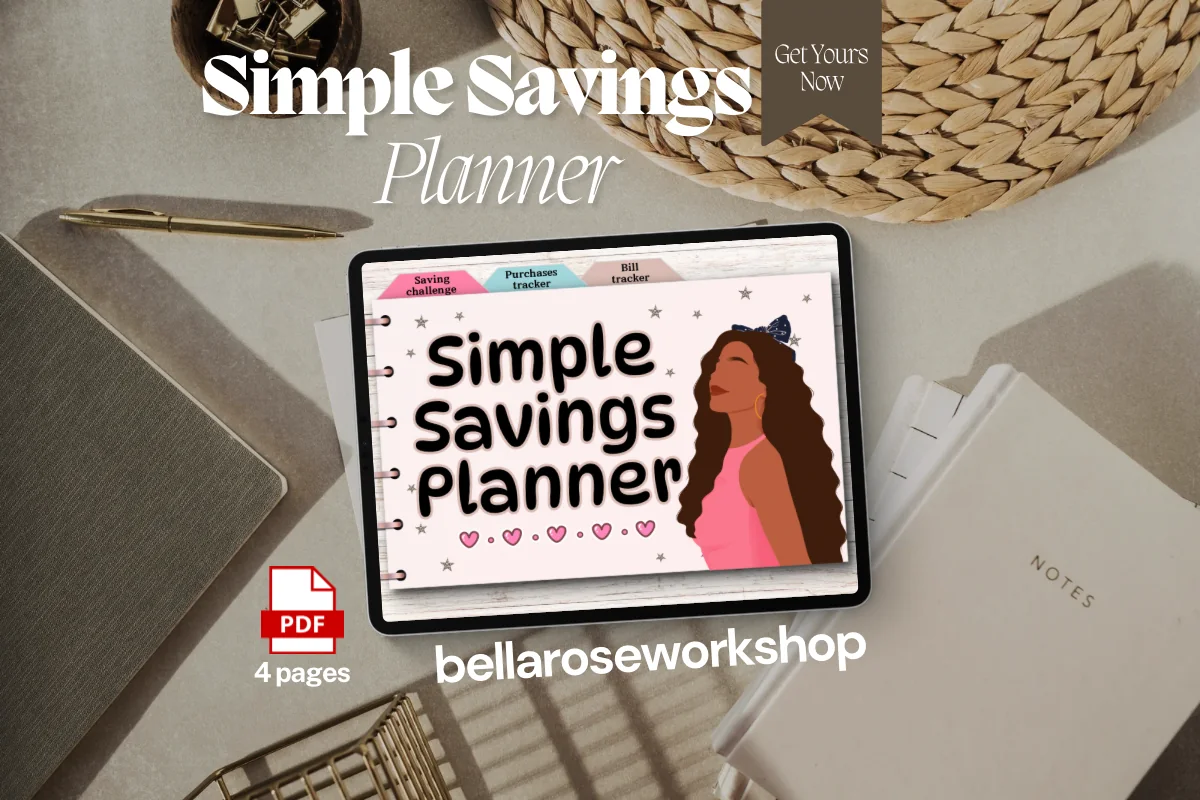
Best for: recording recurring bill amounts in a small four-page PDF. Designed by bellaROSEworkshop.
- Hyperlinked PDF for tablet annotation apps
- Saving Challenge, Purchases Tracker and Bill Tracker
- Four pages pictured; the PDF is not editable
The Bill Tracker is the part relevant to subscriptions, even though this product is sold around saving. Its four-page scope can work if you only need a small place to record recurring amounts. Keep the service inventory and cancellation history in another notebook or app note. The savings challenge and purchases tracker do not replace those audit records, and the PDF is not an editable template for redesigning its fields.
Connect the audit with wider planning
Best for a yearly bill reference
7. Digital Budget Planner, Finance Tracker
Orientation: PortraitLayouts: Spending and annual bill overview
Best for: pairing a broad finance workbook with a separate service audit. Designed by PlannersByBee.
- GoodNotes financial planning workbook
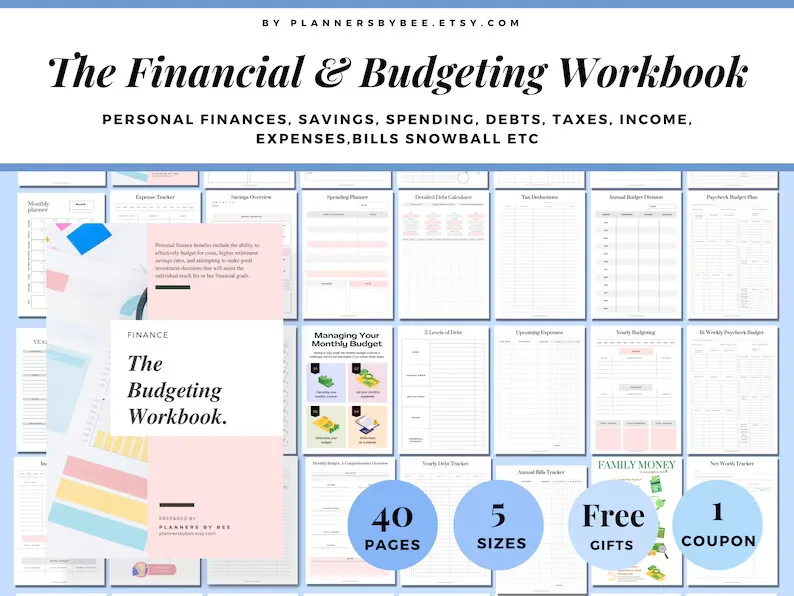
- Gallery shows Spending Planner and Annual Bill Tracker
- Single promotional overview; interior detail is limited
The promotional image shows an Annual Bill Tracker and spending-related pages. That gives recurring charges some wider budget context, but the picture is a collage rather than a close view of every form. A separate note leaves room for detailed terms and confirmation references. Choose this for its broader finance focus; the listing does not establish a dedicated subscription tracker or the exact internal columns.
Best for calendar and notes together
8. All-in-One Digital Planner
Orientation: LandscapeLayouts: Weekly plans, budget and finance recordsDates: Undated
Best for: combining review dates with a custom audit in a landscape planner. Designed by Tas Creative Studio.
- 112-page undated horizontal hyperlinked PDF
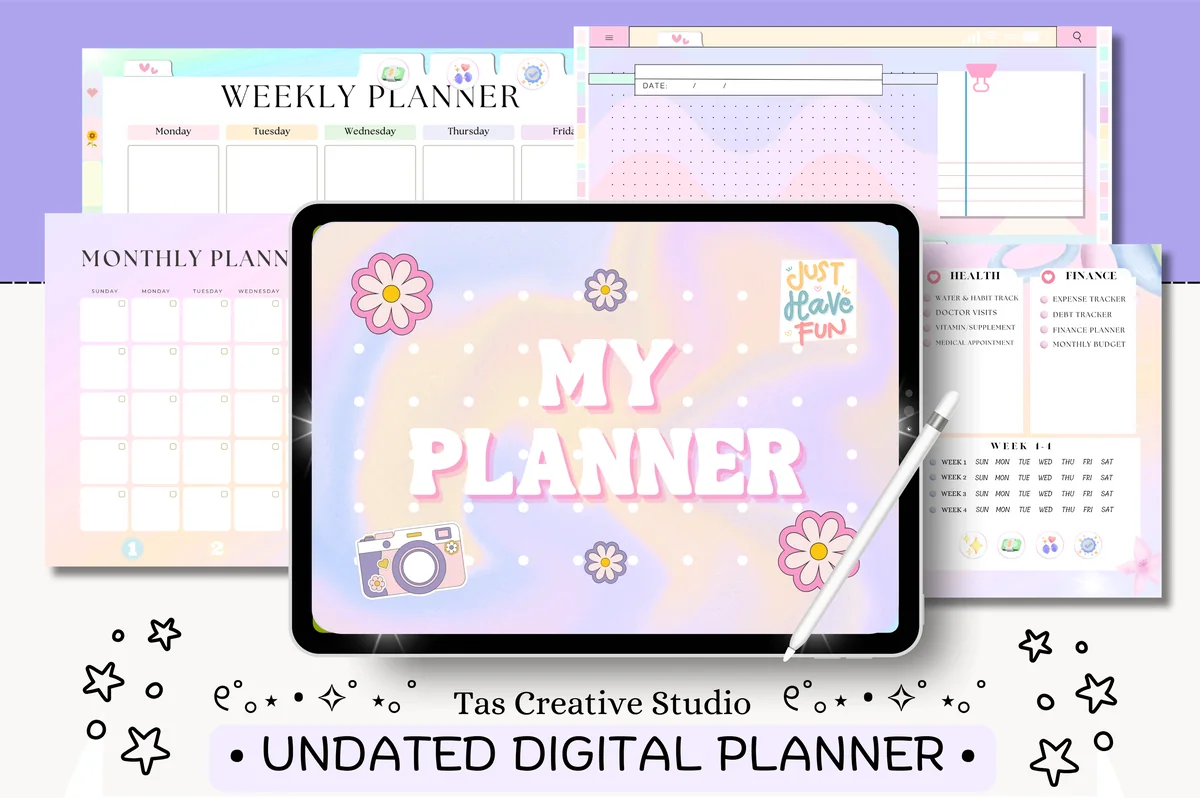
- Monthly Budget, Finance Tracker, savings and bills visible in the gallery
- Weekly calendar and dotted notes; GoodNotes and Notability supported
Here the useful connection is between the monthly calendar, finance pages and dotted note area. You can mark a review date, then keep a service decision on Notes rather than write everything into one tiny calendar square. The pastel landscape layout is very different from the portrait budget PDFs. Although the description mentions tracking subscriptions, the previews do not establish a separate full audit form.
Best for flexible grid pages
9. Undated Digital Planner, Life Planner
Orientation: PortraitLayouts: Revenue, expenses, budget and notesDates: UndatedWeek start: Monday and Sunday versions
Best for: drawing an audit table on grid Notes beside a monthly budget. Designed by ThePlannersDelight.
- Undated hyperlinked PDF for GoodNotes or Noteshelf
- Revenue Tracker, Expenses Tracker and Monthly Budget
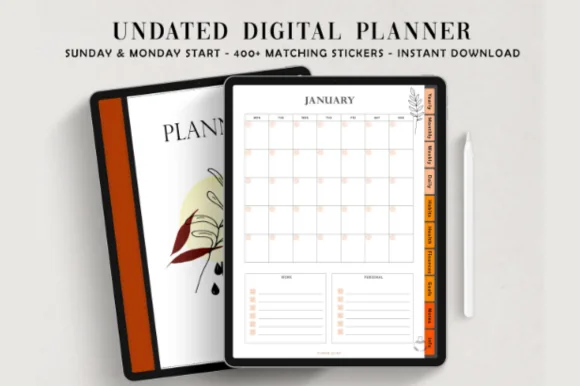
- Monday-start and Sunday-start versions; lined and grid notes shown
Autumn Hues has several Notes layouts, including grid pages that suit a hand-drawn inventory. Its monthly calendar can hold review dates while the Expense Tracker holds actual charges. This is a practical choice if you also want weekly and daily planning in the same file. The finance section includes Monthly Budget, Revenue Tracker and Expense Tracker; a ready-made subscription cancellation log is not part of that stated list.
Quick Comparison
| Planner | Useful starting point | Custom addition | Main limit |
|---|---|---|---|
| 1. Hyperlinked Bill Tracker Planner | Subscription Tracker and Recurring Bills | Add usage and confirmation notes | Internal tracker columns are not pictured |
| 2. Digital Budget Planner, Financial Planner | Bill tracker and daily spending logs | Separate audit note in your app | No dedicated subscription-audit form shown |
| 3. Budget Digital Planner Hyperlinked Tabs | Monthly Bills, Notes and extra pages | Your own service and trial registers | Audit fields must be written manually |
| 4. Gold Budget Digital Planner | Monthly and Quarterly Bills; extra Notes | Cost comparisons and decision reasons | No named subscription-audit template |
| 5. Undated Budget Planner for GoodNotes | Monthly Calendar and Spending Summary | Separate terms and confirmation note | Short listing; no dedicated audit page established |
| 6. Simple Savings Planner, Digital Planner | Bill Tracker in a four-page PDF | Full audit in a separate note | Small charge log rather than an audit workbook |
| 7. Digital Budget Planner, Finance Tracker | Annual Bill Tracker in the preview | Separate service-audit note | Only a promotional collage is available |
| 8. All-in-One Digital Planner | Calendar, finance pages and dotted notes | Trial and usage review notes | Broader life planner; no automatic reminders |
| 9. Undated Digital Planner, Life Planner | Grid Notes, calendar and Expense Tracker | Hand-drawn service comparison | Subscription-specific forms are your additions |
Keep the service list readable at the next renewal
A useful subscription tracker focuses on the decision you need to make about each service. Start with a standard set of fields: plan, amount, billing frequency, due date, payment-method label and auto-renewal status. Add the date you signed up when it helps explain a trial or renewal. This layout allows you to find the next charge easily without searching through a collection of receipts.
Choose the size of each row based on how much you need to write, and keep longer explanations in a note with the same service ID. Give a favorite service the same usage review as the others, and visit its account settings when a term needs checking. Skip decorative fields that you do not use, but ensure that the next action and its date remain visible. The ability to follow an unfinished request matters more here than fitting every detail onto one screen.
Turn the audit into one manageable review
After choosing your starting page, keep the next session small. You do not need to rebuild the entire planner every month. A consistent service ID and clear status make the record easier to revisit than a fresh decorative layout that loses last month’s notes.
A short review sequence
- 1Check the inventory. Add newly found services and update only the figures you have checked. Keep an unresolved price or ownership question visible. If a recurring charge is absent from the inventory, give it an ID before trying to decide what to do about it.
- 2Read the open actions. Look at trials, upcoming renewals and requests awaiting a response. Move an action to completed only when the corresponding event happened. Keep a planned decision, an actual request and a received confirmation as separate entries so the audit tells you what remains.
- 3Reconcile and choose the next task. Compare actual charges with the status of each service and note any difference. Then choose one concrete task, such as checking a term or locating a confirmation. Write a date for that task. Carry unfinished items forward without rewriting them as successful changes.
- A request is still pending: retain the date sent and the next follow-up, rather than tick “canceled.”
- A plan changes price: keep the old observation and add the new checked price with its date.
- A service remains useful: record why you are keeping it and when to review it again. The purpose is a clear decision record, not a predetermined number of cancellations.
FAQ: subscription records on an iPad
Can I use a subscription tracker without buying another planner?
Yes. A paper notebook or an existing note can hold the inventory, cost comparison and action history. Buy a PDF only if its existing pages or layout suit how you want to write. The twelve ideas are your own records, so they do not depend on a particular product.
Will a GoodNotes PDF find my subscriptions or cancel them?
A GoodNotes PDF provides a place to write your records, not a connection to your subscription accounts. You enter service details, perform calculations and follow the service’s process yourself. Use a separate reminder tool if you need an alert, since writing a review date on a PDF page does not schedule one. Keep cancellation confirmations alongside your notes so a written intention does not stand in for a completed request.
How do I connect annual subscriptions with payday planning?
Keep the full annual amount and its actual due date visible in the audit, even if you also show a monthly equivalent. For organizing bills around pay periods, see the biweekly budget templates. That schedule answers when money is available; the subscription audit answers what the service is and what action is still open.
Is stopping an automatic payment the same as ending a subscription?
No. CFPB explains that stopping an automatic payment does not cancel the underlying obligation. Keep the service cancellation status separate from payment instructions. Check the provider’s process and contact the relevant institution for your situation; this planner does not establish contract terms or legal deadlines.
What is safe to record, and when should I ask for help?
Use service IDs and evidence references rather than passwords or full card numbers. If you cannot resolve an unexpected charge or unclear cancellation status, ask the provider or payment institution about its process. For questions about your rights or an ongoing financial difficulty, seek qualified help appropriate to where you live. A PDF log organizes information; it cannot determine your legal position.
Leave each service with a clear next action
Put one unfinished cancellation request beside the next relevant statement. Compare the charge, request date and confirmation before updating its status. If they do not agree, carry the question and a dated follow-up task into your next review. That gives these subscription tracker ideas a concrete purpose each time you reopen the record.
You May Also Like
This article contains affiliate links. If you buy through them, I may earn a commission at no extra cost to you. Read the affiliate disclosure.