The sky is almost finished, but every cloud looks like the same white blob. Adding more only makes the page busier. Choosing Procreate cloud brushes starts with the effect you need: a recognizable shape, a soft bank of texture or a shadow across the page.
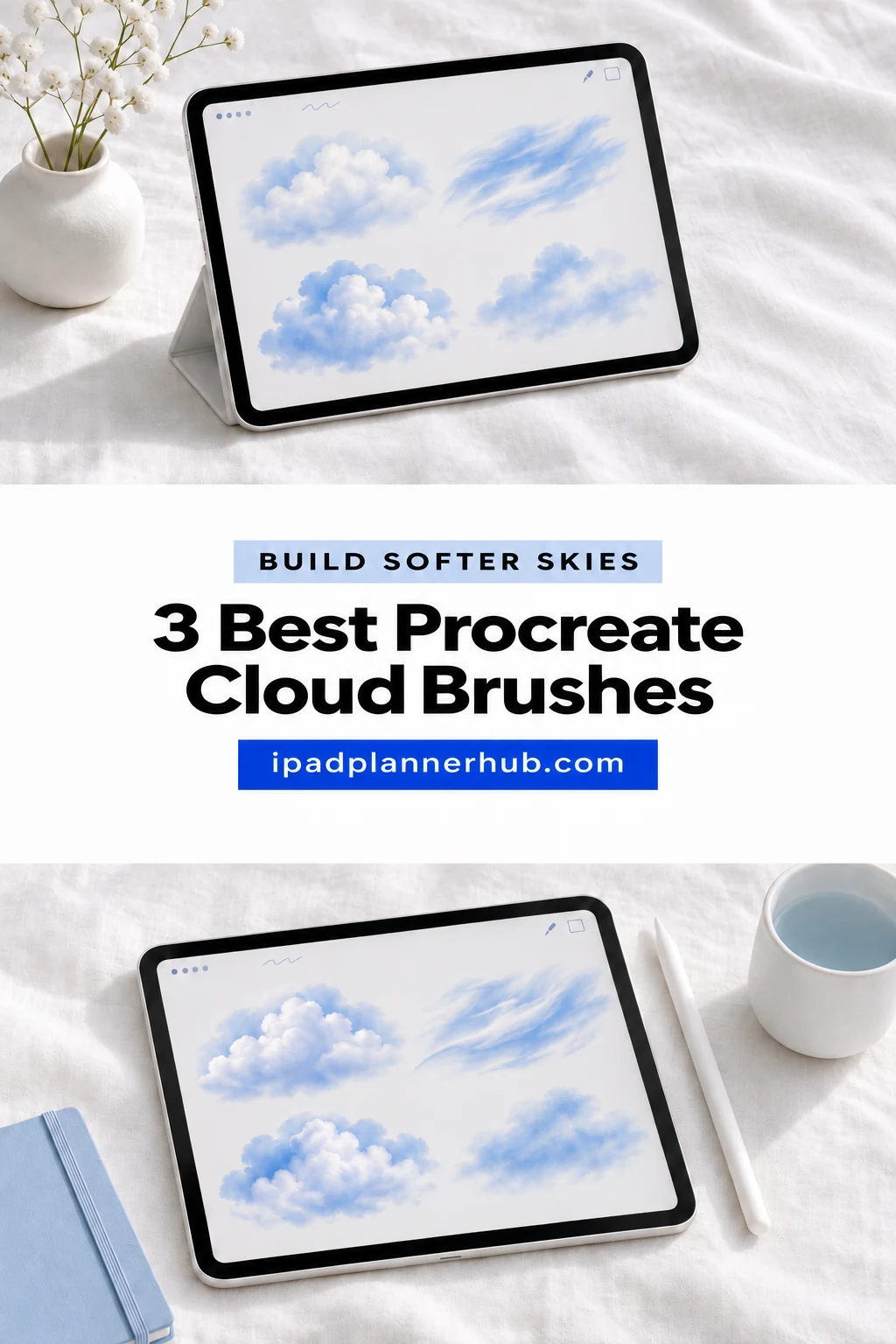
These three Procreate cloud brush sets cover those different jobs: two options for making clouds and one for decorative shade. I compared their descriptions and all 14 previews, without purchasing or testing the files. The selection focuses on visible style, stated contents and practical limits.
What kind of cloud does your page need?
A pack can look lovely in a sunset illustration and still be the wrong choice for a small planner heading. Before comparing quantities, decide what the finished mark should do. A cloud that carries the whole composition needs a different kind of detail from a barely visible shadow behind a title.
- A recognizable shape: choose stamps when you want a rounded cloud silhouette to place and arrange. SvgOcean explicitly describes its files as stamps.
- A textured sky: look at the cloud examples and how much open sky remains between the marks. Mini Trezò’s pastel samples are useful references for a quieter direction.
- A decorative surface shadow: Firefly’s previews are about soft shade. Choose it for that effect, rather than expecting a complete cloud-painting toolkit.
My order below puts the two sky options first. The shadow pack is included as a companion for iPad page decoration, with its limits stated plainly. None of these brush packs is a finished weather sticker pack for a planner app.
The 3 best sets for clouds and cloud-shaped shadows
TL;DR: SvgOcean offers varied cloud stamps. Mini Trezò Design pairs 15 cloud brushes with one sunshine brush for softer skies. Firefly Designs adds decorative cloud-shaped shadows, with no stated brush count and a file suffix to clarify before buying.
Quick Picks
- Best for varied cloud stamps: Cloud Procreate Brushes
- Best for pastel sky textures: Procreate Cloud Brushes X 16
- Best for decorative companion: Cloud Shadows Procreate Brushes
- Cloud Procreate Brushes – Best for varied cloud stamps
- Procreate Cloud Brushes X 16 – Best for pastel sky textures
- Cloud Shadows Procreate Brushes – Best decorative companion
Best for varied cloud stamps
1. Cloud Procreate Brushes
Layouts: Cartoon shapes, textured clouds and streaksFormat: .brushset
Best for: switching between rounded cartoon clouds and dramatic sky compositions. Designed by SvgOcean.
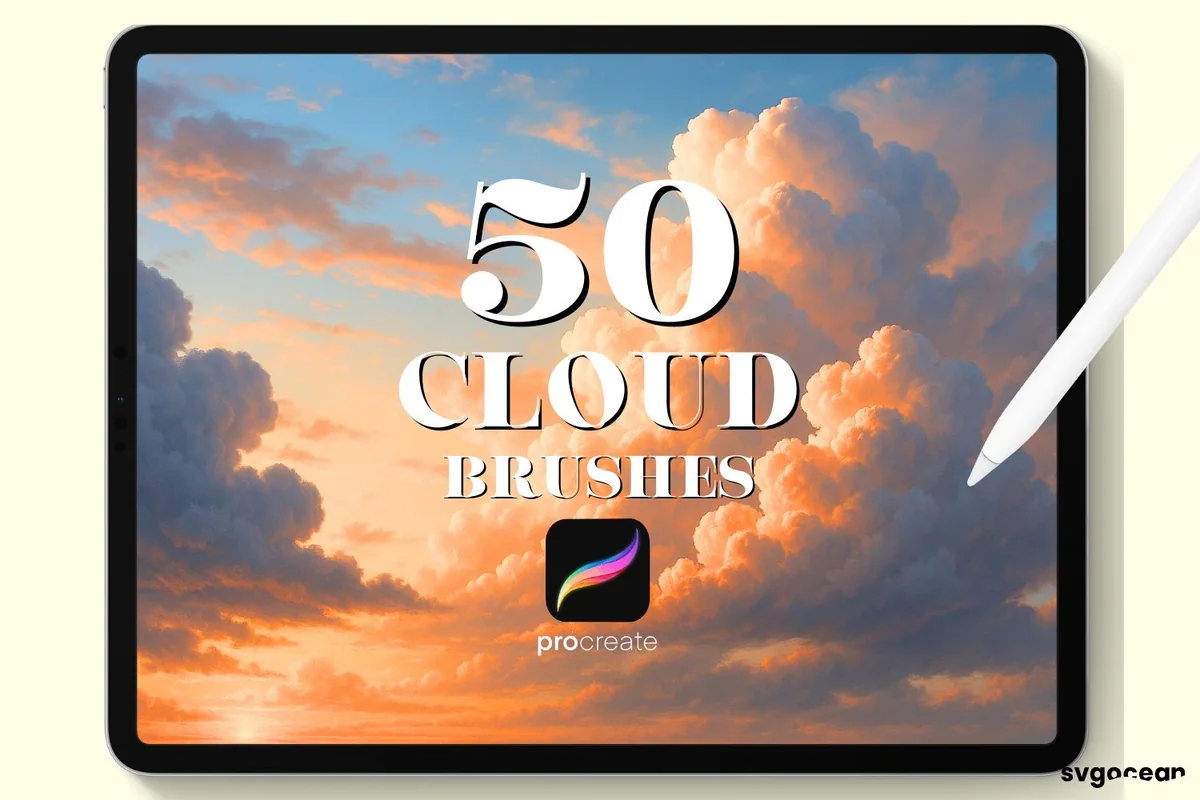
- One .brushset file; the cover advertises 50 cloud brushes
- Stamps for Procreate on iPad with Apple Pencil
- Previews show rounded cartoon shapes, textured cloud masses and thin streaks
- Color and opacity can be changed; the listing does not include a finished sky template
The range of shapes matters more to me than the headline number. Rounded cartoon clouds sit alongside broken wisps and heavier formations in the previews, making this my first pick for exploring different sky styles. Arrange the stamps and choose your own colors; the finished sunset examples do not promise a complete scene in one tap.
Best for pastel sky textures
2. Procreate Cloud Brushes X 16
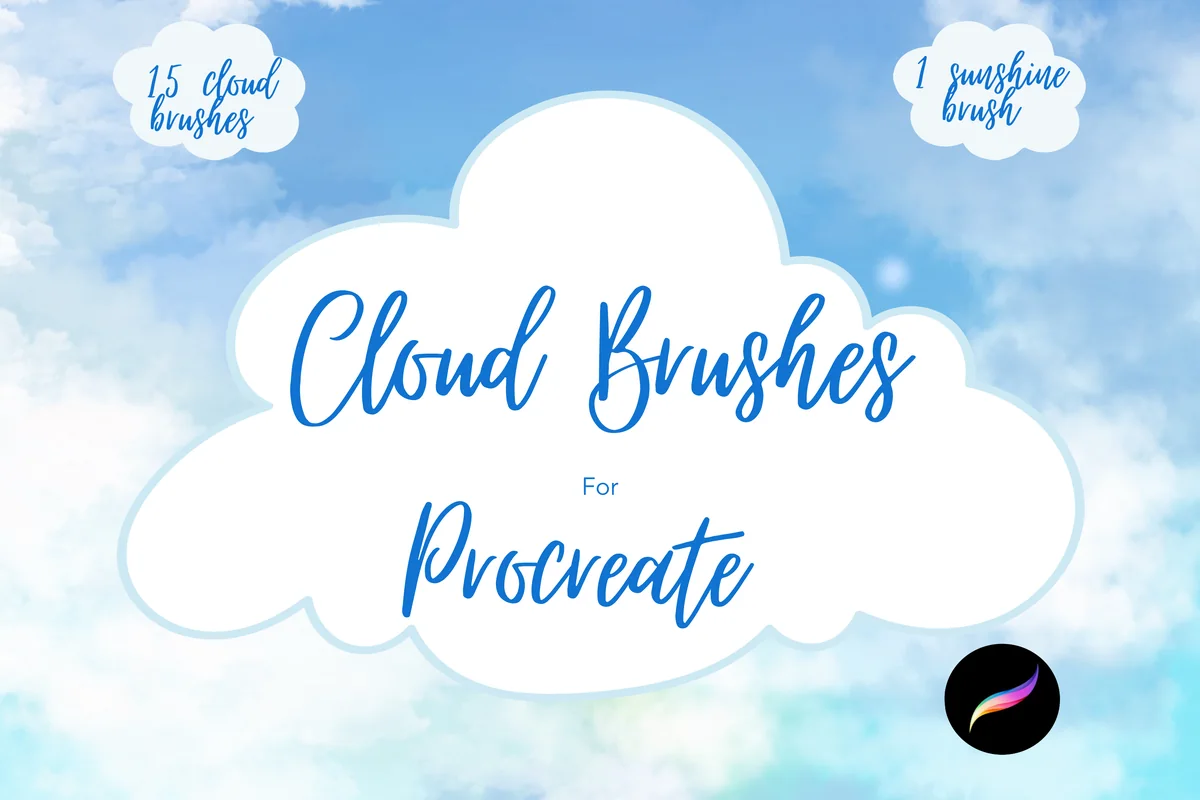
Layouts: 15 cloud brushes plus 1 sunshine brushFormat: Zipped brush files
Best for: soft cloud backgrounds with a separate sunshine accent. Designed by Mini Trezò Design.
- 15 cloud brushes plus one sunshine brush
- Examples include blue-and-white skies and a lilac-and-pink variation
- The files require unzipping; the listing specifies Procreate, Apple Pencil and iPad Pro
- The seller suggests a small amount of Gaussian blur for the sunshine brush
For a pale journal cover, this is the more focused option. Its blue and lilac examples leave a quieter impression than SvgOcean’s dramatic sunsets. The rounded display frame is not listed as an included sticker, and the 16 tools include a sunshine brush rather than 16 clouds. Check the stated iPad Pro and Apple Pencil requirements before buying.
Best decorative companion
3. Cloud Shadows Procreate Brushes
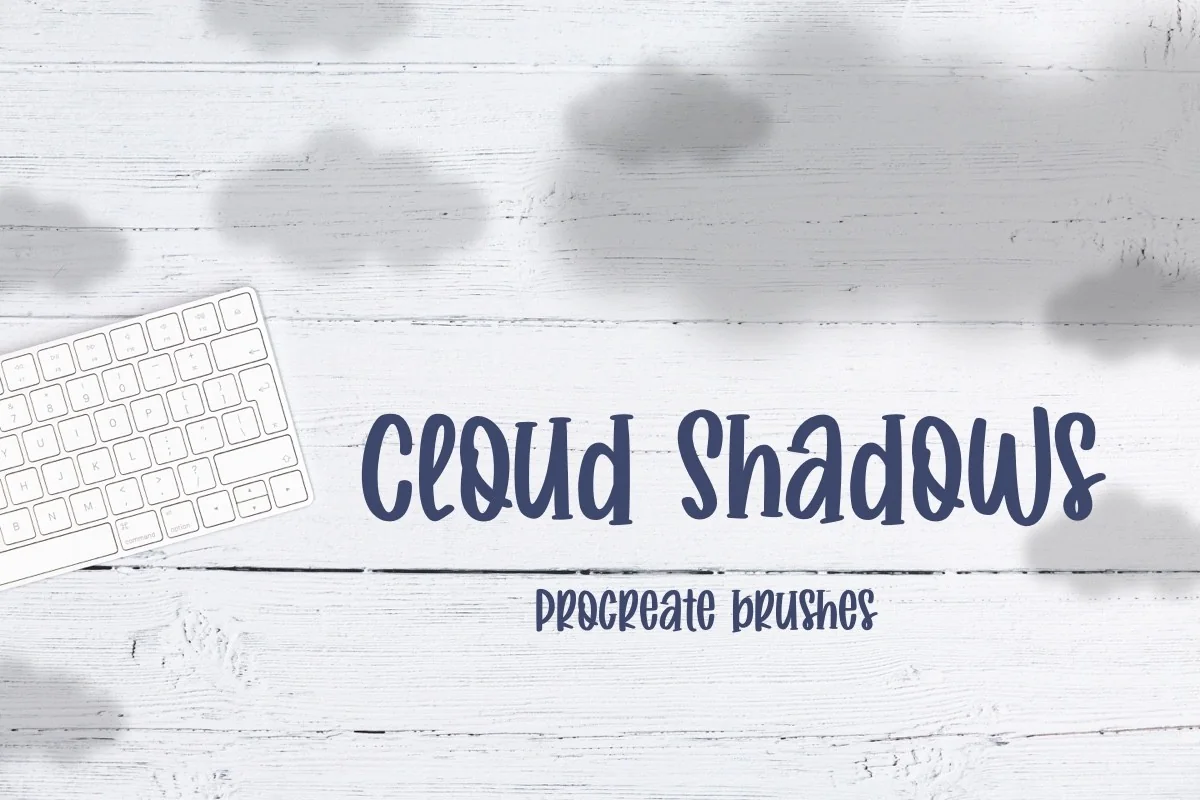
Layouts: Soft cloud-shaped shadowsFormat: Procreate; file suffix needs seller clarification
Best for: adding soft cloud-shaped shade to a page or composition. Designed by Firefly Designs.
- Procreate brushes for a cloud-shadow effect
- The main preview places soft shadows across a pale desk scene
- The second preview shows blurred gray-lilac cloud-shaped marks
- The description does not state a brush count; its file extension is written as .brushet
Soft silhouettes across a journal margin or an illustrated surface are the useful idea here. This is my decorative companion pick, rather than a kit for a full landscape. The missing brush count and unusual .brushet suffix leave packaging questions: ask the seller for the exact files if those details affect your purchase.
Quick Comparison
| Set | Role | Contents | Visual direction |
|---|---|---|---|
| 1. Cloud Procreate Brushes | Cloud stamps | Cover: 50 brushes; one .brushset | Cartoon clouds and textured skies |
| 2. Procreate Cloud Brushes X 16 | Cloud and sunshine brushes | 15 clouds + 1 sunshine | Airy pastel examples |
| 3. Cloud Shadows Procreate Brushes | Decorative shadow brushes | Count not stated | Soft surface-shadow effect |
Choose by the finished effect, not the largest number
Compare the previews with the page you actually want to make: a cloud behind a quote, a full cover background or a shadow along a margin. The visual job matters more than the size of the brush library.
- For a playful monthly cover: SvgOcean’s cartoon preview shows clear rounded shapes. That is the strongest visual starting point here for an illustrated cloud motif.
- For a pale journal background: Mini Trezò’s blue and lilac samples offer a softer direction. Leave enough empty space for a title rather than filling every corner with texture.
- For a desk-light effect: Firefly shows shadows cast across a light surface. Treat the shade as background decoration, not as a cloud you need to outline or color in.
- For a dramatic sunset: SvgOcean has relevant finished examples, but those scenes combine composition and color choices. A sample scene is not an included editable illustration.
Cloud stamp, painting brush or finished PNG?
The word “brush” can hide very different expectations. A stamp starts with a recognizable motif; a painting tool is chosen for the marks you build with it. A finished PNG is already artwork. Only SvgOcean explicitly calls its tools stamps; the other packs may behave differently.
- Stamp expectation: the main shape is already designed. Your choices are its placement, size, color and how it sits with the rest of the illustration.
- Painting expectation: you want to build up the sky with marks. Check the seller’s examples and instructions rather than assuming that a painterly preview proves pressure-sensitive behavior.
- Sticker expectation: you want finished art to place in a planner. Brush files need a drawing app; they are not interchangeable with a folder of ready-made PNG stickers.
Mini Trezò displays its sky texture inside a rounded frame. That presentation does not make the frame an included PNG sticker.
A simple plan for a sky that still has room to breathe
The following is a suggested composition exercise, not a test result for these packs. Keep it small: one background color, a few cloud marks and one place where you want the eye to rest. You can evaluate a style much more clearly on a simple page than inside a crowded finished spread.
For a storm version of this sky exercise, compare Procreate lightning brushes before adding a bolt. The comparison separates branching strikes from broader electric effects, so the accent can have a clear role alongside the clouds.
For a landscape exercise, the next decision may be the silhouette beneath the sky. Our Procreate tree brush comparison separates whole-tree stamps, woodland forms and supporting vegetation, helping you choose a foreground that suits the cloud composition.
Build the composition in three passes
- 1Reserve the quiet area. Decide where the title, quote or main subject will sit before adding clouds. Leave that region comparatively simple. For a planner cover, imagine the title already in place; for a landscape, decide whether the sky or the foreground is the focus. This gives every cloud a job instead of turning the page into a catalog of brush shapes.
- 2Choose one cloud language. Start with rounded cartoon shapes, soft texture or decorative shadow. Arrange a few large and small areas rather than repeating an identical motif evenly across the canvas. Use the previews as a style reference, not as an instruction to reproduce every color. Stop while the empty spaces still read as part of the composition.
- 3Check the whole page at a smaller view. Look for the main subject first, then the cloud shapes. If the texture competes with the title, simplify the area around it. Save an alternate version before making a strong change. The goal of this pass is readability and balance, not adding detail until every patch of sky is covered.
Keep light, cloud texture and decoration separate in your thinking
Assign each mark a purpose before choosing its color. A pale cloud, a sunshine accent and a shadow across a desk serve different roles; Firefly’s decorative shade is not a documented landscape-shading system.
- Sky color: the broad background that establishes the mood. Choose this before judging whether a white cloud is too bright.
- Cloud body: the main shape or texture. Keep its style consistent across the scene.
- Light accent: a small visual emphasis. Mini Trezò includes a sunshine brush, but the description does not promise a complete lighting system.
- Surface shadow: an effect across an object or page. Firefly’s desk preview illustrates this separate use.
For technical layer controls, the Procreate Handbook’s layer options explains masks and layer organization. Its education guide also demonstrates creating a clipping mask. Use those controls deliberately; the product previews alone do not document a specific layer workflow for any of these sets.
Three useful iPad projects for these styles
A brush purchase is easier to judge when you can name the page you want to make. These project suggestions follow the visible styles; they are not included templates. Pick one direction first, then decide whether the brush pack fills a real gap in your tools.
- A cartoon cloud cover: use the rounded style shown by SvgOcean as the visual starting point. Keep a clear center for the month or notebook name and let clouds frame it.
- A pastel quote background: take the softer blue or lilac direction shown by Mini Trezò. A calm patch behind the words will matter more than an elaborate edge.
- A softly shaded journal title: take the surface-shadow idea shown by Firefly. Keep the shadow away from small text so the decoration does not obscure what you came to read.
If you are combining clouds with flowers, the Procreate flower brush selection covers another type of motif. Keep one element dominant: a busy floral border plus a detailed sunset can make a small cover difficult to read. For color direction, see the Procreate color palette guide.
Check the files before you buy
Check each product’s device requirements and packaging before buying. Mini Trezò names specific hardware, while Firefly leaves the exact file suffix unclear.
- SvgOcean: the description specifies one .brushset file for Procreate on iPad with Apple Pencil. Its compatibility preview also names Pocket; this is a seller claim for this pack, not a claim about the other two.
- Mini Trezò: the description specifically asks for Procreate, Apple Pencil and iPad Pro, and says to unzip the files. Do not silently broaden that wording to every iPad model.
- Firefly: the description identifies Procreate on iOS and iPadOS, but spells the file suffix .brushet and gives no count. Ask about the exact files if that detail affects your decision.
For general installation help, use the official brush importing guide and Brush Libraries handbook. Both describe importing brush files. Seller-specific packaging still needs to match what you receive; a general import guide cannot resolve a typo in a product description.
Import a brush file without guessing at the package
The official guide gives the following import route through Procreate’s Brushes interface. It applies to supported brush files; ask the seller about unexpected packaging rather than renaming files to force an import.
Find the file, then import it
- 1Check the files you received. Follow the seller’s unpacking instructions if the product arrives zipped. Mini Trezò explicitly mentions that step. Keep the original archive while you check the files. An image used to advertise the brushes is not the brush file you need to import.
- 2Use Import from Files. In Procreate, open Brushes using Paint, Smudge or Erase, then use the add button and choose Import from Files. Select the brush file in Files. The official guide lists .brush, .brushset and .brushlibrary as Procreate formats; the current library handbook also documents importing from Files.
- 3Check the imported set. Find the imported brushes in the library before starting your actual cover or illustration. Compare the contents with the product description. If a file fails to import or its suffix is unexpected, contact the seller with the exact filename rather than assuming that another pack’s installation instructions apply.
When a cloud pack is the wrong purchase
These sets suit making your own artwork. If you need finished stickers, a complete landscape lesson or an editable copy of a preview, check for those contents separately before buying.
- You need finished weather icons: brush tools add an art-making step. Check for a finished image product instead of treating a brush library as a sticker folder.
- You need a complete sunset recipe: look for explicit instructions or a tutorial in the contents. The colorful sky previews here are not proof that a lesson is included.
- You need a guaranteed file count: Mini Trezò states 15 clouds plus one sunshine brush. SvgOcean’s 50 is on the cover; Firefly gives no count. Keep those different levels of detail separate.
- You need guaranteed performance: these are public-listing comparisons. I cannot promise speed, pressure response or the exact appearance of a mark without a purchased-file test.
FAQ: Procreate cloud brushes
Which set would you choose first?
SvgOcean is my first pick for variety: its previews cover both cartoon shapes and textured sky scenes. For an already-decided pastel direction, Mini Trezò is the closer visual match. Firefly is the companion for decorative shade rather than my first sky-building purchase.
Does Procreate Cloud Brushes X 16 contain 16 clouds?
No. The description and cover divide the contents into 15 cloud brushes and one sunshine brush. The total is 16 tools, with two different roles. That is useful if you want the sunshine accent, but it should not be described as 16 cloud shapes.
Are Cloud Shadows brushes suitable for painting a full sky?
They are a decorative companion. The previews show soft cloud-shaped shadows on a light surface and as blurred marks. Choose this pack for decorative shading; the listing does not establish a full sky-painting collection.
Can I import these straight into GoodNotes?
These are sold as Procreate brushes, not GoodNotes sticker files. Do not buy them expecting a brush library to become a finished planner sticker automatically. Make sure the drawing step fits how you want to decorate your pages.
Do all three packs support Procreate Pocket?
Pocket support is not stated for all three. SvgOcean’s compatibility preview names Pocket as well as Procreate on iPad. The other listings use different wording, including Mini Trezò’s specific iPad Pro requirement. Verify the individual product rather than extending one seller’s claim across the selection.
Have these brushes been tested on an iPad?
No. This comparison uses descriptions and preview images, so it does not rank brush feel, speed or pressure response.
Start with one clear sky style
The best Procreate cloud brushes for your next page are the ones that match its job: varied stamps for recognizable shapes, softer brushes for a pastel sky, or a decorative shadow for a quiet surface effect. Choose the style first and the quantity second. A small, readable composition is a better starting point than trying to use every brush at once.
You May Also Like
This article contains affiliate links. If you buy through them, I may earn a commission at no extra cost to you. Read the affiliate disclosure.