A bill can be on your calendar, scheduled at the bank and still waiting to clear. My starting point for bill tracker ideas is to give those stages different marks. A page becomes much more useful when its checkboxes answer a specific question instead of simply looking complete.

Below are 20 layouts for due dates, recurring bills and payment follow-ups, followed by seven iPad planners. You can draw the ideas in a notebook you already own. The files offer different starting pages; buying one is optional, and none of these files pays a bill for you.
Start with a bill record you can trust
Before choosing a layout, gather your current statements and recurring-payment notices. The CFPB’s bill calendar guidance uses a calendar to make payment timing visible. For a digital version, start with those details and add a status field.
- Bill: a recognizable provider or service name, without full account details.
- Due date: the date on the current statement, including the month.
- Amount: the billed amount, or an explicitly labeled estimate until the statement arrives.
- Payment route: manual or automatic, with a short account nickname if needed.
- Status: to arrange, scheduled, pending or verified paid, using your own written key.
- Evidence: a confirmation reference or a note pointing to the statement you checked.
Keep the due date separate from the date you intend to initiate payment. Processing times depend on the provider and payment method, so check those instructions rather than copying a universal buffer from a template. Keep the final paid mark for a transaction you have checked.
20 bill tracker ideas, grouped by the question they answer
Use one main view and add only the supporting page you need. If you maintain a calendar, a master list and an annual grid, decide which holds the current amount and status. Otherwise, three neat pages can quietly become three different versions of the same bill.
See what is due next
- 1Monthly bill checklist. Use bill, due date, amount and status columns. Put one payment obligation on each row, leaving a final column for the date you checked it. This simple layout suits a short, mostly stable bill list; copy the names next month, then verify dates and amounts again.
- 2Bill payment calendar. Write each bill inside its due-date box and add a separate action date when necessary. Keep long details in a numbered side list so the calendar stays readable. A dense week becomes visible without turning the whole page into tiny handwriting.
- 3Due-date order list. Sort bills from the earliest deadline to the latest. Include the month beside dates near a month boundary, and put undated items in a clearly labeled waiting area. This gives your next review a starting point without implying which obligation deserves financial priority.
- 4Weekly payment queue. Make a short list of payments requiring action before your next check-in. Pull entries from the master record instead of copying every monthly bill. Add a next-action note such as “check statement” or “verify scheduled date,” so the queue stays specific.
- 5Household responsibility columns. Add an owner and a checked-by field to each bill. Agree who updates the shared record and when; an assigned name alone does not prove payment. If household members keep separate notebooks, designate one shared status record to avoid conflicting checkmarks.
Separate the plan from the payment
- 6Autopay confirmation list. Record the expected debit date, whether the amount is fixed or variable, and the date you verified the transaction. Leave the final check empty until you have evidence. An automatic-payment setting and a completed payment are different pieces of information.
- 7Manual-payment action strip. Give each manual bill three small fields: arrange, submit and verify. A submitted payment can stay marked pending until the account or provider record supports closing it. This layout is useful when the act of pressing pay feels like the end of the task.
- 8Payment-method legend. Use short labels such as BANK-A, CARD-B and MANUAL beside the bill. Put the key in the page margin and avoid recording full card or account numbers. When a payment route changes, update the master record and check any separate scheduled-payment instructions.
- 9Paid-date history. Keep a narrow log of the date, bill name, amount and verification note after payment. This is a record of completed activity, separate from your upcoming queue. Include the year in the page title so an old entry cannot be mistaken for this month’s payment.
- 10Confirmation-reference log. Add a short reference next to the transaction it supports, plus where to find the full receipt. Keep passwords and security answers elsewhere. The purpose is to locate evidence quickly if a question arises, not to collect sensitive account information in one planner.
For automatic debits, the CFPB explains the difference between a company taking payment from your account and your bank sending bill payments. Its automatic-payment guidance also stresses monitoring payment timing and account funds. Record the date of your last check beside the autopay entry.
Keep irregular dates visible
- 11Annual payment matrix. Put bills down the left and months across the top. Write the expected due month or date in each relevant cell, then use a separate mark for verified payment. Empty cells should mean “not due” only if that is written in your key.
- 12Quarterly renewal timeline. Divide the year into four blocks and list obligations that recur less often than monthly. Keep the actual next due date beside each item. A quarter is a useful overview label, but it is too broad to replace the provider’s deadline.
- 13Subscription renewal list. Record the service, renewal date, billing period and current status. A monthly charge and an annual renewal should look different on the page. Keep this focused on payment timing; a full keep-or-cancel audit needs more information about use and terms.
- 14Annual premium due list. Keep infrequent insurance payment dates together with the provider name and statement location. Confirm the billing schedule from your own documents rather than assuming all policies renew yearly. This page records the schedule, not a recommendation about insurance coverage.
- 15Canceled-service follow-up. Note when you requested cancellation, the confirmation reference and the next statement to check. Keep the item in follow-up until you have checked the relevant billing record. A line through a service name in your planner does not cancel its agreement.
Find exceptions before closing the month
- 16Expected-versus-billed amount. Put your estimate and the actual statement amount in separate columns. When the statement arrives, replace uncertainty with a dated note rather than silently overwriting the estimate. This makes a changed bill easier to investigate without treating every difference as an error.
- 17Variable utility record. Keep the statement period, amount and due date on one row, with an optional usage note from the statement. Compare like periods only when that comparison makes sense. The tracker can flag a question for the provider; it cannot explain a price or usage change by itself.
- 18Paperless-statement checklist. List the providers whose statements you expect to receive or retrieve each month. Check the statement when found, then update the bill record. Use a different mark for payment so “statement received” never looks like “bill paid.”
- 19Missing-statement follow-up. Give a missing bill its own row with the last checked date and next contact action. Write “amount not yet known” instead of zero. Keep the obligation visible while you check the provider’s records; absence from your inbox is not evidence that nothing is due.
- 20Month-end unresolved list. Carry open items into a short handover page with bill name, status, last action and next check date. Link back to the original record rather than creating another payment obligation. Close an item only when the evidence supports doing so.
Try simple bill tracker ideas in a digital bullet journal
For bullet journal bill tracker ideas, adapt the checklist or calendar above on a blank page in your iPad notebook. Draw the columns with your annotation app’s pen tool and keep the status key beside them. Your supplies can stay limited to the tools you already use; planner stickers can mark a coming due date, while written labels explain its status.
Use a monthly page when you need room for changing amounts and follow-up notes. Choose the annual matrix when recurring dates stay stable, and record changes in a dated note rather than relying on last month’s checkmark. Review the next seven days at the start of each week so the page helps you organize upcoming actions.
Give each bill a recognizable title
Label rows with names you recognize, such as “Home internet,” “Electricity,” “Water” or “Phone plan.” If two people in your family have separate phone bills, add a first name or short nickname to distinguish them. Keep those labels consistent in the calendar and payment log so you can find the same bill in both views.
Connect expense tracker ideas to the bill record
Keep an expense tracker beside the due-date page when you want to review spending as well as payment timing. Record the purchase date, category, amount and payment method there, then use the bill record to follow the payment due. For example, log individual shopping purchases in the spending view and track the card statement’s due date separately; do not count both as new spending.
Compare actual spending with the amounts assigned in your weekly budget when you review these pages. This money management check serves a different purpose from marking a bill paid: it shows where your recorded expenses differ from your plan. Keep income and allocation figures in the budget view, and carry only the next payment action into the bill checklist.
Make the status key do real work
I prefer words before colors. Write the meaning of each status beside the month’s name, then add color as a second cue. That keeps the record understandable in a monochrome export or when you return to it weeks later.
- To arrange: payment still needs an action.
- Scheduled: an instruction exists for a future date; check the actual instruction.
- Pending: you are waiting for the relevant transaction or provider record to update.
- Verified paid: you checked evidence and recorded the date of that check.
- Follow-up: something remains unresolved; include the next action in words.
For an illustrative example, imagine an internet bill for $60 due on the 18th. If you arrange payment on the 12th for a later date, the row is scheduled, not verified paid. When you check the relevant payment record, update its status and verification date. Use your own statement dates and amounts when you build the page.
Seven iPad planners for different bill-tracking approaches
The first option is devoted to bills; the next five contain relevant bill records within broader planners. The last is a calendar-based alternative you adapt yourself. I compared the listings and their preview images; the paid files themselves were outside this review. The two listings with limited interior imagery are identified below.
TL;DR: Choose a dedicated bill notebook for separate payment records, a budget planner for broader money pages, or the final calendar option for a layout you draw yourself. The 20 ideas above are setups to adapt, not sections included in every file.
Quick Picks
- Best for dedicated bill records: Hyperlinked Bill Tracker Planner
- Best for bills beside a full budget: Digital Budget Planner, Financial Planner
- Best for a compact bills section: Budget Digital Planner Hyperlinked Tabs
- Best for a small annual checklist: Simple Savings Planner, Digital Planner
- Best for annual bill context: Digital Budget Planner, Finance Tracker
- Best for bills beside everyday plans: All-in-One Digital Planner ( 112 Pages )
- Hyperlinked Bill Tracker Planner – Best for dedicated bill records
- Digital Budget Planner, Financial Planner – Best for bills beside a full budget
- Budget Digital Planner Hyperlinked Tabs – Best for a compact bills section
- Simple Savings Planner, Digital Planner – Best for a small annual checklist
- Digital Budget Planner, Finance Tracker – Best for annual bill context
- All-in-One Digital Planner ( 112 Pages ) – Best for bills beside everyday plans
- Undated Budget Planner for GoodNotes – Best for a calendar you adapt
Best for dedicated bill records
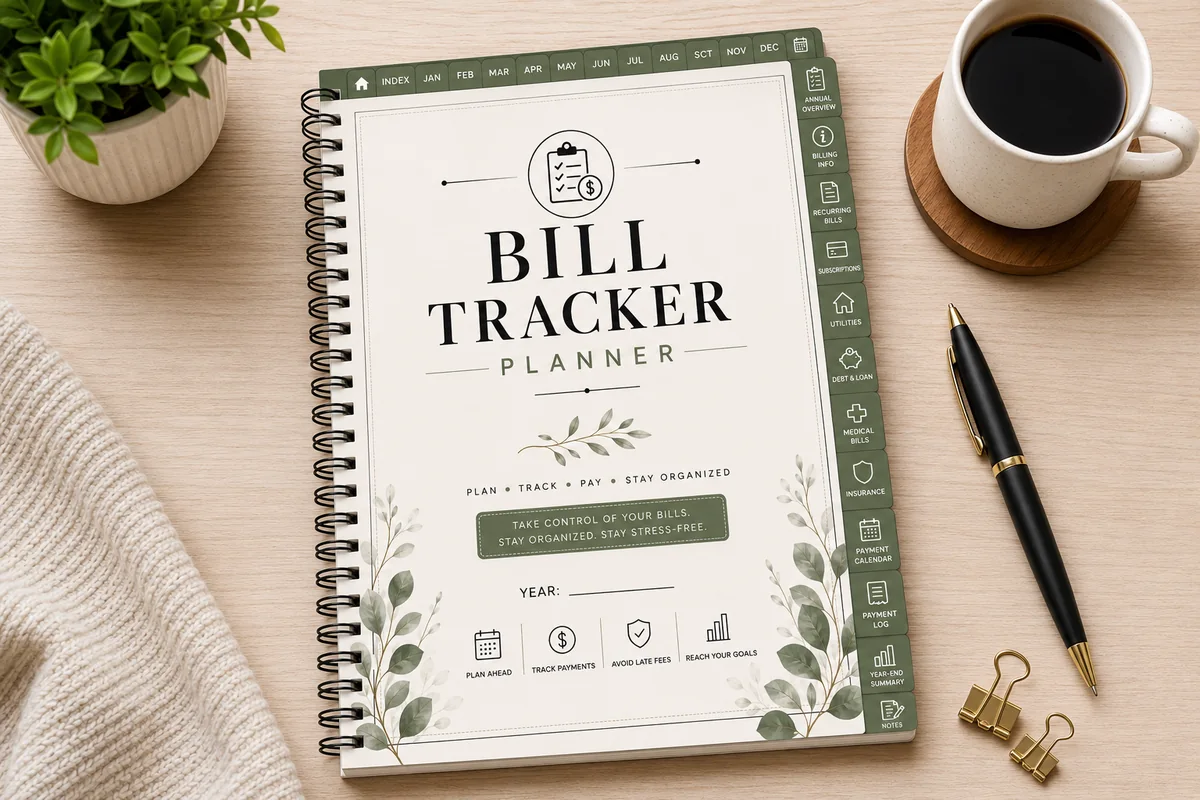
1. Hyperlinked Bill Tracker Planner
Orientation: Portrait A4Layouts: Monthly and annual bill recordsFormat: Hyperlinked PDFDates: Undated
Best for: households wanting separate bill and payment sections. Designed by Azhir.
- Seller lists a 52-page undated, portrait A4 hyperlinked PDF
- Monthly bill trackers and payment summaries, recurring bills and subscriptions
- Utility, insurance and medical bill records, payment calendar and payment log
- Requires a PDF annotation app; Goodnotes, Notability and Noteshelf are listed
This is the most focused option: its listed sections separate recurring commitments from payment history. I like that distinction for a household with several bill types. Only a cover preview is available, so the interior section list comes from the seller description; the exact columns are not shown. Choose it for that dedicated structure, and ask the seller about any field you specifically need.

Best for bills beside a full budget
2. Digital Budget Planner, Financial Planner
Orientation: PortraitLayouts: Monthly and biweeklyFormat: Hyperlinked PDFDates: Undated calendar
Best for: keeping bill rows alongside other monthly money records. Designed by ThePlannersDelight.
- 200+ page hyperlinked PDF with a bill tracker for each month
- Undated calendar, monthly and biweekly budget pages, daily spending logs
- Savings, debt and sinking-fund records plus matching PNG stickers
- GoodNotes, Noteshelf or Notability on an Apple tablet; seller preview specifies a writable stylus such as Apple Pencil
The bill tracker appears in the public interior previews, alongside cash envelopes and a debt tracker. That makes it a practical choice when a payment question leads straight to the rest of your budget. It is a substantial planner: someone who only needs five monthly checkboxes may prefer a smaller file. The stylus, tablet and annotation app are separate from the planner.
Best for a compact bills section
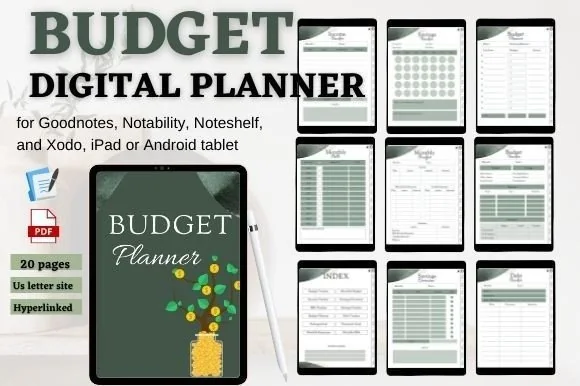
3. Budget Digital Planner Hyperlinked Tabs
Orientation: Portrait US LetterLayouts: 20 pagesFormat: Hyperlinked PDFDates: No fixed year visible
Best for: a small finance planner with ready-made bills pages. Designed by mixxdigitaldesign.
- 20-page US Letter hyperlinked planner with index and tabs
- Bills Tracker and Monthly Bills are listed and shown in previews
- Monthly budget, income, savings, debt and notes sections
- For Goodnotes, Notability, Noteshelf or Xodo on iPad; also printable
The green bills pages offer a middle ground between a single checklist and a large household workbook. Keep due dates on the bills page and reserve notes for exceptions, rather than squeezing every follow-up into one cell. Its 20-page format suits readers who want ready-made bills sections with a smaller set of surrounding finance pages.
Best for a small annual checklist
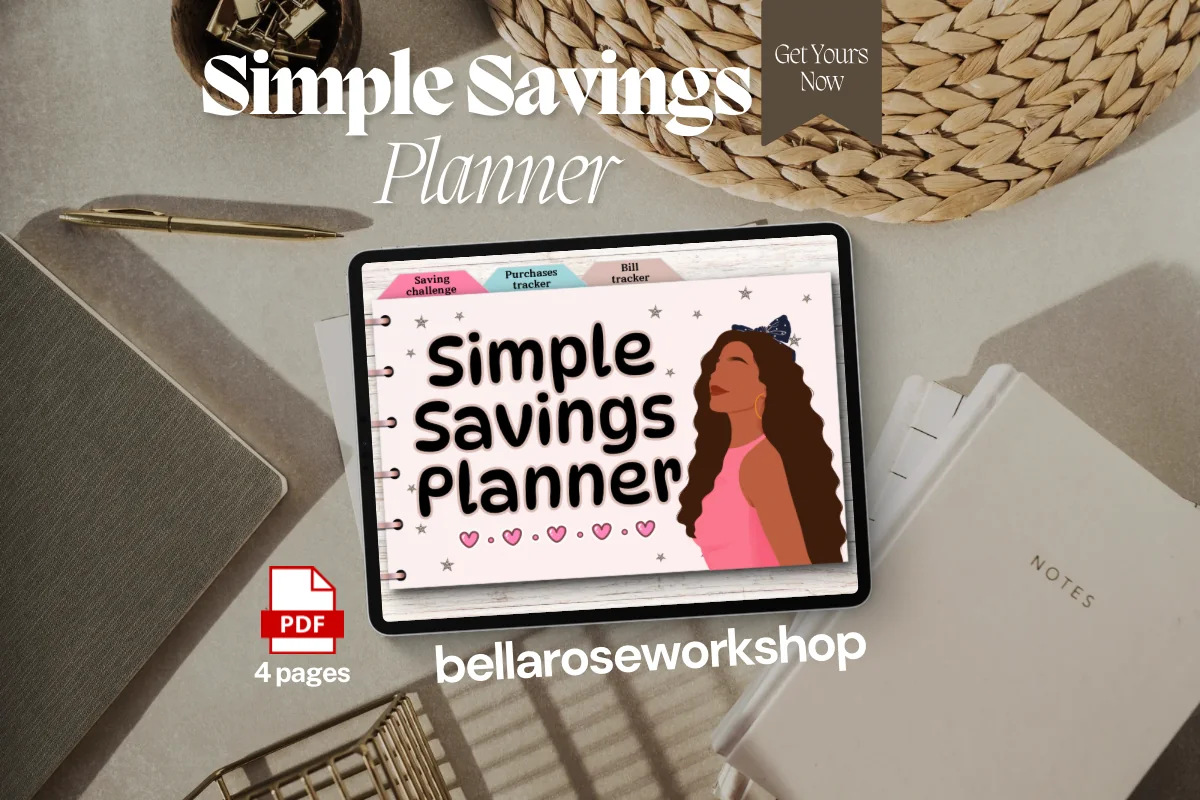
4. Simple Savings Planner, Digital Planner
Orientation: LandscapeLayouts: Four pagesFormat: Hyperlinked PDFDates: Month labels without a fixed year
Best for: a short PDF with bills, purchases and savings together. Designed by bellaROSEworkshop.
- Four-page hyperlinked PDF shown in public previews
- Bill tracker with bill, due date and amount columns plus numbered month checkboxes
- Saving challenge with monthly deposit, balance and notes; purchases tracker
- Digital-use PDF for apps such as GoodNotes and Notability; personal use only
The bill table is the reason to choose this small file: one row per bill and a run of month checkboxes. Give each checkbox one meaning, such as verified paid, and keep scheduled payments in a separate note. The seller calls this a non-editable PDF, so treat it as an annotation surface rather than a design template you can rearrange.
Best for annual bill context
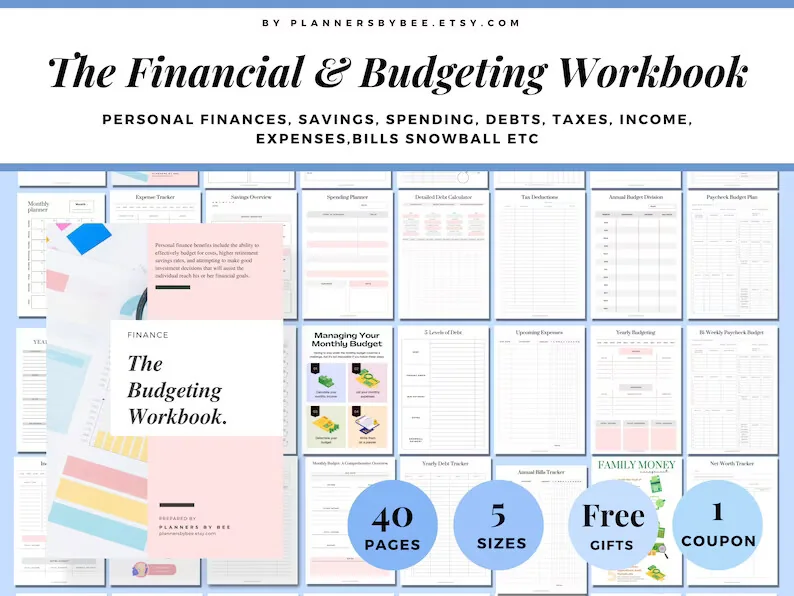
5. Digital Budget Planner, Finance Tracker
Orientation: Portrait shownLayouts: 40 pages advertisedFormat: Digital workbook
Best for: seeing bill records as part of a wider financial workbook. Designed by PlannersByBee.
- GoodNotes financial workbook named in the listing
- 40 pages and five sizes advertised on the cover
- Annual Bill Tracker, Upcoming Expenses and Monthly Planner shown in the overview
- Portrait pages shown; exact interior columns are not clear in the single preview
The annual bill tracker is the relevant part of this broader workbook. It could suit someone who wants annual obligations beside other financial records rather than in a standalone bill notebook. The single promotional image does not let me assess every interior column or hyperlink. Ask the seller for a closer view if a specific field or navigation feature is essential.
Best for bills beside everyday plans
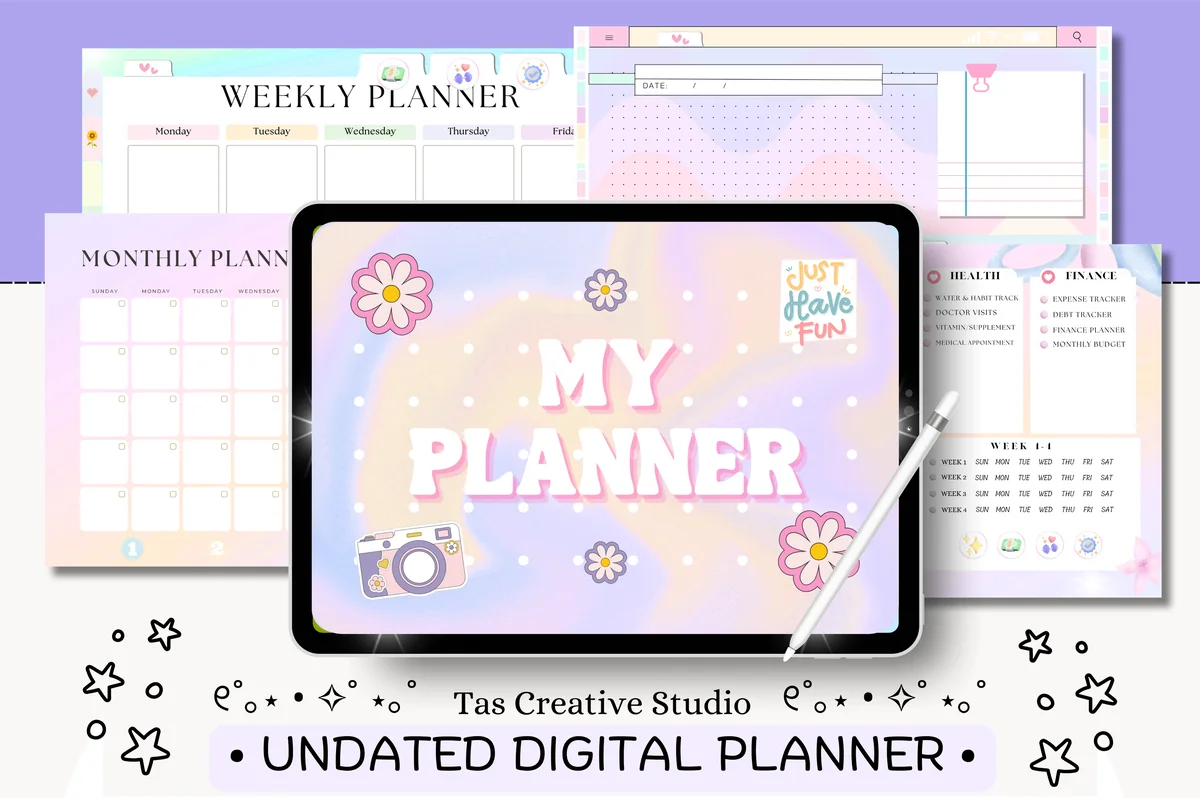
6. All-in-One Digital Planner ( 112 Pages )
Orientation: LandscapeLayouts: 112 pages advertisedFormat: Hyperlinked PDFDates: Undated
Best for: putting a payment checklist next to a personal calendar. Designed by Tas Creative Studio.
- 112-page horizontal hyperlinked PDF; seller describes an undated planner
- Public finance preview shows a Bills Payment table with due date, bill, amount and paid columns
- Daily, weekly and monthly planning plus finance and notes sections
- GoodNotes, Notability, Noteshelf and Xodo are among the listed apps
A Bills Payment table sits inside this colorful general planner. I like the connection for someone who already checks daily pages: the payment list can live in the same notebook. Its many nonfinancial sections make it less direct than the dedicated bill file. Choose it when you want to combine everyday planning with a simple payment checklist.
Best for a calendar you adapt
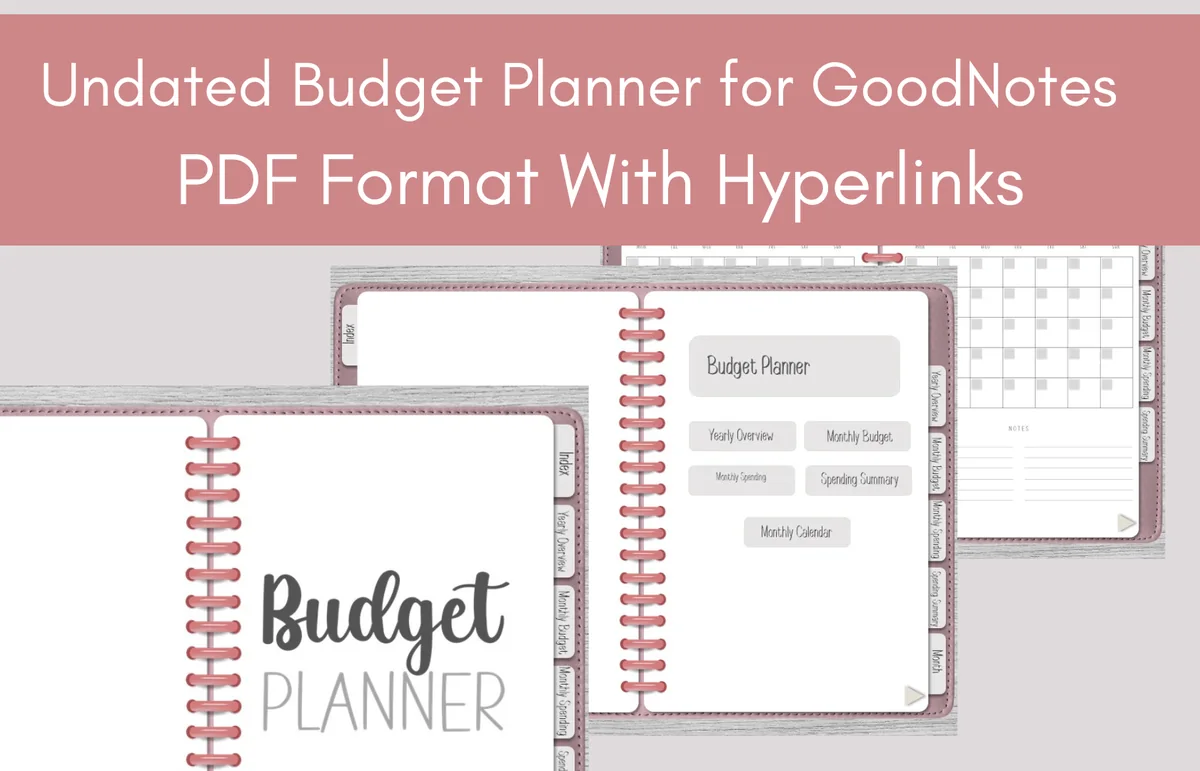
7. Undated Budget Planner for GoodNotes
Orientation: LandscapeLayouts: 30 slides listedFormat: Hyperlinked PDFDates: Undated
Best for: drawing your own due-date layer on a monthly calendar. Designed by Perla Designs.
- Hyperlinked PDF for GoodNotes; listing says 30 slides
- Previews show an undated monthly calendar, yearly overview and spending summary
- Monthly budget and monthly spending sections visible in the index
- Bill-status columns must be added by the reader
The final option is for drawing your own bill view. Use its monthly calendar for due dates and add a short status key in the notes area. The previews show a pink spiral-notebook style and a landscape layout. Choose it for that calendar approach; a dedicated recurring-bills section is not established by the listing.
Quick Comparison
| Planner | Tracking role | Useful page | Important limit |
|---|---|---|---|
| 1. Hyperlinked Bill Tracker Planner | Dedicated bills | Calendar and payment log | Only cover preview available |
| 2. Digital Budget Planner, Financial Planner | Full budget context | Monthly bill tracker | Larger file; tablet and stylus separate |
| 3. Budget Digital Planner Hyperlinked Tabs | Compact finance file | Bills Tracker and Monthly Bills | Manual entries and calculations |
| 4. Simple Savings Planner, Digital Planner | Short checklist | Bill rows with month checks | Not an editable design template |
| 5. Digital Budget Planner, Finance Tracker | Annual perspective | Annual Bill Tracker | Interior details not fully shown |
| 6. All-in-One Digital Planner ( 112 Pages ) | Everyday planning | Bills Payment table | Many unrelated planning sections |
| 7. Undated Budget Planner for GoodNotes | Manual calendar setup | Undated monthly calendar | Add bill tracking fields yourself |
Set up one working page before adding more
Start with a small set of real bills and see whether the page answers your next-action question. Before filling a whole year, check how your annotation app switches between writing on the page and following its links.
A first-page setup sequence
- 1Choose the main view. Use a checklist when you need a compact list, a calendar when timing matters most, or a matrix for recurring months. Resist maintaining all three until one page is working reliably.
- 2Label the period and key. Add the month and year, explain every checkbox, and distinguish an unknown amount from a known zero. Put the status key where it remains visible when you zoom out.
- 3Enter current statement details. Copy bill names, due dates and amounts from the relevant records. Mark estimates openly and keep full account identifiers out of the planner. Add a location note if you need to find the statement later.
- 4Add the next review action. Choose when you will check the page again and record that reminder in a tool that can actually alert you. A PDF entry alone is not a notification or a scheduled bank instruction.
- 5Close with evidence. Review open rows, verify completed payments and carry unresolved items forward with their next action. Keep the original reference so a carried-over item does not look like a second bill.
Keep bill tracking separate from budget allocation
A bill tracker answers what is due and what happened to the payment. A budget decides how money is assigned. If you need to connect bill dates to two paychecks, the worked approach in our biweekly budget templates guide handles that separate planning task.
- Choose a bill PDF when handwriting, a calendar and manual status checks suit your workflow.
- Choose an app with the specific alert features you need when reminders are essential. Check its actual functions and privacy settings rather than assuming all finance apps behave alike.
- Keep the bank or provider record authoritative for the transaction. The planner is a personal organizing layer.
- Expand only when useful: the budget planner ideas guide covers broader income and spending layouts, while our digital budget planner comparison helps choose a fuller finance notebook.
FAQ: choosing and maintaining a bill tracker
What is a good bill tracker?
A good one makes the next action clear. Start with bill name, due date, amount and a defined payment status, then add only the fields you actually review. A decorative page is optional; an unexplained checkbox is the bigger problem.
How do I keep track of monthly bills on an iPad?
Use a PDF annotation app and a bill page or a calendar you label yourself. Enter current details, keep a status key and revisit open entries. Set reminders separately if you need alerts, and verify transactions against the relevant payment records.
Can I make a free bill tracker in a notebook I already own?
Yes. Draw bill, due date, amount and status columns on a blank page, or annotate an existing monthly calendar. The 20 layouts above are instructions you can adapt; they are not a separate included template file. You do not need a paid planner to begin.
Does a hyperlinked PDF send payment reminders?
These listings describe pages and navigation, not bank connections or automatic reminders. Hyperlinks move between parts of a file. Use a separate reminder tool if needed, and check its settings; writing an event on a PDF calendar does not create a system alert.
Should I check off an autopay bill before the debit happens?
Use separate marks for the scheduled instruction and verified payment. Keep the final paid check for the evidence you have reviewed, and record the check date. That avoids making a future automatic debit look like a completed transaction.
Is this safe for sensitive information, and when should I seek help?
Keep passwords, security answers and full account or card numbers out of the tracker. Review your device and sharing settings before keeping financial records in an app. If paying a bill is difficult or a charge is disputed, contact the provider or a qualified adviser for your situation; a planner is an organizing tool, not personalized financial or legal advice.
Give the next bill one clear next action
The most useful bill tracker ideas leave you knowing what to check next: a due date, an instruction, a transaction or an unanswered question. Choose one layout, write its status key and keep it current before adding another view. A short page you understand is easier to maintain than a detailed system with ambiguous checkmarks.
You May Also Like
This article contains affiliate links. If you buy through them, I may earn a commission at no extra cost to you. Read the affiliate disclosure.